

Key Takeaways
iPhone Security Delay protects certain account and device changes through Stolen Device Protection. You verify with Face ID or Touch ID, wait one hour, then verify again. The delay applies away from familiar locations, or everywhere with Always selected. Afterward, you must still finish the change.
A security delay can interrupt a password change even when you have your iPhone. This guide explains the wait and how to complete your change safely.
Part 1: What iPhone Security Delay Protects
Before you try to remove the delay, check what triggered it. A planned password update, a failed face scan, and a request to recover a lost account call for different next steps.
Why knowing your passcode is not enough
Someone who steals your iPhone might also know its passcode. Without extra checks, that person could try to change settings that help you keep control of your account.
Stolen Device Protection adds another check for sensitive actions. Biometric authentication means using your face or fingerprint to confirm your identity. For protected actions that require it, your passcode cannot replace that check.
The waiting period adds time between the first identity check and permission to make certain changes. That time gives you a chance to respond if the phone is stolen. Seeing the prompt during your own password update does not, by itself, mean someone has accessed your account.
Apple introduced Stolen Device Protection in iOS 17.3. The option to extend its safeguards to all locations arrived in iOS 17.4. If an older guide shows fewer choices than your phone, its screenshots may reflect an earlier software version.
Which changes can require a security delay?
The delay covers changes that could affect control of your iPhone or Apple Account. The table groups common examples so you can identify why a prompt appeared.
| Type of change | Examples that can require a delay |
|---|---|
| Passwords and passcodes | Changing your Apple Account password or iPhone passcode |
| Account access | Signing out or changing trusted devices and account recovery settings |
| Face or fingerprint access | Adding or removing Face ID or Touch ID |
| Device settings | Using Reset All Settings or enrolling in mobile device management |
| Theft protection | Turning off Stolen Device Protection |
Mobile device management lets an organization manage device settings. It is relevant if you are setting up a work or school phone.
A face scan does not always mean an hour-long wait. Some protected actions, such as viewing saved passwords, require biometric approval without the extra delay. Read the actual prompt before deciding which process applies.
Check these details before you begin
For Stolen Device Protection, Apple requires a device passcode, Face ID or Touch ID, two-factor authentication, Find My, and the required location settings. Two-factor authentication adds verification when you sign in, usually through a trusted device or phone number.
For a change you are making now, keep this short checklist in mind:
- Confirm the action. Know whether you are changing a password, signing out, or adjusting another setting.
- Have the phone available. Plan time for the wait and the final identity check.
- Keep it charged. Avoid starting a time-sensitive account change with a nearly empty battery.
- Read the entire message. Check whether it names Security Delay or account recovery.
Find My cannot be turned off while Stolen Device Protection remains enabled. For a password update, leave protection on and complete the checks for that change.
Before a store visit or phone trade-in, check that you know your Apple Account password. Leave time to resolve account access at home so the handoff does not depend on a last-minute password reset.
Part 2: How to Complete Your Account Change
The most direct route is to follow the delay on your own iPhone and return to finish the requested change. First, identify the setting you want to update. Avoid starting unrelated resets while you wait.
1. Complete the security delay and finish the change
Use this route when you have your iPhone, can use Face ID or Touch ID, and want to make a protected change. Changing your Apple Account password is a common example.
- Step 1: Open the password setting. Go to Settings > [your name] > Sign-In & Security > Change Password. For another task, open the setting you intended to change.
- Step 2: Read the security prompt. Check what action is being delayed. If the screen offers Start Security Delay, use it to begin the required process.
- Step 3: Complete the first identity check. Follow the Face ID or Touch ID prompt. Merely opening the warning does not mean you have finished the steps needed to start waiting.
- Step 4: Allow the displayed wait to finish. Keep track of the time shown on your phone rather than estimating from when you first opened Settings.
- Step 5: Return to the requested change. Follow the next onscreen instruction and complete the second Face ID or Touch ID check.
- Step 6: Save the change. For a password update, enter and confirm the new password as directed. Follow any further account prompts.
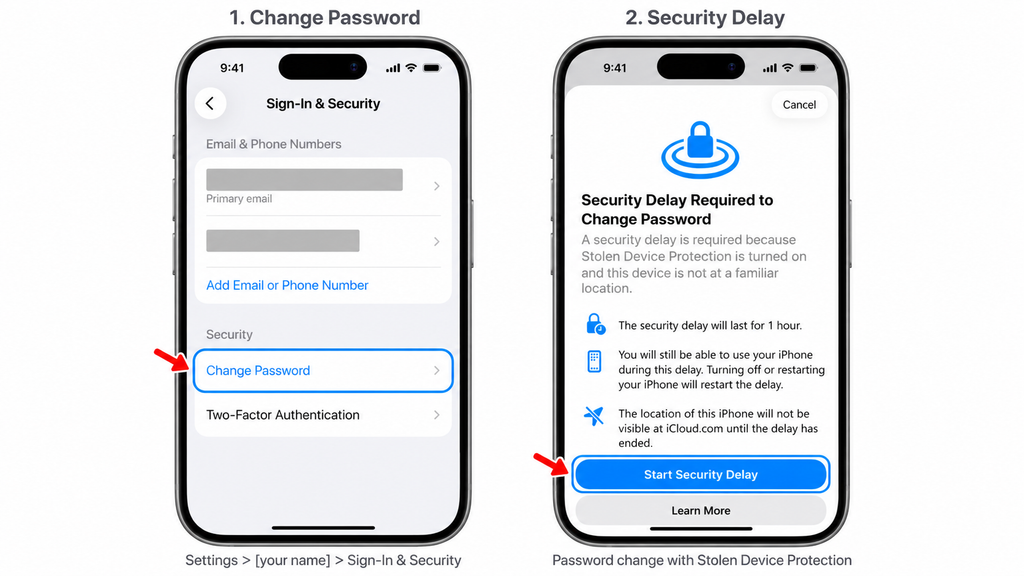
Apple documents the password menu path and notes that a one-hour wait may apply. Its Stolen Device Protection instructions describe the identity checks before and after that wait.
The timer ending is not proof that your password changed. Look for confirmation that the phone accepted the update. If you never entered and saved a new password, do not assume the waiting period created one.
Choose a strong password that you do not use for another account. Store it somewhere you can access securely later. If you are updating it because someone else may know it, read any options about keeping other devices signed in carefully.
For example, suppose you start the process during lunch and return after work. The useful check is whether you completed the final prompts, not simply whether an hour passed.
If you cannot complete the face or fingerprint check, address that problem before repeating the password process. Troubleshooting steps appear in Bonus Tips below.
2. Check whether a familiar location changes the requirement
This route is relevant when the phone is set to Away from Familiar Locations. Apple generally applies the added safeguards outside places it recognizes, such as home or work.
- Step 1: Open your security settings. Go to Settings > Face ID & Passcode. On an iPhone with Touch ID, choose Touch ID & Passcode.
- Step 2: Enter your device passcode. Then open Stolen Device Protection.
- Step 3: Read the selected delay option. Check whether it is Away from Familiar Locations or Always.
- Step 4: Follow the rule for that option. With the first option, try the intended change at an established familiar location when practical. With Always, plan to complete the delay wherever you are.
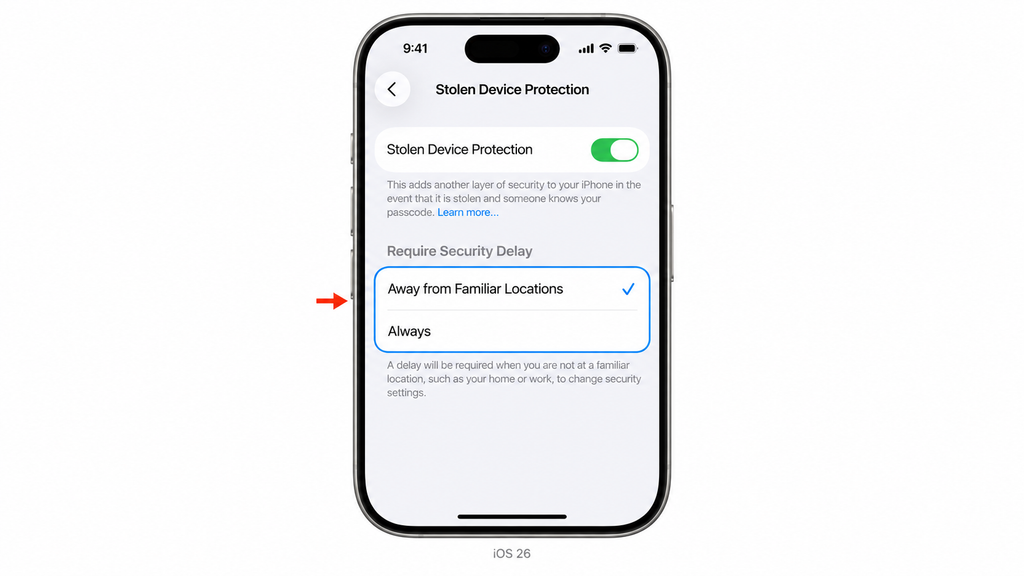
Apple says a delay may finish early when the iPhone detects arrival at a familiar location. It depends on the phone recognizing the location.
Do not spend an hour traveling home solely because you expect an instant result. If you can safely wait where you are, completing the displayed process may be more practical.
A hypothetical example: you try to sign out while at an airport. Returning home may be useful if you are already headed there. It makes less sense to delay your trip based on an assumed exception.
If you already are home, check the selected mode first. Always intentionally includes home and work. A familiar address does not override that choice.
3. Prepare for sign-out, sale, or trade-in before the handoff
Turning off Stolen Device Protection can make sense when you are preparing to give up the phone. It removes an added safeguard, so treat it as part of a planned handoff.
- Step 1: Protect your data first. Confirm that your backup or transfer contains the information you need before erasing anything.
- Step 2: Open Stolen Device Protection. Use Settings > Face ID & Passcode, or Touch ID & Passcode, then open the feature.
- Step 3: Request that it be turned off. Complete any required security delay and identity checks.
- Step 4: Check the result. Return to the feature page and confirm it is off before continuing with the handoff.
- Step 5: Complete the separate sign-out and erase process. Read each prompt and choose the option that fits a sale or trade-in.
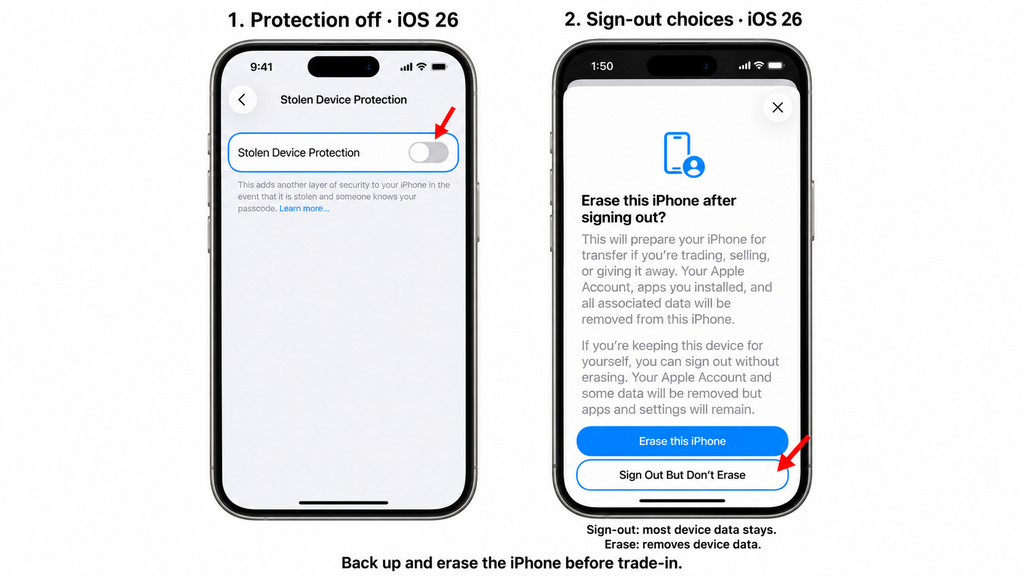
Erasing the iPhone deletes its local content. Waiting through Security Delay does not back up your photos or transfer your files. Check the replacement phone or backup before you approve an erase.
Sign-out screens vary by software. For example, iOS 26 and later can offer a choice to erase the device or sign out without erasing. Signing out alone should not be treated as proof that a phone is ready for a new owner.
Allow time before a buyer arrives or a store appointment starts. Keep the phone under your control while you finish account steps. Do not give someone your account password so they can complete the process later.
4. Use the right recovery route if the wait lasts days
A wait of several days usually points to a different process. Apple Account recovery helps when you cannot regain access through the available password-reset options.
A trusted device is an Apple device already signed in to your account with two-factor authentication. If you still have one you can use, try Apple’s password-change route there before requesting account recovery.
If you lack a trusted device, choose the official Forgot Password? option and follow the checks offered for your account. The available route depends on the ways you can verify your identity.
Once account recovery starts, follow its own instructions. Apple may provide an expected recovery date and time, and the wait can last several days or longer. Apple Support cannot shorten that account recovery period.
Device-use instructions also depend on how recovery began. Do not apply advice about an ordinary one-hour Security Delay to a recovery request. Read the recovery confirmation and its device-use rules.
Can you skip iPhone Security Delay or pay to remove it?
Apple’s published process offers no paid fast-track for this delay. The supported approach is to meet the identity checks and timing rules shown on your device, including any familiar-location exception that applies.
Do not rely on a VPN, a changed clock, or a location-spoofing app as a supported fix. A claim that software can remove the wait is not evidence that it can complete an authorized account change.
Moving to a browser or a newly signed-in device is not a dependable shortcut either. Apple restricts certain security changes on the web, and newly added devices can face their own waiting period.
Another established trusted device may be useful for account management, but follow the requirements it actually shows. Do not assume every change will be available immediately just because you switched screens.
Bonus Tips: Solve Problems and Plan Ahead
If the normal process fails, identify the exact obstacle before changing more settings. A failed face scan, an unfamiliar location, and a different account warning need different responses.
Check Face ID or Touch ID before trying again
For Face ID, start with simple checks:
- Step 1: Clear the camera area. Remove dirt or anything blocking the front camera system, including a case or screen protector that covers it.
- Step 2: Make your face visible. Face the phone and remove sunglasses or other coverings that could interfere.
- Step 3: Check whether Face ID works normally. If it continues to fail, follow Apple’s troubleshooting guidance or seek service.
For Touch ID, clean and dry your finger and the sensor. Cover the sensor fully with a registered finger, and check that the case does not block it.
Avoid starting by deleting your face or fingerprints. Changing biometric settings can itself be protected. If the required check keeps failing, write down the error and get help with that specific failure.
A useful support description is: “I can unlock the phone with its passcode, but Face ID fails when I try to finish a password change.” That explains the obstacle more clearly than saying the account is locked.
Understand a delay after setting up a replacement iPhone
After a backup restore or direct transfer, Stolen Device Protection resumes on the replacement iPhone. Familiar-location recognition may take time.
Apple does not publish a fixed recognition timetable in its feature guide. Check the current delay setting and follow the prompt rather than expecting a specific number of days.
If you contact support, mention that the phone was recently restored or replaced. Include the exact message and the task you were trying to complete.
Keep another way to verify your account
If your iPhone is your only trusted device and your only way to receive verification codes, losing it can complicate account access.
Consider keeping an additional trusted phone number that you control and can use if the iPhone is unavailable. Review your existing numbers before you change carriers or give up an old number.
On iPhone, the relevant area is Settings > [your name] > Sign-In & Security > Two-Factor Authentication. Check the listed information carefully.
If the phone is stolen, act instead of waiting
If you no longer have your iPhone, prioritize marking it as lost. The security delay is intended to give you time to respond.
Use Find My on another available Apple device, or open Apple’s Find Devices service yourself in a browser. Select the stolen iPhone and choose Mark as Lost, then follow the instructions.
Keep a stolen device in Find My. Removing it turns off Activation Lock, which helps prevent someone else from reactivating it. Be cautious with messages asking you to remove the phone or disclose your passcode.
The Bottom Line
Start by checking whether your iPhone requires the delay away from familiar locations or everywhere. For an ordinary password update, complete the displayed wait and return for the final identity check and password prompts.
Keep Stolen Device Protection enabled for everyday use unless you have a specific reason to change it. Before a sale or trade-in, prepare your backup and account access early. Your next step is simple: reopen the setting you wanted to change and read the exact requirement shown there.
Always applies the delay even at familiar locations. With Away from Familiar Locations, the phone must recognize where you are. A newly restored or transferred iPhone may need time to recognize familiar places, so being physically at home does not guarantee an immediate exception.
The delay concerns the protected change rather than a timed lockout of the entire phone. Other protected actions can still require their own identity checks. If you see a different warning, read its full wording before applying these steps.
Do not use a restart as a way to skip it. Apple’s published process requires the relevant identity checks and wait; it does not list restarting as a bypass. If you restart while troubleshooting another problem, return to the setting and follow the current prompt.
No. The waiting period itself does not erase your iPhone. An action you approve afterward can have separate consequences, especially Erase All Content and Settings. Make sure you understand that action and have the backup you need before confirming it.
The standard delay is one hour, with successful biometric checks before and afterward. Under location-based protection, your iPhone may end it early when it recognizes a familiar location. Always mode keeps the extra requirements in place regardless of location.