
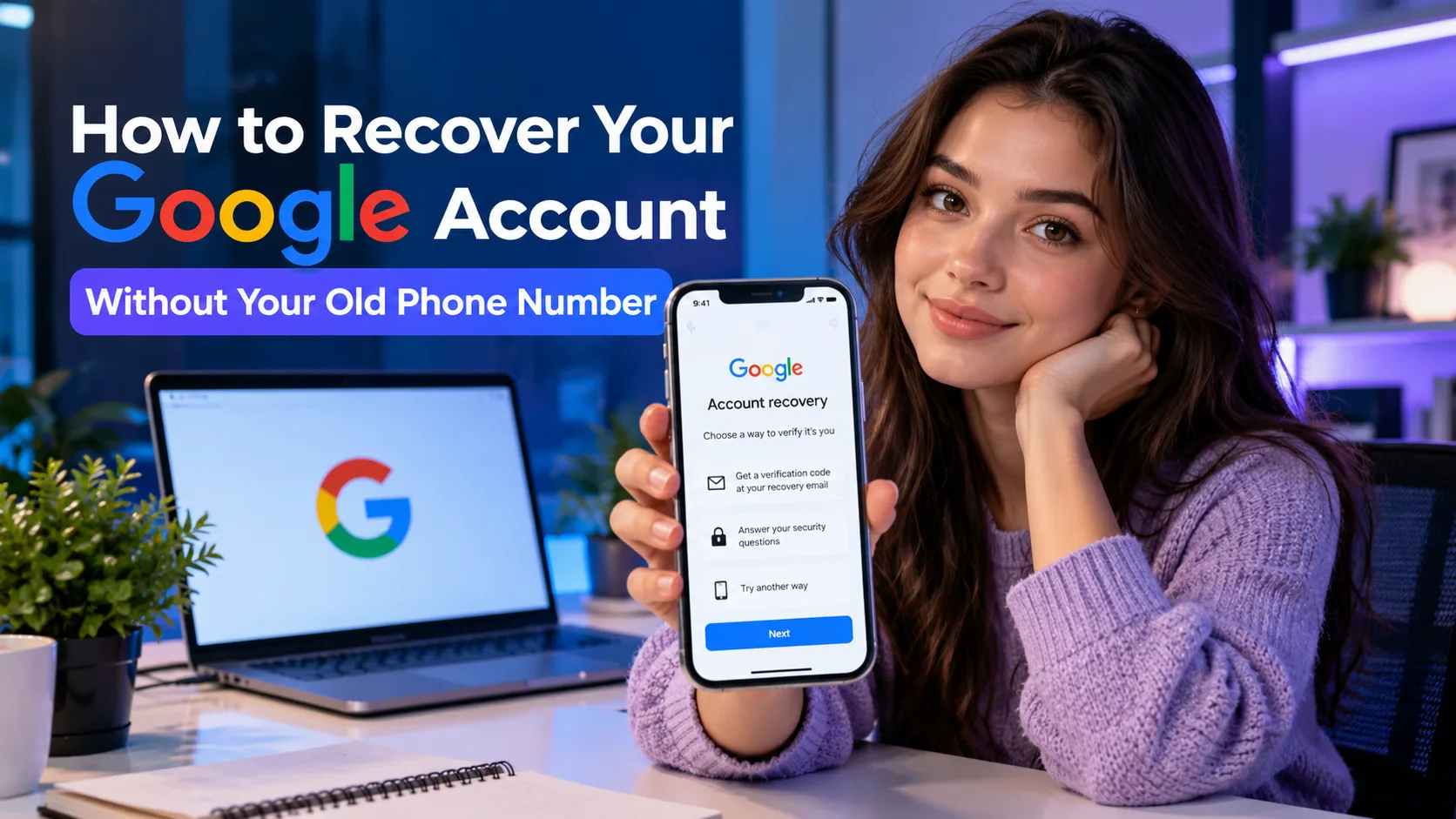
You may be able to recover your Google Account without your old phone number by using a signed-in device, a passkey, saved backup codes, or Google’s account recovery process. Select Try another way when offered. Your available options depend on your account, and Google must verify that it belongs to you.
Losing your old number can block a Google sign-in. This guide explains which alternatives to try, what recovery may require, and how to protect your account afterward.
Part 1: What to Check Before Google Account Recovery
Before starting, look for ways to prove ownership that you already have. You may be able to complete a normal sign-in without needing a password reset.
Gather Your Available Sign-In Tools
Have these ready where possible:
- Your complete Google Account email address.
- Your current password or the most recent password you remember.
- A phone or computer you regularly used with this account.
- Access to your recovery email.
- Any saved backup codes, working Authenticator codes, passkeys, or registered security keys.
You do not need every item. The goal is to find an option that Google offers and that you can actually use.
Start on your usual device, in your usual browser, from somewhere you commonly sign in, such as home. Google specifically recommends familiar devices and locations when completing recovery. Avoid clearing that browser’s data while you are trying to regain access.
A Recovery Phone and 2-Step Verification Serve Different Jobs
A recovery phone helps Google restore access and alert you to suspicious activity. 2-Step Verification adds another identity check during sign-in, such as a prompt, code, or security key. Knowing your password may not satisfy that second check.
The same number can serve more than one purpose. Updating it in one place may not update every service, so plan to review both your recovery information and 2-Step Verification settings after getting back in.
Also, losing a number is different from losing the phone itself. If your old phone still works, keep it nearby: an existing Google sign-in or Authenticator setup may remain useful without the old SIM.
Keep any working signed-in device available. Avoid signing out or resetting it while you check your other options.
Part 2: How to Recover Your Google Account Without Your Old Phone Number
Try the options you already control first. If they do not work, continue through Google’s recovery process. Not every account will show every choice below.
1. Use a Phone That Is Already Signed In
A Google prompt approves a sign-in on an eligible phone already signed in to your account. It can work over Wi-Fi without your old number.
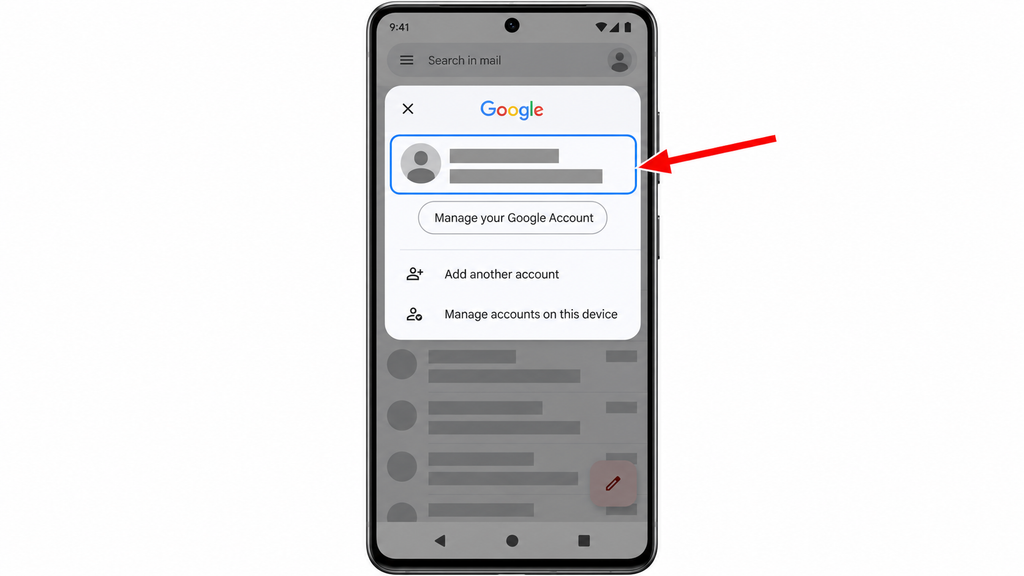
- Step 1: Check your phone. Confirm that the correct Google Account is still signed in.
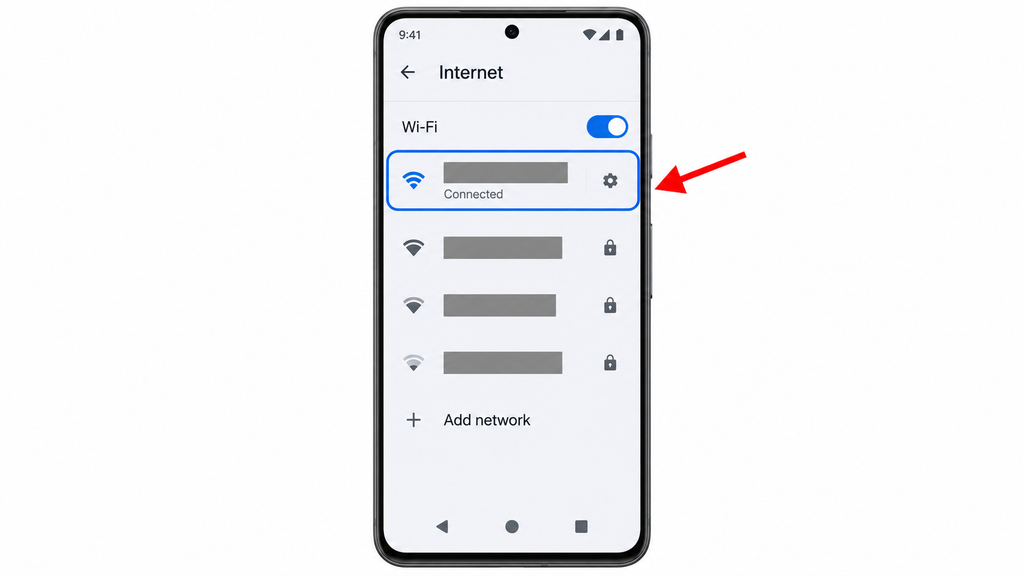
- Step 2: Connect to Wi-Fi. Keep the phone unlocked and nearby.
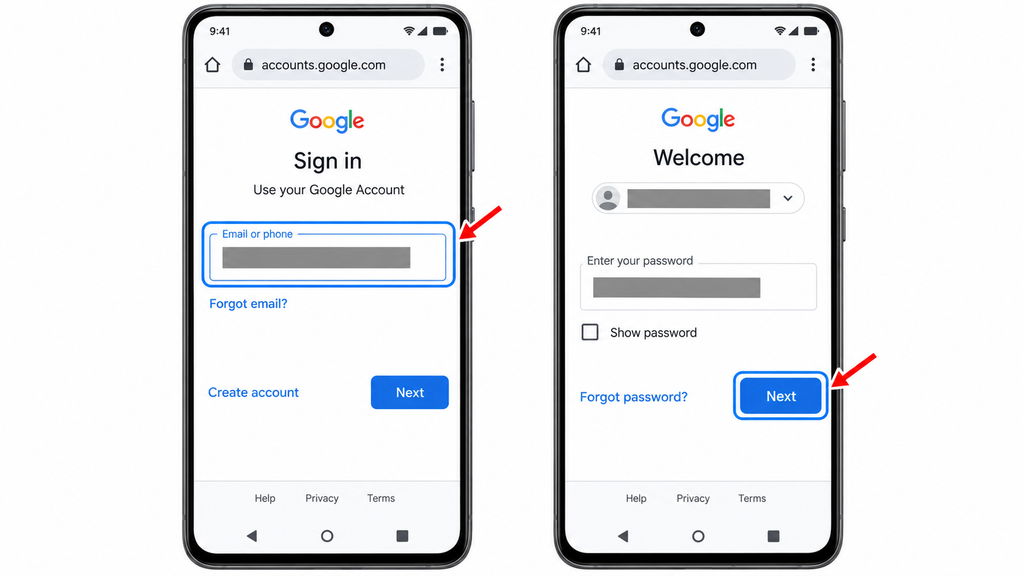
- Step 3: Start signing in on the device you want to use. Enter your email and follow the password or other prompts.
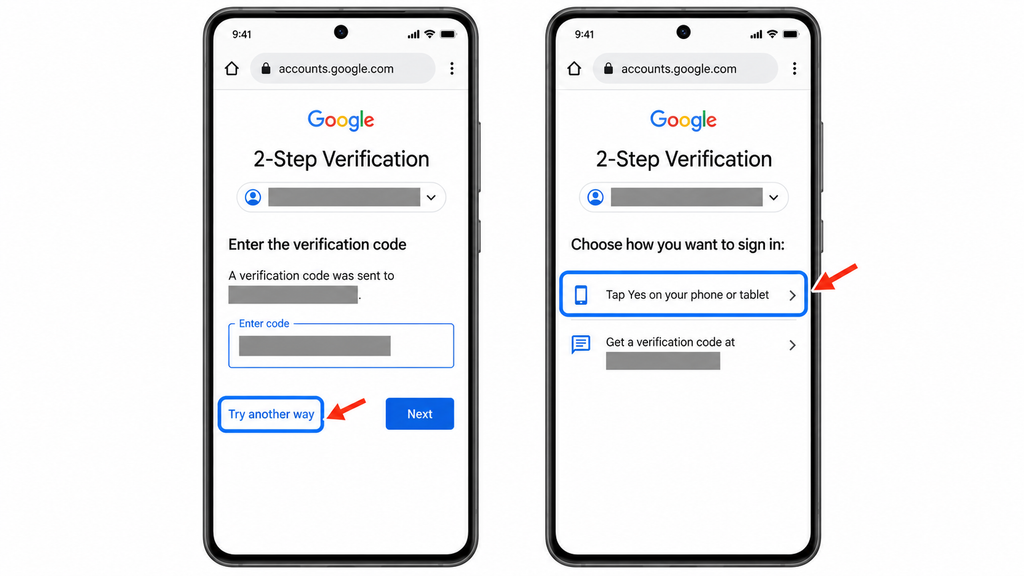
- Step 4: Choose another verification method if needed. Select Try another way, then a phone prompt if offered.
- Step 5: Approve your request. Check the sign-in details and match any number shown on the other screen. Approve only the attempt you started.
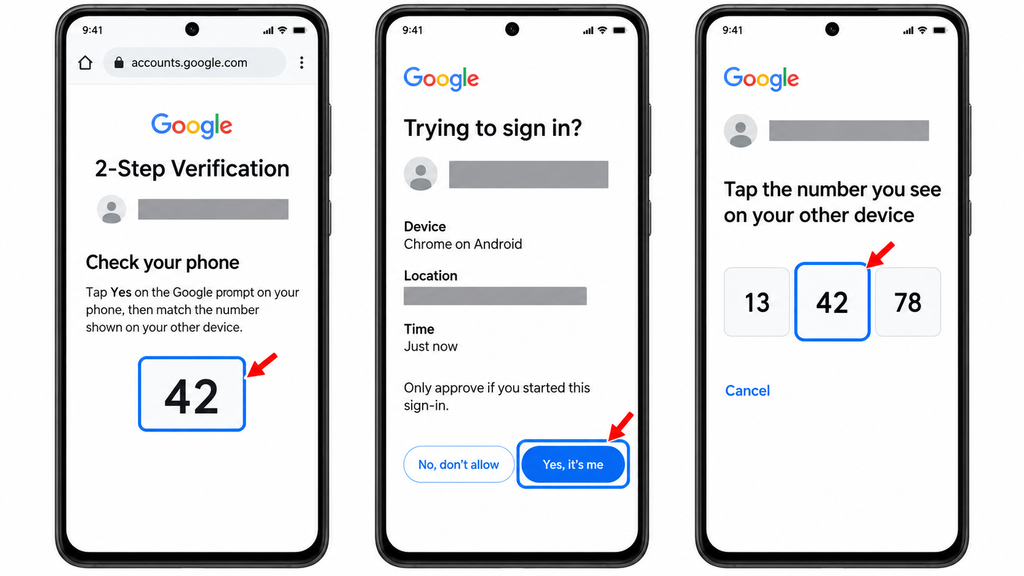
On an iPhone, prompts can arrive through supported Google apps, including Gmail or the Google app, when the account is already signed in. If no prompt arrives, open the relevant app and check your internet connection.
If the account opens on your other device, sign-in worked. Otherwise, try an existing backup method.
2. Try a Passkey, Backup Code, or Authenticator Code
These options can help when SMS verification is unavailable. They must already be available to you; installing a new app alone does not establish ownership.
Use an existing passkey
A passkey lets you verify yourself with a device’s fingerprint reader, face unlock, or screen-lock PIN.
- Step 1: Start on a device where your Google passkey is available. Enter your Google email address.
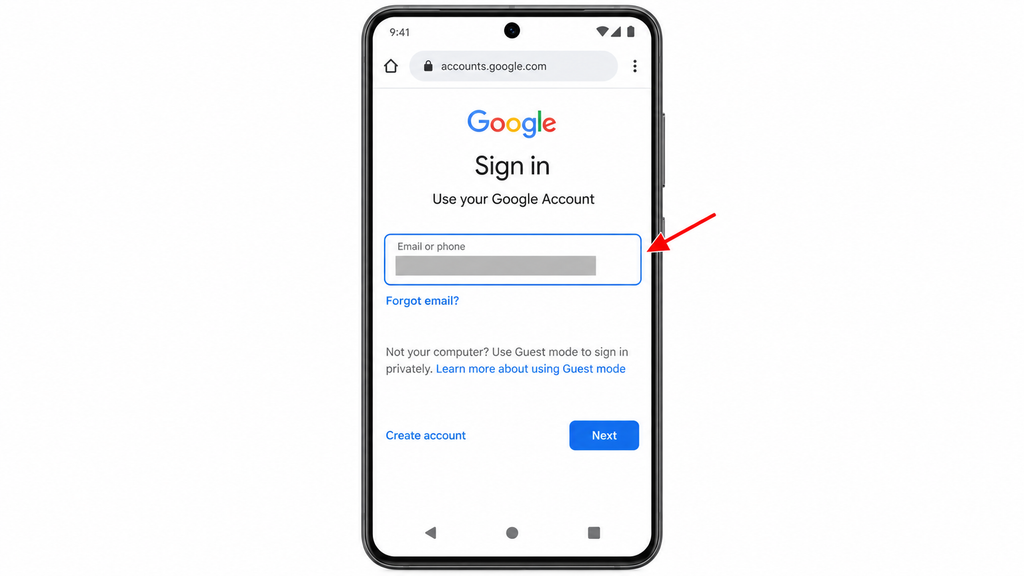
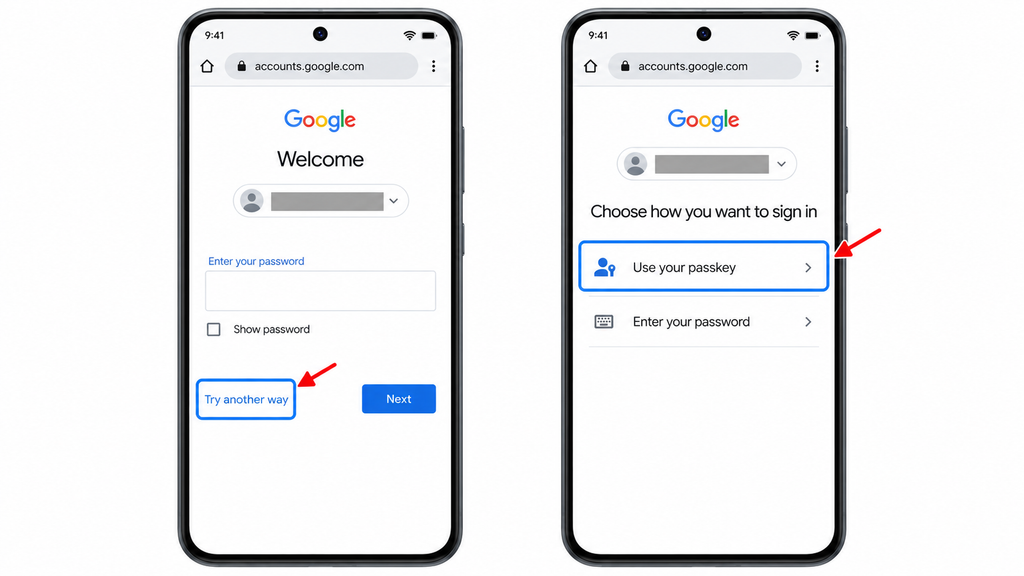
- Step 2: Choose the passkey option. Follow the automatic prompt or select Try another way > Use your passkey when offered.
- Step 3: Unlock your device. Complete the verification requested by your browser or operating system.
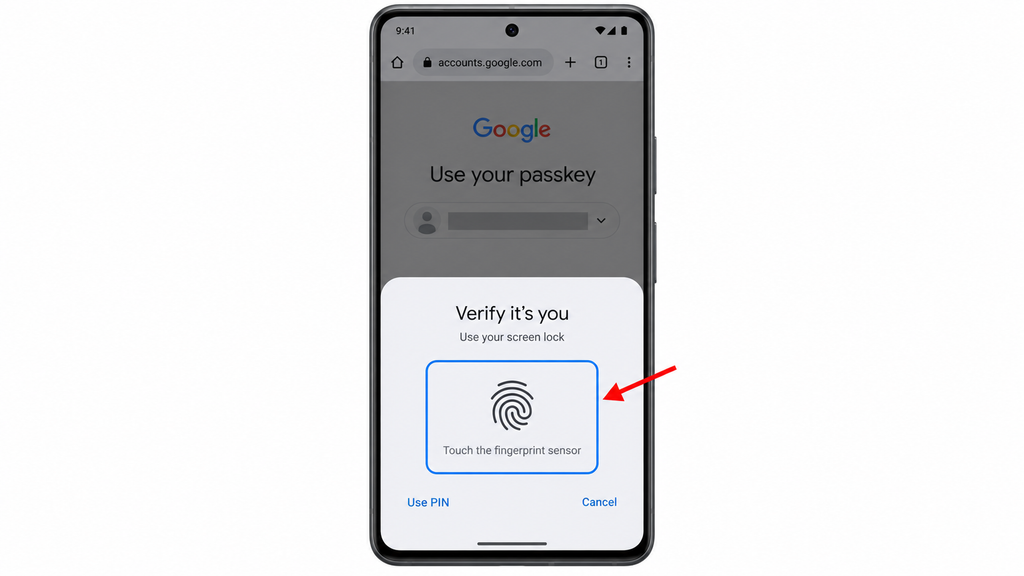
For personal Google Accounts, a passkey can also satisfy 2-Step Verification. If yours is unavailable, return to the other sign-in choices.
Use a saved backup code
Google backup codes are eight-digit codes created for situations such as losing a phone or changing numbers.
- Step 1: Find your saved codes. Check your secure storage or printed copy.
- Step 2: Enter your password during sign-in. At the verification screen, select Try another way.
- Step 3: Choose the backup-code option. Enter one unused eight-digit code.
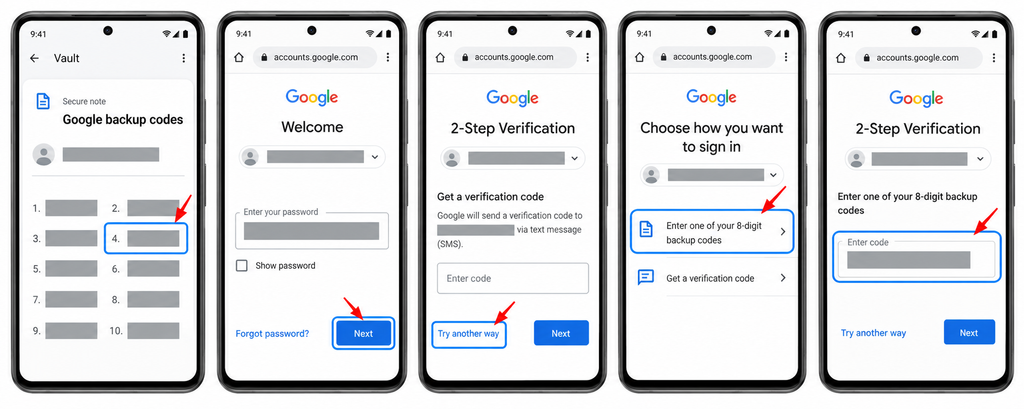
Each code works once. If you downloaded your codes, Google suggests searching your computer for a file named Backup-codes-username.txt, replacing “username” with yours. Backup codes are unavailable under Google’s Advanced Protection Program.
Use Google Authenticator
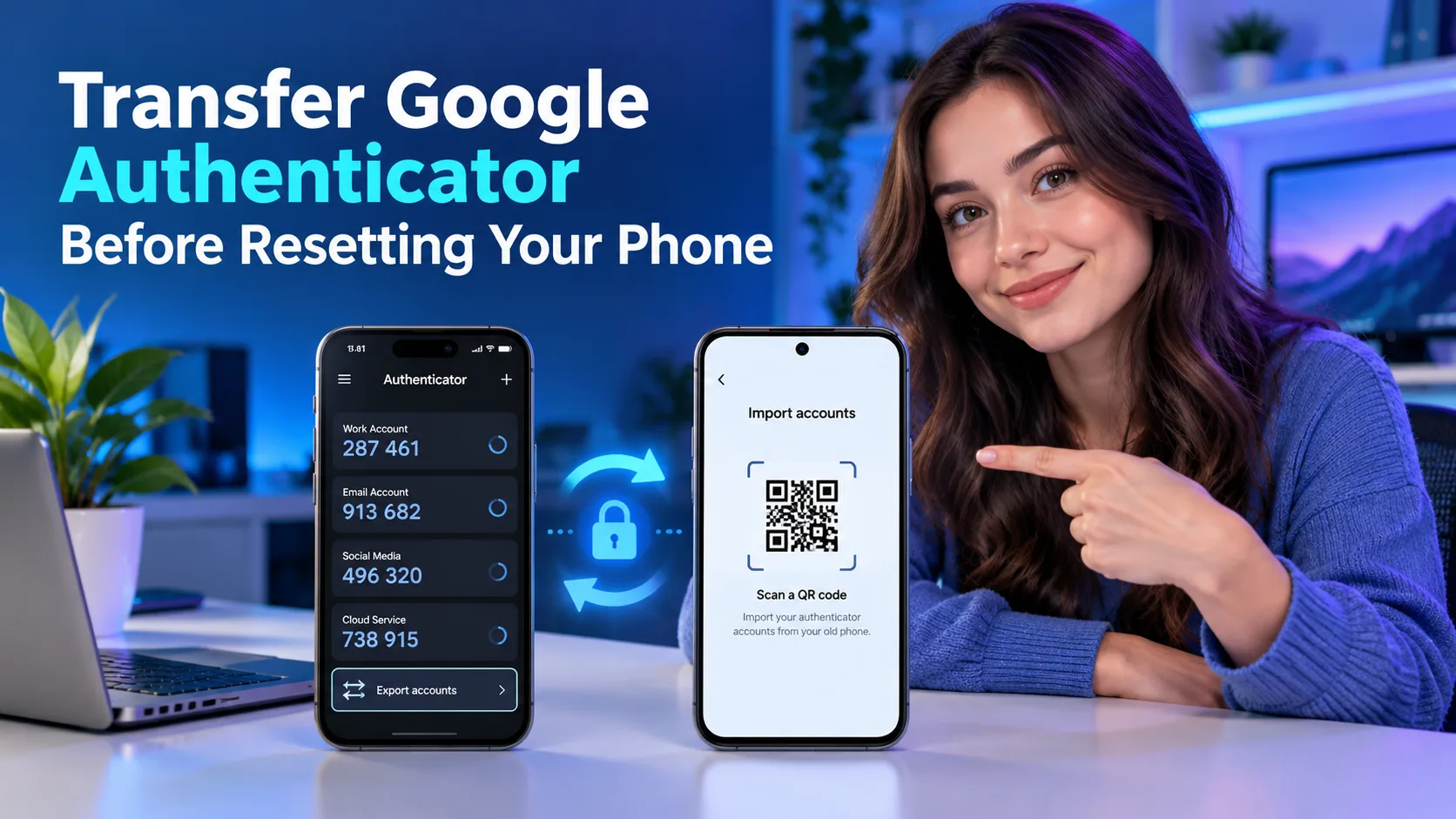
If Authenticator already contains a working entry for this Google Account, choose that verification option and enter its current code. Authenticator can generate codes without cellular service or an internet connection.
A fresh installation will not recreate missing codes by itself. Cloud sync requires signing into the Google Account that holds them, while a manual transfer requires access to the old device. If signing into that same locked account is necessary to retrieve your codes, use another recovery route first.
A registered hardware security key is another possible option. Connect or tap it and follow Google’s instructions if that choice appears.
3. Follow Google’s Account Recovery Process
Use this route if you forgot your password or cannot complete the available sign-in checks.
- Step 1: Open the official Google Account recovery page. Enter the email address for the account you need.
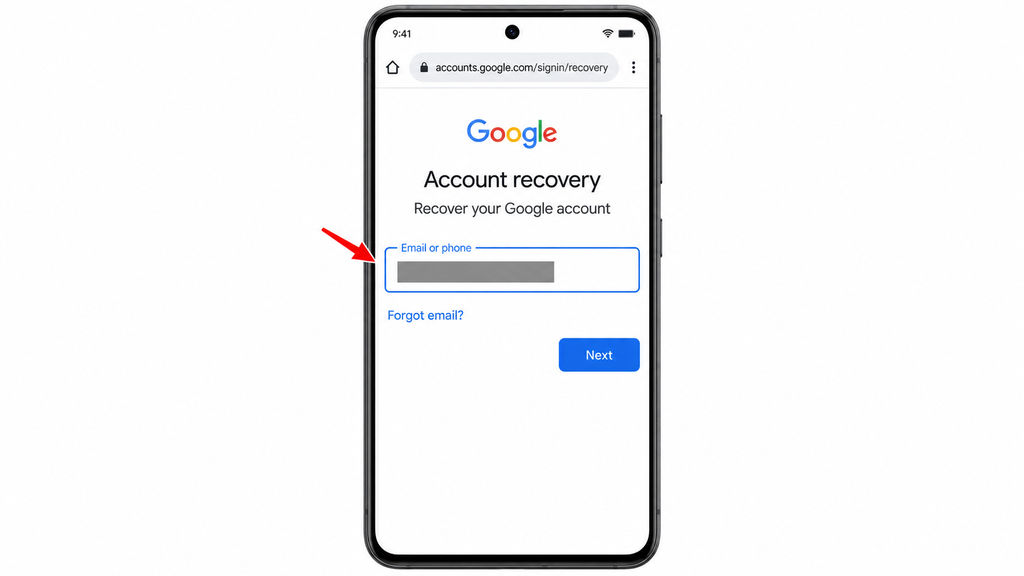
- Step 2: Answer the questions shown. If asked for an earlier password, provide the most recent one you remember. Check spelling and capitalization.
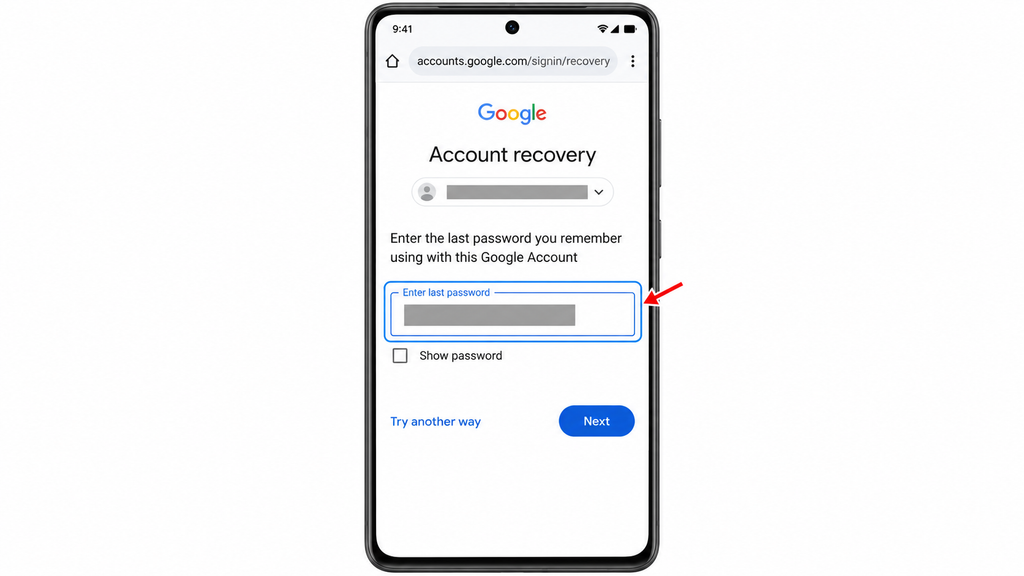
- Step 3: Move past the unavailable number. Select Try another way when offered rather than repeatedly requesting an SMS you cannot receive.
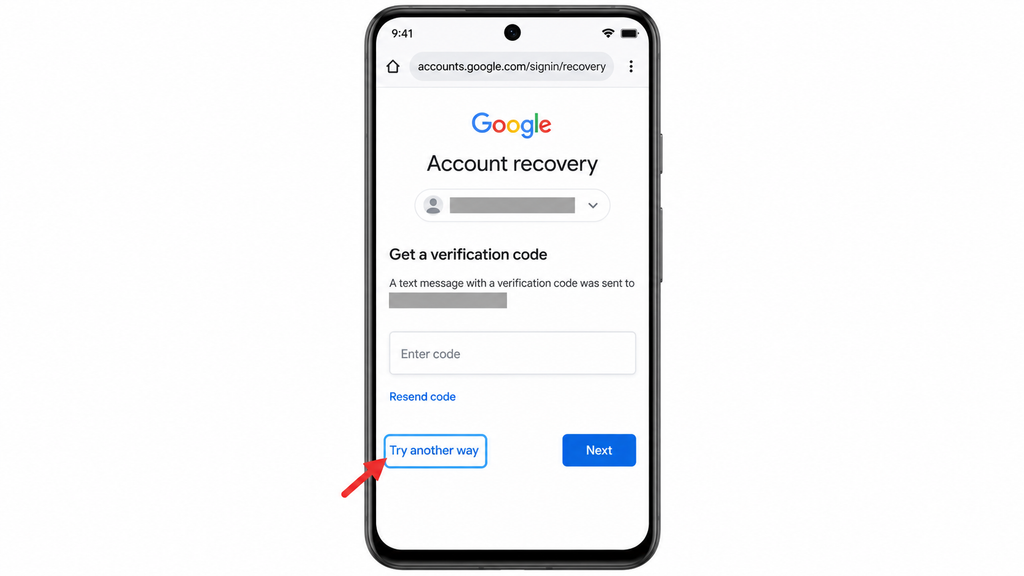
- Step 4: Complete an available ownership check. This might involve your recovery email or another option shown for your account.
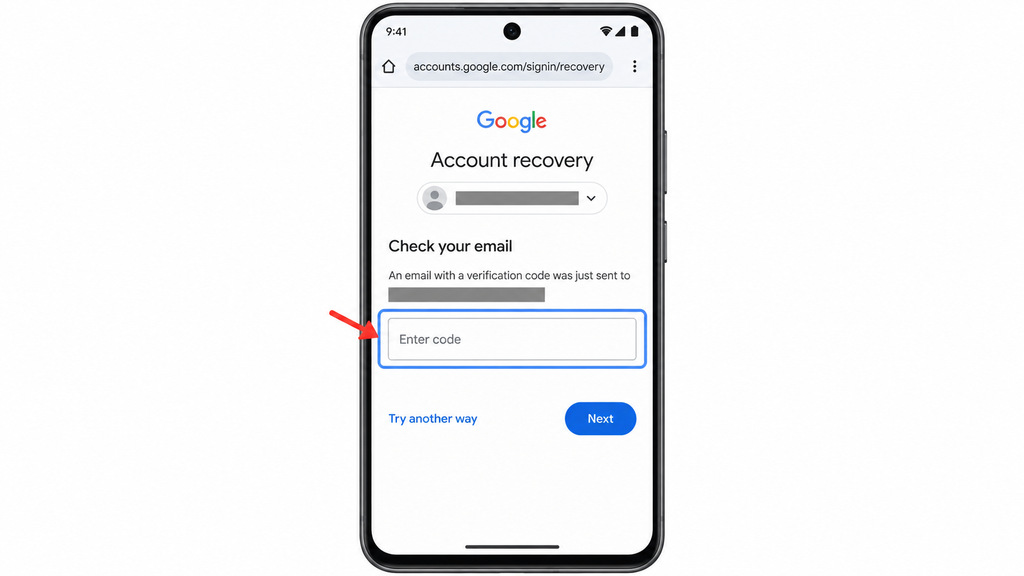
- Step 5: Follow the result. Google may let you continue, request more information, or explain a waiting period.
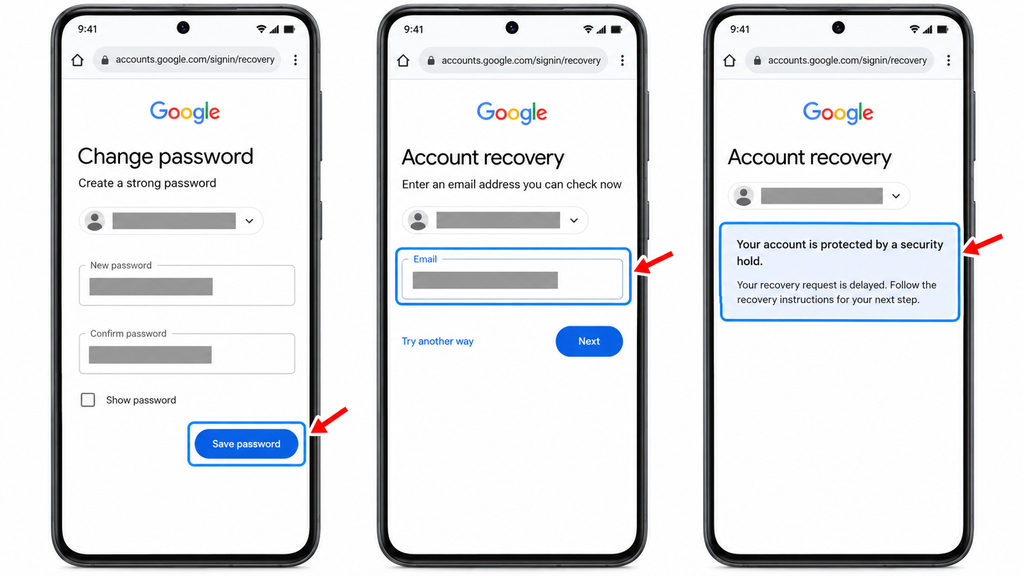
- Step 6: Reset your password if prompted. Choose a strong password you have not previously used for this account.
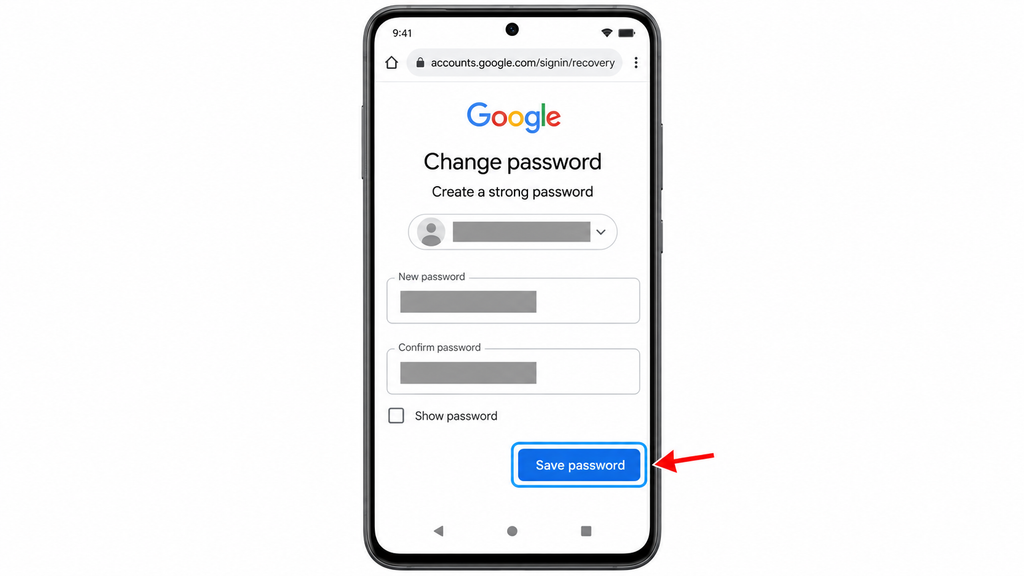
When you expect a recovery email, check its spam or junk folder too. Keep the recovery page open so you can follow its next instruction. A password reset may sign you out of other sessions, although Google lists exceptions for certain devices and apps.
A new contact address is not automatically a replacement recovery method. Google says you cannot add recovery information while locked out or during account recovery. If the process asks where it can reach you, supply an accessible address, but continue any remaining ownership checks.
Confirm success by opening the intended account and checking that your Gmail or other expected services are accessible. Receiving a message alone is not the same as regaining access.
4. Use a Previously Added Recovery Contact When Offered
A recovery contact is a trusted person who was added to help restore access. You cannot add someone during a lockout, and their invitation must have been accepted, followed by a seven-day waiting period.
If you already have an eligible contact:
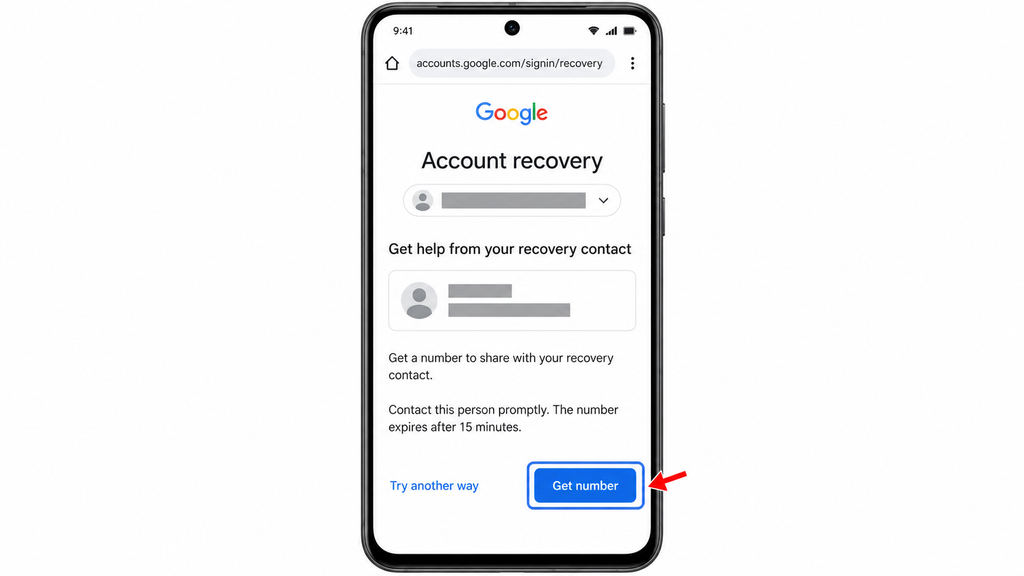
- Step 1: Select that recovery contact. Google may offer the person during account recovery.
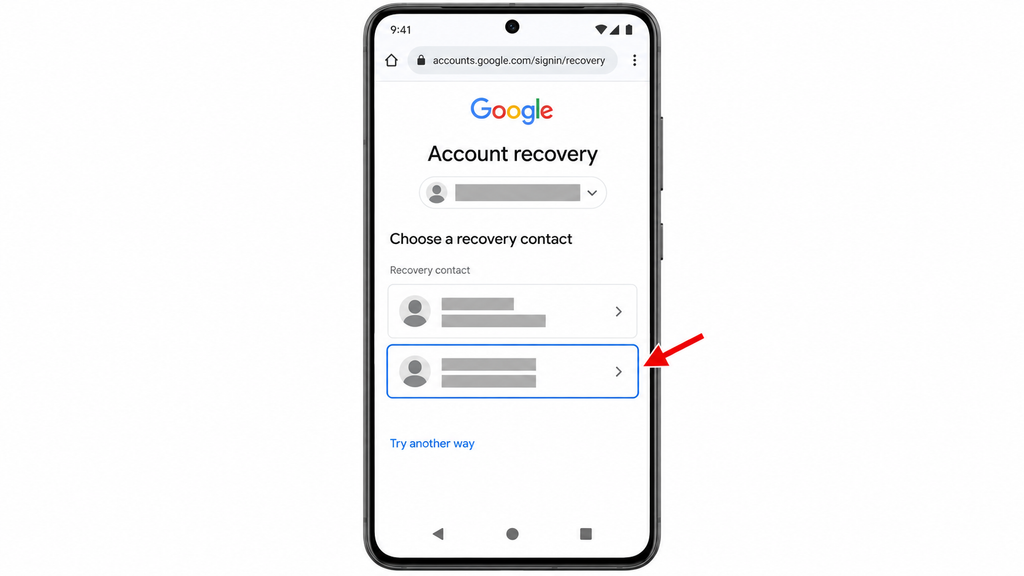
- Step 2: Choose Get number. Contact the person promptly because the number expires after 15 minutes.
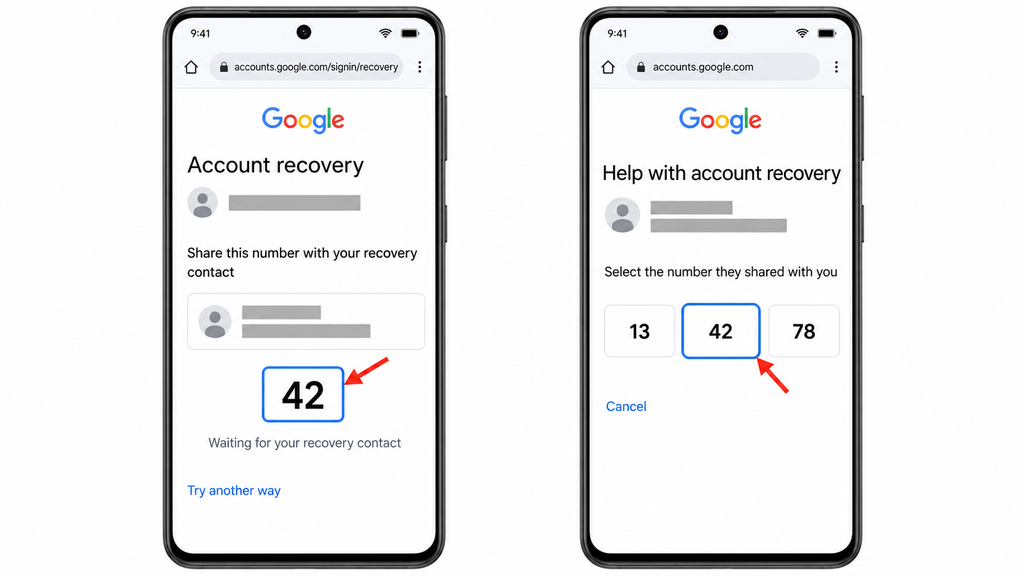
- Step 3: Share that specific recovery-contact number with them. They select the matching number from the choices Google shows on their device.
- Step 4: Continue your recovery instructions. Additional verification or a security hold may still apply.
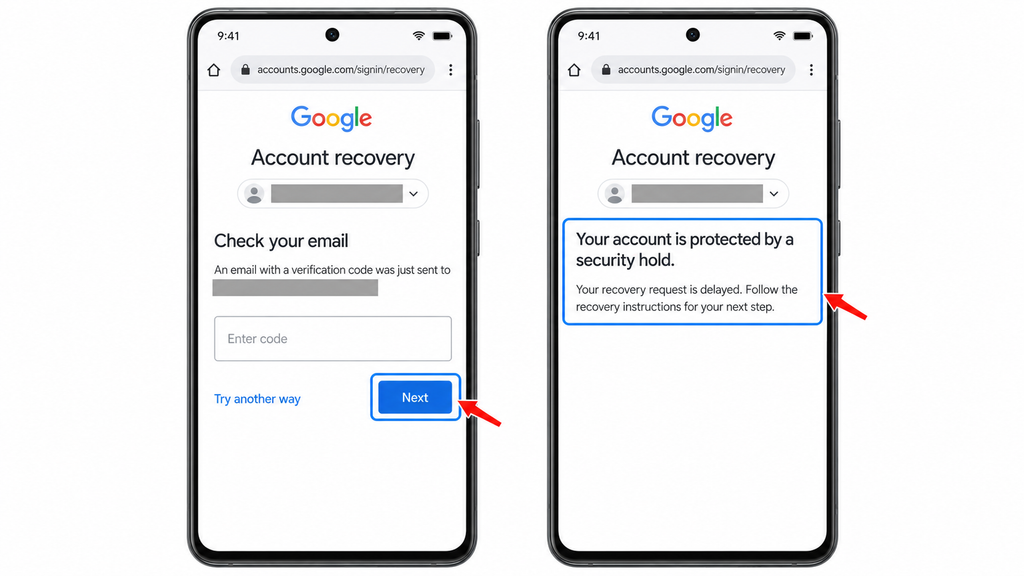
This is Google’s built-in contact workflow. It does not mean you should share your password, Authenticator codes, or backup codes with someone offering help.
Some accounts may also offer recovery using a previously enrolled selfie video. Follow that option only if Google presents it; it is not available for every account, region, or device.
How Long Does Google Account Recovery Take?
There is no single recovery time for everyone. An available sign-in method may let you continue without a recovery hold. If Google places your request on hold, its guidance says the delay can range from a few hours to several days.
The hold gives the account owner time to notice and reject an unauthorized recovery attempt. Follow the timing and next steps shown for your request.
If you regain access to a familiar signed-in device during the wait, Google says trying recovery again from that device may improve your chances or shorten the process. A waiting period is not a guarantee of approval.
What If Google Keeps Asking for the Old Number?
Choose Try another way wherever it is offered. If Google says it could not verify ownership, you can try recovery again. Use your familiar device and improve the information you provide instead of repeating the same unavailable SMS route.
If you still own the old carrier line and only lost the phone or SIM, ask your carrier about transferring that number to a replacement. This may restore SMS access; it does not apply when you no longer control the number.
For a work or school account, contact your organization’s administrator. Personal-account recovery instructions may not apply in the same way.
Bonus Tips: Secure Your Account After You Get Back In
Once access returns, replace outdated information before relying on the account again.
Update Your Recovery Information and Verification Methods
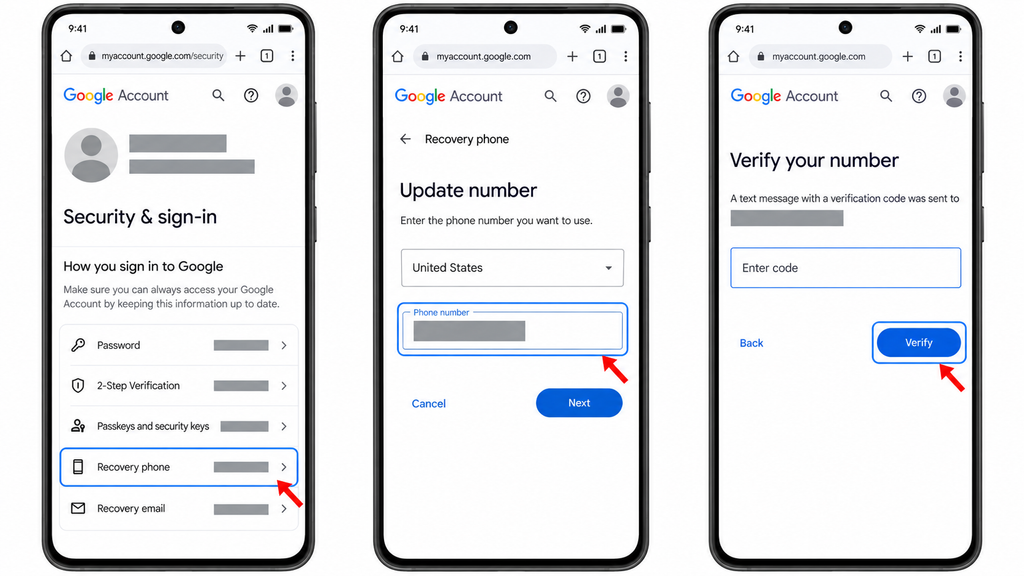
- Step 1: Open your Google Account security settings. Select Security & sign-in if needed.
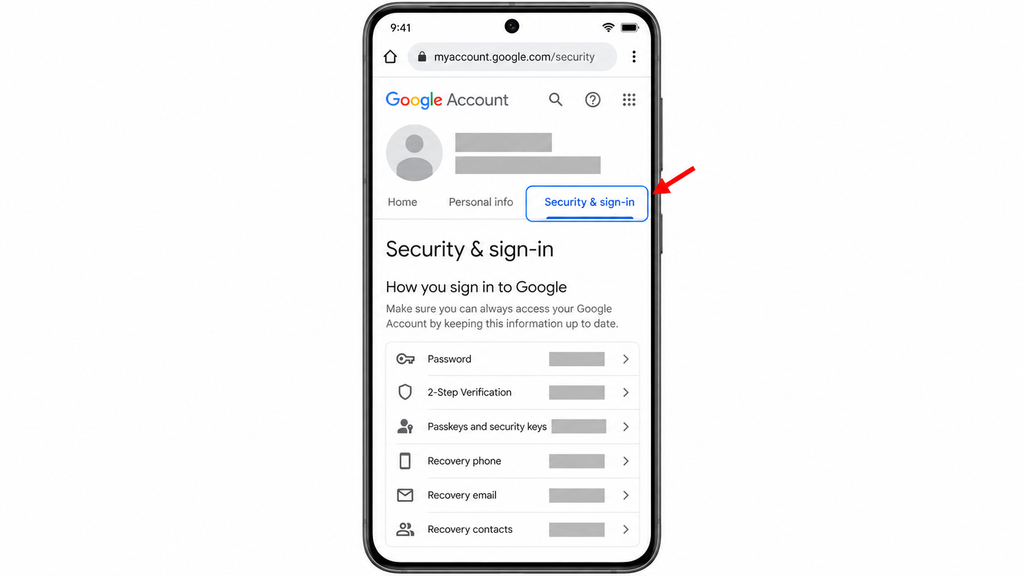
- Step 2: Open Recovery phone. Under How you sign in to Google, replace the old number with one you control and complete verification.
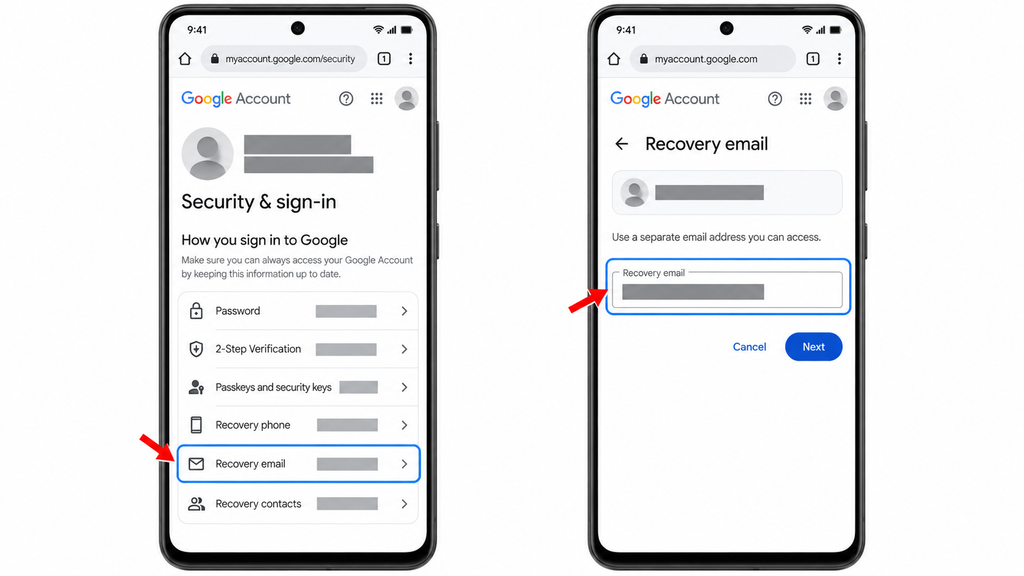
- Step 3: Check Recovery email. Use a separate email account that you can access.
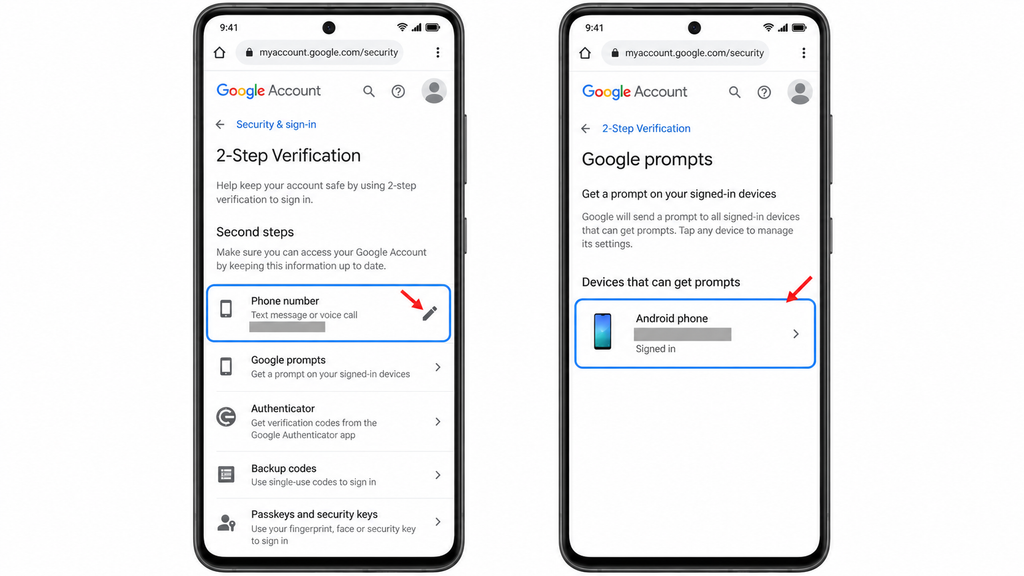
- Step 4: Review 2-Step Verification. Update outdated phone-based verification and confirm that another usable method is available.
Recovery-number changes can take up to seven days to take effect. Avoid assuming a newly added method is ready for every security check immediately.
Keep an independent backup, such as securely stored backup codes or an additional eligible security key. Avoid storing your only backup inside the account you would need it to recover. A recovery email should also be different from your Google sign-in address.
Check for Unwanted Account Access
If your phone was stolen or your account details changed unexpectedly, review recent security activity and signed-in devices. Remove unfamiliar access and change your password if someone else may know it.
Check Gmail for forwarding rules or filters you did not create. Restoring sign-in access is only part of the job when another person may have used the account.
The Bottom Line
Start with a device or sign-in method you already control. A working prompt, passkey, or saved backup code may let you sign in without the old number. Otherwise, use Google’s official recovery process and follow the choices it actually offers.
Your next action is to check your familiar devices before starting another attempt. Once you regain access, update both your recovery information and verification methods so your account no longer depends on a number you cannot use.
It may be possible if another usable method is available, such as a passkey or saved backup code. Otherwise, try account recovery with your familiar device and the information you remember. Google must still verify ownership, so success is not guaranteed.
Your account may require 2-Step Verification or another identity check. A correct password does not always complete sign-in. Select Try another way and use an available method you control.
Google may offer this challenge because you could still receive that email through an existing email client or forwarding setup. If you have no access to the message, choose Try another way. The challenge alone does not prove that a separate recovery email was never added.
Google says you cannot call it for help signing into a personal account, and it does not work with services claiming to provide account or password recovery. Do not give such services your password or verification codes. Use the official recovery process.
Yes, your old phone may still help if it remains signed in to your Google Account. Connect it to Wi-Fi and approve a Google prompt if offered. Existing Authenticator codes can also work without mobile service. Avoid signing out or resetting the phone until you regain access.