
Key Takeaways
To activate an iPhone for cellular service, confirm carrier compatibility, choose or transfer a plan, and install the carrier’s eSIM or physical SIM. Then test calls, texts, and mobile data with Wi-Fi off. “Any iPhone” has limits: older hardware, carrier locks, and account or device blocks can prevent activation.
A phone that reaches the Home Screen may still lack cellular service. This guide helps you choose the right activation method and confirm your line works.
Part 1: Check Your iPhone and Service Requirements
Start with the phone and carrier, not the activation screen. An eSIM-capable iPhone can still fail a carrier’s compatibility check, and an installed SIM does not prove that your account is active.
Find Out Whether You Need an eSIM or Physical SIM
An eSIM is a digital SIM built into your phone. A physical SIM is the removable card that fits inside a SIM tray.
Apple supports eSIM on iPhone XS, XS Max, XR, and later supported models, with regional exceptions. iPhone 14 and later models purchased in the United States use eSIM only. Older or imported iPhones may have different SIM options, so check your exact model.
Before starting, have these ready:
- A compatible phone: Run its IMEI through your chosen carrier’s bring-your-own-device checker.
- Internet and power: Connect to reliable Wi-Fi or a hotspot and charge your iPhone.
- Current software: Install the latest iOS version your phone supports.
- Account access: Have the carrier login, required account PIN, and any verification method available.
- Device information: Find the IMEI and, for eSIM requests, EID under Settings > General > About.
- Your old phone: Keep it available for approval prompts and verification codes.
The IMEI identifies your phone’s cellular hardware. The EID identifies its built-in eSIM hardware. If the carrier asks for IMEI2, provide that specific number rather than assuming either IMEI will work.
Back up your old phone before moving to a replacement. Cellular activation and copying your photos, apps, and messages are separate tasks.
Check Carrier Lock and Ownership Status
Go to Settings > General > About > Carrier Lock. No SIM restrictions means the iPhone is carrier-unlocked. If you are switching providers and it remains locked, ask the carrier that locked it to complete the unlock. Apple cannot do that for you.
An unlocked phone still needs carrier approval. A lost-or-stolen block, unsupported model, or account problem can stop service.
Activation Lock is different: it links the iPhone to an Apple Account. If setup asks for the previous owner’s account, resolve that ownership issue before trying to add service.
Which US Carriers Support iPhone eSIM?
The providers you listed offer eSIM, but they do not all use the same setup process.
Apple lists AT&T, T-Mobile, Verizon Wireless, Cricket Wireless, and Xfinity Mobile as supporting eSIM Carrier Activation and Quick Transfer. It also lists Visible and Mint Mobile with other eSIM activation methods. Availability still depends on the device and account.
Two other options have their own guided routes:
- Google Fi: Use the Google Fi Wireless app to activate an eligible, unlocked iPhone.
- US Mobile: Activate through your account, then use the installation link, QR code, or manual details provided for your line.
TracFone and Straight Talk also support eSIM on eligible devices. Check your exact IMEI and available service options in their activation flow; do not assume every eSIM iPhone or account qualifies.
Check device compatibility before buying service. A phone’s Add eSIM button confirms a phone feature, not approval from a particular carrier.
Part 2: Activate Your iPhone for Cellular Service
Choose the route that matches your carrier’s instructions. You normally need one method, not every method below.
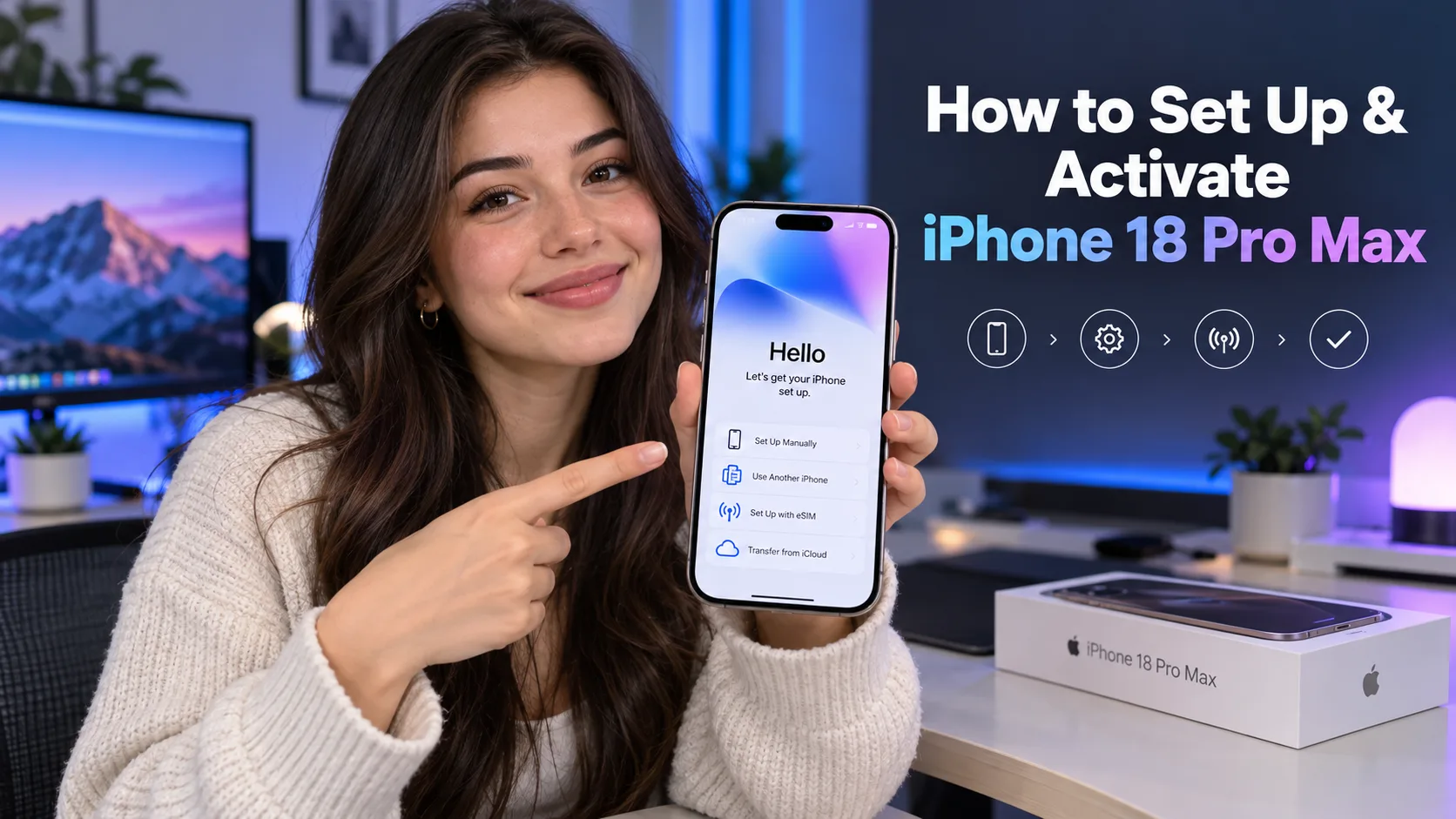
For a new iPhone, cellular setup may appear during the initial setup screens. If you already finished setup, you can add service from Settings > Cellular without starting over.
1. Install an eSIM Already Assigned by Your Carrier
Use this route when you bought an iPhone with service or the carrier has already assigned an eSIM to its device information. Creating an Apple Account alone does not assign a cellular plan.
Step 1: Complete the carrier’s order or activation request. Confirm the correct device and phone line. For example, AT&T requires an active plan before downloading its eSIM.
Step 2: Connect your iPhone to Wi-Fi. During initial setup, follow the cellular activation prompts.
Step 3: Open the assigned-plan notification. After setup, look in Settings for Finish Setting Up Cellular or a carrier-plan installation notice.
Step 4: Follow the prompts to install the plan. Check that you are activating the intended line.
Step 5: Open Settings > Cellular. Confirm that the new line appears and is turned on.
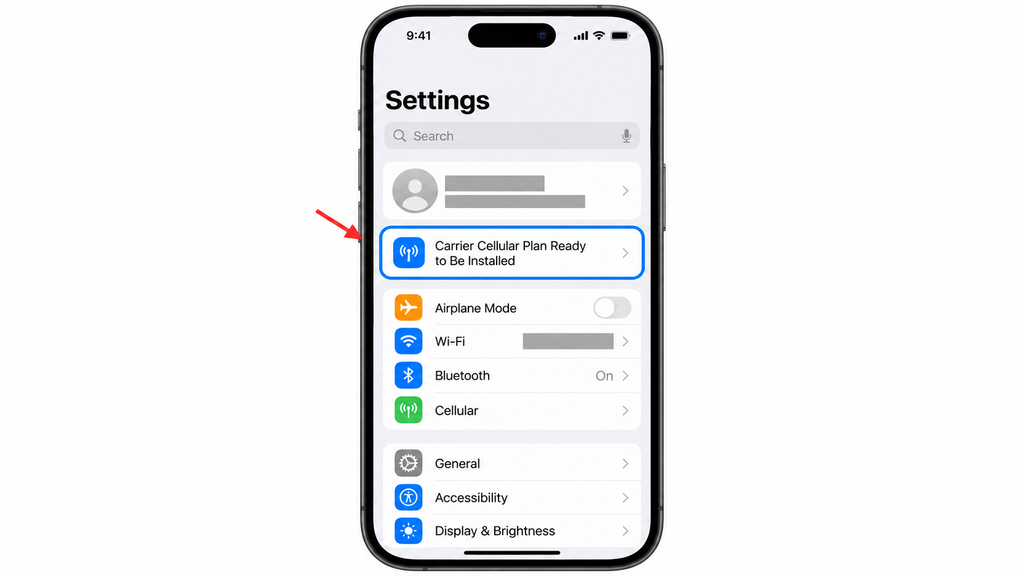
The expected result is an installed cellular line. You still need to test service using the checks in Bonus Tips.
If no plan appears, ask the carrier to confirm that it assigned the eSIM to the correct IMEI or EID. Repeating setup will not fix an assignment to another device.
2. Transfer Your Existing Line From Another iPhone
Use eSIM Quick Transfer when your carrier and both iPhones support it. This moves an existing line between phones; it does not switch that line to a different carrier.
Apple’s current requirements include both iPhones running iOS 18.4 or later, signed in to the same Apple Account, and nearby with Bluetooth on. Keep the previous phone unlocked with its passcode.
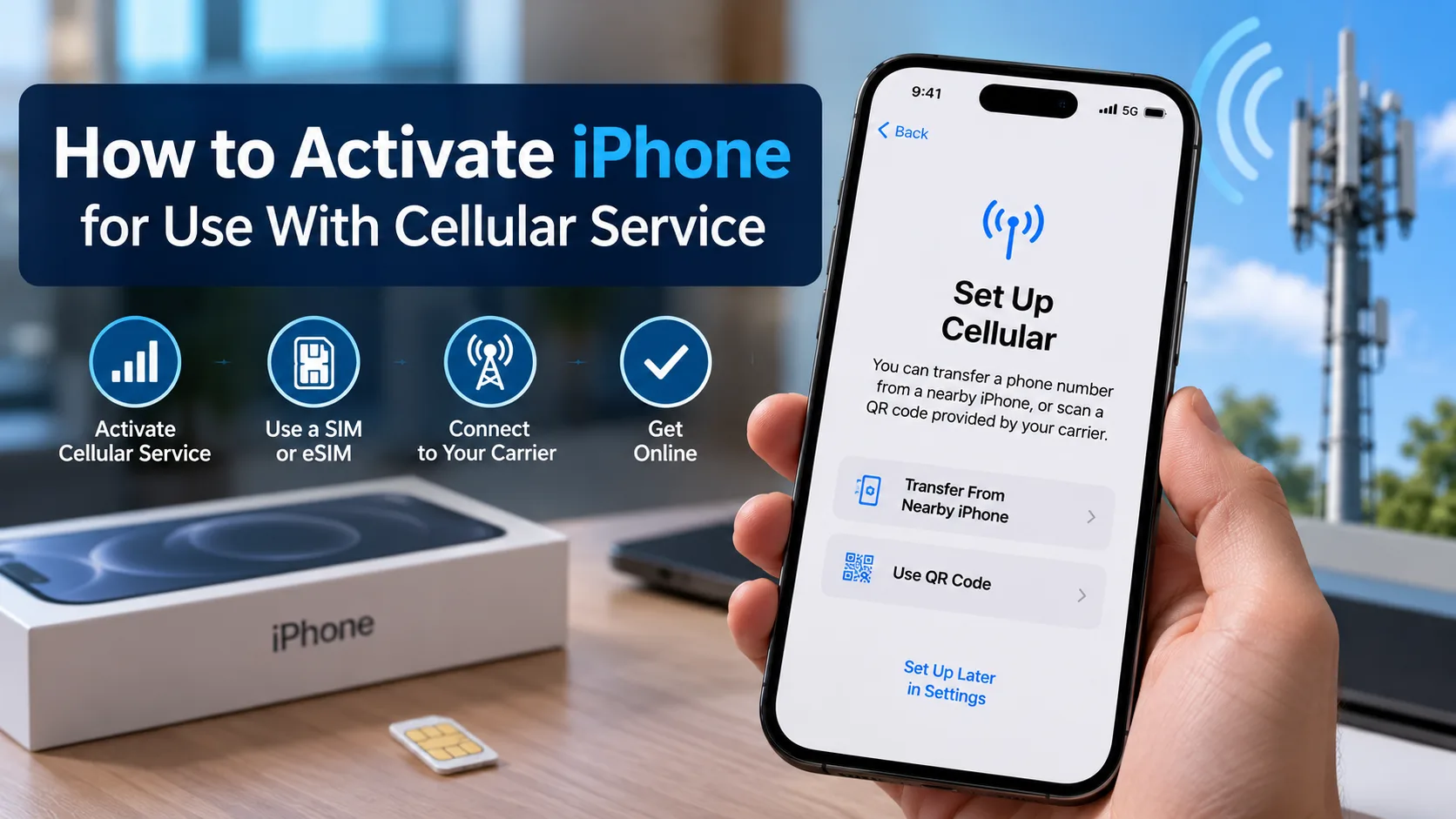
Step 1: Open Settings > Cellular on the new iPhone. Tap Set Up Cellular or Add eSIM.
Step 2: Select your number. If it is not listed, tap Transfer From Nearby iPhone.
Step 3: Approve the request on your old iPhone. Enter the displayed verification code if asked.
Step 4: Wait for activation. Complete any carrier webpage or account prompts that appear.
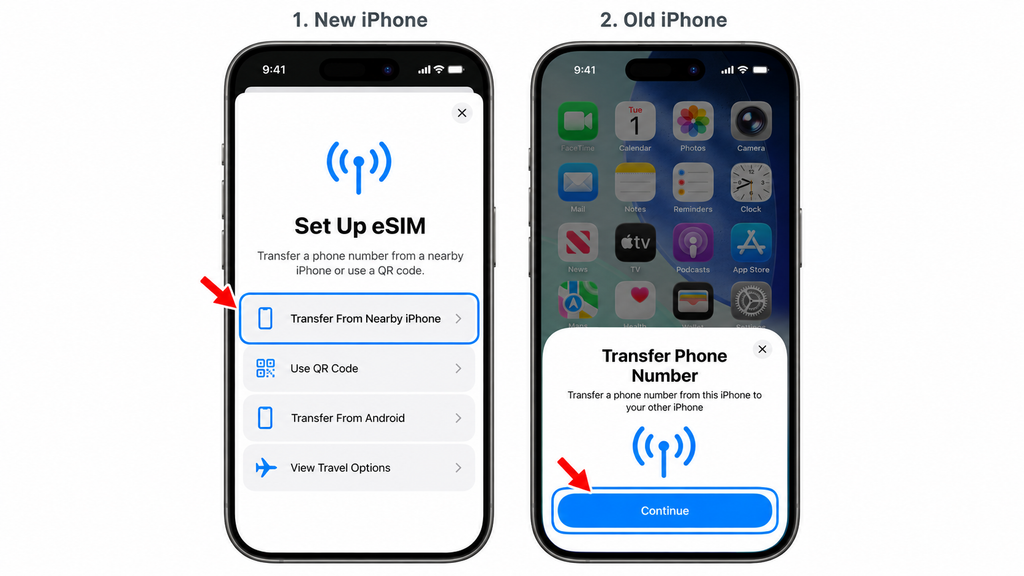
When the transferred line activates, the previous SIM stops serving that line. Keep the old phone until you have checked service and copied your data.
If Quick Transfer is missing or fails, use your carrier’s app or request another activation method. If you are moving from Android, follow the carrier’s supported transfer process instead.
3. Activate Through a Carrier App or QR Code
This route suits many bring-your-own-phone activations. The carrier first creates or transfers your line, then provides a way to install its eSIM.
For app setup, download the official carrier app from the App Store and sign in. Follow its activation instructions and approve the iPhone’s plan-installation prompts. Visible, for example, provides app-guided iPhone activation and a QR-code route when needed.
If your carrier provides a QR code:
Step 1: Open Settings > Cellular. Tap Set Up Cellular or Add eSIM.
Step 2: Select Use QR Code. You may need to open Other Options first.
Step 3: Scan the carrier’s code. Display it on another screen or use the supported option your carrier provides.
Step 4: Complete installation. Follow Continue and any confirmation prompts. Enter a carrier confirmation code if required.
Step 5: Check the new line in Cellular settings. Give it a clear label if you use more than one line.
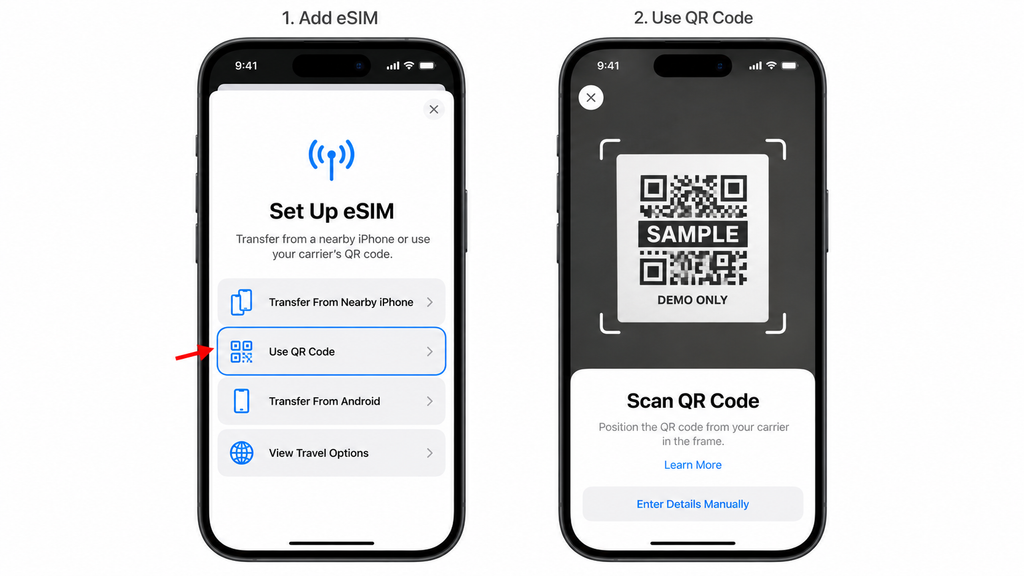
Follow the carrier’s order of operations when bringing your number. Mint Mobile instructs customers transferring a number to wait until the transfer is complete before installing the eSIM. Another provider’s process may differ.
If a code is rejected, check whether the plan is already installed. Ask the carrier whether you need a replacement code or corrected activation details.
4. Activate With a Physical SIM on a Supported iPhone
Use this method only if your iPhone has a compatible SIM tray and the carrier accepts the device. Get the correct SIM from your provider, or confirm that your existing SIM can move to this phone.
Step 1: Follow the carrier’s activation instructions. Register the SIM and device if required.
Step 2: Eject the SIM tray. Push a SIM eject tool gently into the tray’s small opening.
Step 3: Insert the SIM correctly. Match its cut corner to the tray, then slide the tray back in without forcing it.
Step 4: Complete any onscreen prompts. If asked for a SIM PIN, use the correct PIN; do not guess.
Step 5: Check for service. If the phone does not connect, ask the carrier whether it needs a replacement SIM or account update.
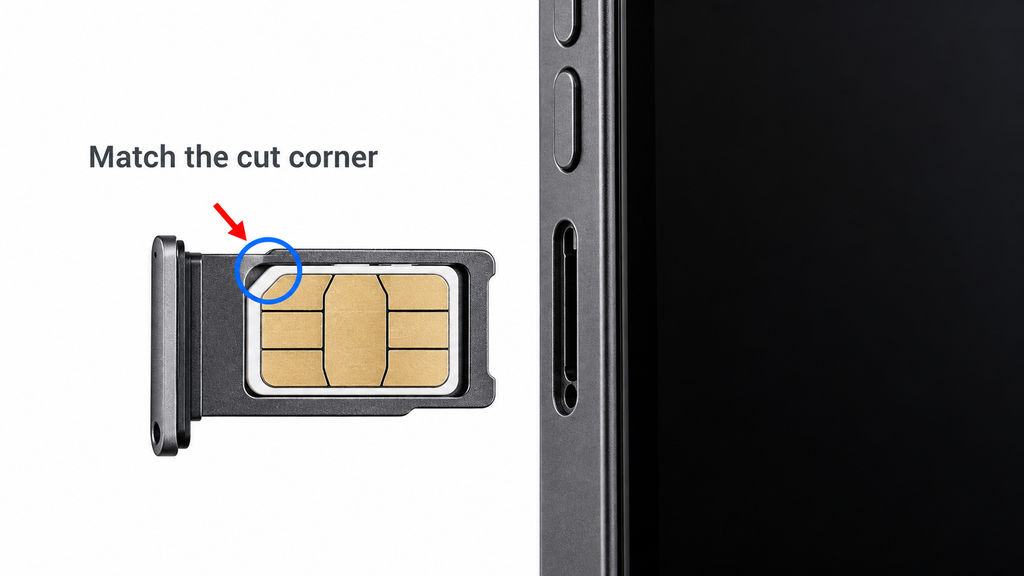
A SIM that fits is not proof that it is active. Your carrier must connect that SIM to a working line.
How Long Does Activation Take, and What Does It Cost?
There is no single activation time or price across carriers. Installing an eSIM, approving an account, and transferring a phone number are separate parts of the process.
Check your carrier’s status page or app for progress. Before confirming an order, review the plan price, taxes, and any listed SIM, activation, or upgrade charges. An eSIM download does not mean cellular service is free.
Bonus Tips: Confirm Service and Fix Activation Problems
An installation message is only the first check. Confirm that the correct phone number can actually use the network.
Test Calls, Texts, and Cellular Data
Run these checks before erasing or trading in your old phone:
Step 1: Open Settings > Cellular. Make sure the intended line is on. With multiple lines, select the correct line for cellular data and outgoing calls.
Step 2: Turn off Wi-Fi in Settings > Wi-Fi. This keeps Wi-Fi from masking a cellular problem.
Step 3: Make and receive a normal phone call. Confirm that incoming calls reach the new iPhone.
Step 4: Send and receive a carrier text. An iMessage alone is not a complete text-service check.
Step 5: Open a webpage using cellular data. If calls work but the page does not load, check your data-line selection and plan status.
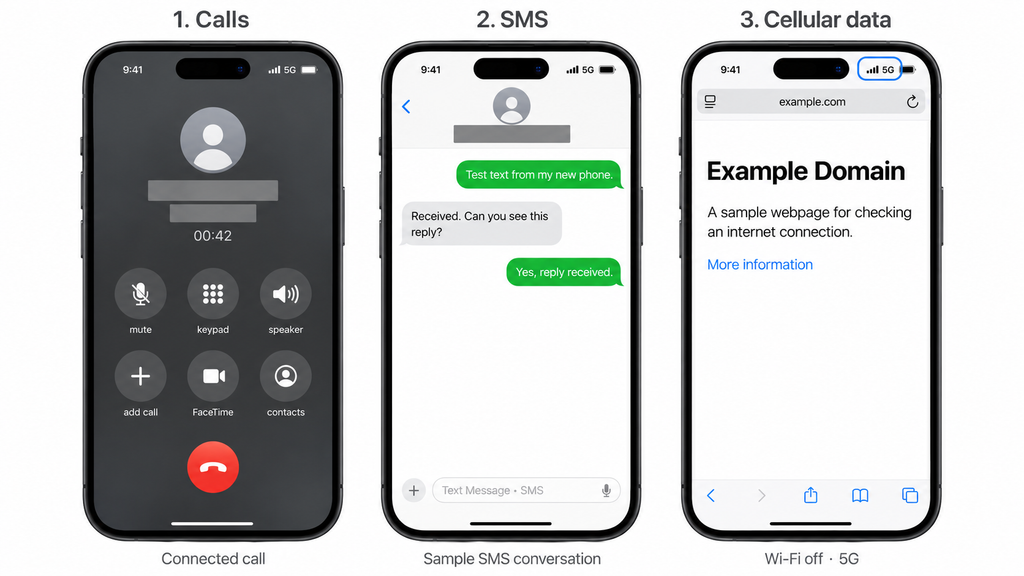
For a number transfer, test incoming calls to the number you are keeping. A temporary number working does not confirm that your old number has moved.
Fix SOS, No Service, or a Stuck Activation
SOS does not confirm normal service. It means your iPhone is not connected to your own cellular network, though emergency calls may be possible through another network.
Try these checks in order:
Step 1: Check coverage and account status. Confirm that the carrier has no local outage and your line is active.
Step 2: Toggle Airplane Mode. Leave it on for at least 15 seconds, then turn it off.
Step 3: Check the line. Under Settings > Cellular, open the affected line and confirm Turn On This Line is enabled.
Step 4: Restart the iPhone.
Step 5: Check carrier settings. Connect to Wi-Fi, open Settings > General > About, and install a carrier settings update if offered.
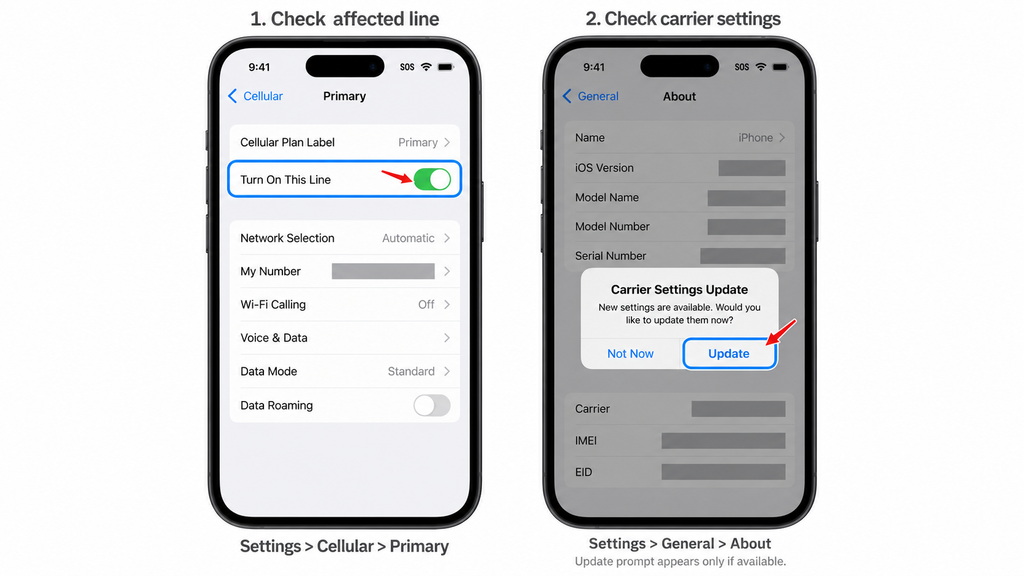
If service still fails, give carrier support the exact error, your activation status, and the IMEI or EID through its secure support channel. Ask whether the problem is the eSIM assignment, number transfer, account, or device eligibility.
Avoid erasing the phone or deleting its eSIM as your first fix. A deleted eSIM may require the carrier to issue another one.
Keep Your Existing Number During a Carrier Switch
Request a number transfer, also called porting, through the new carrier. Have your old account number, transfer PIN if required, and matching billing details ready.
Keep your old service active until the transfer finishes. Canceling first can put your number at risk. If the request stalls, have the new carrier check the submitted details and transfer status.
The Bottom Line
The right way to activate your iPhone depends on its SIM support, carrier compatibility, and account setup. Use an assigned eSIM when one is ready, Quick Transfer for a supported iPhone upgrade, or the carrier’s app, QR code, or physical SIM instructions.
Start by checking your IMEI with the provider you want to use. After activation, test incoming calls, texts, and cellular data before erasing your old phone or treating a number transfer as complete.
Yes, if your iPhone and carrier support eSIM. You still need a cellular plan and a valid eSIM assignment. Wi-Fi access alone does not activate a phone number or provide normal cellular service.
Not automatically in every case. Phone setup may offer a supported cellular transfer, but copying apps and photos does not prove that your line moved. Check Cellular settings and test the number on the new phone.
Adding a cellular plan does not require a factory reset. Keep data transfer separate from activation, and avoid choosing Erase All Content and Settings as an activation step. Back up before making major changes to either phone.
You must resolve Activation Lock before completing normal setup. Ask the previous owner to remove the device from their Apple Account. Buying a SIM or changing carriers does not remove that lock.