
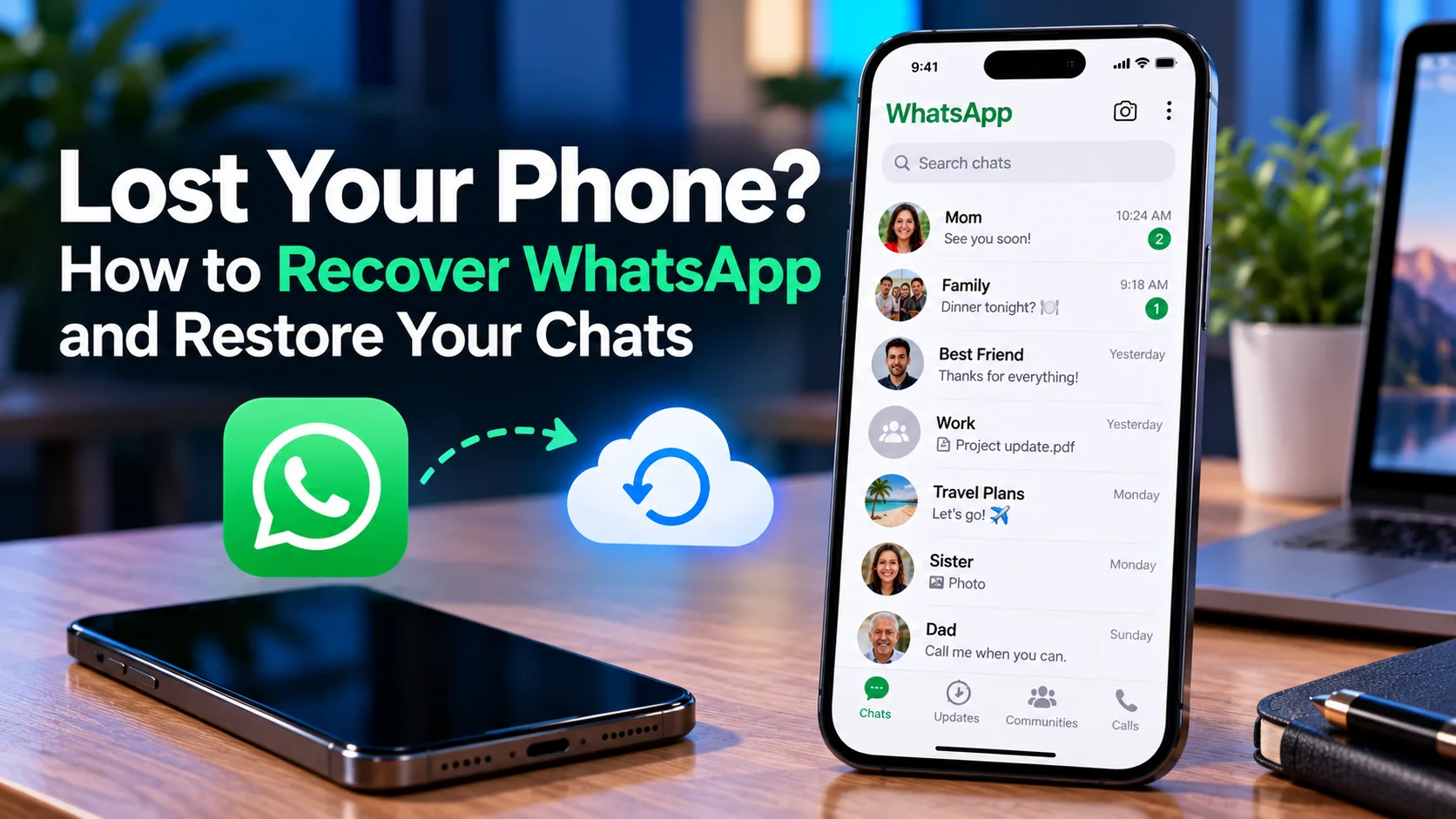
To recover WhatsApp after losing your phone, get a replacement SIM or eSIM with the same number and register WhatsApp on your replacement phone. Restore chats from an existing, compatible backup when prompted. You’ll need the matching backup account and any required security credentials. Signing in alone does not bring back old messages.
Losing your phone does not always mean losing your WhatsApp chats. This guide explains how to secure your account and restore the backup you have.
Part 1: What You Need to Recover WhatsApp
Before setting up another phone, work out how you will verify your number and where your chats were backed up. Those two details determine your recovery route.
Account Recovery and Chat Recovery Are Separate
Account recovery gets you back into WhatsApp under your existing number. Chat recovery brings back saved messages and media from a usable backup.
You can recover your account and still find an empty chat list. A verification code proves access to your account; it does not contain your messages.
Gather the Essentials
Have these ready:
- Your existing phone number: Ask your carrier to replace the lost SIM or activate a replacement eSIM with that number.
- The right backup account: Your Google Account for an Android backup or your Apple Account for an iCloud backup.
- Security credentials: Your WhatsApp two-step verification details and any password, encryption key, or passkey protecting your backup.
- A suitable replacement phone: Install the current official WhatsApp app, connect to stable Wi-Fi, and leave enough storage for the restore.
WhatsApp’s backup and restore guidance requires the same phone number and matching cloud account used for the backup.
Match Your Recovery Route to Your Backup
| Backup you previously used | Where to start |
|---|---|
| Google Account on Android | Restore through WhatsApp on an Android phone |
| iCloud on iPhone | Restore through WhatsApp on an iPhone |
| WhatsApp cloud storage | Use its in-app restore route if available |
| No usable backup and no old phone | Recover account access, then seek copies of important messages |
WhatsApp says its cloud storage feature is being tested and may not appear on your account. Its presence in current help pages does not mean you had it enabled.
For these backup routes, you cannot create a new backup from a missing phone through your replacement phone. Recovery depends on what was successfully saved before the loss.
If you know which Google or Apple Account you used, confirm you can sign in before starting WhatsApp setup. Recover that account first if necessary.
Part 2: How to Recover WhatsApp and Restore Your Chats
Start with the first two actions. Then follow the restore route that matches your existing backup.
1. Secure the Missing Phone and Replace Your SIM
Protecting the lost device matters even while you work on chat recovery.
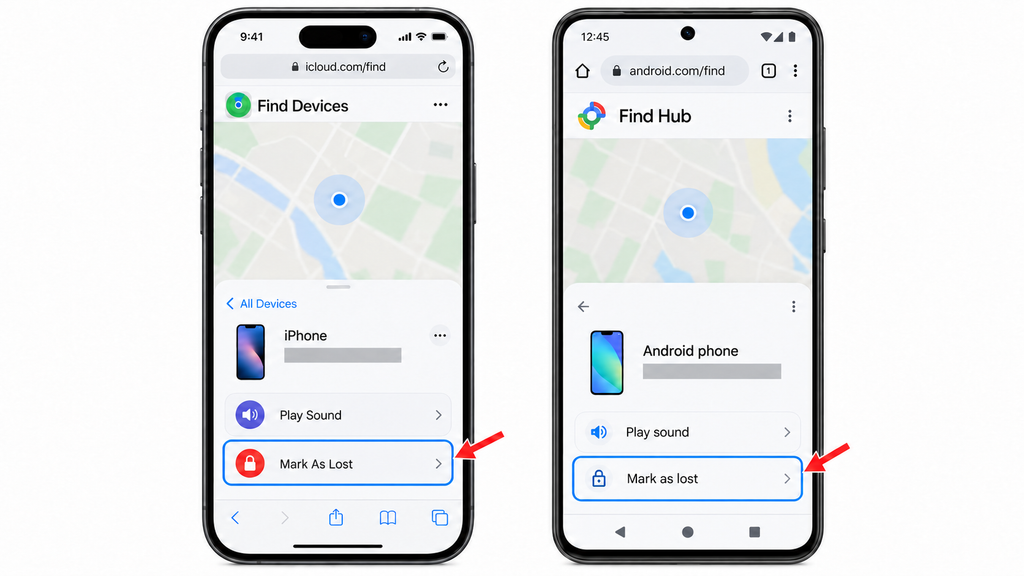
- Step 1: Lock the missing phone remotely. For iPhone, use Apple Find Devices and mark it as lost. For Android, use Google Find Hub and choose Mark as lost, when available.
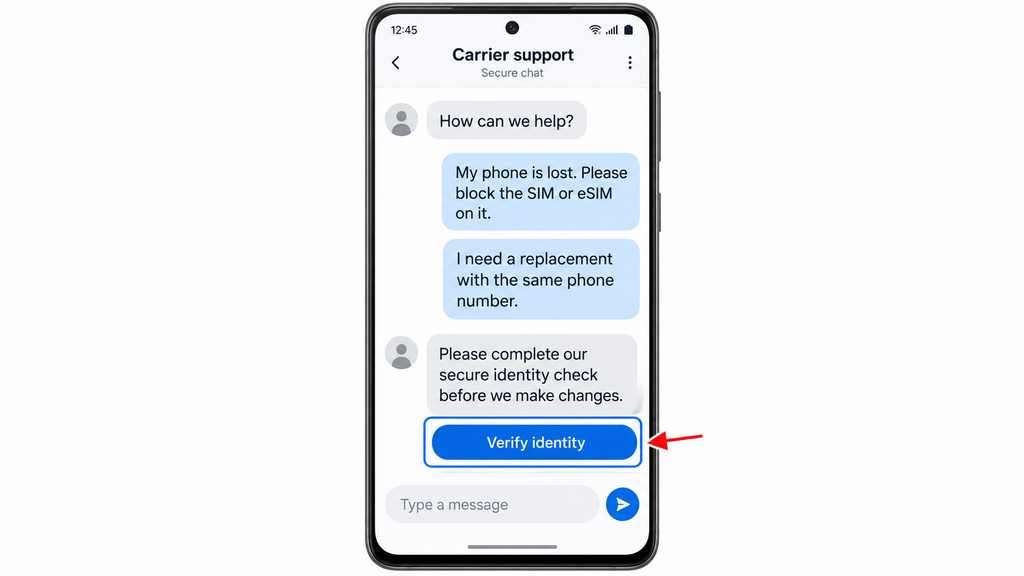
- Step 2: Contact your carrier. Report the lost phone, ask it to block the missing SIM or eSIM, and request a replacement using the same phone number. Complete the carrier’s identity checks.
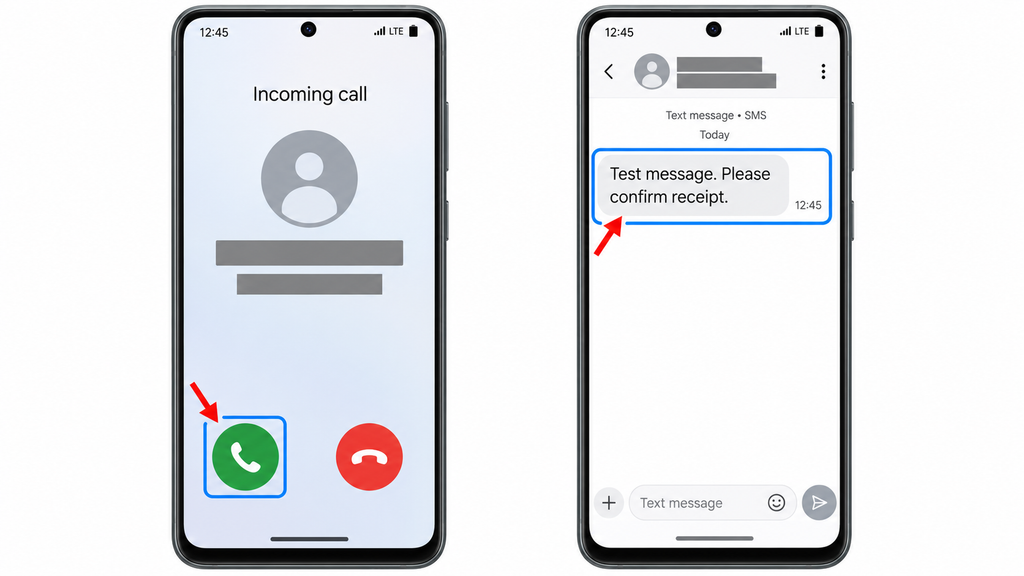
- Step 3: Activate the replacement line. Confirm that the replacement phone can receive ordinary calls and text messages before requesting a WhatsApp code.
Apple’s Lost Mode and Google’s Mark as lost help lock the missing device. Remote erasing deletes its local data, including chats that never reached a backup, so read the consequences before choosing that action.
Blocking the SIM does not erase the phone or its chats. Continue with WhatsApp registration promptly. If someone may be sending messages as you, warn close contacts through another trusted channel.
2. Register WhatsApp With Your Existing Number
This restores account access. WhatsApp says that completing re-registration logs your account out on the lost phone.
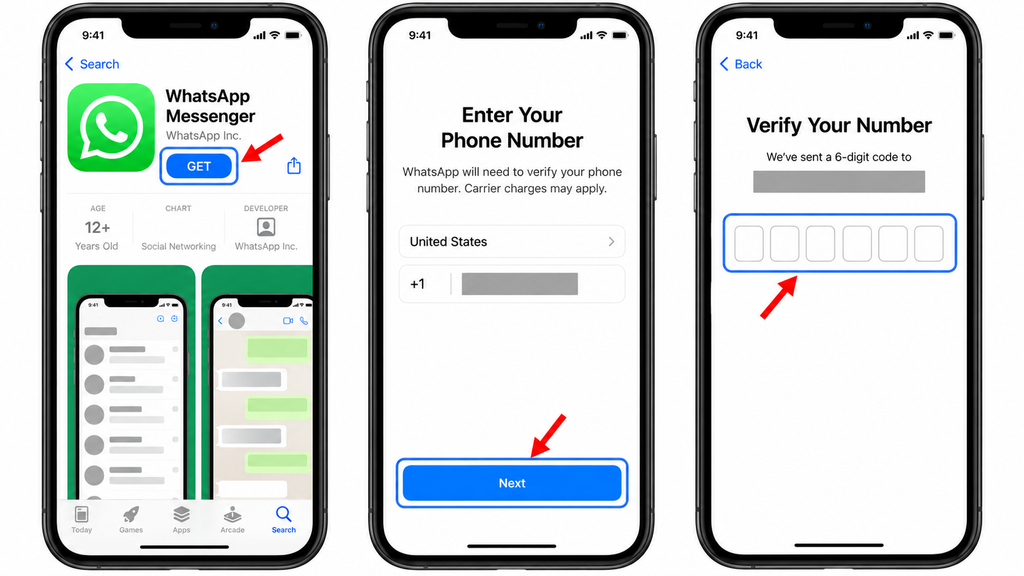
- Step 1: Install the official app. Get WhatsApp Messenger from Google Play or Apple’s App Store.
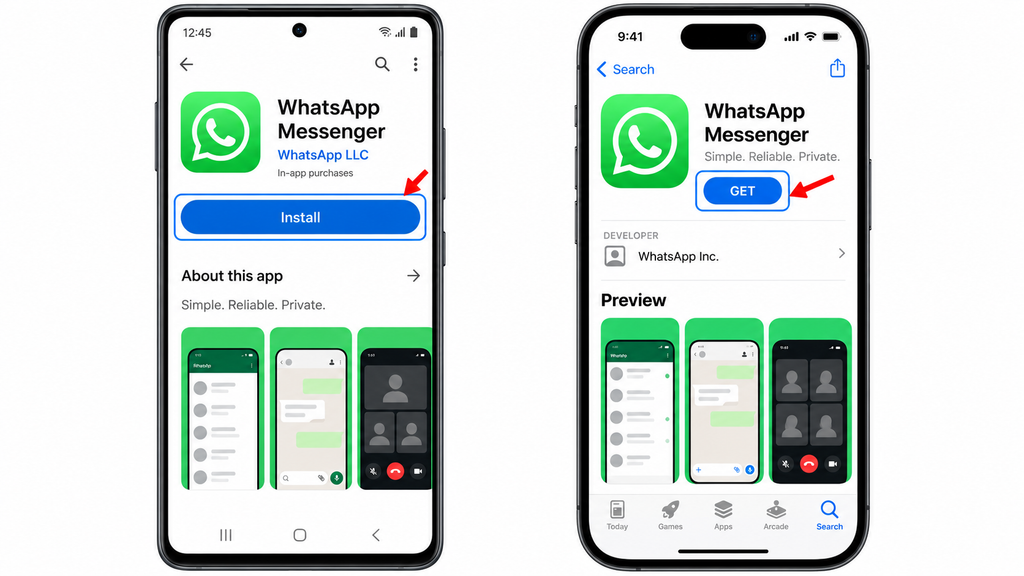
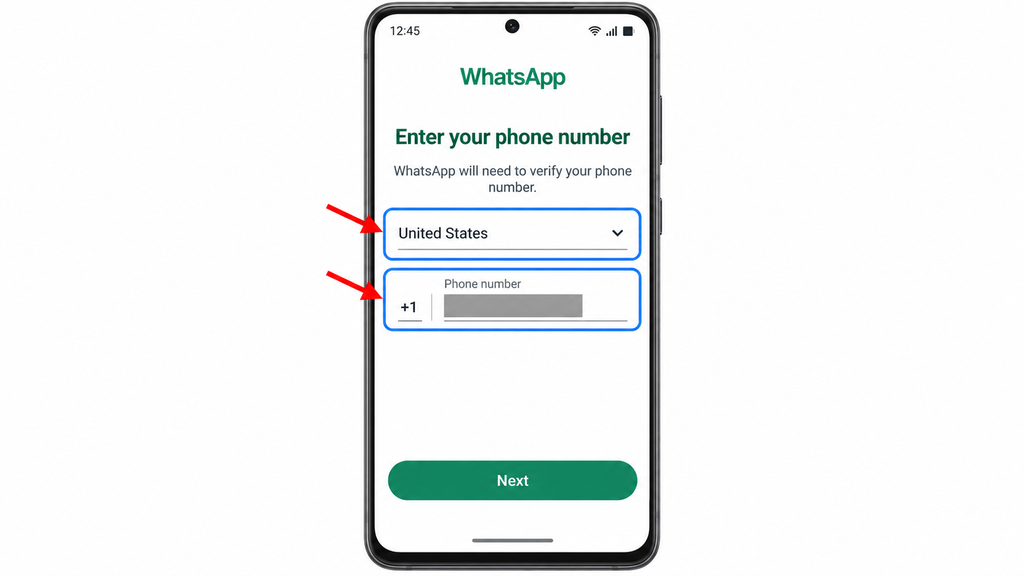
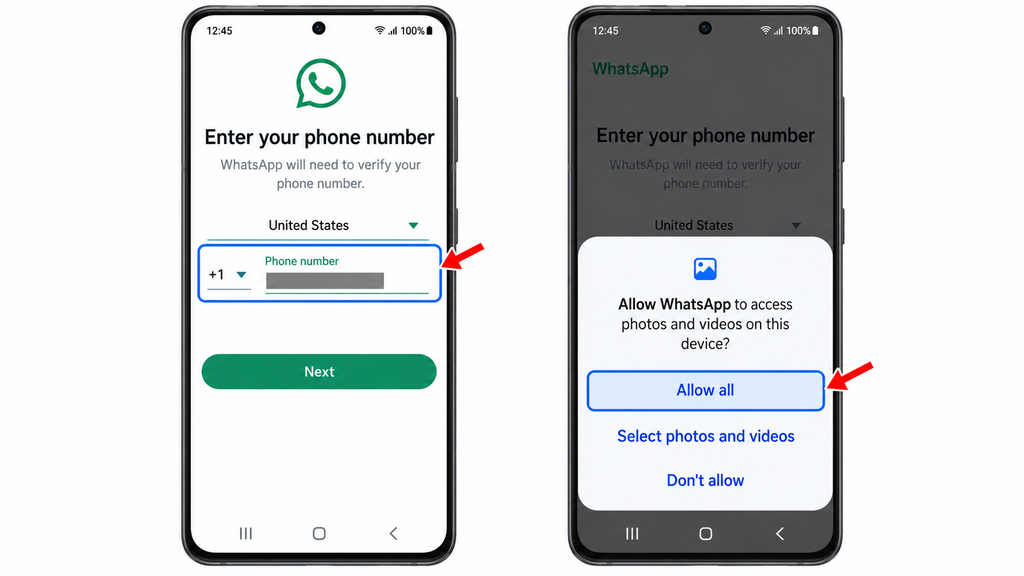
- Step 2: Enter your existing number. Select United States (+1) for a US number and enter the number you used before losing the phone.
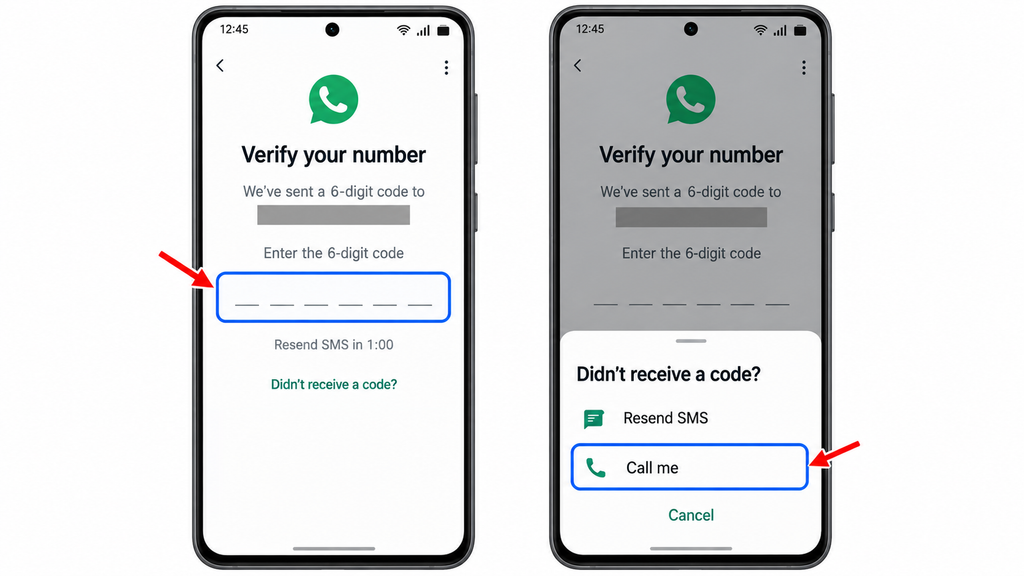
- Step 3: Complete verification. Enter the registration code you receive. If needed, use the available SMS or phone-call option and wait for the displayed timer before retrying.
- Step 4: Complete extra security checks. Enter your two-step verification PIN or password if requested. Keep going until WhatsApp offers your backup or completes account setup.
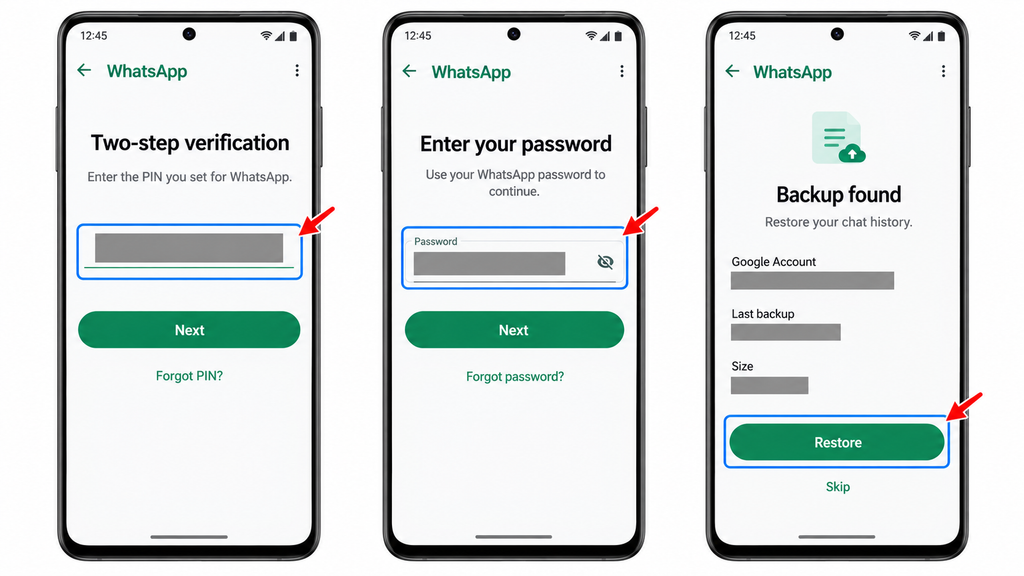
These actions follow WhatsApp’s lost-phone recovery instructions.
A previously verified email address may provide another verification option when offered. It does not replace access to your active phone number; WhatsApp’s current email guidance still requires the associated active SIM in the device.
If you forget your two-step verification details, use the account recovery option shown, such as Verify another way. Follow any waiting period. Read an account-reset warning carefully: that action is irreversible and can delete messages.
Once you reach your account, check that the number is correct. An empty chat list at this point does not prove there is no backup—continue with the matching restore process.
3. Restore an Android Backup From Your Google Account
Use this route if your missing phone was Android and WhatsApp had successfully backed up to your Google Account.
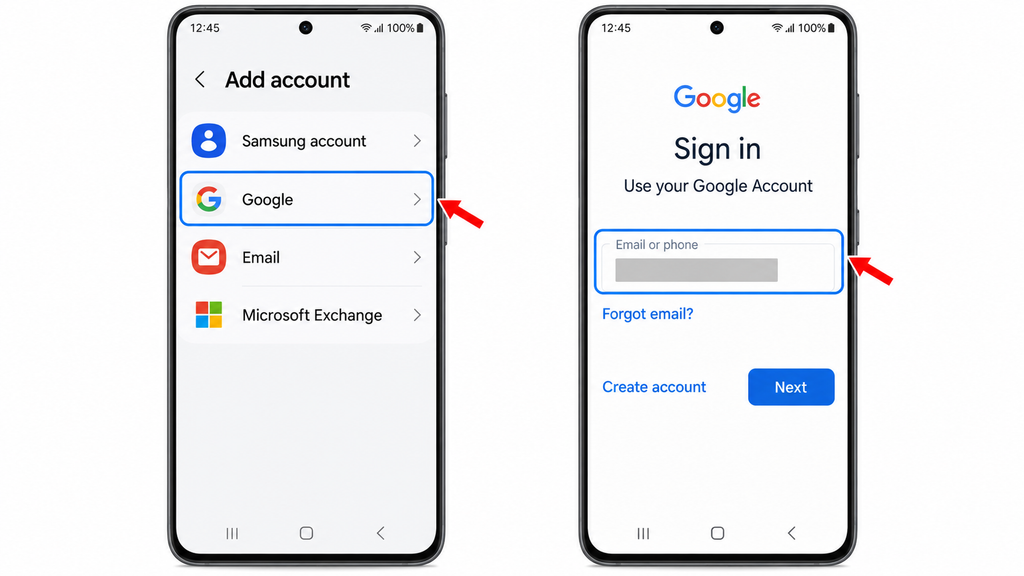
- Step 1: Add the correct Google Account. Sign in on the replacement Android phone with the account used for your WhatsApp backup.
- Step 2: Continue WhatsApp setup. Register the same phone number as described above. Allow the access WhatsApp requests to find your backup.
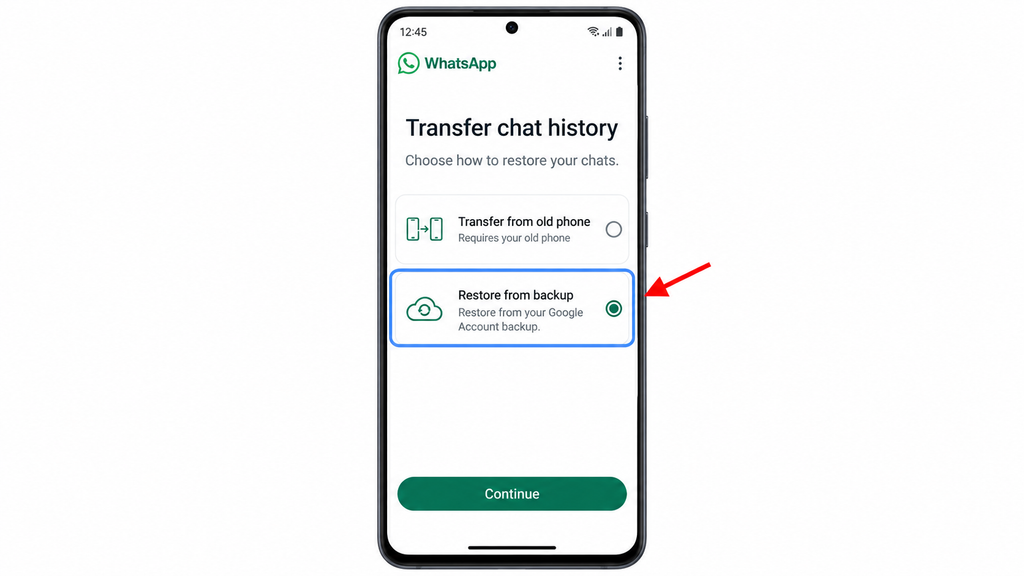
- Step 3: Choose the cloud restore. When prompted, select Restore from backup or the equivalent restore option. Transfer from old phone requires the old device and does not solve a missing-phone situation.
- Step 4: Unlock the backup and finish. Complete any backup security prompt, let restoration finish, and follow the remaining setup screens.
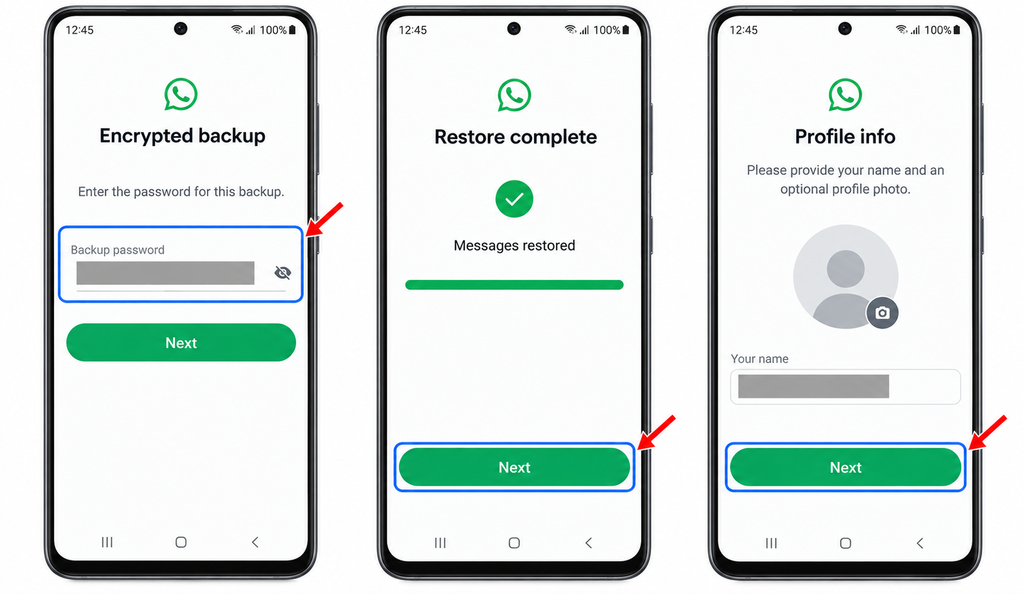
Google’s WhatsApp transfer instructions explain the cloud restore route and the need to use the matching Google Account.
Open several conversations and check their dates. Photos and other media may continue downloading after messages appear.
If WhatsApp cannot find the backup, confirm the Google Account and phone number before starting over. Do not create a fresh empty backup while you are still looking for the old one.
4. Restore an iPhone Backup From iCloud
Use this route if your lost iPhone had a WhatsApp chat backup in iCloud.
- Step 1: Sign in to the matching Apple Account. On your replacement iPhone, open Settings > [your name] > iCloud. Enable iCloud Drive and allow WhatsApp to use it; labels can vary by iOS version.
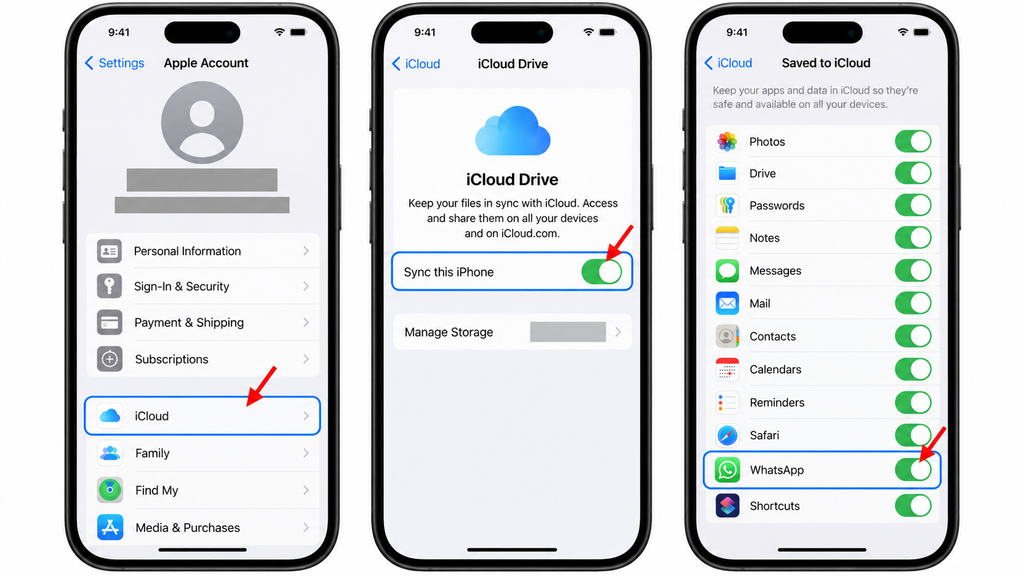
- Step 2: Install and open WhatsApp. Use the official App Store app and verify the same phone number used to create the backup.
- Step 3: Restore the detected backup. Tap Restore Chat History when WhatsApp offers it. Complete any identity or encrypted-backup security prompt.
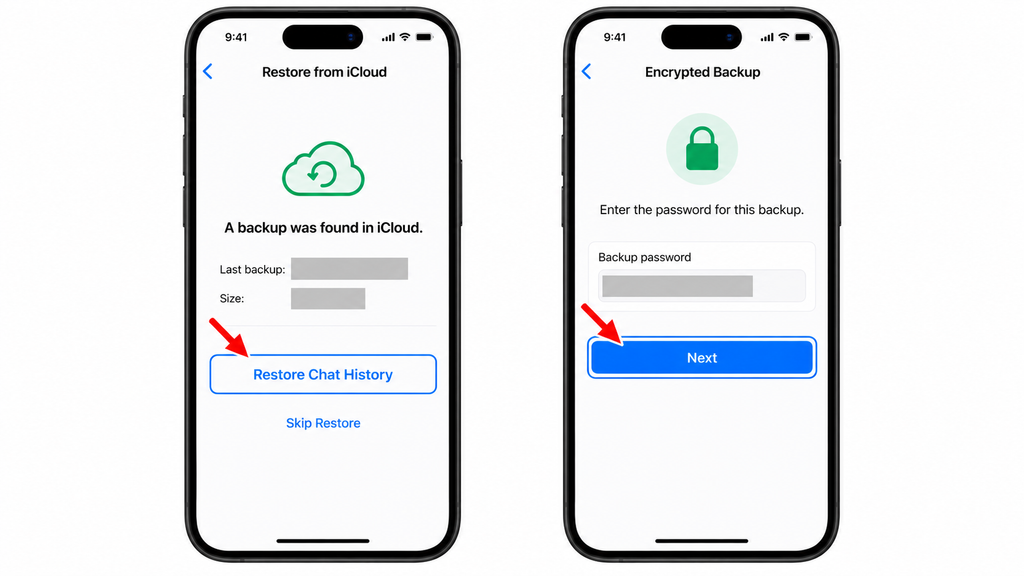
- Step 4: Let the restore finish. Keep the iPhone connected to power and a stable internet connection. Check several conversations afterward.
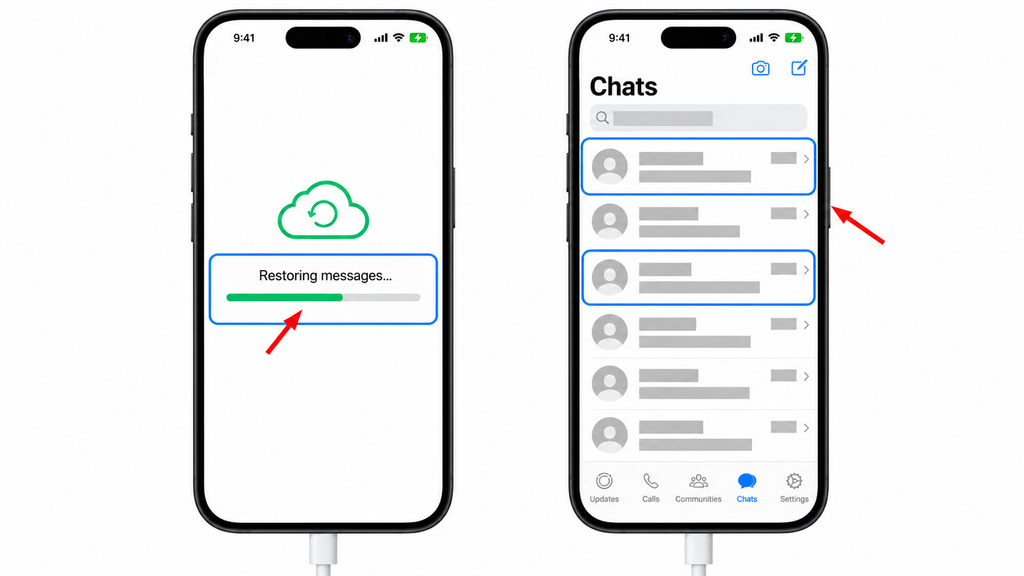
WhatsApp’s iPhone restore guidance explains the restore prompt. Its troubleshooting guidance also requires the original Apple Account and enough free storage.
A successful restore brings back what the backup contains. Messages received after that backup will be missing, and videos return only if they were included.
Do not erase the replacement iPhone just to search for a WhatsApp backup. Start with the in-app restore route.
5. Use WhatsApp Cloud Storage if You Previously Enabled It
Some accounts may offer WhatsApp cloud storage alongside Google Account or iCloud backup options. This feature is still being tested, so availability can differ.
Use this route only if that is where you actually saved your chats:
- Step 1: Verify your existing number in the current WhatsApp app.
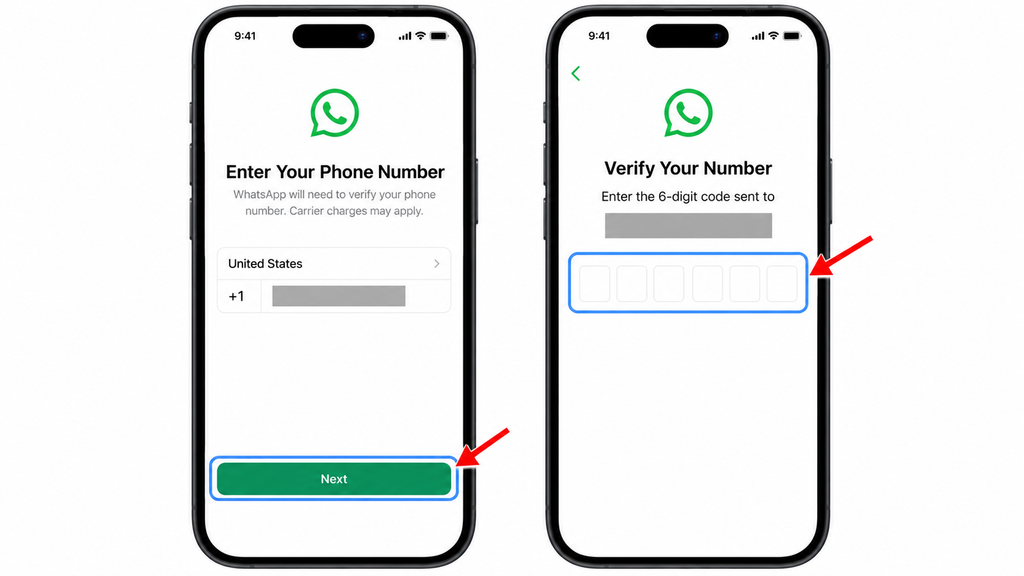
- Step 2: Follow the restore option for your WhatsApp cloud backup if the app offers it.
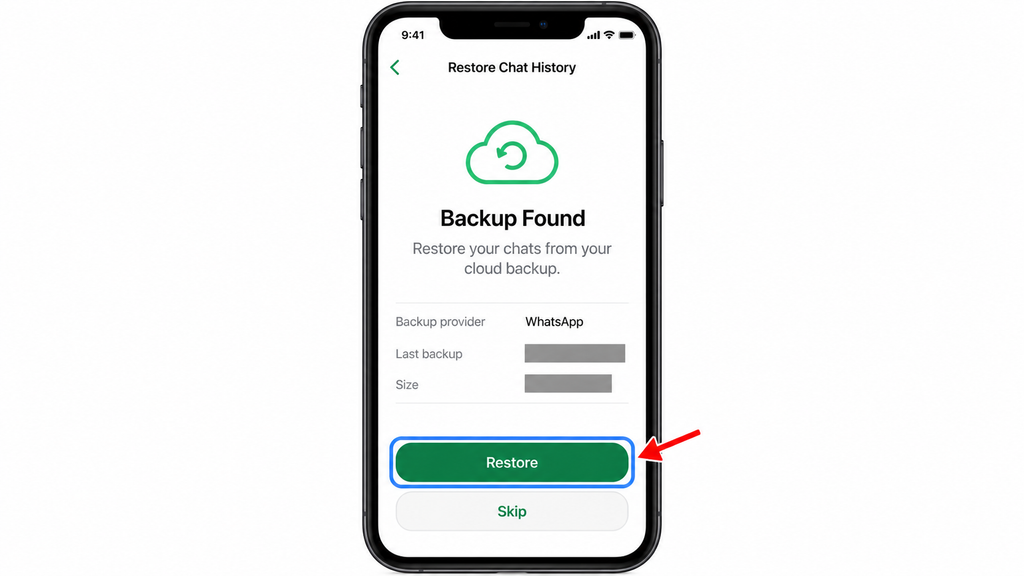
- Step 3: Complete the security prompts and check the recovered conversations.
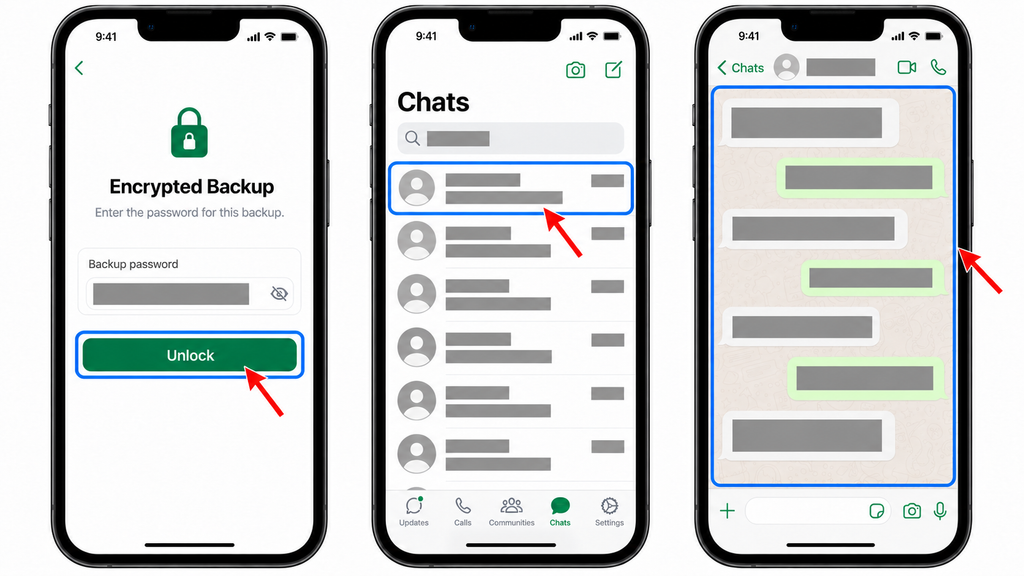
A Google Account or iCloud backup does not become a WhatsApp cloud backup simply because the new option appears. Follow the provider that holds your existing backup.
Can You Restore WhatsApp Chats Without a Backup?
Usually, no—if the phone is missing and you have no usable backup, there is no standard restore route for its full chat history.
Direct chat transfer needs the old phone. A local backup stored only on that missing phone is also unavailable unless you already saved a usable copy elsewhere.
Ask people in important conversations to resend messages, documents, or photos they still have. Check any separate photo storage you used. These steps can recover individual items, but they do not rebuild the original WhatsApp conversation history.
Be cautious about a service promising complete recovery using only your phone number. Account verification cannot recreate an unavailable message archive.
Bonus Tips: Fix Restore Problems and Protect Your Chats
Check These Details Before Reinstalling
A missing backup prompt often calls for a careful check:
- Are you registering the same phone number?
- Are you signed into the correct Google or Apple Account?
- Are you using the backup’s matching platform and provider?
- Is there enough free storage and a stable internet connection?
Do not delete the cloud backup as a troubleshooting step. With the original phone missing, it may be your only remaining copy.
If you already skipped restoration, you may need to reinstall WhatsApp and repeat setup to get the restore prompt. Restoring old history can replace new chats on the replacement phone; the two histories cannot be merged. Save important new information separately first.
Keep Account Security and Backup Security Separate
Your text-message registration code, two-step verification details, and encrypted-backup credentials serve different purposes. Passing one check does not automatically satisfy the others.
WhatsApp supports passkey-protected encrypted backups as well as password or encryption-key options. A passkey uses your device’s security system to approve access; use the method you previously configured.
If you cannot unlock a password-protected backup and cannot access your old chats, WhatsApp says it cannot reset that backup password or restore the backup for you. Check your password manager and saved recovery details before starting fresh. See its encrypted-backup password guidance.
Review Linked Devices After Recovery
Check devices connected to your account once you are back in.
- Step 1: Open Linked devices. On Android, use the three-dot menu. On iPhone, open WhatsApp Settings > Linked Devices.
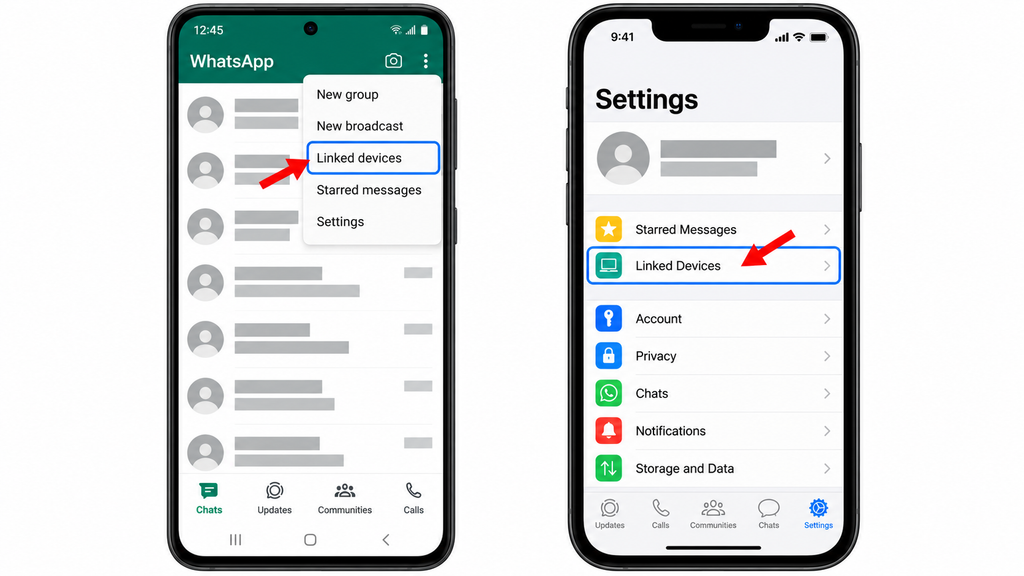
- Step 2: Review the list. Select any session you do not recognize.
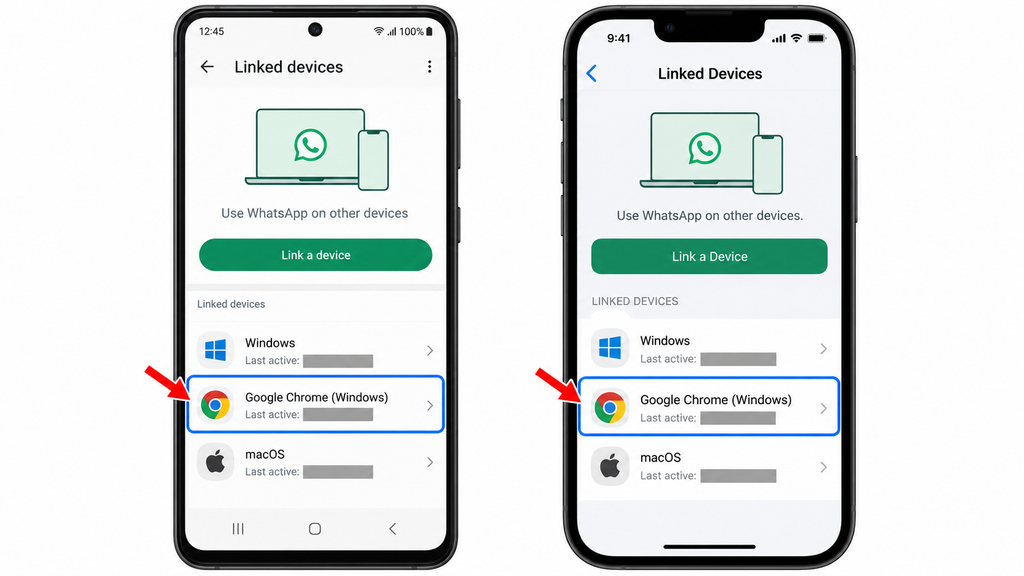
- Step 3: Tap Log out. Link only devices you control afterward.
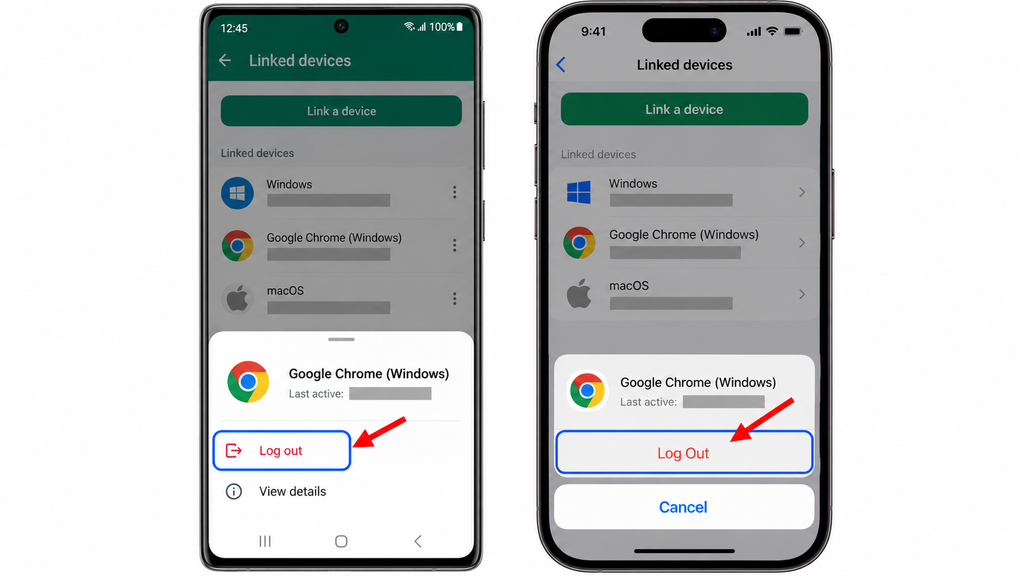
An existing WhatsApp Web or Desktop session may still show useful information, but linked devices cannot create or restore your phone’s chat backup.
Create a Confirmed Backup After Restoration
Once you have checked that the recovered chats are the ones you want to keep, open WhatsApp Settings > Chats > Chat backup.
Choose the backup provider available to you, set a regular schedule, and run a backup. Check the last successful backup time afterward. Protect the backup with the security options offered and keep its recovery credentials somewhere you can reach without your phone.
Also review Settings > Account > Two-step verification and your recovery email. Never share registration codes or security credentials with someone claiming they can recover your chats.
The Bottom Line
Recover your existing phone number first, register WhatsApp on a replacement phone, and restore from the backup provider you previously used. Check the backup account and security details before choosing to skip restoration or start fresh.
Your best next action is to contact your carrier for a replacement SIM or eSIM with the same number. Once your chats are restored, confirm that important conversations and media are present, then create a new backup.
You should first ask your carrier whether it can restore that number. WhatsApp’s standard lost-phone recovery route depends on access to the associated number; a new number does not unlock its old backup. A previously added email is not a substitute for the active number requirement.
A Google Account backup cannot be restored directly through WhatsApp’s iCloud restore process, and the reverse also applies. Official transfers between Android and iPhone use a separate process involving the source phone. If your backup is with Google or iCloud and the old phone is missing, start with a replacement using the matching system.
Re-registration logs the lost phone out of your WhatsApp account; it is not a remote wipe of the device. Use Apple’s or Google’s device-security tools separately to protect the missing phone. Read the data-loss warning before remotely erasing it.
The official account registration and restore steps do not require a paid recovery service. Your carrier may charge for a replacement SIM, and data or storage charges can apply. Timing depends on carrier activation, security checks, backup size, and connection speed; follow any timer shown in WhatsApp.
Photos and other media may still be downloading after your messages appear. Keep your phone connected to stable Wi-Fi and allow the restore to finish. Videos can return only if they were included in your backup. For missing files that were never backed up, ask the sender to resend them.