
Key Takeaways
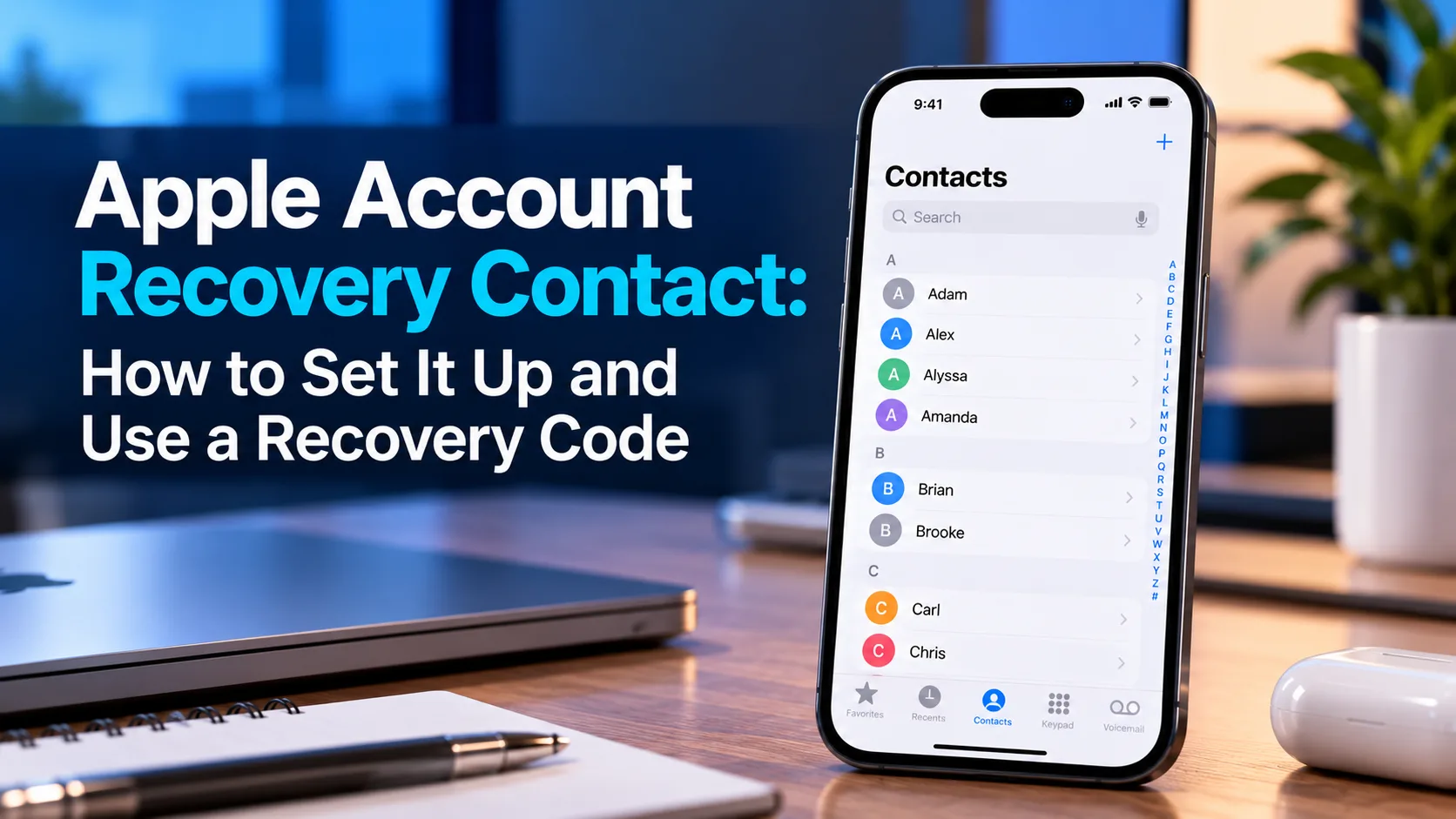
An Apple Account recovery contact is someone you trust who can help you reset your account password. Add one before you lose access through Settings > [your name] > Sign-In & Security > Recovery Contacts. During recovery, your contact can generate a six-digit code. They cannot view your account or personal data.
A forgotten Apple Account password can leave you without access to important services. This guide explains how to arrange help before you need it.
Part 1: What to Know Before Choosing a Recovery Contact
Set up this feature while you can still open your account settings. Choosing someone now gives you a recovery option that is already in place if you forget your password later.
Check the Account and Device Requirements
Before you send an invitation, check these requirements:
- Compatible software: Your Apple devices must meet Apple’s requirements: iOS 15, iPadOS 15, or macOS Monterey 12 or later. Your contact also needs a compatible Apple device. Update to the latest available software when possible.
- iMessage: Both you and your contact must have iMessage turned on.
- Age: Apple says both people must be over 13, with age rules varying by country or region.
- Account security: Use two-factor authentication. Your contact also needs it enabled and a device passcode or password in place.
- Older devices: Apple may ask you to remove an unused device that runs unsupported software. Read that prompt before removing anything.
Apple lists these conditions in its recovery contact setup instructions and Personal Safety User Guide.
Choose Someone You Can Reach
You can add up to five recovery contacts. Pick people you trust to answer a call, follow a few settings steps, and keep your request private.
Ask before adding someone, even if they are a close relative. Explain that the role involves helping during an account problem. They do not need your password, and they should not keep a copy of it.
Consider a second contact who lives elsewhere or has a different schedule. That is a practical backup if your first choice is traveling, has lost their phone, or cannot respond.
What Can a Recovery Contact Access?
Being your recovery contact does not give someone access to your photos, messages, passwords, or other account data. Their role is to help you complete recovery through Apple’s security process.
Apple’s security design splits recovery information between the contact’s device and Apple. Neither side holds everything needed to recover your encrypted iCloud data alone. You still complete the required checks on your side.
Recovery Codes, Verification Codes, and Recovery Keys Are Different
These terms sound similar, but they serve different purposes:
| Item | Where it comes from | What it does |
|---|---|---|
| Recovery contact code | Your designated contact’s Apple device | Helps you recover account access when Apple requests it |
| Two-factor verification code | Your trusted device or trusted phone number | Confirms a normal sign-in along with your password |
| Recovery key | A separate security feature you enable | Provides a 28-character recovery credential you must safeguard |
A contact’s six-digit recovery code is not interchangeable with the six-digit code used for a normal sign-in. Enter the type of code the screen requests.
Enabling a recovery key turns off Apple’s standard account recovery process. Do not enable it just because you want to add a contact. Review Apple’s recovery key rules first; losing required recovery credentials can leave you permanently locked out.
Keep your contacts’ names and a way to reach them somewhere available without signing in to iCloud. A recovery plan is less useful if its only copy is inside the account you cannot open.
Part 2: Set Up a Recovery Contact and Use a Recovery Code
Start with setup if you still have account access. If you already added a contact and now need help, go straight to the recovery-code instructions below.
1. Add a Recovery Contact on iPhone or iPad
Use a device signed in to your own Apple Account. These directions follow Apple’s current menu labels; older software may organize the settings differently.
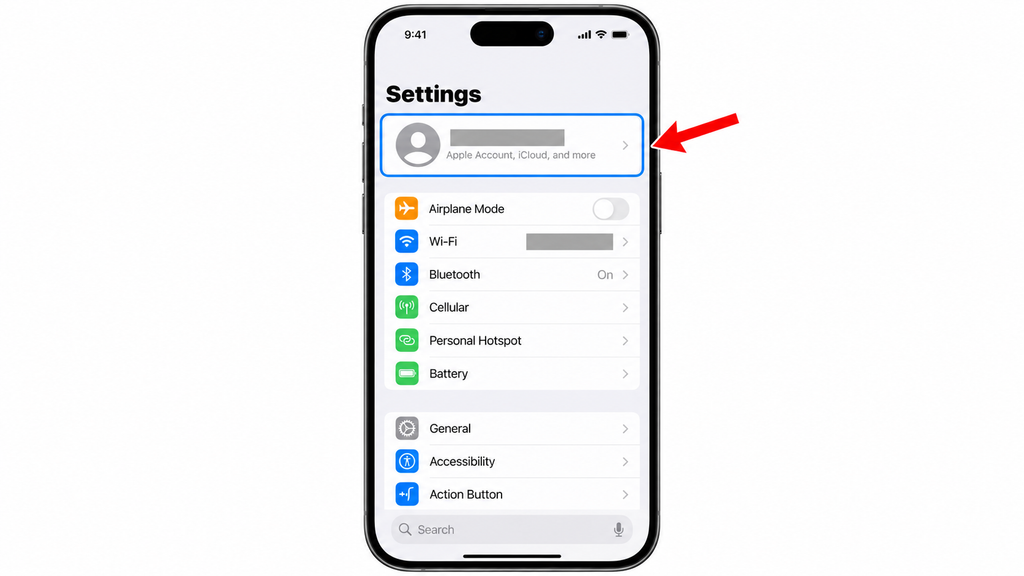
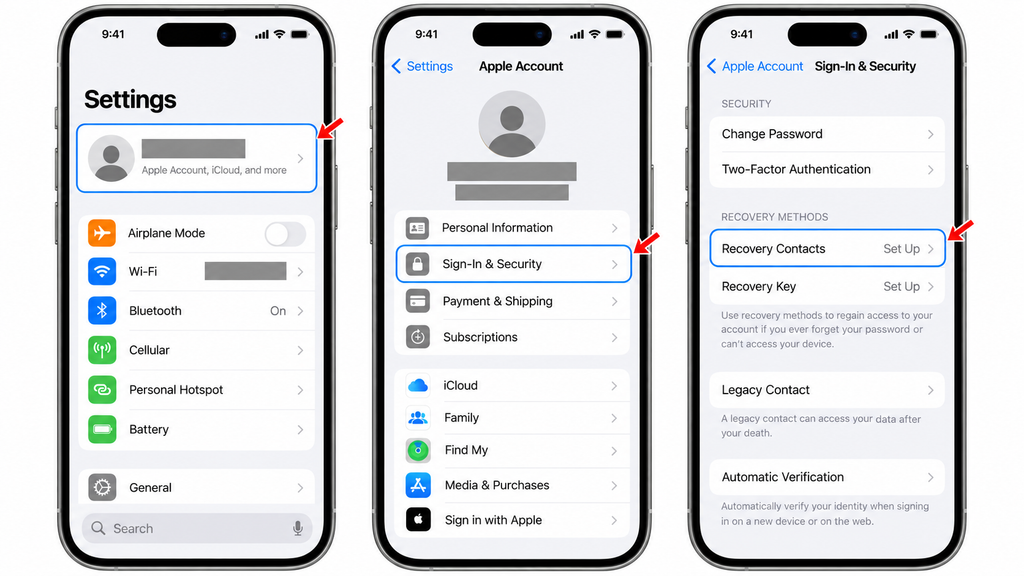
- Step 1: Open your account settings. Open Settings, then tap [your name] at the top.
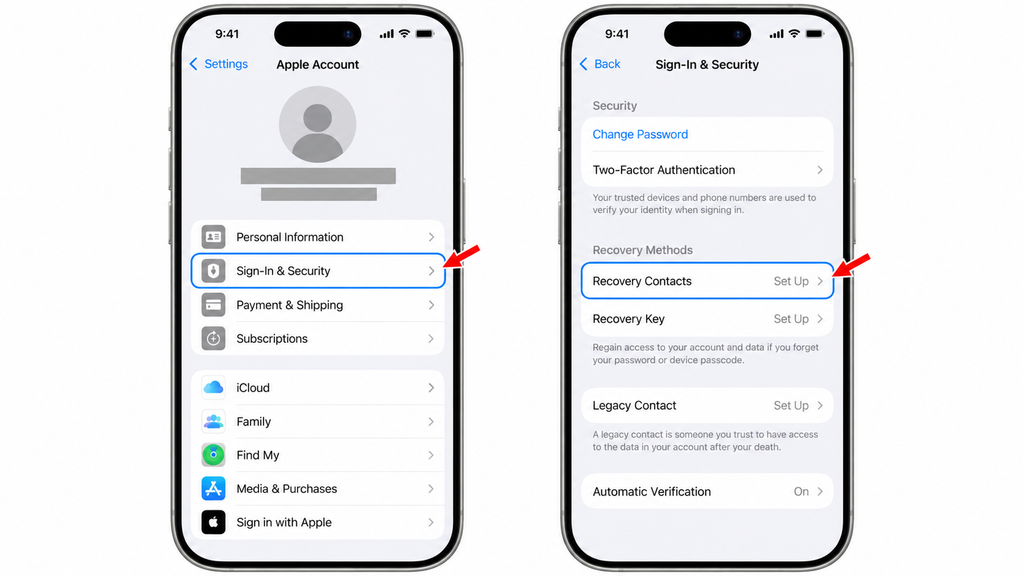
- Step 2: Find recovery contacts. Tap Sign-In & Security > Recovery Contacts.
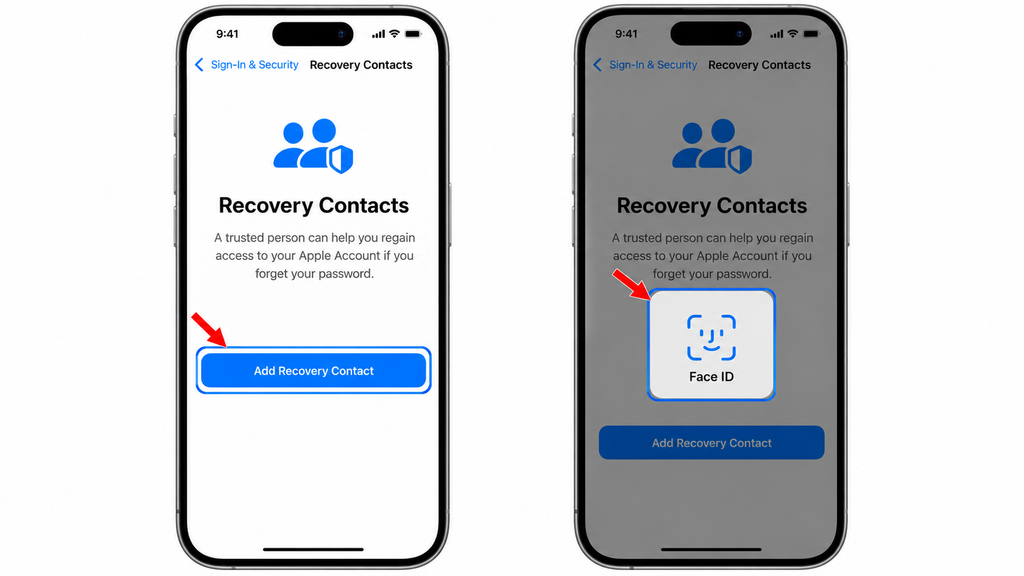
- Step 3: Begin setup. Tap Add Recovery Contact and complete any identity check shown.
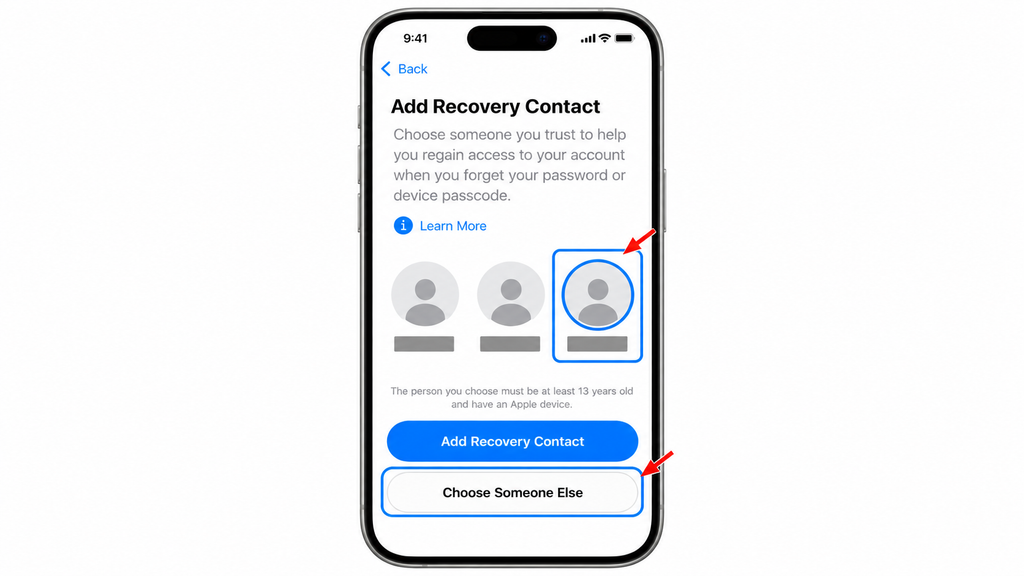
- Step 4: Select someone. Choose a suggested person, or tap Choose Someone Else to pick another contact.
- Step 5: Finish the request. Follow the prompts and check the result in your recovery contact settings.
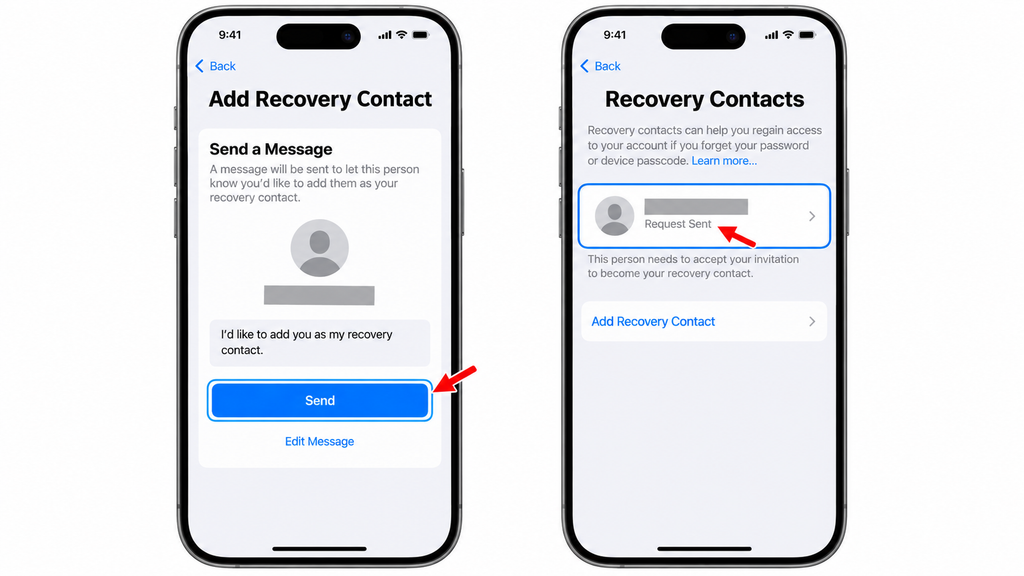
Family Sharing changes the invitation step. When you select someone in your Family Sharing group, Apple adds them automatically. Someone outside that group must accept the invitation in Messages. Sending the request alone does not complete setup for that person.
Look for confirmation that the contact has been added. If they decline or later remove themselves, Apple sends you a notification.
2. Add a Recovery Contact on Mac
A Mac offers another supported way to arrange help while you still have access.
- Step 1: Open System Settings. Choose Apple menu > System Settings, then click [your name].
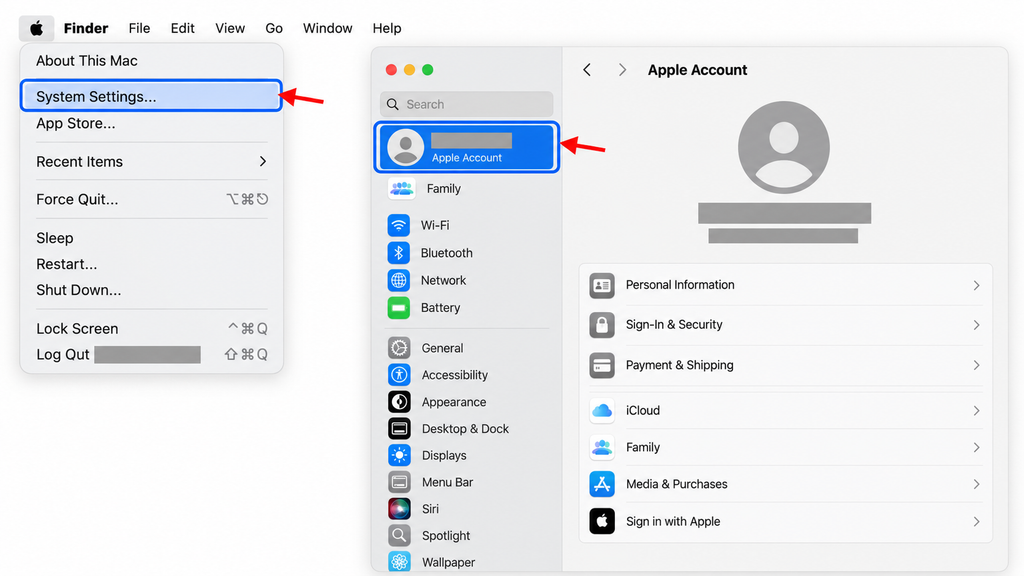
- Step 2: Open recovery settings. Choose Sign-In & Security > Recovery Contacts.
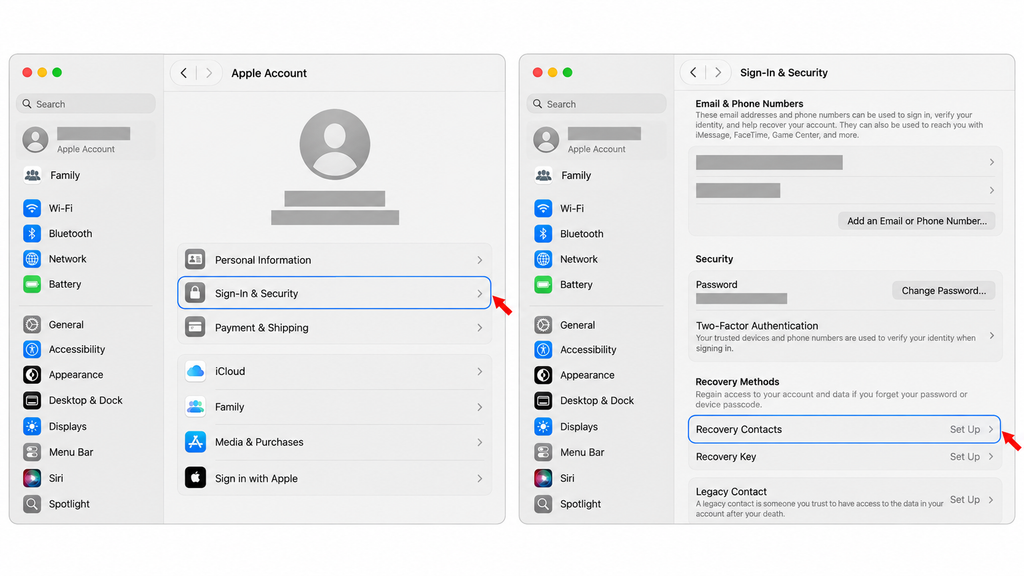
- Step 3: Add someone. Click Add Recovery Contact, select a suggested person or Choose Someone Else, and follow the prompts.
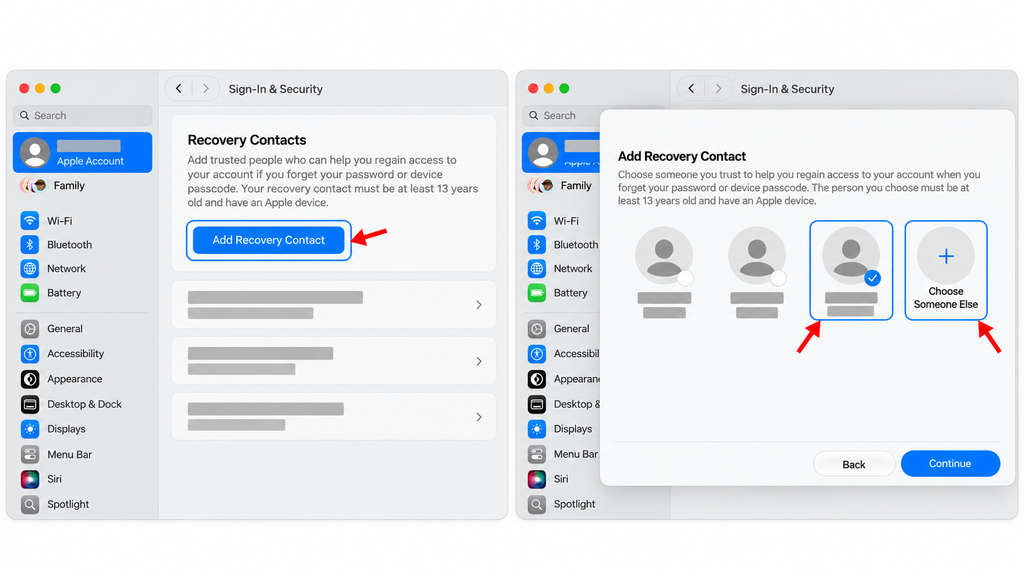
- Step 4: Confirm completion. Check that the person has been added, including invitation acceptance when required.
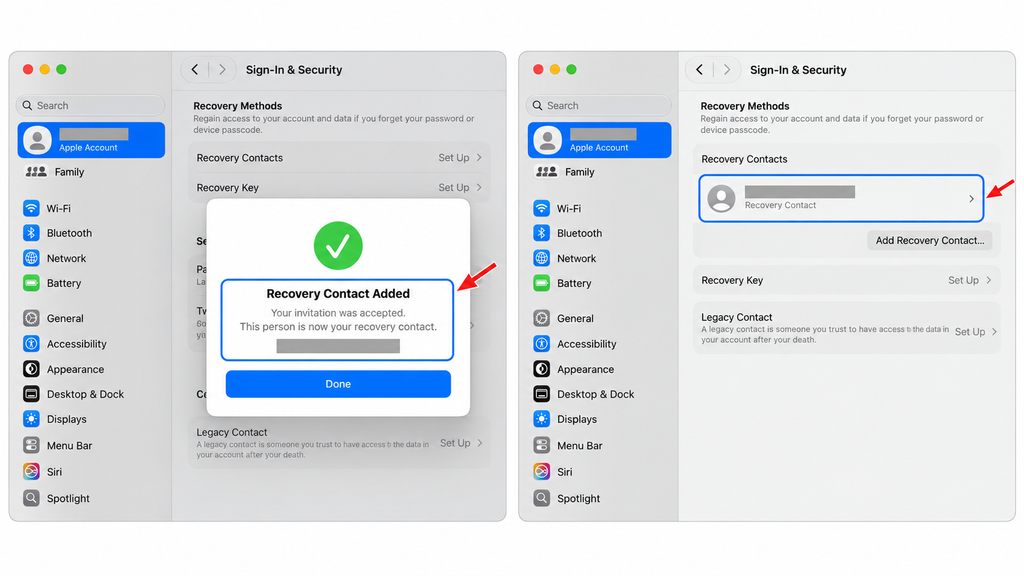
The same Family Sharing rule applies. Apple’s Mac sign-in and security guide also notes that Recovery Contacts requires two-factor authentication.
3. Get and Use an Apple Account Recovery Contact Code
First, check whether you can change your password using a trusted device. This is an Apple device already signed in to your account with two-factor authentication.
On an accessible iPhone or iPad, open Settings > [your name] > Sign-In & Security > Change Password and follow the prompts. On Mac, use the same account section in System Settings. Apple’s password-change instructions describe this route, including possible security delays.
If that route is unavailable, start recovery and involve your contact when prompted.
On your device:
- Step 1: Start password recovery. Choose Forgot Password? during Apple Account sign-in, or begin at Apple’s recovery website.
- Step 2: Identify your account. Enter the requested account details and follow Apple’s verification prompts. The questions depend on the recovery information available for your account.
- Step 3: Use your recovery contact when offered. Call or meet the person you previously added. Explain that you are ready for their help.
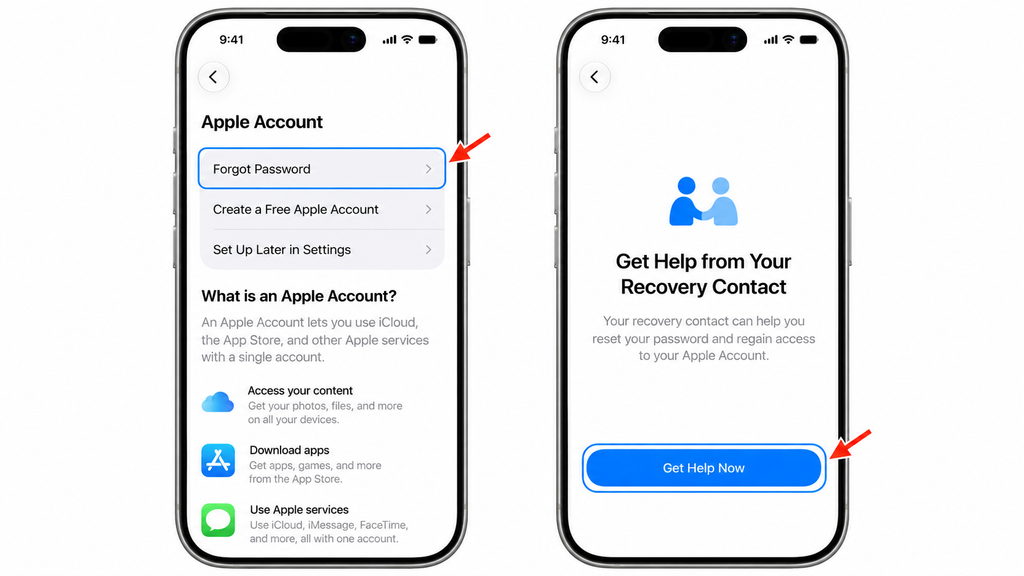
If you need a borrowed iPhone, Apple’s Support app offers Reset Password > Help Someone Else under Support Tools. Use that route rather than signing your friend out of their account. Apple says information entered through this tool is not stored on the borrowed device.
On your recovery contact’s iPhone or iPad:
- Step 1: Open their own settings. Your contact opens Settings > [their name] > Sign-In & Security > Recovery Contacts.
- Step 2: Find your entry. Under Account Recovery For, they tap your name.
- Step 3: Generate the code. They tap Get Recovery Code and give you the six digits directly.
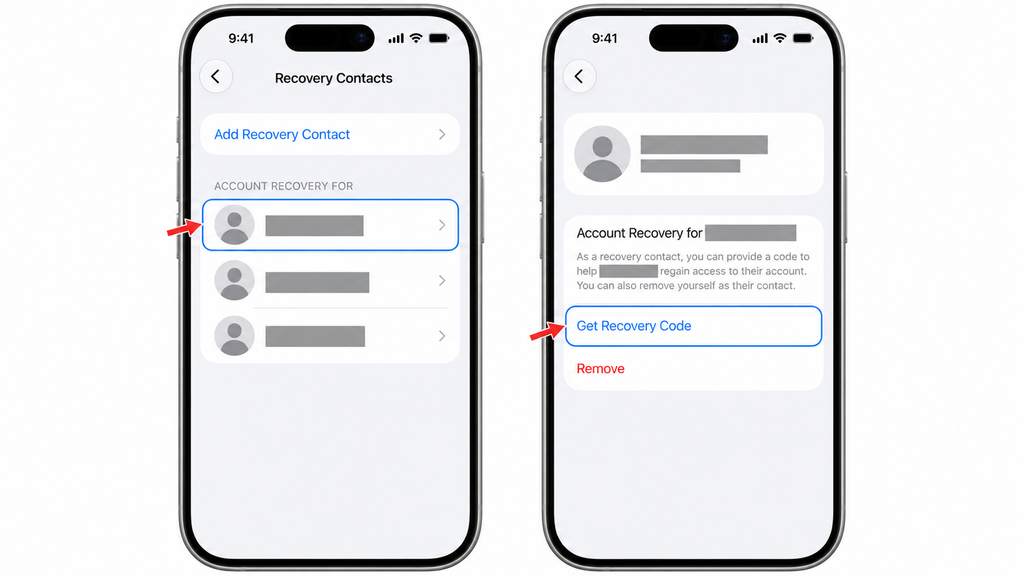
A contact using a Mac can open System Settings > [their name] > Sign-In & Security > Recovery Contacts, select your name under Account Recovery For, and click Get Recovery Code.
Back on your device:
- Step 1: Enter the recovery code. Use the field Apple provides during your recovery process.
- Step 2: Finish the password reset. Complete any remaining checks and choose a strong, unique password.
- Step 3: Confirm access. Check that you can open your Apple Account settings and respond to any remaining sign-in prompts.
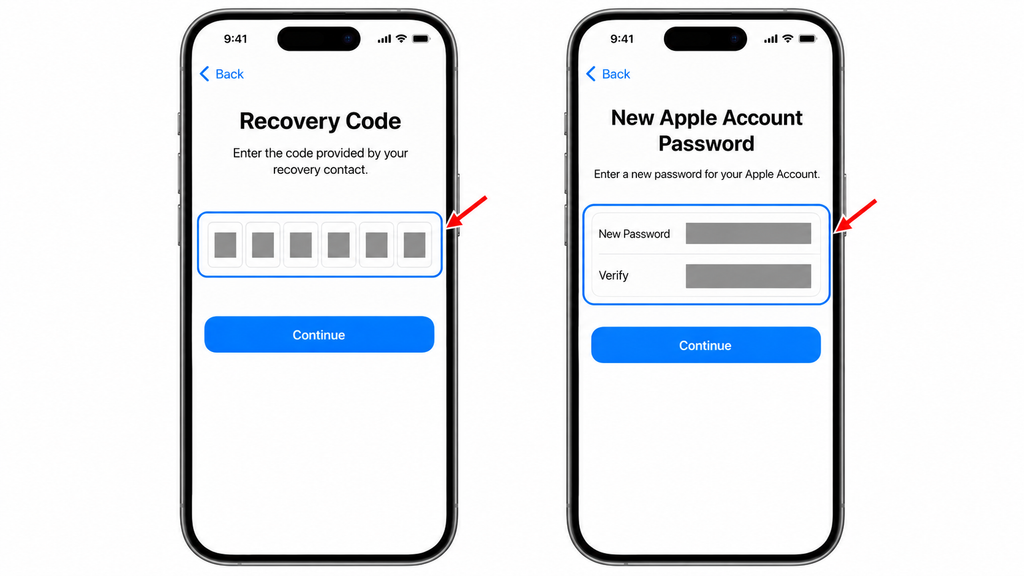
Your contact should give the code only to you, never to someone claiming to act for you. Apple’s instructions for recovery contacts explain the code process.
4. Use Nearby iPhone Assistance When Offered
With both iPhones running the latest iOS, nearby assistance may be offered:
- Step 1: Start recovery. Keep your designated contact’s iPhone nearby.
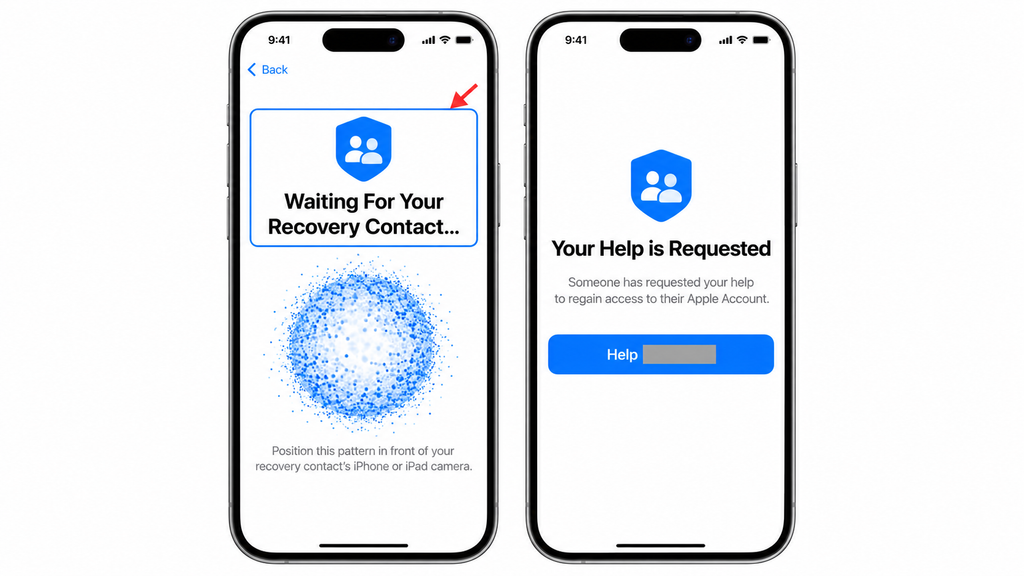
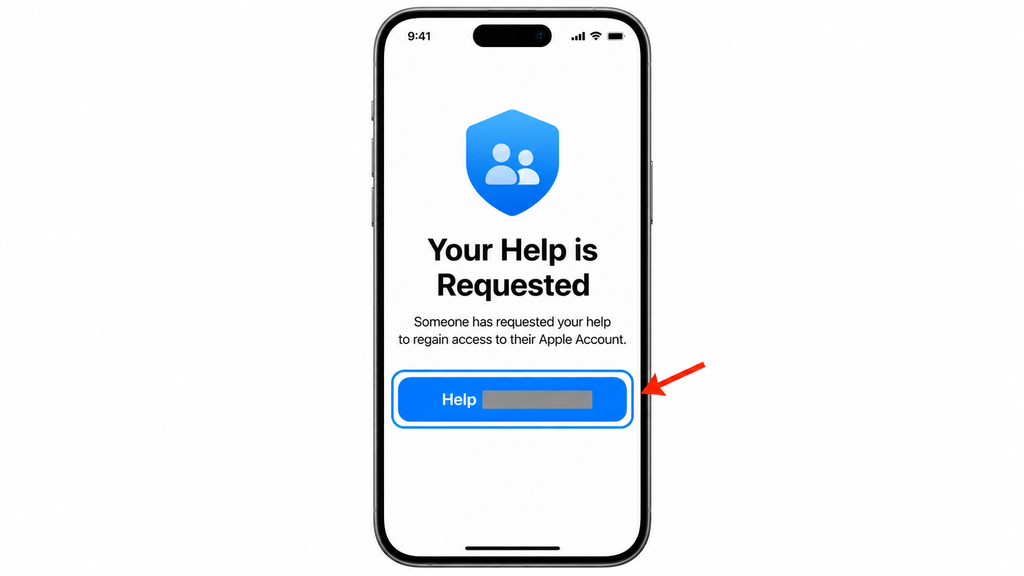
- Step 2: Accept help. On their phone, they tap Help [your name] when Your Help is Requested appears.
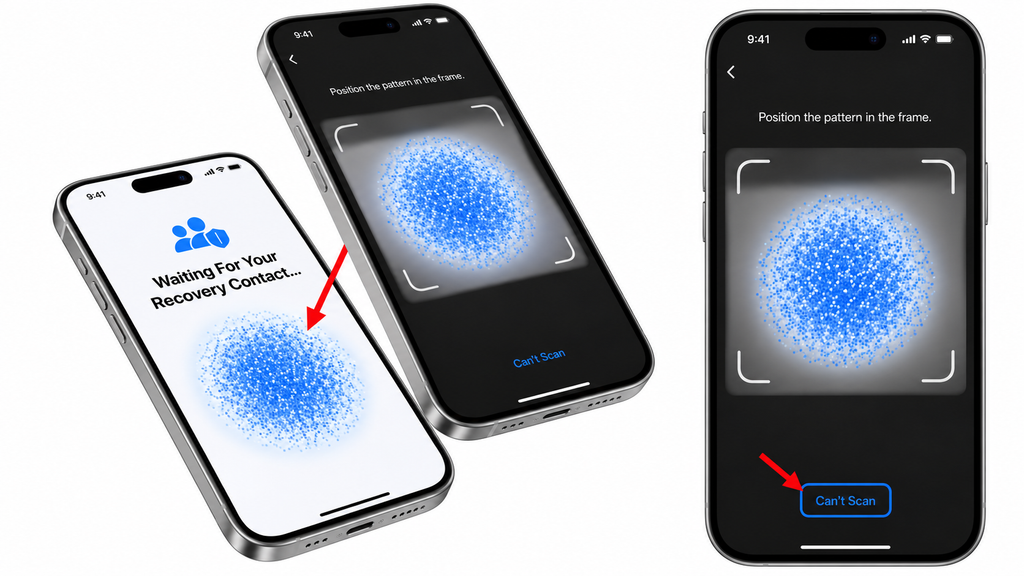
- Step 3: Scan. They hold their iPhone over the animation on yours, or tap Can’t Scan for verification instructions.
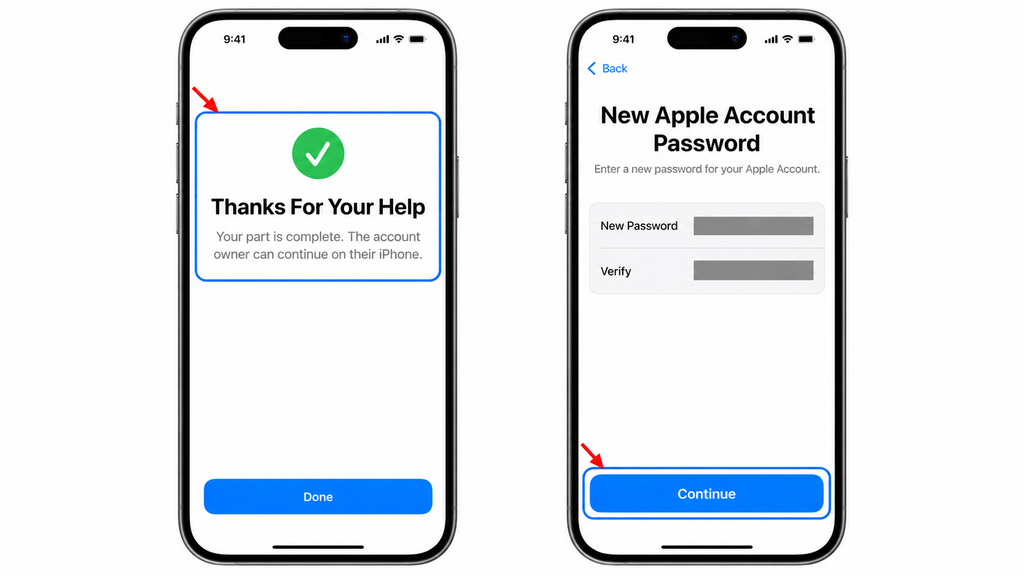
- Step 4: Finish. Thanks For Your Help confirms their part is complete. Follow your remaining prompts.
Use the manual code route if nearby assistance is unavailable.
How Long Does Recovery Take, and Is It Free?
Adding a recovery contact and using the built-in recovery feature do not require a separate paid recovery service. However, a contact does not guarantee instant access or remove Apple’s identity checks.
If you must use standard account recovery with a waiting period, Apple says it can take several days or longer. Apple Support cannot shorten that wait. Check the status using the same account information at Apple’s recovery website, and follow the instructions for your request.
During a wait, device activity can cancel recovery. Apple’s rules depend on how you started the request, so read its account recovery waiting-period guidance. Avoid repeatedly submitting new requests to try to speed things up.
Bonus Tips: Fix Problems and Keep Your Recovery Plan Ready
Most problems are easier to solve when you identify which stage failed: adding the person, generating a code, or completing your own recovery.
If Setup Is Missing or an Invitation Is Pending
Check software support, iMessage, two-factor authentication, and device security first. Read any warning about an older device associated with your account rather than repeatedly sending the same invitation.
For someone outside Family Sharing, ask them to check Messages for your request. Then confirm their status on your device. Do not assume that a contact saved in your address book is already a recovery contact.
If a code is rejected, have the helper check that they selected your entry under Account Recovery For. Confirm that you are entering a recovery code where Apple requests one, rather than entering a normal sign-in verification code. Follow the displayed error before trying again.
If Advanced Data Protection Is Involved
Advanced Data Protection adds end-to-end encryption to more iCloud data, including backups and photos. With this setting enabled, Apple does not hold the keys needed to recover that encrypted data for you.
Apple requires an alternative recovery method, such as a contact or recovery key, before enabling it. You may also need recovery help to restore access to encrypted data on a new device after signing in. Account access and access to encrypted data are related steps, but one does not always complete the other.
Review or Replace a Contact When Needed
Review your choices after a major change in your relationships or contact details. To remove someone on iPhone or iPad:
- Step 1: Open Recovery Contacts. Go to Settings > [your name] > Sign-In & Security > Recovery Contacts.
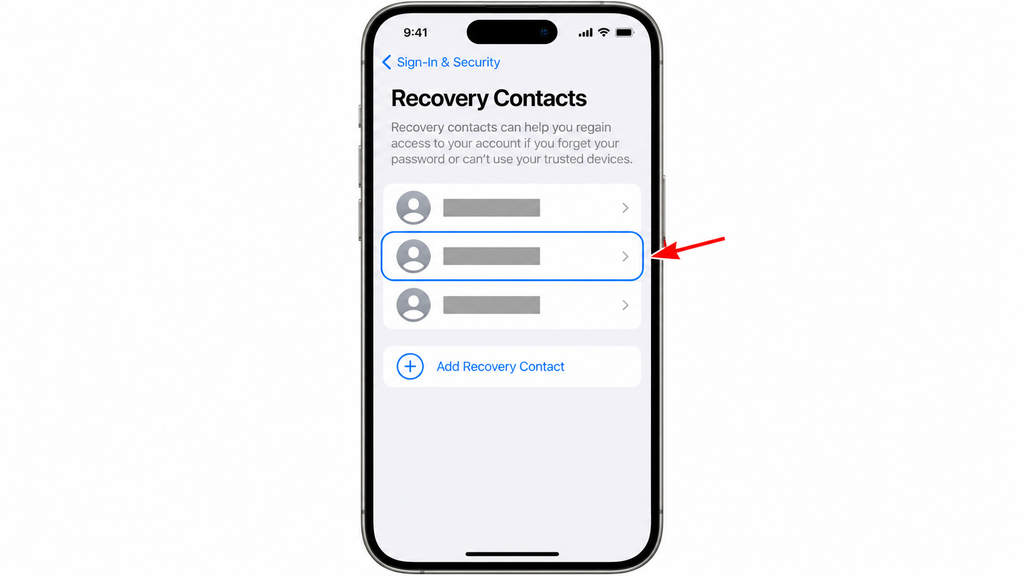
- Step 2: Select the person. Tap the contact you want to remove.
- Step 3: Remove them. Tap Remove Contact, then follow any confirmation prompt.
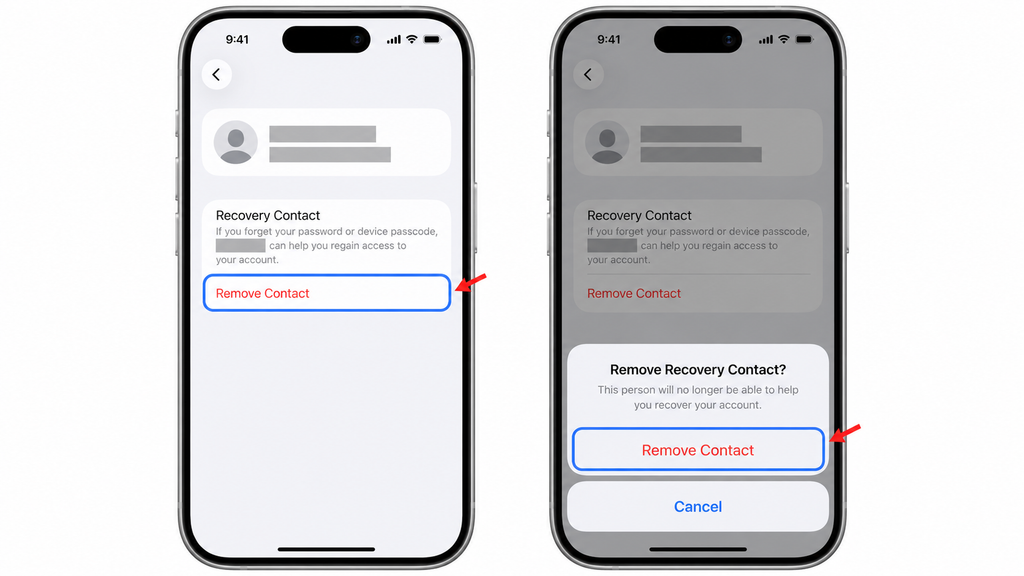
The person receives a message about the change. If you are helping someone else and want to stop, select their entry under Account Recovery For and choose Remove.
The Bottom Line
Set up an Apple Account recovery contact while you still have access, and confirm that the person has been added. Choose someone reachable who understands how to help without asking for your password.
If you are already locked out, try an accessible trusted device first. Otherwise, follow Apple’s recovery prompts and request help from your existing contact. Your next action is simple: check your Recovery Contacts settings today and make sure your plan is ready.
You generally need access to your Apple Account settings to add one. Someone who was never designated cannot simply generate a recovery code for you. If you have no existing contact and cannot reset your password another way, follow Apple’s account recovery process.
An Android phone alone does not meet Apple’s device requirements. Your contact needs a compatible iPhone, iPad, or Mac. Someone who uses Android for calls could still qualify if they also have an eligible Apple device and meet the account requirements.
No. A recovery contact helps you regain access while you are alive. A Legacy Contact is part of Apple’s process for access to certain account data after your death. Setting up one role does not replace the other.
No. The contact’s code belongs in Apple’s account recovery process, not on your Lock Screen. If you also forgot your device passcode, follow Apple’s separate passcode-recovery options; a full device reset erases the data currently on the iPhone. Check Apple’s iPhone passcode reset guidance before choosing that action.