If you’ve got a Google Pixel and you’re wondering how to make it truly yours—usable on any carrier that fits your life—you’re in the right place. We’ll keep it simple, practical, and yes, human.
You’ll see how carrier restriction rules actually work, how to move your eSIM without stress, and what’s special about Pixel Fold. No fluff—just clear steps, plain English, and a few real-world tips that save time.
Honestly, this stuff sounds technical, but it doesn’t have to feel that way. Let’s make your phone… your phone.
Key Takeaways
- Google Store Pixels are carrier-ready; carrier-sold units usually lift restrictions after ~40–60 days.
- eSIM moves are simple: Settings → Network & internet → SIMs → Add SIM; ask your carrier to release an old profile if it’s “in use.”
- Pixel Fold handles dual lines (physical + eSIM) well—great for travel; expect to re-download eSIM after a repair swap.
- For smooth service, confirm bands/VoLTE/5G and APN; financed or business devices may need eligibility clearance—ask support for the exact date.
The straight talk on Pixel policy
Here’s the thing: a Pixel bought from the Google Store usually ships ready for any compatible carrier. In practice, that means you can pop in a supported physical SIM or download an eSIM plan and you’re off. No carrier roadblocks, no waiting period.
Buy the same phone from a carrier, and you may start with a temporary restriction tied to the line you activated. That’s normal in the US market. Carriers do this to prevent early resales and fraud while you’re on a new plan or financing agreement.
📖 Also Read: Latin America carrier release rules for Claro, Movistar, Tigo and region-lock notes
Typical US restriction windows (rule-of-thumb)
These aren’t promises; they’re common patterns to help you set expectations:
| Carrier (US) | Typical temporary restriction window | Common triggers to lift it |
|---|---|---|
| AT&T | ~60 days active service | Line in good standing; device not reported lost; paid-off if flagged as installment-bound |
| T-Mobile | ~40 days active service | Similar criteria: active use, account in good standing |
| Verizon | ~60 days active service | After 60 days, devices usually become open for other carriers automatically |
Why the wiggle room? Plans, promos, and business rules change. If your exact situation matters (financed phone, corporate account, or a trade-in deal), check your account portal or chat with support. Use calm, specific language: “Can you confirm my device restriction status and the date it will be eligible for use on other carriers?”
Pixels bought from retailers (Best Buy, Amazon, etc.)
Retailers sell two broad types:
- Factory-open stock (usually labeled “universal” or “unlocked”). Nice and simple.
- Carrier-bound stock (tied to a carrier activation, often with a discount). Expect the carrier’s temporary rule to apply once it’s on your line.
If you’re shopping now and want the least friction, the cleanest path is a Google Store unit or clearly labeled universal inventory.
How to check your Pixel’s current status in under a minute
This isn’t official, but it’s practical and fast:
- Try another carrier’s SIM or eSIM line (friend or family can help).
- Insert a physical SIM or add an eSIM plan.
- Make a call and load a webpage. Data works? Calls work? Good sign.
- Use your carrier’s app or portal.
Search for “device eligibility,” “SIM restrictions,” or “port-out” language. Some carriers show a simple flag: eligible or not. - Ask support directly.
Say: “Please confirm the date when my phone will be eligible for use with other carriers.” You’ll either get a date, a condition (e.g., “after payoff”), or both.
Heads-up: IMEI checks from random websites can be noisy or out of date. Treat them as hints, not gospel.
📖 Also Read: Japan Carrier Unlock Guide: SoftBank, au, Docomo Requirements + MNP/eSIM Porting Tips
eSIM on Pixel, explained like a friend
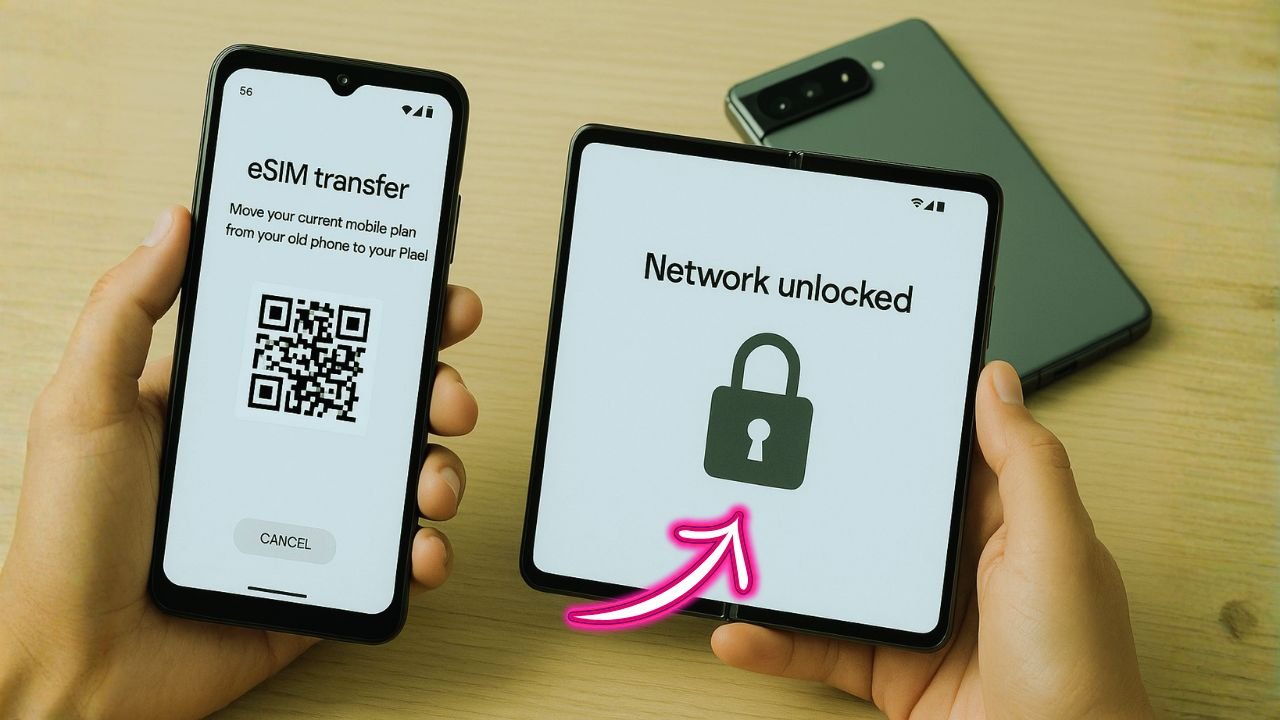
eSIM feels magical: no tiny trays, no store visits. But there are rules. Some carriers let you transfer a plan from one phone to another with a couple of taps; others require a fresh download or a QR code. A few still want a quick support chat to re-provision.
The cleanest eSIM move between Pixels
- Before you touch anything
Make sure you have carrier credentials handy (account login, PIN/port-out PIN if applicable). Update Android to the latest version on both devices. - On the old Pixel
Open Settings → Network & internet → SIMs. If your carrier supports direct transfer, you’ll see cues like “Transfer to another device” or instructions to “Remove” or “Deactivate” before moving. If transfer isn’t shown, do not delete the plan yet—jump to the next step. - On the new Pixel
Go to Settings → Network & internet → SIMs → Add SIM → Download a SIM instead.- If you have a QR code from your carrier, scan it.
- If your carrier supports server-side activation, you may just sign in and choose your line.
- If you see an error, switch to your carrier’s app; many carriers hook in activation there.
- Test right away
Place a test call and run a quick speed test. Then toggle airplane mode to ensure the line re-registers cleanly.
Pro tip: If the new Pixel says your eSIM is already in use elsewhere, that’s normal. Ask your carrier to release the existing profile, then try again.
Moving from iPhone or other Android to a Pixel
- If your carrier advertises “eSIM transfer” cross-platform, follow their app flow.
- If not, request a new eSIM activation/QR tied to your number. It’s the fastest way around compatibility walls.
- Keep the old phone powered and on Wi-Fi until the number is live on the new Pixel; that avoids missed codes and two-factor hiccups.
What if your carrier doesn’t support transfer yet?
You’ll likely do a deactivate → re-activate cycle. Ask support for a fresh eSIM download. It’s quick once you’re connected to a rep who knows the flow.
Dual-SIM life on Pixel, including Fold
Pixels support DSDS (dual SIM dual standby): you can keep one line active on a physical SIM and another on eSIM. Most current models let you store multiple eSIM profiles but use one eSIM line at a time.
Pixel Fold specifics you’ll care about
- One physical SIM + eSIM: Great for travel or separating work/personal.
- Strong radio set: Fold carries the same “Pixel-class” 5G and VoLTE support you expect; still, check the bands a carrier uses in your city before you switch lines.
- Hinge and repairs: If you ever swap hardware under warranty, your eSIM profile won’t magically appear on the new device; plan to re-download or transfer. Screenshot your APN (if custom) before a repair.
Nice touch: If you’re traveling, keep your home number on eSIM and use a local physical SIM for data. When you return, just flip back.
📖 Also Read: Using a Locked U.S. Phone in Canada: Unlock Steps + VoLTE/5G Compatibility
Financed device under a carrier rule? Here’s the calm path forward
Financing doesn’t automatically mean you’re stuck, but it can add conditions. Carriers often require:
- A period of active service (those ~40–60 day windows), and
- Good standing (no past-due bills), and sometimes
- Paid-off device status if the line was flagged as installment-bound.
If you want to use your phone with another carrier before those conditions clear, ask about early eligibility. Provide context—moving to an area with different coverage, extended travel, or corporate plan changes. Be polite, persistent, and specific. If the answer is no, mark the date when eligibility kicks in and set a reminder.
Corporate-liable or business accounts can have different timelines. If your device lives on a company plan, your admin or account manager controls eligibility. Ask them to check your IMEI against the account policy.
Make sure service actually works: bands, VoLTE, 5G, and Wi-Fi calling
A phone that’s free to move isn’t useful if it can’t talk the right “frequency languages.”
- Bands: Pixels cover a broad spread, but rural 5G or specific mid-band channels can vary by model and region. If a new carrier relies heavily on, say, n41 or n77 in your area, confirm your Pixel’s spec sheet matches.
- VoLTE: Required on most US networks. It’s on by default on modern Pixels. Test by turning off Wi-Fi and completing a voice call while data still flows.
- Wi-Fi calling: Great for basements and older buildings. Some carriers require a quick toggle in Settings → Network & internet → SIMs → Wi-Fi calling.
- APN details: Most carriers auto-provision. If data won’t connect, check APN in Settings → Network & internet → SIMs → [Your carrier] → Access Point Names. Compare against your carrier’s help page.
If you’re switching countries, match LTE/NR bands and confirm roaming or local eSIM support. Many Latin American and European carriers now issue prepaid eSIMs through apps—you can buy before you land.
Troubleshooting that actually fixes things
eSIM says “already in use”
Ask the carrier to release or reassign the profile; then re-add on the new device.
No data after adding eSIM
Toggle airplane mode for 10 seconds. If still no joy, re-check APN. If it’s blank, add the carrier’s standard APN and save.
Voice works, but texts are flaky
Texting can lag while the network updates line routing. Give it 15–30 minutes. If MMS fails, APN is the usual culprit.
You changed carriers and 5G vanished
Make sure your plan actually includes 5G access and that your Pixel model supports the band the carrier uses in your city.
Business/enterprise device won’t move carriers
That policy might be set at the account level. You’ll need the admin to clear eligibility.
Pixel Fold, travel, and creative setups
You know what? The Fold shines for travelers and side-hustlers who juggle identities. Keep your main number on eSIM, drop a local physical SIM for fast, cheap data, and pin your travel apps on the inside display. When you fly home, switch the data line back with two taps. No store visits, no plastic.
If you produce content or run a small business, consider this setup:
- Line A (eSIM): Personal number; Wi-Fi calling on; voicemail transcriptions enabled.
- Line B (physical SIM): Work number; data-first; hotspot allowed on plan.
- Focus mode: Mute one line after hours. Healthy boundaries win.
Security and peace-of-mind tips
- Number port-out PIN: Set one in your carrier account. It prevents bad actors from moving your number without you knowing.
- eSIM transfer only on secure Wi-Fi: Avoid public networks while you provision a plan.
- Keep the old phone for a day: Don’t factory-reset the old device until calls and texts are stable on the new Pixel.
- Document the IMEI: Screenshot your IMEI and store it somewhere safe (Settings → About phone). It helps with support and insurance.
Quick FAQ that people actually ask
Does a Google Store Pixel start carrier-free?
Yes—generally ready for any compatible carrier out of the box.
Can I keep two phone numbers active?
Yes. One on physical SIM, one on eSIM. You can set which line handles data, calls, or messages by default.
Will my eSIM move from iPhone to Pixel without a call?
Sometimes. If your carrier supports cross-platform transfer, it’s smooth. If not, ask for a fresh eSIM download or QR.
My phone is financed—can I use it elsewhere now?
Maybe not yet. Most carriers require a short period of active service and good standing. Ask support for your exact eligibility date.
Is Pixel Fold different from a radio/network perspective?
Not in the way that matters daily. It carries the same modern 5G/VoLTE capabilities—just double-check the specific bands for your region.
The Bottom Line
eSIM on Pixel is now straightforward, but the smoothness still depends on carrier support—and you can always have a new QR issued if transfer fails.
If you want the cleanest experience, buy your Pixel or Pixel Fold unlocked from the Google Store (or Google Fi Wireless).
If you want the best deal and choose a carrier promo, know the unlock timer and payoff rules.