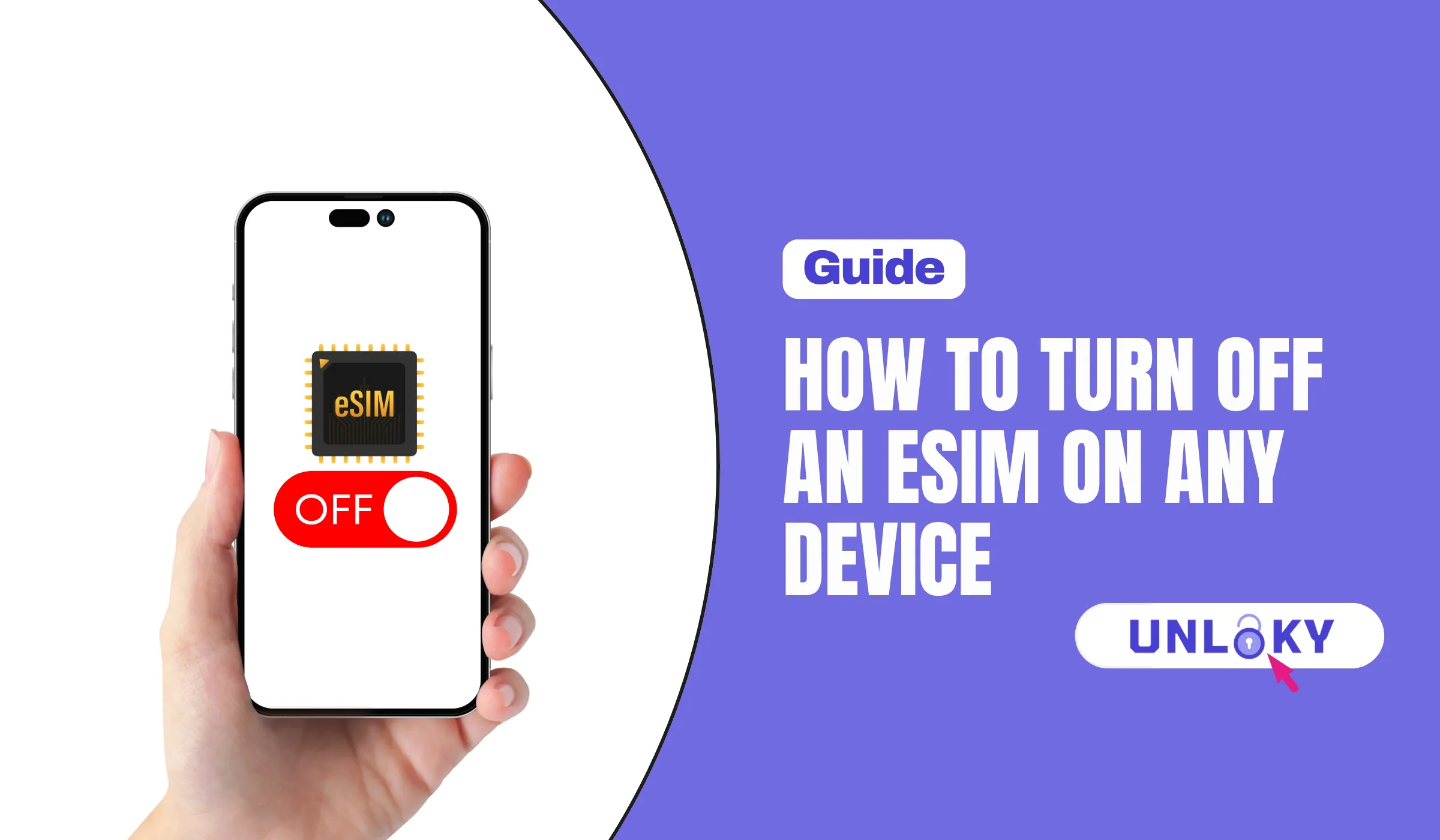
So you want to turn off your eSIM. Maybe you’re heading abroad and want to avoid roaming charges, switching back to a physical SIM, troubleshooting a weird signal issue, or selling your phone. Whatever the reason, the good news is it’s pretty straightforward — once you know where the right settings live.
Here’s the thing most guides don’t tell you upfront: there are two completely different actions people mean when they say “turn off my eSIM.” One is a temporary toggle that leaves the profile on your device. The other is a permanent delete that wipes it for good. Pick the wrong one and you might have to call your carrier to get a fresh QR code. Not fun.
This guide walks you through both options on every major device — iPhone, Android, Samsung Galaxy, Google Pixel, Apple Watch, Galaxy Watch — using the latest 2026 menus and labels. Let’s get into it.
Key Takeaways
- iPhone: Settings → Cellular → tap eSIM → toggle off “Turn On This Line”
- Android (Pixel): Settings → Network & Internet → SIMs → tap eSIM → toggle off
- Samsung: Settings → Connections → SIM Manager → select eSIM → switch off
- Apple Watch / Galaxy Watch: Use the Watch app on your paired phone to disable the line
- Disable vs Delete: Disabling pauses service (you can switch back on anytime). Deleting wipes the profile permanently and you’ll need a new QR code.
- Need to fully cancel? Turning off the eSIM does NOT cancel your plan — you still have to call your carrier.
Disable vs Delete: Pick the Right One First
Before you tap anything, decide which one you actually want. Getting this part right saves you a ton of hassle later.
| What You’re Doing | Disable / Turn Off | Delete / Remove |
|---|---|---|
| What it does | Pauses the line — no calls, texts, or data, but profile stays | Permanently wipes the eSIM profile from your device |
| Reactivation | One toggle in settings — instant | Need a new QR code or activation from your carrier |
| Cancels your plan? | No — you’ll still be billed unless you contact carrier | No — same. Disabling/deleting ≠ canceling service |
| Best for | Travel, troubleshooting, pausing a travel eSIM, saving battery | Selling your phone, switching carriers permanently, freeing up slots |
| Reversible? | Yes — instantly | Sometimes. Some carriers limit reinstalls per profile |
| Time required | 10 seconds | 30 seconds, plus carrier call if you need it back |
| Risk level | Zero — totally safe | Medium — can’t undo without carrier help |
If there’s any chance you’ll want this eSIM back, just disable it. Only delete when you’re 100% sure you’re done with that profile — like when you’re trading in your phone or moving permanently to a different carrier.
How to Turn Off eSIM on Every Major Device
Below are the exact steps for the most common phones and watches in 2026. Menu names shift a little depending on your carrier and software version, but the path is basically identical.
📱
iPhone (iOS 17 / 18)
- Open Settings
- Tap Cellular (or Mobile Data)
- Tap the eSIM line you want to disable
- Toggle off “Turn On This Line”
- Confirm if asked
📲
Samsung Galaxy
- Open Settings
- Tap Connections → SIM Manager
- Select your eSIM under “SIMs”
- Toggle the switch off
- Tap done
🅖
Google Pixel
- Open Settings
- Tap Network & Internet → SIMs
- Select the eSIM you want to disable
- Toggle off “Use SIM”
- Restart if needed
⌚
Apple Watch
- Open the Watch app on your iPhone
- Go to the My Watch tab
- Tap Cellular
- Tap your plan → “Remove [Carrier] Plan”
- Confirm
⌚
Galaxy Watch
- Press the Home button on your watch
- Open Connections → Mobile networks
- Tap your active mobile plan
- Switch the eSIM toggle off
- Confirm if prompted
📋
iPad (Cellular)
- Open Settings
- Tap Cellular Data
- Select your eSIM plan
- Toggle off “Turn On This Line”
- Done
iPhone: The Complete Walkthrough
iPhone is where most people get a little confused, mainly because Apple keeps shuffling the menu names around with each iOS version. The current setup (iOS 17 and iOS 18) is actually the cleanest it’s been in years.
Step 1: Open the Settings app. That gray gear icon on your home screen. Scroll down a bit if you can’t see it right away.
Step 2: Tap “Cellular” (or “Mobile Data” outside the US). You’ll see a list of all the SIMs and eSIMs installed on your iPhone. The active ones have a green dot.
Step 3: Tap the specific eSIM line you want to turn off. Each line shows the carrier name and the phone number. Tap the right one — easy to mix them up if you have two T-Mobile lines, for example.
Step 4: Toggle off “Turn On This Line”. This is the magic switch. Flipping it off pauses calls, texts, and data on that line — but the eSIM profile stays safely stored. You can flip it back on anytime.
Step 5: If you want to delete it instead. Scroll to the bottom of that same screen and tap Delete eSIM (or Remove Cellular Plan). Confirm when prompted. This wipes the profile.
If you’re erasing your iPhone (Settings → General → Transfer or Reset iPhone), iOS will ask whether you want to keep or erase the eSIM. If you’re trading the phone in or selling it, choose erase. If you’re upgrading to a new iPhone, choose keep so you can transfer the eSIM later.
Android: Samsung, Pixel, and Everyone Else
Android handles eSIMs differently depending on the manufacturer. Pure Android (Pixel, Motorola, Nothing) uses one menu path. Samsung’s One UI uses another. Most other brands sit somewhere in between.
For Samsung Galaxy phones
Step 1: Settings → Connections. Open the Settings app and tap Connections at the top.
Step 2: Tap “SIM Manager” On older models this might be called SIM card manager. Same thing.
Step 3: Select the eSIM under “SIMs” You’ll see your physical SIM and any eSIMs listed here, each with the carrier name.
Step 4: Toggle the switch off. One tap and the line is paused. Toggle it back on whenever you’re ready.
For Google Pixel phones
Step 1: Settings → Network & Internet. Open Settings, scroll to Network & Internet, tap it.
Step 2: Tap “SIMs” This shows every SIM (eSIM and physical) registered on your Pixel.
Step 3: Tap the eSIM you want to disable. Pixels usually label eSIMs by the carrier name. Tap the right one.
Step 4: Toggle off “Use SIM” That’s it. The eSIM is now disabled but still saved on your Pixel.
Step 5: To delete instead. On the same screen, scroll down and tap Erase SIM or Delete. Confirm.
Why People Turn Off Their eSIM (And Whether You Should)
There are a handful of legitimate reasons. Some make a ton of sense. Others — well, you might be solving the wrong problem.
Good reasons to disable your eSIM
- Traveling abroad — disabling your home eSIM and using a local travel eSIM is the cleanest way to avoid roaming surprises
- Battery saving on a lost-signal day — if your eSIM is desperately searching for a tower, turning it off can save 10-20% battery
- Troubleshooting weird call/SMS bugs — disable, restart, re-enable. Fixes things more often than you’d expect
- Pausing a travel eSIM between trips — keep the profile, just stop the data drain
- Switching primary lines — if you have a work and personal eSIM, toggle whichever you don’t want active
Reasons to fully delete your eSIM
- You’re selling, trading in, or giving away the phone
- You’re permanently switching to a different carrier and don’t need the old profile
- Your SIM list is cluttered with old travel eSIMs you’ll never use again
- You’re troubleshooting a stubborn issue and the carrier asked you to remove and re-add the profile
Reasons that are NOT good (you’re solving the wrong problem)
- You want to cancel your service — disabling/deleting doesn’t do that. Call your carrier
- You think removing the eSIM unlocks the phone — it doesn’t. Carrier locks are separate
- You want to stop iMessage / FaceTime while abroad — disable those individually instead
- You’re trying to block someone — disabling your line punishes you, not them. Use the block list
Carrier-Specific Notes Worth Knowing
Different US carriers handle eSIM management slightly differently. Here’s what’s worth knowing in 2026.
T-Mobile
T-Mobile makes disabling and re-enabling eSIMs super easy on iPhone — no extra activation steps required. If you delete the eSIM, though, you’ll need to use the T-Mobile app or call them to push a new profile to your phone. There’s no per-device limit on reinstalls, which is nice.
Verizon
Verizon eSIMs sometimes need an extra step after re-enabling: open the My Verizon app and confirm the line. If you delete the eSIM and need it back, the My Verizon app can usually push a new profile in under 5 minutes. For prepaid lines, you may have to call.
AT&T
AT&T tends to be the strictest about reinstalls. Once you delete an eSIM, you’ll usually need a new QR code from AT&T support. That said, simple disable/enable toggles work normally without any carrier intervention.
Travel eSIMs (Airalo, Holafly, Saily, Nomad, etc.)
Travel eSIM providers usually let you reinstall a profile multiple times via their app. After your trip, the cleanest move is to disable the eSIM (don’t delete) until your next trip. When the data plan expires, the profile is still there but won’t connect — that’s normal.
Common Problems & How to Fix Them
“Turn On This Line” toggle is grayed out
Usually means the eSIM line is in a weird limbo state. Try turning Airplane Mode on for 30 seconds, then off. If that doesn’t work, restart the phone and try again. Still stuck? You probably need to delete and reinstall the eSIM with a fresh QR code.
The eSIM won’t delete
This is more common than you’d think. Try these in order:
- Turn on Airplane Mode, then try delete again
- Force restart the phone, retry immediately
- Reset Network Settings (Settings → General → Transfer or Reset iPhone → Reset → Reset Network Settings)
- If still stuck, call your carrier — they can remotely deprovision the profile
I disabled it but I’m still being charged
Right — disabling an eSIM does not cancel your plan. You’re still on the hook for monthly fees until you actually call your carrier and tell them to cancel the line. This catches a lot of people off guard, so worth repeating.
Lost connection on my “good” line after disabling the other
When you disable an eSIM that was set as your default for data or calls, the phone needs to be told which line takes over. Go to Settings → Cellular → Default Voice Line / Cellular Data and pick the line you want.
What Actually Happens When You Turn Off an eSIM?
Quick reality check on what changes the moment you flip that switch:
| Function | What happens after disabling |
|---|---|
| Phone calls | Stops on that line. Other line (if any) takes over |
| SMS / MMS | Stops on that line. Senders may see “delivered” but you won’t get them |
| Mobile data | Stops. Phone falls back to other line or Wi-Fi only |
| iMessage / RCS | Still works over Wi-Fi if your Apple ID / Google account is signed in |
| Voicemail | Carrier still records messages; you’ll see them when you re-enable |
| Carrier billing | Continues — disabling doesn’t cancel the plan |
| Phone number | Still yours. Reactivates instantly when you toggle back on |
| eSIM profile data | Stays on the device. Nothing is wiped |
Frequently Asked Questions
No. Turning off an eSIM only pauses the line on your device — your carrier still considers the plan active and will keep billing you. To actually cancel service, you have to call your carrier, log into their app, or visit a store. Lots of people get this confused, so it’s worth being super clear: disable ≠ cancel.
Nope. Your phone number is tied to your carrier account, not the eSIM profile. Disabling the eSIM just stops your phone from connecting to that line. Toggle it back on and you’re up and running with the same number, instantly. Even if you delete the eSIM, the number stays with your account until you actually cancel.
Airplane Mode disables every wireless radio on your phone — cellular, Wi-Fi, Bluetooth, GPS, NFC. Turning off an eSIM only disables that one specific cellular line. Wi-Fi, Bluetooth, and your other SIM (if you have one) keep working normally. So if you just want to stop using a specific line but stay connected to Wi-Fi, the eSIM toggle is the right move.
Yes, absolutely. Disabling the eSIM only affects cellular service. Wi-Fi works as normal, and so does iMessage, FaceTime, WhatsApp, and any other app that runs over the internet. This is exactly why disabling your home eSIM while traveling is such a popular move — you get full Wi-Fi connectivity at hotels and cafes without the cellular roaming risk.
Usually yes, but it depends on your carrier. Most US carriers (T-Mobile, Verizon, AT&T) can push a new eSIM profile to your device through their app or by calling support. Some travel eSIM providers limit how many times you can reinstall a profile per plan. The hassle factor is real — that’s why we recommend disabling instead of deleting unless you’re absolutely sure you don’t need it back.
It depends on which number iMessage is using. If iMessage is set to your eSIM’s phone number, then yes — incoming iMessages to that number will stop until you re-enable. But iMessage will still work over your Apple ID email address as long as you have Wi-Fi. To check which numbers iMessage uses, go to Settings → Messages → Send & Receive.
The Bottom Line
Turning off an eSIM is one of those things that sounds technical but is genuinely a 10-second job once you know where the toggle is. The key takeaway: disable first, delete only when you’re sure. Disabling is reversible, painless, and perfect for travel or troubleshooting. Deleting is permanent and means a carrier call if you change your mind.
And remember — neither one cancels your service. If your goal is to stop being billed, you’ve got to call your carrier. Otherwise, those monthly charges keep rolling in regardless of whether your eSIM is on, off, or deleted.