Swapping your number from one Android phone to another should feel boring—in a good way. No lost calls, no “where did my texts go,” no support maze.
Honestly, you can keep service steady while you move your eSIM from an old device to a new one. The trick is planning—two or three small choices that prevent minutes of panic later.
Let me explain how to do it smoothly on Samsung Galaxy and Google Pixel, even right after the device has been freed from carrier restrictions.
Key Takeaways
- Unlock ≠ transfer. Unlocking just removes carrier restrictions; the transfer is a separate step.
- Overlap is your friend. Keep the old eSIM active until the new one works—this is how you avoid downtime.
- Use the built-in flows. Pixel “Transfer SIM” and Samsung “Transfer SIM from another device” are the easiest routes.
- Have EID, Wi-Fi, and account PIN ready. These three save time and prevent failed activations.
What “no-downtime” really means
No missed calls. No broken 2FA codes. RCS and SMS keep coming. Your number stays reachable while the new phone comes online. That’s it. To get there, you layer two ideas:
- Don’t deactivate the old line until the new line registers.
- Add a “safety rope” (call forwarding or a second line) for the brief handover window.
📖 Also Read: Google Pixel Unlock Policy (2025): eSIM Transfer Guide + Pixel Fold Tips
Quick prep checklist
Keep this simple. One short pass before you start:
- Both phones charged and on stable Wi-Fi.
- Same Google account on both phones if you use Google Messages for RCS.
- Carrier login ready (app password or account PIN).
- Numbers handy: EID (new phone), IMEI (primary), and the old line’s ICCID if shown.
- Security codes: Turn off temporary call blocking, know your voicemail PIN.
If your phone was recently “released” from network restrictions, reboot it once and confirm it sees a test eSIM or a temporary physical SIM. That sanity check saves time.
How eSIM moves work on Android (fast overview)
Android supports two main paths:
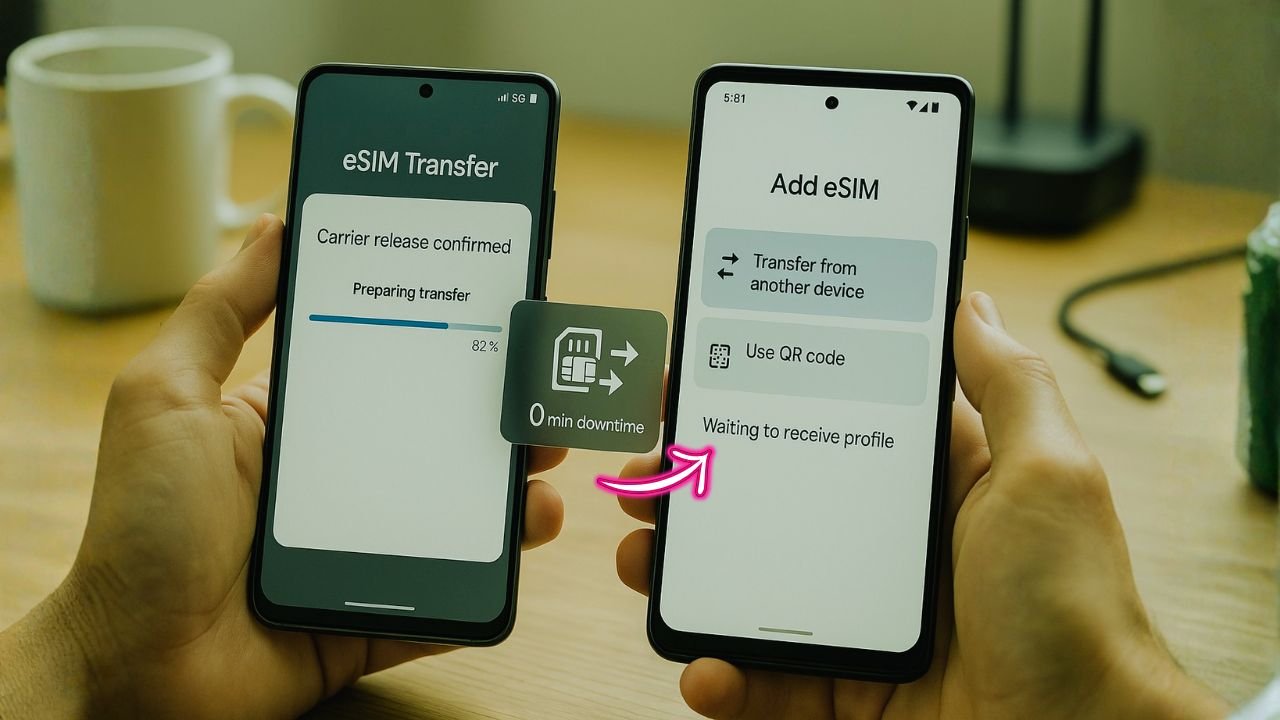
- Device-to-device transfer: The new phone asks the old phone for the cellular profile and pulls it over Wi-Fi/Bluetooth. Some carriers already support this for Pixels and newer Galaxy models.
- Carrier re-download: You scan a QR code or fetch the profile through your carrier app. The carrier “moves” the number to the new phone and disables it on the old one.
Zero downtime comes from timing: you stage the new phone first, keep the old one answering calls, then flip the switch when the new profile is live.
Pixel to Pixel with no gaps
Works best on Pixel 6 and newer (Android 13+), and it’s even nicer on Android 14/15.
- Update both Pixels: Settings → System → System update. Reboot both.
- Place phones together on Wi-Fi. Leave the old Pixel with mobile data ON.
- Start setup on the new Pixel (or go to Settings → Network & internet → eSIMs → Add eSIM).
- Choose Move number from another phone when offered. The new Pixel will find the old one.
- Approve transfer on the old Pixel. Keep both screens awake.
- Wait for “Cellular connected” on the new Pixel. At this point, calls may ring on both phones for a minute; that’s okay.
- Test: Make a call, send an SMS, and check RCS status in Google Messages (Settings → RCS chats).
- Only now disable the old line: On the old Pixel, toggle the eSIM line off, then remove it if the carrier asks.
Tip for true continuity: Before Step 4, turn on Call Forwarding Busy/No Answer on the old Pixel to your Google Voice or a trusted number. If the network flips for 30–60 seconds, calls still land somewhere you control.
📖 Also Read: Latin America carrier release rules for Claro, Movistar, Tigo and region-lock notes
Galaxy to Galaxy with no gaps
Newer Galaxy phones (S22/S23/S24 and Fold/Flip series with One UI 6+) support a “Transfer eSIM” flow in Settings.
- Update both phones: Settings → Software update. Reboot.
- On the new Galaxy: Settings → Connections → SIM manager → Add eSIM → Transfer.
- On the old Galaxy: When prompted, confirm the transfer. Keep both devices unlocked and near each other.
- Let the profile install; don’t touch the old phone yet.
- Test on the new Galaxy: Place a call, toggle mobile data, send a text.
- Toggle off the old line once the new phone shows your number as active.
One UI note: If Transfer isn’t offered, pick Scan carrier QR code. Many carrier apps (T-Mobile, AT&T, Verizon, Visible, Mint, Google Fi, US Mobile, etc.) can push a fresh eSIM directly to the new Galaxy. Keep the old phone live until the new phone completes activation.
Pixel ↔ Galaxy transfers without a hiccup
Cross-brand moves often fall back to the carrier re-download method. That’s fine; you can still avoid dead air.
- Start on the new phone (Pixel or Galaxy): choose Add eSIM.
- Open your carrier app on the new phone and sign in. Pick Replace device or Transfer eSIM.
- Approve any SMS or email verification on the old phone.
- Wait until the new phone shows bars and your number.
- Test calls and messages.
- Turn off cellular on the old phone only after tests pass.
Why this works: The network usually treats the new profile as live while the old one fades out moments later, leaving a brief overlap rather than a gap.
Cross-carrier moves and porting, the smart way
Switching providers on the same day? You can still stay reachable.
- Stage your new account first (get the eSIM QR or activation token ready).
- Keep your old phone active until the new phone finishes activation and you receive the “port complete” message.
- Forward calls on the old line to the new temporary porting number (or Google Voice) if your old carrier allows it during port-out.
- Bring your account number, transfer PIN, and billing ZIP—the move won’t start without them.
- Expect a 5–20 minute propagation window where texts may trickle to one phone then the other. Forwarding and RCS fallback (to SMS) cover you.
Small extra net for 2FA: add Google Voice (or a second number) to your critical logins one day before the port. If any bank code misses your main number mid-port, you’ve still got a path in.
📖 Also Read: Japan Carrier Unlock Guide: SoftBank, au, Docomo Requirements + MNP/eSIM Porting Tips
Keep calls and texts flowing while you switch
Two quick “no drama” tactics:
- Conditional forwarding on the old phone (Busy/No Answer) to a spare number. Your phone rings; if it can’t pick up during the flip, the call routes onward instead of dying.
- Wi-Fi Calling enabled on both phones. If mobile data blinks during activation, you can still place and receive calls over Wi-Fi.
For RCS in Google Messages: if chats look stuck, open Messages → Settings → RCS chats and toggle on. The app may ask to verify your number on the new phone; let it finish, then try a fresh message.
Troubleshooting the usual snags
The new phone says “Profile can’t be added.”
Reboot both phones. On the new phone, toggle Airplane Mode on, then off. Try again over Wi-Fi, not mobile data. If it still fails, open your carrier app and choose Replace device so the network issues a fresh eSIM.
Calls reach the old phone, not the new one.
Give it a couple of minutes; networks cache routes. If it persists, on the old phone turn the eSIM line off (don’t erase yet). Place a call from the new phone; this refreshes registration. Turn the old line back on only if you need to retry.
SMS arrive, but RCS doesn’t.
On both devices, update Google Messages. On the new phone, check RCS chats → Status: Connected. If stuck, clear the Messages app cache (don’t wipe data unless needed), then verify your number again.
Carrier app says your device isn’t eligible.
If your phone was only recently freed from network restrictions, the carrier database might still be catching up. Chat with support and ask them to manually reprovision the line to eSIM using your new phone’s EID. Keep your IMEI handy; some carriers still ask for it.
Error: “No more eSIM downloads.”
Some accounts limit how often you can re-issue the profile in a short window. Ask support to reset the counter, then retry. Meanwhile, keep the old phone live so you miss nothing.
Moving a business line or a line with special features.
Company portals or special features (advanced call routing, pooled data) sometimes block self-service changes. Ask your admin to flip the line to “self-managed eSIM change” for 24 hours, or have them push the profile to the new device.
Tiny reference table
| Scenario | Fastest path | Zero-gap tip |
|---|---|---|
| Pixel → Pixel | Device-to-device in Setup or Settings → eSIMs → Add → Move | Keep old phone active; enable conditional forwarding |
| Galaxy → Galaxy | Settings → Connections → SIM manager → Add eSIM → Transfer | If Transfer missing, use carrier app QR; test before disabling old line |
| Pixel ↔ Galaxy | Carrier app → Replace device / Transfer eSIM | Stage on new phone first; authenticate on old phone |
| Same carrier, new device | Carrier re-download via QR or app | Keep Wi-Fi Calling on; test SMS and RCS |
| Switching carriers (port) | Activate new eSIM, then start port | Call forwarding + backup number for 2FA |
| Recently freed from restrictions | Carrier manual reprovision with EID | Reboot both phones; be ready with IMEI/EID |
A few real-world nudges that help
You know what? Two small habits avoid most headaches:
- Label your eSIM (Settings names). When you add a second plan briefly, labels like “Old line” and “New line” make toggling safe.
- Screenshot the QR (if provided). If the install fails once, you won’t chase it down again.
- Test outside your house. Walk to the edge of your Wi-Fi and make a call on mobile data. If it works there, you’re golden.
Also—if you use WhatsApp, Telegram, Signal, or banking apps tied to your number—open each one once after the move so they rebind to the new device cleanly.
The Bottom Line
Moving your mobile number between Android phones can be calm, even right after the device has been freed from carrier locks. Stage the new phone first, keep the old phone answering until the very end, and add one tiny safety rope like call forwarding. Pixel-to-Pixel and Galaxy-to-Galaxy flows are straightforward; cross-brand moves are easy with a carrier re-download.
Got a curveball setup, or switching providers at the same time? The same idea holds: don’t drop the old line until the new one talks back. Simple beats fancy—every time. Want a short checklist you can paste into your notes? Say the word, and I’ll trim this into a one-page guide.
FAQs
Q1: Can I keep both phones receiving calls at the same time?
Usually no—most carriers route voice/SMS to the active profile only. Data-only travel eSIMs can coexist, but your main number will ring on the device where the line is currently provisioned.
Q2: Do I need to visit a store to transfer an eSIM?
Not typically. Most Android devices can download or transfer eSIM profiles over Wi-Fi using a QR/activation code or the built-in transfer flow.
Q3: Will WhatsApp or Signal break during the switch?
If you keep your number and activate the new phone quickly, you’ll be fine. Some apps may ask to verify again, so plan the transfer when you can receive SMS codes.
Q4: Can I move an eSIM if my phone is still locked?
You can move it to another phone on the same carrier, but a locked phone can’t use another carrier’s eSIM until it’s unlocked.
Q5: What if my carrier doesn’t support eSIM transfers on my plan?
Ask for a new eSIM activation on the new phone using its EID, and keep the old phone live until the new one is proven. As a fallback, request a temporary physical SIM to stay connected.
Q6: My new phone shows 5G but data is slow. Why?
Provisioning may be incomplete, or the APN didn’t auto-populate. Toggle 5G/LTE, check APN settings, and reboot. If it persists, ask your carrier to re-provision.