
Key Takeaways
To transfer Google Authenticator to a new phone, sign in to the Google Account holding your synced codes or use the old phone’s export feature and scan its QR codes on the new one. Test each account before resetting. If codes were stored only on the erased phone, you’ll need account recovery.
Moving your photos is easy to check; moving your sign-in codes needs more care. This guide helps you confirm access before erasing your old phone.
Table of Contents
- Part 1: Prepare Your Phones and Protect Account Access
- Part 2: Transfer Google Authenticator to Your New Phone
- Bonus Tips: Fix Missing Codes and Build a Recovery Plan
Part 1: Prepare Your Phones and Protect Account Access
Keep your old phone available until the move is complete. Seeing Google Authenticator on your new home screen is only the starting point; you still need to check its entries and use them to sign in.
Know What You Are Moving
Google Authenticator creates verification codes for accounts that support it. These codes provide another sign-in step, often called two-factor authentication, or 2FA. Your password and the app’s code serve different roles.
The app may hold entries for email, shopping, social media, and other services. Moving Authenticator does not move those services’ passwords or replace their own recovery rules.
You have two routes:
- Google Account sync: Restore entries saved through Authenticator to the same Google Account.
- Manual QR transfer: Copy selected entries from the old phone using the app’s export and import tools.
Google provides both features on Android and iPhone. Once set up, Authenticator can generate codes without cellular service or an internet connection. Account syncing needs connectivity.
Gather What You Need
Before you begin, have these items ready:
- Your old phone, unlocked and still showing its Authenticator entries.
- Your new phone with Google Authenticator installed from its official app store.
- The latest available Authenticator update on the old phone.
- Access to the Google Account used for syncing, if you choose that route.
- A backup sign-in method for important accounts.
Make a short list of the services and usernames shown on the old phone. Record labels, not live codes or setup keys. This list gives you something to check against after the transfer.
If you have work and personal accounts, list them separately. Two entries with similar names are easy to confuse when you are setting up a phone in a hurry.
Protect Your Google Account Access First
Before relying on sync, make sure you can sign in to its Google Account. Avoid a loop where the new phone asks for a code that is available only on the phone you just erased.
Keep the old phone and any working browser sessions available. Google’s supported backup options can include a saved backup code, another signed-in phone, a security key, or a passkey on another device. Availability depends on what you set up previously.
Schedule the transfer before your trade-in appointment. Leave yourself time to resolve one missing account without giving up access to the old phone.
Part 2: Transfer Google Authenticator to Your New Phone
Choose sync if your entries are saved to a Google Account. Choose manual transfer if you use Authenticator without an account or want to copy entries directly. After either route, complete the sign-in checks below.
1. Restore Codes Through Google Account Sync
This route suits you when Authenticator already saves your entries to a Google Account. Google introduced this backup feature for both Android and iOS to help preserve access when changing or losing devices.
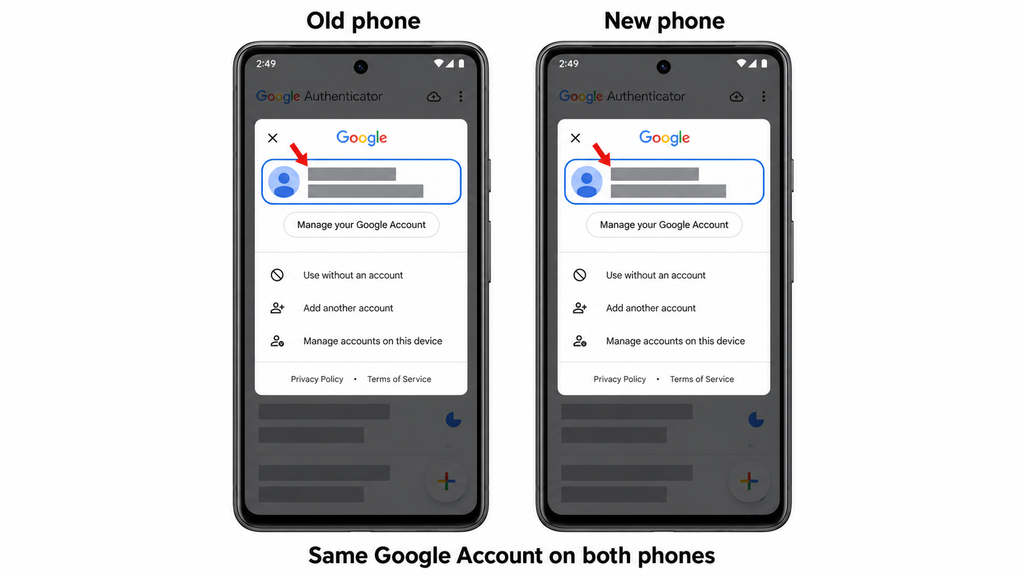
- Step 1: Check the old phone. Open Authenticator and use the profile menu to identify the Google Account holding your entries.
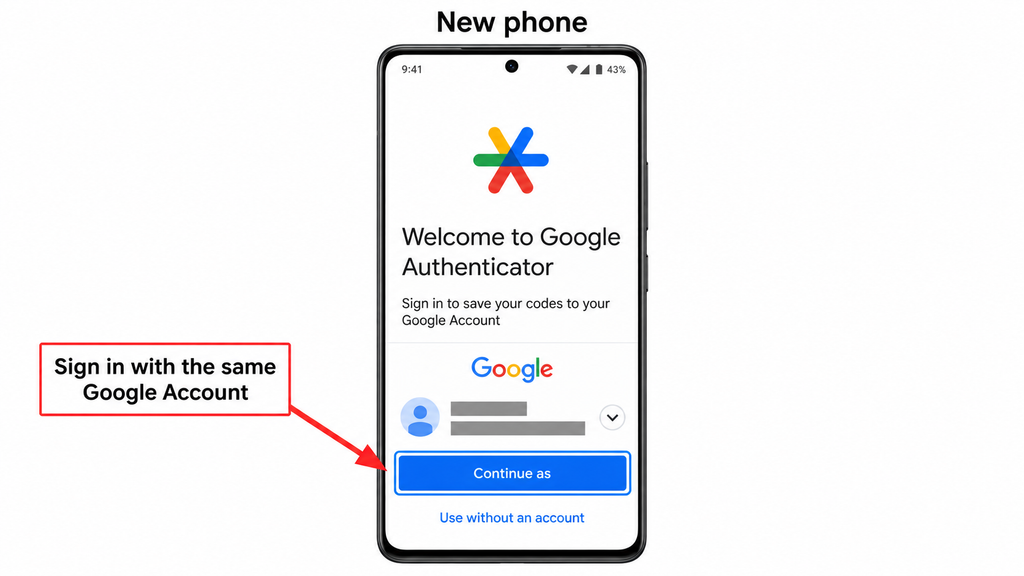
- Step 2: Open Authenticator on the new phone. Sign in to that same Google Account within the app.
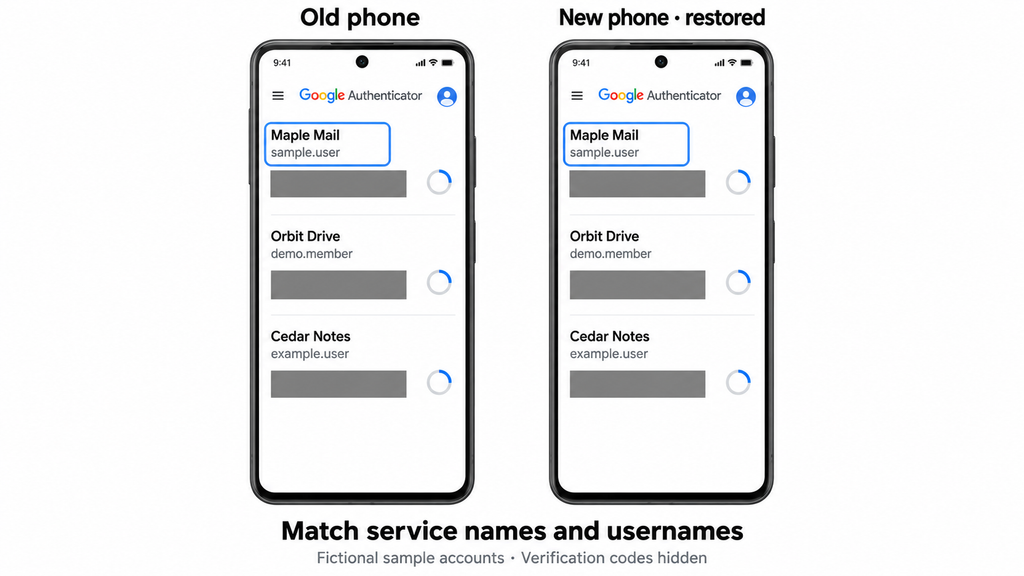
- Step 3: Review the restored list. Match the service names and usernames against your old phone.
- Step 4: Check for gaps. If entries are missing, keep the old phone available and use the manual route for anything that did not appear.
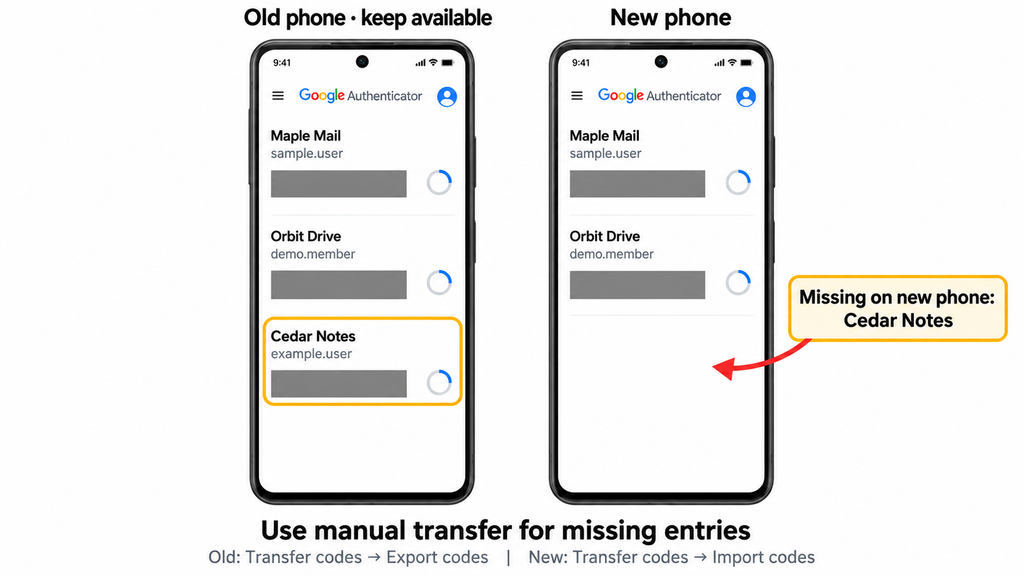
Signing in brings over entries saved to that account. Do not assume every code on the old phone belongs to the Google Account you selected.
If the old app was used without an account, you can choose to save its entries to a Google Account by following the app’s prompts, or proceed with QR transfer. For a direct move without cloud sync, use the second route.
Do not repeatedly import entries simply because you are unsure whether sync worked. First compare your list and test access. If you see duplicates, postpone cleanup until you know which entry works.
2. Transfer Codes Manually With Export and Import
Use this route while the old phone still opens Authenticator. It is the supported option for moving entries kept without Google Account sync.
Google’s official Authenticator transfer instructions provide separate Android and iPhone views. Follow the labels for the phone you are using at each step.
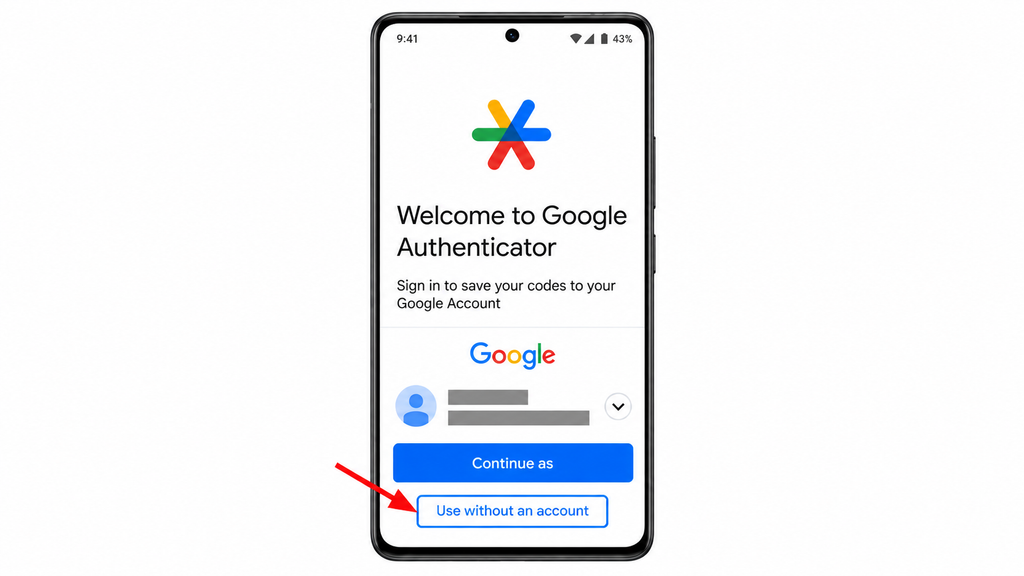
- Step 1: Prepare the new app. Open Authenticator on the new phone. Choose Use without an account during initial setup if you want to keep it local.
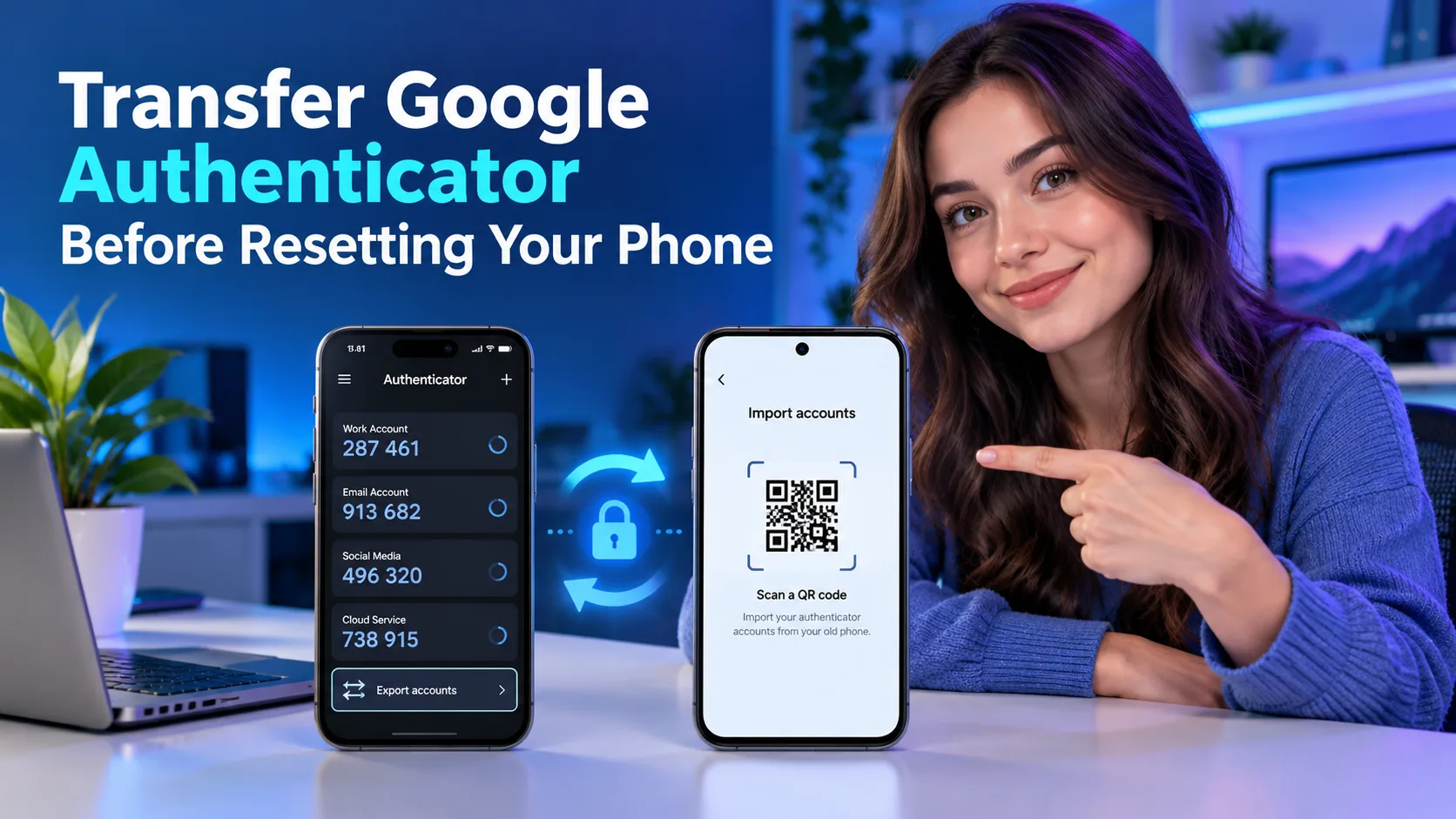
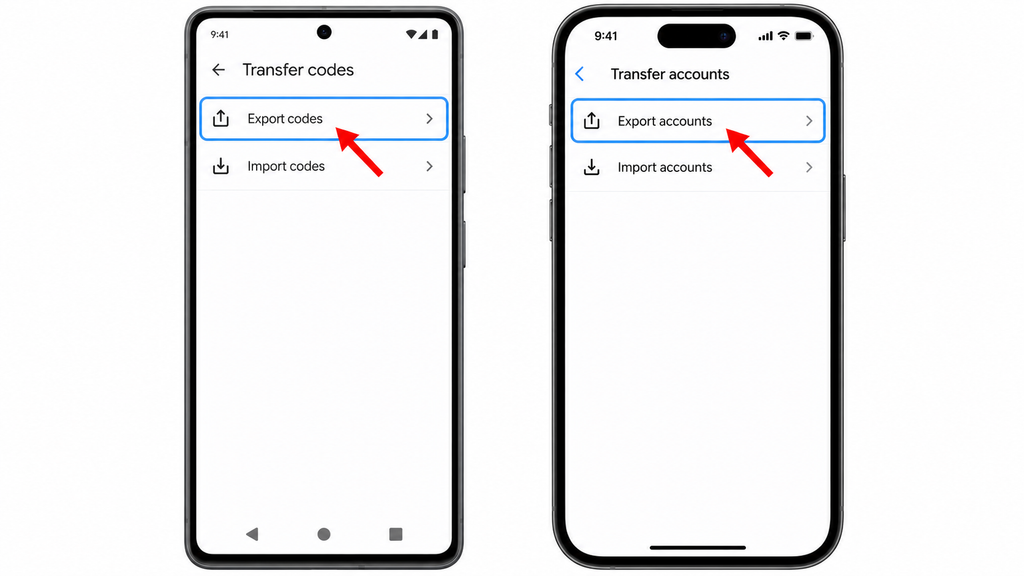
- Step 2: Export from the old phone. On Android, open Menu → Transfer codes → Export codes. On iPhone, use Menu → Transfer accounts → Export accounts.
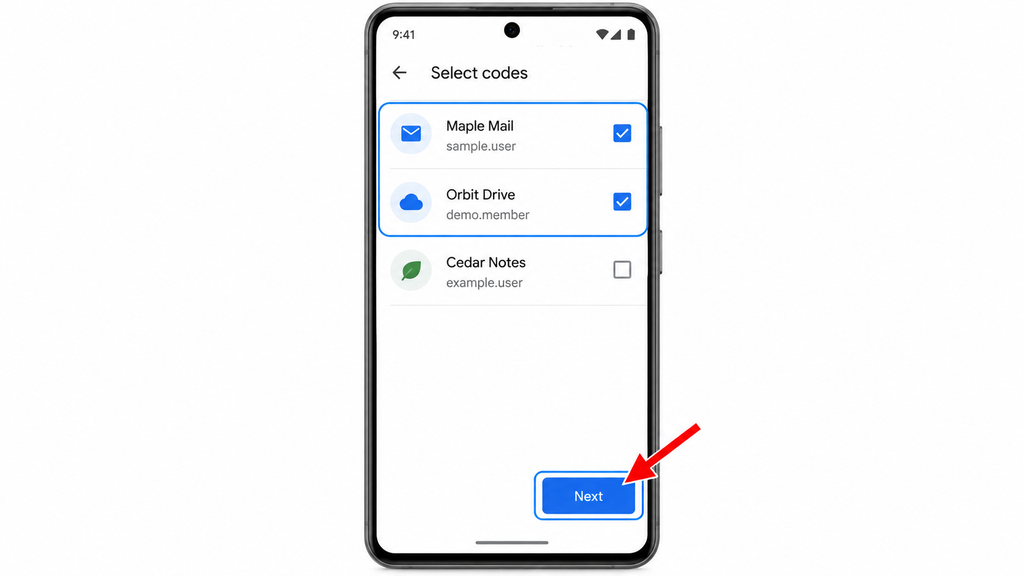
- Step 3: Select your entries. Unlock the old device when asked, choose the accounts to copy, and tap Next.
- Step 4: Import on the new phone. On Android, choose Menu → Transfer codes → Import codes. On iPhone, choose Menu → Transfer accounts → Import accounts. Scan using Authenticator’s scanner.
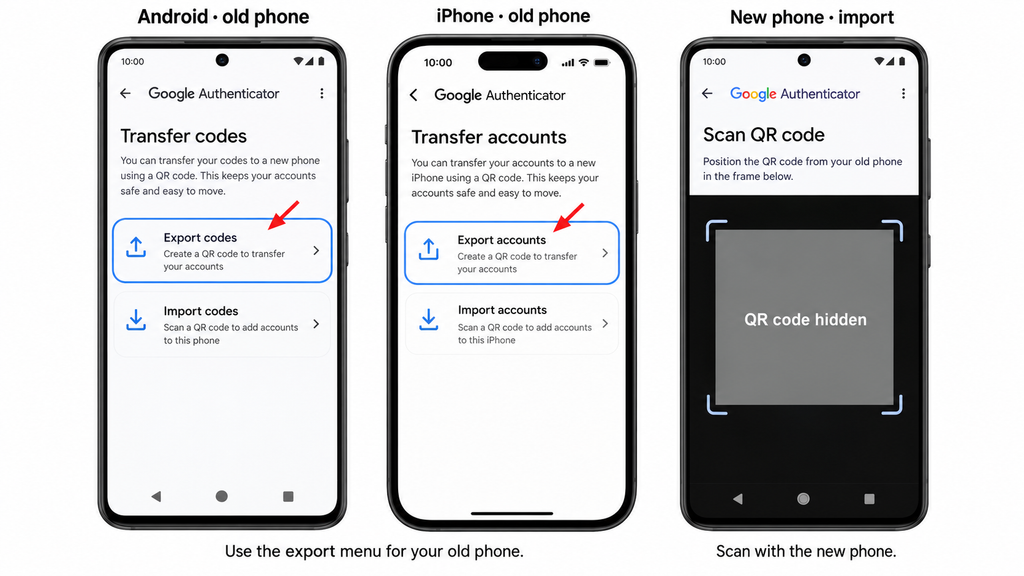
- Step 5: Finish the batch. Scan every QR code the old phone displays, then check for the transfer confirmation.
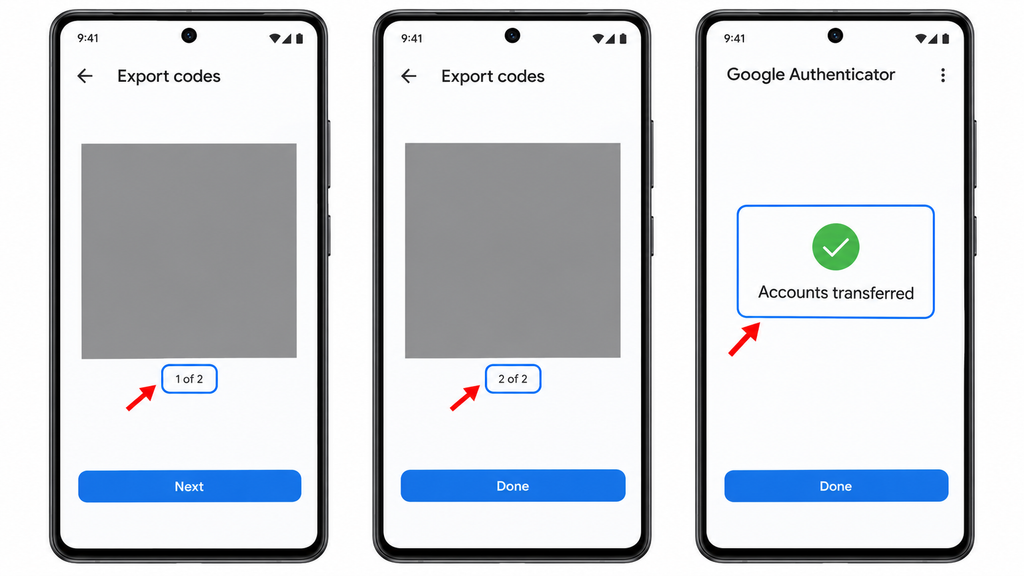
Keep the export screen private. Since scanning it lets another device reproduce your entries, treat it as a sign-in secret. Do not email it, upload it to an online QR reader, or send it to someone offering transfer help.
For scanning trouble, raise the old screen’s brightness, clean the new phone’s camera lens, and move the devices slightly apart. Allow Authenticator to use the camera if prompted.
If one large batch is hard to track, select fewer entries and finish one group at a time. Mark each group on your checklist so you know what remains.
3. Test Every Account Before Resetting
A transfer message confirms that data was imported. Your next task is to confirm that the new phone helps you access the right accounts.
Keep existing signed-in sessions open during these checks. Use a separate browser or private window for a fresh sign-in, rather than signing out of your only working session.
- Step 1: Start with your main email. Open the service’s official website yourself and begin signing in.
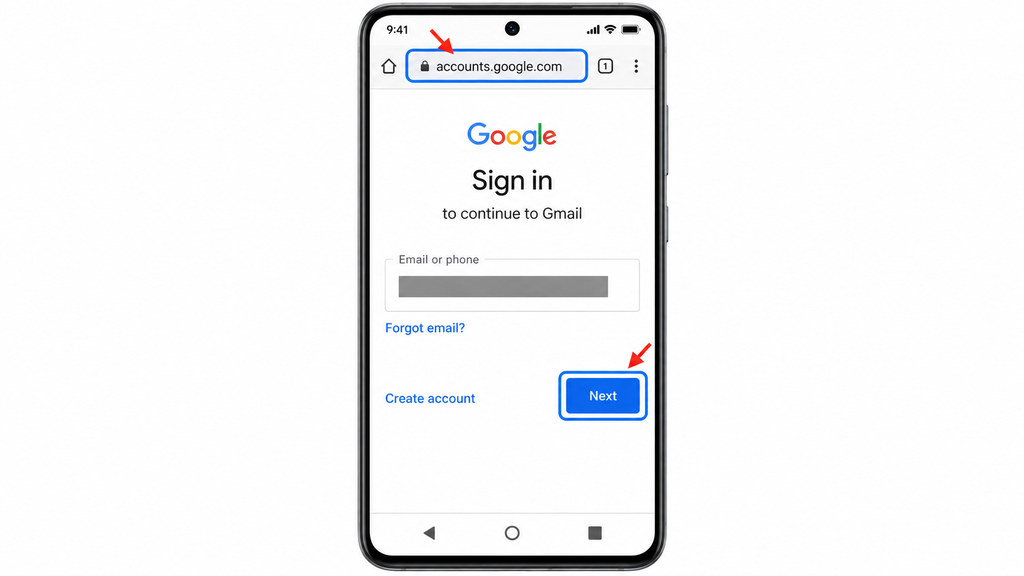
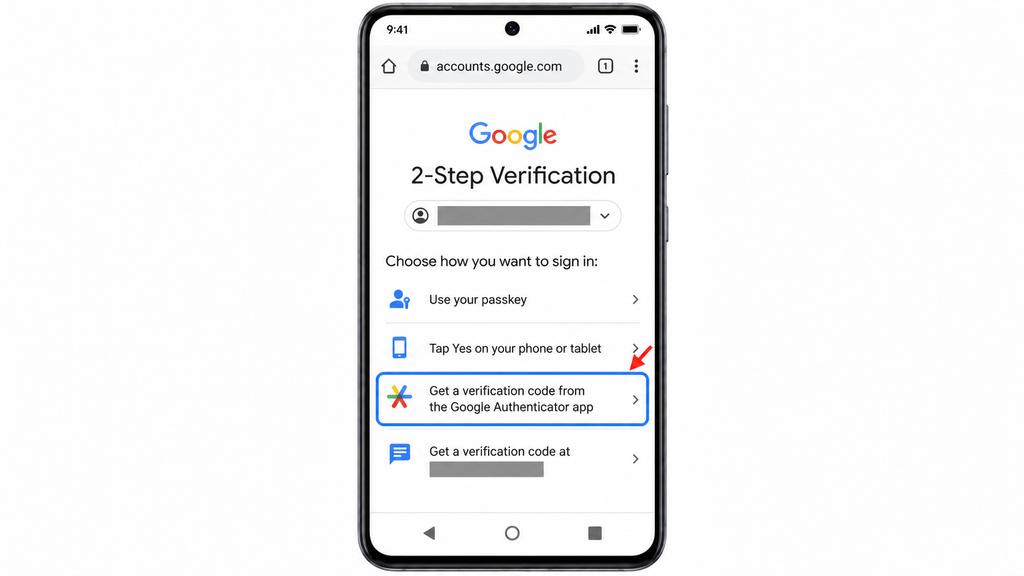
- Step 2: Choose the authenticator option. If offered several verification methods, select the app-generated code option.
- Step 3: Use the new phone. Enter the code from the matching service and username.
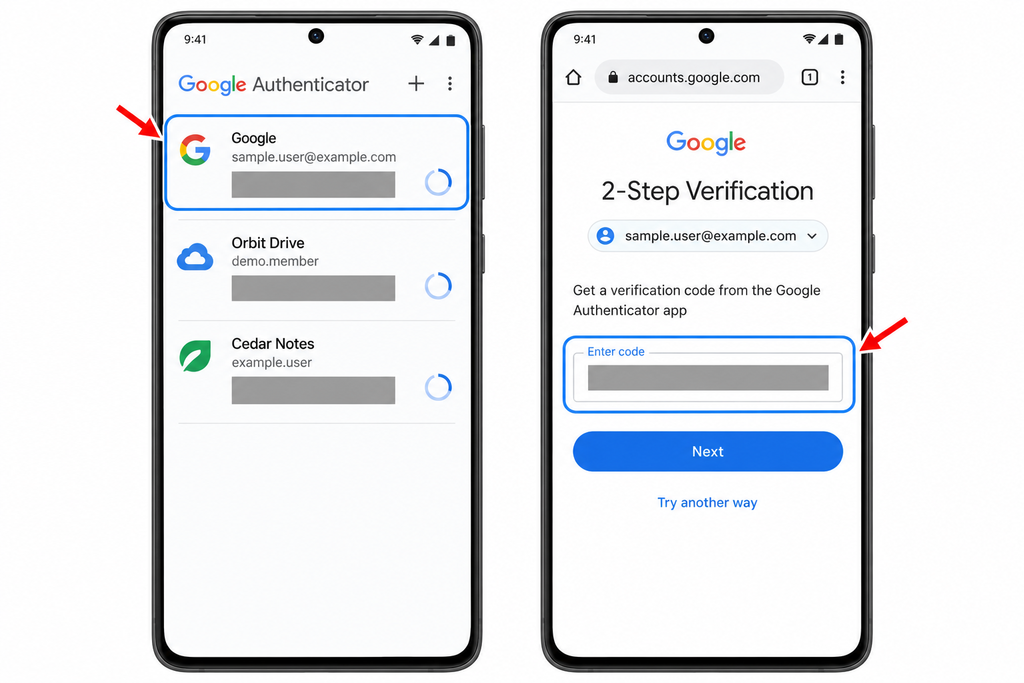
- Step 4: Confirm access. Wait until the account actually opens, then mark it as tested.
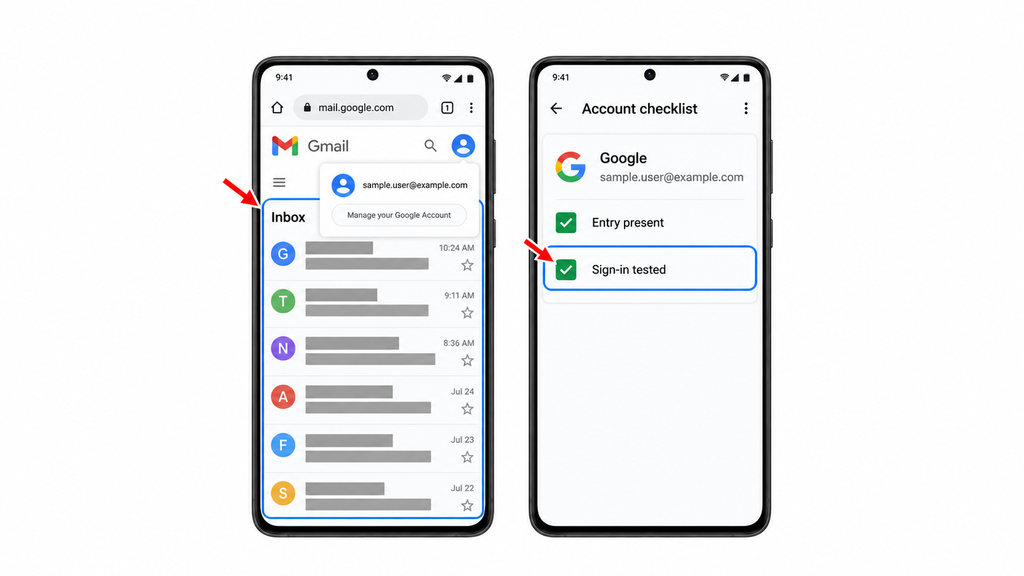
- Step 5: Repeat for the remaining entries. Check every account you plan to keep, including less-used ones.
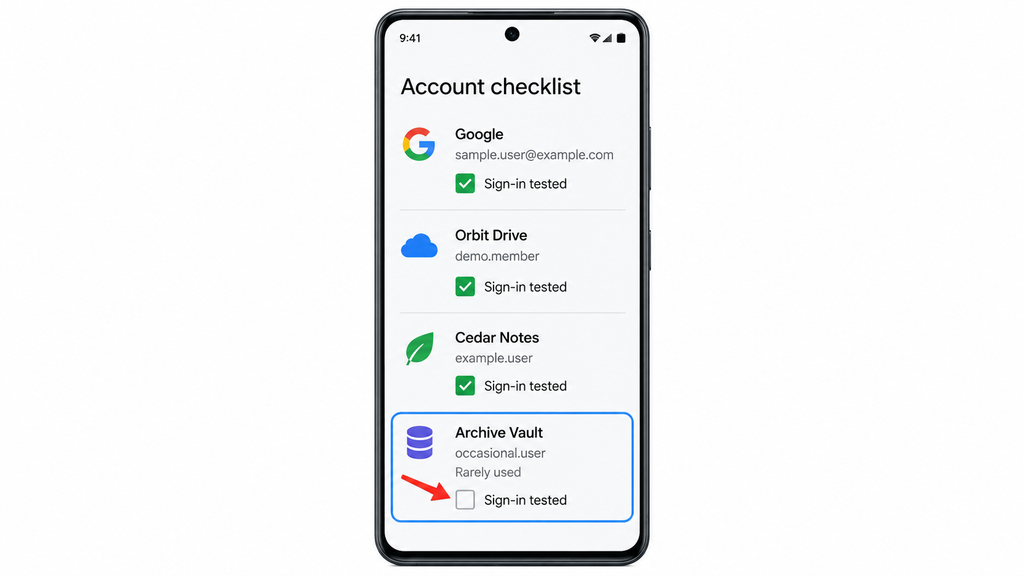
Do not treat a successful email sign-in as proof that your shopping or social accounts transferred correctly. Each entry needs its own check.
For a hypothetical example, suppose you have separate personal and business logins for the same service. Testing the personal entry does not confirm that the business entry works, even if their labels look almost identical.
If a test fails, pause the reset. Leave that account marked as unresolved and work through the checks in the bonus section.
4. Erase the Old Phone After Access Is Confirmed
Do not delete synced entries inside Authenticator to clean the old phone. Google states that deleting a synced entry also removes it from other devices where it is synced.
Also avoid switching an already synced app to account-free use as a cleanup shortcut. Google says that action removes the cloud copies and keeps the codes on that device.
Before resetting, confirm that your new phone has the needed entries, your sign-in tests passed, and your backup methods are accessible. Back up your photos, files, and other important phone data separately.
Then follow the phone maker’s full reset or handoff process. Use Apple’s iPhone sale or trade-in checklist or Google’s Android reset guidance, which points you to manufacturer-specific instructions. A factory reset erases local data.
Avoid rushing this final step because a store employee or shipping deadline is waiting. An unresolved login is a reason to delay the reset and finish the check first.
What If You Already Reset the Old Phone?
Try signing in to the Google Account that held your synced entries. If they were saved there, sync is the route to check first.
If the entries existed only on the erased phone, there is no remaining app screen from which to export them. Use each service’s backup codes, another enrolled verification method, or its account recovery process.
For a Google Account, follow Google’s account recovery guidance. For a managed work or school account, contact your administrator. Recovery is not guaranteed, so keep any remaining signed-in sessions available.
Bonus Tips: Fix Missing Codes and Build a Recovery Plan
Use this section for entries that are missing, codes that fail, or backup access you still need to prepare.
Check Missing Entries Before Importing Again
Compare the new list with the one you made earlier. Note the exact missing service and username rather than assuming the entire transfer failed.
For synced entries, check whether you selected the intended Google Account. For a manual move, review which entries you selected and whether you completed every QR screen.
If the old phone still has the missing entry, return to that entry’s transfer step. Do not erase the working copy while troubleshooting the new one.
Fix Codes That Are Rejected
First check that you chose the correct service and username, and use a fresh code before it expires. Then check that the new phone’s date and time are accurate.
Current Google guidance says Authenticator uses the operating system’s clock; its old in-app time-correction setting is no longer available in version 7.0. Use your phone’s automatic date and time controls rather than looking for that older menu.
If both phones’ codes fail for one service, stop assuming the transfer is the cause. Use an available backup method to review that service’s authentication settings.
Save Backup Codes Somewhere You Can Reach
For Google, follow its backup code instructions. In your Google Account, open Security & sign-in → 2-Step Verification → Backup codes and follow the prompts.
Store them somewhere safe that does not depend entirely on unlocking the new phone. A secured printed copy is one option.
Each Google backup code works once. Generating a replacement set makes the previous set invalid. Keep only the current set and never send it to someone claiming to provide support.
Reconfigure One Service When Transfer Is Not Enough
If one entry cannot be restored but you can still access the account, look for that service’s official instructions for changing its authenticator setup.
For example, GitHub’s authenticator-change instructions let you edit the method, scan a new setup QR code, and confirm a code before saving the change. This does not require disabling 2FA entirely. Other services have their own rules, so do not apply GitHub’s steps everywhere.
After reconfiguration, test the new entry before removing an older one. Label entries clearly so you can tell which setup is current.
The Bottom Line
Use Google Account sync when your Authenticator entries are already saved there. Use manual QR transfer when you need to copy entries directly from the old phone.
Your next action is to open Authenticator on both devices and make an account checklist. Complete a fresh sign-in test for every entry, secure your backup access, and only then follow the old phone’s reset process. That final check gives you a clear stopping point before you erase your working device.
Yes. Google supports account sync and QR transfers on both platforms. Follow the export labels for the old phone and the import labels for the new one, then test the transferred entries.
No. Authenticator’s app-generated codes do not depend on keeping the same SIM or number. However, an account may separately use your phone number for text verification or recovery, so review that setting if your number changes.
Yes. Google Authenticator is free, and its built-in sync and QR transfer features do not require a paid transfer service. Download the official Google app and use its own transfer tools.
No. A screenshot of a temporary code cannot generate future codes. Save the service’s designated backup codes instead, and keep setup keys or export QR codes private because they contain sensitive authentication information.