TL;DR
- Dual eSIM lets you run two phone numbers on one device without physical SIM cards
- iPhone 13+ supports two active eSIMs simultaneously; US iPhone 14-16 are eSIM-only
- Perfect for separating work/personal calls or adding local data plans while traveling
- Always verify your device has an EID number to confirm eSIM compatibility
- Port-outs require proper planning – keep old SIM active until new eSIM is fully working
- Battery impact is minimal on modern devices, but you can disable unused lines to save power
What is Dual eSIM and Why Should You Care?
Think of dual eSIM as having two phone lines living inside your device, without any physical SIM cards taking up space. It’s like having a work phone and personal phone merged into one sleek device. An eSIM (embedded SIM) is a digital SIM that’s built right into your smartphone, and when you have dual eSIM capability, you can activate and use two separate phone numbers at the same time.
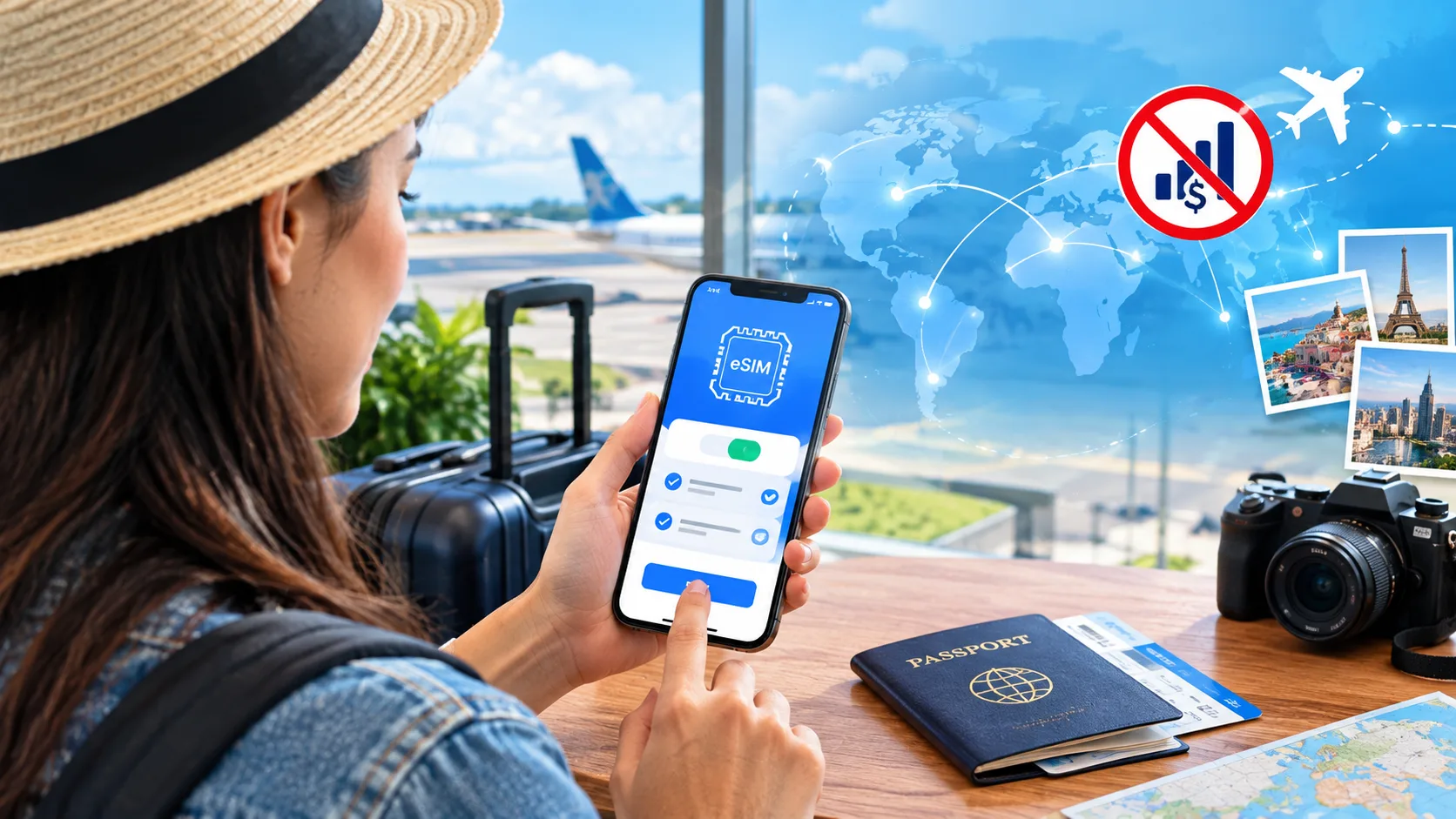
For frequent travelers, this is a game-changer. Instead of fumbling with tiny SIM cards at the airport or paying outrageous roaming fees, you can simply download a local data plan to your second eSIM while keeping your home number active. Business professionals love it too – imagine answering work calls during office hours and switching to your personal line after 5 PM, all on the same device.
📱For Travelers
Keep your home number active while using affordable local data plans abroad. No SIM swapping, no roaming charges.
💼For Professionals
Separate work and personal calls cleanly. Set different ringtones and manage contacts efficiently on one device.
🌍For Digital Nomads
Switch between carriers easily, use the best network in each location, and stay connected anywhere.
iPhone Dual eSIM Setup: The Complete Guide
Which iPhones Support Dual eSIM?
Apple has been leading the eSIM revolution, and here’s what you need to know about compatibility:
| iPhone Model | eSIM Support | Key Details |
|---|---|---|
| iPhone 16 Series (2024) | ✓ Dual eSIM | eSIM-only in US, Bahrain, Canada, Japan, Mexico, UAE, Saudi Arabia |
| iPhone 15 Series (2023) | ✓ Dual eSIM | US models are eSIM-only (no physical SIM tray) |
| iPhone 14 Series (2022) | ✓ Dual eSIM | US models are eSIM-only; can store 8+ profiles |
| iPhone 13 Series (2021) | ✓ Dual eSIM | First to support two active eSIMs simultaneously |
| iPhone 12, 11, SE (2020) | ✓ Physical SIM + eSIM | Can use one physical SIM and one eSIM at the same time |
| iPhone XS, XR (2018) | ✓ Physical SIM + eSIM | First iPhones with eSIM support |
⚠️Important Exception:
iPhones purchased in mainland China, Hong Kong, and Macao (except iPhone 13 mini, iPhone 12 mini, iPhone SE 2020, and iPhone XS) don’t support eSIM. The new iPhone Air is Apple’s first globally eSIM-only iPhone that works in China.
Setting Up Dual eSIM on iPhone
Getting your dual eSIM configuration running is surprisingly straightforward. Here’s the step-by-step process:
Check Your Device Compatibility: Go to Settings > General > About. Look for “EID” – if you see it, you’re good to go!
Contact Your Carrier: Request an eSIM activation. Most carriers will provide a QR code or allow you to activate directly through their app.
Add Your First eSIM: Navigate to Settings > Cellular > Add eSIM. Scan the QR code or follow the carrier’s app instructions.
Add Your Second eSIM: Repeat the process for your second line. On iPhone 13 and newer, both can be eSIMs.
Label Your Lines: Go to Settings > Cellular and tap each line to assign labels like “Work,” “Personal,” or “Travel.”
Set Your Defaults: Choose which line you want to use by default for calls, messages, and cellular data. You can also select “Ask Every Time” if you prefer manual control.
💡 Pro Tip:
When traveling, set your home number as the default for calls and messages, but designate your local travel eSIM for cellular data. This way, you can receive important calls while using affordable local data rates.
📖 Also Read: Samsung MCK (Unfreeze) Code 101: When You Need It & How to Request It
Android Dual eSIM: Device Support and Setup
Android Device Compatibility
The Android eSIM landscape is more fragmented than iPhone, but most flagship devices from 2020 onwards support at least one eSIM. Here’s what you need to know:
📱Google Pixel
Full Support: Pixel 3 and newer all support eSIM. Pixel 7 and newer support dual eSIM. Always update to Android 13+ for the best experience.
📱Samsung Galaxy
Premium Models: Galaxy S20 and newer, Note 20 series, Z Fold/Flip series, and some A-series models support eSIM (varies by region).
📱OnePlus
Recent Flagships: OnePlus 11, 12, and 13 support eSIM in many markets. Earlier models typically lack eSIM support.
⚠️Regional Variations Matter:
Android eSIM support can vary significantly based on where you purchased your device and your carrier. Mid-range and carrier-branded Androids are particularly inconsistent. Always verify by checking for an EID in your device settings.
How to Check eSIM Compatibility on Android
Before diving into setup, verify your Android device supports eSIM:
Go to Settings > About Phone > Status (or Settings > About Phone)
Look for EID or IMEI information – if you see an EID listed, your device supports eSIM
Alternatively, dial *#06# to display IMEI and EID information instantly
Check for an “Add eSIM” option in Settings > Network & Internet > SIMs (or Settings > Connections > SIM Manager on Samsung)
Setting Up Dual eSIM on Android
The exact process varies by manufacturer, but here’s the general approach for most Android devices:
Verify Compatibility: Ensure your device has an EID and your carrier supports eSIM activation.
Get Your QR Code: Contact your carrier or use their app to obtain an eSIM activation QR code.
Navigate to SIM Settings: Go to Settings > Network & Internet > SIMs (or Settings > Connections > SIM Manager on Samsung devices).
Add First eSIM: Tap “Add Mobile Plan” or “Add eSIM,” then scan the QR code from your carrier.
Add Second eSIM: Repeat the process with your second carrier’s QR code.
Configure Your Preferences: Choose which line should be your primary for calls, texts, and mobile data. Most Android devices allow you to switch easily from the SIM Manager.
💡Samsung Users:
Samsung’s SIM Manager interface is particularly user-friendly, with clear toggles for data, voice, and roaming. Make sure your software is updated to the latest version for the best dual eSIM experience.
📖 Also Read: How to Unlock Your Ting Mobile Phone
Using Dual eSIM for Travel: Best Practices
Traveling with dual eSIM is where this technology truly shines. Here’s how to maximize your connectivity abroad without breaking the bank:
🌍The Smart Traveler’s Setup
Before You Leave: Keep your home carrier on your primary eSIM. Research and purchase a local data eSIM for your destination country – many providers offer instant activation.
At Your Destination: Activate your local travel eSIM for data while keeping your home number active for important calls and two-factor authentication messages. Set your travel eSIM as the default for cellular data to avoid roaming charges.
Cost Savings: A local eSIM in Europe might cost $10-20 for a week of unlimited data, compared to $10+ per day for roaming with traditional carriers.
Travel eSIM Configuration Tips
Buy Before You Fly: Download and activate your travel eSIM before departure when you have reliable Wi-Fi. Most eSIMs activate when you reach your destination country.
Label Clearly: Name your eSIMs descriptively – “US Primary” and “France Travel” is clearer than “Line 1” and “Line 2.”
Turn Off Data Roaming: Disable data roaming on your home line to prevent any surprise charges. Only your travel eSIM should use cellular data.
Keep Both Active: You can receive calls on both lines simultaneously, which is perfect for emergencies or important work calls while you’re exploring.
Disable When Done: After your trip, you can disable or delete your travel eSIM to save battery life and reduce clutter.
💡Digital Nomad Tip:
If you’re traveling to multiple countries, consider getting regional eSIMs that cover entire continents (like Europe or Southeast Asia) rather than buying a new eSIM for each country. Many providers offer multi-country plans that can save you significant time and money.
Managing Work and Personal Numbers with Dual eSIM
One of the most practical everyday uses of dual eSIM is separating your professional and personal life – without carrying two phones. Here’s how to set it up effectively:
💼The Professional Setup
Primary eSIM: Your personal number for family, friends, and personal accounts
Secondary eSIM: Your work number for clients, colleagues, and business communications
Benefits: Different ringtones, organized contacts, clear work-life boundaries, and the ability to “turn off” work after hours by disabling that line.
Best Practices for Work/Personal Separation
Set Distinct Ringtones: Assign different ringtones and notification sounds to each line so you instantly know if it’s work or personal.
Use Contact Labels: Both iPhone and Android let you assign specific contacts to specific lines. Set work contacts to always use your work line.
Default Settings Matter: If you make more personal calls, set your personal line as the default. You can always override it for specific calls.
Manage Notifications: Consider setting quiet hours or Do Not Disturb for your work line outside of business hours.
iMessage & WhatsApp: Note that apps like iMessage and WhatsApp can only be associated with one number. Choose wisely based on how you primarily use these apps.
⚠️Data Usage:
Only one line can use cellular data at a time on most devices. Choose which line should handle data (typically your primary line), and both will still work for calls and texts.
📖 Also Read: How to Unlock a Consumer Cellular Phone
Port-Out Procedures: Switching to or from eSIM
Whether you’re moving your number from a physical SIM to an eSIM, switching carriers, or upgrading to a new phone, understanding the port-out process prevents headaches and downtime.
Porting from Physical SIM to eSIM (Same Carrier)
This is the simplest scenario – you’re keeping the same carrier but converting to eSIM:
Contact Your Carrier: Request an eSIM conversion. Many carriers now offer this through their app or website without needing to call.
Receive Activation Code: You’ll get a QR code or activation details via email or in-app.
Add eSIM First: Install the eSIM while your physical SIM is still working. This prevents any service interruption.
Verify Service: Make a test call and send a text on the new eSIM to confirm everything works.
Remove Physical SIM: Only after confirming the eSIM works should you remove the physical SIM card.
Porting to a New Carrier (with eSIM)
Switching carriers is trickier but manageable with proper planning:
Gather Port Information: You’ll need your current account number, account PIN or port-out authorization code, and billing ZIP code from your current carrier.
Check Account Status: Your current account must be active (not suspended or past due) for the port to work.
Order New eSIM: Sign up with your new carrier and request eSIM activation. Provide your port-in information during signup.
Keep Old SIM Active: Don’t cancel your old service! Keep your current SIM in your phone and working. The port-out will automatically cancel the old service.
Activate New eSIM: Install the eSIM from your new carrier. Many carriers let you schedule the port activation time.
Port Window: During the transfer (usually 2-24 hours), you might receive calls on both lines briefly. This is normal.
Verify Everything: Test calls, texts, data, voicemail, and 5G connectivity on your new eSIM.
Complete Old Account: Once everything works on the new eSIM for 24-48 hours, you can safely remove the old physical SIM.
💼Critical Port-Out Mistakes to Avoid:
Don’t cancel your old service before porting:
If you cancel first, you’ll lose your phone number forever. The port-out process automatically cancels the old service.
Don’t wait for approval:
Some carriers send a text to approve the port. You typically have 90 minutes to reply “YES” to confirm.
Don’t activate during critical times:
Don’t port during work hours if you need your phone for business. Weekend evenings are typically best.
Switching from eSIM Back to Physical SIM
Sometimes you need to go back to a physical SIM (maybe you’re selling your phone or traveling to a region with limited eSIM support):
Contact Your Carrier: Request a physical SIM card for your existing number.
Wait for SIM Delivery: Physical SIM cards usually arrive within 3-7 business days. Some carriers offer same-day pickup at retail locations.
Keep eSIM Active: Don’t delete your eSIM until the physical SIM arrives and is activated.
Insert New SIM: Power off your phone, insert the physical SIM, and power on.
Activate: Follow your carrier’s activation instructions (usually automatic or via a simple phone call).
Verify Service: Test everything before removing the eSIM profile from your device.
💡Transferring to a New Phone:
Many carriers now support eSIM transfer between devices. On iPhone, you can often transfer your eSIM directly during the phone setup process without needing a new QR code. For Android, you’ll typically need a new activation code from your carrier.
Advantages and Challenges of Dual eSIM
✓The Good Stuff
- No Physical Cards: No more fumbling with SIM ejector tools or losing tiny pieces of plastic
- Instant Activation: Download and activate new plans in minutes, often without visiting a store
- Travel Freedom: Add local data plans anywhere in the world without swapping SIM cards
- Better Security: eSIMs can’t be stolen from your phone without stealing the entire device, preventing SIM-swap scams
- Dual Standby: Receive calls and texts on both numbers simultaneously
- Flexibility: Store multiple eSIM profiles and switch between them easily
- Device Design: No SIM tray means better water resistance and more space for battery or other components
- Eco-Friendly: No plastic waste from SIM cards and packaging
✗The Challenges
- ✗Battery Drain: Running two active networks can reduce battery life by 10-15% (though modern phones optimize this well)
- ✗Carrier Support: Not all carriers support eSIM, especially smaller MVNOs and some international carriers
- ✗Regional Limits: eSIM availability varies significantly by country and region
- ✗Transfer Complexity: Moving eSIMs to new devices can require new activation codes, unlike physical SIMs you can just swap
- ✗Learning Curve: Managing two plans, labels, and defaults can be confusing initially
- ✗App Limitations: Apps like WhatsApp and iMessage can only be tied to one number
- ✗Accidental Usage: You might accidentally call or text from the wrong line if defaults aren’t properly configured
- ✗Data Limitation: Only one line can use cellular data at a time
Security Best Practices for Dual eSIM Users
With the convenience of eSIM comes the need for enhanced security awareness. Here’s how to protect yourself:
Preventing SIM-Swap and Port-Out Scams
Set a Strong Carrier PIN: Contact your carrier and set up a port-out PIN or account password. This prevents unauthorized transfers of your number.
Enable Port Protection: Many carriers offer extra security features that require in-person verification or additional authentication before porting numbers.
Use Biometric Security: Always lock your device with Face ID, Touch ID, or fingerprint recognition. This prevents physical access to your eSIM settings.
Be Wary of Phishing: Carriers will never ask for your full account password or PIN via text or social media. Be suspicious of unexpected requests.
Two-Factor Authentication: Use authenticator apps rather than SMS for 2FA when possible, as SMS can be intercepted during port-out attempts.
Monitor Your Account: Regularly check your carrier account for unauthorized changes or port-out requests.
⚠️eSIM Theft Prevention:
Unlike physical SIMs that can be removed from a stolen phone, eSIMs stay with the device. This is actually a security benefit – but it means device-level security is crucial. Always use strong passcodes and enable Find My iPhone or Find My Device.
When Disposing of Your Old Phone
Before selling, trading, or recycling a device with eSIM:
Transfer or deactivate all eSIM profiles through your carrier
Remove eSIM profiles from device settings
Factory reset the device to wipe all data
Remove the device from your Find My iPhone or Google account
Troubleshooting Common Dual eSIM Issues
eSIM Not Activating
Check Network: Ensure you have a stable Wi-Fi or cellular connection. eSIM downloads require internet access.
Verify Compatibility: Double-check that your specific device model and region support eSIM.
Update Software: Make sure your phone is running the latest iOS or Android version.
QR Code Issues: If the QR code won’t scan, try entering the activation code manually or increasing your screen brightness.
Restart Device: A simple restart often resolves activation glitches.
Calls Not Coming Through on Second Line
Verify both lines are enabled in Settings > Cellular (or SIM Manager)
Check if you’re on a phone call on the first line (some devices can’t receive calls on the second line during an active call)
Ensure the SIM isn’t set to “Off” or “No Service”
Toggle Airplane Mode on and off to reset network connections
Battery Draining Too Fast
Check which apps are using cellular data and restrict background usage
Disable the secondary line when not needed (perfect for work lines after hours)
Turn off “Allow Cellular Data Switching” if you don’t need automatic switching
Monitor battery health in device settings – dual network usage can reveal aging battery issues
💡Still Having Issues?
Contact your carrier’s customer support. Many eSIM issues are carrier-side problems (like incorrect provisioning) that they can fix remotely. Have your EID and IMEI numbers ready when you call.
Frequently Asked Questions
You can use both numbers for iMessage and FaceTime, but you need to configure which number each service uses as the default. Go to Settings > Messages > Send & Receive to manage iMessage, and Settings > FaceTime to configure FaceTime. You can reach people at either number, but outgoing messages and calls will use your selected default.
Yes! Dual eSIM fully supports 5G connectivity. However, only the line designated for cellular data will use 5G. The secondary line will typically use LTE/4G for calls and texts. Both lines can be 5G-capable plans; it just depends on which one you’ve set as your data line at any given moment.
It depends on your carrier and device. iPhone users can often transfer eSIMs directly during device setup without contacting their carrier (on iPhone 13 and newer). For Android and some carriers, you’ll need to request a new eSIM activation code. Always check with your carrier before upgrading phones to understand their specific transfer process.
Most modern devices can store 8 or more eSIM profiles, but only 2 can be active simultaneously (on devices that support dual active eSIMs). This is perfect for frequent travelers who want to keep multiple regional eSIMs downloaded and ready to activate with a few taps.
No! Your phone number stays with you when converting from physical SIM to eSIM. The porting process transfers your number to the eSIM profile. Just make sure to keep your old SIM active until the eSIM is fully working to avoid any service interruption.
Unfortunately, WhatsApp officially only supports one number per device. However, some workarounds exist, such as using WhatsApp Business for your second number, or using the new multi-device feature creatively. Android users might also explore cloning apps, though this isn’t officially supported.
No! That’s the beauty of dual eSIM. You can have one eSIM from Verizon and another from T-Mobile, or one from a US carrier and another from an international travel eSIM provider. Your device just needs to be carrier-unlocked to use eSIMs from different providers.
Modern smartphones handle dual eSIM efficiently, with most users reporting only a 5-15% increase in battery consumption. The impact is most noticeable when both lines have poor signal, as your phone works harder to maintain connections. You can always disable one line when not needed to conserve battery.
Generally, yes. eSIMs can’t be physically removed and used in another device, which prevents traditional SIM-swap scams where thieves steal your SIM card. However, account-level security is still crucial – always use strong PINs and enable port-out protection with your carrier.
If your device has a physical SIM slot (like most non-US iPhones and many Android devices), you can use one eSIM and one physical SIM. If you have an eSIM-only device (like US iPhone 14-16), you’ll need to ensure eSIM travel plans are available for your destination, which covers most popular travel locations worldwide.
Final Thoughts: Is Dual eSIM Right for You?
Dual eSIM technology represents a significant leap forward in mobile connectivity, offering flexibility that was impossible just a few years ago. Whether you’re a frequent traveler tired of fumbling with SIM cards, a professional wanting cleaner work-life separation, or just someone who appreciates cutting-edge technology, dual eSIM delivers tangible benefits.
The key is understanding how to use it properly. Start simple – maybe add a travel eSIM for your next trip, or separate your work number if your employer provides one. As you get comfortable managing multiple lines, you’ll discover new ways to optimize your connectivity.
Remember the golden rules: always verify both lines are active before important trips, keep your old SIM working until new eSIMs are fully tested, label your lines clearly, and set up security measures like carrier PINs to prevent unauthorized ports. With these practices in place, dual eSIM transforms from a confusing technical feature into an indispensable tool that gives you control over your digital connectivity like never before.
Ready to Get Started?
Check your device’s EID right now (Settings > General > About on iPhone, or Settings > About Phone on Android). If you see one, you’re eSIM-ready! Contact your carrier about converting to eSIM or adding a second line. The future of mobile connectivity is already here – time to take advantage of it.