

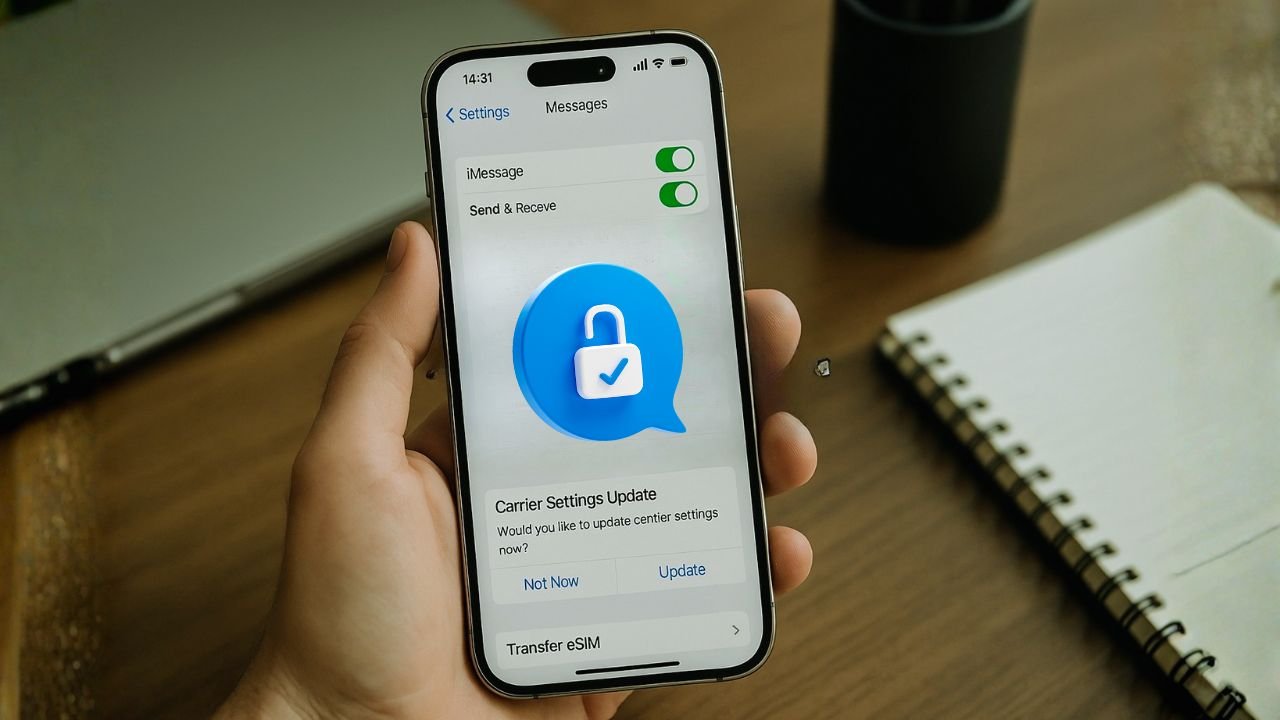
Swapped carriers and now iMessage says “Waiting for activation”? FaceTime calls won’t ring on your number? You’re not alone. The good news is that your iPhone, your Apple ID, and your new mobile plan can all get along—once they’re set up to speak the same language.
Here’s the thing: iMessage and FaceTime tie your phone number to your Apple ID using a tiny behind-the-scenes text message and a few device settings. Change the carrier or move to a new eSIM, and those pieces can fall out of place. Let me show you how to click them back together—gently, quickly, and with minimal fuss.
Key takeaways
- iMessage/FaceTime activation needs an SMS-capable line, correct Send & Receive selections, and a little time.
- During a number port, activation may pulse. Don’t over-toggle—set it up once and wait.
- For eSIM moves, confirm SMS works on the new profile before removing the old one.
- Keep your Apple ID Reachable At list clean; remove numbers you no longer own, and update Macs/iPads so continuity stays seamless.
What really changes when you change carriers
When you move to a new carrier (physical SIM or eSIM), two things change under the hood:
- Your line identity
Your phone number may stay the same, but your line profile—how the network knows you—gets refreshed. iMessage and FaceTime confirm that identity with Apple by sending a silent text from that line to Apple’s servers. If that text can’t go out, activation stalls. - Your default line and data path
With dual SIM or multiple eSIMs, iPhone can send messages from one line while using data from the other. If the wrong line is set as default, activation can use the wrong path. The result: iMessage or FaceTime waits forever, or it works only on email, not on your number.
You know what? Once you understand those two bits, everything else makes sense.
📖 Also Read: Android eSIM-to-eSIM Transfer After Carrier Release (Samsung & Pixel) Without Downtime
The one-minute checklist before you start
- Your iPhone is updated to the latest iOS.
- You have a working mobile signal and a small amount of SMS credit if you’re on prepaid.
- Date, time, and time zone are set to “Set Automatically.”
- You can receive normal SMS on your number.
- If your number was just ported to the new carrier, the port is complete (more on this below).
If all of that looks good, you’re ready.
Make iMessage and FaceTime recognize your new line
Follow these steps in order. They’re short on fluff and long on results.
1) Confirm your line is the one iPhone thinks you’re using
- Go to Settings > Cellular (or Mobile Service).
- Tap Default Line and make sure your new carrier line is the default for Voice and Cellular Data—at least while we activate.
- If you use dual SIM and don’t want to change your data line long-term, that’s fine. We’ll switch it back later.
2) Restart the services the easy way
- Go to Settings > Messages and turn iMessage off.
- Go to Settings > FaceTime and turn FaceTime off.
- Restart your iPhone.
- Turn iMessage back on, wait 60–120 seconds.
- Turn FaceTime back on, wait again.
If activation completes, you’re done. If not, keep going.
3) Tell iMessage which addresses to use
- Settings > Messages > Send & Receive.
- Ensure your phone number is checked under “You can receive iMessages to and reply from.”
- Set “Start new conversations from” to your phone number (not just your email).
- In FaceTime, make sure your number is selected as Caller ID.
4) Nudge your Apple ID connection
Sometimes your Apple ID keeps a stale link:
- Settings > [your name] > Sign-Out (only if you know your password and have iCloud Keychain or your codes; otherwise skip).
- Sign back in.
- Re-enable iMessage and FaceTime.
- Re-check Send & Receive and Caller ID selections.
5) Install carrier settings if prompted
- Go to Settings > General > About and wait a few seconds.
- If you see a carrier settings prompt, accept it. These settings help the phone send the activation text the right way.
📖 Also Read: Google Pixel Unlock Policy (2025): eSIM Transfer Guide + Pixel Fold Tips
Dual SIM notes that save you headaches
When you carry two lines (say, personal and work), iPhone lets you choose which line handles iMessage and FaceTime.
- Pick the line for iMessage: Settings > Messages > Send & Receive > Line (on newer iOS versions). Choose the line that has SMS and data available.
- Pick the line for FaceTime and Caller ID: Settings > FaceTime > Caller ID.
- Default line for new calls/messages: Settings > Cellular > Default Line.
- If activation fails, temporarily set the line in question as both Default and Cellular Data during activation. After it succeeds, you can switch data back.
Why this matters: that tiny activation text must go out over the line you’re trying to register. If your other line is in charge of data or SMS during the attempt, activation may never finish.
eSIM and number transfer tips
Moving to eSIM is smooth—unless one tiny detail is missed.
- Use the carrier’s QR code or eSIM Quick Transfer inside Settings > Cellular > Add eSIM. Avoid random third-party profiles.
- Wait for the new line to show signal before turning off the old one.
- If you’re keeping the same number, keep the previous line active until the port completes. Turning it off too early can break the handoff.
- If you store multiple eSIMs, name them clearly (e.g., “Personal-NewCarrier,” “Travel-EU”) so you can choose the right one in Send & Receive.
- After an eSIM swap, revisit Send & Receive and Caller ID to make sure your number is selected—iOS sometimes falls back to email.
Fix “Waiting for activation” the smart way
If you still see that message after a few minutes, work through this list. Most people resolve it by step 4.
- Toggle Airplane Mode for 30 seconds, then off. Try iMessage again.
- Check SMS works by sending a normal text to a friend who doesn’t use iMessage. If SMS fails, iMessage can’t activate.
- Turn off any SMS filters or international text blocks on your plan (some carriers block short codes or international SMS by default, which can block the activation text).
- Reset network settings: Settings > General > Transfer or Reset > Reset > Reset Network Settings. This clears stale routing without touching your photos or apps.
- Remove and re-add the line profile (for eSIM, delete the line after confirming you have the QR code or can re-download it; for physical SIM, reseat the card).
- Check Apple’s System Status page from another device. If Apple’s iMessage/FaceTime services show a disruption, wait and try again later.
- Contact the carrier and ask whether SMS to short codes and international destinations is enabled on your line. Mention that iMessage/FaceTime activation uses a silent text.
- Try Wi-Fi and cellular separately. Turn off Wi-Fi and activate on cellular; if that fails, try on Wi-Fi with cellular off. It sounds odd, but the path can matter.
📖 Also Read: Latin America carrier release rules for Claro, Movistar, Tigo and region-lock notes
A small, useful table you can keep
| Problem you see | Likely cause | Quick fix |
|---|---|---|
| Waiting for activation | Activation SMS blocked or misrouted | Ensure SMS works; reset network settings; check short-code/international SMS is allowed |
| Number not listed in Send & Receive | Old Apple ID cache | Sign out/in of Apple ID; re-enable iMessage; select the number |
| iMessage works but FaceTime doesn’t | Caller ID still on old line | FaceTime > Caller ID: choose your current number |
| Works on Wi-Fi but not on mobile data | Data line mismatch | Set the same line as both Data and iMessage during activation |
| Port in progress | Number not fully live | Wait until calls and texts land on the new carrier, then retry activation |
Special cases that trip people up
Prepaid plans and low balances
Some prepaid plans need a tiny SMS balance to send the silent activation message. If your balance is zero, add a small amount of credit or enable pay-as-you-go SMS for a day.
International moves or travel eSIMs
If your main number is from one country and you’re activating while abroad, the activation text might be treated as international SMS. Make sure your plan allows it. If it doesn’t, temporarily switch the Data and Default lines to your home number, activate, then switch them back.
Number port still in flight
When you bring your number from one carrier to another, there’s a window where calls go to one network and texts to another. iMessage activation during this window can fail. Wait until both calls and texts clearly hit the new carrier, then try again.
Kids’ phones and managed profiles
If Screen Time or an MDM profile controls account changes, iMessage and FaceTime activation may be blocked. Temporarily allow account changes under Settings > Screen Time or ask your admin to allow it.
A calm, complete step-through you can follow right now
- Update iOS and restart the iPhone.
- Confirm Default Line and Data point to the line you’re activating.
- Turn off iMessage and FaceTime, restart, turn them back on.
- Pick your number under Send & Receive and Caller ID.
- Test SMS to a non-iPhone contact; if it fails, fix SMS first.
- Install carrier settings if prompted under About.
- Reset network settings if activation still hangs.
- Check Apple’s status page; if green, move on.
- Call carrier support and ask: “Is SMS to short codes and international destinations enabled for my line? iMessage activation uses that.”
- Try the activation again on cellular only, then Wi-Fi only, giving each attempt a couple of minutes.
That flow handles almost every scenario without drama.
Tiny myths, cleared up
- “I need Wi-Fi to activate.” Not always. Activation can use cellular too; try both paths if one stalls.
- “Email is enough.” Your Apple ID email lets you send and receive iMessage, yes—but phone-number reachability for green-bubble friends and FaceTime audio requires your number to activate.
- “It activated, so I’m done forever.” Mostly—but swap eSIMs, change the default line, or move carriers again, and you may need to confirm settings once more. It’s normal.
Extra care for people who carry two lines
If you keep a personal line and a work line:
- Decide which line should reach you on iMessage. Most people choose personal.
- Set Start new conversations from to that line so friends see the right number.
- For work calls, set Caller ID in FaceTime to the work line if you prefer clients to see it.
- If you roam often, you can choose the local eSIM as your data line and still keep your home number tied to iMessage—just activate first while your home line controls data.
Quick reference: where to tap
- Default line & Data: Settings → Cellular → Default Line / Cellular Data
- iMessage on/off: Settings → Messages
- FaceTime on/off and Caller ID: Settings → FaceTime
- Send & Receive selection: Settings → Messages → Send & Receive
- Carrier settings prompt: Settings → General → About (wait a few seconds)
- Reset network settings: Settings → General → Transfer or Reset → Reset → Reset Network Settings
Bookmark this part. It saves time.
The 10 most common reasons activation fails (and fast fixes)
Carrier settings out of date
After a carrier switch, go to Settings → General → About. If prompted, tap Update to install the new carrier settings.
No SMS plan
iMessage/FaceTime activation requires at least one SMS. Make sure your line can send/receive SMS, not just iMessage or data.
Carrier blocks short codes or international SMS
Some carriers block the activation SMS. Ask support to enable international/short-code SMS, or briefly move the SIM to a device that can send standard texts, then return it.
Port still in progress
During number porting, activation can flicker. Wait until the port completes, then toggle iMessage/FaceTime off/on once.
Wrong number selected
Messages → Send & Receive → ensure the new (or correct) number is checked and selected for “Start New Conversations From.”
Out-of-date Apple ID session
Sign out/in: Messages → Send & Receive → tap Apple ID → Sign Out → Sign In.
Time and region mismatch
General → Date & Time → Set Automatically. Also check Region matches your carrier’s country.
Old line still attached
Remove the retired number from Apple ID reachability: Settings → [your name] → Name, Phone Numbers, Email.
Network profile/cached settings conflict
Reset Network Settings: Settings → General → Transfer or Reset → Reset → Reset Network Settings. (You’ll re-enter Wi-Fi passwords.)
VPN/Firewall interference
VPNs or strict Wi-Fi firewalls can block activation. Turn off VPN and try on cellular data only, or switch networks.
The Bottom Line
Changing carriers should not mean losing iMessage reachability or missing FaceTime rings. Make the right line your default during activation, toggle iMessage and FaceTime cleanly, pick your number in Send & Receive and Caller ID, confirm SMS is healthy, and give the network a clear path. Honestly, it’s a few careful taps.
One last thought: before your next carrier change—or your next eSIM swap—save this guide. Future-you will thank present-you when everything “just works” the first time. And if you want, I can turn this checklist into a printable one-pager. Would that help?
FAQs
Q: Will I be charged for iMessage/FaceTime activation?
A: Your carrier may charge a standard SMS (sometimes international) for activation. It’s usually pennies, but it depends on your plan.
Q: How long does activation take?
A: Usually a few minutes. During number porting, it may bounce during the transfer window. If it exceeds an hour with a completed port and working SMS, try the recovery steps.
Q: Can I use iMessage on a data-only eSIM?
A: Yes—after you activate iMessage with a line that supports SMS at least once. Future re-activations still need SMS.
Q: People are texting my old number. Can I forward those?
A: Not automatically. Remove the old number from Apple ID, and tell contacts to message your new number or your Apple ID email in iMessage.
Q: Group texts (green bubbles) broke after switching carriers.
A: That’s MMS. Ensure your new carrier’s MMS settings are installed (carrier settings update), and try starting a fresh group thread.
Q: FaceTime rings on my Mac but not my iPhone.
A: Re-enable FaceTime on iPhone, verify your number is checked in You Can Be Reached By, and set the correct Caller ID. Try on cellular if Wi-Fi is restricted.


