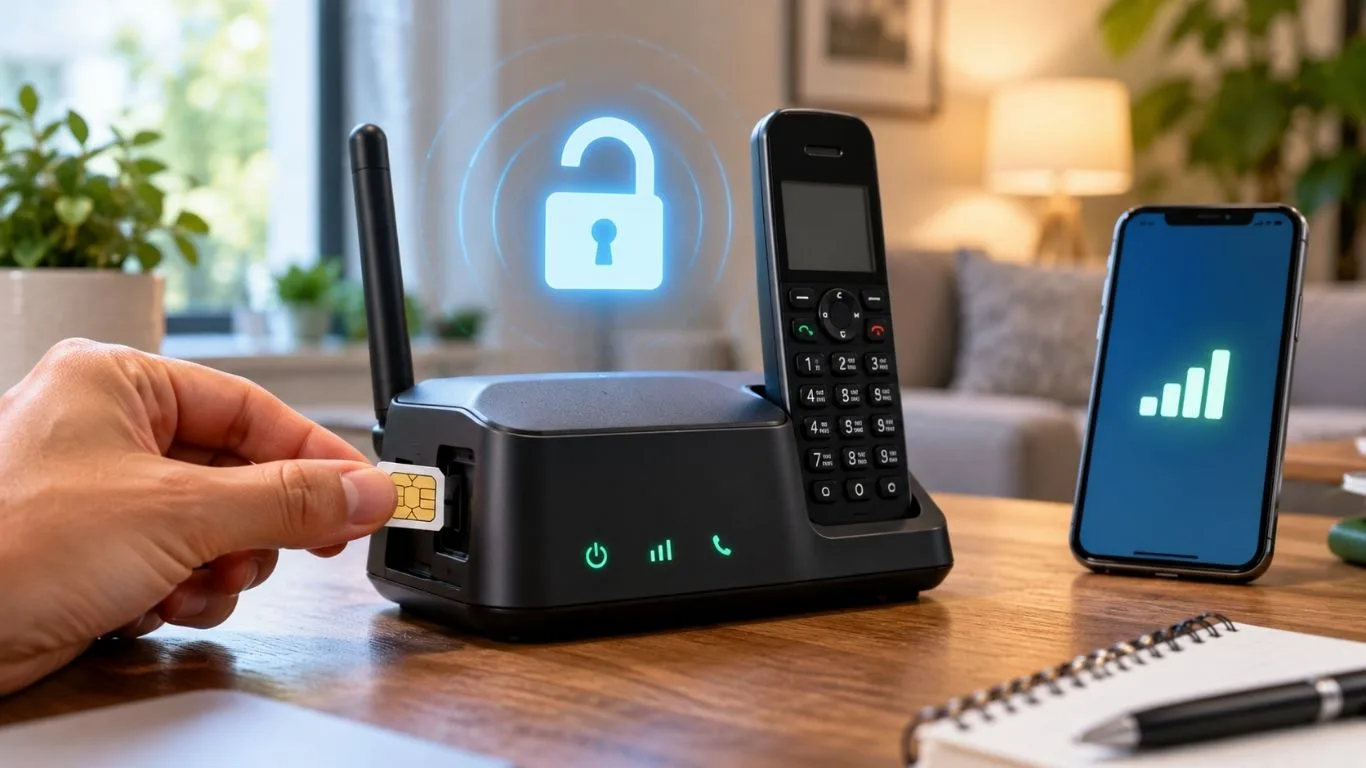
If you use SafeLink and your phone breaks, slows down, or feels outdated, the first thought that comes to mind is simple: Can I just move my SafeLink SIM card into another phone? The good news is, in many cases, yes—you can. But there are a few important rules you must understand before you swap the SIM.
SafeLink Wireless works a little differently than regular carriers. Your SIM card, your phone, and your account are often linked together in their system. That means moving the SIM without checking compatibility can cause service problems, no signal, or even account suspension. This guide explains exactly when it works, when it does not, and how to do it the right way.
TL;DR Quick Answer:
Yes, you can use your SafeLink SIM card in another phone — as long as the new phone is unlocked and compatible with SafeLink’s network (Verizon, T-Mobile, or AT&T depending on your area). Simply remove the SIM from your current device, pop it into the new one, and you may need to contact SafeLink or text ONESTEP to 611611 to complete activation. Your phone number and plan benefits will transfer with the SIM.
What Is SafeLink Wireless and How Does It Work?
SafeLink Wireless is a Lifeline Assistance provider owned by TracFone Wireless. It provides free or low-cost phone service to eligible users using government support. Instead of running its own towers, SafeLink uses major U.S. networks through agreements.
Depending on your location, your SafeLink SIM may run on the network of Verizon Wireless, T-Mobile US, or AT&T Mobility. That detail matters because your replacement phone must support the same network bands to work properly.
Phone Requirements for SafeLink SIM
Before you attempt to use your SafeLink SIM in another phone, make sure your new device meets these essential requirements:
- Unlocked Status: Your phone cannot be locked to another carrier. It must be either factory unlocked or carrier unlocked.
- Network Compatibility: The phone must work with GSM (AT&T/T-Mobile) or CDMA (Verizon) networks depending on your SafeLink SIM type.
- 4G LTE/5G Support: SafeLink now requires VoLTE-compatible phones. 3G-only devices are no longer supported.
- SIM Card Size: Your phone must accept the correct SIM size (nano, micro, or standard).
- IMEI Clearance: The phone’s IMEI must not be blacklisted or reported stolen.
So, Can You Actually Do It?
Here’s the deal — SafeLink Wireless runs on Tracfone’s MVNO network, which means it piggybacks off major carriers like Verizon, T-Mobile, and AT&T. And because of that, your SafeLink SIM card will generally work in any unlocked phone that’s compatible with the same network your SIM is tied to.
That said, you can’t just pull the SIM out and stick it in any random phone you find. There are a few conditions that need to be met, and sometimes you’ll need to let SafeLink know you’re making the switch. Let’s break it all down.
Your SafeLink SIM will work in another phone if the device is unlocked, supports 4G LTE or 5G, and is compatible with the same carrier network your SafeLink SIM uses (Verizon, T-Mobile, or AT&T). You may need to contact SafeLink to register the new device’s IMEI.
What You Need Before Switching Phones
Before you make the swap, there are a few boxes you’ll want to check. Skipping any of these could mean your SIM won’t work properly — or won’t work at all — in the new device.
The new phone must be carrier-unlocked. Phones locked to another carrier (like AT&T or Verizon directly) won’t accept a SafeLink SIM unless unlocked first.
Your phone needs to support the same network bands that SafeLink uses in your area. Most modern phones support all three major carriers, but always double-check.
Since all major US carriers have shut down their 3G networks, your new phone must support VoLTE (Voice over LTE) to make and receive calls on SafeLink.
SafeLink SIM cards come in three sizes — standard, micro, and nano. Make sure your SIM fits the new phone’s tray, or use a SIM adapter if needed.
How to Check Phone Compatibility
Not sure if your phone will work with SafeLink? There are a few quick ways to find out before you go through the trouble of swapping your SIM.
Method 1: Text BYOP to 611611
This is the easiest way. Just send a text message with the word “BYOP” to 611611 from your SafeLink phone. You’ll receive a reply with instructions on how to check whether your new phone is compatible with SafeLink’s network. It’s fast, free, and gives you a definitive answer.
Method 2: Use SafeLink’s Website
Head over to SafeLink’s official website and use their device compatibility tool. You’ll need to enter the make, model, or IMEI number of the phone you want to use. The system will tell you whether it’s supported on their network.
Method 3: Call SafeLink Customer Service
If you’re not getting a clear answer through the other methods, you can always call SafeLink’s customer support line. They can look up your new phone’s IMEI and confirm whether it’ll work with your current SIM and service plan.
You can find your new phone’s IMEI by dialing *#06# on the phone’s keypad. This works on both Android and iPhone devices, and it’s the number SafeLink will need to verify compatibility.
Your Options: SIM Swap vs. New SIM vs. BYOP Kit
There are actually three ways to get your SafeLink service working on a different phone. Here’s how they stack up against each other.
| Feature | Direct SIM Swap | New SIM Card | BYOP SIM Kit |
|---|---|---|---|
| Cost | Free | Varies | $0.99 |
| Keep Phone Number | Yes | Yes | Yes |
| Activation Required | Sometimes | Yes | Yes |
| Works With Any Unlocked Phone | Same network only | Yes | Yes |
| Keeps Plan Benefits | Yes | Yes | Yes |
| Voicemail Preserved | Yes | Reset required | Reset required |
| Difficulty Level | Easy | Moderate | Easy |
| Best For | Same-network phones | Lost/stolen phones | Switching to any carrier phone |
If you activate a new SIM card, your old SIM will be permanently deactivated and can’t be used with SafeLink again. Make sure you’re ready to commit before starting the process.
Step-by-Step: Transfer Your SafeLink SIM
Ready to make the switch? Here’s exactly how to move your SafeLink SIM card to a new phone. The whole process usually takes about 10–15 minutes.
Step 1: Power Off Both Phones Turn off your old SafeLink phone and your new phone completely before handling the SIM card. This protects the SIM and prevents any data corruption.
Step 2: Remove the SIM Card Locate the SIM tray on your old phone — it’s usually on the side or under the battery. Use a SIM ejector tool or a small paperclip to open the tray. Carefully remove the SIM card.
Step 3: Insert SIM Into New Phone Place the SafeLink SIM card into the new phone’s SIM tray. Make sure it’s properly aligned (the gold contacts should face down, and the notched corner should match the tray shape).
Step 4: Power On & Wait Turn on the new phone and give it a minute or two to detect the SIM card and establish a network connection. You should see signal bars appear if everything’s compatible.
Step 5: Activate if Needed If the phone doesn’t connect automatically, text ONESTEP to 611611 from the old device, or call SafeLink customer service at 1-800-723-3546. Provide your new phone’s IMEI number to register it on your account.
Step 6: Test Everything Make a test call, send a text message, and try loading a website using mobile data. If all three work, you’re good to go! If not, check the troubleshooting section below.
SafeLink Compatible Phones
Here’s a list of popular phone models that work well with SafeLink Wireless service:
Samsung Galaxy Series
Apple iPhone Models
Motorola Phones
Other Popular Brands
Older BlackBerry phones, Sidekick devices, and any 3G-only phones are NOT compatible with SafeLink service. Your phone must support VoLTE (4G LTE calling) at minimum.
SafeLink Network Information
SafeLink Wireless operates as an MVNO (Mobile Virtual Network Operator) and uses the networks of major carriers. Understanding which network your SIM uses helps ensure compatibility:
Primary network for most SafeLink customers. Largest 4G LTE coverage in the US. Most new SIM cards are Verizon-compatible.
Used for some BYOP customers. Strong 5G coverage in urban areas. May be assigned based on your location.
Available in select areas. GSM-based network. Good coverage in rural regions.
SafeLink has been actively moving customers to the Verizon network. If you’re still on T-Mobile or AT&T, you may receive notice to switch to a Verizon-compatible SIM for continued service. The transition is free and includes a new SIM card at no cost.
Troubleshooting Common Issues
Ran into a problem after swapping your SIM? Don’t panic — most issues have simple fixes. Here are the most common ones and how to solve them.
No Signal or “No Service” Message
This usually means the phone isn’t compatible with SafeLink’s network, or it hasn’t been registered yet. First, restart the phone. If that doesn’t work, contact SafeLink to verify the phone’s IMEI is registered on your account. Also make sure the phone isn’t locked to another carrier.
Calls Work But No Data
You probably need to update the APN (Access Point Name) settings on your new phone. Go to your phone’s mobile network settings and look for the APN configuration. SafeLink uses Tracfone’s APN settings — you can find the correct ones by searching “Tracfone APN settings” for your specific carrier network or calling SafeLink support.
SIM Card Not Detected
Remove the SIM, clean the gold contacts gently with a soft cloth, and reinsert it. Make sure the SIM is the right size for your phone’s tray. If you’re using a SIM adapter, it might not be sitting properly — try reinserting it more carefully.
While some people trim larger SIM cards to fit smaller trays, this can damage the card. Instead, contact SafeLink for a replacement SIM in the correct size, or get a BYOP SIM kit ($0.99) that comes in all three sizes.
Pros & Cons of Moving Your SafeLink SIM
Before you make the switch, here’s a clear look at the benefits and potential drawbacks to consider.
Yes! SafeLink works with iPhones as long as the iPhone is unlocked and compatible with SafeLink’s network. iPhones from iPhone SE (2020) and newer are fully supported. Make sure your iPhone isn’t carrier locked to another provider before inserting the SafeLink SIM.
No, you should keep your phone number when transferring your SafeLink SIM to another phone. Your number is tied to your SIM card and account, not the physical device. However, if SafeLink needs to issue you a new SIM for any reason, make sure to specifically request that they transfer your existing number.
If you’re simply moving an already-active SafeLink SIM to a compatible phone, you typically don’t need to go through the full activation process again. The SIM should connect automatically. However, if the SIM was paired to a SafeLink-provided phone, you may need to contact customer service to complete a service transfer.
SafeLink SIM cards are primarily designed for smartphones and include voice service. While you might be able to use data in some tablets, SafeLink’s terms of service are intended for phone use. Using the SIM in a hotspot device may violate their acceptable use policy. Check with SafeLink directly if you have specific needs.
You have a few options: (1) Text “BYOP” to 611611 from any phone, (2) Visit SafeLink’s website and use their compatibility checker with your IMEI, (3) Call SafeLink customer service at 1-800-723-3546 and provide your phone’s IMEI number for verification.
SIM cards come in three sizes: standard, micro, and nano. Most newer phones use nano SIM. If your SafeLink SIM is too large, you can use a SIM cutter (available cheaply online) to resize it. If it’s too small, use a SIM adapter. Alternatively, request a new properly-sized SIM from SafeLink — BYOP SIM kits include all three sizes.
Yes! Your Lifeline benefits, including your free monthly minutes, texts, and data, are tied to your SafeLink account — not your phone. When you properly transfer your service to a new phone, all your benefits continue as normal. Your service end date and plan remain unchanged.