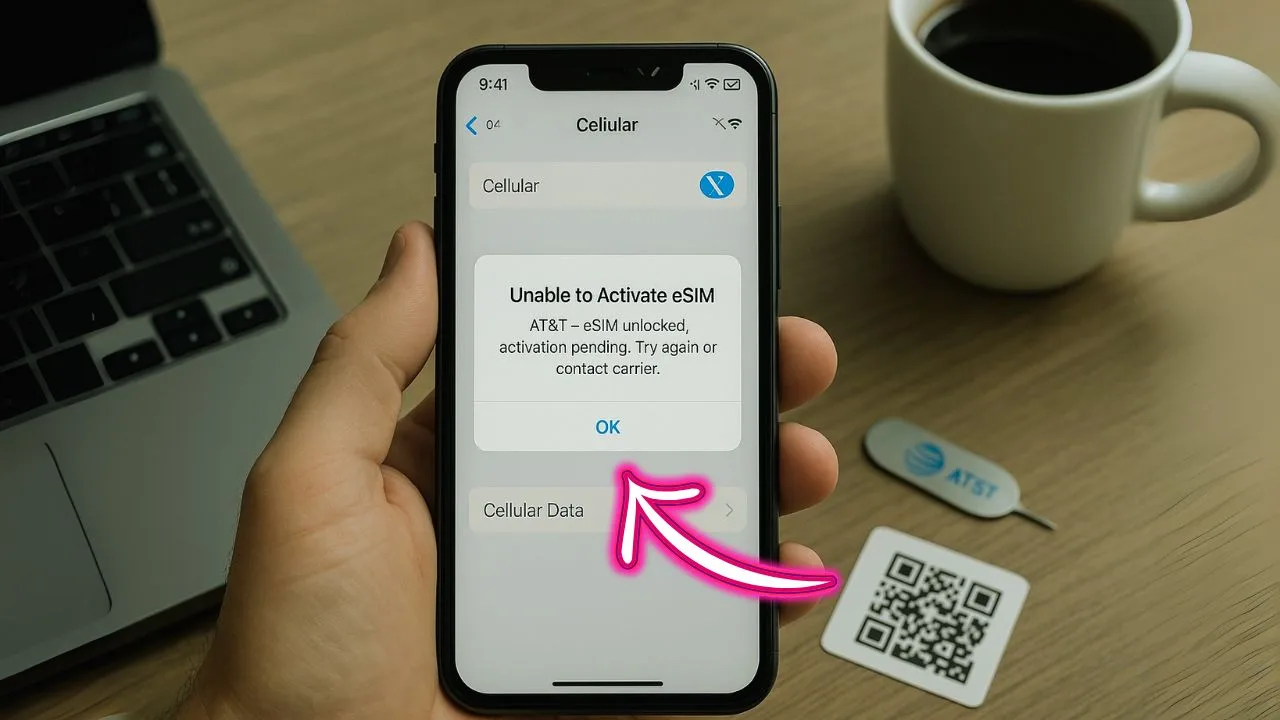
AT&T eSIM unlock frees your phone from one carrier so you can use a digital SIM with others. If you see the dreaded, “Unable To Activate,” after all that work, take a breath. Most issues come from small oversights, not broken phones.
Here’s the thing, more than half of failed eSIM activations trace back to simple stuff. Scanning the wrong QR code, skipping a software update, or trying setup with weak Wi-Fi can block activation. Even a quick restart can help. Before you chase complex fixes, use AT&T’s IMEI checker to confirm your phone supports their eSIM rules.
Some devices are not compatible. Others were bought from a different carrier and still locked. If you hit a wall, updating your software or calling 800-331-0500 often clears things up. Unlocking sounds easy, but the steps can pile up fast. Still, the fix is usually close.
Key Takeaways
- Most AT&T eSIM activation problems come from missed steps, like a wrong QR code or outdated software.
- Your device must be paid off, not flagged as lost or stolen, and used for 60 days on postpaid or six months on prepaid to unlock.
- Weak signal or flaky Wi-Fi can trigger “Unable To Activate” errors; a restart often clears temporary glitches.
- Use AT&T’s official IMEI checker before unlocking to confirm your device supports their eSIM service.
- If you stay stuck, update your software and contact AT&T support at 800-331-0500 for help.
Common Reasons for eSIM Activation Issues
You finished the AT&T eSIM unlock, but now you get “Unable To Activate.” Don’t panic. A few common problems tend to cause this roadblock.
📖 Also Read: How To Unlock A Phone From A Deceased Account
How do I know if my unlock process is complete?
Waiting on an unlock can feel like watching a progress bar crawl. Use this quick checklist to confirm it’s done.
- Check your email for a message from AT&T that says your request is complete. Most approvals land within two business days.
- Insert a SIM from another carrier or scan a new eSIM QR code. If you connect and see a carrier name, you’re unlocked.
- On iPhone with iOS 14 or later, go to Settings, About, then Carrier Lock. It should say “No SIM restrictions.”
- Restart your phone and watch for errors at startup. Messages like “SIM Not Supported” often mean it’s still locked.
- Call AT&T support at 800-331-0500. They can check your unlock request and status in minutes.
- Use your AT&T device status page with your request number to view progress and approval notes.
- Update your operating system. Fresh software can clear lingering activation bugs after an unlock.
- Place a call and send a text after swapping SIMs or adding eSIM. If both work, you’re good.
If these steps check out and you can use another carrier, congrats, your unlock is complete.
How can network problems affect eSIM activation?
Weak signal can stop eSIM activation midstream. With one or two bars, your phone may fail to download the eSIM profile or reach AT&T’s servers. Patchy Wi-Fi causes similar issues since many phones switch between Wi-Fi and mobile data during setup.
Network maintenance and overloaded towers can slow everything down, especially in busy areas or after storms. If your status bar shows poor signal, pause and improve your connection first. It prevents you from chasing the wrong fix.
What are common mistakes in setting up an eSIM?
Even with good signal, setup errors are common. Here are the usual suspects.
- Using the wrong QR code. Only use the official AT&T eSIM activation code, not an old email or random image.
- Mistyping your IMEI or verification code. One wrong digit can block activation.
- Starting without Wi-Fi. A weak or missing connection can interrupt setup.
- Running an outdated operating system. Update first for smoother activation.
- Deleting an active profile by accident. You’ll need to reinstall the plan.
- Trying to activate on a locked device from another carrier. Fully unlock it first.
- Ending setup early. Your phone might look done when it isn’t.
- Mixing a physical SIM with eSIM during setup. That can confuse the device.
📖 Also Read: Visible Wireless Unlock Requirements For ESIM: Don’t Miss Out!
Troubleshooting Steps for AT&T eSIM Activation
If activation will not start, do the easy things first. These steps fix most issues fast without a long tech call.
How do I check if my device is unlocked?
Before anything else, confirm the phone really is unlocked. Here’s how to check.
- Insert a SIM from a different carrier and restart. Try a call and use mobile data.
- Open Settings, then Cellular or Mobile Data. See if you can add or edit an eSIM profile.
- Use AT&T’s online IMEI checker to confirm unlock status with your device’s IMEI.
- Call your prior carrier. Give them your IMEI and ask if the device is unlocked.
- Watch for “SIM Not Supported” or “Network Locked” messages when using another carrier.
- On many phones, Carrier Lock shows “No SIM restrictions” when you’re unlocked.
- Repeated activation errors with other carriers can also hint the phone is still locked.
Once you’re sure it’s unlocked, move on to the next step.
Why should I restart my device for eSIM activation?
It sounds basic, but a restart often fixes activation problems. Here’s why it helps.
- Reboots clear temporary software glitches that block activation.
- Your phone refreshes its SIM systems and detects new eSIM details.
- Carriers often recommend rebooting after adding an eSIM profile or changing settings.
- A restart can force the device to connect to the right towers and update APN settings.
- Pending updates sometimes need a restart to apply fully.
- System caches get cleared, which removes outdated connection data.
- Some people report success after two restarts, once after install and once before activation.
It takes under a minute and often gets you back on track.
📖 Also Read: Tracfone Unlock Request Denied? 7 Reasons And How To Fix Each One
How can I check my network signal and connections?
Activation needs a stable connection. Use these quick checks before trying again.
- Check your signal bars. More bars usually means better service.
- Move near a window or step outside if you only see one or two bars.
- Toggle Airplane Mode on, then off. This forces a fresh network search.
- Turn off Wi-Fi for a moment to test cellular-only connection.
- Watch for “No Service” or “SOS Only” messages.
- Restart the phone. It often regains signal after a fresh boot.
- Confirm Mobile Data is on in Settings.
- Place a quick call. If it fails, there may be an outage nearby.
- Use AT&T’s coverage map to check for reported outages in your area.
How do I reinstall or reconfigure my eSIM?
If activation keeps failing, reinstalling the eSIM profile can reset the process. Do it carefully so you do not repeat the same error.
- Delete the current eSIM profile in Settings. Keep the activation QR code or details ready.
- Go to Cellular or Mobile Data, then tap Add Cellular Plan to start fresh.
- Scan the AT&T QR code with your camera or enter details manually. Double-check every field.
- Toggle Airplane Mode on and off after install to prompt a new network search.
- Restart the phone right after adding the plan.
- Confirm that AT&T shows under Cellular Plans. If not, delete and reinstall again.
- Use strong Wi-Fi during setup. Weak internet can break the install.
- Update your software first. Outdated firmware can block activation.
- Remove any physical SIM while activating eSIM to avoid conflicts.
If problems continue, review the AT&T unlock requirements next.
Unlocking Requirements for AT&T Devices
Unlock approval is based on account status and device history. Make sure you meet these items or activation can fail even if the phone looks ready.
What ownership and account status do I need?
AT&T checks a few things before unlocking. These rules prevent fraud and protect customers.
- You should own the device, not borrow or lease it.
- Your AT&T account must be active or paid in full if closed. Unpaid balances block unlocking.
- If you used an installment plan, pay off the full amount before requesting an unlock.
- Lost or stolen devices are not eligible for unlocking.
- Any service contract must be completed or canceled with no unpaid fees.
- Postpaid devices need at least 60 days of active service. Prepaid devices need six months of use.
- Accounts flagged for fraud cannot unlock until cleared with support.
- The device IMEI cannot be blacklisted in national databases.
- The account name should match the device owner for approval.
What are the payment and age requirements for unlocking?
Payments and timing matter a lot. Check these before you start an unlock request.
- All monthly bills must be current with no past-due balance.
- For installment plans, the device must be fully paid off.
- Prepaid phones require at least six months of active service on AT&T.
- Postpaid customers usually need 60 days of service with on-time payments.
- Contract devices must meet all terms, including final payments.
- Lost or stolen phones cannot be unlocked, even if paid off.
- Most accounts require you to be 18 or older to request an unlock.
- If your account has a fraud flag, wait until support clears it.
These steps keep unlocking fair and make switching networks smoother.
Why must my device not be reported lost or stolen?
Carriers block devices reported lost or stolen to reduce theft and protect private data. If your phone is on that list, activation will fail, even if it is unlocked.
Only the person who reported it can remove the block by proving ownership with customer support. Until then, no SIM card or eSIM will work on major networks.
Additional Solutions for eSIM Activation Problems
If you still see “Unable To Activate,” there are more smart moves to try. A brief chat with support or a clean network reset can push things over the line.
How do I contact AT&T support for help?
Sometimes a quick conversation fixes what guides cannot. Try one of these.
- Call 800-331-0500 for Customer Care. Have your account info, IMEI, and error messages ready.
- Use the Chat Now option on att.com or inside the myAT&T app for step-by-step help.
- Visit a nearby AT&T store for in-person troubleshooting.
- Message @ATTHelp on X, formerly Twitter. Share your issue clearly, but never post sensitive data.
- Browse the AT&T Community Forums for tips from other users who solved similar problems.
- Watch your email after opening a case. AT&T often sends follow-up instructions.
- If needed, ask the agent to escalate your ticket for advanced technical support.
How do I update my device software?
Software updates squash bugs, tighten security, and can improve network setup. A current version helps eSIM activation work on the first try.
- Open Settings and look for Software Update or System Update.
- Connect to Wi-Fi before downloading to avoid using mobile data.
- Charge your phone to at least 50 percent. Updates can use a lot of power.
- Download and install as soon as an update appears.
- Restart after installing. This locks in the new system files.
- If no update shows, check the manufacturer’s site to see if your model needs manual installation.
- If you see errors, contact support for recovery steps.
Next up, a network reset can clear stubborn connection issues.
When and how should I reset network settings?
If updates and restarts do not solve it, a network reset can clear hidden conflicts. You will need to re-enter Wi-Fi passwords later.
- Open Settings, tap General, then find Reset or Transfer or Reset iPhone.
- Select Reset Network Settings. Approve the warning and enter your passcode if asked.
- Let the phone restart. This clears past cellular, Wi-Fi, and Bluetooth settings.
- Check for signal bars after the reboot. Toggle Airplane Mode if it looks stuck.
- Reconnect to Wi-Fi and re-pair Bluetooth gear.
- Test calls, texts, and data to confirm activation now works.
- Reapply any VPN or custom APN settings that you use for work or travel.
- If errors persist, note the exact messages and contact AT&T support with details.
This gives your device a clean slate for a fresh eSIM setup.
How do I check if my device is compatible with AT&T?
Confirming compatibility first can save an hour of frustration. Here’s a quick path.
- Use AT&T’s online compatibility tool and enter your IMEI.
- Find your IMEI by dialing *#06# or in Settings under About or Device Info.
- Check for the option to Add Cellular Plan in Mobile settings. That indicates eSIM support.
- Make sure the phone is unlocked from the prior carrier.
- Update to the latest software so activation features work properly.
- Most recent iPhone models and many Samsung phones support eSIM, but verify your exact model.
- Devices built for other regions may lack the right network bands for strong signal in the US.
- If unsure, contact AT&T support to confirm compatibility for your model.
- Avoid used devices flagged as lost or stolen. They will be blocked from the network.
Can I use eSIM with a prepaid AT&T plan?
Yes, many prepaid lines support eSIM on newer phones. Activation works much like postpaid. You buy and install the correct eSIM profile through AT&T online or in a store, then scan a QR code or enter the details in Settings.
Activation can finish in minutes, though heavy demand can slow it down. If setup stalls, support can help get your SIM card working. Prepaid users get most of the same activation features as postpaid, with more flexibility and no long contract.
What if my device was purchased from another carrier?
Phones from another carrier are often locked to that network. AT&T can only activate your eSIM if the original provider unlocks it first. Each company has its own rules and timelines, so check their unlock portal or call their support.
If the device is still locked, activation may fail with “Unable To Activate.” Devices marked as lost, stolen, or still on a payment plan may also be blocked on AT&T’s network.
How do I verify if my eSIM is activated?
Once you finish setup, a few quick checks confirm that your AT&T line is live.
- Open Settings, then Cellular or Mobile Network. Confirm your new plan appears.
- Look for AT&T in the status bar. If it shows, the line may be active.
- Make a call or send a text using the eSIM line.
- Open Wi-Fi Calling settings to see if it shows On or Available for your plan.
- Check Cellular Data Options and confirm you see signal bars next to the AT&T line.
- Call your AT&T number from another phone. If it rings, the line is active.
- Visit att.com/deviceunlock or dial 611 for a status check with support.
- Verify Carrier Lock says “No SIM restrictions” in Settings.
- Turn off Wi-Fi and load a website to test mobile data.
- Watch for “No Service” or “Activation Required” messages. Those mean there are still steps left.
- If anything feels off, contact AT&T support and share the exact error messages.
These small checks save time and confirm you have working service for calls, texts, and data.
Conclusion
AT&T eSIM unlock complete but stuck on “Unable To Activate”? You are not the only one. Most problems come from missed steps, weak signal, or outdated software. Start with the basics, like checking unlock status, restarting, and using the IMEI checker.
If that fails, reinstall the eSIM, update your phone, or reset network settings. And if you need backup, call 800-331-0500. With a calm checklist and a little patience, your eSIM should be up and running soon.
FAQs
1. Why does my AT&T eSIM say “Unable To Activate” after unlock is complete?
Sometimes, even after you finish the unlock process, your phone might show this message. It often means there’s a hiccup with carrier settings or network recognition. Sometimes, it’s just your device needing a little nudge to catch up.
2. What should I do first if activation fails right after unlocking my AT&T eSIM?
Start by restarting your phone; that fixes more problems than you’d think. If that doesn’t work, check for software updates and install them if available. Next, remove the eSIM profile and add it again using the QR code from AT&T.
3. Could my Wi-Fi or cellular connection cause this activation issue?
Absolutely! A weak signal can trip things up faster than a squirrel on an ice rink. Make sure you have strong Wi-Fi or mobile data before trying anything else related to activation.
4. When should I contact AT&T support about an “Unable To Activate” error on my unlocked eSIM?
If you’ve tried all basic steps—restart, update software, re-add the eSIM—and still see that stubborn message staring back at you like an old rival in a western movie scene, reach out to AT&T support directly for help tailored to your situation.