

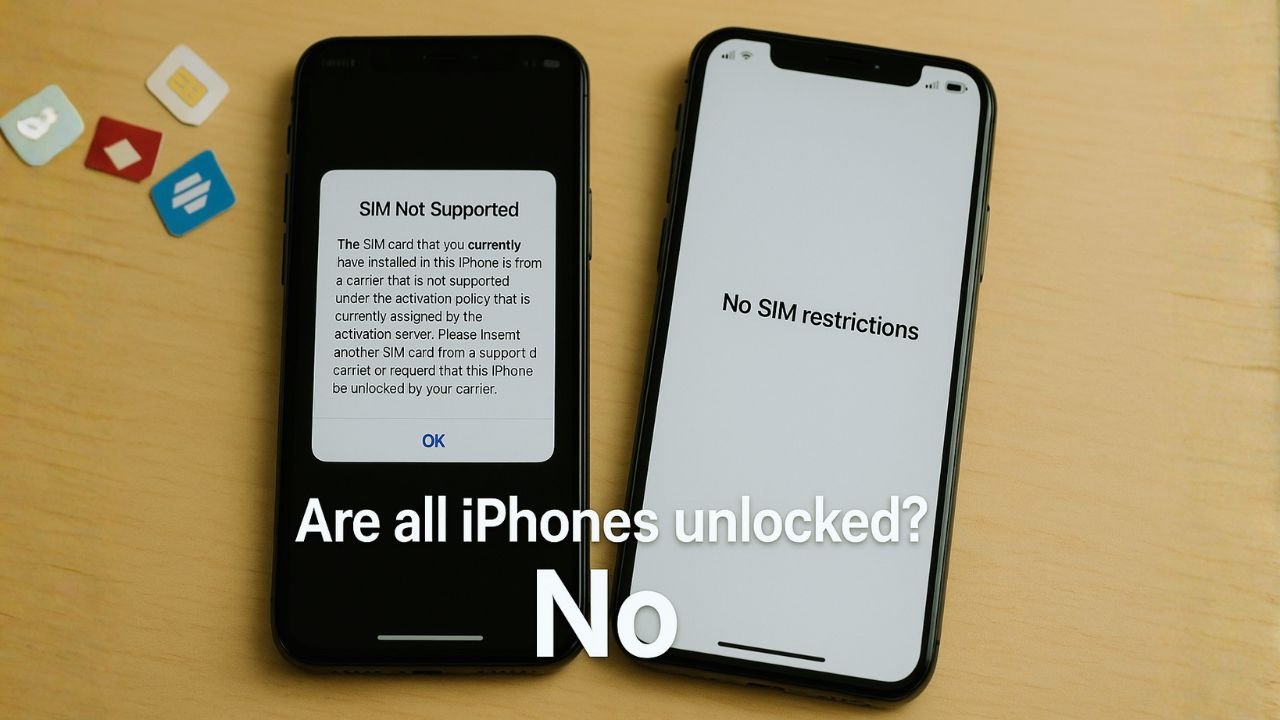
Buying an iPhone is exciting. But before you switch carriers or travel abroad, it helps to know one simple truth: not every iPhone is unlocked. Many are still tied to a carrier for a period of time, or blocked from working on other networks for other reasons.
This guide explains, in plain language, what “unlocked” really means, how to check your iPhone’s lock status, what “any network” actually includes, and how to unlock your phone the right way. You’ll also learn why an “unlocked” iPhone still may not work perfectly everywhere, and what to do if you see errors like “SIM Not Supported.”
Quick Answer: No—most carrier-sold iPhones start locked. To check, go to Settings → General → About → Carrier Lock; if it says “No SIM restrictions,” it’s unlocked. If locked, finish any payments and ask the original carrier to unlock it (usually free once you qualify). Even unlocked, performance and features still depend on your iPhone model, network bands, and carrier support.
Key Takeaways
- Not all iPhones are unlocked. Many units sold by carriers start locked and only unlock after you meet rules like paying off the device and keeping the line active for a set time.
- “Unlocked” doesn’t guarantee “works everywhere.” Even unlocked iPhones can miss key 4G/5G bands or features (VoLTE/VoNR, Wi-Fi calling) on certain networks, which can affect coverage, speed, and calling.
- Check status in Settings, not guesses. Go to Settings → General → About → Carrier Lock. If it says “No SIM restrictions,” it’s unlocked; otherwise, it’s still restricted.
- Unlock the right way—through the carrier. Meet the requirements, request the unlock, then insert a new SIM or add an eSIM and accept any Carrier Settings Update to finish activation.
- Blacklist and region matter. A blacklisted phone may not work even if it’s unlocked, and region-specific models can lack bands needed by some carriers or countries.
📖 Also Read: What Is the “US Argon Locked Policy”? How to Unlock
What “Unlocked” Really Means
When an iPhone is unlocked, it isn’t restricted to one mobile carrier. You can put in a different SIM card—or set up a different eSIM—and the phone will accept it. You can move between carriers and many MVNOs without asking your old carrier for permission.
When an iPhone is locked, it’s tied to a single carrier. Even if the hardware supports other networks, the phone will reject other SIM cards until it’s officially unlocked.
Keep in mind, carrier lock is different from Activation Lock (Find My iPhone) and MDM (mobile device management from schools or companies). Activation Lock and MDM are security or management features. Carrier lock controls which network the phone can use.
Why Not All iPhones Are Unlocked
There are several reasons:
1) Carrier Financing and Contracts
Many buyers pay for their iPhone in monthly installments. Carriers often lock these phones until the balance is paid and other requirements are met. Unlocking is part of the agreement after you finish.
2) Fraud Prevention
Carriers lock devices to reduce fraud, theft, and unauthorized resales. Locking discourages people from getting discounted phones and flipping them right away.
3) Lost/Stolen and Blacklist Flags
A phone can be blacklisted if reported lost, stolen, or tied to unpaid bills. Even if a device is technically “unlocked,” a blacklist entry can stop it from working on many networks that share that database.
4) Region and Model Differences
Apple sells different model numbers for different regions. Hardware varies slightly by radio bands or features. Even when unlocked, a model made for one region may not work perfectly on every band or feature in another region.
📖 Also Read: How to Fix “SIM Card Is Not From AT&T” (iPhone & Android)
“Unlocked to Any Network”: What That Actually Means
People often assume “unlocked” means “works anywhere no matter what.” It’s close—but not exact.
An unlocked iPhone generally works on most carriers worldwide, but performance depends on:
Network Bands and Technologies
Carriers use different 4G LTE and 5G bands. An iPhone model from one country may miss an important band in another, which can affect coverage or speed. It might connect, but signal could be weak indoors, or 5G may not appear.
Voice Calling (VoLTE/VoNR)
Some carriers require VoLTE (4G voice) or VoNR (5G voice). If the device, firmware, or carrier profile doesn’t enable it, calls may fall back to 3G/2G (where still available) or fail entirely. In places that shut down older networks, VoLTE support is a must.
Carrier Features
Wi-Fi calling, visual voicemail, personal hotspot, and 5G mmWave might not be available on every carrier with every model. Sometimes a carrier feature needs a specific profile, plan, or approved device list.
eSIM vs Physical SIM
Modern iPhones support eSIM. Some regions sell eSIM-only models. If your new carrier relies on physical SIMs—but your phone doesn’t have a SIM tray—you’ll need an eSIM QR code or transfer instead.
Bottom line: Unlocked increases your options, but it doesn’t guarantee perfect service with every carrier on Earth.
How To Check If an iPhone Is Unlocked (The Right Way)
You don’t need special tools to check. Use these simple checks:
Check in Settings
- Open Settings → General → About.
- Look for Carrier Lock (or Network Provider Lock on some versions).
- If you see “No SIM restrictions.” That means it’s unlocked.
- If you see a carrier name or a message about restrictions, it’s likely locked.
Test With Another SIM or eSIM
If you can, insert a SIM card from a different carrier, or add a second line as an eSIM:
- If the phone activates and shows signal, it’s unlocked (or at least compatible with that network).
- If you see “SIM Not Supported,” “SIM Not Valid,” or activation errors, it’s locked or missing a carrier profile.
Avoid Misleading IMEI Checks
Online IMEI checkers vary. Some are accurate; many are not. Use the phone’s own Settings first. If you still need help, ask the carrier directly.
📖 Also Read: How to Fix “SIM Card Is Not From T-Mobile” (iPhone & Android)
Common Unlock Rules (Without The Fine Print)
Unlock policies vary by carrier and region, and they change over time. The general pattern is similar:
- The device must be fully paid off (no balance due).
- The device must be active on that carrier for a minimum period (often a few weeks to a few months).
- The account must be in good standing (no overdue bills or fraud flags).
- The device must not be reported lost or stolen.
Once those are met, many carriers auto-unlock or unlock upon request. Exact timelines differ, so always check with your carrier.
How To Unlock an iPhone the Right Way
Step 1: Confirm the Lock
Use Settings → General → About. If it’s already unlocked, you’re done.
Step 2: Meet Requirements
Make sure the device is paid off, the minimum service time is met, and the account is clear.
Step 3: Request the Unlock
Contact the carrier (app, website portal, chat, or phone). Provide your IMEI from Settings → General → About.
Step 4: Wait for Confirmation
Carriers process unlocks on Apple’s server side. You may get a message saying the device is unlocked.
Step 5: Complete the Process on Your Phone
- Insert a different SIM or add a different eSIM.
- If needed, connect to Wi-Fi and update carrier settings (you’ll see a prompt).
- If the phone doesn’t pick up the new network, restart or Reset Network Settings (Settings → General → Transfer or Reset iPhone → Reset → Reset Network Settings).
Avoid gray-market “remote” unlocks and shady apps. They can waste money or cause account issues. The safest path is the official carrier unlock.
Why an “Unlocked” iPhone Might Still Have Problems
Even after a successful unlock, you can bump into issues:
Missing Bands or Features
A model built for one market may lack a key band in another. You might see lower speeds or weak indoor coverage.
Plan or Feature Restrictions
Some carriers limit features like hotspot, Wi-Fi calling, or 5G unless your plan includes them.
Outdated Carrier Settings
If carrier settings are old, the phone might not register correctly. Connect to Wi-Fi and accept any Carrier Settings Update prompts.
eSIM Activation Snags
If you’re moving from physical SIM to eSIM, make sure your new carrier supports eSIM and gives you a QR code or activation code. Some carriers also support eSIM Quick Transfer between iPhones.
Activation Errors and How To Fix Them
If you see “SIM Not Supported,” “SIM Not Valid,” or “No Service”, try this checklist:
- Confirm unlock status in Settings → General → About.
- Restart the iPhone and try again.
- Update iOS and accept Carrier Settings Update if prompted.
- Reset Network Settings (this clears Wi-Fi passwords, so note them first).
- Try a different SIM/eSIM to rule out a bad card or account issue.
- Ask the carrier to re-push the unlock or re-provision your line.
If the device is still locked, go back to the original carrier. If it’s unlocked but won’t activate on a particular network, ask that network to check compatibility and provisioning.
Apple Store vs Carrier Store vs Online Marketplaces
Apple Store (SIM-Free)
If you buy SIM-free directly from Apple, it’s usually unlocked from day one. This is the simplest path if you want to choose carriers freely.
Carrier Store
Phones may be discounted or bundled with deals but often come locked until requirements are met. Read the unlock policy before you sign.
Online Marketplaces
Great deals exist, but be careful. Check for:
Clear return policy in case it doesn’t activate on your carrier.
- “No SIM restrictions” screenshot from Settings.
- IMEI/serial not on any blacklist.
- Clear return policy in case it doesn’t activate on your carrier.
Using an Unlocked iPhone While Traveling
Unlocked iPhones are great for travel. You can buy a local prepaid eSIM or SIM for cheaper data and local calls. Tips:
- Confirm your iPhone supports the bands used in your destination.
- Check if your model is eSIM-only (no SIM tray). If so, pick a carrier that sells eSIMs.
- Keep your home line on eSIM and add a travel data eSIM for dual-line flexibility.
Dual SIM and eSIM: What To Expect
Modern iPhones support Dual SIM using two eSIMs or one eSIM plus one physical SIM (varies by model and region). With Dual SIM you can:
- Keep your primary number active for calls and messages.
- Add a second plan for data or travel.
- Choose which line handles data, voice, and iMessage.
Unlocking helps because you’re free to mix plans from different carriers.
Myths About iPhone Unlocking (And the Truth)
Myth: All iPhones from Apple are unlocked everywhere.
Truth: Apple’s SIM-free units are unlocked, but some retailer or carrier bundles may still be locked at first. Always check.
Myth: “Factory unlocked” means it will work perfectly on every carrier.
Truth: It will usually connect, but bands, VoLTE/VoNR, and features can vary by model and network.
Myth: Any website can unlock any iPhone instantly.
Truth: Many sites are unreliable. The official carrier route is the safest and most consistent.
Myth: IMEI “whitelisting” is the same as unlocking.
Truth: Not the same. Unlocking removes the carrier restriction. Whitelisting/blacklisting is about permission to access a network at all.
Buying Tips: If You Want Maximum Flexibility
- Aim for a SIM-free, unlocked iPhone from Apple if possible.
- Verify “No SIM restrictions” in Settings before you buy used.
- Check your target carrier’s band support and required features (VoLTE/VoNR, Wi-Fi calling).
- If you travel, confirm the phone supports eSIM and the bands used in the countries you visit.
- Keep your iOS and carrier settings updated.
Quick Checklist
- Check Carrier Lock in Settings.
- If locked, finish payments and request an unlock from the carrier.
- After approval, insert a new SIM or add an eSIM, update carrier settings, and reboot if needed.
- If you travel or switch carriers, verify band support and plan features.
The Bottom Line
No, not all iPhones are unlocked. Many are carrier-locked until the owner finishes certain requirements. Unlocking gives freedom to switch carriers or use local plans when traveling, but “any network” still depends on the iPhone model, the bands a carrier uses, and which features the carrier supports.
If you want the simplest experience, buy SIM-free from Apple or confirm “No SIM restrictions” in Settings before you buy. If you already own a locked device, the safest path is the official carrier unlock. Take a few minutes to check your status today—that one step can save hours of frustration later.
FAQs
Are all iPhones unlocked to any network?
No. Many iPhones bought through carriers start locked and only unlock after you meet the carrier’s rules (paid off, active service time, good standing). SIM-free models from Apple are typically unlocked from day one.
How do you know if your iPhone is unlocked to any carrier?
Go to Settings → General → About → Carrier Lock. If it shows “No SIM restrictions,” it’s unlocked. For extra proof, insert a SIM/eSIM from a different carrier and see if it activates without errors.
Which iPhones are unlocked?
Usually SIM-free (Apple Store) units ship unlocked. Some carrier units auto-unlock after a set period when requirements are met. Used phones may be unlocked—always check Carrier Lock in Settings before buying.
Can I unlock my iPhone myself to any network?
You initiate it, but the carrier completes it on Apple’s server. Meet the carrier’s criteria, request the unlock, then insert a new SIM or add an eSIM and accept any Carrier Settings Update.
How much is it to unlock an iPhone to any network?
From your original carrier it’s typically free once you qualify. Third-party “unlock” services often charge and can be risky—use official carrier unlocking whenever possible.
Can you remove the carrier lock on an iPhone?
Yes—through the original carrier. Once they approve, the device is unlocked on Apple’s activation servers. Blacklisted phones or unpaid balances can block or delay unlocking.


