
Key Takeaways
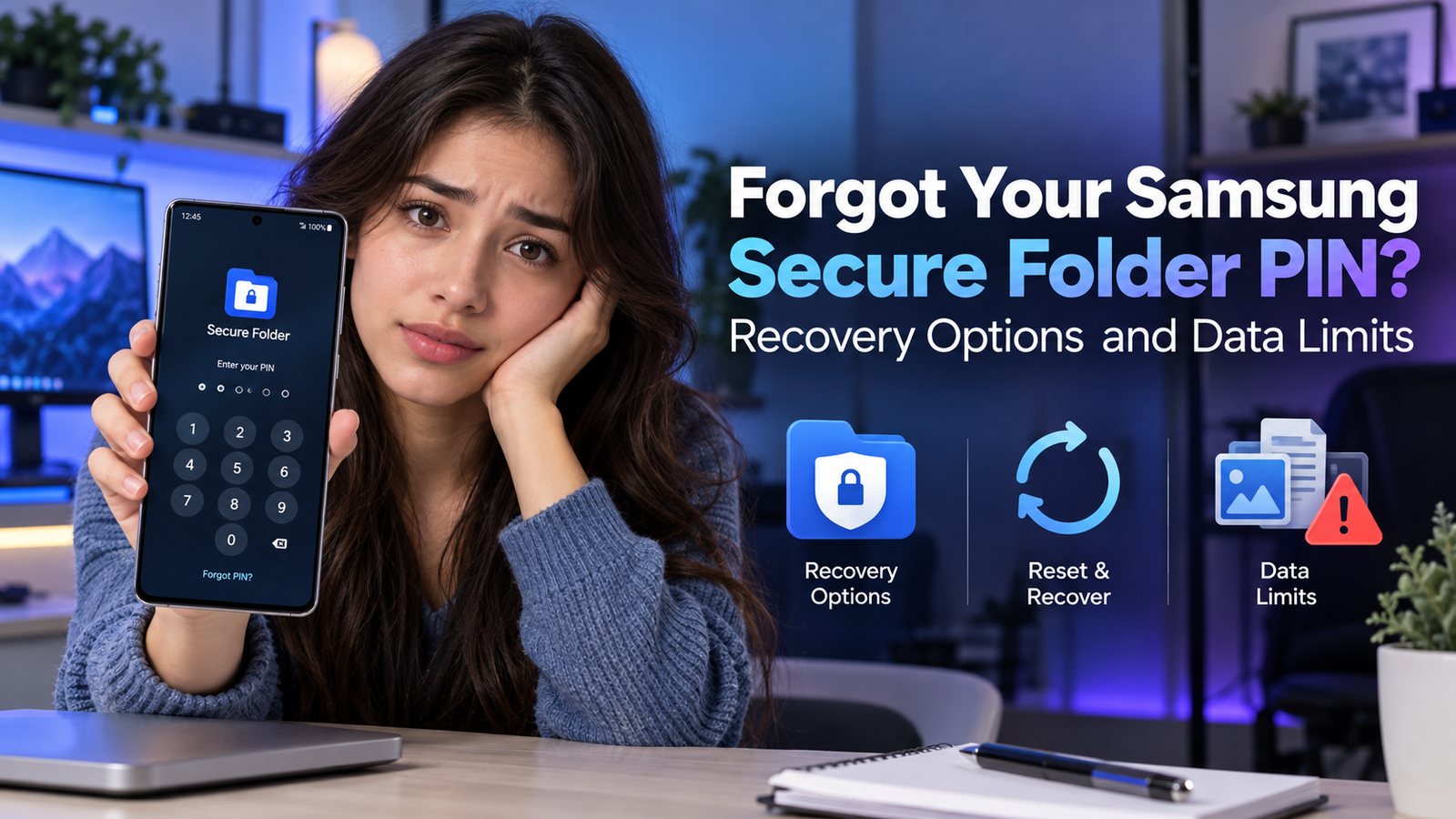
If you forgot your Samsung Secure Folder PIN, use Forgot PIN > Reset and your Samsung account, provided Reset with Samsung account was enabled beforehand. If that option was off, Samsung says you cannot recover access through this reset route. Removing Secure Folder deletes its contents unless you successfully save them first.
A forgotten Secure Folder PIN can put important files out of reach. Start by checking your recovery options before making any changes that could erase them.
Part 1: Check Your Secure Folder Recovery Options
Knowing what still works helps you choose the next step. Your goal is to regain access while keeping as many of your files as possible.
Secure Folder is a private space with its own lock. Apps inside it can have separate accounts and data from the versions outside it, so opening your phone does not mean you have opened Secure Folder.
Before you begin, check these basics:
- Samsung account: Identify the account linked to your phone and make sure you can sign in.
- Existing access: Check whether Secure Folder still accepts an already enabled fingerprint.
- Separate copies: Look for files you previously saved outside the folder.
- Software version: Note your Galaxy model, Android version, and One UI version if you need support.
Samsung’s Secure Folder overview explains its separate app data and supported lock options.
Account recovery must be enabled before you forget the PIN
The key setting is Reset with Samsung account. Samsung says that when it was not enabled, the Forgot prompt will not appear and its account-based recovery option is unavailable. Signing into your account afterward does not replace this requirement.
That condition comes from Samsung’s Secure Folder access troubleshooting guide.
| What is available? | Best next step | Main data limit |
|---|---|---|
| A Forgot PIN prompt | Use Samsung account recovery | Requires the earlier recovery setting |
| Working fingerprint access | Save important files | Access may still require your PIN |
| Previously saved copies | Check those copies | They may be incomplete or outdated |
| Removal only | Consider starting over | Unsaved folder contents can be lost |
If a retry timer appears, wait for it to finish. Avoid repeated guesses, and read the entire prompt before choosing any reset or removal action.
Part 2: Recover Access or Protect What You Can
Reset the Secure Folder PIN through your Samsung account
Start here when the recovery prompt is available. This process lets you choose a new lock and return to your existing folder.
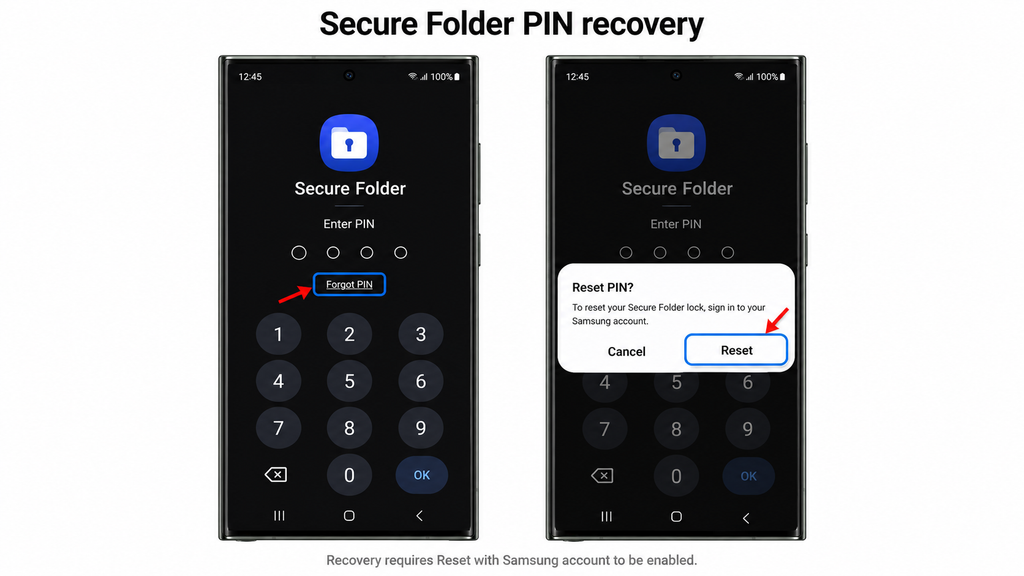
Samsung documents this flow in its passcode reset instructions. Labels can vary with your lock type and software.
After you get in, open several important files. Check your photos, documents, and app content before considering the recovery finished.
Use the Reset password option on Samsung’s sign-in screen, or follow its Samsung account recovery guide. Complete the offered identity checks, then return to Secure Folder and finish the PIN reset.
If two-step verification blocks you, use an available verification method or contact Samsung for account help. Recovering the account password is a preparation step; you still need to complete Secure Folder recovery.
2. Save files if fingerprint access still works
An already enabled fingerprint may let you open Secure Folder on a supported device. If it works, use that access to protect your files while you resolve the PIN problem.
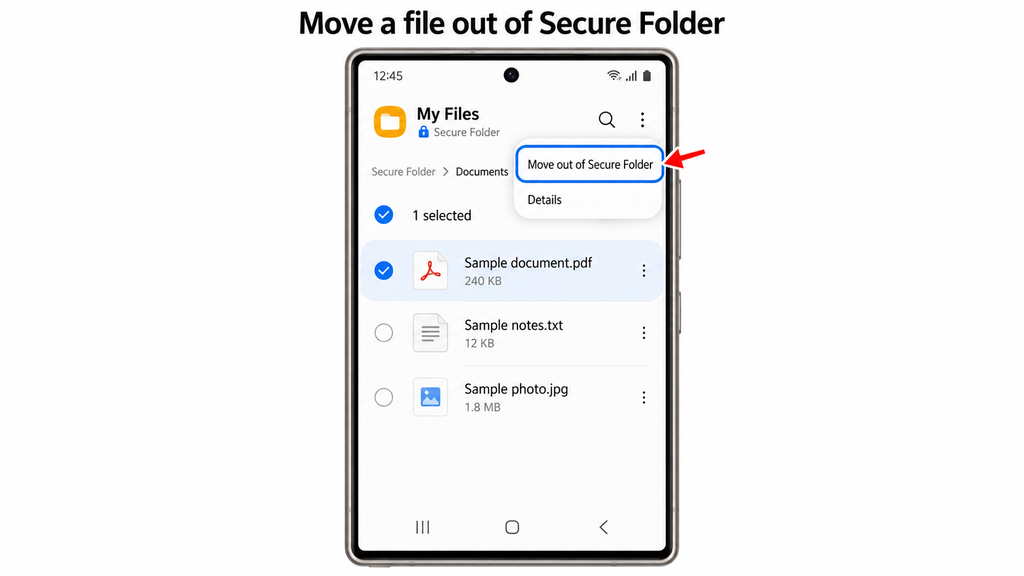
Samsung’s Secure Folder file instructions describe this export option.
Files moved out lose the folder’s protection. Choose their new storage location carefully.
Fingerprint access also does not guarantee you can change the PIN through Lock type. Samsung’s passcode guide shows that changing the lock through settings can require the current PIN, pattern, or password. If you are asked for it, return to the account-based reset route.
3. Check separate copies and eligible older backups
If you cannot open Secure Folder, look for copies you created earlier. This can help you recover useful content even while the original folder remains locked.
Check:
- Your regular Gallery, Downloads, or document folders.
- A computer, external drive, or previous phone.
- Email attachments and files shared with you.
- App accounts where you knowingly saved or synced the content.
Check the date and contents of each copy. Having the same app outside Secure Folder does not mean it contains the same files or uses the same account.
For example, suppose you emailed yourself a lease before moving it into Secure Folder. That attachment could provide another copy. A document created only inside the folder would need a different recovery source.
Samsung no longer supports creating new backups through Secure Folder’s backup feature. Its current backup troubleshooting guidance also says Restore from backup is unavailable on Android 16 with One UI 8 or later.
On a supported older version, after gaining access or setting up a new folder:
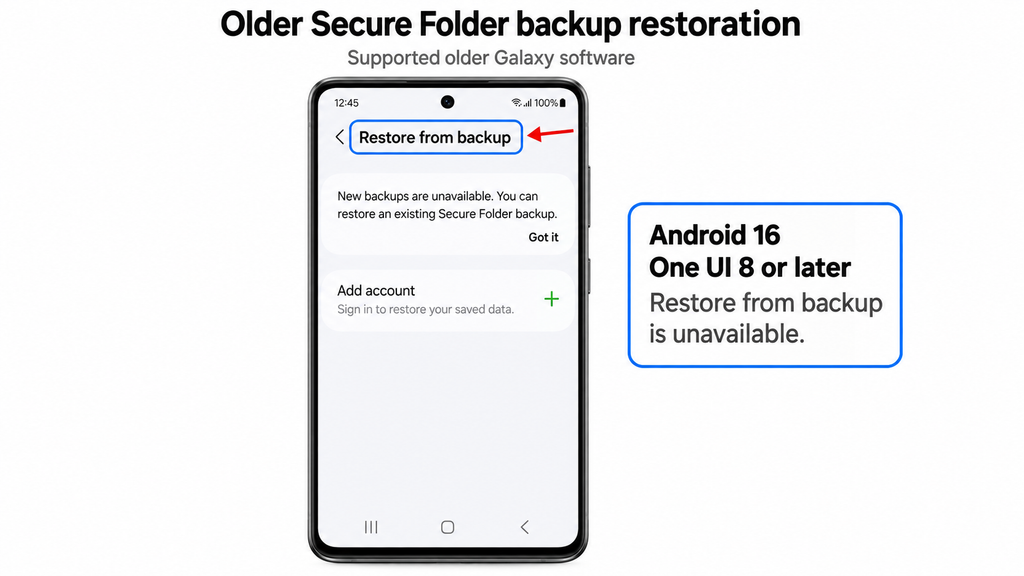
A backup can contain only what was saved earlier. Check for missing files and newer changes before relying on it.
4. Recreate Secure Folder only if you accept the data loss
Starting over may be reasonable when you have recovered separate copies or no longer need the locked contents. Uninstalling Secure Folder removes its contents, so pause if it holds your only copy of something important.
Samsung’s Secure Folder removal instructions give this settings route:
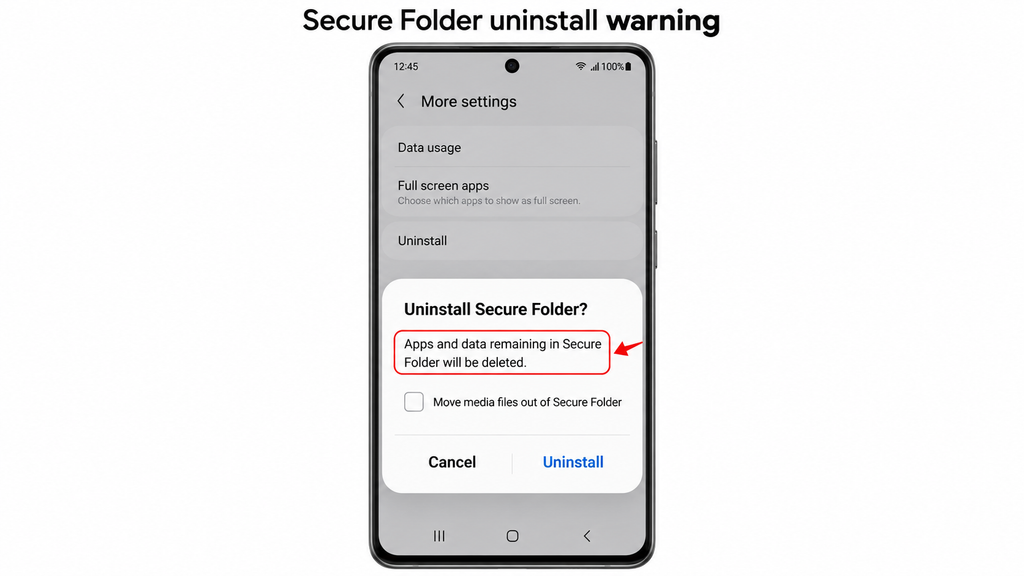
Samsung also lists Move media files out of Secure Folder during removal. Do not assume this will rescue a locked folder or save every kind of app data. Use it only when offered and permitted, and verify any exported files.
If the settings route requires a PIN you cannot provide, stop and ask Samsung for instructions for your model. After removal, you can set up a new Secure Folder.
Will a factory reset recover Secure Folder files?
No. A factory reset erases personal data on your phone and returns it to its initial setup state. Samsung’s factory reset guide explains this consequence.
Keep your phone intact while checking recovery options and existing copies. Avoid using a full-phone reset as a way to retrieve files from a locked folder.
Bonus Tips: Prevent Another Secure Folder Lockout
Once you regain access, open Secure Folder settings and check Lock type > Reset with Samsung account. Enable it if you want account-based recovery available for a future forgotten PIN.
Keep your Samsung account recovery details current. Store your new PIN securely, and keep a separate, protected copy of files you cannot afford to lose.
If you are moving to another Galaxy device, Samsung lists Secure Folder among content supported by Smart Switch. Use this as a transfer option after resolving access:
- Step 1: Open Smart Switch on both devices and connect them using the offered cable or wireless method.
- Step 2: Choose Send from this phone on the old device and Receive on this phone on the new device.
- Step 3: Select Secure Folder when offered, complete required security prompts, and start the transfer.
- Step 4: Open Secure Folder on the new device and check the transferred content before erasing the old one.
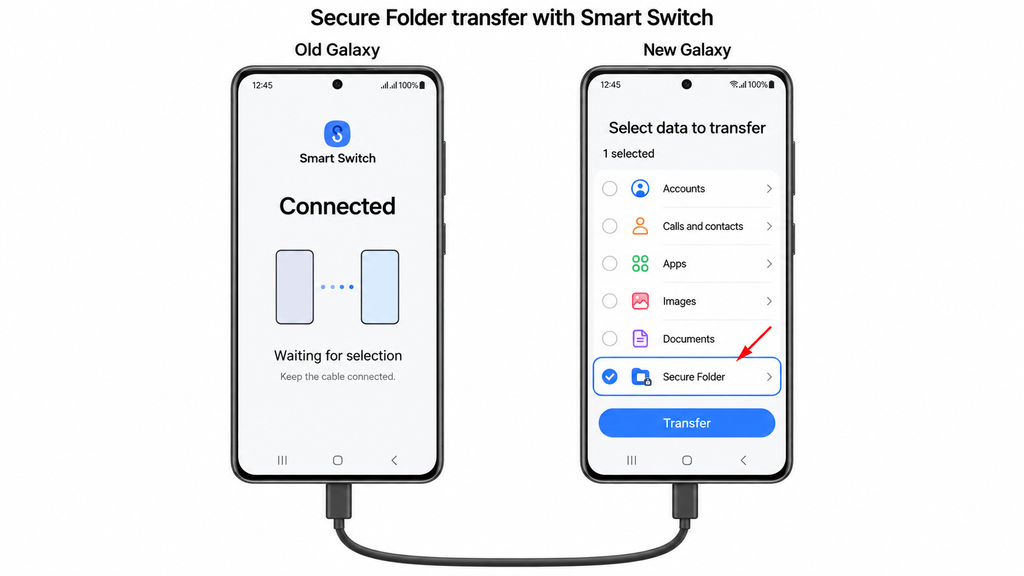
Samsung’s Smart Switch transfer guide explains the connection process. Supported content varies by device; a completed transfer still needs a file check.
For unresolved access problems, contact Samsung US Support. Provide your model, software version, and the exact prompt you see. Ask what each proposed action will do to your saved contents before proceeding.
Can Your Fingerprint Still Open Secure Folder?
Samsung supports fingerprint unlocking on compatible devices when it has been configured for Secure Folder.
If your current screen offers that option, try your registered fingerprint. If it works, use the access to review and protect important files. Do not assume that unlocking the regular phone screen also unlocks the folder.
To move an accessible file out, Samsung’s general instructions use My Files inside Secure Folder, followed by selecting the file and choosing More > Move out of Secure Folder. Secure Folder itself is accessed on the phone or tablet, rather than through a computer or web browser.
Moving files outside the folder changes where they are protected. Choose a destination that suits their privacy needs.
Afterward, open the exported copies and check them. A visible filename is not enough; make sure the actual document, photo, or video works.
If changing the lock asks for the forgotten PIN, stop and use the supported recovery process. Fingerprint access should not be presented as a guaranteed PIN-change shortcut.
Can You Restore Secure Folder From a Backup?
Only an existing, supported backup can help restore previously saved content. A backup cannot recover files that were never included in it.
Samsung’s current US guidance says regular Secure Folder data backup is no longer available. It also states that Restore from backup is unavailable on devices running Android 16 with One UI 8 or later; Smart Switch is the recommended transfer route.
The Bottom Line
Start with the Forgot PIN prompt and Samsung account recovery when that option is available. If fingerprint access still works, save important files before making further changes.
When recovery is unavailable, check existing copies and eligible older backups before considering removal. Your next step should match what matters most: getting back into the folder, saving a specific file, or creating a new private space. If your only copy is still locked inside, seek model-specific guidance before approving deletion.
Samsung says the Forgot prompt does not appear when Reset with Samsung account was not enabled beforehand. Repeated guesses do not replace that requirement. If your screen differs from the documented flow, ask Samsung to check your model and software.
No. Account recovery restores your ability to sign in. You must then return to Secure Folder and complete its separate reset process, provided account-based folder recovery was enabled.
No. Samsung says Secure Folder can be opened only on your Galaxy phone or tablet. A browser can help you recover your Samsung account, but it does not display the folder’s contents.
Samsung documents Smart Switch as a transfer tool, not a forgotten-PIN recovery method. Its transfer instructions include security prompts. Use the official reset route first, and avoid treating transfer support as a promise that locked contents can be recovered.
A missing recovery button changes your choices.
Check that you are opening the actual Secure Folder lock screen, rather than your phone’s screen lock or an app’s separate sign-in page. Then compare the screen with Samsung’s instructions for your device.
Do not assume that knowing your Samsung account password guarantees a reset. Samsung’s current guidance links recovery to the setting being enabled in advance.
If that setting was never enabled, removing the folder and creating another one is a fresh start. It does not open the old folder or restore files that existed only inside it.