

Key Takeaways
Quick Answer
To unlock an iPhone if you forgot the passcode, first check whether you can use your previous code within 72 hours of changing it on iOS 17 or later. Otherwise, erase the phone through its lock screen, a computer, or Find My. Recover saved data from a backup; Activation Lock may still require your Apple Account.
Apple provides recovery options when a forgotten passcode keeps you locked out. These five options follow Apple’s documented instructions and explain what happens to your data.
Part 1: What to Check Before Resetting Your iPhone
Check whether you recently changed your passcode and what data you have saved elsewhere. This helps you avoid an unnecessary erase and see what you can recover.
Understand which password or lock you are dealing with
Your iPhone passcode is the code you enter to open the phone. Your Apple Account password, formerly called your Apple ID password, signs you into Apple services. Resetting one does not automatically reset the other.
Activation Lock is a separate ownership check associated with Find My. A computer restore can erase a forgotten screen passcode while leaving Activation Lock in place. During setup, you may need the account linked to the phone.
This guide addresses a forgotten screen passcode. If your phone opens normally but rejects another carrier’s service, you need a carrier-unlock guide instead.
Stop guessing and gather what you need
Repeated wrong entries cause longer lockout delays. If Erase Data was enabled, ten consecutive failed passcode attempts can erase the device; managed devices may have stricter rules. Follow the recovery route you choose instead of trying random combinations.
Before continuing, check these essentials:
- A recent passcode change: Do you remember the previous code, and was it changed within 72 hours?
- Account access: Can you sign into the Apple Account used on this iPhone?
- Existing backups: Is there an iCloud backup or a backup on a Mac or PC?
- Power and equipment: Charge the phone; computer recovery also requires internet access and a suitable cable.
- Permission: Use these procedures for your own phone or one you are authorized to manage.
Apple’s no-computer reset also requires Find My to have been enabled and an active cellular or Wi-Fi connection.
An erase deletes the information currently stored on the iPhone. A backup and data already synced to a cloud service may help you recover content, but they cannot guarantee that every recent change was saved.
Confirm account access and look for an existing backup before choosing an erase option. Treat content stored only on the phone as potentially unrecoverable.
Part 2: 5 Ways to Unlock Your iPhone if You Forgot the Passcode
Start with the previous-passcode option to preserve data when eligible. The remaining options erase the phone. Mac and Windows recovery use the same restore process, but their apps and controls differ.
| Option | Best fit | Erases local data? |
|---|---|---|
| Previous-passcode reset | Recent code change on iOS 17 or later | No |
| Reset on the iPhone | Supported iOS, account access, Find My, internet | Yes |
| Recovery with a Mac | Lock-screen reset is unavailable | Yes |
| Recovery with Windows | A PC is available instead of a Mac | Yes |
| Find My remote erase | Find My was enabled and you can access the account | Yes |
1. Use your previous passcode within 72 hours
On iOS 17 or later, Apple’s Passcode Reset feature lets you regain access with your previous code for 72 hours after changing it. You then create another passcode without erasing the phone.
This applies to a recent change, not any old code you once used. It also will not work if you already selected Expire Previous Passcode Now in Settings.
The lock-screen option also requires internet access, a signed-in account, and Find My.
Step 1: Open the recovery choices. From the iPhone Unavailable screen, tap Forgot Passcode? when it appears. Apple’s instructions describe this screen after five incorrect attempts; respect any waiting period shown.
Step 2: Choose the previous-code option. Tap Enter Previous Passcode.
Step 3: Enter the old code. Follow the prompts to create a new passcode.
Step 4: Confirm access. Lock the phone, then open it with the new code. Check that your content remains available.
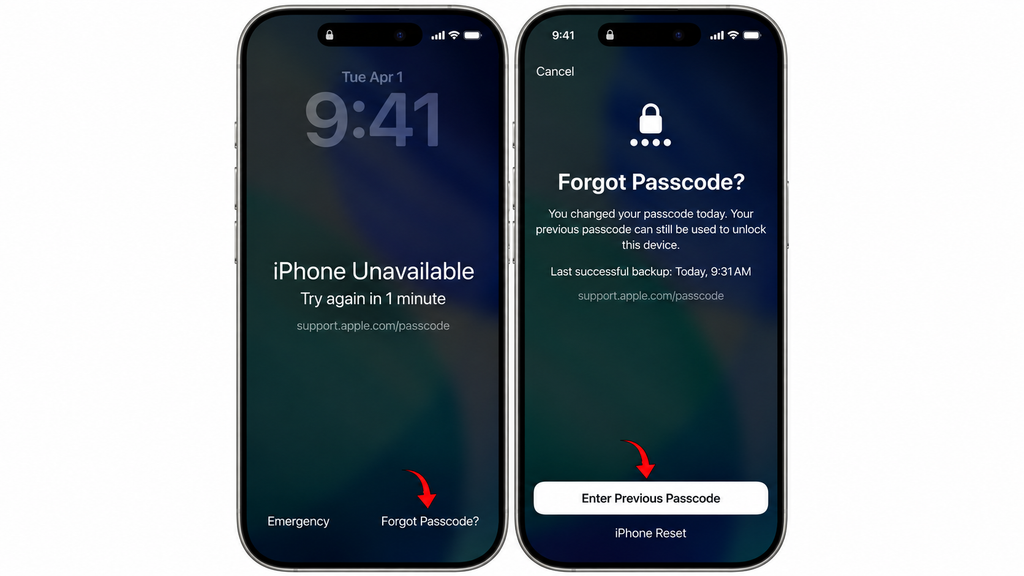
Hypothetical example: You changed your code yesterday and remember the earlier one. Check this option before a reset deletes your photos and messages.
If the option is unavailable or the old code is not accepted, choose an erase method below.
2. Reset the iPhone directly from its lock screen
This route suits you if you lack a computer and meet the requirements in Part 1. It permanently erases local data and settings. The button names depend on the installed iOS version.
For iOS 17 or later, use this sequence:
Step 1: Check the lock screen. On iPhone Unavailable, tap Forgot Passcode? when available.
Step 2: Start the reset. Choose Start iPhone Reset.
Step 3: Confirm your account. Enter your Apple Account password when requested.
Step 4: Choose the eSIM option. If offered, keep your eSIM while erasing data, or delete both. An eSIM is the digital connection profile for your cellular plan.
Step 5: Confirm the erase. Follow the prompts, then complete setup and create a new code.
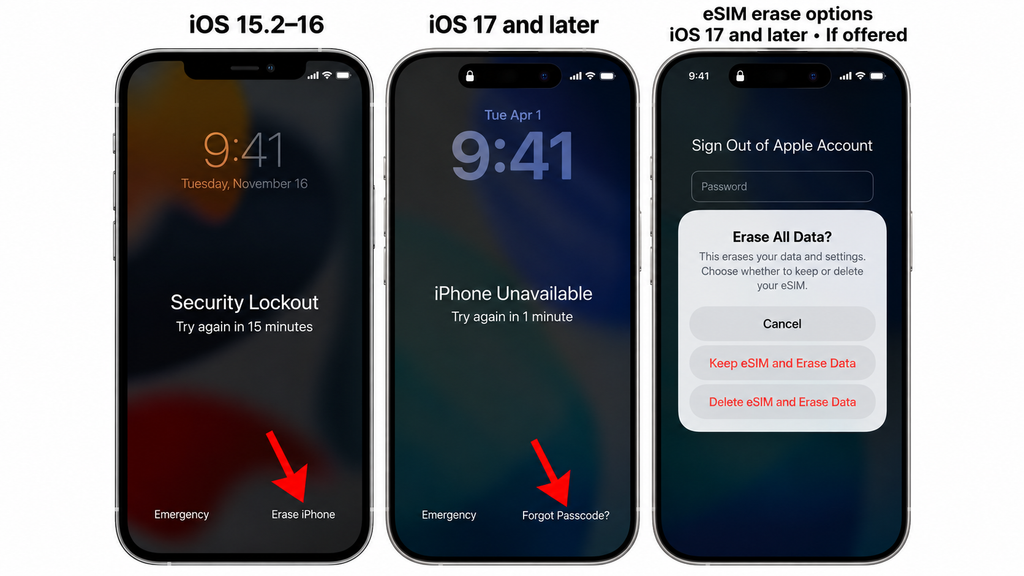
On iOS 15.2 or iOS 16, look for Erase iPhone instead of Forgot Passcode? Follow the account-password and erase prompts. If you use an eSIM on these older versions, Apple advises contacting your carrier beforehand for a QR code to set it up again.
Keeping your eSIM does not keep your photos, apps, or other local data. If you delete the eSIM, you may need your carrier to reactivate the plan.
If the reset choice is missing, check the prerequisites. If you cannot meet them, use computer recovery.
3. Restore your iPhone using a Mac
A Mac can restore a locked iPhone through recovery mode, a special screen that allows the computer to reinstall its software. This erases the phone. You do not need to open Settings on the locked device first.
Use Finder on macOS Catalina or later. On macOS Mojave or earlier, use iTunes.
Step 1: Prepare the Mac. Connect it to the internet and have your iPhone cable ready.
Step 2: Turn off the iPhone. On Face ID models, hold the side and Volume Down buttons until the power slider appears. On other models, hold the side or top button. Drag the slider.
Step 3: Enter recovery mode. Connect the cable to the Mac. As you connect the powered-off phone, immediately press and hold the correct button below. Keep holding through the Apple logo until the computer-and-cable image appears.
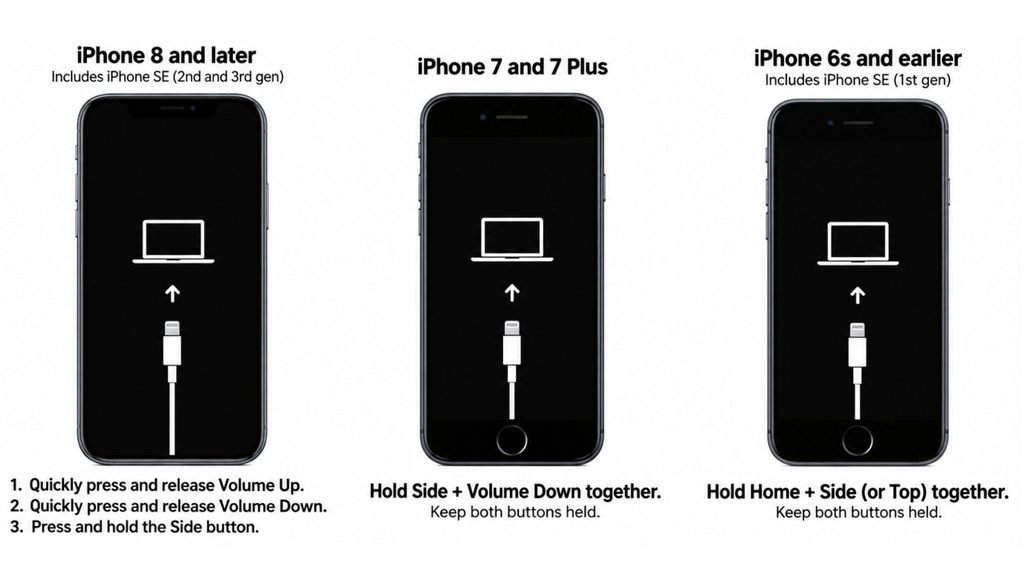
Choose the correct button:
- Face ID models, iPhone 8/8 Plus, and iPhone SE second or third generation: Side button.
- iPhone 7 or 7 Plus: Volume Down button.
- iPhone 6s or earlier, including first-generation iPhone SE: Home button.
These directions start with a powered-off phone.
Step 4: Select the iPhone. Open Finder and select it under Locations, or select it in iTunes on an older Mac.
Step 5: Restore it. Choose Restore when prompted, confirm, and keep the cable connected until recovery finishes.
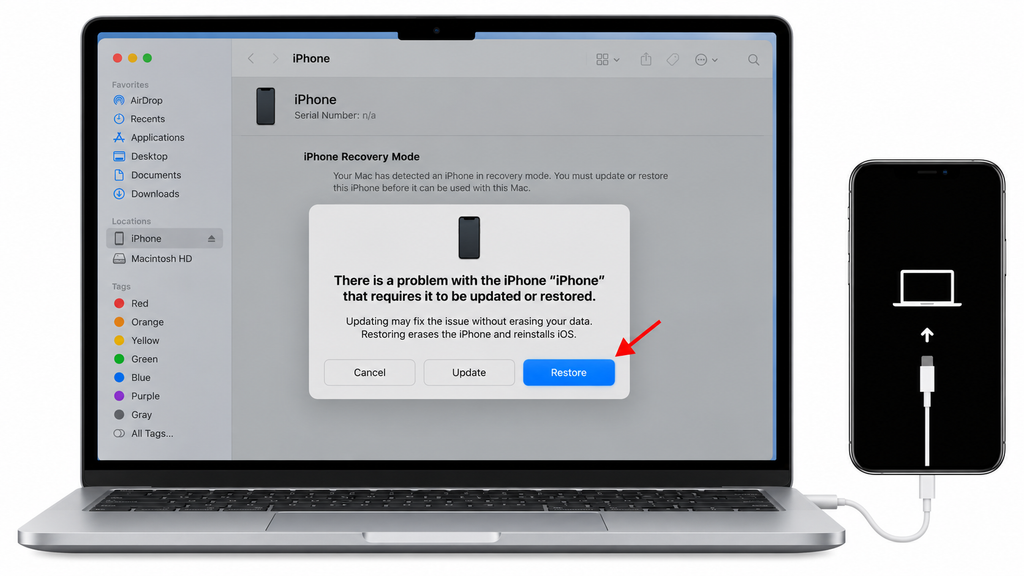
A completed restore brings up Hello. Continue setup and restore saved data if available. Apple says a computer restore does not delete your eSIM.
If detection or recovery fails, use the troubleshooting checks in Bonus Tips.
4. Restore your iPhone using a Windows PC
Windows recovery also erases the forgotten passcode and the phone’s local content. Use Apple’s Apple Devices app for current Windows instructions; Apple also documents iTunes for Windows installations without that app.
Step 1: Prepare the software. Install or update Apple Devices using the Microsoft Store. Connect your PC to the internet.
Step 2: Start recovery mode. Turn off the iPhone and follow the model-specific button instructions in Method 3, connecting it to your PC instead.
Step 3: Select your phone. Open Apple Devices, choose the iPhone in the sidebar, and select General if needed.
Step 4: Start the restore. Choose Restore or Restore iPhone, then follow the confirmation prompts.
Step 5: Finish setup. Leave it connected during recovery. When Hello appears, create a new passcode during setup.
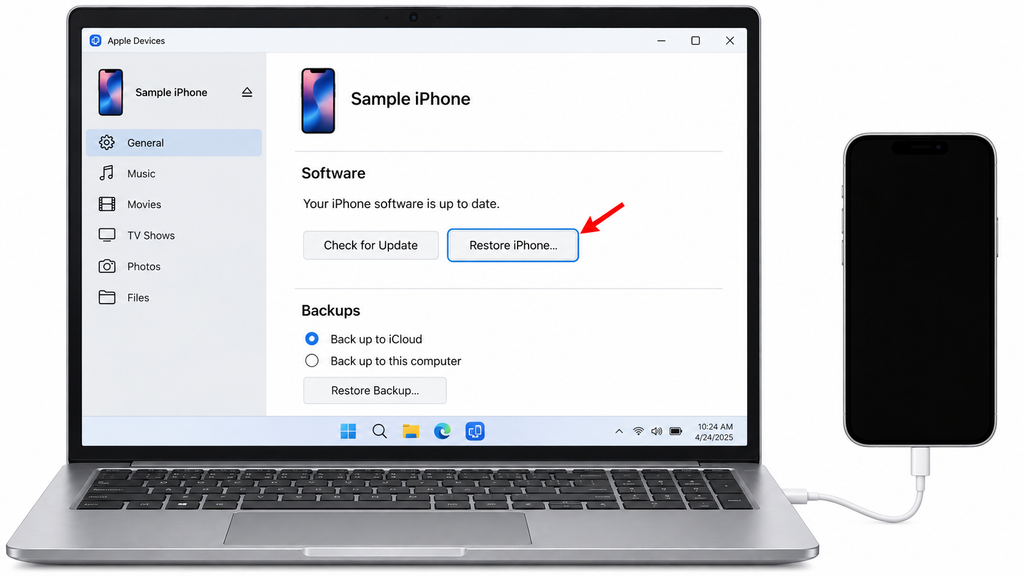
Apple’s Windows restoration guide shows the device sidebar and restore controls. Recovery mode avoids ordinary connection prompts requiring the forgotten passcode.
If using iTunes, select the small device button, open Summary, and choose Restore iPhone.
Restore iPhone erases and reinstalls the phone. Restore Backup brings back previously saved content after recovery. Choose the control for the stage you are completing.
If the PC asks you to unlock the phone, confirm that it displays the recovery screen.
5. Erase the iPhone remotely with Find My
Find My lets you request an erase from another device’s browser. It suits you if Find My was enabled on the locked iPhone and you can sign into its Apple Account. The erase deletes local data; Activation Lock remains.
Step 1: Open Find Devices. Visit iCloud.com/find and sign into the correct Apple Account.
Step 2: Select your iPhone. Check the device name carefully before taking action.
Step 3: Request the erase. Select Erase This Device and complete the prompts.
Step 4: Wait for connection. An online phone begins erasing after confirmation. An offline phone erases when it next connects.
Step 5: Set up the erased phone. Complete any Activation Lock account check, then create a new passcode and restore available data.
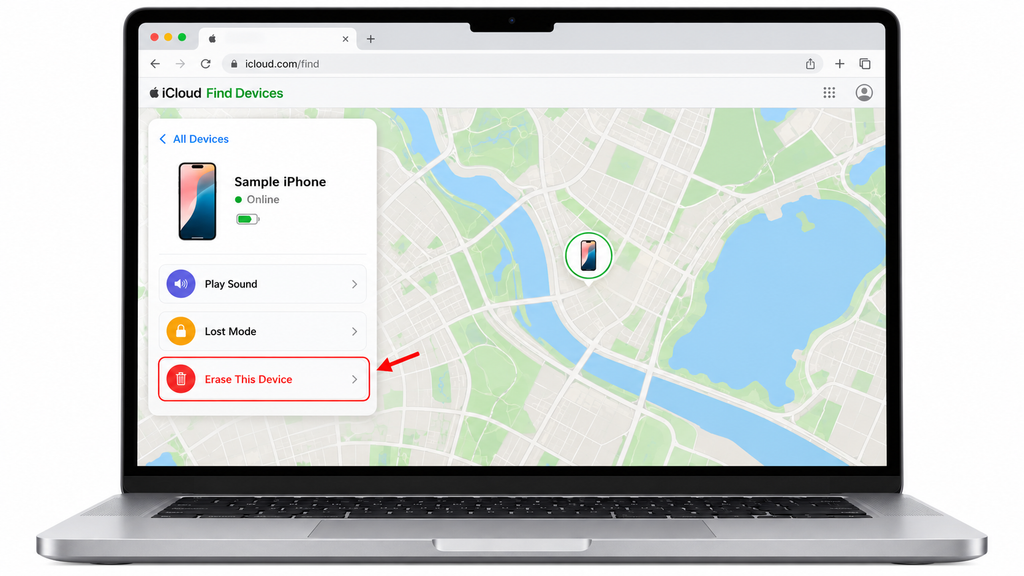
If a verification code is unavailable because your phone is locked, Apple says you can select Find Devices at the bottom of the sign-in window to access this feature without entering that code. You still need your account credentials.
If the iPhone is absent, verify the account you used. If Find My was never enabled, choose computer recovery.
Can you unlock an iPhone without losing data?
Yes, when the recent previous-passcode option applies. Outside that exception, the official recovery procedures described here erase the device. Restoring a backup afterward is different from preserving everything currently on the phone.
Hypothetical example: Your last backup was Sunday, but you took photos Monday. If those photos did not sync elsewhere, restoring Sunday’s backup will not bring them back. Check what was saved before accepting an erase.
Treat claims of guaranteed passcode removal with no data loss carefully. Software that downloads for free may still charge for its recovery feature, and an erase does not automatically resolve Activation Lock.
Bonus Tips: Restore Your Data and Handle Recovery Problems
Recover saved content after the Hello screen
During setup, reach Transfer Your Apps & Data and choose From iCloud Backup if you have one. Sign in, compare backup dates, and select the most useful copy. Stay on Wi-Fi while the initial restore completes.
For a computer backup, connect the recovered phone, open Finder, Apple Devices, or iTunes, and choose Restore Backup. Select the saved copy you want. An encrypted backup also requires its backup password. Apps and other content may continue returning after initial setup.
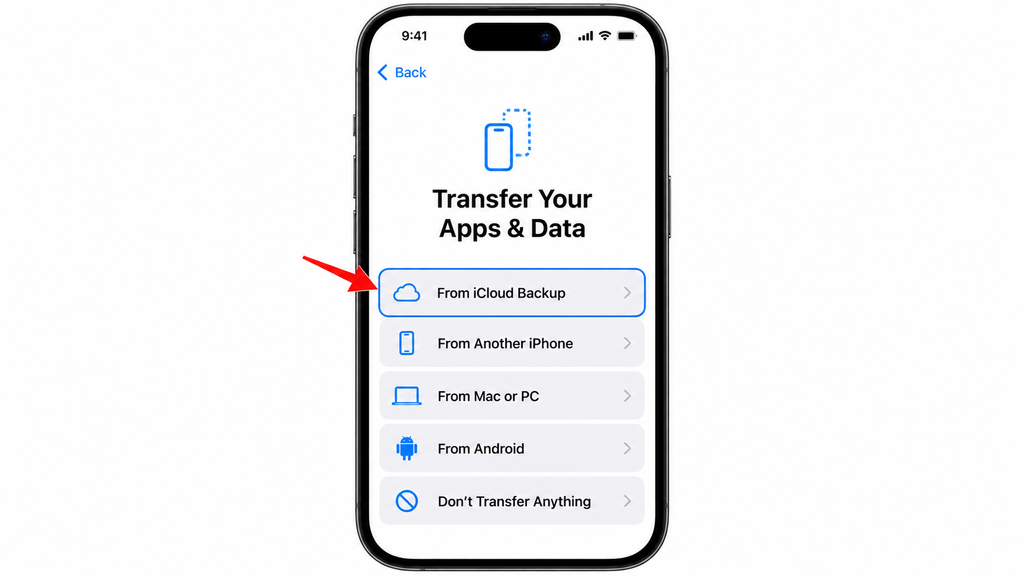
Data already synced to services such as iCloud Photos may return separately from the backup. Check which services you used rather than assuming that a backup contains every photo or message.
Fix common computer recovery problems
If a software download takes more than 15 minutes, the phone may leave recovery mode. Let the download finish, then repeat the recovery-mode button procedure and continue restoring. This does not mean the forgotten passcode has been removed.
If the computer cannot detect the phone, check the cable connection and update the computer software and Apple app. If a required button is broken or recovery repeatedly fails, arrange service.
Handle a forgotten account password or Activation Lock
For a forgotten Apple Account password, use another trusted Apple device or iforgot.apple.com. The Apple Support app on a borrowed Apple device also offers Reset Password > Help Someone Else.
If Activation Lock refers to a previous owner’s account, contact that owner. For a business or school phone, contact its IT team. With proof-of-purchase documents, you can submit an Activation Lock support request to Apple; approval is not guaranteed.
Reduce the chance of another lockout
Choose a memorable passcode that others cannot easily guess. Store a secure reminder separately from the phone, and confirm that backups run successfully. Face ID and Touch ID help with everyday access, but your iPhone still requires the passcode after restarting and in other security situations.
The Bottom Line
Check the previous-passcode option first if you changed your code within 72 hours. Otherwise, choose a lock-screen reset, computer recovery, or Find My based on the equipment and account access you have.
Before confirming an erase, identify your available backups and confirm that you can access the linked Apple Account. Your next step is to choose the matching method above, follow its prompts, and create a new passcode during recovery or setup.
Apple’s previous-passcode feature can preserve data when its conditions apply. Otherwise, Apple’s documented forgotten-passcode recovery requires an erase. If you cannot use or borrow a computer, an Apple Store or Apple Authorized Service Provider can help with recovery, without a promise to recover unsaved data.
You can use computer recovery to erase it without entering that password during the erase. However, if Activation Lock is enabled, setup still requires the linked account or another option Apple offers on that screen. Recover account access before erasing whenever possible.
No. The screen passcode is separate from your physical SIM or eSIM. Removing a SIM does not reset it; follow the previous-passcode or erase procedure that matches your situation.
If you forgot your passcode, you cannot manually unlock your iPhone without erasing it. Apple does not have a backdoor or secret code to bypass the passcode. This is by design to keep your private information secure.


