

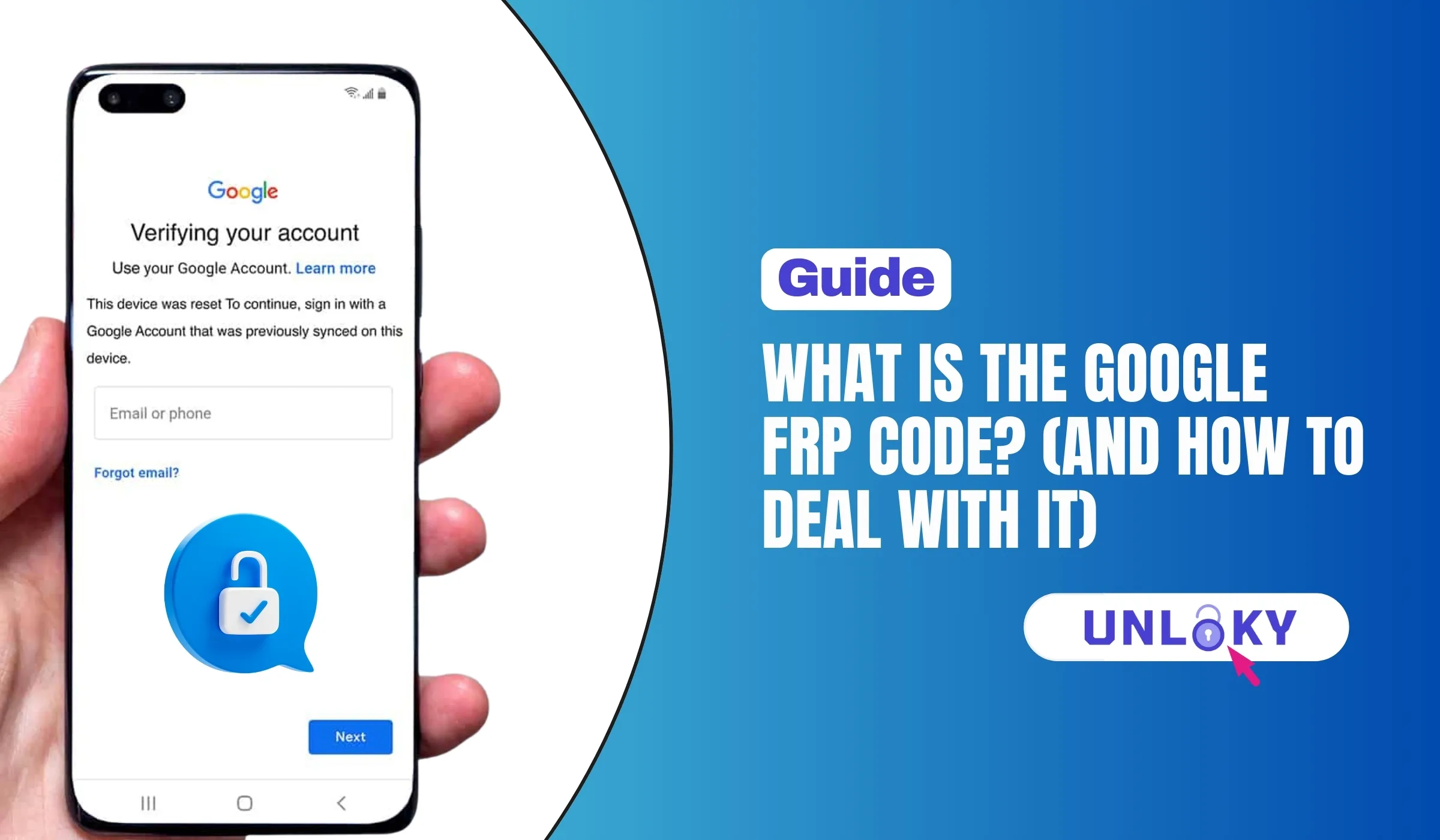
Everything you need to know about Factory Reset Protection, Google account codes, and how to regain access to your Android device safely.
TL;DR – Quick Answer
The Google FRP code isn’t actually a single “code” — it refers to the Factory Reset Protection system that requires your Google account credentials (email and password) after a factory reset. Your “Google account code” is simply your Google Account ID, a unique 21-digit number tied to your account. To deal with FRP: either enter your original Google credentials, use Google’s official account recovery at Accounts Google Sign in Recovery, or wait 24-72 hours if you recently changed your password. There’s no universal bypass code — legitimate access requires account verification.
What Exactly is Google FRP Code?
Here’s the thing that confuses most people: there isn’t actually a single “FRP code” you can enter to unlock your phone. When folks search for “Google FRP code,” they’re usually looking for a way past Factory Reset Protection — Google’s built-in security feature that’s been around since Android 5.1 Lollipop back in 2015.
Factory Reset Protection (FRP) ties your Android device to your Google account. The moment you add a Google account and set up a screen lock, FRP activates automatically in the background. It’s designed to make your phone worthless to thieves — even if someone steals your device and wipes it, they can’t use it without your Google credentials.
FRP prevents unauthorized use of your device after factory reset, protecting your data even if your phone is stolen.
FRP turns on automatically when you add a Google account and set up any screen lock like PIN, pattern, or password.
Your device gets registered with Google and the account information gets stored, creating a secure link between you and your phone.
While FRP is fantastic for security, it can lock you out of your own device if you forget your Google credentials, recently changed your password, or bought a second-hand phone that wasn’t properly reset by the previous owner.
What is My Google Account Code?
When people ask “what is my Google account code,” they’re usually referring to one of two things: either their Google Account ID (a unique identifier for their account) or the credentials needed to verify their identity during FRP lock.
Your Google Account ID
Every Google account has a unique numeric identifier — a 21-digit number that acts like a serial number for your account. This isn’t something you need to memorize for everyday use, but it becomes relevant in enterprise settings or when dealing with device management systems.
Visit the Google People API page at developers google people api rest v1 people get, enter “people me” in the resourceName field, add “names” to personFields, and execute. Your ID will appear in the metadata.source response.
Your Google Credentials (What FRP Actually Needs)
In most cases, the “code” you need for FRP is simply your Google account email and password — the same credentials you use to sign into Gmail, Google Drive, or any other Google service. FRP doesn’t use a special code; it uses your regular login information to verify you’re the legitimate owner of the device.
The Gmail address (or Google Workspace email) that was previously synced to your Android device.
Your current Google account password. If recently changed, you may need to wait 24-72 hours for sync.
How Does FRP Actually Work?
Understanding how Factory Reset Protection operates under the hood helps explain why there’s no magic bypass code. Here’s the step-by-step process that happens with your device:
When you first set up your Android device (Android 5.1+), you sign in with a Google account and create a screen lock (PIN, pattern, password, or biometric).
Your device registers with Google’s servers. The account information gets stored in a protected partition of your phone that survives factory resets.
If someone factory resets your phone through recovery mode (not through Settings while logged in), the device detects this as an “untrusted” reset.
During the setup wizard after reset, the phone checks with Google’s servers and displays “Verify your account” — requiring the previously synced Google credentials.
Enter the correct credentials and you’re in. Enter wrong info (or nothing at all), and the phone remains locked — essentially a sophisticated paperweight until verified.
Before selling or giving away your phone, always remove your Google account first: Go to Settings → Accounts → Google → Remove Account. Then factory reset through Settings. This disables FRP and lets the next owner set up their own account without issues.
FRP Bypass Methods Compared
Not all FRP solutions are created equal. Here’s an honest breakdown of the different approaches, their success rates, and what you should know about each:
| Method | Difficulty | Success Rate | Requirements | Best For |
|---|---|---|---|---|
| Enter Original Credentials | Easy | 100% | Email + Password | Users who remember login |
| Google Account Recovery | Easy | 85-95% | Recovery email/phone | Forgot password users |
| Wait 24-72 Hours | Easy | 100% | Recently changed password | Password sync issues |
| Contact Previous Owner | Medium | Varies | Owner contact info | Second-hand phones |
| Authorized Service Center | Medium | 95%+ | Proof of purchase | No other options |
| Emergency Dial Codes | Hard | 10-30% | Specific model/firmware | Older devices only |
| Third-Party FRP Tools | Medium | 60-80% | PC, USB cable, software | Technical users |
FRP bypass methods should only be used if you’re the legitimate owner of the device. Bypassing FRP on stolen phones is illegal and unethical. Always have proof of purchase ready if visiting a service center.
How to Deal With FRP Lock
Stuck at the “Verify your account” screen? Don’t panic. Here are the proven methods to regain access to your device, starting with the easiest options:
Method 1: Use Your Original Google Credentials
The simplest solution is often the right one. If you remember your Google email and password, just enter them when prompted. Make sure you’re connected to Wi-Fi first, and enter the credentials exactly as registered — Google accounts are case-sensitive for passwords.
Method 2: Google Account Recovery
If you’ve forgotten your password, head to accounts google sign in recovery on another device. Google will walk you through verification using your recovery email, phone number, or security questions. Once you reset your password, wait 24-72 hours before trying to sign in on your FRP-locked device — this waiting period is a security measure Google built in.
Why the 24-72 Hour Wait? Google implemented this delay to prevent thieves from quickly resetting a stolen phone’s linked account and bypassing FRP. It’s frustrating for legitimate owners but significantly improves security.
Method 3: Contact the Previous Owner
Bought a used phone and hitting FRP? Your best bet is reaching out to the previous owner and asking them to either provide the account credentials or remotely remove the device from their Google account at my account google device activity.
Method 4: Visit an Authorized Service Center
If all else fails and you’re the legitimate owner, visit an authorized service center for your phone brand (Samsung, Google, Xiaomi, etc.). Bring your proof of purchase — original receipt, credit card statement, or warranty card. They can verify ownership and remove the FRP lock officially.
Method 5: Brand-Specific Emergency Codes (Limited Success)
Some older devices have emergency dial codes that can bypass FRP. These are manufacturer-specific and only work on certain firmware versions:
OPPO: *#813# or *#812# (from Emergency Call screen)
Samsung: *#0*# (service menu access on some models)
Generic Android: *#*#4636#*#* (testing menu)
Fair warning: these codes work inconsistently and are often patched in newer security updates. Don’t rely on them as your primary solution.
How to Prevent FRP Issues
Prevention beats cure every time. Here’s how to avoid FRP headaches in the future:
Store your Google email and password in a secure password manager or a physical location you won’t forget.
Add a recovery phone number and backup email to your Google account. This makes password recovery much easier.
Always go to Settings → Accounts → Google → Remove Account before factory resetting a phone you’re selling or giving away.
When buying used, power on the device and check it reaches the home screen without asking for previous owner credentials.
No, there’s no universal code that works on all Android devices. FRP is a security feature tied to your specific Google account, not a simple code-based lock. Any website claiming to have a “master FRP code” is misleading you. The only legitimate way to bypass FRP is with your original Google credentials or through official channels like account recovery or service centers.
No, a factory reset will not remove FRP — in fact, that’s exactly what FRP is designed to protect against. The only way to disable FRP before a reset is to remove the Google account from the device through Settings while you still have access. Once FRP is triggered, you need to verify the original account credentials.
Google implemented this waiting period as an anti-theft measure. If a thief steals your phone and tries to quickly reset your Google password to bypass FRP, the delay gives you time to recover your account and report the theft. While frustrating for legitimate owners, this security measure significantly reduces phone theft value.
Yes! On any computer, visit the Google People API at developers.google.com/people/api/rest/v1/people/get. In the “Try this API” section, enter “people/me” for resourceName, add “names” to personFields, click Execute, and sign in with your Google account. Your numeric Account ID will appear in the response metadata.
FRP is built into all Android devices running Android 5.1 Lollipop (released 2015) and later. This includes virtually all modern smartphones from Samsung, Google Pixel, OnePlus, Xiaomi, OPPO, Vivo, Motorola, and other manufacturers. If your phone runs Android 5.1 or higher and you’ve added a Google account with a screen lock, FRP is active.
Yes! The previous owner can visit myaccount.google.com/device-activity, find the device in their list, and click “Sign out” to remove their account association. Once done, you should be able to factory reset the phone and set it up with your own Google account without FRP blocking you.


