

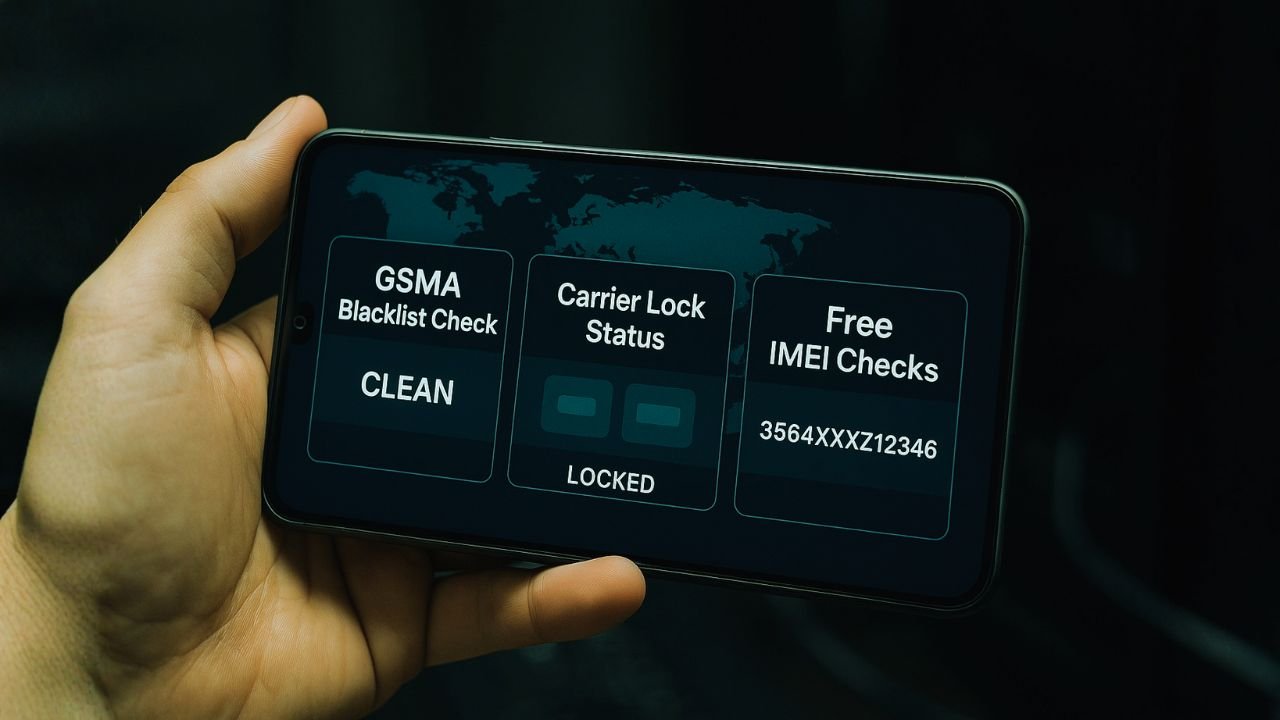
TL;DR
Use your IMEI to check two things: reputation (GSMA blacklist) and permission (carrier lock). Start free with carrier BYOD pages, consumer stolen-device portals, and your phone’s own settings (iPhone: “No SIM restrictions”; Android: test with a known-good SIM). If results conflict or money’s on the line, get a GSMA-based report. If blacklisted, stop and seek a refund; if restricted, ask the original provider about removing the restriction; if clean but incompatible, choose a carrier that supports your model. Never post your full IMEI and keep receipts.
Stolen or blocked phone—or just a mismatched SIM? Those feel the same when your signal vanishes. The fix starts with a 15-digit number you already have: your IMEI. Honestly, once you know where to look, the rest is just steps.
You know what? Let’s strip away buzzwords and get you answers fast—blacklist vs. carrier lock, what an IMEI can reveal, and where you can check it free.
IMEI, in plain language
Every mobile device has a unique ID called IMEI (International Mobile Equipment Identity). Networks use it to recognize your phone, block stolen units, and confirm if a device is allowed on their system. Think of it like a car’s VIN—same idea, smaller object.
Two different gates: blacklist vs. carrier lock
People mix these up all the time, and the symptoms can overlap.
GSMA blacklist — A shared database used by carriers. If a phone is reported lost, stolen, or linked to fraud/unpaid issues, its IMEI can be listed. A blacklisted device may fail to register service—no matter which SIM you try especially in regions where carriers share data.
Carrier lock (SIM restriction) — A software/network policy that ties the phone to one carrier. The device may work perfectly—just not with a different provider’s SIM. Not the same as being stolen or blocked; it’s simply restricted.
Short version: blacklist = device reputation; carrier lock = device freedom to switch networks. One is about trust, the other is about permission.
Find your IMEI in 10 seconds
Dialer: open the Phone app and enter *#06# (works on most phones).
iPhone: Settings → General → About → IMEI (scroll).
Android: Settings → About phone → Status → IMEI.
On the box/SIM tray: often printed on the label.
Tip: If you see IMEI and IMEI2, you likely have dual-SIM hardware. Keep both handy.
📖 Also Read: Proof You Own It: Receipts, Bills of Sale & IMEI Docs That Speed Up Unlocks
Fast, free checks you can do right now
You don’t need a credit card to get initial answers.
Check basic network compatibility (also hints at lock status)
Most carriers host a “bring your own device” (BYOD) or “IMEI compatibility” page. Pop in your IMEI and you’ll see if their network would accept your phone. If the result says “not compatible” for a device that should work technically, that can hint at either a blacklist flag, unpaid balance, or a current SIM restriction with another provider.
Use consumer stolen-device portals (where available)
In many regions, industry groups and carrier associations run consumer-facing pages that tell you if an IMEI appears flagged as lost/stolen. Results vary by country, but it’s a quick first pass. If it says blocked, that’s your answer. If it’s clear, you still might have a carrier restriction; keep going.
Read your phone’s own settings
iPhone (iOS 14 and later): Settings → General → About. Look for Network Provider Lock.
- No SIM restrictions = the device isn’t restricted by the original carrier.
- If you see any mention of restrictions, the phone may still be tied to a provider.
Android: There’s no universal line like iOS, but you can check Settings → Connections/Network → Mobile networks → Network operators. If the phone can search and register on multiple networks with different SIMs, that’s a good sign. Some models also show “Carrier status” or “SIM status.”
Try another working SIM
If you insert a known-good SIM from a different provider:
It registers, calls/texts/data work → likely no carrier restriction and not blacklisted.
It shows “SIM not supported” or similar → suggests a restriction with a previous provider.
No service anywhere → could be a blacklist issue, hardware fault, or a region band mismatch. Cross-check with a blacklist portal to be sure.
When a paid GSMA report is worth it
A paid report (often labeled GSMA Device Check or similar via third-party resellers) aggregates carrier-shared data: status, model metadata, sometimes warranty or activation history. It’s useful when:
You’re buying/selling second-hand and need written proof.
Free portals give mixed signals.
You need to confirm whether the device has been blocked beyond a single carrier.
Keep in mind: results depend on what participating carriers have submitted; very recent changes may take time to sync.
📖 Also Read: Financing with Affirm/Klarna & Unlock Eligibility: What Carriers Check
Small table, big clarity
| What you want to know | What to check first (free) | If unclear, next step |
|---|---|---|
| Is it reported lost/stolen? | Consumer stolen-device portal; some carrier IMEI tools | Paid GSMA-based report |
| Will it work on a new carrier? | That carrier’s BYOD/IMEI page | Try a live SIM from that carrier |
| Is there a SIM restriction? | iPhone: “No SIM restrictions” line; Android: test with another SIM | Ask the previous provider to confirm status |
| Is the device model acceptable (bands/VoLTE)? | Carrier BYOD checker | Check device spec sheet vs. carrier bands |
Subtle gotchas people miss
Activation Lock vs. blacklist
Apple’s activation lock (Find My) is an Apple ID security feature; a device can be activation-locked yet not blacklisted—or vice versa. Different systems, different fixes.
Refurbs and dual IMEIs
If only one IMEI is clean on a dual-SIM phone, you might get “works on SIM 1, not on SIM 2.” Check both.
Region bands and 5G icons
A phone can be fully clean and still show no 5G if its bands don’t match your market. That’s not a blacklist problem.
Very recent status changes
A line reported this morning may not show everywhere by lunchtime. If you see conflicting results, wait a bit and recheck—then screenshot for records.
What to do with each outcome
Blacklist hit found: Stop. Contact the seller or your carrier with proof. Trading platforms usually require a clear report; use it to request a refund.
No blacklist, but SIM restriction suspected: Ask the original provider about SIM restriction removal eligibility (paid-off device, time elapsed, account standing). Each provider has its own policy and timeline.
Clean and usable, but not compatible: That’s a tech spec issue (bands/VoLTE). Consider a provider that supports your model—or confirm if a software update adds required voice profiles.
Red flags and safety tips
Never share full IMEI publicly. Mask the last 3–5 digits in listings.
Beware of “instant fix” claims. If someone says they can flip a status in minutes for cash, walk away.
Keep receipts. IMEI printed on a bill of sale helps in disputes.
Use official tools first. Carrier BYOD pages and recognized consumer portals are safer than random sites full of pop-ups.
📖 Also Read: 5G Home Internet Gateways: Can You Unlock Them? What Actually Works
The Bottom Line
A free IMEI check plus a live SIM test is the simplest, safest way to avoid bad phones and activation headaches. Use GSMA blacklist checks to confirm the phone isn’t blocked, and verify carrier lock status with at least two networks or a second SIM. Keep it simple, keep records, and don’t be shy about walking away if anything feels off. There’s always another deal—your time and money are worth protecting.
Frequently Asked Questions
Blacklist is a shared “do not activate” status for lost, stolen, or fraud-flagged devices. A carrier lock is a policy that ties your phone to one provider even if it’s perfectly clean.
Use consumer stolen-device portals and your carrier’s BYOD/IMEI checker. If results conflict, confirm with a paid GSMA-based report.
Go to Settings → General → About → Network Provider Lock. If it says No SIM restrictions, you’re not tied to a single carrier.
Yes. It might still have a SIM restriction, miss required bands/VoLTE profiles, or be blocked by an unpaid balance with the original provider.
They’re good for a quick read, but data can be delayed. For transactions, use a GSMA-based report and keep the PDF as proof.


