

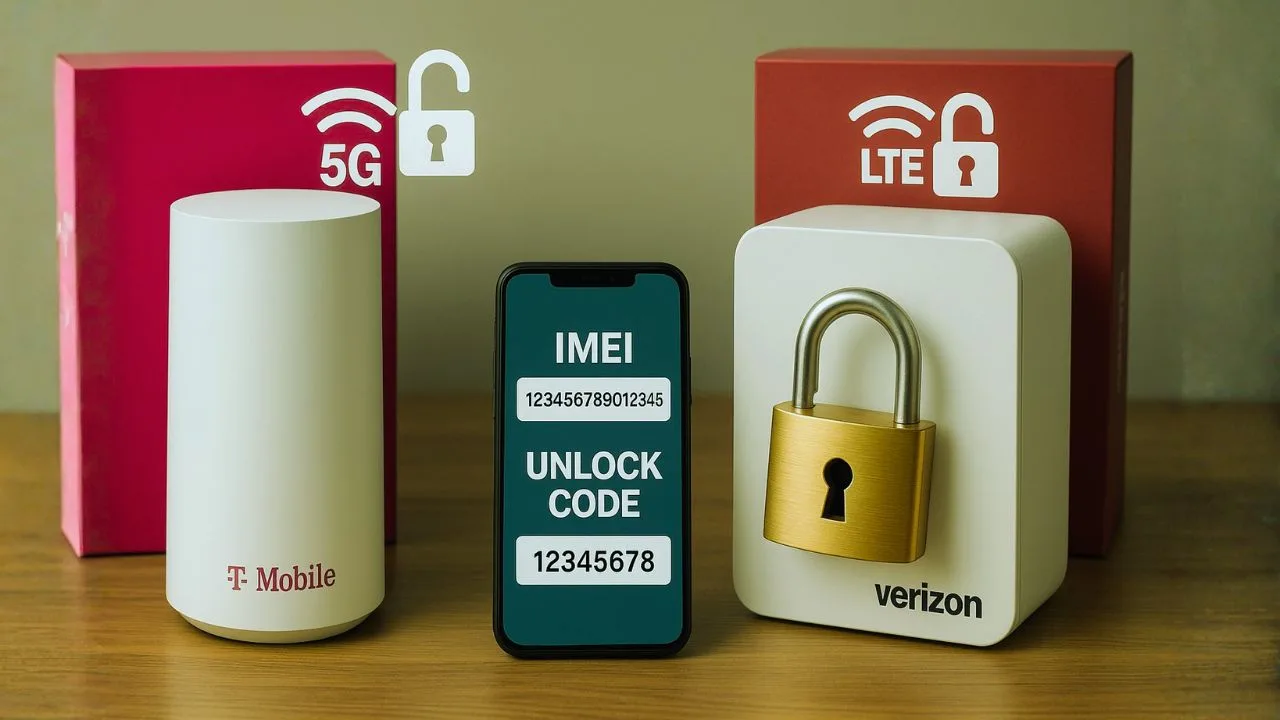
Thinking about using that carrier-branded 5G gateway with a different SIM or a new provider? You’re not alone. People love the hardware—fast radios, solid antennas, clean app control—but hate being boxed in.
Here’s the thing: you can often free a gateway from network restrictions without shady tricks, and still stay on the safe side of terms and laws. We’ll talk through T-Mobile Home Internet gear, Verizon LTE CPEs, and a few smart paths that actually work.
You know what? This is easier when you take it step by step.
Key Takeaways
- Gateway unlocking is not like phone unlocking. Expect firmware and network constraints.
- Band support and plan policy matter more than anything. If they don’t line up, nothing else will.
- The most dependable freedom comes from an unlocked 5G router plus a plan that welcomes CPE use.
- Optimize your setup with proper placement, antennas, band control, and bridge mode for the best day-to-day experience.
What “restriction removal” really means for gateways
Phones are often locked to one network profile; gateways can be even tighter. Some are tied to a specific line type, band policy, or IMEI range. Others are open by default but still behave badly on a new provider because of firmware rules.
So the goal isn’t magic. It’s removing carrier-specific restrictions, getting the right APN, and making sure the gateway’s radios connect on bands your provider actually uses. No drama—just clean configuration and the right device choice.
📖 Also Read: Hotspot Unlock & MiFi Unlock: The Complete Guide (Including Verizon Jetpack Unlock)
Legal paths vs risky ones
Let me explain. There are three broad paths:
- Official carrier release
Some carriers will release restrictions when the account is in good standing and device requirements are met. For phones this is common; for fixed-wireless gateways it’s hit-or-miss, but asking support is still step one. Keep it friendly and factual. - Use a model that’s already open
Plenty of 5G/LTE CPEs ship without carrier ties. If you’re buying used, check the exact model and hardware revision—not just the brand. Many “ISP editions” look identical to retail, but behave differently. - High-risk firmware hacks
Flashing unofficial firmware or forcing bands through hidden pages can brick the device, violate terms, or break emergency features. Also, sharing or using bypass methods may be illegal where you live. Not worth it.
Short version: go official if possible, or choose gear that’s free out of the box.
T-Mobile Home Internet gear—what actually works
T-Mobile’s gateways (think Nokia FastMile, Arcadyan, Sagemcom) are tuned for T-Mobile lines and n41/n71 coverage. Some units will accept other SIMs, then fall back to a crippled mode or refuse PDP sessions. Others might work… until a firmware update closes the door.
Practical playbook:
- Ask for a release if the device is fully paid and the line is in good standing. Be polite, be patient, and document the chat or ticket number.
- Try a data-only SIM from the same carrier family first. If it fails, you’ll know it’s policy—not signal.
- Prefer retail or “OEM” CPE for multi-carrier use. If you know you’ll move providers, start with a model that’s sold unlocked from day one.
- Bridge mode or passthrough: if T-Mobile’s Wi-Fi is fine but routing is clunky, hand off to your own router. It solves port-forward headaches and double NAT.
If you absolutely must change bands, do it through supported settings only. When a GUI doesn’t expose band selection, that’s usually for a reason.
📖 Also Read: Wi-Fi Calling, VoLTE & 5G After Unlock: Feature Compatibility & Fixes
Verizon LTE CPE—IMEI, firmware, and SIM flexibility
Verizon LTE CPEs (and some 5G units) often rely on their whitelist. The network checks the hardware’s IMEI and decides what plan types are allowed. That’s why a random data SIM may authenticate but refuse to pass traffic, or throttle features like voice fallback.
Helpful moves:
- IMEI status first: before you purchase used gear, verify the IMEI on the carrier’s Bring-Your-Own-Device checker. If it’s clear, life is easier.
- Retail vs carrier-skinned: retail CPE with the same radio often behaves better across carriers. “Business-only” or “ISP-edition” hardware can be picky.
- APN is king: correct APN, PAP/CHAP mode, and IPv4/IPv6 settings matter as much as signal. A wrong APN looks like “no internet” even with full bars.
- Firmware updates: sometimes an update expands band support or fixes PDP behavior. Other times it narrows it. Read the release notes before you hit update.
If your plan supports both LTE and 5G, keep in mind the device may camp on LTE bands unless 5G signal is clearly better. That’s not malfunction; it’s the algorithm.
APN, bands, and tower behavior—small tweaks, big gains
A gateway can show five bars and still struggle. Why? It might be on the wrong band for your location, carrying too much load, or bouncing between cells.
Friendly tuning guide:
- APN: use the provider’s official APN for data-only hardware. If they list multiple APNs, choose the one meant for fixed-wireless or hotspots.
- Bands: know the local band mix. T-Mobile leans on n41/n71; Verizon leans on n77 and certain LTE bands. If your gateway exposes “preferred bands,” set them to what’s strong near you.
- Antenna placement: rotate the unit slowly and watch the RSRP/RSRQ/SINR values. A quarter turn or one meter of movement can change everything.
- Sticky behavior: some devices cling to a cell even when another is better. A quick reboot—or scheduling a nightly reboot—can keep sessions fresh.
Bridge mode, double NAT, and putting your router in charge
Here’s where home networking meets wireless gently. Many gateways use NAT and hand out a private IP. Add your own router and you get NAT on top of NAT. That breaks remote access, gaming lobbies, and some VPNs.
Two clean fixes:
- Bridge/passthrough mode on the gateway, if available. Your router gets the public IP (or the next best thing on CGNAT) and handles everything.
- DMZ to your router as a plan B. It’s not as pure as true bridge mode, but it’s better than triple-stacked rules.
If you care about QoS, VLANs, or multiple WANs, a dedicated router is worth it. Let the gateway focus on radio work; let your router do the brains.
📖 Also Read: iPhone Refurbished Unlocked: The Smart Way to Save Without Sacrificing Quality
A tiny comparison table to keep things straight
| Topic | T-Mobile Home Internet gateway | Verizon LTE/5G CPE |
|---|---|---|
| SIM flexibility | Often restricted to T-Mobile plans | IMEI whitelist impacts plan access |
| Band behavior | Strong with n41/n71; firmware-guided | Strong with n77/LTE mix; whitelist logic |
| Bridge / passthrough | Model-dependent | Model-dependent; business models fare better |
| Best path to freedom | Official release or use retail CPE | IMEI clear + retail CPE + correct APN |
| Risky route | Hidden pages / forced bands | Unofficial firmware / band forcing |
The Four Common “Unlock” Paths (and What Really Happens)
1) Official Unlock or Cross-Use by the Same Carrier
If you’re staying with the same provider (say, you move to a new plan) or you’ve met the carrier’s unlock policy, you might be allowed to continue using the gateway. However, true, portable unlocking (use with any carrier) is rare for gateways. Carriers treat home internet devices more like fixed CPE than mobile phones.
What works: Staying within the same brand family or the same network (postpaid to home internet, or a business plan to a fixed wireless plan) sometimes works—if the carrier provisions the IMEI for that plan type.
What to check:
- Will the carrier authenticate this exact IMEI on the new plan?
- Does your plan allow CPE devices (some “phone-only” or hotspot-only plans don’t)?
- Does the device expose APN settings (if your plan requires a specific APN)?
2) Popping in a Different Carrier’s SIM
This is the classic “unlock” attempt. Here’s what usually decides the outcome:
- APN Control: If you can’t set the APN for the new network, you won’t authenticate data. Some gateways show APNs but ignore changes at the firmware level.
- Band Fit: The gateway’s supported 5G/4G bands must match what the other carrier uses at your address, not just in your city. Two streets over can be a different story.
- IMEI/Plan Policy: Many carriers restrict which hardware can use “home internet” plans. Even if a phone SIM works for a moment, it can get blocked as soon as the network classifies the device as a fixed CPE.
When it works: Unbranded or lightly branded gateways with full band support, editable APNs, and a friendly carrier policy. It’s not common, but it happens—usually with more open firmware.
Risks: Service suspension for plan misuse, inconsistent speeds, or future firmware updates that break your setup.
3) Firmware Flashing or Hidden Menus
Some users try custom firmware, debug modes, or band-lock tools. While we won’t provide step-by-step hacking instructions, it’s important to understand the trade-offs:
- Pros: You might expose APN editing, bridge mode, or band selection that lets the gateway work better on a different network.
- Cons: This can void warranties, violate terms of service, or brick your device. Firmware updates can also remove your changes. And if your IMEI isn’t provisioned, firmware magic won’t fix a carrier-side block.
Bottom line: Advanced tinkering is high risk. If reliability matters, consider a different route.
4) Use an Unlocked, Carrier-Agnostic 5G Router
This is what actually works for most people who want flexibility. Instead of fighting a carrier-branded gateway, buy an unlocked, open-market 5G CPE with:
- A modern 5G modem (X55/X62/X65 class or newer)
- Wide band coverage for your region (look for n41, n77, n78 if relevant, plus strong LTE bands)
- APN editing, bridge/passthrough mode, VLAN or DHCP controls
- External antenna support if your signal is weak
Then, use a plan that allows CPE (fixed wireless, data-only, business internet, or a plan explicitly permitting router use). Insert the SIM, set the APN, and you’re done. It’s clean, compliant, and far more future-proof.
Safer, Smarter Ways to Get What You Want
If your goal is “use the best network at my address without constant hassle,” here’s the practical playbook:
Step 1: Map Your Signal
- Check which carrier is strongest at your exact window or rooftop.
- If possible, use a phone with field test to read RSRP/RSRQ/SINR and confirm the serving band(s).
Step 2: Pick the Right Hardware
- If you want to keep things simple, ask the carrier for a supported gateway—you’ll get the least friction.
- If you want flexibility, purchase an unlocked 5G CPE with strong band coverage, editable APN, bridge mode, and antenna ports.
Step 3: Match the Plan to the Device
- Choose a plan that allows CPE and doesn’t break the rules on router use.
- Confirm the APN you’ll need. Enter it manually on your CPE.
Step 4: Optimize the Link
- Place the gateway where signal is best (often a window facing the tower).
- Consider external antennas if RSRP is weak or SINR is noisy.
- Use bridge/passthrough to your own router for stable LAN, better QoS, and cleaner port rules.
Step 5: Test, Log, and Adjust
- Run multi-day speed and latency tests at different times of day.
- If you can, lock bands or anchor to more stable cells to reduce jitter.
- Re-check firmware updates—some add bridge mode or fix APN issues; others remove features, so review notes before updating.
A simple checklist before you switch providers
First, confirm the IMEI is clean and the device is paid off.
Second, request a release from the original carrier—no drama, just facts.
Third, grab the correct APN settings for the new provider.
Fourth, test signal near a window; record RSRP, RSRQ, and SINR.
Fifth, enable bridge or passthrough and let your own router steer the network.
Finally, keep notes on firmware versions and what changed—future you will thank you.
The Bottom Line
Honestly, the secret isn’t a secret. Use hardware that’s free of carrier ties, keep your APN and firmware tidy, and let a solid router handle the heavy lifting. When a carrier-branded gateway can be released, ask for it. When it can’t, pick a retail CPE that plays nicely with any nano-SIM or eSIM plan you throw at it.
Want a quick gut-check on your exact model and provider mix? Tell me the model number, current firmware, and the plan you’re aiming for—I’ll map the cleanest path forward.
Frequently Asked Questions (FAQ)
5G home internet can be fast, but performance isn’t guaranteed hour-to-hour. Speeds and latency change with tower load, distance, and building materials. Many plans sit behind CGNAT, which can break port-forwarding and some remote access tools. Some providers add data caps, deprioritization after a threshold, or “home-only” restrictions. Gateways may have limited settings (no bridge mode, no band locking), and uploads are often weaker than fiber. If the carrier changes firmware or tower settings, your results can shift.
Put the gateway where signal is best—usually a high window facing the tower. Use Ethernet to your main devices. If supported, enable bridge/passthrough mode to avoid double NAT and let your own router handle Wi-Fi/QoS. Keep firmware updated. Consider external MIMO antennas to improve RSRP/SINR in weak spots. If the device allows it, try band locking or cell locking to keep a stable channel. Reduce heat (don’t stack gear) and minimize interference (keep it away from microwaves, thick walls, and metal).
A 5G gateway is a modem-router combo that turns a carrier’s 5G/4G signal into internet for your home. It authenticates on the mobile network, then shares that connection over Wi-Fi and Ethernet. Think of it like a cable or fiber modem, but the “last mile” is wireless instead of a wire to your house.
It depends on what “unlock” means. If you mean logging into the admin page, you just need the correct username/password (or a factory reset). If you mean using a carrier-branded 5G gateway on any SIM or any carrier, that’s usually hard: firmware may hide APN settings, and carriers can block the device’s IMEI. Retail/BYOD 5G routers are the better path if you want cross-carrier flexibility.
“Unlocked” typically means the router isn’t tied to one carrier’s firmware or SIM policy. You can edit APN settings, use compatible bands, and insert a supported SIM from any carrier whose network and plan allow CPE devices. Note: “unlocked” doesn’t override network rules—if a plan blocks router use or the IMEI isn’t whitelisted, it still might not work.
Common reasons are content filters. Your ISP or mobile carrier may enforce parental controls or DNS filtering. Your gateway’s “Safe Browsing,” the router’s parental-control profile, or a family-safety app can also block categories. Some public DNS services (e.g., “family” DNS) filter adult domains by default, and search engines’ SafeSearch can hide results. Fixes: check your router/gateway’s parental-control and DNS settings, disable carrier/ISP content filters in your account portal, and flush DNS/cache on devices. If you’re on a work/school network, the block is intentional and you won’t be able to change it.


