

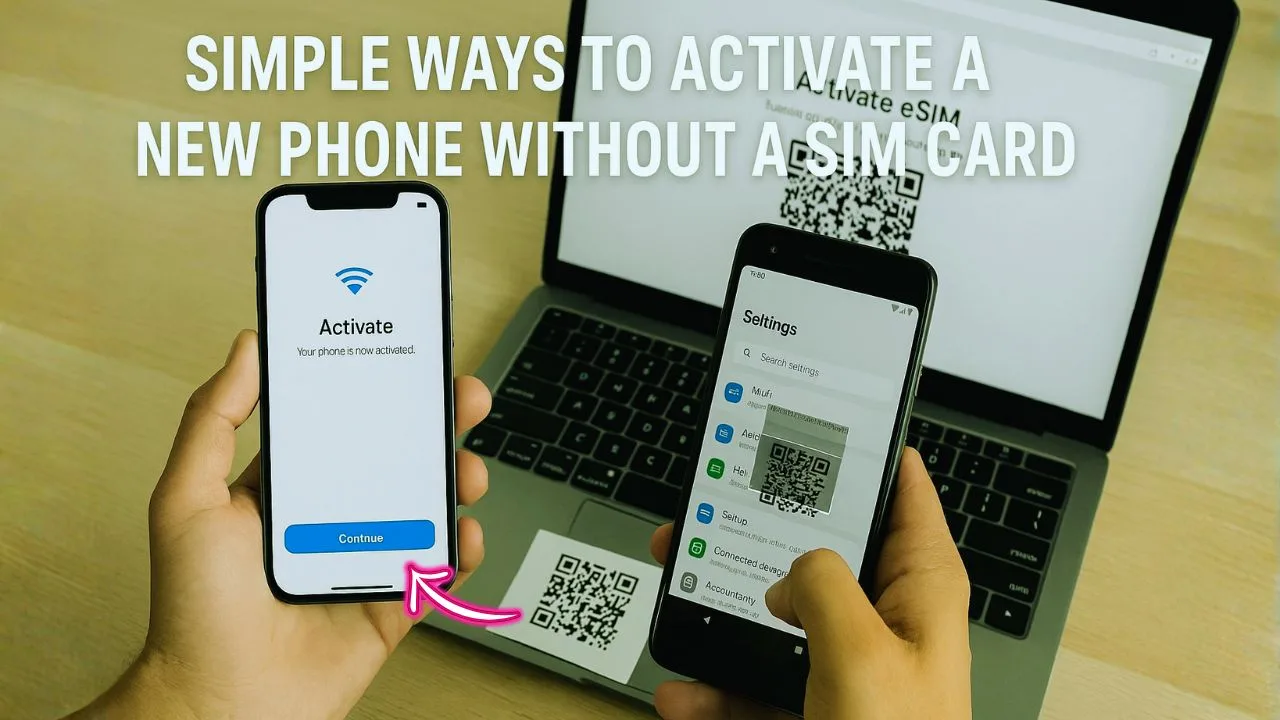
Want simple ways to activate a new phone without a SIM card? You can get your device online with WiFi, finish setup, and start using it in minutes.
Most phones made since 2018 support activation over WiFi. You do not need a mobile network to begin. Many models also support eSIM, a built-in digital SIM that you load with a QR code.
For calls and texts, free apps like WhatsApp, Google Voice, and Signal work using the internet. No carrier plan required. During setup, you can sign in with your Apple ID or Google account to sync contacts, photos, and apps right away.
Real use cases are simple. Kids grab offline maps before a road trip. Travelers call home from hotel WiFi. Anyone waiting on a physical SIM still gets a working phone on day one.
Breaking the old habit of “SIM first” gives you options. A handheld game device can place WiFi calls. Smart gadgets grab apps right away. Friends stay in touch across time zones without roaming fees.
Curious about the next steps? Below are quick tips that save money and stress, plus a few smart tricks.
Key Takeaways
- Many modern phones, including iPhones from 2018 and newer and most Android models, support activation over WiFi without a SIM.
- Recent phones with eSIM, like iPhone XR or newer, can activate service by scanning a QR code, no physical card needed.
- Apps such as WhatsApp, Google Voice, and Signal let you call and text over the internet without cellular service.
- You can skip the “insert SIM” step on Apple and Android by connecting to WiFi and signing in to your account.
- Downloading offline maps and media while on WiFi keeps you going later without a mobile data plan.
Can I activate my phone without a SIM card?
Yes, you can. Many phones support online activation over WiFi, so you can sign in and use core features right away. If you plan to use apps for calling and texting, you can skip mobile network steps.
Here’s the thing. WiFi lets you activate with your Apple ID or Google account. Newer models also support eSIM, a digital SIM you load during setup. This gives you service without a physical card.
If you want simple ways to activate a new phone without a SIM card, WiFi plus a few free apps will get you there fast.
📖 Also Read: Can’t Find Your Assurance Wireless Activation PIN? Here’s What To Do
How to activate an iPhone without a SIM card
You can get your iPhone ready without a SIM. All you need is WiFi and your Apple ID.
How do I use Wi-Fi to activate my iPhone?
Activating an iPhone with WiFi is quick. You skip the SIM and use a wireless connection instead.
- Turn on the iPhone, then swipe up or press the Home button to start.
- Select your language and country, then continue to the next screen.
- Choose “Set Up Manually” if asked to use Quick Start.
- Pick your WiFi network from the list.
- Enter your WiFi password carefully, then tap “Join.”
- Wait while the iPhone contacts Apple to complete activation over the internet.
- Sign in with your Apple ID, or create one if needed.
- Read the terms and tap “Agree” to move forward.
- Set up Face ID, a passcode, and location options while still on WiFi.
- Reach the Home screen and install calling apps to talk and text over WiFi.
There is no need for a mobile network right away. WiFi handles activation, updates, and calling apps.
How do I sign in with my Apple ID during activation?
Once your iPhone connects to WiFi, the sign-in screen appears. Your Apple ID unlocks backups, purchases, and iCloud.
- Tap “Sign In with Apple ID” when you see the prompt.
- Enter your Apple ID email and password.
- Complete two-step verification if asked. Check another device or your email for the code.
- Read and tap “Agree” on the terms so setup can continue.
- Set up Face ID or Touch ID now, or tap “Set Up Later.”
- Choose settings like Find My and Location Services. These help if your phone is lost.
- Wait a moment while the phone logs in over WiFi.
📖 Also Read: Airalo eSIM Not Activating In The USA? Carrier Compatibility & Fixes
How can I activate my iPhone using iTunes on a computer?
You can also activate without a SIM using iTunes on a Mac or Windows PC. This is handy if your WiFi is spotty or you prefer a cable.
- Install iTunes from Apple’s website if you do not have it already.
- Plug your iPhone into the computer with the USB cable.
- Open iTunes. If it does not open, start it yourself.
- Wait while iTunes detects your device. A pop-up may ask to activate it.
- Follow the prompts until you reach activation.
- Sign in with your Apple ID when asked.
- Choose “Set Up as New” or “Restore from Backup,” based on your needs.
- Let iTunes finish activation without any SIM card.
- Unplug the phone when done. Connect to WiFi and install apps like FaceTime and others.
This method works on older and newer iPhones. It gets you started before an eSIM or physical SIM is ready.
How to activate an Android phone without a SIM card
Getting an Android phone up and running without a SIM is easy. WiFi and your Google account do most of the heavy lifting.
How do I connect to Wi-Fi during Android setup?
Connecting to WiFi during setup lets you activate services right away. You can skip any cellular steps.
- Power on the phone and tap Start on the welcome screen.
- Find your WiFi network in the list and tap its name.
- Enter the WiFi password exactly. Even one wrong letter will block access.
- Tap Connect and wait for the “Connected” message.
- Use this connection to sign in, update apps, and finish setup without a SIM.
- If asked about a SIM card, choose “Skip” or “Set up over WiFi only.”
- Look for the WiFi icon at the top before using any online features.
📖 Also Read: How To Find Your Port-Out PIN (Boost, Spectrum, Mint, Visible, More)
How do I set up my Android phone with a Google account?
Adding your Google account syncs email, contacts, and Play Store apps. It also enables backups.
- Connect to WiFi during setup so everything moves faster.
- Tap “Add account,” or use the sign-in prompt when it appears.
- Enter your Gmail address and password. Check for typos.
- Accept Google’s Terms of Service.
- Choose what to back up, like photos, app data, and settings.
- Turn on a PIN, pattern, or fingerprint for security.
- Give the phone a moment to sync email, contacts, calendar, and apps.
After this, your Android device is ready to use daily without a SIM or mobile signal.
How can I skip the SIM card setup on Android?
You can complete setup without a SIM, either on a new phone or after a reset.
- Turn on the phone and reach the welcome screen.
- Pick your language and tap Start.
- When asked to insert a SIM, tap Skip or Skip anyway.
- Connect to WiFi by choosing your network and entering the password.
- Sign in with your Google account to download apps and back up data.
- Accept the terms and keep going.
- Finish basics like time zone and screen lock. You can skip some of these if you like.
- Open the Play Store and add apps like WhatsApp or Google Voice for calling and texting over WiFi.
Using a digital eSIM for phone activation
Some phones can use an eSIM, a digital SIM built into the device. Think of it as a virtual card that lives inside your phone.
What is an eSIM and how does it work?
An eSIM is a small chip inside your phone that stores your mobile plan. You do not insert anything. Your carrier sends a QR code or details, and your phone downloads the plan over the internet.
Many current iPhones and Android phones support eSIM for fast setup. You can even keep more than one plan on a single device. That makes switching carriers or travel plans much easier.
How do I set up an eSIM on my phone?
Setting up an eSIM is quick and keeps you off the store line. A WiFi connection helps the process go smoothly.
- Check that your phone supports eSIM. iPhone XR or newer and many Android models do.
- Ask your carrier for a QR code or activation details. They often email these after purchase.
- Open Settings, then Cellular or Mobile, and tap “Add Cellular Plan” or “Set up eSIM.”
- Scan the QR code with your camera, or enter the code manually if needed.
- Follow prompts to complete activation. Stay on WiFi for any downloads.
- Restart the phone so changes apply, then check for signal bars.
- Test calls, texts, and data with your new virtual plan.
How can I use my phone without a SIM card?
Your phone can still do a lot without a carrier plan. With WiFi, you can talk, text, browse, and stream.
How do I make calls and send texts using apps?
Staying in touch is easy with internet calling apps. Most are free and quick to set up.
- Install WhatsApp, Telegram, or Signal to send texts and make calls over WiFi.
- Register with your number or a virtual phone number inside the app.
- Use Google Voice or TextNow to get a free virtual phone number for calling and texting.
- Connect to a strong WiFi network for clear audio and fast messages.
- Try group chats, video calls, and file sharing to see what fits your style.
- For cheap international calls, test Viber Out or Skype credit.
- Turn on notifications so you do not miss new messages or calls.
How do I use Wi-Fi for internet access without a SIM?
You can browse the internet, stream music, and join calls with only WiFi. A SIM is optional here.
- Connect to WiFi in Settings, just like a laptop or tablet.
- Find free WiFi at cafes, libraries, or airports if you do not have home internet.
- Enter the password for private networks as needed.
- Use secure networks to help protect your personal info.
- Update apps, stream video, and join video chats without mobile data.
- Download offline maps and files before you leave WiFi range.
- Turn on auto-updates over WiFi to keep your software secure.
How can I download maps and content for offline use?
With a little prep on WiFi, your phone stays useful offline. Maps, music, and shows can travel with you.
- Open Google Maps or Apple Maps and look for Offline maps or Download area in the menu.
- Select the region you need, like your city or a travel route.
- Tap Download and wait for the progress bar to finish while on stable WiFi.
- Check storage space before grabbing large files like city maps or playlists.
- Save web pages for later with features like “Read Offline” or Reader lists.
- Travel apps often include downloadable guides and language packs.
- Update your offline files on WiFi so routes and content stay fresh.
- Many calling apps cache media for offline use, which helps in low-signal areas.
- Approve storage permissions so apps can save files locally.
- Do the same for podcasts, ebooks, and games by turning on their download options.
With these steps, your phone stays handy even with no mobile network nearby.
Frequently Asked Questions About SIM-Free Phone Activation
Do you need a SIM to activate a phone? Often, no. Most modern devices let you start setup on WiFi and skip the SIM step. For calls and texts, use apps like WhatsApp, Signal, or Google Voice, and you can get a virtual phone number in minutes.
What about eSIMs and resets? Many iPhones from 2018 onward and many Android phones support eSIM. You scan a QR code and your plan loads digitally. After a software update or a factory reset, WiFi usually handles reactivation unless your carrier requires a signal for final approval.
Want offline tools? Most apps let you download maps and music in advance. Check for “download for offline use” in the app’s settings and refresh when you are back on WiFi.
Conclusion
Activating your smartphone without a SIM is simple. WiFi gets you through Activation and Setup, then your Apple ID or Google account brings your stuff back.
With eSIM and calling apps, you can call, text, and browse right away. If you need simple ways to activate a new phone without a SIM card, these steps deliver speed and flexibility.
Power on, connect, and start using your phone today, no card required.
FAQs
1. How can I activate a new smartphone without using a SIM card?
You can connect your phone to Wi-Fi, then follow the on-screen setup steps. Most smartphones let you skip the SIM step and finish activation over Wi-Fi.
2. Will my device work if I never insert a SIM card?
Yes, but with limits. You can use apps, browse online, and play games as long as you have Wi-Fi. Calling or texting through regular networks will not work until you add a SIM.
3. Can I use messaging apps before putting in a SIM card?
Absolutely! Download apps like WhatsApp or Messenger using Wi-Fi. You might need an old number or email for setup, but you do not need an active SIM for most features.
4. Is it possible to transfer data from my old gadget to my new one without a SIM card?
Yes, it is possible. Use cloud backups or direct transfer tools like Bluetooth or special cables during setup while both devices are connected to Wi-Fi.


