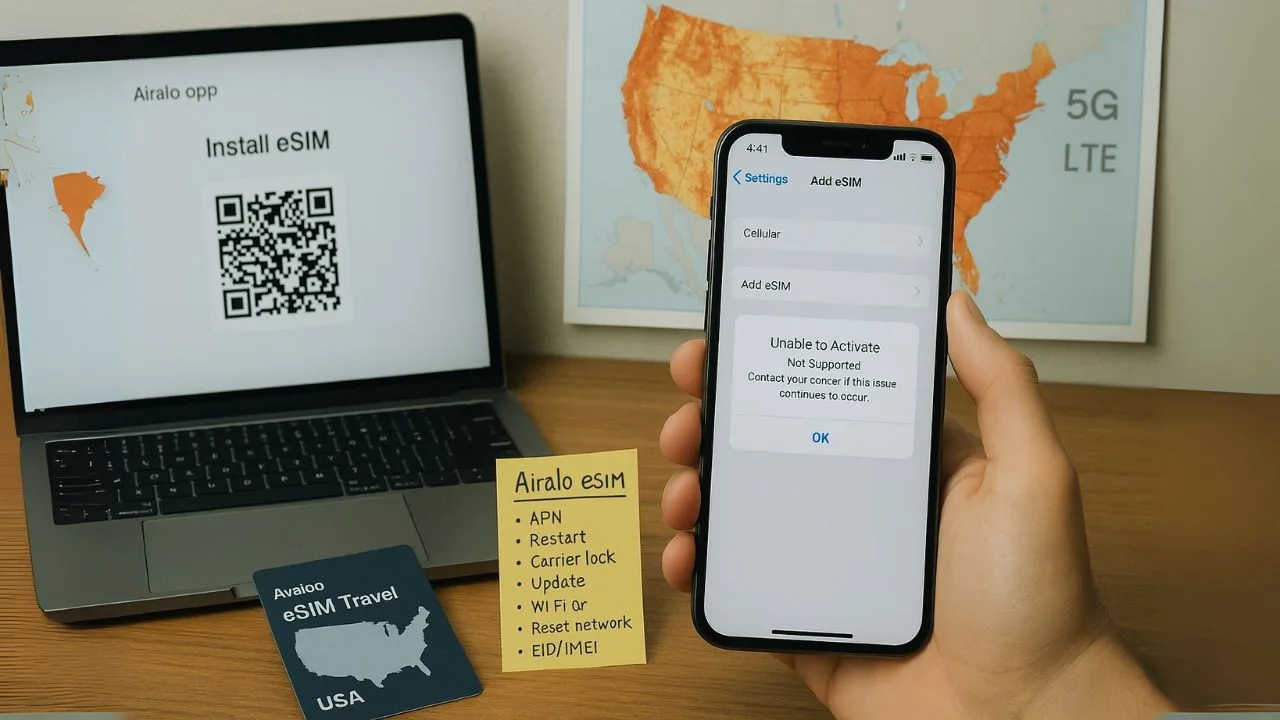
Airalo eSIM is a digital SIM. It lets you join mobile networks without a plastic card. If you travel often in the USA, fast eSIM activation matters. Small setup mistakes can block service, so a little troubleshooting eSIM work helps. If you saw “Airalo ESIM Not Activating In The USA? Carrier Compatibility & Fixes” in a forum, you are not alone.
Common blockers include phones that do not support eSIM, carrier locks, or outdated software. Simple things like disabled data roaming, weak Wi-Fi, or the wrong network settings can also stop activation. Some phones hide carrier locks until later. Others hit storage limits from old eSIM profiles. Quick fixes, like a restart or a fresh APN, often solve it. If not, Airalo support can step in and get you online.
Key Takeaways
- Use an eSIM-capable, unlocked phone with up-to-date software, iOS 12.1 or Android 10 or newer, before trying to activate in the USA.
- Airalo works on most unlocked phones with AT&T, T-Mobile, Verizon, and US Mobile, but CDMA-only carriers like Boost Mobile may not work.
- Turn on data roaming and use stable Wi-Fi during setup. Missing these steps is a top cause of eSIM activation issues.
- Delete old or unused eSIM profiles if you hit storage limits. Many phones allow only a few digital SIMs at once.
- If problems continue after checking device compatibility and network settings, contact Airalo support in the app or email support@airalo.com.
Why Is Your Airalo eSIM Not Activating?
Sometimes the phone, the carrier, or your settings refuse to cooperate. The good news, most fixes are quick once you find the cause.
What are the common activation issues with Airalo eSIMs?
Even if you followed every step, an eSIM can still fail to activate. These are the usual culprits.
- Your phone is not eSIM-compatible, or it is carrier-locked. That blocks activation from the start. Check your exact model and unlock status first.
- The internet is slow or unstable during setup. Use strong Wi-Fi or solid mobile data until installation finishes.
- Data roaming is off, which often blocks eSIM activation in the USA, especially on iPhones.
- Old or unused eSIM profiles fill storage. Delete a few before adding a new plan.
- APN settings, the access point for mobile data, are wrong or missing. Update them after installation.
- Your current carrier blocks access to partner networks. Unsupported networks can leave status stuck on “activating.”
- Airplane mode is on during setup. Wireless activation needs airplane mode off.
- Temporary outages at Airalo or the carrier can stall activation. Check for service alerts if nothing else works.
- A step was skipped, like mishandling the QR code or manual entry. Follow each prompt closely.
Any one of these can derail your trip if you do not catch it early.
📖 Also Read: How To Find Your Port-Out PIN (Boost, Spectrum, Mint, Visible, More)
How does carrier compatibility affect eSIM activation?
Carrier compatibility is key. A carrier-locked phone will refuse new eSIM profiles from other providers. For example, a device locked to AT&T will not activate an Airalo eSIM until it is unlocked. Many US carriers use this lock, and it surprises a lot of travelers.
Your phone also needs the right network tech. If the device or SIM slot is restricted, you cannot install the profile. Some models store only a few eSIMs at once. You might need to delete older profiles before adding the new plan. Checking lock status and supported networks saves time and stress.
How to Check Device and Carrier Compatibility
Not every phone works with every network. A quick check now can save hours later with eSIM activation issues.
How do I know if my device supports eSIM?
Open Settings and look for “Add Mobile Plan” or “Cellular Plans.” That menu appears on most eSIM phones, like iPhone XS or newer, Google Pixel 3 or newer, and many Samsung Galaxy models.
Your phone must be unlocked for Airalo. Update your software first. iPhones should run iOS 12.1 or later. Android phones usually need Android 10 or higher. If you are unsure, check the official device list on your phone maker’s site.
How can I confirm my device is unlocked?
On iPhone, go to Settings, General, About. Find Carrier Lock. If it says “No SIM restrictions,” your phone is unlocked and ready for eSIM. Any other note means it is locked.
On Android, insert a SIM from a different carrier. Try a call or data. If it works, the phone is unlocked. If not, contact your carrier to request unlocking. Also install any software updates, since some phones hide eSIM menus until you update.
📖 Also Read: iPhone Locked To Owner Vs Carrier Lock (What is The Difference?)
Which carriers does Airalo support in the USA?
Airalo partners with several US networks. Picking the right one makes activation smoother.
- AT&T supports many Airalo plans and has wide coverage. Some prepaid plans may block new eSIMs.
- T-Mobile offers strong nationwide support and often connects quickly with Airalo.
- Verizon is common across the USA, but some older phones may have trouble on 4G or LTE.
- US Mobile uses T-Mobile and Verizon, and it works well on unlocked phones.
- Airalo works best with unlocked GSM-friendly devices, not phones locked to one provider.
- CDMA-only options like Boost Mobile may not allow eSIM for non-customers.
- Compare your phone model with the carrier’s supported list to avoid setup issues.
- Use stable Wi-Fi during setup so the SIM card settings install cleanly.
- Turn on data roaming during install to let your phone find partner networks.
- Coverage varies by city and rural area. Check local coverage maps if you plan long drives.
If your device compatibility and carrier compatibility line up, you will likely get online fast.
📖 Also Read: AT&T eSIM Unlock Done But “Unable To Activate”? Do This Next
Troubleshooting Airalo eSIM Activation Issues
Think of this as a short checklist to wake the line up.
How can I ensure a stable internet connection?
Check signal bars. Weak bars mean weak service. Move near a window, or step outside if needed.
Restart the phone to refresh connections. Use Wi-Fi during setup if mobile data is flaky. Confirm Mobile Data is on and your Airalo eSIM shows in the network list. If the area has poor service, try a different spot. Avoid tunnels and subways during activation.
How do I check and update APN settings?
APN controls mobile data. If it is wrong, the internet will not load even if the eSIM installs.
- Open Settings, then Network & Internet or Mobile Data. Tap SIM cards or Cellular Networks.
- Select your Airalo eSIM profile.
- Open Access Point Names, also called APN.
- Compare fields with the details in your Airalo email or on the website.
- Fix any field that does not match: APN name, username, password, and others.
- Tap Save.
- Toggle airplane mode on for ten seconds, then off, to refresh the connection.
- Open a browser and test mobile data.
- If it still fails, check for typos and save again.
- On iPhone, go to Settings, Cellular or Mobile Data, then Cellular Data Network to edit APN.
- Contact Airalo support if you still cannot connect. Some phones in the USA need special help.
Getting APN right is the key step for clean data access.
Why should I enable data roaming for activation?
Data roaming lets your phone talk to partner networks in a new country. Without it, your eSIM may never register or download the right network settings. Airalo needs that first handshake to complete activation. Many people get stuck here by leaving roaming off. Turn it on before you start.
How do I manually select a network on my device?
Sometimes your phone needs a little nudge to pick the right network.
- Open Settings and tap Mobile Data or Cellular Network.
- Tap Network Selection.
- Turn off Automatic.
- Wait for the list to load. Look for AT&T, T-Mobile, or Verizon Wireless.
- Select one supported carrier and wait for the connection attempt.
- If it fails, pick another supported network and try again.
- A steady connection helps, but it may connect after selection.
- On dual SIM phones, turn off other eSIMs for now to avoid confusion.
- Give it up to sixty seconds to attach to the network.
- If none work, restart your phone, then repeat the steps or contact support.
Manual selection often fixes early activation glitches in the USA.
How to Fix an eSIM Stuck on Activating
If the status will not move, think reset, clear, and try again.
How do I clear old eSIM profiles?
Most phones store only a few eSIM profiles. Extra profiles can block new ones. Open Settings, go to Cellular or Mobile connectivity, then SIM manager or Network profiles. Select the profiles you do not need and delete them.
Once cleared, try adding the Airalo plan again. This quick cleanup removes conflicts and frees space.
Will restarting my device help with activation?
Yes. A restart clears small bugs and refreshes the radio that talks to carriers. If your Airalo line is stuck, reboot the device. Then connect to strong Wi-Fi and try again.
Keeping your software updated also helps prevent device support problems during setup.
How do I reset network settings on my phone?
A network reset wipes saved Wi-Fi, Bluetooth, and cellular settings. Your files stay safe.
- Open Settings.
- Tap General or System, then Reset or Reset options.
- Choose Reset network settings.
- Confirm the reset. You will need to reenter Wi-Fi passwords later.
- Wait for the phone to finish and restart if needed.
- Toggle airplane mode off and on once.
- Reconnect to Wi-Fi, then test the eSIM again.
- If carrier issues remain, consider a full device reset as a last step.
- This works on iPhones, Android phones, and many tablets with eSIM.
- Many users report success right after a network reset.
Tips to Successfully Activate Your Airalo eSIM
A short, clean setup makes activation faster and smoother.
What is the correct eSIM installation process?
First, confirm device compatibility and unlock status. Connect to strong Wi-Fi. Avoid basements or dead zones. Open the Airalo app and start a new eSIM install.
Scan the QR code, or enter details manually if prompted. On iPhone, go to Settings, Cellular, Add Cellular Plan. After install, turn on Data Roaming for the Airalo line so it can reach AT&T or T-Mobile right away. If you hit a profile limit, delete an old one. Then restart the phone to refresh everything.
Why should I disable airplane mode during activation?
Airplane mode turns off Wi-Fi and cellular. Activation needs a live internet connection to reach Airalo’s servers and the local carrier. With airplane mode on, the process cannot finish. Turn it off before you begin, then leave it off until activation completes.
Should I turn off other eSIMs temporarily?
Yes, it helps. Multiple active lines can fight for signal and slow setup. Turning off other eSIMs gives your phone one job, activate the new plan. If the phone is at its profile limit, remove an older one to avoid errors.
When to Reach Out for Support
If you have tried the steps above and still see “activating,” it is time for backup.
How do I contact Airalo customer support?
Open the Airalo app and tap Help or Support. You can also email support@airalo.com. Share your device model, iOS or Android version, and what you have tried so far. Quick details help the team spot the issue faster.
They can check account status, provisioning, and any backend flags. Keep a steady internet connection so you can follow live steps if needed.
How can I check for system or network issues affecting activation?
Some problems are outside your control. A quick check can save time.
- Confirm strong mobile signal bars, not just Wi-Fi.
- Look for a carrier lock note in settings.
- Run a quick speed test by loading a web page on mobile data.
- Turn off airplane mode so the phone can connect.
- Toggle data roaming on to let the eSIM find USA networks.
- Delete old eSIM profiles if storage is full.
- Restart the phone after each fix to refresh the radio.
- Check outage pages for AT&T, T-Mobile, Verizon, or MVNOs used by Airalo.
- Make sure you are within a coverage area.
- If nothing works, contact Airalo from another device so they can check backend systems.
Keep testing one step at a time until that “activating” tag disappears.
Conclusion
Getting stuck with an Airalo eSIM in the USA is frustrating, but most fixes are simple. Check device compatibility and carrier compatibility, clean up old profiles, and confirm network settings like APN and data roaming. A quick restart or a network reset often clears eSIM activation problems. If you still hit a wall, reach out to Airalo support. With a few clear steps, you will be back online fast.
FAQs
1. Why is my Airalo ESIM not activating in the USA?
Sometimes, your Airalo ESIM stalls because it clashes with certain mobile networks in the States. If your phone does not support local carriers like AT&T or T-Mobile, activation can hit a wall. Double-check if your device supports eSIM and is unlocked.
2. Which US carriers work best with Airalo ESIM?
Airalo partners mostly with major American providers such as T-Mobile and AT&T. Verizon often sits this one out; their network rarely plays nice with most international eSIMs.
3. How do I fix an inactive Airalo ESIM on my phone?
First, restart your device to clear any digital cobwebs. Next, remove then reinstall the profile from settings—sometimes that’s all it takes for things to click into place. If you still see no bars, try toggling airplane mode or check if data roaming is switched on.
4. Can I use Airalo ESIM for calls and texts in America?
Most of the time, Airalo’s plans only cover data usage within the United States; they skip traditional calling and texting features altogether. For voice calls or SMS messages, stick to apps like WhatsApp or Messenger while using your data connection instead of relying on regular cellular services.