

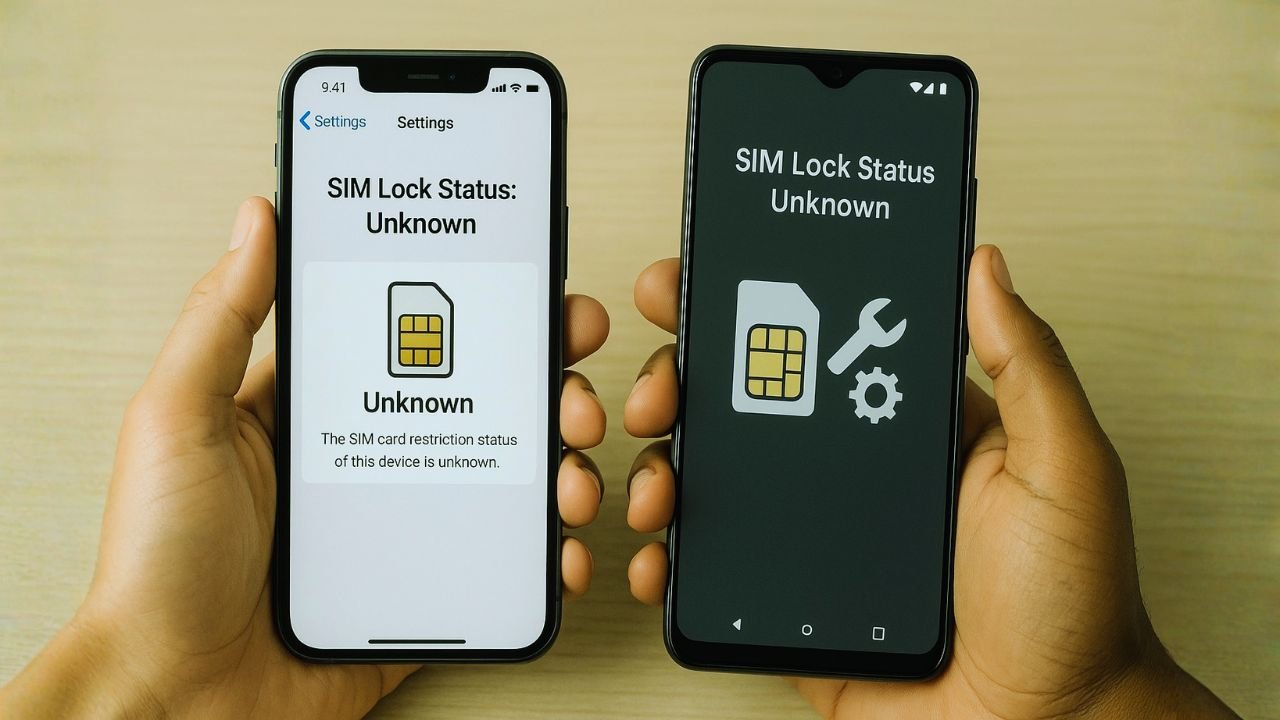
Seeing SIM Lock Status: Unknown feels like the phone is speaking in riddles. Is it restricted? Is it free? Why can’t it just say yes or no?
Here’s the thing: “Unknown” doesn’t mean your phone is broken. It usually means your device or the network didn’t finish confirming the status. Good news—most of the time, you can nudge it to a clear answer with a few practical steps.
You know what? Let’s make this simple, fast, and real-world. I’ll show you what “Unknown” actually means, why it happens on iPhone and Android, and the exact moves that fix it.
TL;DR
“SIM Lock Status: Unknown” usually means your phone hasn’t finished activation or provisioning—often due to eSIM issues, missing carrier settings, weak signal, or an IMEI/account mismatch, not that it’s locked. Fix it by inserting a known-good SIM, staying on strong Wi-Fi, updating OS and carrier settings, and resetting network settings; if using eSIM, remove and re-add the profile. Still stuck? Ask your carrier to attach your IMEI and re-provision the line, then confirm by testing a second carrier’s SIM. If the status doesn’t change after all that, suspect a SIM reader/modem hardware issue. (Note: SIM PIN lock ≠ carrier/network lock.)
What “SIM Lock Status: Unknown” really means
“Unknown” is not a verdict. It’s a state of uncertainty. Your phone hasn’t confirmed whether it’s locked to a carrier because one or more of these are true:
The device hasn’t finished activation.
The SIM/eSIM profile isn’t fully provisioned.
Carrier settings are outdated or missing.
The phone can’t reach the server that confirms lock status.
The modem/baseband or SIM reader isn’t returning a valid response.
Once activation completes and the device pulls the right settings, the status should switch to either unlocked (no restrictions) or locked (restricted to a carrier).
📖 Also Read: Wholesale and Auction Lots — Safely Evaluating Mixed IMEI and Carrier Status at Scale
Where you’ll see it on iPhone and Android
On iPhone
You normally see “No SIM restrictions.” When it can’t determine the status, you may see “Unknown.”
On Android (varies by brand)
Some devices show “Network lock: Unknown” or similar.
Quick diagnosis checklist (fastest path)
Before deep troubleshooting, try this short flow. It resolves “Unknown” for most people:
Insert a known-working SIM (physical or eSIM) and connect to strong Wi-Fi.
Restart the phone and wait 2–5 minutes on the home screen with Wi-Fi on.
Update OS and carrier settings (you’ll usually get a pop-up on iPhone under Settings → General → About; on Android, check Settings → System → Updates and your OEM’s Carrier Services app if present).
Reset network settings (doesn’t erase your data, but clears Wi-Fi, APNs, Bluetooth):
iPhone: Settings → General → Transfer or Reset iPhone → Reset → Reset Network Settings
Android: Settings → System → Reset options → Reset Wi-Fi, mobile & Bluetooth
Re-check the lock line:
Reset network settings (doesn’t erase your data, but clears Wi-Fi, APNs, Bluetooth):
Reset network settings (doesn’t erase your data, but clears Wi-Fi, APNs, Bluetooth):
If the status is still “Unknown,” continue below.
📖 Also Read: After a Motherboard or Face ID Repair—Will Your Phone Still Work With Any Carrier?
Common causes (and how to recognize them)
Activation not complete
Brand-new, recently erased, or newly repaired phones often show “Unknown” until activation finishes. Signs include missing carrier name, no signal bars, or “Waiting for activation.”
Fix: Connect to Wi-Fi, insert a valid SIM/eSIM, and let the device sit on the home screen. Keep the screen unlocked for a few minutes so background tasks run.
Activation not complete
If your eSIM didn’t download correctly—or it’s still pending carrier approval—the phone can’t verify lock status.
Fix: Remove the stuck eSIM profile, reboot, and re-add the eSIM QR from your carrier. If you changed phones, ask the carrier to reissue the eSIM.
eSIM pending or corrupted profile
Carrier updates teach your phone how to identify and authenticate the network. Without them, you might get “Unknown.”
Fix: Trigger a carrier settings update:
iPhone: Settings → General → About (wait for the update prompt)
Android: Check your system updates, OEM support app, and ensure Carrier Services (Google) is up to date from the Play Store.
No or bad network signal
In a dead-zone (or with a deactivated line), the phone can’t contact activation servers or verify provisioning.
Fix: Move to a strong signal area or connect to solid Wi-Fi, then reboot and wait a few minutes.
SIM card issues (physical)
Dust, damage, or a bent tray can block the SIM from reading properly.
Fix: Power off, remove the SIM, gently clean the gold contacts, reinsert, or try another known-good SIM. If physical SIMs all fail, suspect a tray or reader issue.
IMEI not provisioned or account problem
If your IMEI isn’t on the line, the account is suspended, or your number is still in porting limbo, the phone may stall on “Unknown.”
Fix: Call/chat with your carrier. Ask them to:
Confirm the IMEI is assigned to your line.
Verify the line is active and not suspended.
Re-push activation and, if eSIM, reissue the QR.
Software glitches or beta firmware
Preview builds, buggy updates, and rare crashes can scramble the network stack.
Fix: Update to the latest stable release. If that fails, Reset Network Settings. As a last resort, back up and factory reset (this does not remove iCloud/Google activation locks).
Modem/baseband or board-level repairs
After logic-board, baseband, or SIM-reader repairs, the phone may report “Unknown” if the modem can’t initialize cleanly.
Fix: If you recently had hardware work done and simple steps fail, get a diagnostic. A technician can test the SIM reader and baseband.
📖 Also Read: GSMA blacklist Check, Carrier Lock Status, and free IMEI Checks—made simple
Step-by-step fixes for iPhone
Step — Confirm basics
Step — Carrier settings + iOS update
Step — Reset Network Settings
Step — Refresh the eSIM (if using eSIM)
Step — Re-activate with Apple
Step — Fast Condition & Function Pass
Step — Consider a clean restore (last resort)
Step-by-step fixes for Android
Step — Confirm basics
Step — Update system + carrier components
Step — Reset network settings
Step — Refresh eSIM (if applicable)
Step — Re-activate with Apple
Step — Carrier help
Step — OEM-specific checks
How to confirm the final result (and avoid false alarms)
You want certainty. Here’s how to verify the true lock state after the steps above:
Cross-carrier SIM test: Insert SIMs from two different carriers. If both work for calls/texts, the phone is effectively unlocked. If your original carrier works but the other doesn’t, it’s locked.
Check the UI again:
iPhone should say “No SIM restrictions.”
Android should indicate “Network unlocked” or show your network without complaints.
Carrier confirmation: Ask the carrier if your IMEI shows unlocked or eligible. If they just approved the unlock, it can take some time for servers to update—reboot and recheck after they push confirmation.
Special edge cases you should know
Dual-SIM / Dual-IMEI confusion
Some dual-SIM phones can show inconsistent results if only one slot/eSIM is configured. Always test with the active slot and ensure both IMEIs are provisioned if you use both.
Porting and number transfers
During a number port, lines can be active in a weird half-state. If you see “Unknown” during a port, wait for the port to complete and ask the new carrier to re-provision.
MDM, enterprise, or refurbished devices
Corporate profiles and certain refurbished configurations can delay or block activation handshakes, leaving status as “Unknown.” Remove old profiles when possible and ensure the device is released from any enterprise system.
After board or Face ID/motherboard repairs
If the repair involved the baseband or SIM reader, “Unknown” can indicate hardware. When software and carrier steps fail, get a hardware diagnostic.
When to suspect hardware
If all software and carrier steps fail, and multiple known-good SIMs don’t register, the SIM tray/reader or the modem (baseband) may be faulty. Typical clues:
No IMEI showing (or showing as “Unknown”).
Persistent “No SIM” even with several SIMs.
Random drops to “Emergency calls only” with different carriers.
A repair shop can test the reader, tray, and baseband lines. If it’s a hardware fault, fixing it usually clears the “Unknown” state.
The Final take
“SIM Lock Status: Unknown” feels vague, but it’s usually a temporary activation or provisioning gap. Start simple: good Wi-Fi, a known-working SIM, updates, and a network settings reset. If needed, refresh your eSIM and ask the carrier to re-provision your IMEI. When none of that works, a hardware check is the logical next step. Once the phone can talk to the right servers (and the SIM hardware is healthy), “Unknown” almost always resolves into a clear answer.
FAQs
Your phone reads the line number from the SIM profile, but many carriers don’t actually store it on the SIM. During number ports, eSIM transfers, or with replacement SIMs, the “My number” field can be blank, so the phone shows “Unknown.” This doesn’t affect service. Fix it by restarting with good signal/Wi-Fi, updating carrier settings, and—if your phone allows—editing the “My number” field in SIM/Cellular settings. If it stays unknown, ask your carrier to reprovision the line or reissue the SIM/eSIM.
“SIM/Carrier lock” tells you whether your phone is restricted to one network.
Unknown: the phone can’t confirm yet (often activation, provisioning, or signal issue).
Note: a SIM PIN lock is different—it protects the SIM with a 4–8 digit code and has nothing to do with carrier unlocking.
Unlocked: works with different carriers.
Locked: only works with the original carrier until they approve an unlock.
Power off, reseat or replace the SIM tray, and try a known-working SIM. Connect to strong Wi-Fi, restart, and wait a few minutes. Update your OS and carrier settings; then reset network settings (this won’t erase personal data). For eSIM, remove and add the profile again. If it persists, ask the carrier to attach your IMEI to the line and reprovision your ICCID; if multiple SIMs fail, have the device checked for a SIM-reader or baseband issue.
Go to Settings → Cellular → SIM PIN (or Mobile Data → SIM PIN), toggle SIM PIN off, and enter your current PIN to confirm. If you’ve forgotten the PIN, do not guess—after a few wrong tries the SIM will require a PUK code from your carrier. Turning off the SIM PIN doesn’t carrier-unlock the phone; it only removes the PIN prompt at boot.
Open Settings → Security & privacy → More security settings → SIM card lock (paths vary by brand), toggle Lock SIM card off, and enter the current PIN. If you don’t know it, contact your carrier for the PUK code to reset the PIN safely. As with iPhone, this changes only the SIM PIN behavior; it doesn’t remove a carrier/network lock.


