

Ever Locked Yourself Out of Your Android Phone?
Let’s be real—we’ve all been there. You set a new password or pattern on your Android phone, feel smart for keeping your data secure… and then forget it completely. Frustrating, right? At that point, you’re likely panicking and asking Google things like:
“What’s the secret code to unlock an Android phone?”
“Is there a master code to unlock my phone password?”
If you’re a mobile phone user in the U.S. looking for a fast way in—this guide is for you.
Here, I’ll break down what these secret or master codes really are, how they work, and whether they’re safe (spoiler: not always). I’ll also give you better alternatives to regain access—without nuking your data. Let’s dig in.
Quick Answer
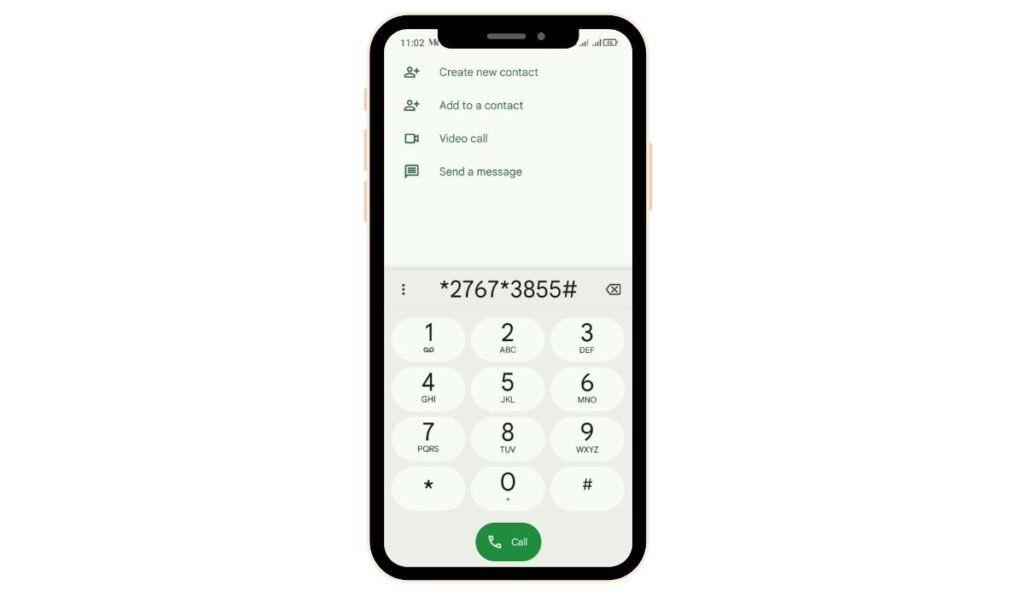
Looking for a secret code to unlock your Android phone password? While there are USSD-based reset codes like *2767*3855# and *#*#7780#*#*, these do not actually “unlock” your password—they factory reset your phone, wiping everything in the process, including the lock screen data. So yes, they remove the password, but at the cost of all your personal files unless you’ve backed them up.
For Samsung devices, codes like *2767*2878# and *2767*3855# are often mentioned in forums, but again—these are formatting/reset codes, not safe unlock bypasses. LG phones *#9999# or 42*002#
Important: There is no universal master code to safely unlock your Android phone without data loss. Claims about secret codes like ‘##7465625##’ are either misleading or specific to older, outdated models.
If you’re locked out, the safest and most effective methods include:
- Google Find My Device (for erasing and regaining access)
- Samsung Find My Mobile (for remote unlock)
- Authorized service centers (with proof of ownership)
Be cautious with any code that promises a magical unlock—it usually comes with serious risks like data loss or bricking your device.
What Is the Secret Code to Unlock Android Phone Password?
There is no universal “master code” that magically bypasses the Android lock screen without deleting data. What does exist are manufacturer-level secret codes that typically trigger a factory reset or firmware reinstall. These codes wipe your phone clean—but unlock it in the process.
Don’t Miss It: How To Unlock A Motorola Phone To Use On Any Network
Most Known Secret Codes
| Code | Action Performed | Data Loss? |
|---|---|---|
*2767*3855# | Full firmware reinstall | Yes – all data erased |
*#*#7780#*#* | Factory data reset | Yes – deletes user data and apps |
*#*#7262626#*#* | Field Test Mode (no unlock) | No |
Important: These codes don’t bypass FRP (Factory Reset Protection), and they won’t work on all devices or Android versions.
What Are Secret Codes and Master Codes?
Let’s clear up the confusion. In tech circles, “master code” often means a special override that gives you full control. But for Android, that’s not how it works.
Here’s what they really are
- Secret codes are strings you type into the dialer.
- They were designed by manufacturers (Samsung, HTC, etc.) for testing and debugging.
- Some codes perform hard resets, others reveal system information.
- They don’t let you bypass a screen lock without wiping your data.
In my experience working with Android tech over the years, these codes are a last resort—useful, yes, but not gentle.
Step-by-Step: How to Use a Secret Code on a Locked Android
If you’re dead set on trying it, here’s the safest way to go about it:
Method: Using Emergency Call Dialer
- Turn on your locked Android device.
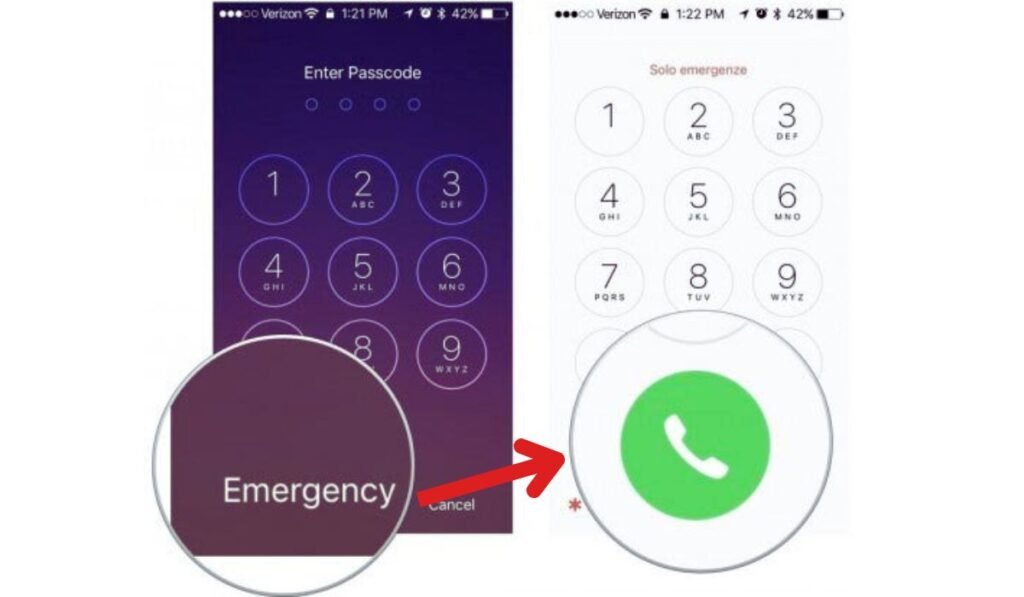
- From the lock screen, tap “Emergency Call.”
- In the dialer, carefully enter the code:
Example:*2767*3855# - Tap the call button or enter key.
- Your phone will begin the reset process immediately (no confirmation in some cases).
This is irreversible. Once entered, your phone will wipe itself clean, just like a factory reset.
What These Codes Can’t Do
Let’s bust a few myths. These codes won’t:
- Unlock a locked screen without data loss
- Bypass Google FRP (Factory Reset Protection)
- Work on all Android versions or brands (many restrict code execution)
- Help if the dialer is completely inaccessible
On Reddit, users often say things like:
“I tried the code but nothing happened. My Pixel just showed ‘Invalid MMI code.’”
That’s because newer phones, especially in the U.S., block dialer-based factory reset codes for security reasons.
Don’t Miss It: How To Unlock A Straight Talk Phone
12 Secret Codes That Unlock Hidden Features on Your Phone (Android & iPhone)
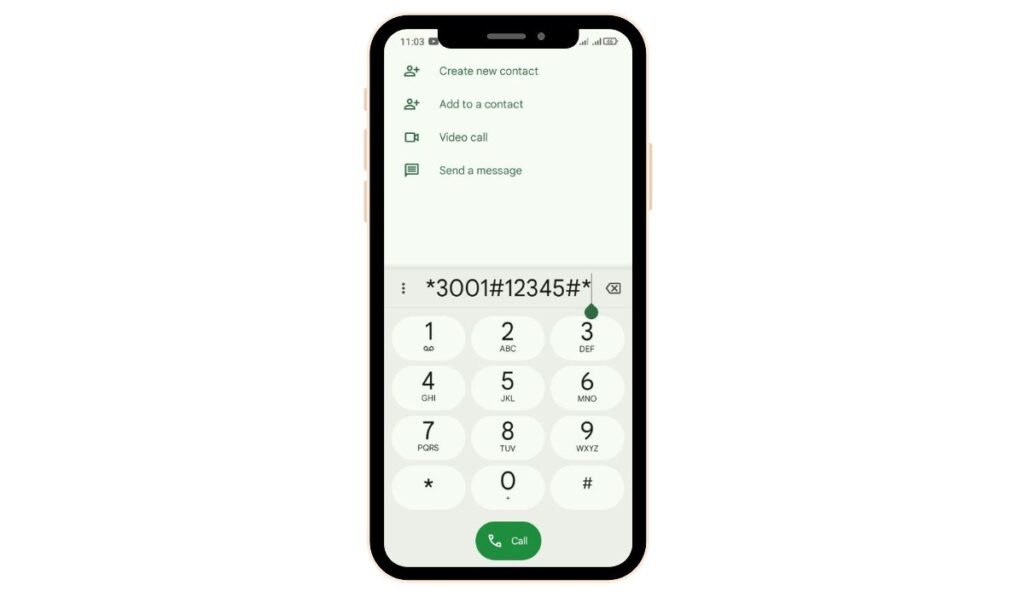
1. Field Mode – *3001#12345#*
Want to see your signal strength in dBm instead of those bars at the top of your screen? Try this.
When you dial *3001#12345#* and hit call, it opens “Field Mode”—a deep-dive interface used by engineers. It displays advanced network data, including info on nearby towers and raw signal strength. While much of the data will look like gibberish to most of us, there’s real value in seeing if you’re in a low-signal area (look for numbers like -110 dBm—lower is worse).
Just don’t expect to find out if someone’s spying on your phone through this—it’s technical diagnostics, not a spy detector.
2. IMEI Display – *#06#
This one’s universally useful. Typing *#06# instantly shows your IMEI number—a unique ID tied to your phone’s hardware.
It’s what mobile carriers use to recognize your device, and if your phone is ever lost or stolen, this number can be used to blacklist it so it becomes unusable to thieves. If you’ve got dual SIMs or eSIMs, you’ll see multiple numbers pop up. It works on both Android and iPhones and saves you the hassle of digging through settings.
3. Call Forwarding Check – *#67# or *#21#
Wondering where your calls go when you hit “decline”? These codes tell you.
Dialing *#67# shows which number your phone forwards to when you’re busy or don’t pick up—typically your voicemail. *#21# checks all your active call forwarding settings. It’s a good way to ensure your calls aren’t secretly going somewhere unexpected.
To change the number you forward to, go to Settings > Phone > Call Forwarding (on iPhone) or navigate through the Phone app settings on Android.
4. Call Waiting Toggle – *43# / #43#
Call Waiting lets you know when someone else is calling while you’re already on the phone. If you dial *43#, you activate it. Dial #43# to turn it off.
But beware—this varies across carriers. On AT&T and T-Mobile, these codes manage call waiting. On Verizon, *43 disables call forwarding, not waiting. To temporarily disable Call Waiting on Verizon for a single call, just dial *70 before the number you want to call.
5. Check Available Minutes – *646# (AT&T)
Want to see how many minutes you have left? On AT&T, dial *646# and hit call. You’ll get a text message showing your available minutes.
It also supports Spanish via *876#. Verizon users can check minutes with #646; and T-Mobile users can dial #646#.
It’s quick, accurate, and especially helpful for those not on unlimited plans.
6. Check Bill Balance – *225# (AT&T)
Wondering how much you owe on your phone bill?
AT&T customers can dial *225# and receive a free SMS with the current bill balance. On Verizon, the code is #225. For T-Mobile, it’s #225#.
This is especially handy when you want to avoid logging into an app or website just to check your balance.
7. Billing Cycle and Data Use – *3282#
Want to know how much data you’ve used this month or when your billing cycle resets?
Dial *3282# (which spells “DATA”) on AT&T to get a text message showing your usage details. Verizon users use #3282, and T-Mobile’s version is #932#.
If your account has multiple lines, you’ll also see how much data each line has used. It’s great for keeping tabs and avoiding surprise overage charges.
8. Caller ID Toggle – *31# or #31#
If you want to hide your number when calling someone, try this:
Dial #31# before the number you’re calling. For example, #31#1234567890. Your number will show up as “Unknown” or “Private” on their screen.
To disable this setting globally, dial *31#—or adjust it in your phone’s settings. This trick is a must-have for those moments when you need a little anonymity.
9. Government Test Alerts – *5005*25371#
This one is surprisingly helpful.
Dialing *5005*25371# tells you if your phone is set up to receive test alerts from emergency services. If you see a “YES,” you’ll get alerts for things like AMBER alerts, natural disasters, or other critical events.
To opt out of test alerts (though not always recommended), dial *5005*25370#.
10. Check Prepaid Balance – *777#
Prepaid phone users—this one’s for you.
If you’re on a prepaid plan, dialing *777# sends you a text message with your remaining balance. It’s a fast way to know if you’re running low on credit.
Not on prepaid? You’ll likely get an error or message that this code isn’t available for your account type. Postpaid users can stick to *225# instead.
11. Android Phone Testing Menu – ##4636##
Now this one’s wild—especially for Android geeks.
Typing ##4636## opens a Testing menu that reveals deep technical info, like:
- Your phone’s signal strength
- Network type (4G/5G)
- Usage stats
- Battery data
- Wi-Fi status
- Mobile radio power
If you’re troubleshooting a connection issue or want to geek out over hidden system info, this is your playground.
But be careful—this is diagnostic info, not something to mess with unless you know what you’re doing.
Don’t Miss It: How to Use an Assurance Wireless SIM Card in Another Phone
12. Factory Reset Code – *2767*3855#
Warning: Typing this will wipe your phone. Completely.
Dialing *2767*3855# on an Android phone initiates a full factory reset, reinstalling the original firmware. It’s the nuclear option—do this only if you’re absolutely certain.
We didn’t test it (for obvious reasons), but yes—it works. So double-check before you type anything into your dialer.
Alternatives to Using Secret Codes
If you’re hoping to unlock your phone without erasing all your stuff, here’s what I personally recommend first:
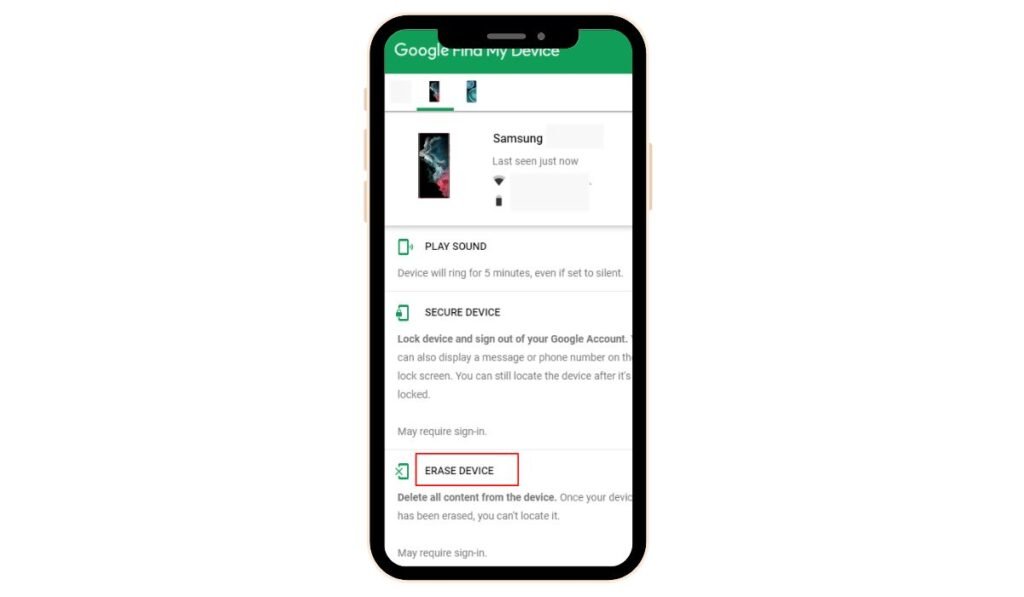
Option 1: Google’s Find My Device (If Location + Internet Is ON)
If your phone is connected to Wi-Fi or mobile data and Find My Device is turned on, here’s your move:
Steps:
- Visit Find My Device
- Sign in with the same Google Account linked to the locked phone
- Select your device
- Tap “Erase Device” (yes, this factory resets your phone, but removes the lock)
- Set up your phone again—your Google account will verify your identity
This erases your data unless you’ve backed it up to Google Cloud.
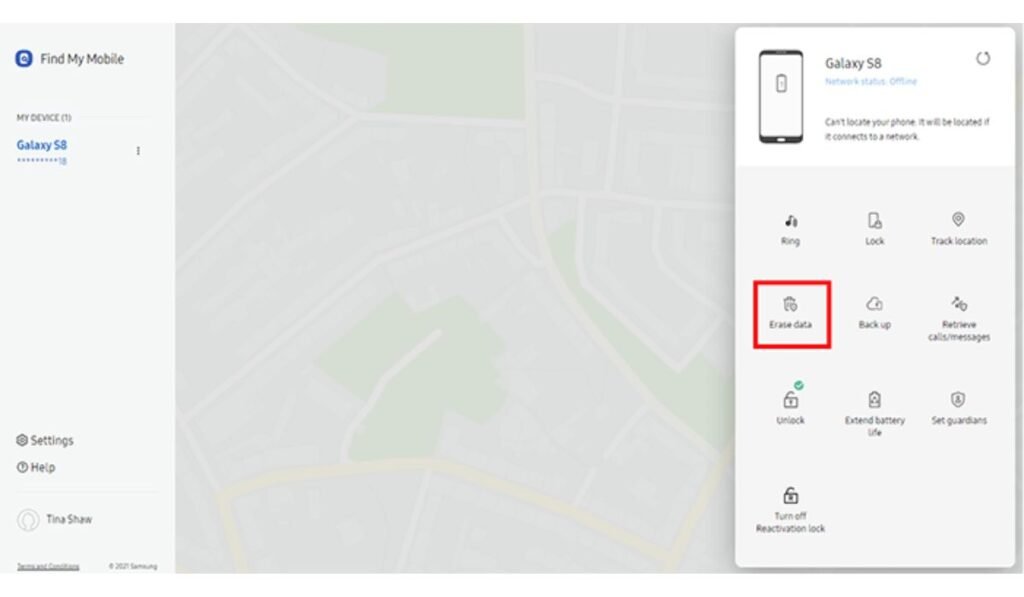
Option 2: Samsung’s Find My Mobile
Samsung’s Find My Mobile tool is a lifesaver (I’ve personally used it to unlock a Galaxy S22 for a friend).
Steps:
- Go to findmymobile.samsung.com
- Log in with your Samsung account
- Choose the locked phone from the list
- Tap “Unlock” (no data loss!)
Boom. Your phone unlocks without a factory reset.
Option 3: Android Unlocker Software
Third-party tools like:
- EaseUS MobiUnlock for Android
- Tenorshare 4uKey for Android
- iMobie DroidKit
- Dr.Fone – Screen Unlock
These work on many devices and versions. Some offer lock screen bypass without data loss, but results vary.
🧠 Pro Tip: Always read recent user reviews before downloading Android unlock tools—some can be scams or bloatware.
Option 3: Use ADB Commands (Advanced Users Only)
This one’s only useful if:
- USB Debugging was enabled before you were locked out
- You have a computer that’s been authorized before
Command: adb shell rm /data/system/gesture.key
After a reboot, the screen lock should be gone.
Pro Tip: If you’re not a techie, skip this—it’s tricky and risky if done wrong.
Myth-Busting the “Master Code” Hype
| Claim | Reality |
|---|---|
| There’s a secret code to unlock all Androids | ❌ False. Each phone handles security individually. |
| Dialing ##XXXX## unlocks your phone | ❌ Doesn’t work on locked screens post-Android 9. |
| Hack tools can bypass passwords easily | ⚠️ Risky. Most are malware or scams. |
| Only factory reset works | ✅ Sometimes true—but not your only option if Find My Device is active. |
But What If You REALLY Need a Master Code?
Here’s what I tell people when they DM me this exact question:
“If there was a master code to bypass Android passwords, it would be a security disaster.”
Imagine anyone being able to walk into a Verizon store, dial a code, and unlock your lost phone. That’s why Google, Samsung, and others purposely don’t allow this. It’s about your privacy.
Instead of looking for a mythical code, look for practical workarounds.
Social Media Reality Check
What are people saying on Reddit?
Browse subreddits like r/Android or r/techsupport, and you’ll see a common theme:
“Tried a bunch of secret codes. None worked. Used Google Find My Device in the end.”
On TikTok?
Tons of viral content promises “easy unlocks” with fancy codes or tricks. But in the comments?
“This bricked my phone.”
“Didn’t work on my Pixel 7.”
Moral of the story: what works is boring but real—official tools, not flashy fake hacks.
Frequently Asked Questions (FAQs)
Q1: Is there really a universal master code to unlock Android phones?
No. Modern Android phones do not have a universal master code for security reasons. Official tools like Google Find My Device or Samsung Find My Mobile are your best bet.
Q2: What happens if I enter the wrong password too many times?
Your phone will either:
- Ask you to wait before trying again
- Lock you out and request your Google account login
- In rare cases, offer a “Forgot Password?” option (older models)
Q3: Can I unlock my Android without losing data?
Yes, but only if:
- You have Find My Mobile (Samsung) or Find My Device (Google) active
- You had USB Debugging enabled and can use ADB
Otherwise, factory reset is the only option—unfortunately.
Q4: Are emergency dialer codes safe to use?
Generally, no. Most don’t work on modern Androids, and some can hard-reset your device. Use with extreme caution.
Q5: Can I go to a phone repair shop for help?
Yes—authorized repair shops can help, especially if you have proof of ownership. But avoid third-party “hackers” offering miracle unlocks—they often use illegal tools or shady methods.
Final Takeaway
If you’re stuck staring at a locked Android screen, I get it—it’s stressful, frustrating, and you want a fix now.
But skip the fake “master code” myths. Trust me, after helping dozens of users recover access to their phones, the real solution lies in official methods like:
- Google’s Find My Device
- Samsung’s Find My Mobile
- Safe factory reset (if all else fails)
If you want to keep your data safe next time, turn on Find My Device, back up to the cloud, and maybe—just maybe—don’t change your password at 2AM.
Need help with a specific Android model? Drop your question in the comments, or check out my guide on How to Unlock Samsung Without Losing Data.


