
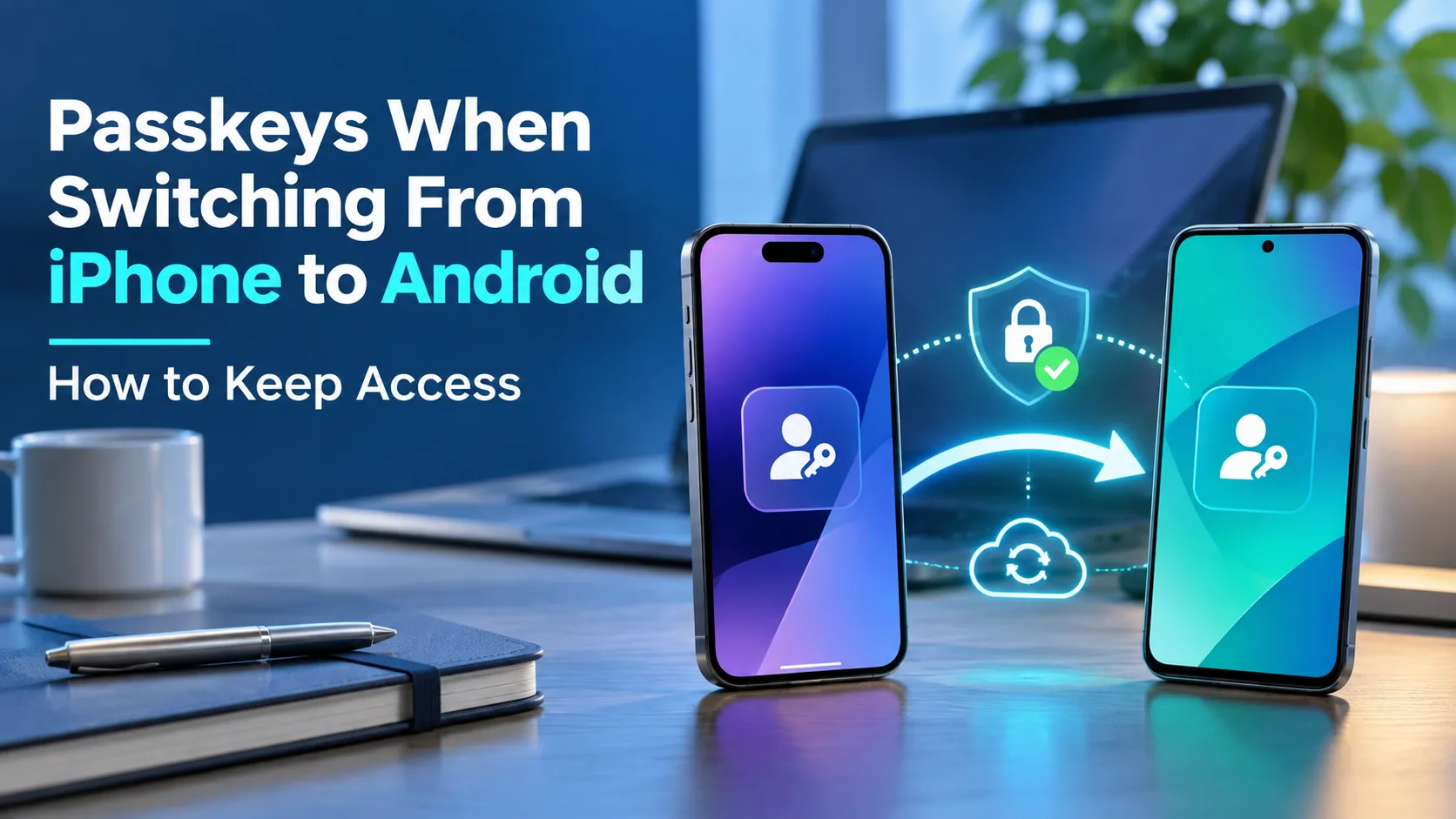
Your passkeys can stay usable when switching iPhone to Android, but the route depends on where they are saved. Use the same compatible password manager, try a supported app-to-app transfer, or sign in with your iPhone and create new Android passkeys. Keep the iPhone until you have tested fresh sign-ins.
Switching phones can leave your sign-in keys in the wrong place. This guide helps you choose a supported route and avoid losing access to important accounts.
Part 1: Prepare Your Passkeys Before the Switch
Before transferring anything, find out which app holds your passkeys. That tells you whether you can sync them, import them, or need to create replacements.
Your Password Manager Determines What Follows You
A passkey is a digital sign-in credential for a particular account. Your face, fingerprint, or device PIN approves its use; those unlock methods are not the passkey itself.
On iPhone, passkeys may be saved in Apple Passwords and iCloud Keychain, Google Password Manager, or another compatible manager. Using Chrome on your iPhone does not, by itself, prove that a passkey was saved to Google.
Apple’s guide to passkeys on iPhone explains how Apple-stored passkeys work across your Apple devices. That Apple sync does not automatically place them in Google Password Manager.
| Where the passkey is saved | Your starting route on Android |
|---|---|
| Apple Passwords/iCloud Keychain | Use a supported export, or add a new passkey to each account. |
| Google Password Manager | Sign in with the same Google Account and unlock your saved credentials. |
| A compatible cross-platform manager | Install the same manager, open your vault, and enable its passkey support. |
| A hardware security key | Use the key with a supported connection; its device-bound passkeys are not ordinary vault exports. |
Check Access Before You Retire the iPhone
Open Passwords on the iPhone, unlock it, and select Passkeys. Review the accounts listed there, then check any other password manager you use.
Start with your main email, password manager, financial accounts, and work accounts. Keep a simple checklist of account names and where their passkeys are stored.
Have these ready:
- Your old iPhone, still working and signed in, if available.
- Access to the Google Account or password-manager account you will use on Android.
- A screen lock on Android and current browser and manager apps.
- Working recovery options, such as backup codes or another registered sign-in method.
- Internet access on both phones; Bluetooth is also needed for nearby-device sign-in.
For Google Password Manager, Google lists Android 9 or later and an enabled screen lock as requirements for storing passkeys. Other managers can require a newer Android version, so check your chosen app’s requirements in advance.
Keep at least one working sign-in route while setting up the next one. A successful phone-data transfer is not proof that your passkeys are ready.
Part 2: Move or Replace Passkeys on Android
Choose the route that matches your current storage. You might use different routes for different accounts, especially if your passkeys are spread across several managers.
1. Use the Same Password Manager When Your Passkeys Already Sync
Start here if your passkeys are already saved in Google Password Manager or another manager that supports both phones. You may only need to connect Android to the same account.
- Step 1: Sign in to the correct account. On Android, use the same Google Account that holds your Google Password Manager passkeys. For another provider, install its official app and sign in to the same vault.
- Step 2: Unlock your saved credentials. Follow any request for your previous device’s screen lock, manager PIN, recovery key, or account verification. A new phone’s unlock code may not satisfy a request for an older code.
- Step 3: Enable the manager’s passkey support. Follow its setup prompts in Android settings. Menu names vary by phone and provider.
- Step 4: Look for an important account. In Android Settings, search for Password Manager, or open your chosen manager. Confirm that the entry includes a passkey, not just a password.
Google Password Manager makes saved passkeys available through the same Google Account. For another provider, follow its instructions for opening and syncing your vault.
Next, try a fresh sign-in to that service. If the vault is empty, check the account and storage location before assuming anything was lost.
2. Transfer Apple Passwords Entries Through a Supported App
If your passkeys are in Apple Passwords, check for a secure app-to-app export. Apple introduced secure credential transfer on iOS 26, allowing participating managers to transfer passkeys without creating an unprotected export file.
This requires compatible software and a destination app that appears in the export choices. It is a transfer between apps on your iPhone, followed by sync to Android.
To use Chrome as the destination:
- Step 1: Prepare Chrome on iPhone. Update Chrome and sign in to the Google Account you plan to use on Android.
- Step 2: Open the export menu. In Apple Passwords, unlock the app, tap the ellipsis (…) menu, and choose Export Data to Another App.
- Step 3: Select your entries. Choose the accounts to transfer, tap Continue, and review the export confirmation.
- Step 4: Choose Chrome, if offered. Follow the prompts to open Google Password Manager. Tap Continue, authenticate, and tap Done when the import finishes.
Google documents this destination flow in its iPhone password and passkey import instructions.
On Android, sign in with that same Google Account and check the imported entries. Review any Invalid Data report on iPhone; a completed import can still leave individual entries behind.
If Chrome is missing from the destination list, update the apps and check again. You can also use another compatible manager you already trust, then sync its vault to Android.
Do not substitute a CSV export for a passkey transfer. Apple’s CSV export instructions cover passwords, and the exported file is unencrypted. A normal password CSV does not carry your passkeys; delete any such file after importing the passwords.
If a passkey cannot transfer, use the next method for that account.
3. Use Your iPhone to Sign In, Then Add an Android Passkey
This is the practical fallback when export is unavailable or an entry is skipped. Your iPhone approves the first sign-in, then you register a new passkey through the service’s account settings.
The service must support the relevant sign-in flow and allow you to add a suitable passkey. The FIDO Alliance’s platform-switching guidance describes this approach.
- Step 1: Start on Android. Open the service’s official website in an updated browser, or use its supported app. Enter your username and choose passkey sign-in.
- Step 2: Choose another device. Look for Use another device, Passkey from nearby device, or similar wording. If supported, the Android screen displays a QR code.
- Step 3: Approve with your iPhone. Keep both phones nearby, connected to the internet, with Bluetooth on. Scan the QR code using the iPhone camera and approve the sign-in with Face ID, Touch ID, or your passcode.
You should now be signed in on Android. If the app does not offer this option, try the service’s official website or another sign-in method it provides.
- Step 4: Open the account’s security settings. Look for Passkeys, Sign-in methods, or Security, then choose Add passkey or Create a passkey. These labels belong to the service, so they vary.
- Step 5: Save the new passkey on Android. Select Google Password Manager or your intended Android provider. Avoid choosing the nearby iPhone as the storage destination again.
- Step 6: Confirm the new registration. Check that the service lists the new passkey. Give it a clear name, such as “Android personal phone,” if naming is available.
For a Google Account, use Google’s passkey management page. Google’s instructions offer Create a passkey; some signed-in Android devices may already have one registered.
Keep your existing working method until you test the new one. Google notes that a newly created passkey can sometimes take up to seven days to become available at sign-in. That is a Google Account condition, not a deadline for every website.
4. Use Account Recovery if the Old iPhone Is Unavailable
You still have options if the iPhone is broken, lost, erased, or already traded in. Start by checking whether your passkey exists in another accessible manager or on another approved Apple device.
If you cannot use a saved copy:
- Step 1: Choose an alternate sign-in route. Use Try another way or the service’s equivalent. Follow the options it actually offers, such as a password, backup code, or registered security key.
- Step 2: Complete official recovery if needed. Use the provider’s recovery process when no working sign-in method remains.
- Step 3: Add and test an Android passkey. Once access is restored, open the account’s security settings and register your new sign-in method.
Recovery requirements and timing depend on the service. A transfer app cannot bypass a website’s account-recovery checks or recreate a missing device-bound passkey.
Does Scanning a QR Code Transfer the Passkey?
No. A nearby-device QR sign-in uses the passkey where it is already stored. It gives you access to the account on Android without importing that credential into Android’s manager.
That is why Method 3 includes a separate creation step. If every sign-in still requires your iPhone, you have working cross-device access, but you have not finished setting up independent Android access.
Bonus Tips: Fix Missing Passkeys and Finish the Switch
Check These Causes Before Repeating a Transfer
A missing sign-in suggestion does not always mean the passkey is gone. Check these likely causes first:
- Wrong account: Your personal and work Google Accounts may hold different saved entries.
- Wrong provider: The passkey may be in another vault, or Android may be offering a different manager.
- Screen lock disabled: Restore a supported lock method before trying passkey sign-in.
- Skipped import: Review the import report and search by both the service name and your username.
- Work restrictions: A managed account or device may limit allowed passkey providers or sign-in methods.
For nearby-device failures, confirm that Bluetooth is enabled on both phones and they are close together. They need internet access, but they do not have to use the same Wi-Fi network.
Test Fresh Sign-Ins Before Erasing the iPhone
Run this check for your main email, manager account, and other accounts you cannot afford to lose:
- Step 1: Keep your recovery route available. Before signing out anywhere, confirm that you still have another way back in.
- Step 2: Power off the iPhone temporarily. On Android, sign out of one selected service and start a normal sign-in again. An app that simply opens an existing session has not tested the passkey.
- Step 3: Confirm Android completes the sign-in. Make sure the intended manager supplies the passkey without asking for your old phone.
If the test fails, turn the iPhone back on and finish the missing setup. Avoid using private browsing as your only test because passkey support can differ there. Erasing the iPhone removes its local data, so complete these checks first.
Also check any authenticator app and recovery phone number separately. Passkeys, rotating verification codes, and text-message codes are different sign-in tools; confirming one does not confirm the others.
Leave passkey cleanup until access is stable. An imported passkey remains the same credential, so do not revoke a website entry simply because its old label mentions an iPhone. Check which credential Android uses before removing anything.
The Bottom Line
The right way to handle passkeys when switching from iPhone to Android starts with finding their storage location. Use the same compatible manager when possible, or try a supported app-to-app transfer from Apple Passwords. For accounts that cannot transfer, sign in with your iPhone and create an Android passkey.
Your next step is to test one important account with the iPhone powered off. Repeat that check for essential accounts before erasing or trading in the old phone.
No. A SIM or eSIM provides cellular service; your password manager or security key holds your passkeys. Keeping the same phone number can help with text-message verification, but it does not copy passkeys between managers.
Yes, when your Android phone and passkey provider support fingerprint approval. You can also use an allowed screen-lock method, such as a PIN. You must first have access to the passkey through sync, import, or a new registration.
Yes, if your manager supports both devices or the service lets you register separate passkeys. A supported credential transfer does not require creating a new website account. Keep each phone protected and test both sign-in routes if you plan to use both.
No. Sign in with Apple is an account sign-in service, while a passkey is a credential used to prove account access. Apple supports Sign in with Apple on participating Android apps and websites, so check for that option before creating a separate account.
Turn off your iPhone, then try a fresh passkey sign-in on Android. If your chosen password manager completes the sign-in without requesting the iPhone, that account is ready. Confirm a backup sign-in method first, and repeat this check for your essential accounts before erasing the old phone.