

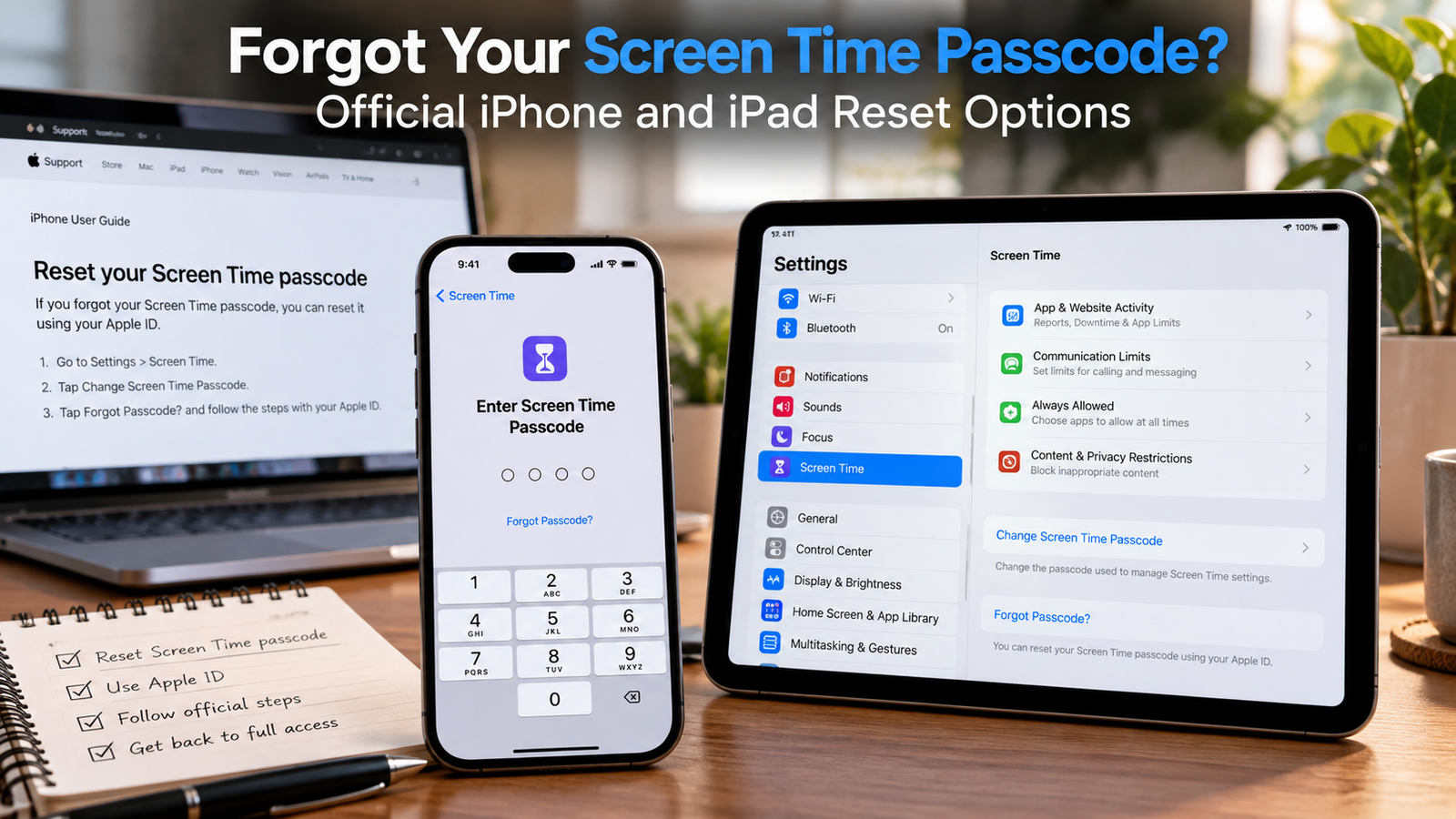
You can reset a forgotten Screen Time passcode without erasing your iPhone or iPad when you can authenticate with the Apple Account used for recovery. For a child managed through Family Sharing, use the organizer’s or parent/guardian’s device. Start in Settings > Screen Time; the available menus depend on your software version.
A forgotten Screen Time code can block changes to app limits and restrictions. This guide explains the official recovery options and what to check when they fail.
Part 1: What to Check Before Resetting Screen Time
Identify whose Screen Time settings you manage and which account was used for recovery.
Understand Which Passcode You Forgot
Your Screen Time passcode protects settings such as app limits and content restrictions. Your device passcode unlocks the iPhone or iPad itself. They serve different purposes, even if you happened to choose the same digits.
Apple also uses an Apple Account password for its account services. Apple Account is the current name for Apple ID; the name change does not require you to create a new account.
| What you forgot | Where you usually see the prompt | What to address |
|---|---|---|
| Screen Time passcode | Screen Time settings or a restricted action | Screen Time recovery |
| Device passcode | The iPhone or iPad lock screen | Device access recovery |
| Apple Account password | Apple sign-in or account verification | Apple Account password recovery |
Read the prompt before entering anything. A Screen Time code cannot satisfy an Apple Account password request. Knowing that password does not automatically open the lock screen.
Have the Screen Time Recovery Details Ready
For a passcode set on your own device, the account is the one entered for Screen Time Passcode Recovery. Apple recommends adding that recovery information when you create the code. Keep track of that account, especially if you use more than one.
Before you begin, check that you have:
- Access to Settings on the device you will use.
- The recovery account’s email address or phone number and password, when account verification is required.
- The organizer’s or parent/guardian’s device for a child managed through Family Sharing.
- A working internet connection for account verification and syncing.
Use the latest software your devices support. Older guides may show Change Screen Time Passcode directly, while Apple’s current reset instructions include Manage Screen Time. Follow the labels on your screen rather than expecting every screenshot online to match.
Check Your Backup Before Troubleshooting Further
A backup is a useful precaution, especially if you may need broader troubleshooting afterward. Making a backup is not a required step in the ordinary Screen Time passcode reset.
To make an iCloud backup, connect to Wi-Fi and open Settings > [your name] > iCloud > iCloud Backup > Back Up Now. Stay connected until it finishes, then check the displayed date and time. Follow Apple’s iCloud backup instructions if the backup fails or storage is full.
A successful backup gives you a recovery copy; it does not prove that a forgotten Screen Time code has been removed. Keep those two tasks separate as you work through the guide.
Write down whether you are managing your own device or a child’s Family Sharing profile. That simple check can save you from trying the right instructions in the wrong place.
Part 2: Official Ways to Reset Your Screen Time Passcode
Choose the route for your setup: personal Screen Time recovery, Family Sharing, or account recovery first if the required password is missing.
1. Reset the Screen Time Passcode on Your Own iPhone or iPad
Use this method when you can verify your device’s Screen Time recovery account.
Step 1: Open Screen Time. Open Settings, then tap Screen Time.
Step 2: Find the passcode controls. Tap Manage Screen Time if shown. On versions with the older layout, find Change Screen Time Passcode directly.
Step 3: Choose to change the code. Tap Change Screen Time Passcode, then select Change Screen Time Passcode again.
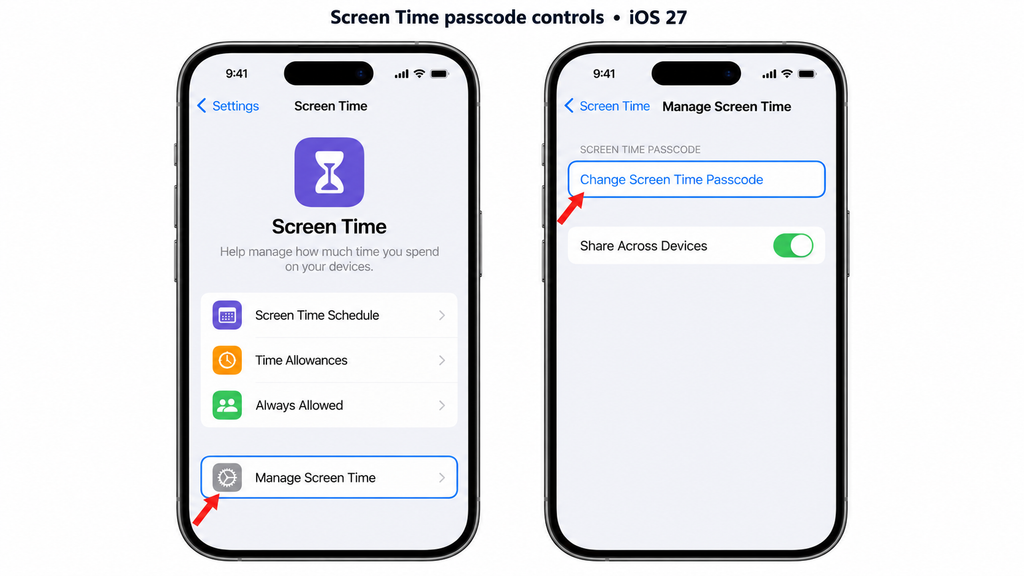
Step 4: Open recovery when needed. If the passcode screen shows Forgot Passcode?, tap it. Follow the recovery prompts your version presents.
Step 5: Verify the recovery account. Enter the Apple Account details used when you set up Screen Time recovery, if requested.
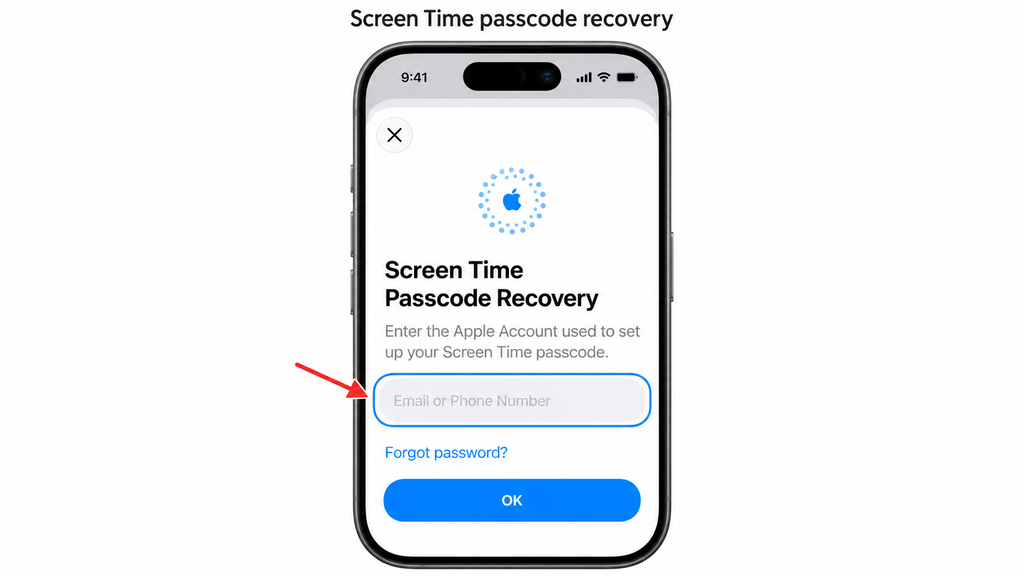
Step 6: Save the replacement code. Enter a new four-digit Screen Time passcode, then enter it again to confirm.
Apple’s official Screen Time reset instructions cover the account verification and replacement-code process.
Afterward, open a Screen Time setting that asks for the code and enter the replacement. You can stop before changing the setting. This confirms that the new code works without altering your chosen limits just to test it.
If verification fails, record the exact error message. Move to the troubleshooting section rather than starting a device erase.
2. Reset a Child’s Screen Time Passcode Through Family Sharing
For a child whose Screen Time is managed through Family Sharing, start on the family organizer’s or parent/guardian’s device. Family Sharing connects separate family accounts so an authorized adult can manage the child’s settings.
Step 1: Open the adult’s settings. On the managing adult’s iPhone or iPad, open Settings > Screen Time.
Step 2: Select the child. Scroll to Family and tap the correct child’s name.
Step 3: Open their controls. Tap Manage Screen Time.
Step 4: Request a new code. Tap Change Screen Time Passcode, then choose it again.
Step 5: Complete any verification. Follow the identity check shown on the adult’s device. The prompt may differ by software version.
Step 6: Confirm the replacement. Enter the new Screen Time passcode twice.
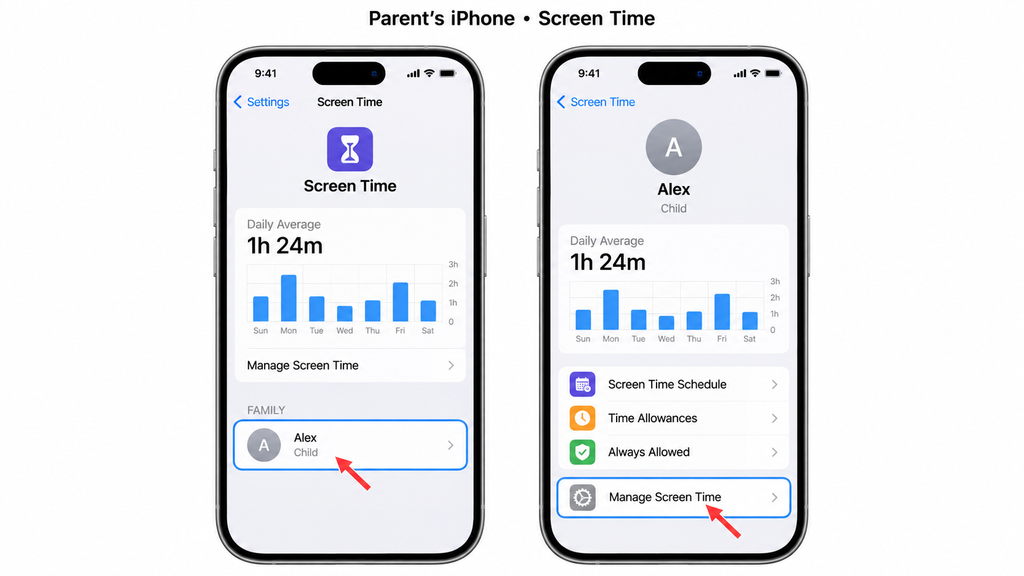
Check that the profile belongs to the intended child before saving. If you manage several children, changing one profile does not mean you have updated every child’s code.
If the child’s name is missing, check the family setup and account membership. Avoid creating a second account simply to make a name appear.
You manage two children’s iPads and forget one Screen Time code. Select that child’s profile, replace its code, and check the intended iPad. Keeping a separate record for each child helps you avoid mixing up the new codes later.
3. Recover Your Apple Account Password Before Trying Again
If account verification is the obstacle, address that first. This step restores access to the account; afterward, you still need to return to Screen Time and finish the passcode reset.
On a trusted iPhone or iPad already signed in to the required account:
Step 1: Open your account settings. Go to Settings > [your name].
Step 2: Open account security. Tap Sign-In & Security.
Step 3: Start the password change. Tap Change Password.
Step 4: Complete verification. Follow the onscreen instructions, then return to Screen Time recovery with the updated password.
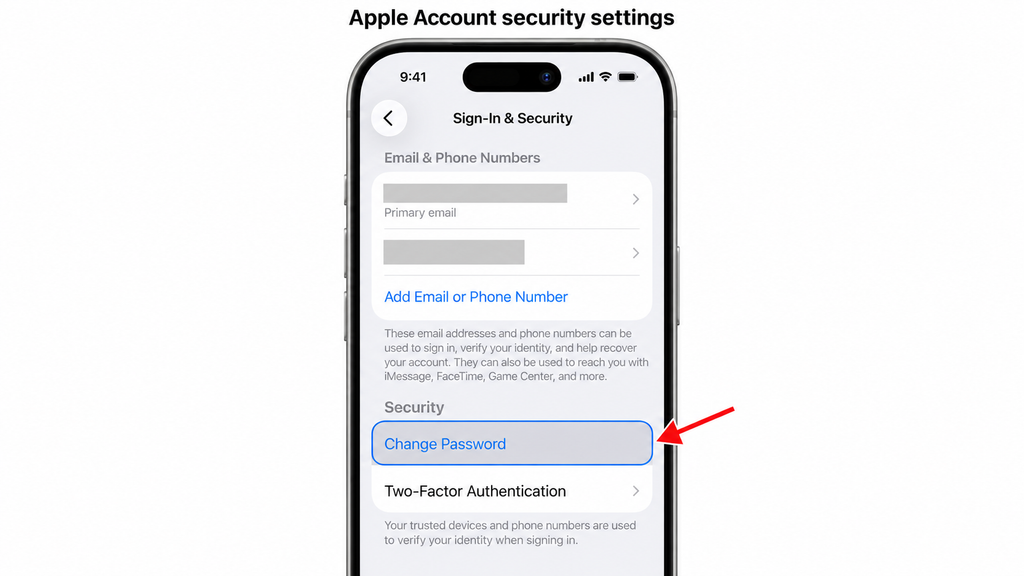
These are Apple’s current account-password change steps. A security delay can apply in some circumstances, so follow any waiting instructions displayed.
4. Restore from a Backup (Advanced Users)
This process erases your device. A backup may restore the forgotten Screen Time code, and an older backup may omit newer data.
If you decide to perform a full device restore after reviewing those limits:
Step 1: Protect your backups. Keep the older backup separate. Make a current encrypted backup if possible and save its password.
Step 2: Connect your device. Open Finder on Mac or Apple Devices on Windows. Use iTunes for older setups.
Step 3: Erase and restore. Turn off Find My using your Apple Account password, then choose Restore iPhone or Restore iPad.
Step 4: Load the backup. After restart, select Restore Backup, choose your backup, and enter its encryption password if requested.
Step 5: Check the result. Review your data and Screen Time settings. If the code returns, use account or Family Sharing recovery.
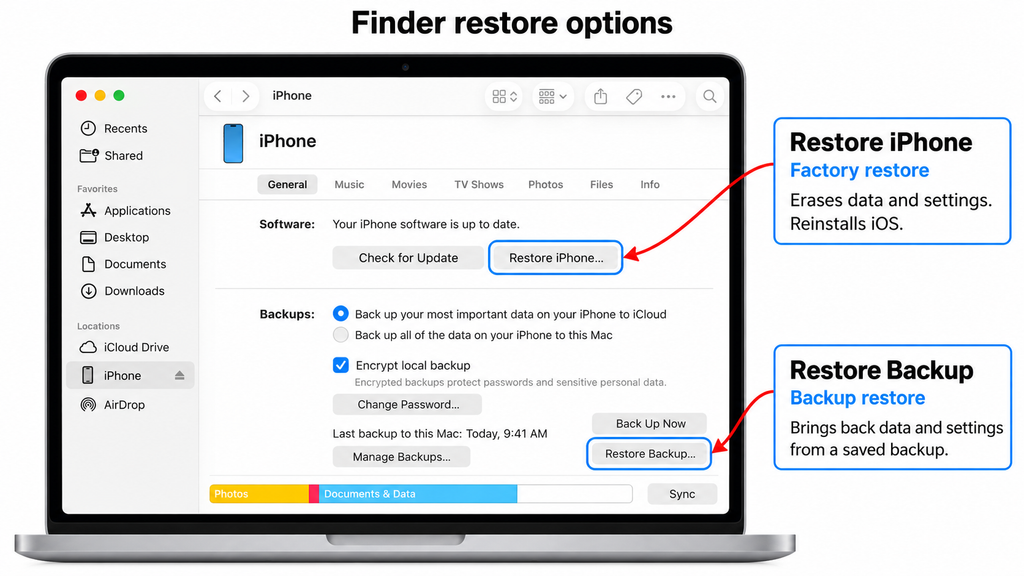
Try the account or Family Sharing reset first. Backup restoration cannot guarantee passcode removal or recovery of all current data.
Will Resetting Screen Time Delete Photos, Messages, or Apps?
The official settings-based passcode reset does not erase your iPhone or iPad. It changes the Screen Time code through account or family verification, preserving the device’s content.
The procedure above contains no factory-reset or restore step. If another guide tells you to choose Erase All Content and Settings, it has moved to a different action with different consequences.
Apple’s factory-reset guide describes erasing the device’s information. That action requires a separate plan for restoring your content and should not be treated as a routine Screen Time reset.
There is also no app purchase or software license required for the built-in settings process. If you reach a checkout screen on an outside website, you are considering that provider’s service.
Bonus Tips: Fix Recovery Problems and Prevent Another Lockout
A failed attempt is useful information. Identify whether you are facing a missing menu, account error, family setup issue, or syncing problem before choosing your next action.
If “Forgot Passcode?” Is Missing
Start by checking the surrounding menu. Apple’s current instructions include Manage Screen Time, so an older screenshot may lead you to look in the wrong place. For a child managed through Family Sharing, use the adult’s management controls.
Also consider whether recovery was added when the code was created. Without the required recovery setup, an account-based reset may be unavailable. Apple’s setup guide explains why keeping that recovery account matters and says Apple cannot provide the forgotten recovery information.
Restarting or updating can help you rule out a display or software issue, but neither is a guaranteed way to recover a forgotten code. If the menu still differs, contact Apple Support with the device model, software version, and the exact screen you see.
If Your Apple Account Details Are Rejected
Check which account was originally used for Screen Time recovery. It can differ from the account currently signed in on the device. A successful sign-in elsewhere therefore does not prove you have selected the correct recovery account.
To identify an account already signed in on an iPhone or iPad, open Settings > [your name] > Sign-In & Security. Review the listed email addresses and phone numbers. Apple also suggests checking its apps, account sign-in page, and emails when you cannot remember your account details.
Use Apple’s account-identification guide to narrow the possibilities. Then compare those details with any secure record you kept when setting up Screen Time. Take time to verify the account instead of cycling through unrelated passwords.
If the New Code Does Not Work on Another Device
With Share Across Devices enabled, Apple says a reset Screen Time passcode updates on the connected devices. Its reset guide also recommends current software across the family’s devices for syncing.
Check the affected device’s connection, software, and Screen Time profile. Make sure you are testing the intended person’s settings.
For a child’s device, do not confuse Family Sharing with sharing one Apple Account. Apple recommends that family members have their own accounts. The family connection lets the adult manage the child’s settings without putting everyone on one shared login.
Why a Backup Restore Is Not a Reliable Shortcut
Restoring a device from a backup does not remove its Screen Time passcode. Apple states this in its factory-reset troubleshooting guidance.
That makes an erase-and-restore plan a poor first response when you want to keep your data and recover access to these settings. You could spend time rebuilding the device and still face the forgotten code.
Also, iCloud syncing and iCloud Backup serve different roles. Synced information stays up to date through iCloud, while the backup covers information and settings that are not already syncing. Check what iCloud actually backs up before assuming every local file has a recoverable copy.
Protect the Replacement Code and Recovery Account
Save the new code in a protected password manager or another secure place you can access later. Record the recovery account alongside it, with a clear label identifying the device or child.
For a child’s code, avoid birthdays, phone numbers, and easy patterns. Apple gives similar advice in its child Screen Time passcode guide.
Before handing the device back, review the settings you intended to protect. Confirm the selected apps, limits, and restrictions still fit your needs. You do not need to loosen every rule just because you replaced the passcode.
Check What an Unlocking Tool Actually Addresses
If you compare downloads through Unloky’s iPhone unlocker software guide, check the specific feature before using a product. A tool’s general “unlock” label does not establish its Screen Time support, price, or data-preservation terms.
For the built-in reset, start with Apple’s controls. Do not provide account credentials to an unknown service as a substitute for official verification.
Activation Lock is another separate issue: it links device activation to an Apple Account through Find My. A Screen Time reset does not resolve it. Apple explains Activation Lock here; Unloky’s Activation Lock and bypass-tool guide covers that different problem.
The Bottom Line
Start in Screen Time settings and choose the route that matches your setup. Use the recovery account for your own device, or the managing adult’s device for a child in Family Sharing. If the account password is missing, recover it before trying again.
Your next step is to confirm the correct account or family profile, then follow its reset prompts. After saving the replacement, verify that it works and store it securely. If official recovery remains unavailable, ask Apple Support to help assess the situation before considering an erase.
For your own device, account-based recovery requires the credentials associated with Screen Time recovery. You may first be able to change that password on a trusted device. A managing adult can use the Family Sharing route for a child and complete the verification shown.
Replacing the code gives you access to protected settings; it does not instruct you to turn off your limits. Review those settings afterward and change only what you intended. Removing the passcode is a separate choice that allows settings changes without that code.
Apple’s documented recovery process lets you create a replacement rather than display the forgotten code. Check a secure record if you previously saved it. Otherwise, use the supported reset route instead of looking for a reveal-password button.
Choose that option only if you want to stop requiring a code for Screen Time settings. Apple’s iPhone guide lists Change Screen Time Passcode > Turn Off Screen Time Passcode and requires the current code. If you forgot it, finish recovery first.
No—treat them as separate tasks. Changing the account password restores access to that account; afterward, return to Screen Time and complete its reset process. Record the new Screen Time code separately so the two credentials remain easy to distinguish.