Quick Answer
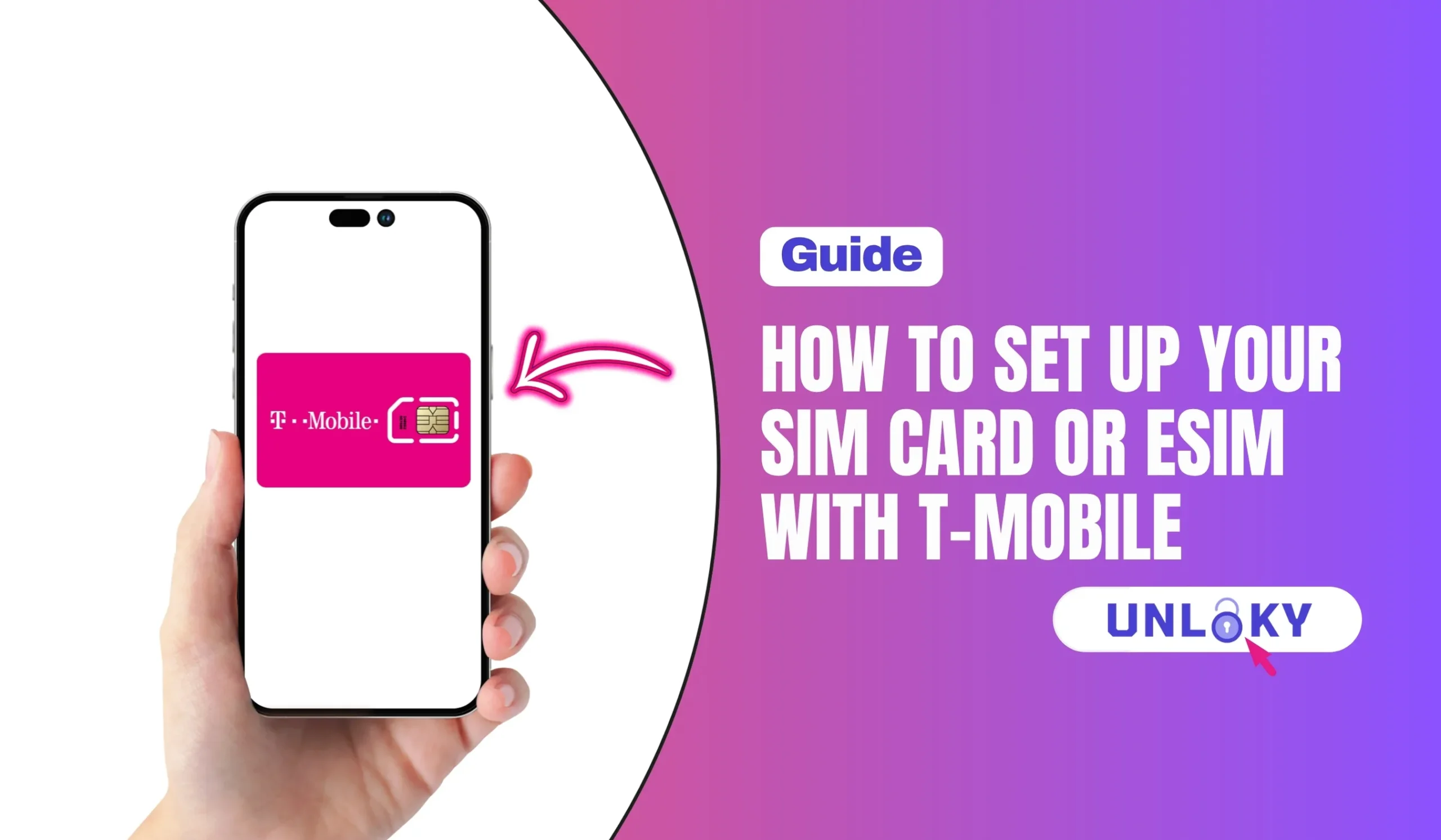
So you’ve got a new T-Mobile line (or a new phone) and now you need to actually get it working. Good news: it’s way easier than it used to be. You can literally skip the mail, skip the SIM tray fumbling, and be online before your coffee gets cold if you go the eSIM route.
But there are a few gotchas — especially if you’re switching from an old iPhone to a new Android, bringing your own phone, or stuck on a postpaid account that wants a QR code. This guide walks through every scenario step by step, with the exact menu paths for iPhone, Samsung, Pixel, and Motorola devices.
Let’s get you connected.
Physical SIM vs eSIM: What’s the Difference?
Quick refresher before we dive in. T-Mobile supports both, and both connect you to the same 5G network at the same speeds. The difference is just how the “SIM” lives on your phone.
- Tiny plastic card you slide into a tray
- Easy to swap between phones in seconds
- Works on basically every phone ever made
- Needs to be shipped or picked up at a store
- Can get lost, bent, or stuck in the tray
- Built into your phone — no card to insert
- Activate over Wi-Fi in under 10 minutes
- Hold multiple lines on one device
- iPhone XS+, Pixel 4+, Galaxy S20+
- Can’t swap to another phone quite as fast
Call 844-839-5057
Quick Comparison: Which One Fits You?
| Feature | Physical SIM | eSIM |
|---|---|---|
| Setup Time | 1–3 days (shipping) + 5 min | 5–10 minutes total |
| Need a QR code? | No | Sometimes (T-Life app skips it) |
| Works on Postpaid | ✓ Yes | ✓ Yes |
| Works on Prepaid | ✓ Yes | ✓ Yes (use Prepaid eSIM app) |
| Swap to a new phone | Instant (move the card) | Needs transfer steps or new QR |
| Dual-line support | One line per SIM slot | Multiple eSIMs on one phone |
| International travel | Swap in a local SIM | Add a travel eSIM alongside T-Mobile |
| Lost or damaged? | Order a replacement ($) | Redownload free from T-Life |
| Works on older phones | ✓ Any phone | ✗ 2019+ devices only |
| Best for | Switching phones often, older devices | New phones, quick activations, travel |
Before You Start: Quick Checklist
Three minutes of prep saves you an hour of headaches. Before you touch any settings, make sure you’ve got these:
- An unlocked phone. If your device came from another carrier, check that it’s unlocked. T-Mobile eSIM won’t download onto a locked phone.
- A solid Wi-Fi connection. You can’t activate eSIM over cellular — kind of a chicken-and-egg situation.
- Your IMEI number. Dial
*#06#on your phone to pull it up instantly. - Your EID number (for eSIM only). Same trick:
*#06#shows it right below the IMEI on most phones. - SIM Protection turned OFF. This is the #1 reason activations fail. Open the T-Life app → More → SIM Protection → toggle off before starting.
- Your T-Mobile login. You’ll need your T-Mobile ID and password at some point, guaranteed.
If you’re upgrading from an old T-Mobile phone to a new one, you need to deactivate the old SIM (or complete the transfer) before the new one will work. Two active devices on one line = neither one works properly.
How to Activate Your T-Mobile eSIM on iPhone
Apple makes this pretty painless. If you bought your iPhone from T-Mobile, it usually shows up automatically during setup. If you brought your own phone or skipped the prompt, here’s the full walkthrough. This works for iPhone XS and newer running iOS 17+ (iOS 26 is the current version as of 2026).
Head to Settings → Cellular. If you’ve never set up a line on this phone, you’ll see Set Up Cellular. Already have one? Tap Add eSIM instead.
iPhone will offer three options: Transfer From Another iPhone, Use QR Code, or Set Up Later. If you’re upgrading from another iPhone, pick Transfer (fastest). New to T-Mobile? Choose Use QR Code.
If T-Mobile emailed you a QR code, open it on another screen and scan it. No QR code? Tap Enter Details Manually and you’ll need the SM-DP+ address T-Mobile provides.
You’ll see “Activating…” for anywhere between 2 and 15 minutes. Don’t mess with anything. Keep Wi-Fi on. Keep the phone unlocked. It’ll finish.
iOS will ask you to label the line (“Personal,” “Work,” etc.) and choose which line handles calls, texts, and data by default. Pick your preferences and tap Done.
Turn off Wi-Fi and make a test call. Send a text. Open a webpage. If everything works, you’re done. If not, jump to the troubleshooting section below.
If you’re coming from an Android phone and want to bring your number over to a new iPhone, put both phones side by side during iPhone setup. iOS will actually scan a QR code generated by your Android to transfer the line. No QR code needed from T-Mobile.
How to Activate Your T-Mobile eSIM on Samsung Galaxy
Samsung’s flow changed a bit with the Galaxy S24 and S25 — it’s cleaner now but the menu names are slightly different depending on your One UI version.
Go to Settings → Connections → SIM manager. (On older One UI builds this is “SIM card manager.”)
You’ll see a screen asking whether to scan a QR code, transfer a SIM from another device, or use the carrier app. Choose Scan QR code if T-Mobile sent one. Otherwise choose Transfer SIM from another device.
Point the camera at the QR code. If manual entry is needed, you’ll input the SM-DP+ address and activation code T-Mobile provides (they’ll email both).
Samsung will download the eSIM profile. Takes 3–10 minutes. Don’t lock the phone or switch networks mid-download.
Once installed, the new line appears in SIM manager. Toggle it on. If you already have a SIM, choose which line handles calls, messages, and mobile data.
Samsung’s newest devices can redownload an eSIM if you accidentally delete it. Go to Settings → Connections → SIM manager → Add eSIM → Recover deleted eSIM. Log in with your T-Mobile ID and it’ll restore in under two minutes.
How to Activate Your T-Mobile eSIM on Google Pixel
Pixel’s flow is the cleanest of the three honestly. Works on Pixel 4 and newer running Android 12 or later.
Swipe up, open Settings, then go to Network & Internet → SIMs (older builds call it “Mobile network”). Tap the + Add SIM button.
Pixel will ask if you want to transfer from another device or download one. Pick Download a SIM.
Point the camera at the code T-Mobile sent you. If you don’t have a QR code, tap Need help? at the bottom and call T-Mobile to get one emailed over.
Pixel shows a summary screen. Hit Download. Wait for the checkmark. This takes anywhere from 30 seconds to 10 minutes.
Go to Settings → Network & Internet → SIMs, tap your new T-Mobile line, and flip Use SIM to on.
How to Activate a Physical T-Mobile SIM Card
If you ordered a physical SIM (or got one at a T-Mobile store), activation is usually automatic — but there are two scenarios to be aware of.
Scenario 1: You’re a New T-Mobile Customer
Your SIM ships pre-activated. Just pop it in and go.
Don’t just lock it — fully shut down. This avoids network glitches during the handoff.
Use the tool that came with your phone (or a paperclip). Slide out the tray, place the SIM in — the gold contacts face down, the notched corner lines up with the cutout in the tray.
Within about 60 seconds you should see “T-Mobile” appear in the corner and signal bars. If not, restart one more time.
Text a friend, make a call, load a webpage without Wi-Fi. If everything works, you’re live.
Scenario 2: You’re Already a T-Mobile Customer Getting a New SIM
This one’s a little different — you need to tell T-Mobile to move your line to the new SIM before inserting it.
Make sure SIM Protection is OFF first. Then tap the Manage tab.
Tap the line, then choose SIM transfer or activation → Get Started.
Dial *#06# on the new phone to pull up the IMEI. Type it into the app.
This is a long number printed on the SIM card itself (or the packaging it came in). Type it in, hit Continue.
Review the change and tap Activate. T-Mobile may send an interactive SMS to confirm. Once confirmed, your old SIM dies and the new one goes live within 1–5 minutes.
Troubleshooting: When Things Go Sideways
About 1 in 5 activations hits a snag. Usually it’s something small. Here are the fixes for the issues that come up most.
“Activation Failed” or “No Service”
First, toggle airplane mode on, wait 10 seconds, toggle it off. If that doesn’t work, restart the phone completely. If still nothing, remove and re-add the eSIM profile. 90% of “no service” issues clear with one of these three steps.
QR Code Won’t Scan or Says “Invalid”
QR codes expire — typically after 7 days or after a single use. If yours is old, request a new one from T-Mobile. Also: make sure your camera is focused and the code isn’t cut off at the edges.
eSIM Stuck on “Installing”
This is Wi-Fi related 9 times out of 10. Make sure you’re on a stable connection — ideally not public Wi-Fi with a login portal. Keep the phone unlocked and on the activation screen for up to 15 minutes. If it’s still spinning after that, restart and try again.
“This SIM is Not Supported” Error
Your phone is probably locked to another carrier. Go to Settings → General → About on iPhone (or Settings → About Phone on Android) and look for “Carrier Lock” or “Network Lock” status. If it’s locked, you’ll need to unlock it through your previous carrier before T-Mobile’s SIM will work.
Port-In Stuck or Number Missing
If you’re transferring your number from another carrier, porting can take anywhere from 15 minutes to 24 hours. During that window you might temporarily lose service. If it’s been more than a day, call T-Mobile — they can check the port status and escalate.
Don’t cancel your old carrier’s service before the port completes. Once you cancel, T-Mobile can’t pull the number over anymore — you’ll lose it permanently. Let the port finish first, then cancel.
eSIM on Postpaid: The Catch You Should Know About
Here’s something worth mentioning. T-Mobile officially supports eSIM on both prepaid and postpaid plans now, but postpaid activations occasionally require a call to support rather than self-service through the app. This seems to come up more on BYOD (bring your own device) lines and when transferring from older iPhones.
If the T-Life app keeps throwing errors on a postpaid eSIM activation, don’t waste an hour fighting with it. Call 844-839-5057 and ask them to push the eSIM profile over the air. Takes a rep about five minutes.
Which Should You Actually Pick: SIM or eSIM?
If your phone supports it, go eSIM. It’s faster to activate, impossible to lose, and makes swapping between work/personal or adding a travel line way easier. The only reason to stick with a physical SIM is if you frequently move the line between phones, or you’re using an older device that doesn’t support eSIM.
That said, there’s no speed or coverage difference between the two. Both ride the same T-Mobile 5G network. Whichever you pick, you’re getting the same service.
For most people, 5–10 minutes start to finish. The eSIM profile downloads in about 2–3 minutes on solid Wi-Fi, and another couple minutes for the network to register your device. If you’re porting in a number from another carrier, that adds anywhere from 15 minutes to a few hours on top.
Yes — this is called Dual SIM, and most iPhones, Pixels, and Galaxies support it. You can run your T-Mobile line as an eSIM and keep a second carrier (or a travel SIM) as the physical one. Or use two eSIMs. In settings, you pick which line handles calls, which handles data, and whether you want automatic switching.
Nope, you can toss it (or recycle it — the chip has some reusable metals). Once your eSIM is active, the old physical SIM is dead. Just don’t throw it out until you’ve confirmed the eSIM works perfectly.
You have two options. The easiest is Apple’s or Samsung’s built-in transfer — put the phones side by side during setup and scan a QR code. The second option: open the T-Life app on your old phone, go to SIM transfer or activation, and walk through it. If both fail, T-Mobile can remote-push a new eSIM to your new device.
This happens when T-Mobile hasn’t queued up an over-the-air activation for your line. Call T-Mobile at 844-839-5057 and ask them to email you a QR code or push the eSIM profile remotely. Don’t keep tapping through the setup screens — you’ll just keep hitting the same error.
Yes, exactly like a physical SIM. Your T-Mobile plan’s international benefits apply the same way. Even better — you can add a second eSIM from a local carrier (like Airalo, Holafly, or a country-specific provider) alongside your T-Mobile line, so you’re not paying roaming rates for data.
On newer Samsung devices (Galaxy S24/S25) and iPhones, you can recover it: go to SIM settings, add eSIM, and pick “Recover deleted eSIM” or similar. You’ll log in with your carrier credentials and it’ll redownload. On older devices, you have to call T-Mobile for a new QR code — still free, but takes a few more minutes.
Yes, use the T-Mobile Prepaid eSIM app (free in the App Store and Google Play). You download the app, pick a plan, pay, and the eSIM installs right from the app. Takes about 10 minutes total. No QR code, no shipping, no store visit.
Only if the carrier lock is already set to T-Mobile. If your phone is locked to another carrier (AT&T, Verizon, etc.), you need to unlock it through that carrier first before any T-Mobile SIM — physical or eSIM — will activate. Unlocking is free once you’ve met your old carrier’s eligibility requirements.
eSIM activation itself is free. Physical SIM cards typically cost $10 if you order one from T-Mobile (sometimes waived during promos). Replacement eSIMs are free — you can request a new QR code as many times as you need.
SIM Protection is a security feature that prevents anyone from transferring your line to a different SIM without your approval. Which is great — until you’re trying to activate a new SIM yourself. Open the T-Life app, go to More → SIM Protection, and toggle it off. Activate your new SIM, then turn SIM Protection back on. Don’t leave it off permanently.
Quick check: dial *#06#. If you see an EID number (separate from the IMEI), your phone has eSIM hardware. Beyond that, iPhone XS and later, Pixel 4 and later, Galaxy S20 and later, plus most flagship Motorola phones from 2023 onward all support T-Mobile eSIM. If you’re unsure, check T-Mobile’s compatibility page or call 844-839-5057.
Last updated April 2026. Activation steps reflect the current T-Life app flow, iOS 26, and Android 15. Menu names may differ slightly on older software versions. T-Mobile’s support policies and phone numbers are subject to change — we’re not affiliated with T-Mobile, just trying to help you get connected without the headache.