
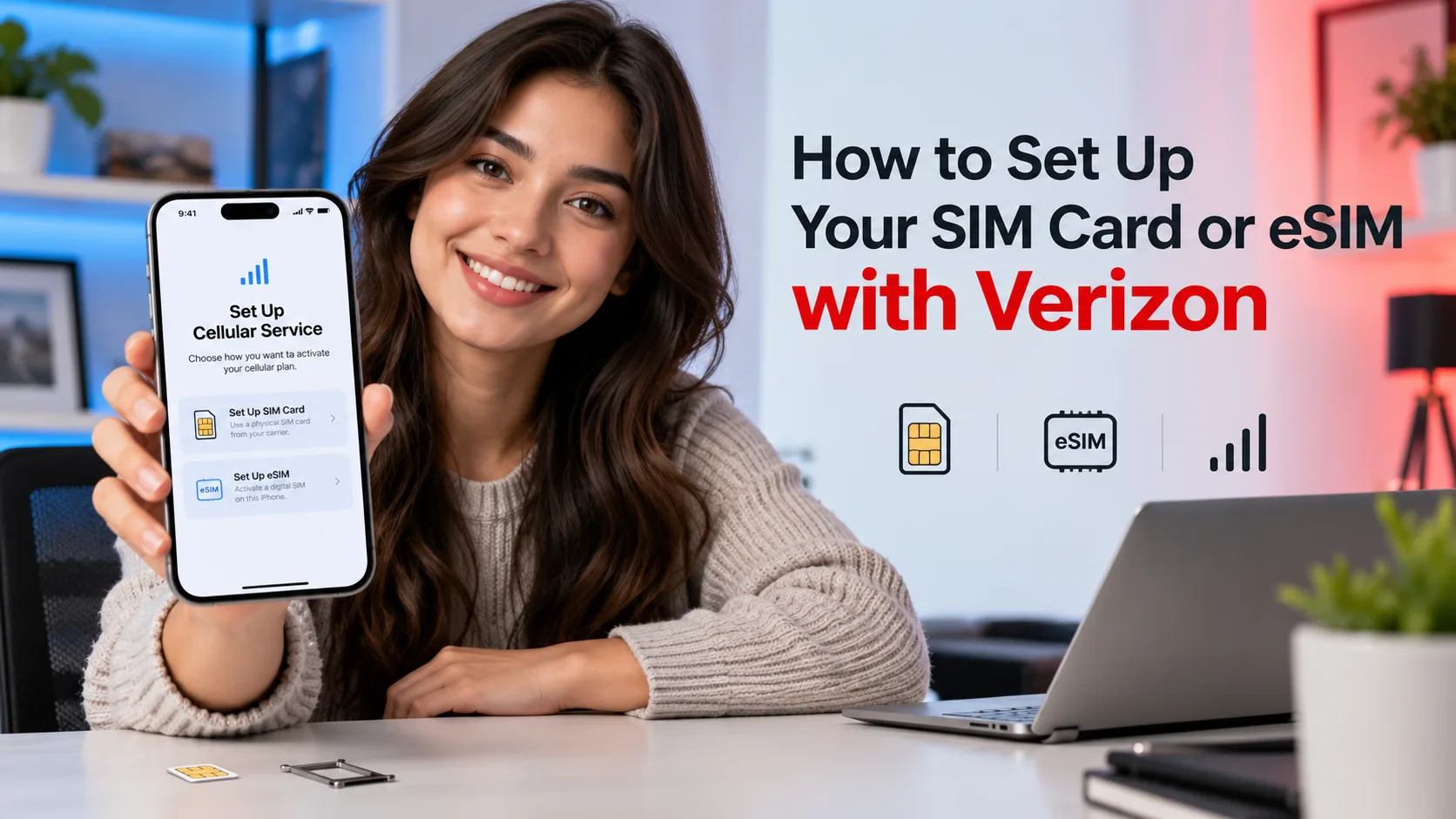
To set up your SIM card or eSIM with Verizon, confirm your phone is compatible and unlocked if it came from another carrier. Follow your Verizon order’s setup prompts or use My Verizon to activate the correct line. Prepaid has separate steps. Finish by testing calls, texts, and cellular data.
Verizon setup depends on your phone, SIM type, and whether you’re starting service or moving a line. Choose your situation below, then check that service works.
Part 1: What You Need Before Verizon SIM or eSIM Setup
Prepare before changing your connection. That gives you time to check the phone, protect your files, and confirm which number you want to activate.
Have these items ready:
- Your phone and the right SIM type. A physical SIM is a removable card. An eSIM is built into the phone and uses a downloaded carrier profile.
- Account access. Have your My Verizon sign-in details available, along with access to the phone or email used for account checks.
- Reliable Wi-Fi. Connect before downloading an eSIM. Install available phone software updates and the latest My Verizon app.
- Device and SIM details, if requested. The IMEI identifies your phone. The ICCID identifies a physical SIM. Manual activation may ask for these numbers.
- A current backup. Back up your old phone before moving to a replacement. Keep it available until you complete verification and service checks.
Compatibility and Carrier Unlocking Are Separate Checks
An unlocked phone is allowed to use another carrier, but it must also work with Verizon’s network. Run your device through the Verizon compatibility checker before choosing a SIM.
Find the IMEI under Settings > General > About on iPhone or Settings > About phone on Android. If another carrier still locks the device, contact that carrier. Verizon says activation can take up to 24 hours after the carrier unlocks it.
If you’re bringing your number from another carrier, gather that carrier’s account number and required transfer PIN or security code. Keep the old service active until the number transfer finishes. A transfer PIN may differ from your regular account PIN.
The main instructions below cover personal, standard monthly service. Prepaid has its own route in Method 6. For a business-managed line, use your company’s Verizon administrator or business activation process.
Part 2: How to Set Up Your SIM Card or eSIM with Verizon
Start with the route that matches your account. Methods 3 and 4 explain how to finish an approved eSIM setup on your phone; they do not create a Verizon service plan.
1. Activate a Verizon Purchase or Start a New Line
If you bought your phone from Verizon, start with its setup screens. Verizon says ordered phones are prepared for activation when you turn them on.
- Step 1: Connect and begin setup. Turn on the phone, connect to Wi-Fi, and follow the activation prompts tied to your order.
- Step 2: Check the intended number. For a replacement phone, confirm you are moving the existing line. Choose a new line only when you want additional service.
- Step 3: Finish the SIM setup. Follow the prompts for the supplied physical SIM or assigned eSIM. Use the matching phone instructions below if needed.
Bringing your own phone to a new standard monthly line? Start in My Verizon or Verizon’s BYOD flow, check the device, choose your number and plan, and complete checkout.
To add a line to an existing account, use Add a Line on the website. With the phone in hand, Verizon also supports Shop > Bring your device in the app.
Before confirming, read the order summary. The phone number, device, and service choice should match what you intended. If the order will not activate, use Verizon’s activation help instead of placing another order.
2. Move an Existing Monthly Line to eSIM
This route requires an Account Owner or Account Manager and a compatible, unlocked eSIM phone.
- Step 1: Prepare the destination phone. Connect it to Wi-Fi and open the latest My Verizon app.
- Step 2: Sign in. Follow the guided transfer. If already signed in, open Mobile and select your line.
- Step 3: Start the change. Choose Change or replace device on this line or Activate or get SIM, then follow the prompts.
To convert a physical SIM on the same phone, Verizon directs you to Mobile > Get SIM.
A single-line account needs the old phone for authentication; a multiline account can use another account device. If neither is available, contact Verizon. After a successful move, service stops on the old phone.
3. Finish Verizon eSIM Setup on an iPhone
Use these steps after Verizon has assigned service to your iPhone. Keep it connected to Wi-Fi during setup.
- Step 1: Look for the carrier notification. If Carrier Cellular Plan Ready to Be Installed appears, open it and follow the prompts.
- Step 2: Open cellular settings if needed. Go to Settings > Cellular > Add eSIM. A phone without a configured line may show Set Up Cellular.
- Step 3: Install the assigned plan. Follow the Verizon prompts and tap Continue when offered. Use a QR code only if your activation instructions require one.
If you already have another line, check which number you intend to use for calls and cellular data. Do not assume that adding Verizon automatically sets every preference correctly.
When a newly activated eSIM replaces your physical SIM, Apple advises removing the replaced card and restarting the iPhone. If no Verizon plan appears, return to the carrier activation flow or ask Verizon to check the assignment.
4. Finish Verizon eSIM Setup on Samsung or Pixel
Android menus vary by model and software. First confirm Verizon has processed the activation; opening an eSIM menu alone does not assign a phone number.
On a supported Samsung Galaxy:
- Step 1: Open the SIM menu. Go to Settings > Connections > SIM manager > Add eSIM.
- Step 2: Find the Verizon profile. Choose Search for eSIMs if shown, or scan the code specified in Verizon’s instructions when requested.
- Step 3: Add the plan. When Add VZW eSIM? appears, tap Add, allow the download to finish, and acknowledge the activation message.
On a supported Google Pixel:
- Step 1: Open SIM settings. Go to Settings > Network & Internet > SIMs, then choose Set up an eSIM. You may first need the add button beside SIMs.
- Step 2: Follow the network prompts. Select the provider and scan the supplied QR code if required.
- Step 3: Enable Verizon. Finish the download and turn on Use SIM for the Verizon profile if prompted.
Verizon says Pixel 8, Pixel 8 Pro, and newer models do not require a QR code for this process.
If the phone reports no available plan, check with Verizon that the activation is tied to the correct device. For prepaid, follow Method 6 and verify eligibility through that route.
5. Install and Activate a Physical Verizon SIM Card
Use a physical SIM only if your phone has a SIM tray and Verizon confirms the card is suitable. Request a replacement from Verizon if you lack a compatible card.
- Step 1: Insert the card correctly. Follow your phone’s SIM-tray instructions. Match the card’s angled corner to the tray and avoid forcing it into place.
- Step 2: Open the account activation flow. On the My Verizon website, choose Manage all devices, then Activate or switch device under device management.
- Step 3: Select the existing line when applicable. Choose Activate on an existing line, then the number you want to use.
- Step 4: Identify the phone and SIM. Supply the requested IMEI, complete account verification, and enter the SIM ID, or ICCID, when asked.
- Step 5: Confirm the change. Review the details, submit, and follow the remaining phone prompts. Restart if instructed.
For a brand-new account, complete the new-service order first. The existing-line procedure above is for changing service already on your account.
If you moved an active Verizon card between phones, complete any follow-up setup Verizon requests. A card that fits the tray is not proof that every feature will work.
6. Use the Separate Verizon Prepaid Activation Route
Do not assume monthly-plan eSIM transfer steps apply to prepaid.
For a new prepaid eSIM line:
- Step 1: Check prepaid compatibility. Start with Verizon Prepaid eSIM setup or its linked BYOD checker.
- Step 2: Choose and pay for service. Follow the new-customer flow and select whether to bring an eligible number.
- Step 3: Download and test the profile. Complete the app and phone prompts, then check calls, texts, and data.
Verizon requires you to be in the United States for this prepaid eSIM activation flow. The app uses location access to confirm that.
For a new prepaid phone using a physical SIM, Verizon’s instructions are to turn it on, select New customer, complete the account prompts, and make a call to finish activation.
For an existing prepaid line moving to an eSIM-enabled device, Verizon directs you to call 888-294-6804. For a different physical SIM on an existing prepaid line, sign in to prepaid My Verizon and follow Change Device, including the authorization-code check.
Does Verizon SIM or eSIM Setup Cost Money, and How Long Does It Take?
Verizon says moving an existing line through the My Verizon app has no transfer fee. That does not remove plan charges or make every new-phone order free. Check your order for any activation or upgrade charge; Verizon says an upgrade fee may apply.
Activation often takes minutes, but Verizon allows up to 24 hours in some cases. Bringing a number from another carrier is a separate process: Verizon lists 4–24 business hours for mobile numbers. Track the transfer status rather than repeatedly reinstalling the eSIM.
Bonus Tips: Confirm Service and Fix Activation Problems
Test the Verizon Line Before Erasing Your Old Phone
A downloaded profile is only part of setup. Run these checks before you erase, trade in, or put away your old phone:
- Step 1: Confirm the line is enabled. Open cellular or SIM settings and check the Verizon number.
- Step 2: Test calls both ways. Call someone, then have them call you back.
- Step 3: Test ordinary texts. Send and receive an SMS message. An internet-based chat alone is not a cellular-texting test.
- Step 4: Test mobile data. Turn off Wi-Fi temporarily, enable cellular data, and open a webpage.
If you have two lines, select Verizon for the test. Otherwise, your other line could provide the connection and hide an unfinished activation.
Fix a Stuck eSIM or Missing Connection
Start with a working Wi-Fi connection, then restart the phone. On iPhone, Apple also recommends toggling Airplane Mode, turning the affected line off and back on, and checking carrier settings under Settings > General > About.
Do not delete an eSIM as a routine troubleshooting step. Apple advises doing that only when your carrier directs you to; deletion can leave you needing a replacement profile.
If Verizon blocks a SIM or device change, check SIM Protection. In the app, open Me > Edit profile and settings > Security > SIM Protection. Only disable it when authorizing your own change, wait at least 15 minutes after disabling it, and restore protection afterward.
Know When to Ask Verizon for Help
Contact Verizon when the device passes compatibility checks but no profile arrives, verification fails, or service remains unavailable after the stated activation window.
For standard monthly service, Verizon lists 800-922-0204 for support. Have your number, device identifier, order details, and exact error ready. Use another phone if the affected line cannot place calls.
The Bottom Line
Start with the activation route that matches your account and phone. For a Verizon purchase, follow the order’s setup prompts; for a monthly line moving to eSIM, use My Verizon. Choose the separate prepaid route when it applies.
Before you consider setup finished, test incoming and outgoing calls, SMS, and mobile data with Wi-Fi off. Keep your old phone available until those checks pass and any number transfer is complete.
Not always. Verizon says iPhone 12 and newer do not need a QR code for its standard setup process, while some older supported iPhones and Android phones do. Follow the instructions for your exact device rather than searching for a random code.
Usually, if the number is eligible for transfer. Provide the information your old carrier requires and keep that service active during the switch. Verizon says outgoing calls may work on the new line before incoming calls do, so test both directions.
No. A SIM connects your device to cellular service; it does not store your apps or photos. Moving to another phone requires a separate content-transfer or backup-and-restore process, so do not treat successful activation as proof that your files moved.
No. Removing the profile from your phone does not cancel the carrier service. Contact Verizon if you want to end the plan, and avoid deleting a working eSIM just to troubleshoot a connection problem.
It depends on how Verizon can verify your account. For an existing-line transfer through My Verizon, a single-line account requires your old phone for authentication, while a multiline account can use another device on the account. If no suitable device is available, contact Verizon for help completing verification.