
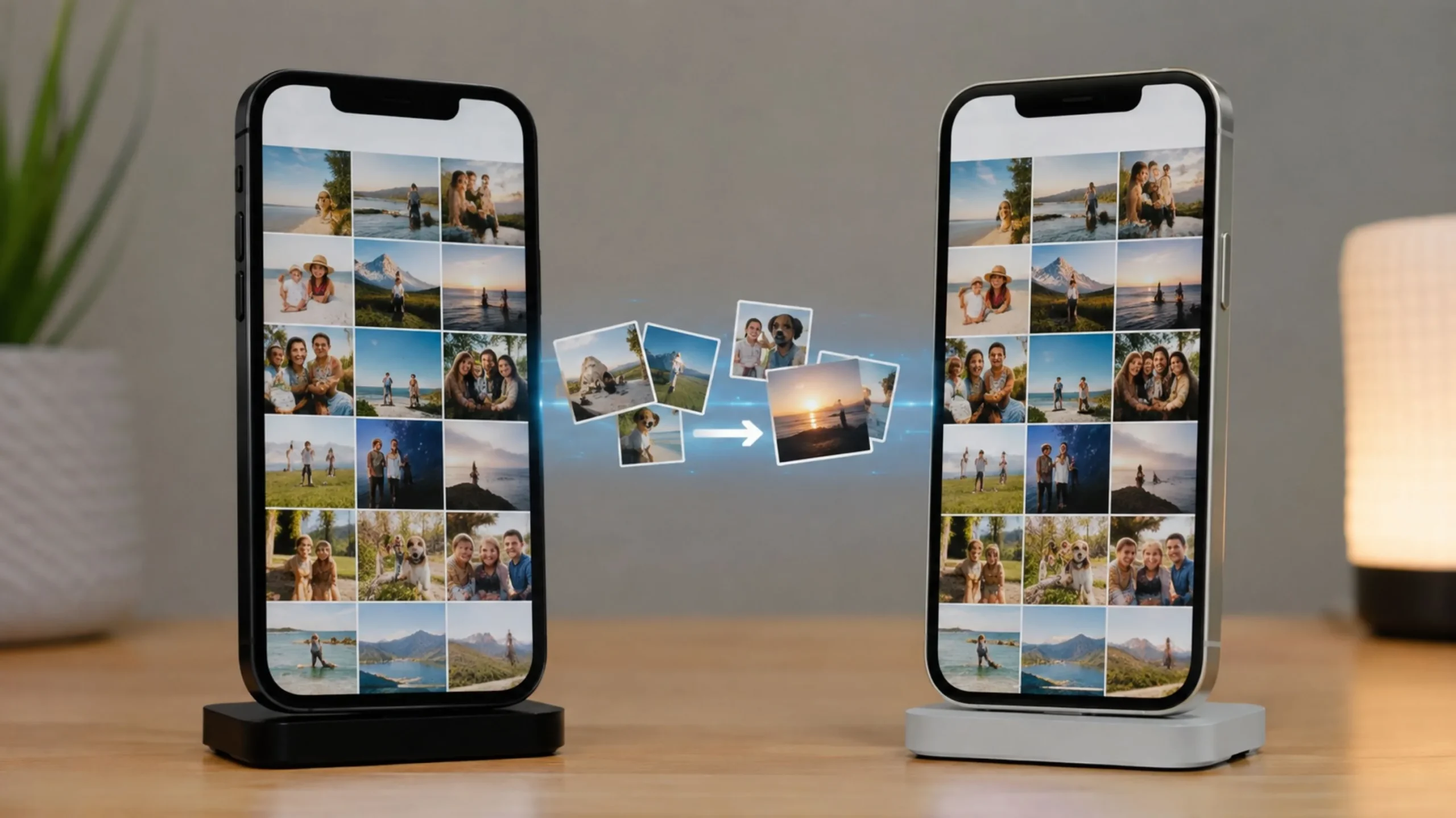
Got a new iPhone and want every photo to make the jump without losing a single memory? Or maybe you just need to move a handful of pictures to a family member’s phone. Either way, Apple gives you several built-in ways to do it — and the right one depends entirely on your situation. This guide walks through all five current methods for 2026 (iOS 26), with clear steps, honest trade-offs, and a quick way to pick the best option in about ten seconds.
Short Answer (TL;DR)
Setting up a brand-new iPhone? Use Quick Start — hold both phones close together and choose “Transfer from iPhone” to copy photos, apps, and settings directly, with no cables and no cloud storage required.
Want both phones to share the exact same library? Turn on iCloud Photos with the same Apple Account on each device and everything syncs automatically.
Just moving a few photos? Use AirDrop for instant, wireless transfers of selected images. No old phone anymore? Restore from an iCloud Backup. Massive offline library? Use a Mac (Finder) or Windows PC.
Quick Comparison: Which Method Fits You?
Before diving into steps, here’s how the five methods stack up so you can spot your scenario at a glance.
| Method | Best For | What You Need | Speed | Keeps Full Quality |
|---|---|---|---|---|
| Quick Start | Setting up a new iPhone from scratch | Both phones nearby, Wi-Fi, power | 15–60 min | Yes |
| iCloud Photos | Keeping both phones perfectly in sync | Same Apple Account, iCloud space, Wi-Fi | Varies | Yes* |
| AirDrop | Sending a few selected photos | Both phones close, Bluetooth + Wi-Fi | Instant | Yes |
| iCloud Backup | When you no longer have the old phone | Recent backup, Wi-Fi, iCloud space | Varies | Yes |
| Computer (Finder/PC) | Huge libraries, no reliable internet | Mac or PC, USB cable | Fast (wired) | Yes |
*With iCloud Photos, originals live in the cloud and space-saving versions stay on the device unless you choose “Download and Keep Originals.”
The 5 Methods, Step by Step
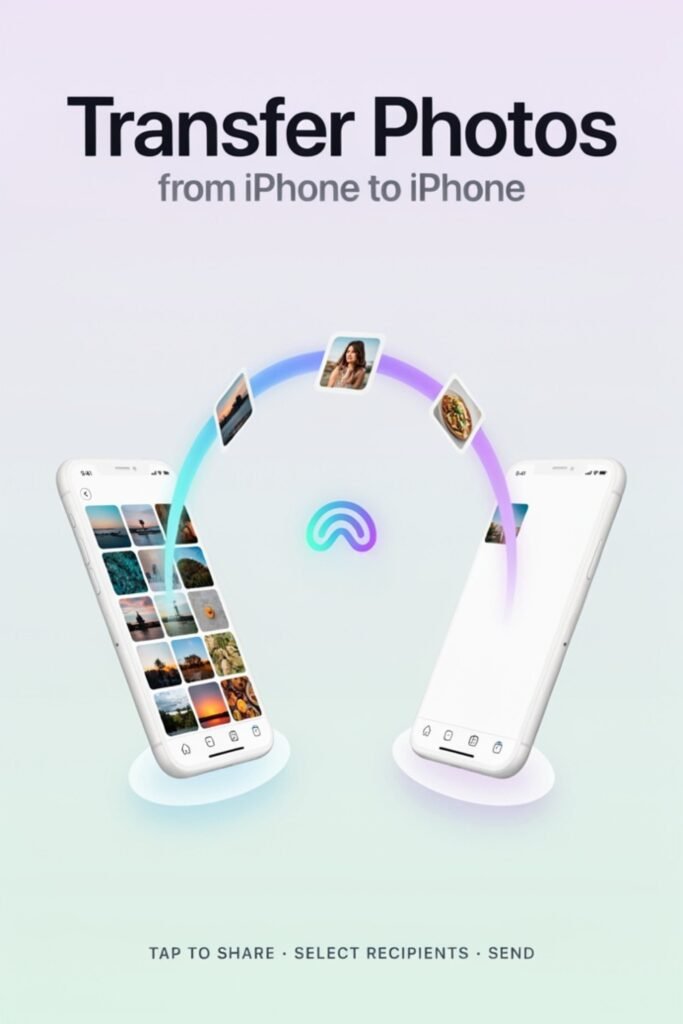
Quick Start (Direct Device-to-Device)
Quick Start is the cleanest option when you’re moving to a new iPhone. It copies your photos along with apps, messages, settings, and Wi-Fi passwords directly over a private wireless connection — no cables and no reliance on cloud storage. The one catch: the new iPhone must be on the “Hello” setup screen. If it’s already set up, you’ll need to erase it first (Settings → General → Transfer or Reset iPhone → Erase All Content and Settings).
- On the old iPhone, connect to Wi-Fi and turn on Bluetooth.
- Power on the new iPhone and place it next to the old one. A Quick Start card appears on the old phone — tap Continue.
- Use the old iPhone’s camera to scan the animation shown on the new iPhone’s screen.
- Enter your old iPhone’s passcode on the new phone, then set up Face ID or Touch ID.
- On the transfer screen, choose Transfer from iPhone to move everything directly (fastest for photos), or Download from iCloud to start using the phone sooner while data loads in the background.
- Keep both phones close together and plugged into power until it finishes.
iCloud Photos (Automatic Sync)
If you want your photos to appear on both iPhones and stay in sync going forward, iCloud Photos is the answer. Turn it on with the same Apple Account on each device and any photo you take on one phone shows up on the other. Remember: edits and deletions sync everywhere, so deleting a photo on one phone removes it from all of them.
- On the old iPhone, open Settings → [Your Name] → iCloud → Photos.
- Turn on Sync this iPhone and let it finish uploading (keep the phone on Wi-Fi).
- On the new iPhone, sign in with the same Apple Account.
- Open the same Photos settings and turn on Sync this iPhone there too.
- Your library downloads automatically. Choose Optimize iPhone Storage to save space, or Download and Keep Originals for full-resolution files on the device.
AirDrop (Selected Photos, Instantly)
AirDrop is perfect when you don’t need the whole library — just that vacation album or a group photo. It sends full-quality files wirelessly between two nearby iPhones in seconds, and it works even between two different Apple Accounts (great for sharing with friends or family).
- On both iPhones, open Control Center and make sure Bluetooth and Wi-Fi are on, with AirDrop set to receive.
- On the sending phone, open Photos and tap Select, then choose the images you want.
- Tap the Share icon and choose AirDrop.
- Pick the receiving iPhone from the list.
- On the receiving phone, tap Accept — the photos land straight in the Photos app.
Restore from iCloud Backup
Sold, lost, or traded in the old iPhone? As long as you made an iCloud backup beforehand, you can pull everything — including photos stored in the backup — onto the new device during setup.
- On the new iPhone, work through setup until you reach the Transfer Your Apps & Data screen.
- Connect to Wi-Fi and tap Restore from iCloud Backup.
- Sign in with your Apple Account and agree to the terms.
- Choose your most recent backup and let the restore run — keep the phone on Wi-Fi and power.
- Photos continue downloading in the background after setup completes.
Use a Computer (Finder or Windows)
When you have thousands of photos and don’t want to depend on Wi-Fi or pay for extra iCloud space, a wired computer transfer is fast and reliable. The catch: this method moves photos from the Camera Roll and works best when iCloud Photos is turned off, since iCloud manages the library differently.
- On a Mac: connect the old iPhone with a cable, open the Photos app, and click Import to save photos to your Mac.
- On Windows: connect the iPhone, open File Explorer or the Apple Devices app, and copy the photos to a folder.
- Disconnect the old phone and connect the new iPhone.
- Drag the photos back onto the new device (or sync them through the Photos/Apple Devices app).
Still Not Sure? Pick in 10 Seconds
- You have both phones and the new one isn’t set up yet → Quick Start.
- You want photos to keep syncing across both phones forever → iCloud Photos.
- You only need a handful of pictures moved → AirDrop.
- You no longer have the old iPhone → Restore from iCloud Backup.
- You have a giant library and shaky internet → Computer (Finder or Windows).
Tips to Avoid Losing Photos
A few small habits prevent the most common “where did my pictures go?” panics:
Got a Question We Didn’t Cover?
No. Quick Start, AirDrop, iCloud Backup, and computer transfers all move your original, full-resolution files. The only nuance is iCloud Photos: it stores originals in the cloud and keeps lighter versions on the device to save space. Choose “Download and Keep Originals” if you want full-resolution files stored directly on the new iPhone.
It depends on your library size and connection. A typical Quick Start or wired restore runs 15 to 60 minutes. Very large photo and video libraries can take longer, and background downloads may continue for a while after the main transfer finishes.
Yes. Quick Start’s direct “Transfer from iPhone” option and computer (Finder/Windows) transfers don’t require a paid iCloud+ plan. You’d only need extra iCloud space if you rely on iCloud Photos or an iCloud backup that’s larger than the free 5 GB allowance.
For Quick Start and AirDrop, yes — both phones must be present and nearby. If you no longer have the old phone, restore from an iCloud backup instead. Either way, only erase or trade in the old device after you’ve confirmed everything arrived safely.
First, confirm both phones are signed in to the same Apple Account and that iCloud Photos is turned on (Settings → [Your Name] → iCloud → Photos). Then make sure the new iPhone is on Wi-Fi and has enough storage — downloads pause when a device is full or offline. Give a large library time to finish syncing in the background.
Yes — AirDrop is the easiest way, since it works between any two nearby iPhones regardless of Apple Account. A shared iCloud album or simply sharing photos to another person also works well when the two phones use different accounts.
Sources & further reading: Apple’s official guides on setting up and using iCloud Photos, managing your photo and video storage, and iCloud+ storage plans.
Steps and menu names reflect iOS 26 as of August 2026 and may vary slightly by device or software version. Apple, iPhone, iCloud, AirDrop, and Face ID are trademarks of Apple Inc. Unloky is not affiliated with or endorsed by Apple. Always back up your data before transferring to avoid accidental loss.