
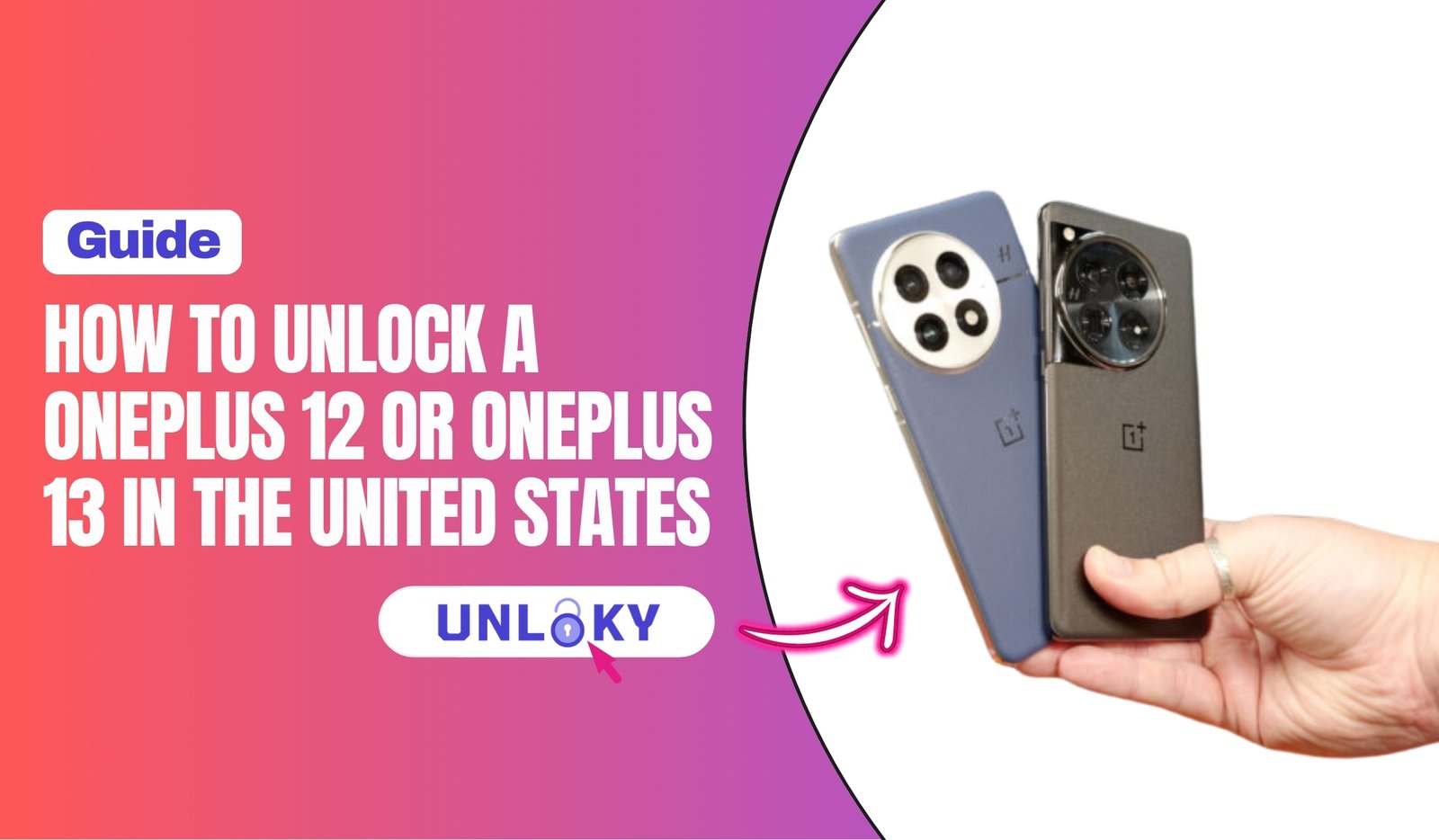
If you’re searching for how to unlock your OnePlus 12 or OnePlus 13, odds are you want one of two things: to use it on a different carrier here in the States, or to keep it connected while traveling abroad without paying brutal roaming fees.
Here’s the catch most guides skip over — “unlock” can mean three completely different things. It might mean removing a carrier lock so you can switch networks. It might mean getting past a forgotten screen PIN. Or it might mean unlocking the bootloader to install custom software. They’re not the same, and the steps are totally different for each.
Good news: most OnePlus phones sold in the US are already unlocked out of the box. The main exception is the T-Mobile and Metro by T-Mobile versions. This guide covers all three unlock types, walks you through the carrier process step by step, and helps you figure out which one you actually need.
Key Takeaways
- Most US OnePlus phones are already unlocked. Units bought from OnePlus.com, Amazon, or Best Buy ship factory unlocked. Only the T-Mobile and Metro variants come locked.
- “Unlock” means three different things. Carrier unlock switches networks, screen unlock recovers a forgotten passcode, and bootloader unlock enables custom ROMs — each needs a completely different process.
- Carrier unlocking is free and often automatic. Once your device is paid off and active for 40 to 60 days, T-Mobile and Verizon usually unlock it on their own. Skip any paid “unlock code” service.
- Forgot your passcode? You’ll have to wipe the phone. Use Google Find My Device or Recovery Mode to reset — there’s no bypass that keeps your data.
- An unlocked OnePlus works everywhere. It supports all major US carriers plus dual SIM and eSIM, so you can switch networks at home or add a travel eSIM abroad.
First, Which Kind of “Unlock” Do You Need?
Before you do anything, figure out which lock you’re dealing with. People waste hours following the wrong instructions because all three share the same word.
Carrier (network/SIM) unlock removes the restriction that ties your phone to one carrier’s network. You need this if you want to switch from T-Mobile to AT&T, or use a local SIM overseas.
Screen lock removal is for when you’ve forgotten your PIN, pattern, or password and can’t get into the phone at all.
Bootloader unlock is an advanced developer feature that lets you flash custom ROMs or root the device. It wipes your data and voids your warranty, so only attempt it if you genuinely know what you’re doing.
Here’s a quick comparison to keep them straight:
| Unlock Type | What It Does | Who Needs It | Risk Level |
|---|---|---|---|
| Carrier / SIM unlock | Lets the phone work on other networks | Anyone switching carriers or traveling | None — it’s free and official |
| Screen lock removal | Resets a forgotten passcode | Locked-out owners | Wipes all data |
| Bootloader unlock | Enables custom ROMs / rooting | Developers, modders | High — voids warranty, wipes data |
Are OnePlus 12 and OnePlus 13 Locked in the US?
It depends entirely on where you bought it.
OnePlus 12 and OnePlus 13 units purchased directly from OnePlus.com, Amazon, or Best Buy ship factory unlocked. These are the standard retail versions, and they work with every major US carrier right out of the box — AT&T, T-Mobile, Verizon, and the prepaid brands that run on their networks.
The exception is the T-Mobile and Metro by T-Mobile variants. OnePlus has a long history of carrier partnerships with T-Mobile in the US, and those carrier-sold models ship locked to the network. This isn’t new — even older OnePlus phones sold through T-Mobile came carrier-locked while the unlocked retail versions did not.
So the simple rule: if you bought it from OnePlus or a general retailer, it’s unlocked. If you bought it from T-Mobile or Metro, it’s locked until you complete their unlock process.
How to Check if Your OnePlus Is Already Unlocked
Not sure which camp you’re in? Here’s how to find out in under a minute.
Method 1 — The SIM test. This is the fastest. Insert a SIM card from a different carrier than the one the phone came from. Power the phone on. If it connects and shows signal, you’re unlocked. If you see a message like “SIM not allowed,” “network locked,” or a prompt asking for an unlock code, the phone is carrier-locked.
Method 2 — The IMEI check. Dial *#06# on the phone’s keypad to pull up your 15-digit IMEI number. Write it down, then run it through a free IMEI lookup service to see the carrier and lock status. Our guide on how to check if your phone is unlocked using IMEI.info, IMEI.org, or Swappa’s free IMEI check walks through exactly which sites to trust.
Method 3 — Settings. Go to Settings → About device and look for connection or SIM status info. It won’t always state the lock status plainly, but combined with the SIM test it gives you a clear answer.
If you want a deeper walkthrough of every checking method across Android phones, our guide on how do I know if my phone is unlocked covers them all.
Carrier Network Unlock Eligibility Requirements
Before any US carrier unlocks your OnePlus, you’ll need to meet a few standard requirements. These are pretty consistent across networks, with small variations:
The device must be fully paid off — no remaining balance on an installment plan or lease. The phone must have been active on the account for the carrier’s required period, usually somewhere between 40 and 60 days. The account must be in good standing with no past-due balance. And the device must not be reported lost or stolen — a blacklisted IMEI can’t be unlocked for use on any major network.
Each carrier’s exact timeline differs, so check the relevant section below for yours.
How to Unlock a T-Mobile OnePlus (Network Unlock)
If your OnePlus 12 or 13 came from T-Mobile or Metro, here’s the process.
T-Mobile uses an automatic unlock policy. Once your device meets eligibility — fully paid off and active for at least 40 days on a postpaid line (prepaid is stricter, usually 365 days or $100+ in refills) — T-Mobile pushes a permanent unlock to the device over the air. You often don’t have to do anything at all.
If it hasn’t unlocked on its own, here’s the manual flow:
- Confirm you meet eligibility (paid off, account in good standing, required time elapsed).
- Open the T-Life app and head to the Device Unlock section, or check Settings → Network for an unlock option.
- Trigger the permanent unlock request.
- Restart your phone once it’s approved.
- Insert a SIM from another carrier to confirm it works.
If you’re stuck, call T-Mobile support at 1-800-937-8997 and ask them to confirm your device’s unlock status.
Unlocking an AT&T or Verizon OnePlus
Less common, but some people end up with a OnePlus on AT&T or Verizon through trade-in or BYOD programs. Here’s how each works.
AT&T: Go to AT&T’s device unlock portal online. Enter your IMEI and submit the request. AT&T requires the device fully paid off and active for at least 60 days. Approval typically arrives by email within 48 hours, after which you insert a non-AT&T SIM to complete the unlock.
Verizon: Verizon’s policy is the simplest. Devices are automatically unlocked 60 days after purchase. There’s nothing to request — just wait out the window. If it’s been longer than 60 days and the phone is still locked, contact Verizon support and they’ll clear it.
Still not sure a paid “unlock code” service is worth it? It almost never is. Our breakdown of the master code to unlock any Android phone — what actually works explains why those magic codes are mostly a myth on modern phones.
How to Unlock Your OnePlus Screen Lock (Forgot PIN/Pattern)
Completely different problem. You’re not switching carriers — you’re locked out of the device because you forgot your PIN, pattern, or password. There’s no clever bypass here; Android’s security is built to prevent exactly that. Your options come down to a reset.
Method 1 — Google Find My Device. On any other device, go to Google find hub, sign in with the Google account that’s on the locked phone, select your OnePlus, and choose to reset it. This wipes the lock along with everything else.
Method 2 — Recovery Mode. Power the phone off. Hold Power + Volume Down until the bootloader screen appears, navigate to Recovery Mode, and select Wipe data / factory reset.
⚠️ Warning: Both methods erase all data on the phone — photos, apps, messages, everything. There’s no way to remove a forgotten screen lock while keeping your data intact.
After the reset, your OnePlus will ask you to sign in with the Google account that was previously on it. This is Factory Reset Protection (FRP), and it’s why a stolen phone can’t just be wiped and resold. As long as you remember your Google credentials, you’re fine. For more options, see our guide on how to unlock an Android phone without a password or factory reset.
How to Unlock the Bootloader on OnePlus 12 / OnePlus 13
Now for the modders. Unlocking the bootloader lets you root the phone, flash custom ROMs, or install custom recoveries. The good news with OnePlus is that, unlike some brands, they officially support bootloader unlocking on their devices, and the global and US models don’t require begging for a special token the way some carrier phones do.
Two warnings first. Unlocking the bootloader wipes everything on the phone, so back up your data. And it may void your warranty and break certain DRM-protected or banking apps. Proceed only if you understand the trade-offs.
You’ll need a computer with ADB and Fastboot installed, plus a USB-C cable.
Enabling OEM Unlocking
Open Settings → About device, then tap the Build number several times until it says you’re now a developer. Go back to Settings → System → Developer options, and turn on both OEM unlocking and USB debugging. If OEM unlocking is greyed out, connect to Wi-Fi, sign in to your account, and give it a few minutes — sometimes the toggle needs network verification before it’ll activate.
Running the Unlock Command
- Connect your OnePlus to the computer with the USB-C cable.
- Open a command prompt or terminal in your ADB folder.
- Run
adb reboot bootloader. The phone restarts into fastboot mode. - Run
fastboot flashing unlock(on some builds it’sfastboot oem unlock). - On the phone, use the volume keys to select the unlock option and confirm with the power button.
The device wipes and reboots. When it comes back, your bootloader is unlocked and you can move on to rooting with Magisk or flashing a custom ROM. If you’re unclear on how bootloader unlocking differs from actually rooting the phone, that distinction matters — and we cover it in plain terms elsewhere on the site.
Using an Unlocked OnePlus With eSIM and Different Carriers
Once your OnePlus 12 or 13 is unlocked, you’ve got real flexibility. Both phones support dual SIM — a physical nano-SIM plus eSIM — so you can run two lines at once.
To add an eSIM, go to Settings → SIM card & mobile data → Manage eSIM, then scan the QR code your carrier provides. This is perfect for travel: you keep your US number on your physical SIM and add a local or travel eSIM (from Airalo, Holafly, or Saily) when you land abroad.
For US carriers, an unlocked OnePlus works great with prepaid options like Mint Mobile, US Mobile, Visible, and Google Fi, often at a fraction of the big carriers’ prices. If you’re shopping around, our roundup of the best unlocked 5G cell phones is a good place to compare.
Common Problems and Fixes
A few issues pop up again and again after unlocking. Here’s how to handle them.
“SIM not allowed” after unlocking. Restart the phone, then remove and re-insert the SIM. The unlock sometimes needs a reboot to fully apply.
Unlock request denied. Run back through the eligibility checklist — fully paid off, active long enough, account in good standing, not blacklisted. Missing any one of these will get the request bounced.
No service after switching carriers. This is almost always an APN settings issue. Go to Settings → SIM card & mobile data → Access Point Names and either select your new carrier’s APN or add it manually using the settings from their website.
💡 Tip: Always back up your phone before any reset or bootloader change, and double-check your IMEI isn’t blacklisted before buying a used OnePlus.
The Bottom Line
For most people in the US, unlocking a OnePlus 12 or OnePlus 13 is easier than expected — because most retail units are already unlocked from day one. If you bought yours from OnePlus.com, Amazon, or Best Buy, you’re free to switch carriers and use eSIMs right now. If it came from T-Mobile or Metro, just meet the eligibility terms and the unlock is free and usually automatic.
Whatever you do, start with the right kind of unlock. Don’t factory reset a phone when you really just need a carrier unlock, and don’t go near the bootloader unless you’re a confident modder who’s backed everything up.
If you hit a snag — a denied request, a forgotten passcode, or an unclear lock status — Unloky has step-by-step guides for every unlock scenario across OnePlus, Samsung, Pixel, and iPhone. Bookmark us, and we’ll get you connected on whatever network you choose.
Yes. OnePlus 12 and 13 phones bought from OnePlus.com, Best Buy, or Amazon ship SIM-unlocked. They aren’t tied to any carrier. Just remember that “SIM-unlocked” doesn’t guarantee perfect compatibility on every network — match the phone to a carrier like T-Mobile for the smoothest experience.
The hardware supports Verizon’s main bands, and many owners report it working fine. However, Verizon doesn’t officially certify current OnePlus models, so activation isn’t guaranteed and isn’t officially supported. T-Mobile and AT&T are generally smoother choices.
For SIM unlocking, modern OnePlus phones use carrier-side unlocks, not manual codes — and most US units are already unlocked anyway. For bootloader unlocking, you use fastboot commands on a computer, not a code. Avoid any site selling “OnePlus unlock codes.”
It can, and it also wipes your data and may break some banking or streaming apps. OnePlus officially supports the process, but you take on the risks once you do it. Only unlock the bootloader if you specifically need it for rooting or custom ROMs.
Yes. Boot into fastboot mode and run fastboot flashing lock. The device wipes again and re-locks. Note that some custom ROMs interfere with re-locking, so check your ROM’s documentation first.