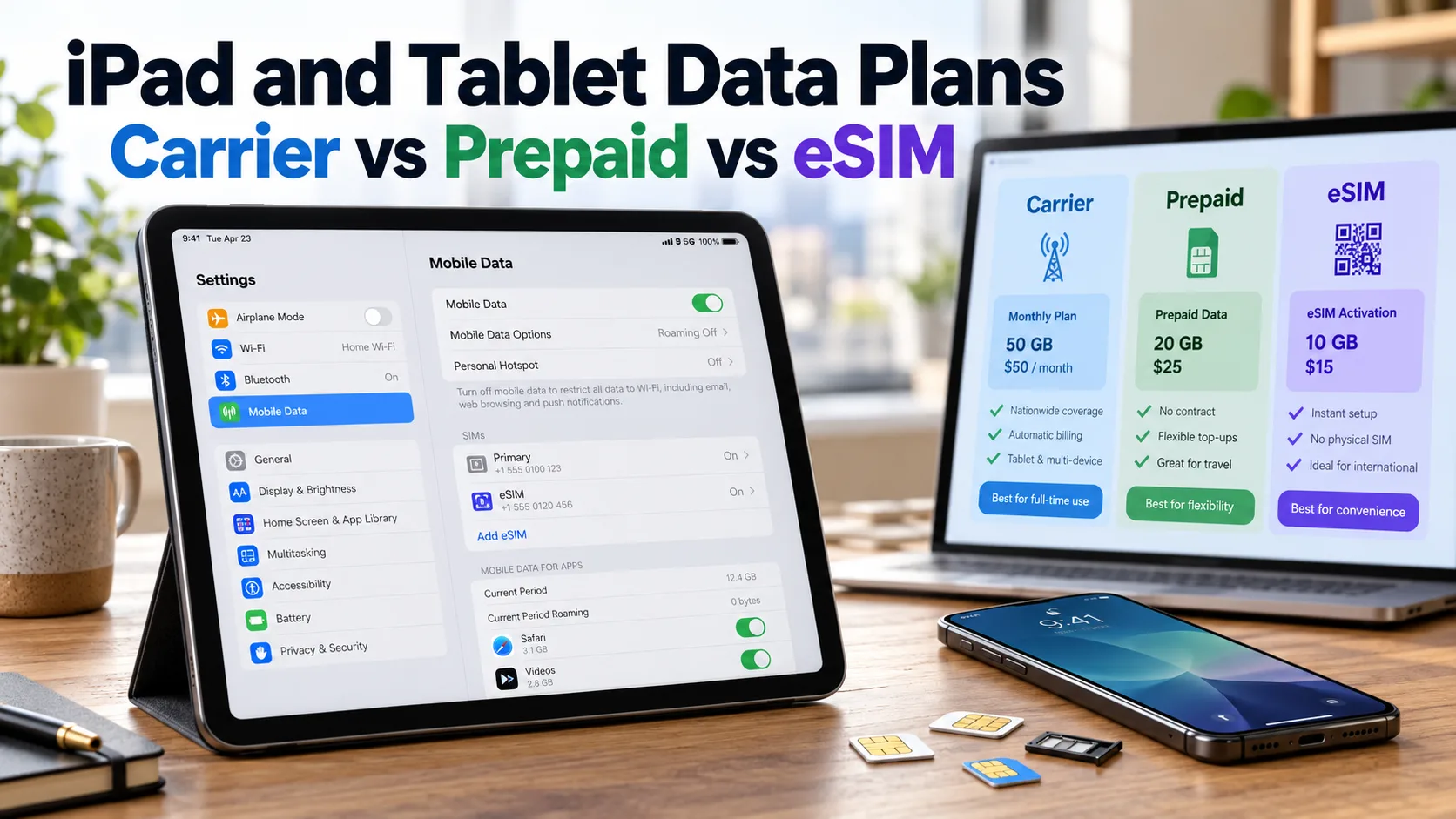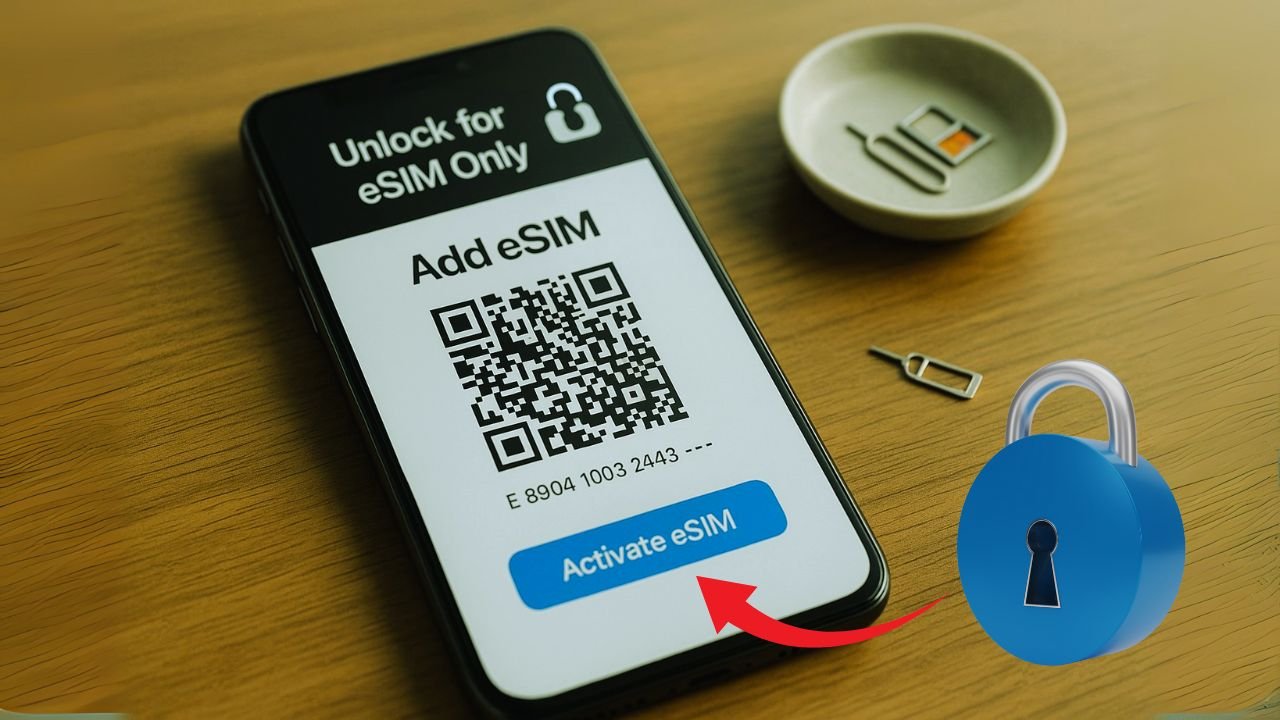
Unlocking your phone for eSIM-only use is a two-step job: unlock the device, then add the eSIM. First, ask your current carrier to remove the network lock so your phone can work on any network. You may need to finish your contract or pay off the device.
If you’re not sure who locked it, check your phone’s settings or look up the carrier with your IMEI. Many carriers let you request an unlock online or in their app, and some phones even have a built-in “Device Unlock” option in settings.
After it’s unlocked, add your eSIM. On iPhone, go to Settings → Cellular → Add eSIM and scan the QR code from your new carrier or enter the details by hand. On Android, go to Settings → Network & Internet → SIMs → Add eSIM, then scan the QR or enter the SM-DP+ address and activation code. Use a stable Wi-Fi connection, confirm your phone and carrier both support eSIM, and you’re set—no physical SIM card needed.
Key Takeaways
- Unlock comes first. Ask your current carrier to remove the network lock. You’ll usually need the phone paid off and the account in good standing. Check status in Settings (iPhone: Carrier Lock → “No SIM restrictions”).
- Confirm eSIM support and compatibility. Make sure your phone supports eSIM and your new carrier/MVNO offers eSIM on your model. Have your EID/IMEI ready. iPhone: Settings → Cellular → Add eSIM → scan the QR/app code or enter details. Android: Settings → Network & Internet → SIMs → Add eSIM → scan QR or enter the SM-DP+ and activation code.
- Use Wi-Fi and don’t delete the old line yet. A stable internet connection speeds up download/provisioning. If you’re porting your number, keep the old SIM/eSIM active until the new eSIM is working.
- Enjoy eSIM-only freedom. After activation you can run without a physical SIM, store multiple eSIM profiles, and even keep two lines active on many phones for personal/work or travel.
What “unlocking” means (and what it doesn’t)
Unlocking removes a carrier’s network lock so your phone can accept service from other carriers. It’s different from Apple’s Activation Lock or Google’s Factory Reset Protection, which are anti-theft features tied to your account. Only your carrier can remove a network lock; apps or websites that “unlock” phones without carrier permission are unreliable at best.
In the U.S., carriers follow rules and policies that set timeframes and conditions for unlocking. For example, Verizon unlocks phones automatically after 60 days; AT&T uses an online portal with clear eligibility rules; T-Mobile has a policy and built-in unlock tools on supported phones.
Good to know: The FCC says carriers must unlock prepaid devices within one year of activation upon request, and has highlighted special protections for deployed service members.
eSIM in one minute
An eSIM is a digital SIM built into your phone’s hardware. Instead of inserting a card, you download a carrier profile via QR code, app, or automatic provisioning. The tech comes from GSMA’s global eSIM standard. Each eSIM chip carries a unique EID (eUICC ID) that carriers use to securely assign your plan. Modern phones can store multiple eSIMs and many can keep two active lines at once.
On iPhone, models that support eSIM can keep several plans and run Dual SIM; iPhone 13 and later can run two eSIMs at the same time, and tray-less iPhones support two active eSIMs.
Does eSIM change how unlocking works?
No. eSIM doesn’t bypass a carrier lock. If your phone is locked to Carrier A, you can only activate that carrier’s eSIM until the device is unlocked. Once it’s unlocked, you can activate eSIM profiles from any compatible carrier or MVNO. You’ll still need to meet your current carrier’s unlocking rules first.
Step 1 — Confirm your phone supports eSIM-only use
Most recent iPhones and many Android flagships support eSIM. In the U.S., iPhone 14 and newer are eSIM-only (no tray), while older models from iPhone XS onward support eSIM alongside a physical SIM. On Android, Google Pixel, Samsung Galaxy, and others support eSIM on many recent models.
Find your EID (a strong hint your phone has eSIM). On iPhone: Settings → General → About (scroll). On Android: Settings → About Phone, or dial *#06#. Carriers like T-Mobile also show tutorials for locating EID.
If your device has an EID and runs a current OS version, you’re ready for eSIM-only service.
Step 2 — Check if your phone is locked
On iPhone: Go to Settings → General → About. If you see “No SIM restrictions” next to Carrier Lock, your iPhone is already unlocked. If not, it’s locked to the listed carrier.
On Android: There’s no single label, but you can (a) ask your carrier, (b) try to add an eSIM from a different carrier/MVNO, or (c) insert a different carrier’s SIM if your phone still has a tray. A foreign or MVNO eSIM that fails at the “activation/registration” step on an otherwise compatible phone is often a sign of a network lock.
Tip: If you’re moving an existing number to a new eSIM and the phone says “Not registered on network,” confirm it’s unlocked, then check APN and carrier settings after activation.
📖 Also Read: Unlocking a Foldable Phone: Galaxy Z Fold vs Flip
Step 3 — Request the unlock from your current carrier
Here’s how the big three U.S. carriers handle unlocking (summarized for both postpaid and prepaid). Always check the exact terms on your account page or support portal, since carriers can update details.
Verizon (Postpaid & Prepaid)
- Locked for 60 days after purchase/activation. Then auto-unlocks as long as the device wasn’t flagged lost/stolen or fraudulent. No extra action required in most cases.
AT&T
- Use the AT&T Device Unlock Portal to submit a request.
- Typical rules: device bought 60+ days ago, paid off, not reported lost/stolen, and account in good standing. AT&T notes many eligible devices auto-unlock once criteria are met.
T-Mobile (and Metro by T-Mobile)
- Must be active on T-Mobile for at least 40 days on the requesting line; financed phones must be paid in full; canceled accounts must have zero balance.
- Prepaid: generally 365 days since first activation (or >$100 in refills within that period).
- Many Android phones have a built-in Device Unlock option in settings or the T-Mobile/T-Life app to request a permanent or temporary unlock (e.g., travel). Metro mirrors similar timelines.
Special cases & protections
- Prepaid devices: under the FCC’s unlocking principles, carriers unlock no later than one year from activation upon request.
- Active-duty military: carriers unlock upon proof of deployment and good standing.
Step 4 — Get ready for an eSIM-only activation
Before you switch away from your current carrier:
- Update your phone to the latest iOS or Android version and connect to Wi-Fi.
- Locate your numbers: EID, IMEI and (if needed) ICCID (you’ll see these in Settings → About).
- Turn off iMessage/FaceTime temporarily if you’re moving your number from iPhone to Android (you can turn them back on later).
- Back up your phone.
- If you’ll reuse the same number via eSIM on a new carrier, do not delete the old eSIM until the new one is live—unless your new carrier tells you to.
📖 Also Read: IMEI Cleaning vs IMEI Unlocking: What’s the Difference?
Step 5 — Activate eSIM after unlock
For iPhone (eSIM-only or eSIM-capable)
There are three common ways to activate:
A) eSIM Quick Transfer (iPhone-to-iPhone)
If both iPhones are nearby and on iOS 16 or later, you can move your number during setup or via Settings → Cellular → Add eSIM → Transfer from Nearby iPhone. Follow the prompts on both phones.
B) Scan a QR code from your carrier or MVNO
Go to Settings → Cellular → Add eSIM → Use QR Code, point the camera at the code, and accept the plan download. On iPhone 14 and later (U.S., tray-less models), you can even activate without Wi-Fi during setup.
C) In-app activation
Some carriers and global eSIM providers activate plans directly inside their apps—no QR code needed. Just install the app, choose a plan, and follow the prompts to download the eSIM profile.
Dual-line tip: iPhones that support eSIM can store multiple plans and keep two lines active at once; tray-less models can run two eSIMs simultaneously. Label them (e.g., “Personal” and “Data”) under Cellular Plans for easy switching.
For Android (Pixel, Samsung, and others)
A) Add a new eSIM
On most Android phones: Settings → Network & Internet → SIMs → Add SIM. Choose your carrier or Scan QR and follow the prompts. Pixels also present a “Use Verizon/Download” or similar flow if you’re activating on Verizon.
B) Transfer an eSIM from another device
Recent Pixels support eSIM transfer in Settings (Network & internet → SIMs → Add SIM → Transfer SIM from another device). This helps you move your number from an older Pixel without contacting the carrier.
C) Convert a physical SIM to eSIM
Some Android models (and carriers) let you convert a physical SIM in place to an eSIM via Settings; exact options vary by device and carrier.
T-Mobile-specific tools: Many Android phones on T-Mobile include a Device Unlock option in Settings, and T-Mobile documents temporary unlocks (e.g., for travel). These tools don’t replace eligibility rules, but they make the final step faster when you’re ready.
Using only eSIM: daily life, travel, and MVNOs
Once your phone is unlocked, running eSIM-only is simple:
Everyday use: Keep your main number as an eSIM. If you need a second line (work or side project), add another eSIM and set which line handles calls, texts, and data. iPhone and Android let you label plans and choose defaults.
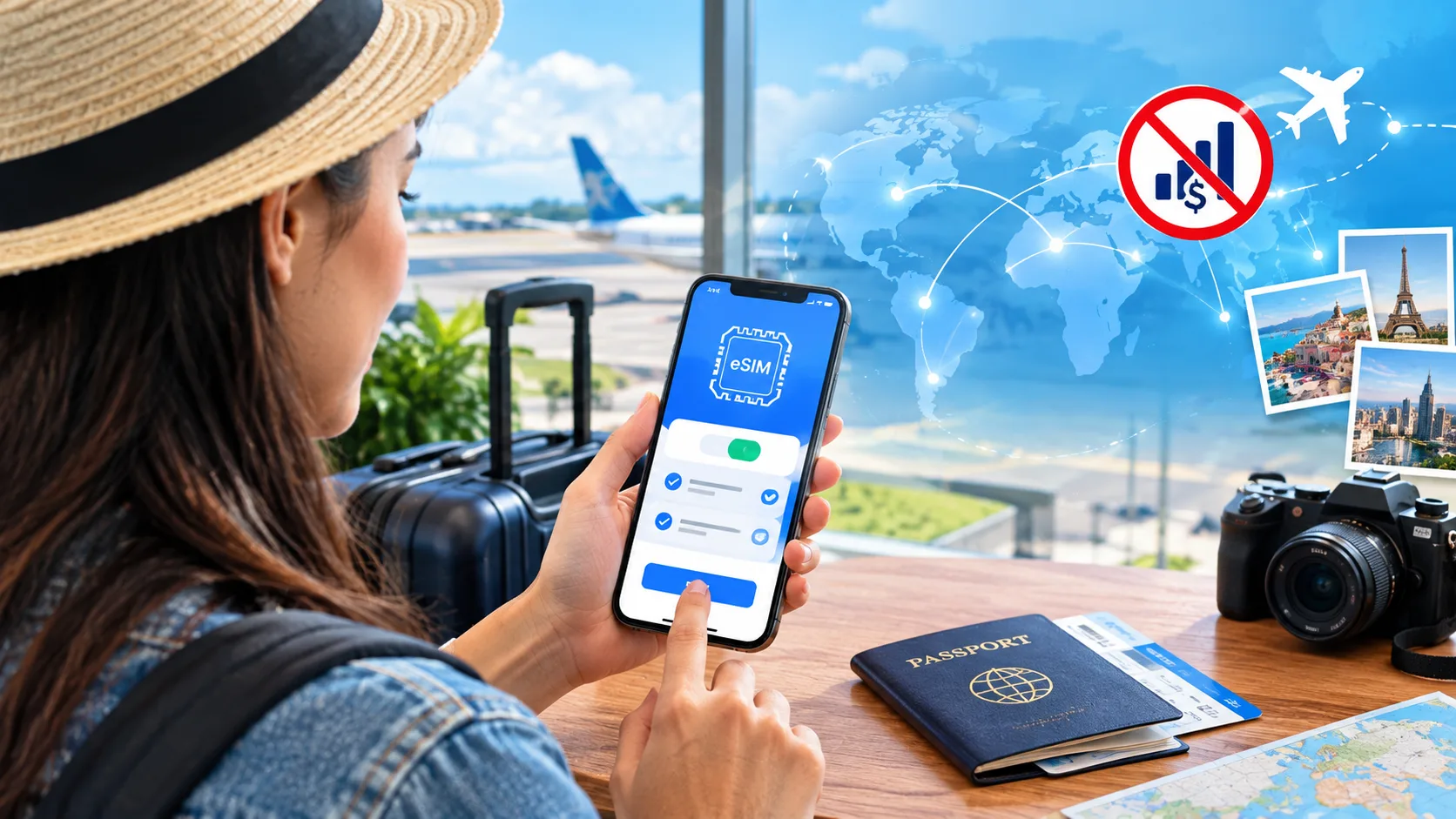
Travel: Add a local or regional data eSIM for the trip while you keep your home line for calls/messages. You can turn data roaming off on your main line and use the travel eSIM for data. Apple documents this flow for iPhone; Android offers similar toggles.
Switching carriers/MVNOs: Since your phone is unlocked, you can try MVNO plans on the same network (Verizon/AT&T/T-Mobile) by downloading their eSIM profiles via app or QR. Many providers now support same-day eSIM activation.
📖 Also Read: Can You Unlock a Phone That Still Has Payments Due?
Troubleshooting eSIM-only activations
“No SIM” or “Invalid SIM” on iPhone
Confirm the device is unlocked (Settings → General → About → Carrier Lock should say No SIM restrictions). Then restart, check for carrier settings updates, or re-add the eSIM profile.
“Not registered on network” on Android
This often points to an account provisioning issue, network outage, or APN misconfig. Reboot, toggle Airplane Mode, check APN, and contact the carrier if it persists.
QR code won’t download
Make sure Wi-Fi is stable (except on U.S. iPhone 14+ during initial setup where Wi-Fi isn’t required), check that the EID/IMEI you gave the carrier matches the device, and try again.
Moving between iOS ↔ Android
Cross-platform eSIM transfers sometimes require the carrier to reissue the eSIM. Start by deleting the old profile only after the new one is working—or follow your carrier’s instructions precisely. Pixels now offer improved transfer tooling, but support varies.
Business-managed or financed devices
Phones tied to corporate MDM or with unpaid installments may be ineligible for unlocking until obligations are met. See your carrier’s policy page and your employer’s IT.
Frequently asked questions
Can I unlock my phone if it has no SIM tray?
Yes. Unlocking is done on the network side (and, for iPhone, via Apple’s activation servers). Tray-less phones like U.S. iPhone 14+ unlock the same way as any other—by meeting carrier rules.
Will eSIM let me bypass a carrier lock?
No. eSIM doesn’t change the lock. You must meet the unlock policy for your current carrier first.
How long before carriers unlock?
Verizon auto-unlocks after 60 days. AT&T typically requires 60+ days and paid-off status via its portal. T-Mobile needs at least 40 days of active service (or 365 days for prepaid), and paid-off devices.
I’m military and deploying—can I request an early unlock?
Yes. Carriers unlock for deployed service members in good standing with proof of deployment.
How do I know my iPhone is unlocked?
Settings → General → About → Carrier Lock should show No SIM restrictions.
What numbers will my new carrier ask for?
Expect EID (for eSIM), IMEI, and sometimes ICCID. You’ll find these in Settings → General/About (iPhone) or Settings → About Phone (Android).
Can I keep two lines active with eSIM only?
On iPhone 13 and newer (and tray-less models), yes—two eSIMs can be active at the same time. Many Android flagships also support dual eSIM with two active lines.
Do I need Wi-Fi to activate eSIM?
Usually yes, but U.S. iPhone 14 and later can activate eSIM during setup without Wi-Fi.
What about Metro, Cricket, or TracFone?
They follow their parent network’s rules with their own timelines and portals. For example, Metro (by T-Mobile) requires 365 days since activation before unlock. TracFone has a dedicated unlock policy site.
Step-by-step playbooks
iPhone: unlock and go eSIM-only
- Check lock status: Settings → General → About → Carrier Lock. If you see No SIM restrictions, skip to activation. If not, proceed.
- Request unlock from your current carrier (Verizon auto-unlocks after 60 days; AT&T uses its portal; T-Mobile follows its policy/app flow). Wait for the confirmation message or email.
- Update iOS and restart.
- Add your new eSIM:
- Set defaults: Choose which line handles voice, iMessage, and data. You can keep both lines active if you like.
- Test: Place a call, send an SMS, and open a web page on mobile data.
Android (Pixel/Samsung): unlock and go eSIM-only
- Confirm eSIM support by checking for an EID or the Add eSIM option in Settings.
- Request unlock per your carrier’s rules (Verizon 60-day auto; AT&T portal; T-Mobile policy/device unlock tools).
- Update Android and restart.
- Add your eSIM: Settings → Network & Internet → SIMs → Add SIM → scan QR or follow your carrier’s guided flow. Pixels show a simple “Download” path for Verizon too.
- Transfer from an older Pixel: Settings → Network & Internet → SIMs → Add SIM → Transfer SIM from another device. Keep both devices unlocked and on Wi-Fi.
- Label and set defaults for calls, texts, and data. Test voice/data.
Pro tips for a clean eSIM-only switch
Keep the old line active until the new eSIM is confirmed working—especially if you’re porting your number.
Record your EID/IMEI before contacting the new carrier; those numbers are used to match your device to the eSIM profile.
Be patient with ports. Number transfers may take some time; you might see both lines active briefly during the hand-off, which is normal.
Avoid deleting a working eSIM until your new one is active—unless your new carrier specifically instructs you to remove it.
Travel smart. Add a data-only eSIM for roaming while your primary line remains reachable for calls and texts.
The future is eSIM-first
Apple’s U.S. iPhones went eSIM-only in 2022, and Google’s 2025 U.S. Pixels followed suit. Rumors suggest eSIM-only iPhones may expand to more regions, which means unlocking and eSIM know-how will matter even more. If your phone is unlocked and eSIM-ready, you can change carriers from your couch, try MVNO deals, and add travel data in minutes.