

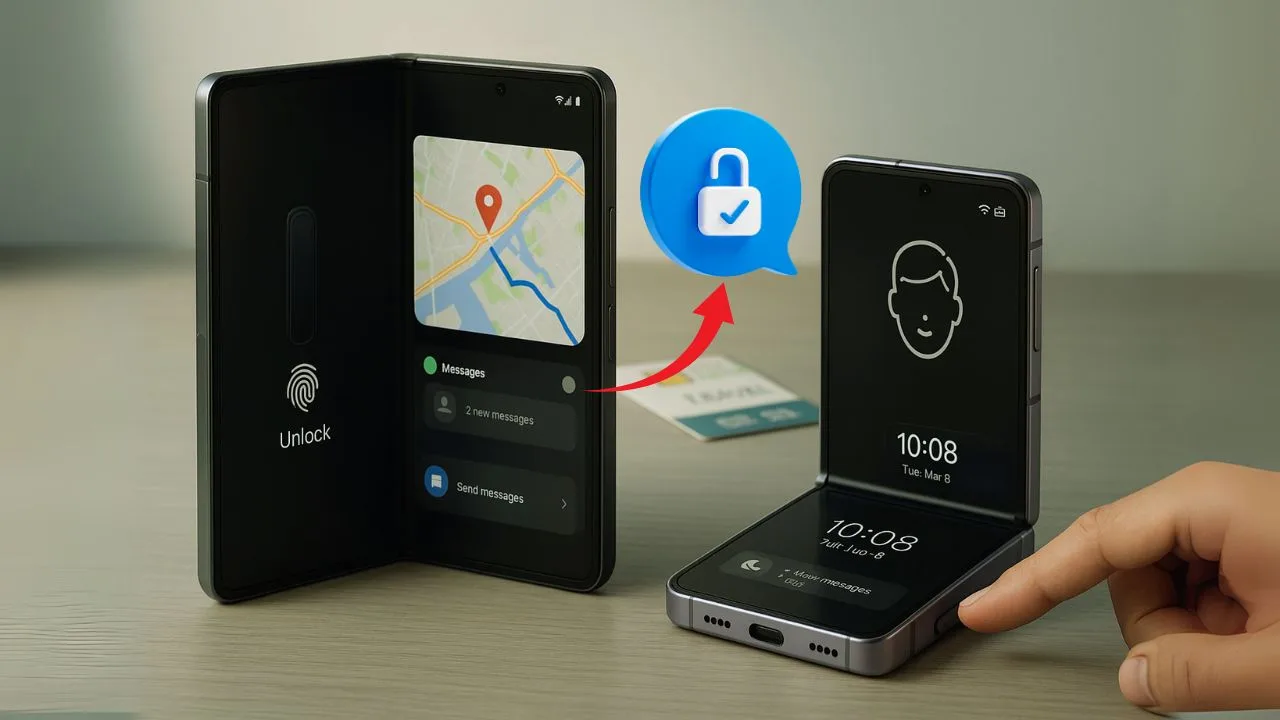
Foldable phones look different, but the rules for unlocking them are familiar. Whether you carry a Galaxy Z Fold or a Galaxy Z Flip, carrier unlocking follows the same core steps as any other Samsung phone. The hinge, the big inner screen, and the tiny cover display don’t change how the lock works. What matters is your carrier’s policy, your device’s IMEI status, and the way Samsung handles network unlocks inside One UI.
In this guide, we’ll break unlocking into plain language so you can follow along without stress. You’ll learn what “unlock” truly means, how it works on Samsung foldables, how to check your lock status, and how to finish the process the right way—on both Z Fold and Z Flip models. We’ll also cover eSIM vs physical SIM tips, travel setups, common errors (like “Invalid SIM”), and what to do if you see unusual code prompts such as “MCK.” By the end, you’ll know exactly how to move your foldable to a new carrier with confidence.
Key Takeaways
- Same unlock toolbox on both. Z Fold and Z Flip share the full Samsung set: side-mounted fingerprint, facial recognition, PIN/password/pattern, swipe, and Remote Unlock via Find My Mobile.
- Ergonomics change the feel. The Z Flip favors one-handed, closed-state unlocking—your thumb naturally lands on the side sensor—while the Z Fold’s side sensor is easy to reach closed or open.
- Face unlock behavior differs. The Z Flip’s facial recognition is most convenient when unfolded, whereas the Z Fold supports face unlock from either the outer cover camera or the inner camera, folded or unfolded.
- Cover screen access isn’t equal. Recent Z Flip models let you handle widgets and notifications from the cover with a quick fingerprint scan, but the Z Fold’s cover screen functions like a full phone for complete app access when folded.
- Continuity vs. “flip to wake.” Many Z Flip users rely on unfold-to-wake plus a quick fingerprint for speed, while the Z Fold excels at continuity—an unlock on the cover carries over seamlessly to the large inner display.
What “Unlock” Really Means on a Galaxy Foldable
When people say “unlock,” they usually mean carrier unlock. That’s the switch that lets your phone accept SIM cards (or eSIM profiles) from other networks. It’s different from a few other terms you might see:
- Carrier (Network) Unlock: Removes your phone’s network restriction so it can work on other carriers. This is the topic of this guide.
- SIM PIN: A security code that protects your SIM card from being used on another device. It is not related to network locks.
- Bootloader Unlock / Rooting: Developer-level steps for installing custom software. That’s not needed for network unlocks, and it can break Samsung Knox features. Skip it for carrier switching.
Your Galaxy Z Fold or Z Flip can have two IMEIs (IMEI1 and IMEI2) because modern Samsung foldables support dual-SIM. One IMEI maps to one radio line. Don’t worry—a proper carrier unlock applies to the whole device, not only one slot, so both IMEIs become usable unless there’s a special edge case with your carrier.
Also Read: IMEI Cleaning vs IMEI Unlocking: What’s the Difference?
How Unlocking Works on Galaxy Z Fold vs Z Flip
Here’s the simple truth: Fold and Flip unlock the same way. The difference is form factor, not unlock logic. The things that matter are:
- Your carrier’s policy: Most carriers require your device to be paid off, active for a certain period, and not reported lost or stolen.
- Your device’s IMEI status: If the IMEI is blacklisted due to loss/theft or fraud, a standard unlock won’t help. The phone must be removed from that blacklist through official channels before it can connect, even if it’s unlocked.
- Samsung’s Network Unlock feature: On modern One UI builds, you’ll find a Network Unlock option in Settings that talks to the carrier server and completes the unlock when you’re eligible.
Key takeaway: Unlocking a Z Fold5 works like unlocking a Z Flip5. Unlocking a Z Fold4 works like unlocking a Z Flip4. The steps and requirements are nearly identical across the Fold/Flip families.
Foldables and Dual-SIM: What to Expect
Most recent Galaxy foldables support dual-SIM in some mix of physical SIM and eSIM (exact combos vary by region and model). That’s why you’ll see IMEI1 and IMEI2 in Settings.
- After a successful unlock, you can usually:
- Keep your main number on eSIM and use a local physical SIM while traveling, or
- Run two lines at once if your model supports Dual SIM Dual Standby (DSDS).
- The unlock is device-wide, so both lines should work with compatible carriers once unlocked.
Note on regions: Band support and SIM configurations can vary by country. If you import a model, make sure its 4G/5G bands match your target carrier. An unlocked phone with the wrong bands may still show weak signal or no 5G in your area.
Step-by-Step: How to Check Your Lock Status
Before asking for an unlock, confirm whether you’re actually locked:
1: Try another carrier’s SIM
- Power off your Fold or Flip.
- Insert a SIM from a different carrier.
- Power on and watch for prompts.
- If you see “Invalid SIM” or “Network locked”, the phone is still locked.
- If calls and data work after APN setup, you may already be unlocked.
2: Look inside Settings
- Open Settings → Connections → More connection settings (name can vary by One UI version).
- Check for Network unlock. If available, you’ll see options like Permanent unlock or Unlock.
- Some models also show status hints under Settings → About phone → Status information.
3: Ask your carrier
Contact support and provide your IMEI. They can confirm lock status and eligibility in their system.
Also Read: Can You Unlock a Phone That Still Has Payments Due?
Requesting an Unlock from Your Carrier (The Right Way)
Most carriers support unlocks once you meet their rules. Common requirements include:
- Device is fully paid off (no remaining balance or contract).
- Account is in good standing and active for a set period.
- Phone has not been reported lost, stolen, or involved in fraud.
How the request usually works:
- Postpaid lines: Unlocks are often automatic or request-based via app, chat, or calling support.
- Prepaid lines: Expect a longer active period before eligibility.
- Former customers or second-hand buyers: You can still request an unlock if the phone meets policy. You’ll often use an online portal and enter your IMEI.
T-Mobile / Sprint-branded Samsung (example pattern):
Many recent U.S. Samsung phones include Network unlock in Settings. When you tap Permanent unlock, your phone talks to the carrier’s server. If you’re eligible, it completes on the spot, followed by a reboot. If you’re not yet eligible, it shows an error or wait time.
AT&T-branded Samsung (example pattern):
AT&T often uses a public online unlock portal. You submit your IMEI, confirm email, and wait for an approval. Once approved, your phone either unlocks over the air or shortly after you insert a different carrier’s SIM.
Verizon-branded Samsung (example pattern):
Verizon devices are typically set to auto-unlock after a short period of active service. If that window has passed and you’re still locked, contact Verizon support to check your IMEI and account notes.
Tip: If you bought your foldable used, confirm it’s not financed and not blacklisted. A clean IMEI plus proof of purchase makes unlocks smoother.
Using Samsung’s “Network Unlock” in One UI
If your Fold or Flip shows Network unlock in Settings, try this:
- Connect to Wi-Fi or mobile data.
- Go to Settings → Connections → More connection settings → Network unlock.
- Choose Permanent unlock (names may vary slightly).
- Wait while the phone contacts the carrier server.
- If approved, you’ll see a success message and your device will reboot.
- After reboot, insert your new SIM or add your new eSIM and test calls/data.
If it fails, the message often hints why: not yet eligible, system busy, or account mismatch. Take that message to carrier support for next steps.
After the Unlock: Set Up SIM or eSIM on a Foldable
Once unlocked, you’re free to insert any compatible SIM or add a new eSIM:
- Physical SIM:
Insert the new carrier’s SIM and follow any carrier prompts. If data isn’t working right away, set the APN (Access Point Name) provided by the new carrier. - eSIM:
Open Settings → Connections → SIM manager (or Mobile networks on some builds) → Add eSIM. Scan the QR code or log into the carrier app to download the profile. If you’re moving from another phone, use the carrier’s transfer tool if available. - Dual-SIM tips:
In SIM manager, set your default line for calls, texts, and data. You can keep your home number active on eSIM and use a local SIM for cheap data while traveling.
Also Read: Unlocking Dual SIM Phones: Can Both Slots Be Carrier Unlocked?
Z Fold vs Z Flip: What Actually Changes for Unlocking?
Not much. The two families share the same unlock rules. Still, a few real-world differences are worth noting:
- Band support and carrier fit:
A Fold sold in one region may miss bands used by another carrier in another region. The same goes for Flip. If you import, check LTE/5G band charts before you buy. - Dual-SIM layout (eSIM vs physical):
Some folds/flips support a physical SIM + eSIM; others support dual eSIM; a few regions enable two physical SIMs. Your unlock works across them, but your day-to-day setup changes with the hardware available. - mmWave variants:
Certain U.S. carrier models may include mmWave hardware while others skip it. This affects peak speeds, not unlock eligibility. - Software menu names:
One UI labels can move around slightly between versions. Your Network unlock menu might look a bit different from screenshots online, but the flow is the same.
Bottom line: The form factor doesn’t change unlock logic. It only affects how you choose to use dual-SIM and which bands you get after you switch carriers.
Common Situations and How to Solve Them
1) You bought a used Fold/Flip and it’s still locked
- Ask the seller to request the unlock (if they were the original owner).
- If the device meets policy but still won’t unlock, contact the carrier with the IMEI and proof of purchase.
- Avoid sellers who “promise” future unlocks. Only trust confirmed unlock status.
2) The IMEI is blacklisted
A carrier unlock does not lift a blacklist for loss, theft, or fraud. You must resolve the blacklist with the original carrier or return the phone. An unlocked but blacklisted phone will fail to register on most networks.
3) You see “Enter network unlock code” or “MCK” on Samsung
- NCK (Network Control Key) is the normal unlock code.
- MCK (Master Code) appears if too many wrong codes were tried, locking the counter. You’ll need the MCK to reset the counter, then you can enter the NCK.
- If you hit MCK, contact your carrier and Samsung support. Some carriers don’t generate MCKs; Samsung service or an authorized repair partner may help reset the counter. Avoid random code sellers.
4) “Not registered on network” after unlock
- Confirm you have the right bands for your area.
- Set or update the APN under Settings → Connections → Mobile networks → Access Point Names.
- Toggle VoLTE and 5G if available.
- Test the SIM in another phone to rule out SIM issues.
5) eSIM won’t download
- Make sure Wi-Fi is stable and VPN is off.
- Check that your new carrier supports eSIM on your exact model and region.
- If switching from iPhone to Samsung, remove/transfer the eSIM from the old phone first, then scan the new QR on your Fold/Flip.
Travel Tips for Unlocked Foldables
- Best two-line setup: Keep your home number as an eSIM and add a local physical SIM for data while abroad. Turn on Data roaming only on the travel line.
- Data priority: In SIM manager, set the local SIM as Preferred for data to avoid bill shock on your home line.
- Wi-Fi calling: If your home carrier supports Wi-Fi calling, you can still receive calls and texts on your home number over Wi-Fi—even with mobile data off for that line.
- APN quick check: Save APN info for your travel SIM before you fly. Many carriers list it on their website or QR card.
Third-Party Unlock Services: How to Vet Them
Carrier unlock is the cleanest route. If you’re blocked by red tape but you’re sure the device is clean and eligible, you might look at third-party services. Use caution:
- Research the company: Look for recent reviews from verified buyers.
- Payment safety: Use a payment method that supports refunds if they fail to deliver.
- Promises to “remove blacklist” or “unlock financed phones” quickly: Red flag. Many of these claims are false or short-lived.
- No IMEI sharing in public: Treat your IMEI like a serial number. Only share it with a trusted party when needed.
Legal and Warranty Notes (Plain English)
- In many regions, carrier unlocking is legal once you meet the carrier’s policy.
- Unlocking does not void your Samsung warranty. It’s a standard, allowed process.
- Bootloader unlocking is different and can trip Knox (disabling secure features like Samsung Pay). You do not need bootloader unlock for carrier switching—don’t mix them up.
A Short Checklist You Can Follow
- Check lock status with another SIM or in Settings → Network unlock.
- Confirm the device is paid off, clean IMEI, and meets your carrier’s rules.
- Request the unlock via app/portal or use Network unlock in Settings.
- Reboot when prompted.
- Insert the new SIM or add eSIM → set APN → test calls/data.
- Configure SIM manager for dual-SIM (defaults for calls, texts, data).
- Save your carrier APN and eSIM transfer details for travel.
Troubleshooting: Fast Fixes That Work
- No data after switching carriers: Add or update the APN.
- Calls fail on one line in dual-SIM: Make sure that line is active and VoLTE is allowed. Try toggling airplane mode for 10 seconds.
- Still shows locked message: Re-run Network unlock on Wi-Fi. If it fails, contact the carrier with your IMEI and any on-screen error code.
- MCK request: Stop guessing codes. Call the carrier or Samsung support for official help to reset the counter.
- Coverage feels worse on the new carrier: Check your device’s band support; try forcing LTE only as a test, then re-enable 5G if stable.
FAQs
1) What is the difference between Samsung Fold and Flip?
The Galaxy Z Fold opens like a book into a small tablet. It’s built for multitasking, split-screen work, and big-screen media. The Galaxy Z Flip is a normal-size phone that folds in half to get small in your pocket. It’s lighter, cheaper, and more “phone-like,” while the Fold is larger, heavier, and more productivity-focused.
2) Can Samsung Flip be unlocked?
Yes. A Galaxy Z Flip can be carrier-unlocked once it meets your carrier’s rules (paid off, active long enough, clean IMEI). On many models you can go to Settings → Connections → More connection settings → Network unlock and choose Permanent unlock, or request it through your carrier’s app/portal. A proper unlock is device-wide, so both IMEIs (eSIM/physical SIM) are usable on other compatible networks.
3) What is the disadvantage of a foldable phone?
Foldables can be thicker and heavier, with a crease you can see and feel. The inner screen is more delicate than glass slabs, and hinge/screen repairs cost more. Battery life can be average for the size, and some apps still need layout tweaks. Dust and water resistance has improved, but it’s usually not as strong as top slab phones.
4) What is the best Flip or Fold phone?
“Best” depends on how you use it. If you want productivity and a tablet-like canvas for split-screen apps, the Fold is the better fit. If you value pocket size, style, and one-hand use, go Flip. Match your choice to the networks you’ll use (check 4G/5G bands), your camera needs, and budget.
5) Are flip phones obsolete?
No. Modern flip phones like the Galaxy Z Flip are popular, and even basic “feature” flips still sell for people who want simple calling, long battery life, or fewer distractions. Just make sure any basic flip supports 4G/VoLTE, since older 3G-only models no longer work on many networks.
6) Why is Galaxy Fold so expensive?
The Fold packs two displays (including a flexible OLED), a complex hinge, and high-end cameras and chips. Foldable screens are harder to make with lower yields, and the hinge needs precision parts and testing. Add R&D, durability work, and limited production scale, and the price climbs higher than a standard slab phone.


