

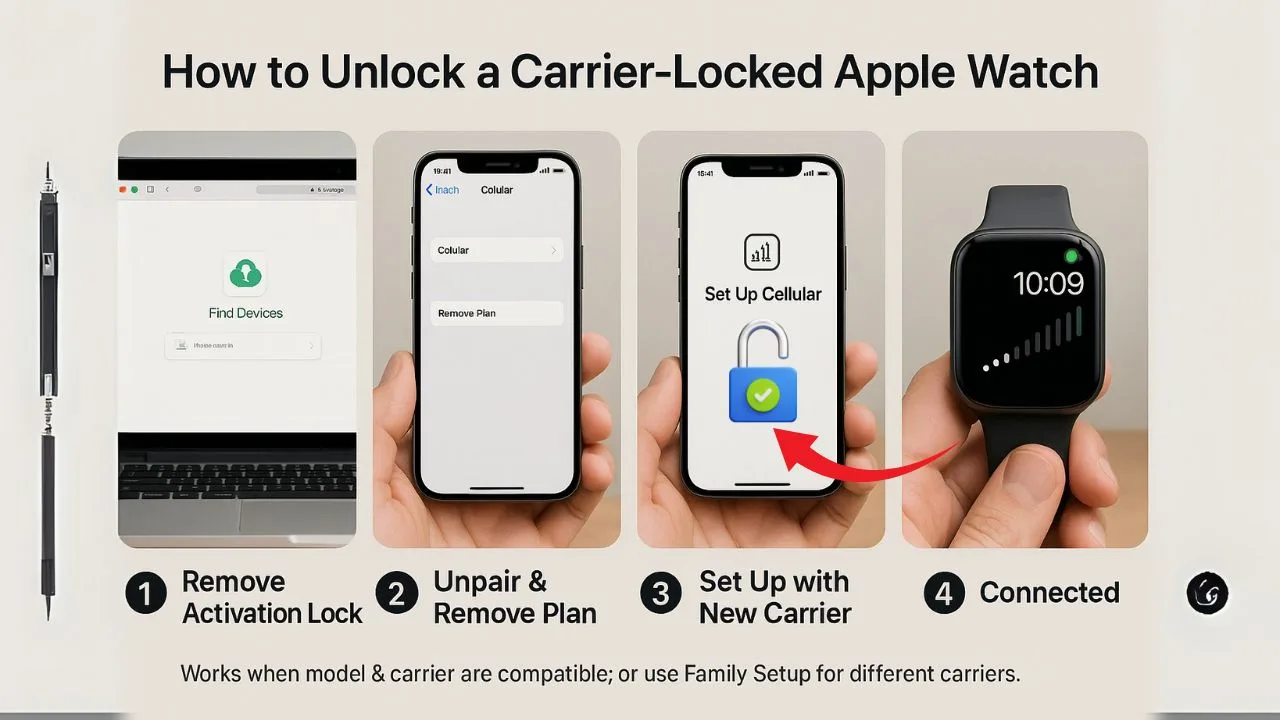
Most people think “unlocking” an Apple Watch works like unlocking an iPhone: enter a code and you’re free to use any carrier. That’s not how Apple Watch works. Apple Watch GPS + Cellular models don’t use a removable SIM card, and they’re typically not locked to one carrier in the same way phones are. Instead, a few practical things control whether your watch can work on another network: your plan, your watch’s region/model, whether Activation Lock is turned off, and whether the new carrier actually supports Apple Watch. Once you understand those pieces, moving your watch to a new network is straightforward.
This guide explains the real meaning of a “carrier-locked” Apple Watch, how to prepare your watch, and exact steps to use it on another compatible carrier—plus what to do when things don’t go as planned.
Key Takeaways
- Most “locked” Apple Watch issues aren’t carrier locks—they’re either Activation Lock (tied to someone’s Apple ID) or a cellular plan provisioning problem.
- To clear Activation Lock, the original owner must remove the watch from their Apple ID via iCloud.com or by unpairing in the iPhone’s Watch app.
- Apple Watch isn’t typically network-locked. To switch carriers, unpair the watch, remove the old cellular plan, then activate a new plan with the new carrier.
- If cellular won’t activate, contact your carrier to verify plan eligibility for Apple Watch and complete or troubleshoot the activation.
- Still blocked after those steps? Contact the original carrier (in case their system flags the device) and escalate to Apple Support for final resolution.
What “carrier-locked” really means on Apple Watch
On iPhone, “carrier lock” is a software block the carrier can remove. On Apple Watch, the situation is different:
- Same-carrier rule for standard setup: When you pair your iPhone and set up cellular on your watch the usual way, your iPhone and Apple Watch must use the same carrier. That’s an Apple requirement for normal (non-Family) setups.
- Family Setup exception: If you configure the watch using “Apple Watch For Your Kids” (formerly Family Setup), the watch can use a different carrier than your iPhone—as long as the carrier supports managed Apple Watch lines.
- Region/model compatibility matters: There isn’t one global cellular Apple Watch. Models are tuned to regional LTE/UMTS bands, and not all models work in all countries. Your watch must match the bands and carriers where you plan to use it.
- Activation Lock ≠ carrier lock: If you bought the watch used, make sure the previous owner removed it from their Apple Account. Activation Lock will block pairing and setup until it’s turned off—this is different from carrier restrictions.
Think of Apple Watch “unlocking” as clearing any old account ties and setting up the right kind of plan on a carrier that supports your specific watch model.
📖 Also Read: Unlocking a Phone When You Forgot Google Account After Reset
Quick checklist: Can your Apple Watch work on another network?
Before you switch carriers, run through this simple list:
- Confirm your watch model and region. Check that your model’s bands and region are supported by the destination carrier. Apple keeps a live list of supported carriers by country/region for Apple Watch.
- Decide your setup type.
- Remove Activation Lock (for second-hand watches). Make sure the watch is unpaired from the seller’s iPhone and removed from their Apple Account.
- Remove or cancel any existing cellular plan from the watch (and with the old carrier) so you can add a new one.
If you can check all four boxes, you’re ready to move the watch.
Step-by-step: Use your Apple Watch on a new carrier (standard setup)
Use this flow when your iPhone and Apple Watch will be on the same carrier (the normal setup for most people).
Before you start
Have these ready: an iPhone with active service on the new carrier, a GPS + Cellular Apple Watch, your Apple ID (for pairing), and a decent Wi-Fi or cellular signal.
Step 1: Unpair (optional but smart when switching carriers)
Unpairing gives you a fresh start and creates a backup of your watch.
On your iPhone, open Watch → All Watches → tap the (i) next to your watch → Unpair Apple Watch.
When asked about the cellular plan, choose Remove if you’re changing carriers.
No iPhone handy? On the watch: Settings → General → Transfer or Reset → Erase All Content and Settings (you’ll remove the plan in Step 2).
Why this helps: it clears old carrier data and avoids activation conflicts later.
Step 2: Remove the old cellular plan
This detaches the old eSIM profile from your watch.
On your iPhone, open Watch → My Watch → Cellular → tap the (i) next to your plan → Remove [carrier] Plan → confirm.
Call your old carrier to cancel or release the watch line so you don’t keep getting billed.
Tip: After removal, give the watch a quick restart.
Step 3: Pair the watch and add cellular on the new carrier
This is where you activate service with your new provider.
Pair your watch to the iPhone: open the Watch app and follow the on-screen pairing steps.
Go to My Watch → Cellular → Set Up Cellular and follow your carrier’s prompts.
Stay within your new carrier’s coverage area during activation and keep Bluetooth/Wi-Fi on.
How to verify it worked: Put the iPhone in Airplane Mode (leave Wi-Fi off). On the watch, swipe up (or open Control Center) and check for the cellular bars. Try a quick call or message.
If activation fails
Work through these quick checks:
- Account support: Make sure your plan type supports Apple Watch lines.
- Model compatibility: Confirm your watch model is supported in your country by that carrier.
- Clean slate: Ensure Activation Lock is off and any old plan is fully removed.
- Updates: Update iOS and watchOS, then retry Set Up Cellular.
- Carrier help: Ask the carrier to check your watch’s EID/IMEI and provision the line manually.
- Last resort: Unpair/erase and repeat Steps 2–3.
Want the watch on a different carrier than your iPhone? Use Family Setup instead (the watch gets its own line and can be on another supported carrier).
📖 Also Read: How to Unlock a Carrier-Locked Tablet (iPad, Samsung, Lenovo, etc.)
Want a different carrier than your iPhone? Use Apple Watch For Your Kids (Family Setup)
Family Setup is designed for kids, seniors, or anyone without their own iPhone. Here’s why it’s useful for carrier flexibility:
The watch gets its own number and plan, and it can be on a different carrier than your iPhone—provided that carrier supports managed Apple Watch lines in your country.
During setup, if your iPhone’s carrier doesn’t support Family Setup, you can choose Not Now and then pick an alternative supported carrier from Apple’s list and contact them to add the plan.
How to set it up (high level): On your iPhone, open the Watch app → choose Set Up for a Family Member, then follow the prompts to create the managed Apple Watch and add cellular with a supported carrier. Apple’s support flow will guide you step-by-step.
Buying a used Apple Watch? Avoid the common “locked” surprises
Second-hand watches often fail to activate for two avoidable reasons:
- Activation Lock still on. Ask the seller to unpair from their iPhone and remove the watch from their Apple Account (iCloud). Without that, you won’t be able to finish setup.
- Wrong model for your region or carrier. Apple Watch models are split by region for cellular bands. Before you pay, check the model number and verify the destination carrier appears on Apple’s official carrier list for your country.
If a carrier system tells you the watch is “locked,” it can also mean the IMEI/serial isn’t eligible in their database (e.g., still tied to a line or not supported on that plan type). In practice, fixing this is about account cleanup and choosing a supported carrier—not “IMEI unlocking” like a phone.
Moving a plan between watches (upgrade path)
If you’re upgrading to a newer Apple Watch and staying with the same carrier, you can remove the plan from the old watch and add it to the new one right from the Watch app. The flow lives under My Watch → Cellular, and carriers often handle the line transfer on their network after you remove it from the old device.
Troubleshooting: When your new carrier won’t activate the watch
If setup stalls, work down this list:
1) Check the basics.
- Is your watch a GPS + Cellular model? (GPS-only models can’t add a cellular plan.)
- Are you inside the new carrier’s coverage and using your iPhone on the same carrier for standard setup?
2) Confirm plan eligibility.
Some prepaid, corporate, or older accounts don’t support Apple Watch lines. Ask the carrier to confirm that your account type supports Apple Watch and that Apple Watch lines are available in your market.
3) Verify model and region support.
Check Apple’s “Carriers for Apple Watch” page and ensure your exact country and carrier support Apple Watch—and that your model’s bands match.
4) Clear the old plan and Activation Lock.
Remove any existing plan from Watch → Cellular and confirm the watch is erased and not tied to another Apple Account.
5) Re-pair and retry.
Erase the watch, pair again, then run Set Up Cellular and follow the carrier prompts.
If you still see “not eligible” messages, give the carrier your watch’s EID/IMEI so they can check eligibility or add the device to your account properly.
📖 Also Read: Can You Unlock a Free Government Phone? Lifeline & ACP Explained
Frequently asked questions
Can I unlock an Apple Watch like an iPhone with a code?
No. Apple Watch doesn’t use a removable SIM and typically isn’t “locked” in the iPhone sense. The key is using a supported carrier, removing old plans, and turning off Activation Lock.
Can my Apple Watch use a different carrier than my iPhone?
Yes—but only with Apple Watch For Your Kids (Family Setup) on a carrier that supports managed Apple Watch plans in your region. Standard setups use the iPhone’s carrier.
Do all Apple Watch models work worldwide?
No. Models are region-specific for cellular bands; there’s no single global model. Check the carriers page for your country.
How do I remove a cellular plan from my watch?
On your iPhone: Watch app → My Watch → Cellular → (i) → Remove [carrier] Plan. Also contact your carrier to cancel the line if you’re switching.
What’s Activation Lock, and why does it matter?
Activation Lock ties the watch to the owner’s Apple Account. A seller must remove the watch from their account; otherwise, you can’t complete setup.
The bottom line
“Unlocking” a carrier-locked Apple Watch is less about a secret code and more about compatibility and cleanup: make sure Activation Lock is off, remove any old plan, choose a carrier that supports Apple Watch for your region/model, and set up the right way (standard vs. Family Setup). Once those pieces are in place, using your Apple Watch on another network is usually just a few taps in the Watch app—no paid “unlock service” required.


