

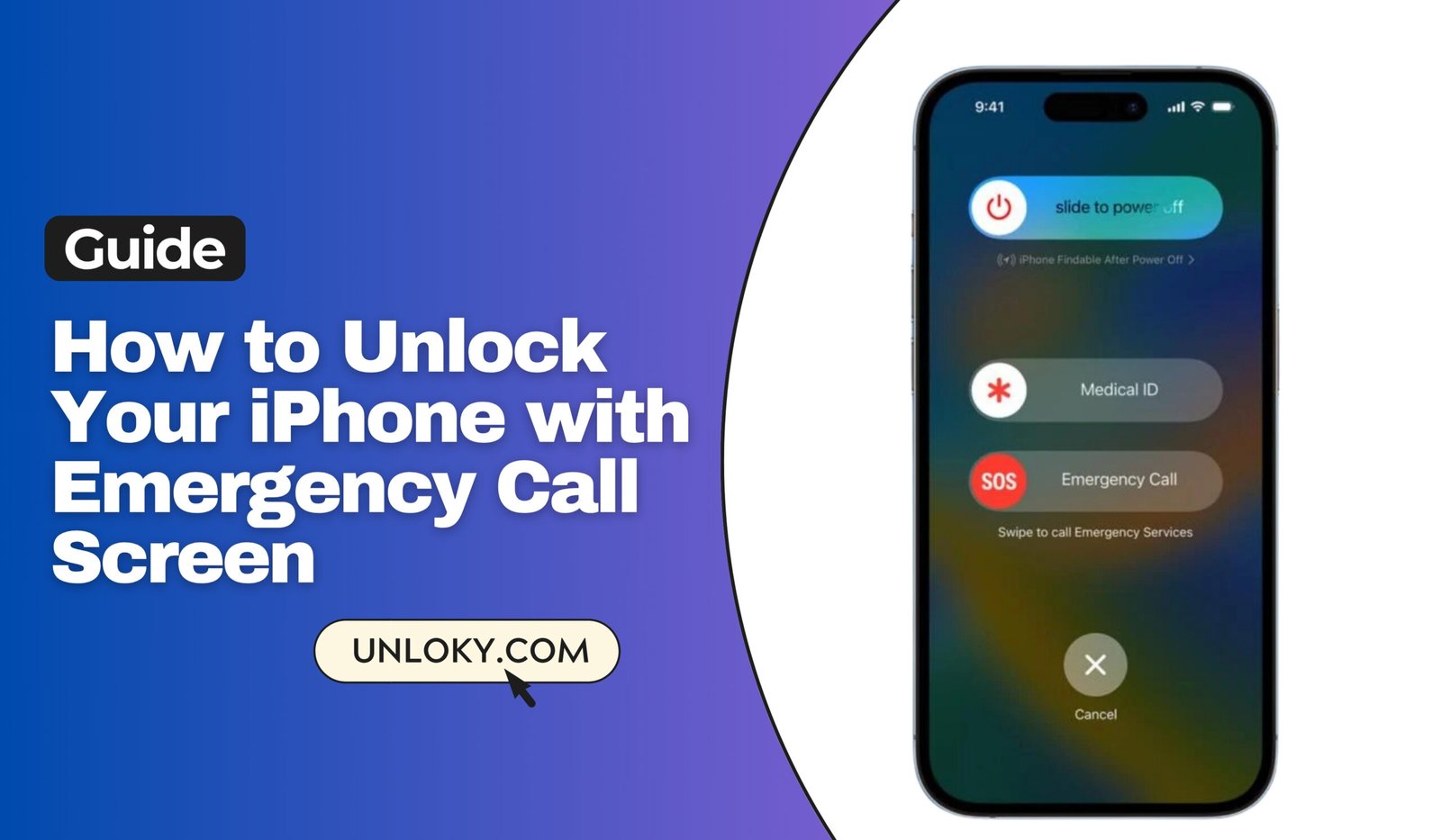
Does the emergency call screen hack really work? We uncover the truth, show you the exact steps, and reveal the legitimate methods that actually unlock your iPhone in 2026.
TL;DR — The Quick Answer
The emergency call screen unlock trick only works on ancient iOS 6.1 devices — that’s iPhones from early 2013 and before. Apple patched this security vulnerability in iOS 6.1.2, and it hasn’t worked since.
If you’re locked out of a modern iPhone, your real options are: the “Forgot Passcode” feature (iOS 17+), Recovery Mode via iTunes/Finder, Find My iPhone remote erase, or professional unlocking software. All legitimate methods will erase your data unless you have a backup.
- Emergency Call screen cannot be used to bypass your iPhone lock screen in modern iOS versions
- Old exploits from iOS 6.1 and earlier have been patched for over a decade
- The Emergency Call feature is designed solely for emergency services access
- If you’re locked out, use legitimate methods: passcode, Face ID, Touch ID, or Apple ID recovery
- Attempting unauthorized access methods may disable your device or violate laws
Many YouTube and TikTok videos claim you can unlock any iPhone with emergency calls or “secret codes.” These are misleading or outright scams. There is no universal secret code that bypasses iPhone security on modern devices. Apple’s security is designed to protect your data from unauthorized access.
Top 5 Picks: Unlock iPhone with Emergency Call Screen
Use the Medical ID Option From the Lock screen, tap Emergency > Medical ID to access critical health info without unlocking the phone.
Enter Any Passcode First Slide to unlock, type an incorrect passcode, then return to the Emergency Call screen to trigger the old glitch.
Dial 112 and Cancel Quickly Call 112 (or 911), tap Cancel immediately, then press the Power button to attempt the bypass.
Power Button + Emergency Call Trick Hold the Power button for 3 seconds, then tap Emergency Call before the turn-off slider appears.
Cancel and Slide Again Press Cancel, then slide to unlock once more before tapping Emergency Call to exploit the older loophole.
The Reality of Emergency Call “Bypass” Methods
If you’ve stumbled upon articles or videos claiming you can unlock your iPhone using the Emergency Call screen, it’s time for some straight talk. While there were indeed vulnerabilities in very old iOS versions, Apple has long since closed these security gaps. Let’s dive into what you actually need to know.
Important Note:
Modern iPhones (iOS 7 and later, released in 2013) cannot be unlocked through the Emergency Call screen. Any methods claiming to do so are either outdated, fake, or potentially harmful to your device.
📖 Also Read: “SIM Lock Status: Unknown” on iPhone/Android — Causes and How to Fix It
Understanding the Emergency Call Feature
The Emergency Call screen serves a critical, life-saving purpose. When your iPhone is locked, you can still access emergency services (911 in the US, 999 in the UK, 112 in Europe, etc.) without unlocking the device. This feature is mandated by law in many countries to ensure people can call for help in dangerous situations.
What Emergency Call Actually Does:
Provides immediate access to emergency services – You can dial emergency numbers without unlocking your phone
Displays medical information – Your Medical ID can be accessed from the Emergency screen if you’ve set it up
Sends location data – When you call emergency services, your iPhone automatically shares your location
Bypasses Do Not Disturb – Emergency calls will always go through, regardless of your phone settings
Method Comparison Table
| Method | Works on Modern iOS? | Safety | Recommended? |
|---|---|---|---|
| Emergency Call Bypass | ✗ No (patched since 2013) | May disable device | ✗ |
| Face ID / Touch ID | ✓ Yes | Very Safe | ✓ |
| Passcode Entry | ✓ Yes | Very Safe | ✓ |
| iCloud Recovery | ✓ Yes | Safe (erases data) | ✓ |
| iTunes/Finder Recovery | ✓ Yes | Safe (erases data) | ✓ |
| Third-Party Unlock Tools | Limited/Unreliable | Risk of malware | ✗ |
📖 Also Read: Keep your number while switching to T-Mobile, Verizon, or AT&T
Historical Context: The Old Exploits
Back in 2013, iOS 6.1 had a vulnerability that allowed users to bypass the lock screen through a complex series of actions involving the Emergency Call screen, power button manipulations, and specific timing. Tech enthusiasts discovered this bug, and it made headlines.
However, Apple patched this vulnerability quickly with iOS 6.1.3. Since then, Apple has implemented multiple layers of security to prevent any similar exploits. If you’re running iOS 7 or later (and you absolutely should be), these old methods simply won’t work.
🛡️Modern Security
Today’s iPhones use the Secure Enclave, a dedicated security chip that makes unauthorized access nearly impossible without the correct credentials.
🔒Data Protection
iOS encrypts all data on your device. Without the passcode, the data remains encrypted and inaccessible, even if someone has physical access.
⏱️Security Delays
After multiple failed passcode attempts, your iPhone implements increasing time delays, and after 10 failures, it can erase all data if configured.
Legitimate Ways to Unlock Your iPhone
Simply enter your passcode on the lock screen. Face ID and Touch ID are convenient, but your passcode is always the fallback method.
Use iCloud Find My iPhone – Log into iCloud.com, select your device, and choose “Erase iPhone.” This will restore your device to factory settings, removing the passcode.
Use Recovery Mode with iTunes/Finder – Connect your iPhone to a computer, put it in recovery mode, and restore it through iTunes (Windows/older Mac) or Finder (Mac with macOS Catalina or later).
Contact Apple Support – If you have proof of ownership, Apple Support can guide you through the recovery process.
Visit an Apple Store – Bring your device and proof of purchase to an Apple Store for assistance.
Data Loss Warning:
All official methods for unlocking a forgotten passcode will erase your iPhone’s data. This is a security feature, not a bug. Regular backups to iCloud or your computer are essential to prevent data loss.
📖 Also Read: How to Unlock a Blacklisted iPhone 17/16/15?
Why Emergency Call Bypass Doesn’t Work
Modern iPhone security operates on multiple levels:
Hardware Security: The Secure Enclave is a coprocessor that handles cryptographic operations and stores sensitive data. It’s isolated from the main processor and has its own encrypted memory.
Software Security: iOS implements secure boot, code signing, and runtime protections that prevent unauthorized code execution or system modifications.
Encryption: All user data is encrypted with keys derived from your passcode. Without the passcode, the data cannot be decrypted, even if someone gains physical access to the storage.
Anti-Exploitation Measures: Apple continuously patches vulnerabilities and implements new security measures with each iOS update. The company has a dedicated security team and a bug bounty program offering up to $1 million for critical vulnerabilities.
Common Myths Debunked
Best Practices for iPhone Security
Use a strong, memorable passcode – Consider a 6-digit passcode or longer alphanumeric code rather than the 4-digit option
Enable biometric authentication – Face ID and Touch ID add convenience while maintaining security
Regular backups – Back up your iPhone to iCloud or your computer regularly so you can restore data if needed
Keep iOS updated – Security patches are released regularly; keeping your iOS current protects against known vulnerabilities
Set up recovery options – Add a trusted phone number and email to your Apple ID for account recovery
Use Find My iPhone – Enable this feature so you can locate, lock, or erase your device remotely if it’s lost or stolen
Frequently Asked Questions
If you’ve forgotten your passcode, unfortunately not. Apple’s security design ensures that without the correct passcode, the encrypted data cannot be accessed. This is actually a feature that protects your privacy. However, if you have a recent backup in iCloud or on your computer, you can restore your data after erasing the device.
After 6 failed attempts, your iPhone will implement a 1-minute lockout. This increases to 5 minutes, 15 minutes, and eventually 1 hour with continued failed attempts. If you have “Erase Data” enabled in settings, your iPhone will automatically erase all data after 10 failed passcode attempts.
No, but you’ll need to erase it and set it up as new or restore from a backup. The device itself isn’t permanently locked, but the data is inaccessible without the passcode. This can be done through iCloud, iTunes/Finder, or Recovery Mode.
Yes, there are several situations where you must use your passcode: after restarting your device, after 48 hours without unlocking, after 5 failed biometric attempts, when initiating “Find My iPhone” erase, or when viewing saved passwords in Settings.
Absolutely! The Emergency Call screen is there to save lives. You can access emergency services, view your Medical ID (which might contain life-saving information like allergies or medical conditions), and make emergency calls even with a completely locked phone. This is its intended and only legitimate use.
If the previous owner didn’t remove their Apple ID, the device is likely Activation Locked. You should contact the seller to have them remove the device from their Apple ID. If they can’t or won’t, don’t purchase the device. A locked iPhone without the credentials is essentially unusable, and attempting to bypass Activation Lock is both illegal and impossible with current technology.
Use a memorable but secure passcode, enable Face ID or Touch ID for convenience, write down your passcode and store it securely, set up your Apple ID recovery options, and keep your devices and Apple ID information up to date. Also, ensure someone you trust knows how to access your device in case of emergency.
Legal Notice: This article is for educational purposes only. Attempting to bypass security measures on a device you don’t own is illegal in most jurisdictions and may violate computer fraud and abuse laws. This guide is intended to help legitimate iPhone owners understand their options when locked out of their own devices.
Security Notice: The information provided reflects the current state of iOS security as of November 2025. Apple continuously updates security measures, and methods described here may change with future iOS updates. Always use official Apple channels for device recovery and support.
Data Loss Warning: Following password recovery procedures will result in data loss if you don’t have a backup. The author and publisher are not responsible for any data loss resulting from following these procedures. Always maintain regular backups of your important data.
No Warranty: The information is provided “as is” without warranty of any kind. The author makes no guarantees about the completeness, reliability, or accuracy of this information. Any action you take based on this information is at your own risk.
© 2025 – iPhone Security Guide | For Educational Purposes Only
Always use legitimate methods to access your devices | Stay safe, stay secure


