

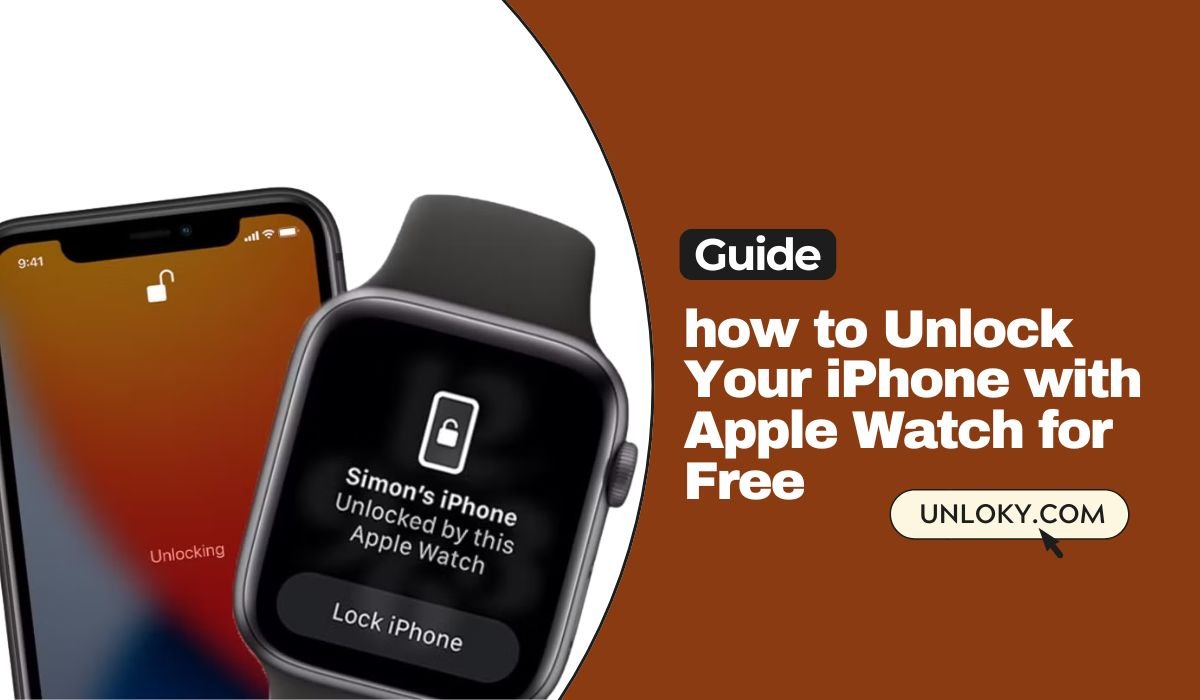
Our Top 5 Picks: Unlock Your iPhone with Apple Watch for Free
- Bonus Unlock Power – Also lets you unlock your Mac and your Apple Watch, creating a smooth, connected Apple experience.
- Hands-Free Unlocking – Use your Apple Watch to unlock your iPhone automatically when Face ID fails, like when wearing a mask or sunglasses.
- Totally Free & Built-In – No need for third-party apps or paid tools—this feature is included with iOS and watchOS.
- Secure & Trusted Setup – Works only when your Watch is on your wrist, unlocked, and near your iPhone, with full privacy controls.
- Quick Setup in Settings – Just a few taps in your iPhone’s Face ID settings, and you’re ready to go.
Unlocking your iPhone with your Apple Watch is one of the most convenient features Apple offers—especially when Face ID fails, like when you’re wearing a mask or sunglasses. Instead of entering your passcode manually, your Apple Watch can automatically unlock your iPhone as long as both devices meet certain conditions. This method is completely free, built into iOS and watchOS, and doesn’t require any third-party apps. In this guide, we’ll walk you through how it works, how to set it up, and what to do if it stops working—so you can keep your iPhone accessible without sacrificing security.
Comparison Table: Unlocking iPhone with Apple Watch vs Other Methods
When it comes to unlocking your iPhone, you have several options—Face ID, passcode, and now Apple Watch. This table compares how the Apple Watch unlock method stacks up against the traditional options, especially in terms of convenience, speed, and security. It’s a helpful way to understand why the Apple Watch unlock feature is a standout for many users.
| Feature | Face ID | Passcode | Apple Watch Unlock |
|---|---|---|---|
| Hands-Free | ✅ Yes | ❌ No | ✅ Yes |
| Works with Mask or Sunglasses | ❌ Limited | ✅ Yes | ✅ Yes |
| Requires Physical Input | ✅ Face visible | ✅ Manual entry | ❌ Just raise phone near Watch |
| Needs Face Visibility | ✅ Yes | ❌ No | ❌ No |
| Requires Apple Watch | ❌ No | ❌ No | ✅ Yes |
| Works After Reboot | ❌ No (needs passcode) | ✅ Yes | ❌ No (needs passcode first) |
| Security Level | 🔒 High | 🔒 High | 🔒 High with wrist detection |
Bottom Line:
Unlocking with Apple Watch is a secure, fast, and hands-free method that works great when Face ID struggles. It’s a smart addition—not a replacement—for your existing security options.
Can You Really Unlock Your iPhone with Apple Watch?
Yes, you can absolutely unlock your iPhone with your Apple Watch—if you meet a few specific requirements. This isn’t a trick or a workaround; it’s a built-in feature from Apple that’s completely free and doesn’t require any third-party apps. The feature was originally introduced to make unlocking easier in situations where Face ID might struggle, such as when you’re wearing a mask, have fogged-up glasses, or are in low-light environments. It’s important to note, though, that this method only unlocks your iPhone’s lock screen. It does not bypass iCloud activation lock or give access to locked Apple ID features. Think of it as a secure shortcut—not a full security override.
Requirements to Unlock iPhone with Apple Watch
To use your Apple Watch to unlock your iPhone, your devices must meet certain hardware and software requirements. First, you’ll need a compatible iPhone and Apple Watch. This feature only works with iPhone X or later models that support Face ID, and with Apple Watch Series 3 or newer. Older devices unfortunately won’t support this functionality.
On the software side, make sure your iPhone is running iOS 14.5 or later, and your Apple Watch is updated to watchOS 7.4 or higher. Without these versions, the unlock feature won’t appear in your settings.
A few key settings must also be enabled for this to work properly. Both Bluetooth and Wi-Fi need to be turned on for the devices to communicate. Your Apple Watch must have a passcode set up, and wrist detection should be enabled. Additionally, the watch needs to be on your wrist and already unlocked at the time you try to unlock your iPhone. If any of these conditions aren’t met, the feature won’t activate.
Step-by-Step: How to Unlock iPhone with Apple Watch for Free
Unlocking your iPhone with your Apple Watch is a fast, secure, and free feature built into iOS. Once both devices are updated and paired, you can enable the setting in Face ID & Passcode. As long as your Apple Watch is on your wrist, unlocked, and nearby, your iPhone will automatically unlock—even if Face ID can’t read your face. It’s a simple way to stay secure without typing your passcode every time.
Step 1 – Make Sure Your Devices Are Updated
Before setting anything up, double-check that your iPhone and Apple Watch are running the correct software versions. Your iPhone must be updated to iOS 14.5 or later, and your Apple Watch should be running watchOS 7.4 or newer. These updates introduced the unlock feature, so earlier versions won’t support it.
Step 2 – Enable Unlock with Apple Watch on iPhone
Once your devices are up to date, it’s time to enable the feature. On your iPhone, go to Settings, then tap Face ID & Passcode. Enter your iPhone passcode to access the settings. Scroll down until you see the Unlock with Apple Watch option, and toggle it ON next to your connected watch. This tells your iPhone to trust your Watch as a backup method for Face ID.
Step 3 – Test It Out
Now, test if it works. First, make sure your Apple Watch is on your wrist and already unlocked. Lock your iPhone screen, then try to wake it while wearing a mask or partially covering your face. If everything is set up correctly, your iPhone will automatically unlock, and you’ll feel a quick tap on your wrist confirming it worked.
Don’t Miss It: How to Enable OEM Unlock on Samsung Devices
How to Unlock iPhone with Apple Watch Without a Passcode
Unlocking your iPhone with your Apple Watch without a passcode works only when Face ID can’t fully scan your face—like when you’re wearing a mask. In those moments, your Apple Watch acts as a backup to unlock your phone automatically. However, it’s not a full replacement for Face ID or your passcode. You’ll still need your passcode after restarts, updates, or long periods of inactivity. It’s a smart, secure convenience—not a security loophole.
Step 1 – Understand When It Works
This method only activates when Face ID is partially blocked—like when you’re wearing a mask or sunglasses. It won’t work if Face ID can see your full face clearly, and it doesn’t replace Face ID entirely.
Step 2 – Let Apple Watch Act as a Backup
When Face ID fails to recognize your face, your iPhone will check for a nearby, unlocked Apple Watch. If it detects one on your wrist, it unlocks automatically—no passcode or full Face ID scan needed.
Step 3 – Know When Passcode Is Still Required
Even with this feature enabled, you’ll still need to enter your iPhone passcode after restarting your phone, updating iOS, or if the device hasn’t been unlocked in 48+ hours. These are built-in safety checks from Apple.
Step 4 – Don’t Expect Full Face ID Bypass
This method doesn’t override Face ID or give anyone unlimited access. It’s a fallback feature designed for quick, secure access in real-world situations—without weakening your iPhone’s overall security.
Unlock Apple Watch with iPhone – How It Works
This feature works both ways—not only can your Apple Watch unlock your iPhone, but your iPhone can also unlock your Apple Watch. If your Apple Watch is locked and you’re wearing it, simply unlock your nearby iPhone, and your Watch will automatically unlock too. It’s a quick, seamless way to avoid typing the passcode on the tiny Watch screen every time.
Enable This Feature
To turn it on, open the Watch app on your iPhone, tap Passcode, and toggle on Unlock with iPhone. Once enabled, your Apple Watch will unlock anytime your iPhone does—as long as both devices are close together and on your wrist.
Apple Watch Face ID Unlock – Explained
While the Apple Watch doesn’t have Face ID built in, it plays a key role in helping your iPhone unlock when Face ID struggles—like when you’re wearing a mask. Instead of scanning your face, the iPhone checks for your nearby, unlocked Apple Watch and uses it as a trusted device to approve the unlock. It’s not facial recognition on the Watch itself, but rather a secure backup method that works in tandem with Face ID to keep things smooth and safe.
What to Do If Unlock iPhone with Apple Watch Is Not Working
If your iPhone isn’t unlocking with your Apple Watch like it should, don’t worry—there are a few simple fixes that usually get things back on track.
1. Restart Both Devices
Start with the basics. Power off both your iPhone and Apple Watch, then turn them back on. A quick reboot often clears out temporary glitches that may be causing the issue.
2. Check Connection
Make sure Bluetooth and Wi-Fi are turned on for both devices. This feature relies on those connections to communicate, so if either is off or disconnected, the unlock won’t work.
3. Re-enable the Feature
Go to your iPhone’s settings, navigate to Face ID & Passcode, and turn off Unlock with Apple Watch. Wait a few seconds, then turn it back on. This refreshes the link between the two devices.
4. Reset Face ID or Watch Passcode
If the issue still persists, consider resetting your Face ID on the iPhone or changing the passcode on your Apple Watch. Sometimes a sync issue or verification bug can prevent the unlock feature from working properly.
Don’t Miss It: How to Unlock a MetroPCS Phone for Free
How to Unlock Apple Watch Without Paired Phone
If you’ve forgotten your Apple Watch passcode and no longer have access to the paired iPhone, you can still reset the Watch directly. Just keep in mind—this method erases all content on the device, including apps, settings, and saved data.
Here’s how to do it:
- Place your Apple Watch on its charger and make sure it’s charging.
- Press and hold the Side Button until the Power Off screen appears.
- Firmly press (force touch) the Power Off slider until you see an option to Erase All Content and Settings.
- Tap Erase All Content and confirm.
This process wipes the Watch clean and removes the passcode. Afterward, you’ll be able to pair it with a new iPhone or restore it from a backup. Use this only as a last resort if you can’t unlock the Watch any other way.
Apple Watch Face ID Unlock Without Passcode – Is It Possible?
No, the Apple Watch does not support Face ID—it doesn’t have the sensors or hardware for facial recognition. It also can’t be unlocked through Face ID on your iPhone unless you’ve specifically enabled the “Unlock with iPhone” setting. Even with that feature turned on, your Apple Watch must still have a passcode set, and you’ll be required to enter it after certain actions, like restarting the device or taking it off your wrist. So while Face ID can assist in unlocking your iPhone with help from your Watch, there’s no way to bypass the Watch’s own passcode entirely.
Bonus Tip – Unlock Your Mac with Apple Watch
Your Apple Watch isn’t just a handy companion for your iPhone—it can also unlock your Mac. If you’re tired of typing your Mac password every time you sit down, this feature makes logging in feel seamless and automatic.
Requirements
To use this feature, your Mac must be from 2013 or newer and running macOS Sierra or later. Your Apple Watch should be using watchOS 3 or higher. Also, both your Mac and Apple Watch need to be signed in to the same Apple ID with two-factor authentication enabled.
How to Enable
On your Mac, go to System Settings > Touch ID & Password (or Security & Privacy on older versions). Look for the option that says Use Apple Watch to unlock apps and your Mac and turn it on. Make sure Bluetooth and Wi-Fi are enabled on both devices and that they’re within close range.
What It Can Do
Once enabled, your Mac will automatically unlock as soon as you wake it, no password needed—just wear your Watch and be nearby. It can also approve other secure actions, like installing apps or changing system settings, with a simple tap on your wrist for confirmation. It’s a small feature, but one that saves time and adds a layer of convenience across your Apple ecosystem.
Don’t Miss It: How to Check if a Phone is Unlocked Without a SIM Card
How to Set Up Face ID on Apple Watch (Myth Busted)
Despite some confusion and online rumors, Face ID is not available on any Apple Watch model—including the latest ones as of 2025. The Apple Watch simply doesn’t have the required camera system or facial recognition sensors that make Face ID possible on iPhones and iPads. Instead, the Watch relies on a passcode, wrist detection, and an optional setting that allows it to be unlocked automatically when you unlock your iPhone.
While some concept designs and patent rumors suggest Apple might explore Face ID for future Apple Watch models, it’s not a feature you can set up today. So, if you’ve been searching for a way to enable Face ID on your Apple Watch, rest assured—you’re not missing anything. The unlock tools that are available now are still smart, secure, and built for ease of use.
Safety & Privacy – Is This Secure?
Yes, unlocking your iPhone with your Apple Watch is designed to be both convenient and secure. The feature only works under specific, controlled conditions to protect your data. Your Apple Watch must be on your wrist, unlocked with its passcode, and physically near your iPhone. Without all three, the unlock will not happen.
Every time your Apple Watch unlocks your iPhone, you’ll feel a haptic buzz and see a notification confirming the action. If the unlock wasn’t intentional or you change your mind, you can instantly re-lock your iPhone by tapping the “Lock iPhone” button in that notification. Apple designed this system to balance ease of use with strong privacy controls—so you stay in charge at all times.
FAQs – Apple Watch & iPhone Unlocking
Q1: Can I use this if I don’t have Face ID?
No, this feature only works on iPhones that support Face ID—starting with iPhone X and newer. If your iPhone uses Touch ID or has no biometric unlock at all, you won’t be able to use your Apple Watch to unlock it.
Q2: Does it work if my Apple Watch has no passcode?
No, your Apple Watch must have a passcode set in order for the unlock feature to work. This is a security measure to ensure the Watch itself is protected before it can be used to unlock another device like your iPhone.
Q3: Can I unlock other people’s iPhones with my Watch?
Absolutely not. The feature only works when both the iPhone and the Apple Watch are signed in to the same Apple ID account. This prevents anyone from using their Watch to unlock a phone that doesn’t belong to them.
Q4: What if my Apple Watch unlocks my phone accidentally?
If your iPhone gets unlocked unintentionally—maybe it’s in your pocket or you’re near someone who grabs it—you’ll immediately feel a haptic tap on your wrist and see a notification. You can tap that alert to lock the iPhone right away and prevent further access.
Q5: Can I unlock my iPhone with Apple Watch if it’s in another room?
No, your devices need to be within Bluetooth range—roughly 10 meters or 30 feet—for the unlock feature to work. If your iPhone and Apple Watch are too far apart, they can’t communicate, and your iPhone won’t unlock.
Q6: Will this unlock work if I’m wearing sunglasses?
Yes, it usually will. In fact, this feature was designed to help in situations where Face ID might struggle—like when you’re wearing a mask or dark sunglasses. As long as your Watch is on your wrist, unlocked, and nearby, it should unlock your iPhone automatically.
Final Recap – Why This Is a Game-Changer for iPhone Users
Unlocking your iPhone with your Apple Watch is a simple yet powerful feature that adds real convenience to everyday life. It’s especially useful when Face ID doesn’t work—like when wearing a mask or sunglasses. The setup is quick, the feature is built-in and completely free, and no third-party apps are required. With wrist detection and passcode protection, it’s also designed with security in mind. Plus, your Apple Watch can unlock your Mac and be unlocked by your iPhone, making it a seamless part of your Apple ecosystem.
TL;DR:
You can unlock your iPhone for free using your Apple Watch—no passcode required—when Face ID can’t recognize your face, like when wearing a mask. This built-in feature works on iPhones with Face ID (iPhone X or later) and Apple Watch Series 3 or newer. Once enabled in settings, your Watch unlocks your iPhone automatically when it’s on your wrist, unlocked, and nearby. It’s safe, fast, and completely free—plus, you can also unlock your Mac and Watch the same way.


