Quick Answer: First go to Settings > General > About on an iPhone. If it says “No SIM restrictions” the phone is unlocked. For Android check Settings > Connections > Mobile Networks > Network Operators—if multiple networks appear it’s likely unlocked.
So you’re thinking about buying a phone—maybe a brand-new one or a used one—but you’re not sure if it’s unlocked? That’s a big deal! If a phone is locked you’re stuck with one carrier. If it’s unlocked you can use it with any carrier you want.
What Does It Mean for a Phone to Be Unlocked?
First let’s clarify what we mean by locked and unlocked phones.
A locked phone is restricted to a specific carrier. If you buy a phone from AT&T for example you may only be able to use it with an AT&T SIM card.
An unlocked phone can work with any carrier as long as the network is compatible. You can pop in a SIM card from Verizon, T-Mobile, or any other provider and it will work without issues.
Now why does this matter? An unlocked phone gives you
- Carrier flexibility – Switch to a different provider whenever you want
- Easier international use – Use local SIM cards when traveling abroad.
- Better resale value – More buyers prefer unlocked phones since they aren’t limited to a single carrier.
If these benefits sound good to you then it’s worth making sure your phone is unlocked before you buy it
How to Check If a Phone Is Unlocked
There are a few easy ways to check if a phone is unlocked. You don’t need special tools just a few settings checks a different SIM card or a quick call to the carrier. Let’s break it down step by step.
1. Check in the Phone’s Settings
One of the easiest ways to check if a phone is unlocked is through the settings menu. This method works differently depending on whether you have an iPhone or Android device.
For iPhones:
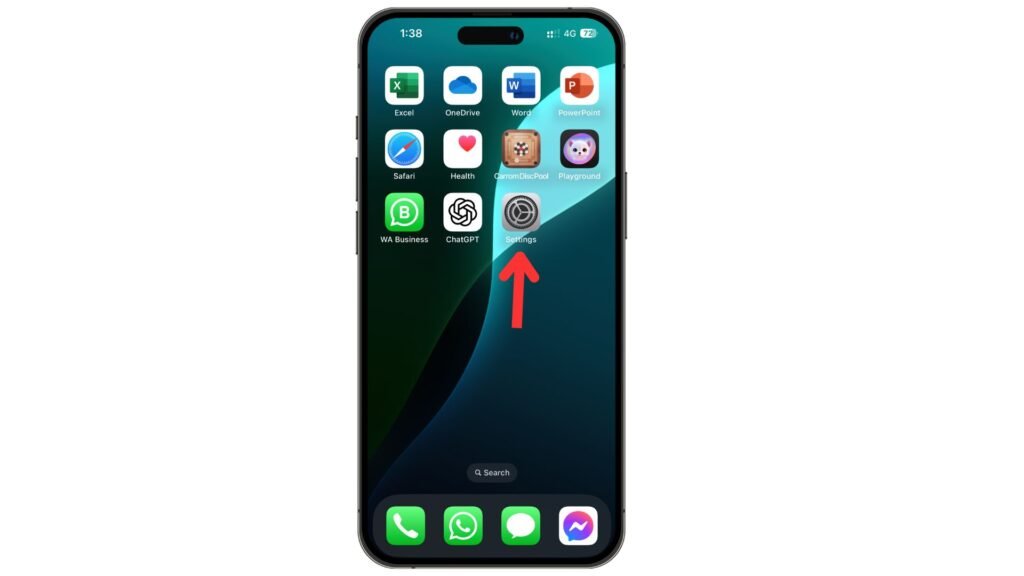
- Open the Settings app.
- Tap General > About.
- Scroll down to find Carrier Lock (or Network Provider Lock).
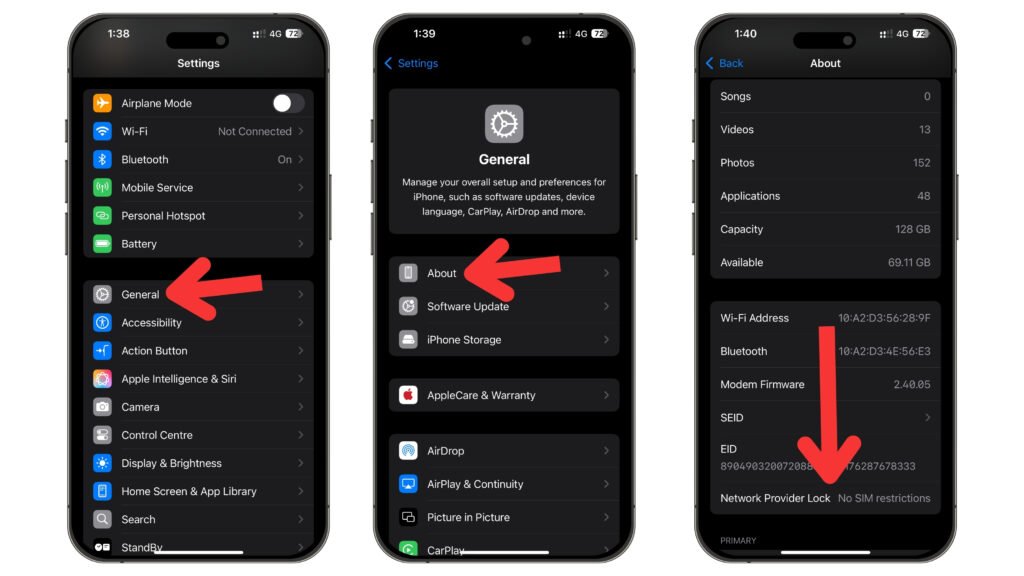
If it says “No SIM restrictions” the phone is unlocked. If it shows a carrier name it’s likely locked
For Android Phones:
- Open Settings.
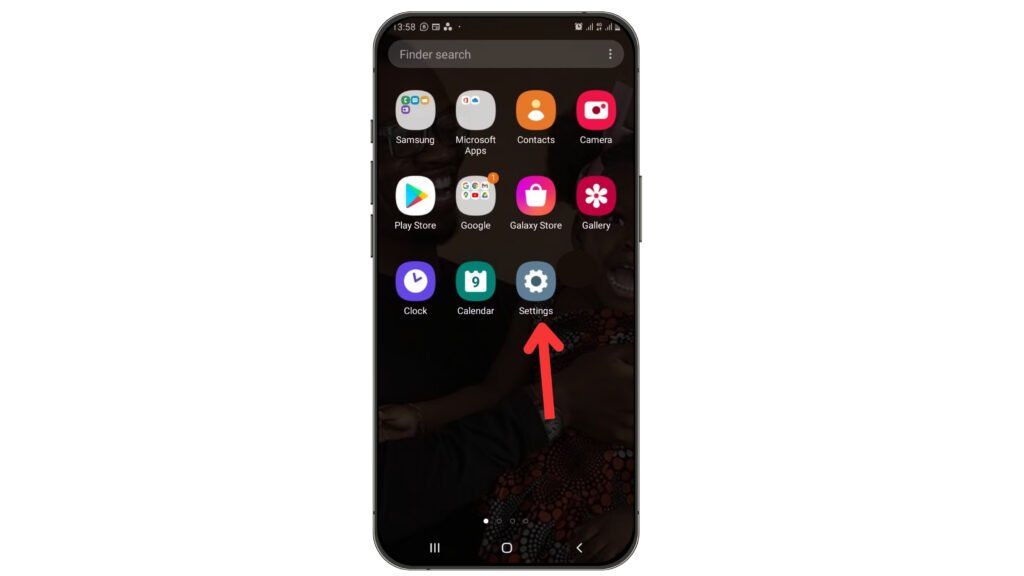
- Tap Connections or Network & Internet. (depends on your phone model).
- Select Mobile Networks.
- Tap Network Operators.
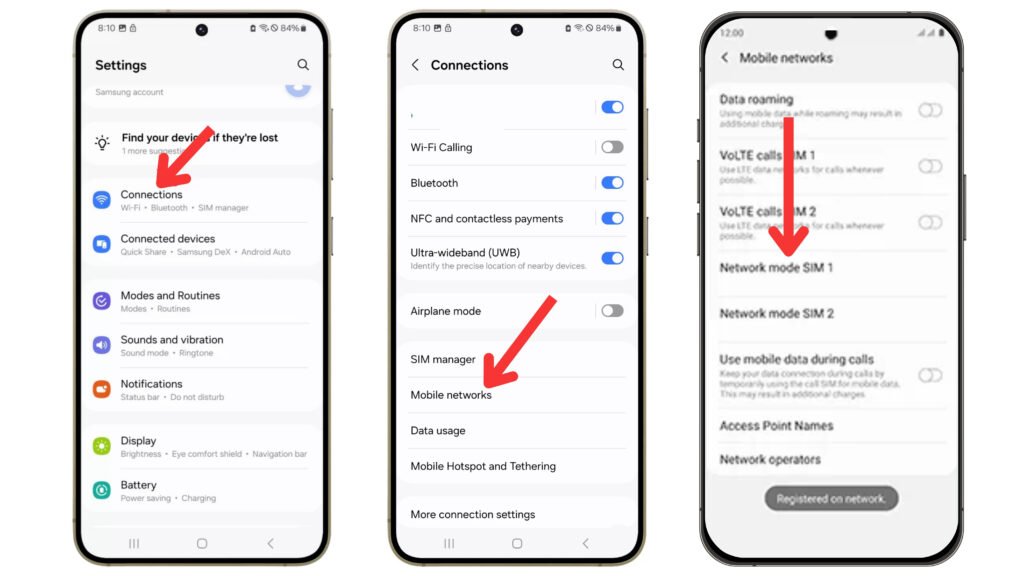
If multiple networks appear, your phone is probably unlocked. If you only see one network it might be locked.
2. Try a Different SIM Card
If you have access to a SIM card from a different carrier this is a surefire way to test if the phone is unlocked. Here’s how
- Turn off the phone.
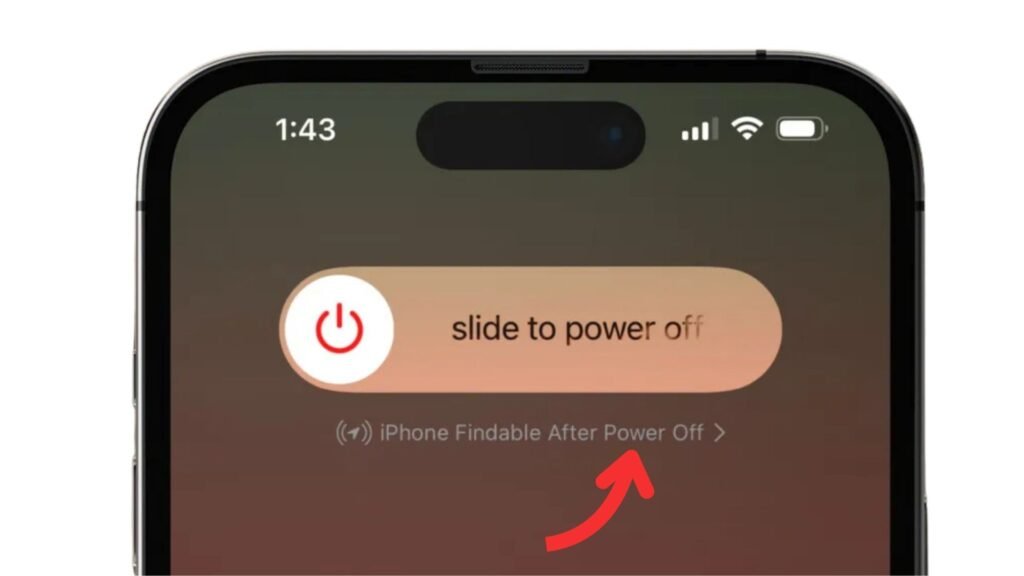
- Remove the current SIM card.
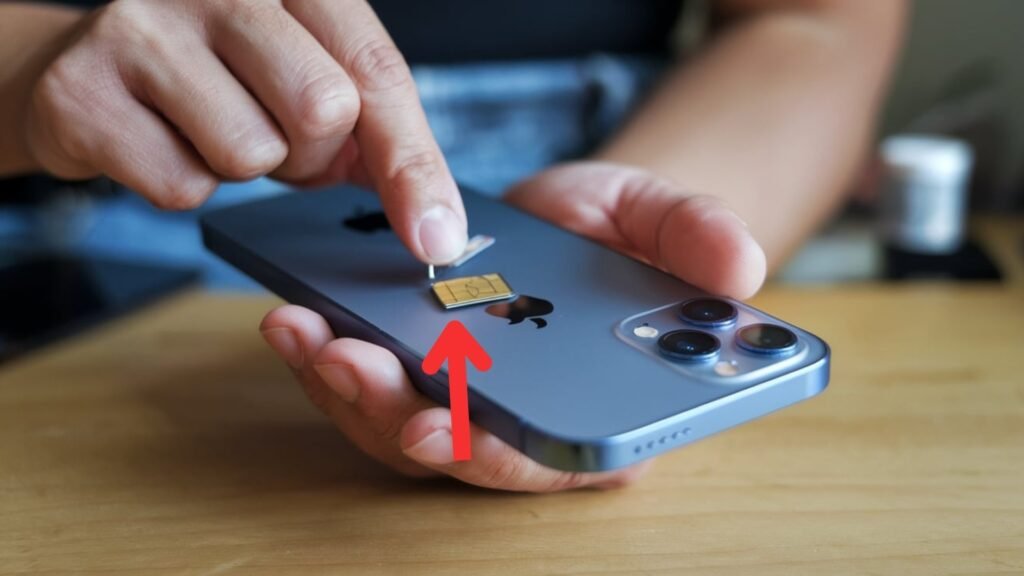
- Insert a SIM card from a different carrier.
- Turn the phone back on.
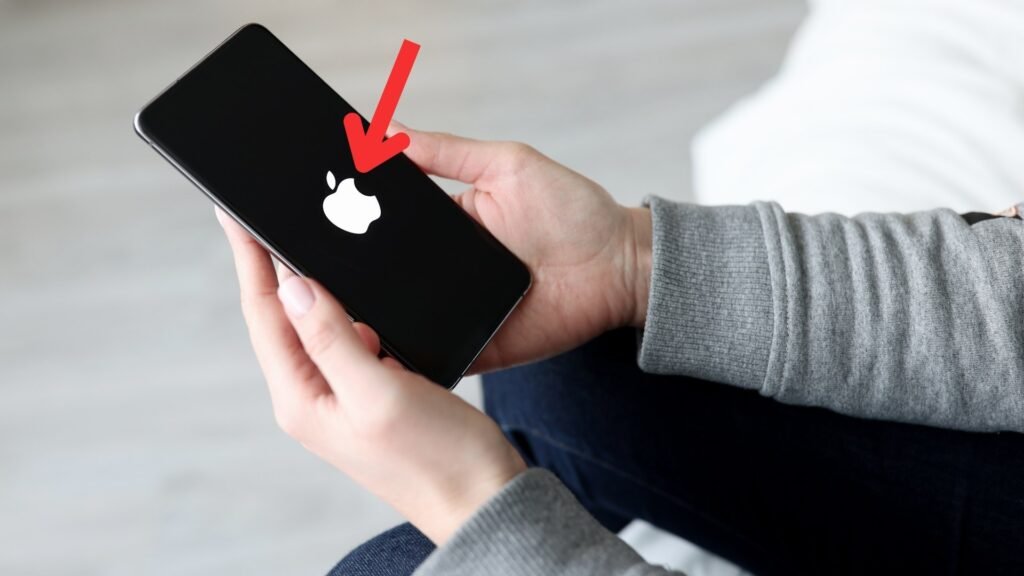
- Try making a call or using mobile data.
What happens next?
- If the phone works fine (you can call, text, and use data), it’s unlocked.
- If you see an error message like “SIM Not Supported” or “Invalid SIM” the phone is locked to the original carrier.
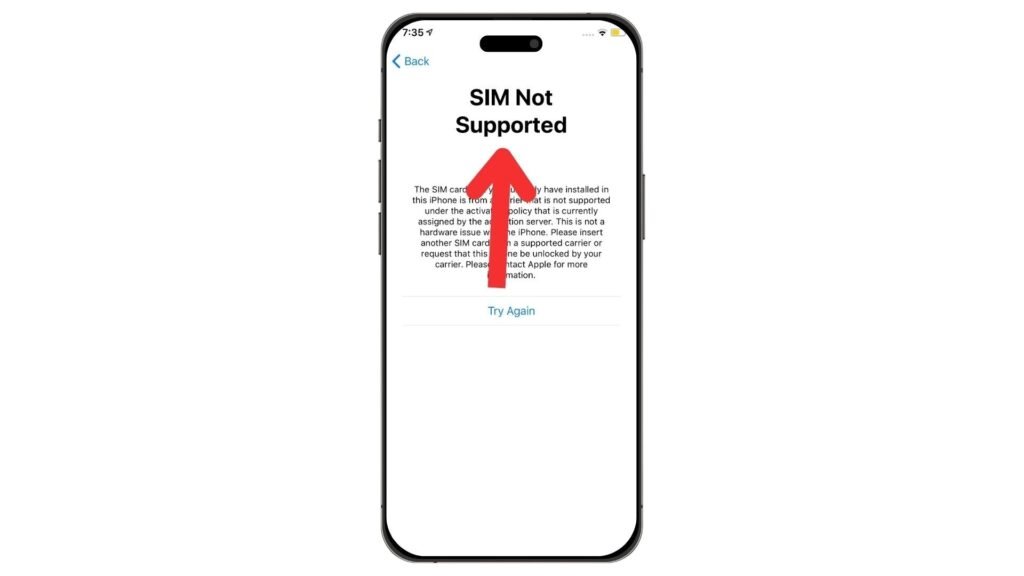
Settings are a quick way to check but they’re not always 100% accurate. So let’s move on to another method.
3. Use the IMEI Number to Check
Your phone has a unique IMEI number (International Mobile Equipment Identity) which can tell you if it’s locked or unlocked. Here’s how to find it
For any phone:
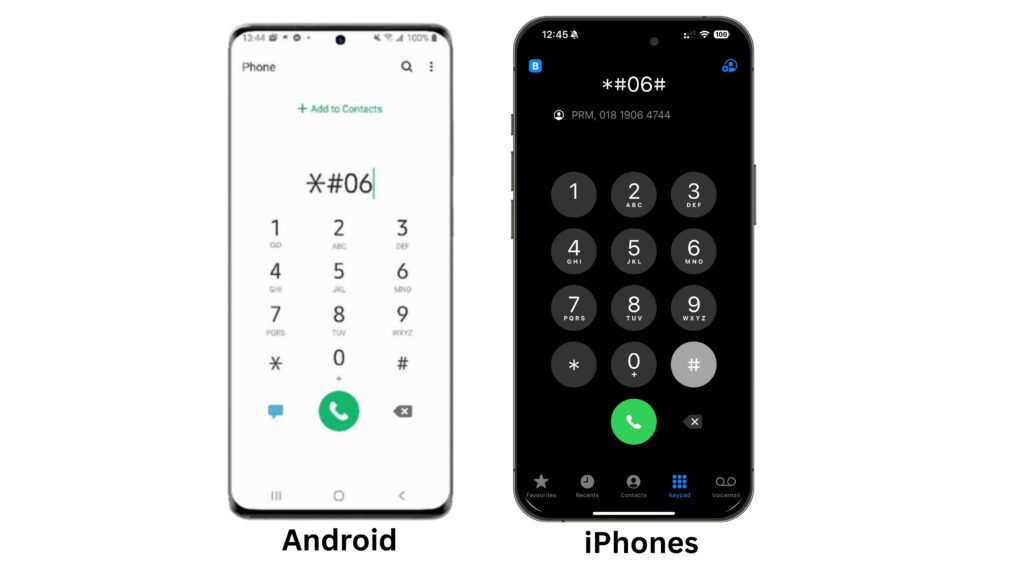
Dial *#06# on the keypad. The IMEI number will appear on the screen.
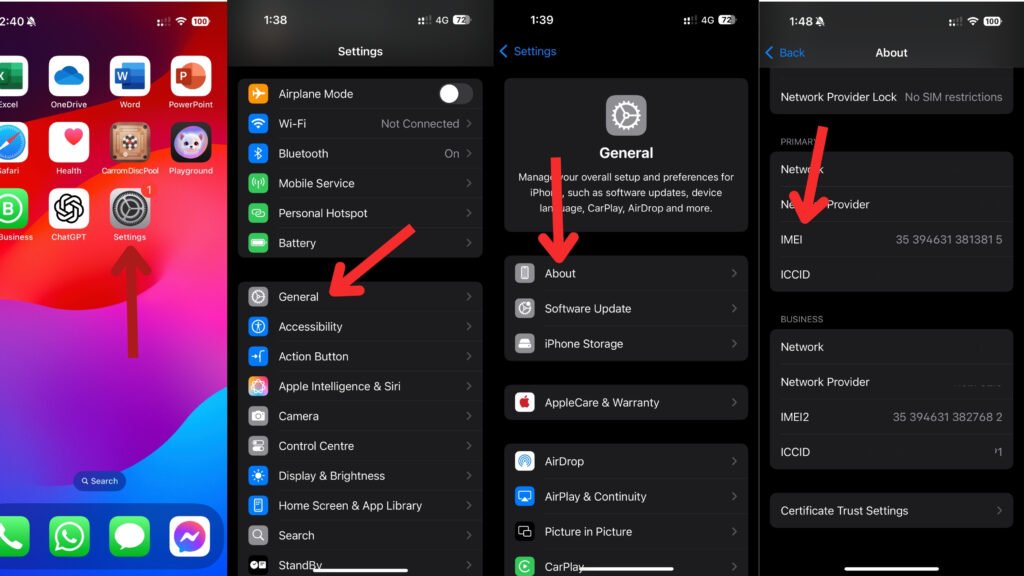
For iPhones:
Go to Settings > General > About then scroll down to see the IMEI.
For Android phones:
Go to Settings > About Phone > Status to find the IMEI number
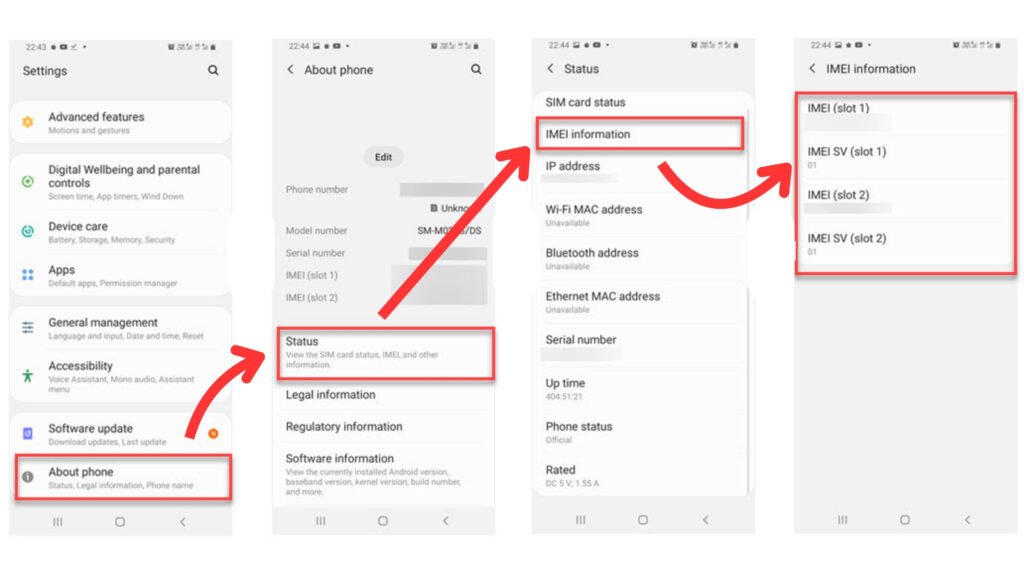
Once you have the IMEI number go to your carrier’s website or call their customer support and ask if the phone is unlocked. Some of them charge a small fee while others are free. Just be careful some sites aren’t trustworthy.
A few reliable options include:
- IMEI.info (for any devices)
- Swappa IMEI Checker (for any devices)
- T-Mobile’s IMEI Checker (for T-Mobile devices)
- Verizon’s IMEI Checker (for Verizon devices)
- Check Device & Unlock Status (for AT&T mobile phone)
Simply enter the IMEI number, and it will tell you if the phone is unlocked or locked to a carrier.
4. Contact the Carrier
Another direct way to check if a phone is unlocked is by contacting the carrier. This is especially useful if you’re unsure about a phone’s history
Table with the contact details for major U.S. mobile carriers
| Carrier | Customer Service Number | From Carrier Phone | Website |
|---|---|---|---|
| Verizon Wireless | 1-800-922-0204 | Dial 611 | Verizon Contact |
| AT&T | 1-800-331-0500 | Dial 611 | AT&T Contact |
| T-Mobile | 1-800-937-8997 | Dial 611 | T-Mobile Contact |
| US Mobile | +1 (878) 205-0088 | US Mobile Contact | |
| Cricket Wireless | 1-800-274-2538 | Dial 611 | Cricket Contact |
| Boost Mobile | 1-833-502-6678 | Dial 611 | Boost Mobile Contact |
| Metro by T-Mobile | 1-888-863-8768 | Dial 611 | Metro Contact |
| Google Fi | 1-844-TALK-2-FI (1-844-825-5234) | Google Fi Contact | |
| Spectrum Mobile | 1-833-224-6603 | Spectrum Contact | |
| Xfinity Mobile | 1-888-936-4968 | Xfinity Contact |
What you need:
- The phone’s IMEI number (explained above)
- Possibly the account details of the original owner (if it’s a used phone)
Most carriers will tell you whether the phone is locked or unlocked. They can also let you know if the phone is still under contract or has any unpaid bills which could affect unlocking.
What If the Phone Is Locked?
So what happens if you find out the phone is locked? You still have options! First go to But don’t worry I’ll break it all down in a simple easy-to- Unlock Phone for Any U.S major Carrier
1. Request an Unlock from the Carrier
Most carriers will unlock a phone for free if it meets their requirements. These usually include:
- The phone is fully paid off (no outstanding payments).
- The account is in good standing.
- The phone hasn’t been reported lost or stolen
If the phone meets these conditions the carrier can unlock it for you. Contact their customer support and ask for an unlock request.
2. Use a Third-Party Unlocking Service
If the carrier refuses to unlock the phone, you can try third-party unlocking services. However, be cautious & Best Tool Like: CellUnlocker, UnlockRiver, UnlockUnit.
- Some are scams, so always check reviews before paying.
- They usually charge a fee (ranging from $10 to $50)
- Unlocking this way may void warranties.
Things to Keep in Mind When Buying a Phone
If you’re buying a used phone especially from platforms like eBay Facebook Marketplace, or Craigslist, follow these tips:
- Ask the seller directly if the phone is unlocked
- Check the IMEI number to ensure it’s not blacklisted
- Test with a SIM card if possible
- Avoid deals that seem too good to be true—stolen or blacklisted phones can’t be unlocked easily
Don’t Miss It:
- How to Unlock an iPhone for Any Carrier
- How Long Does It Take to Unlock a Phone?
- Is It Legal to Unlock Your Phone? What You Need to Know
Common Questions About Check If a Phone Is Unlocked Before Buying
Can you check if a phone is unlocked?
Yes you can check if a phone is unlocked using different methods. The easiest way is to insert a SIM card from another carrier and see if the phone connects to the network. If it does, the phone is unlocked. You can also check through the phone’s settings on iPhones go to Settings > General > About and look for “No SIM restrictions.” For Android go to Settings > Network Operators and see if multiple networks appear. Another way is to use the IMEI number by contacting the carrier or using an IMEI checker online.
Can I check if a mobile phone is not stolen before buying?
Yes, and you should always check before buying a used phone. You can use the phone’s IMEI number to see if it’s reported as stolen or blacklisted. To find the IMEI, dial *#06# on the phone, then enter the number into databases like IMEI.info, Swappa’s IMEI Checker, or check directly with the carrier. If a phone is blacklisted, it means it was reported lost or stolen and won’t work with most networks. Avoid buying such devices, as they might be unusable.
Can I check if my iPhone is unlocked by IMEI?
Yes, you can check if your iPhone is unlocked using its IMEI number. To find the IMEI, go to Settings > General > About or dial *#06#. Once you have the IMEI, you can enter it into your carrier’s website or use an online IMEI checker. Some paid services also offer this feature. If you bought your iPhone directly from Apple at full price, it’s likely unlocked, but checking with IMEI gives a definite answer.
Is my new phone locked or unlocked?
Most new phones bought directly from manufacturers like Apple or Samsung come unlocked especially if purchased at full price. However, phones bought from carriers like Verizon, AT&T, or T-Mobile are often locked to that carrier until paid off or a contract is completed. To check, insert a SIM card from another carrier and see if it works. If you get an error like “SIM Not Supported” your phone is locked. You can also check the Carrier Lock status in the phone settings.
How to Check IMEI Compatibility with a Carrier?
You can check if your phone is compatible with a carrier using its IMEI number. Here’s how
Find your IMEI number:
- Dial
*#06#on your phone’s dial pad - On Android go to Settings > About device > Status
- On iPhone go to Settings > General > About
- Look under the phone’s battery (for older models)
- Check the sticker on the phone’s original box
Check Carrier Compatibility:
Use the carrier’s online IMEI checker Most major carriers, including Verizon, T-Mobile, and AT&T, have IMEI compatibility checkers on their websites.
Call your carrier’s customer support Provide them with your IMEI number and they will tell you if the phone is compatible with their network.
Compatibility is important because some phones only work on specific networks (GSM or CDMA). Always check before buying
Is my phone unlocked on T-Mobile?
If you bought your phone from T-Mobile, it might be locked unless you have fully paid it off and met their unlocking requirements. To check
Go to Settings and look under network settings for a “Carrier Lock” or “Network Provider Lock” section.
Insert a SIM card from another carrier and see if it works.
Use the T-Mobile IMEI checker on their website by entering your phone’s IMEI.
If the phone is locked, you can request an unlock from T-Mobile, but you must meet their conditions such as having the device fully paid off and being active on their network for at least 40 days