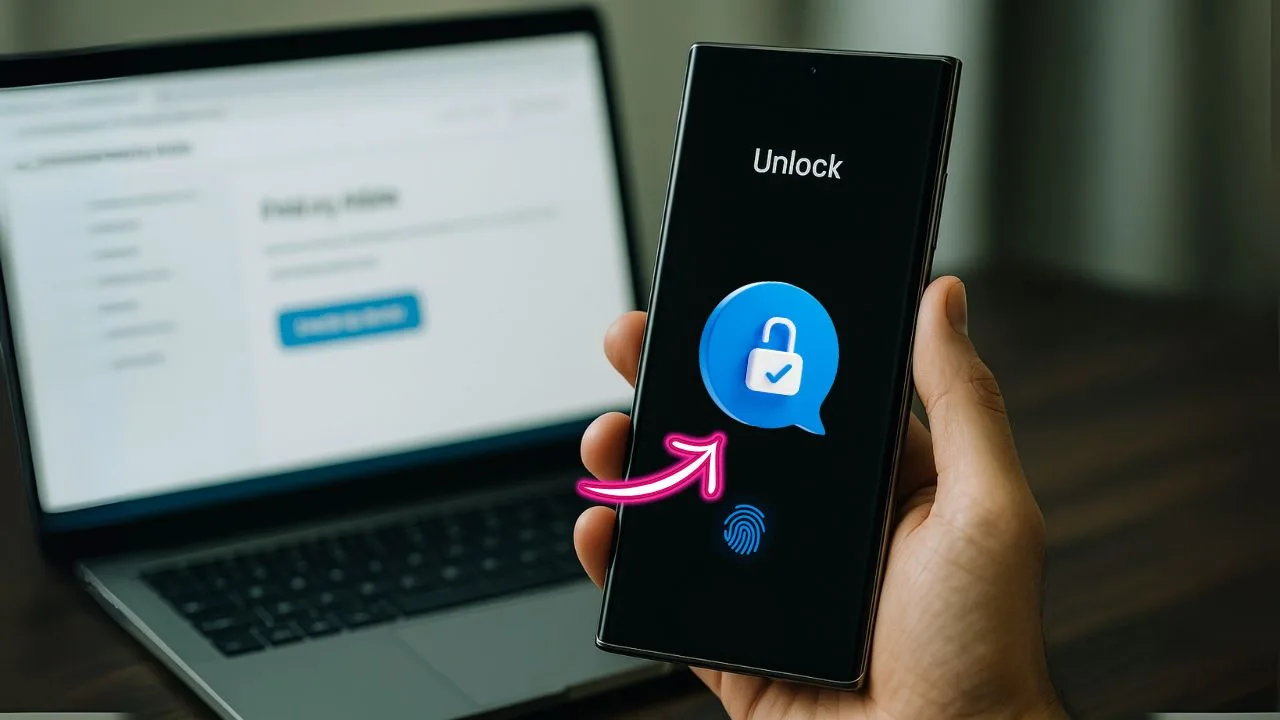
For many people, the lock screen is the front door to their digital life. When you forget your Samsung phone’s password, pattern, or PIN, it can feel like you’re locked out of your own house. The good news is that Samsung gives you a few safe, official ways to get back in—sometimes without losing your data. In this guide, we’ll walk through what works, what doesn’t, and how to protect your files along the way. We’ll keep the language simple, the steps clear, and the advice honest.
Key Takeaways
- The only reliable way to unlock without losing data is Samsung’s Find My Mobile (Remote unlock). If the phone was signed into your Samsung account, online, and Remote unlock was enabled beforehand, you can visit findmymobile.samsung.com, sign in with the same Samsung account, and choose Unlock to remove the lock screen without erasing data.
- There is no universal “master code.” Claims about secret codes to bypass a Samsung pattern/PIN are myths. Codes like
*2767*3855#or*#*#7780#*#*perform resets that wipe data (and usually can’t be dialed from a locked screen anyway). - Google’s Find My Device can’t remove your screen lock. It can locate, ring, or erase a device—but not unlock it. If you do a factory reset, you must sign in afterward with the same Google account previously on the phone to pass Factory Reset Protection (FRP).
- Try biometrics or Smart Lock before a reset; force-restart isn’t an unlock. If fingerprint/face or Smart Lock (trusted place/device) was set up, they may still let you in. A force restart (Side/Power + Volume Down ~10–15s) only reboots the phone; it won’t remove the lock. Entering recovery mode (often Power off → hold Volume Up + Side/Power while connected via USB) lets you factory-reset as a last resort, which erases local data.
- Protect your data for next time. Enable Remote unlock in Settings, keep cloud backups (Google/Samsung/WhatsApp) on, store your account passwords in a password manager, and test that your device appears in Find My Mobile. If you ever must reset, remove any microSD card first and have proof of ownership ready.
Quick Answer
On modern Samsung phones, the only reliable way to unlock a forgotten PIN/pattern without losing data is Samsung Find My Mobile—but it works only if Remote unlock was turned on before you got locked out. On another device, sign in to Find My Mobile with the same Samsung account, select your phone, choose Unlock, and confirm your account password; the lock screen will be removed so you can set a new one. If Remote unlock wasn’t enabled, there’s no official data-safe bypass—your options are an authorized service center (data preservation not guaranteed) or a factory reset (erases local data, then restore from Google/Samsung backups if available). To avoid this next time, enable Remote unlock, add Smart Lock and biometrics, and keep regular Smart Switch/Google backups.
📖 Also Read: Top 5 Reputable Services to Unlock Your Samsung Phone in the U.S.
What “Unlock Without Losing Data” Really Means
Android and Samsung’s security model is built to protect your data. That means there is no universal bypass that anyone can run on any phone. That’s a good thing for your privacy. But it also means data-safe unlocks only work if you prepared the phone earlier with features like Samsung’s Find My Mobile “Remote unlock,” Smart Lock, or biometrics (fingerprint/face).
If none of these are set up and the phone won’t accept your password, the official routes will end in a reset, which erases local data. Third-party “unlocker” tools often promise otherwise, but they usually reset the phone under the hood or can damage it. In short: trust the official tools first.
Quick Map: Pick Your Path
- You added your Samsung account and enabled “Remote unlock” → Try Samsung Find My Mobile (best chance, no data loss).
- You turned on Smart Lock (trusted place, device, or on-body) → Try Smart Lock to get in and back up.
- You set up fingerprint or face unlock → Use biometrics to access the phone, then back up your data.
- None of the above → Jump to What if none of the data-safe options work? for honest next steps.
Method 1: Unlock with Samsung Find My Mobile (Remote Unlock)
Best case scenario. If your Samsung phone is signed into a Samsung account and Remote unlock was enabled before you got locked out, you can remove the lock screen without erasing your data.
What you need
- Your phone is signed in to a Samsung account.
- Remote unlock is enabled on the phone (this is a toggle inside Find My Mobile settings).
- The phone is powered on and connected (Wi-Fi or mobile data).
How to do it
- On a computer or another phone, open a browser and go to Samsung’s Find My Mobile website and sign in with the same Samsung account used on the locked phone.
- Select your device from the list.
- Choose Unlock. Confirm your Samsung account password if asked.
- Wait for the remote command to reach your phone. When it works, your lock screen security is removed and set to swipe.
- Immediately set a new PIN/password that you will remember. While you’re in: make a fresh backup (Smart Switch to PC/Mac or Google/Samsung cloud).
If “Remote unlock” was not enabled
You’ll see a message saying the feature is off. In that case, this method won’t work right now. Keep reading for the next options—and after you regain access, come back later to enable Remote unlock for the future.
Method 2: Use Smart Lock to Get In (Then Back Up)
Smart Lock lets your phone stay unlocked in trusted situations—like when it’s near a trusted Bluetooth device, at a trusted place (home), or while it senses it’s on your body. If you set any of these before forgetting your password, you may be able to wake the screen and enter the phone without the PIN under those trusted conditions.
How to trigger Smart Lock
- Trusted place: Go to the saved address (for example, your home). Give the phone a minute after it connects to your home Wi-Fi or GPS gets a fix.
- Trusted device: Power on and connect the Bluetooth item you set (smartwatch, earbuds, car). Keep it near the phone.
- On-body detection: Keep the phone with you and walk around a bit.
If Smart Lock triggers, you should be able to swipe and get in. Once you’re in, do not lock the screen again until you’ve done two things:
- Back up your data (details below).
- Try to reset your lock. Note that Samsung usually asks for the current PIN/password when changing lock type. If you don’t know it, you still can back up your data while you remain unlocked.
Method 3: Use Biometrics (Fingerprint/Face) to Enter and Back Up
If you set up fingerprint or face unlock, try it now. In many cases, you can unlock the screen with biometrics even if you can’t recall the PIN. As with Smart Lock, that won’t always let you change the lock type without your current PIN, but it does let you access your data to back up.
Tip: If the phone asks for the PIN after a restart or after too many failed attempts, biometrics may be temporarily blocked. Keep the phone awake and connected, wait a bit, and try again. If you can sign in with biometrics even once, start a backup immediately.
📖 Also Read: 🔓 Samsung Unlock Codes: How to Unlock Your Samsung Phone Safely & Easily
Back Up Your Samsung Phone Right Now (Once You’re In)
If Smart Lock or biometrics lets you inside—even one time—treat it as your window to copy your data safely. Here are the most reliable ways to do that:
Option A: Smart Switch to a Computer (most complete)
- Install Smart Switch on your PC or Mac.
- Connect your phone via USB. Unlock the screen (biometrics/Smart Lock) when prompted.
- Tap Allow on any “File access/USB” prompts.
- In Smart Switch, click Back up. Keep the phone unlocked and leave it connected until it finishes.
Smart Switch can back up photos, videos, messages, call logs, contacts, settings, and many apps’ data. It’s your best all-in-one safety net.
Option B: Cloud Backups (fast and wireless)
- Google Backup: Settings → Google → Backup → Back up now. This saves app data (for many apps), call history, contacts, SMS (on supported builds), and some device settings.
- Samsung Cloud/OneDrive (Gallery sync): If enabled, your photos and videos may already be synced. Open Gallery → check Sync status.
Option C: Manual copy for photos and files
- Connect the phone by USB to your computer.
- Pull down the notification shade → set USB mode to File Transfer (MTP).
- Browse the DCIM and Pictures folders to copy photos and videos. Check Downloads and Documents too.
Important: Keep the screen awake and unlocked during backups. If it locks, you may have to re-authenticate to keep transfers going.
What If None of the Data-Safe Options Work?
Let’s be honest and practical. If Remote unlock is off, Smart Lock wasn’t set, and biometrics won’t let you in, there is no official method to remove or reset your lock without wiping the phone. That’s by design, to keep your data secure.
Here is the clean, safe decision tree:
- Need the data at all costs?
Your best bet is a Samsung authorized service center. Bring proof of purchase and your ID. In some cases, they can help verify ownership and attempt service procedures that may preserve data, but this is not guaranteed. Be clear that your goal is data preservation. - Can accept losing local data?
Use an official reset path:- Find My Device (Google) → Erase device (wipes data). Afterward, you’ll need your Google account to pass Factory Reset Protection.
- Recovery Mode → Factory reset (wipes data). You’ll still need your Google/Samsung credentials after the reset to use the device.
- Avoid high-risk tools
Many “unlock without data loss” apps or remote services are misleading. Some attempt unsupported hacks that can brick your phone, void warranty, or silently wipe data anyway. If a service can’t explain its process in official terms, skip it.
Important Note on “Master Codes” and Myths
- There is no master code that unlocks every Samsung or every phone.
- Google Find My Device does not unlock your screen; it can locate, ring, or erase.
- Old Android versions (years ago) had options to sign in with Google after too many attempts. Modern versions do not allow this.
These myths keep popping up online, but they don’t apply to modern Samsung phones.
How to Improve Your Chances Before a Reset
If you’re close to accepting a reset, try these last-chance tips to get a data-safe unlock working:
- Get the phone online: Move it near a saved Wi-Fi network it knows (home, work) so Remote unlock can reach it. Insert a SIM with data if Wi-Fi isn’t available.
- Keep it charged and awake: Plug into power, keep the screen waking regularly. Remote commands cannot reach a powered-off device.
- Try your trusted Bluetooth device: If Smart Lock was set to a watch, car, or earbuds, power those on and keep them close for a few minutes.
- Check if “Auto factory reset” is enabled: Some phones have a setting that wipes after 15 failed attempts. If you’re not sure, stop guessing. Don’t risk triggering a wipe.
If You Do Reset: Recover as Much as Possible
- Know your credentials: After a factory reset, you’ll likely need to sign in with the same Google account (and, on many models, the same Samsung account) that was on the phone before. This is Factory Reset Protection (FRP).
- Restore from backups: During setup, restore from Google backup and sign in to Samsung to pull down any synced Gallery items or Samsung Cloud data. If you used Smart Switch previously, restore from that computer backup.
- Check your microSD card: If your media was saved to a microSD card, it stays intact after a reset unless encrypted and bound to the former lock key.
📖 Also Read: Unlocking Samsung Phones – Carrier, FRP & Password
Set Up Your Phone So This Never Happens Again
Once you regain access—either through a data-safe unlock or after recovery—spend five minutes to make sure the next lockout is painless.
Turn on Samsung Find My Mobile + Remote Unlock
- Go to Settings → Security and privacy → Find My Mobile (or Biometrics and security → Find My Mobile on some models).
- Sign in to your Samsung account.
- Turn on Remote unlock.
Now, if you forget your lock next time, you can remove it remotely without losing data.
Add Smart Lock (with care)
- Settings → Security and privacy → Smart Lock.
- Add a Trusted place (home) and a Trusted device (watch, earbuds, car).
- Keep Smart Lock choices limited and sensible so you don’t weaken security.
Enroll Biometrics
- Settings → Security and privacy → Biometrics.
- Add fingerprints and face (if available). Biometrics let you get into the phone, which is often enough to back up your data.
Keep Fresh Backups
- Smart Switch to a PC/Mac every few weeks.
- Google backup on and scheduled.
- Consider Gallery Sync to OneDrive or another reliable photo backup.
Use a Password Manager
Store your device PIN and other keys in a secure password manager. A short note like “Samsung S23 Ultra screen PIN” in your vault can save hours later.
Troubleshooting: When a Data-Safe Method Won’t Work
Find My Mobile says offline:
Move the phone to a known Wi-Fi network area and plug it into power. Wait five to ten minutes. Try the Unlock command again.
Smart Lock not triggering:
Make sure the trusted device is connected and stays near the phone for at least a minute. For Trusted place, ensure Location is on and the GPS lock is stable.
Biometrics disabled after reboot:
Android requires the PIN/password once after restart. Keep the phone on (don’t let it die), and avoid restarting it until you resolve the lock.
Too many attempts warning:
If you see any message about auto factory reset, stop guessing. Move to a safer method like Find My Mobile or contact support.
Safety and Ownership
This guide assumes you’re unlocking your own device. We will not provide or endorse hacks that bypass security on a device you don’t own. For help proving ownership (like service-center support), bring your receipt, a carrier bill, or box with IMEI.
Step-By-Step Summary (Minimal Bullets)
- Try Samsung Find My Mobile → Unlock (needs Remote unlock on, no data loss).
- Try Smart Lock (trusted place/device/on-body) to get in and back up.
- Try biometrics (fingerprint/face) to enter and back up right away.
- If none work, consider an authorized service center to attempt data-safe help.
- If you must reset, prepare your Google/Samsung credentials and restore from backups.
- For the future: enable Remote unlock, add Smart Lock, enroll biometrics, and back up regularly.
Final Thoughts
A forgotten lock screen is stressful, but it doesn’t have to cost you your memories. If you prepared your Samsung phone with Remote unlock, Smart Lock, or biometrics, you have solid, official options to get back in without losing data. And even if you didn’t, you now know the clean, safe paths forward—and how to set up your phone so this never becomes a crisis again.
FAQs
Can we unlock a Samsung phone without losing data?
Sometimes, yes. If your phone was signed in to a Samsung account, connected to the internet, and had Remote unlock enabled, you can use Samsung Find My Mobile to remove the lock screen without erasing data. Biometrics (fingerprint or face) or Smart Lock may also let you in if they were set up earlier. If none of these apply, a factory reset is usually required, which wipes local data but lets you restore from cloud backups afterward.
Can you unlock a Samsung if you forgot the password?
Yes, but the method depends on what you set up before getting locked out. Try Find My Mobile → Unlock first. If that isn’t available, see if a fingerprint, face unlock, or Smart Lock still grants access. If all else fails, perform a factory reset, then sign back in with your Google and Samsung accounts to restore backups. Remember that after a reset you’ll need the previously used Google account to pass Factory Reset Protection (FRP).
3) What is the master code for Samsung Pattern Unlock?
There isn’t one. Modern Samsung phones use strong encryption tied to your credentials. The only legitimate ways to remove a forgotten pattern are using Find My Mobile (if set up in advance) or factory resetting the device and restoring from backups. Any website claiming a universal pattern code is misleading.
What is the master code to unlock every phone?
No universal master code exists. Reputable manufacturers do not include “back doors” because they would put everyone’s data at risk. Unlocking access on a locked device is only possible through official account-based recovery tools or, if necessary, a factory reset plus signing in with the correct accounts.
Can you unlock your phone if you forgot the password without losing data?
It’s possible on some devices only if a remote-unlock feature (like Samsung’s Find My Mobile) or a secondary unlock method (biometrics or Smart Lock) was enabled beforehand. Android’s Find My Device cannot remove a screen lock; it can locate, ring, or erase the phone. Without a pre-set recovery path, you’ll need a reset, which erases local data but not what’s already backed up to the cloud.
What happens if I get locked out of my Samsung phone?
First, try Find My Mobile to remotely unlock. If it’s unavailable, see whether fingerprint/face or Smart Lock still works. If none of these methods succeed, perform a factory reset from recovery mode. After the reset, you must sign in with the same Google account previously used on the device to pass FRP, then restore your apps, photos, and messages from backups.