

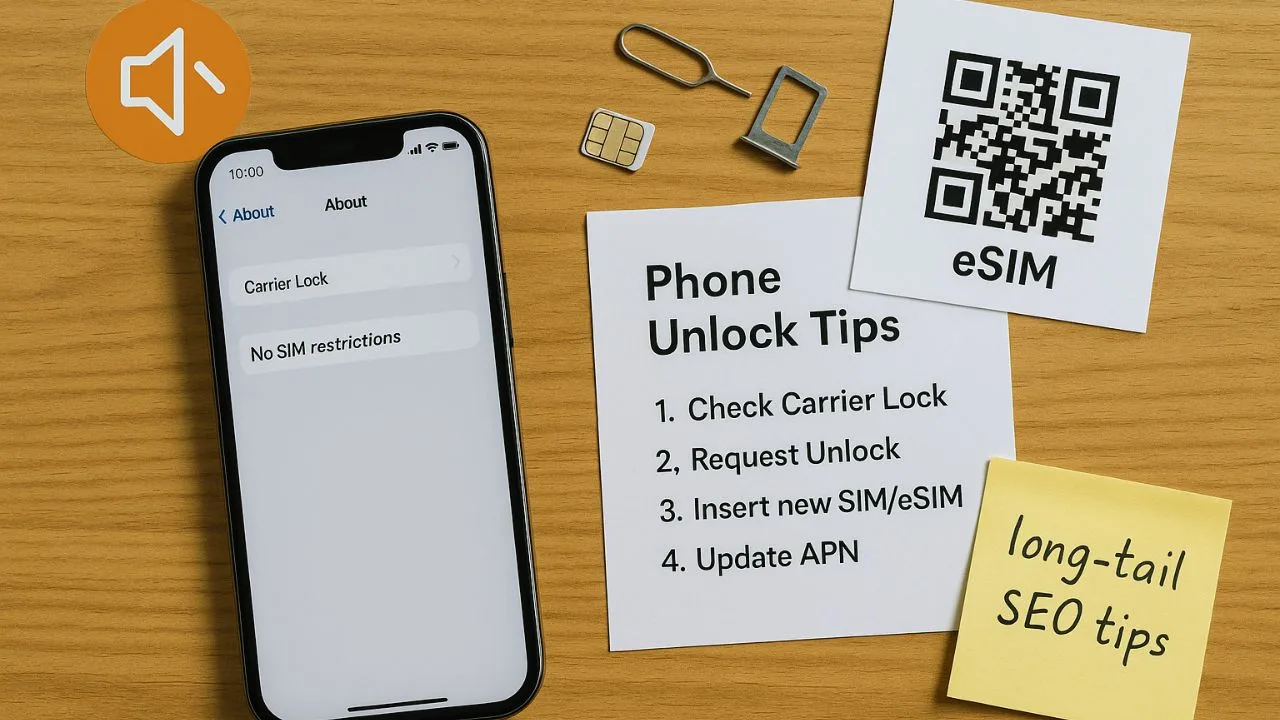
If you’ve ever swapped SIMs to save money or to travel, you already know one truth: an unlocked phone gives you freedom. You can choose cheaper plans, use local eSIMs abroad, and avoid surprise roaming fees. In this guide, I’ll share clear, real-world phone unlock tips—written in simple language—so you can unlock the right way and avoid dead ends. I’ll also sprinkle in the phrase no volume keyword phone unlock tips naturally, because smart long-tail keywords still bring readers who need practical help like this.
Unlocking isn’t magic. It’s a short checklist and a few decisions. Follow the steps below, and you’ll move from “locked and stuck” to “unlocked and ready” without guesswork or shady tricks.
Key Takeaways
- Confirm the lock first. Check “Carrier Lock” on iPhone or test another SIM/eSIM on any phone—many devices are already unlocked and need only APN setup.
- Use official paths. The clean, permanent unlock comes from the original carrier; if that’s not possible, use a reputable IMEI factory unlock—never trust “master codes” or bypass tools.
- Finish the setup. After unlocking, reboot, accept carrier settings, add the correct APN, and verify both IMEIs on dual-SIM/eSIM phones; these steps fix most “No service” or data issues.
- Save money when you travel (and buy used). Unlock before trips, add a local eSIM while keeping your home number for 2FA, check band support, and always verify IMEI status when purchasing second-hand.
What “no-volume keywords” have to do with unlocking
You might see tools say a phrase has “zero” search volume. Don’t be fooled. People still search for ultra-specific questions, especially about carrier locks, SIM network unlock PINs, and eSIMs. Guides like this use long, precise phrases—yes, even no volume keyword phone unlock tips—so the exact reader finds the exact answer. That’s good for you and good for SEO. Now, let’s unlock your phone.
Step 1: Check if your phone is actually locked
Before you do anything, confirm the lock status. Many phones that “seem” locked are already free to use.
On iPhone
Open Settings → General → About and look for Carrier Lock.
- If it says No SIM restrictions, you’re unlocked.
- If it shows a restriction, you’re still tied to a carrier.
A second check: insert a SIM from a different carrier (or add a test eSIM). If you get service right away, you’re unlocked. If you see SIM Not Supported or Invalid SIM, you’re locked.
On Android
The steps vary by brand, but you can try: Settings → Connections/Network → Mobile Networks. If you see menus tied to your current carrier and you get errors with a new SIM, you’re likely locked. The most reliable test is still swapping in another carrier’s SIM and seeing if it connects.
Pro tip: If your phone supports dual SIM or eSIM, test the “other” slot or add a free trial eSIM to check service without pulling your main SIM.
📖 Also Read: Unlock Your Phone & Prepare for International Travel
Step 2: The right way to unlock—start with your carrier
Carriers own the lock. The cleanest, most permanent unlock comes from the original carrier. That unlock “flips a switch” on the manufacturer’s servers (for iPhone) or clears the restriction (for Android), so you can use any compatible network.
What you’ll usually need:
- The phone’s IMEI (dial
*#06#or find it in Settings → About). - Account details with the carrier that originally locked it.
- Proof the device meets basic requirements (paid off, not reported lost/stolen, active for a period—rules vary by carrier and by prepaid/postpaid).
Where to go:
- Online unlock portal (many carriers have one).
- Carrier app (some Android phones, especially Samsung on certain networks, include a Device Unlock app).
- Customer support (chat or call if the portal/app doesn’t work).
Timeline note: Carriers often process unlocks within hours to a few days. Some lines require a set number of days of active service; the exact day count changes over time, so check your carrier’s current policy.
Step 3: IMEI factory unlock services—when you can’t go through the carrier
If you bought a used phone tied to a carrier you never used—or your account is closed—you may not meet a carrier’s rules. That’s when people consider a reputable IMEI factory unlock service. Here’s how to use them wisely:
Pick a known provider. Look for clear policies, real reviews, and support.
Expect to enter your IMEI and original carrier. The price depends on model and network.
Understand the risk. Third-party services depend on carrier/manufacturer systems. Good services refund if they can’t complete the unlock, but read the terms.
Avoid code scams for iPhone. iPhones unlock server-side; there is no “code” you type.
Never use anything that bypasses iCloud/Google account security. That’s not a carrier unlock—that’s a red flag.
When it works, a factory unlock is permanent and behaves just like a carrier unlock.
Step 4: eSIM and dual-SIM details that matter
Modern phones (especially recent iPhones and Pixels) support eSIM. Some U.S. iPhone models are eSIM-only—no physical tray. Unlocking still works; it’s just tied to your device records.
Keep these points in mind:
Two IMEIs (and an EID). Dual-SIM phones have IMEI1 and IMEI2. In rare cases, one line unlocks while the other doesn’t; confirm both show as unlocked if you rely on dual lines.
Transfer vs. add line. After unlock, you can add a local eSIM when you travel and keep your home number active for banking codes and messages.
Carrier settings update. On iPhone, watch for a Carrier Settings Update prompt after unlocking; accept it.
Step 5: Travel-ready unlock tips that save real money
You don’t need to spend on roaming packs if your phone is unlocked.
Unlock before you fly. Don’t land and discover a lock.
Buy a local eSIM/data pass from a trusted provider for your destination. It’s fast, cheap, and you can install it over Wi-Fi.
Keep your home SIM active for iMessage/WhatsApp and 2FA. Turn Data Roaming off on the home line and route data over the local eSIM.
Check bands/compatibility. Make sure your phone supports the destination’s LTE/5G bands. If data works but calls don’t, toggle VoLTE/VoWiFi as needed.
Step 6: Fix common post-unlock errors
If you completed an unlock but something still feels off, use this quick list:
“SIM Not Supported” (iPhone)
Power off, insert the new SIM/eSIM, power on, and connect to Wi-Fi. If the message persists, update iOS, accept Carrier Settings Update, or try a full backup and Erase All Content and Settings (then restore). That forces the device to re-check Apple’s unlock servers.
“Network unlock request unsuccessful” (Android)
Verify the phone was actually unlocked on the carrier side. If you used a code, confirm you typed it correctly. Wait a bit and reboot. If you used an app-based unlock, open the app again and check status.
No service / data but bars show
Set the correct APN for the new carrier. Reset Network Settings if needed. Toggle Airplane Mode for 30 seconds. On 5G phones, try forcing LTE temporarily to stabilize.
Only one SIM slot seems unlocked
Check both IMEIs. Contact the unlocking party to ensure both profiles were cleared.
Stuck on 3G/2G
Ensure VoLTE/5G is enabled and the new carrier actually offers those services for your plan and device. Not all plans include 5G.
📖 Also Read: What Is SIM-Lock? A Beginner’s Guide to Carrier Restrictions
Step 7: Special cases that change the rules
Financed devices. Many carriers won’t unlock until the phone is paid off. Even if it physically unlocks, a financed phone may be flagged if payments lapse.
Blacklisted IMEI. If a phone is reported lost/stolen or under fraud, it won’t activate on most networks. Always check IMEI status before you buy used.
MVNO vs. main carrier. Some MVNOs rely on the main network’s rules; others add their own. Check the policy for the exact brand that locked the phone.
Work phones and MDM. Company devices can have management locks that aren’t carrier locks. Only your IT admin can remove those.
Samsung, iPhone, Pixel: notes that matter
Samsung (especially on U.S. carriers)
Some models include a Device Unlock app. A successful Permanent Unlock in that app means you’re good. If you don’t see the app, your path is the carrier portal or support.
iPhone
There is no code entry. Apple’s servers reflect your unlock status after the carrier approves it. You’ll often see it take effect after a reboot, a SIM swap, or a short wait on Wi-Fi. Confirm with Carrier Lock → No SIM restrictions.
Google Pixel and other Android brands
Unlock is still controlled by the original carrier. The process is similar: request unlock, wait for approval, insert the new SIM/eSIM, and confirm service.
Safe buying tips for used phones
- Check the IMEI before handing over cash.
- Test with your SIM right there if possible.
- Avoid “too good to be true” deals on recent flagships. Many are financed and could get blocked later.
- Ask for the original carrier and proof of purchase.
The bottom line
An unlocked phone gives you choice—lower bills, better travel options, and the freedom to switch when there’s a better deal. Start with a lock check. Ask the original carrier to unlock. If that’s not an option, use a trusted IMEI factory unlock. After that, set up your new SIM or eSIM, apply the right APN, and you’re done.
This guide uses practical, long-tail phrasing—even no volume keyword phone unlock tips—because real people ask real questions, and they deserve real answers. Now you have them. Go unlock your phone and make your plan work for you.
📖 Also Read: Top 5 Cheap Unlocked Cell Phones You Can Buy Today
FAQs
1) What is the master code to unlock a phone?
There is no universal “master code” that unlocks all phones. Network (carrier) locks are removed by the original carrier or by a legitimate IMEI-based factory unlock tied to your phone’s exact IMEI—not by a generic code. Screen locks (PIN, passcode, pattern, Face ID/Touch ID) can’t be bypassed with a code; if you’ve forgotten them, the only official path is to sign in and remove the lock or perform a factory reset (which erases data) and then pass FRP/iCloud activation with the original account. Any site promising a one-size-fits-all master code is a red flag.
2) How to unlock your phone when the keyboard is not working?
First, reboot the phone and try again—temporary glitches often clear on restart. On Android, boot into Safe Mode to disable third-party apps that might be breaking the lock screen input, then enter your PIN and remove the culprit app. If you have an OTG adapter, plug in a USB keyboard to type your PIN; this works on many models. Samsung users who enabled Find My Mobile may be able to remote-unlock from the web. On iPhone, try Face ID/Touch ID, then a force restart; if the touchscreen remains unusable, back up (if possible) and restore via a computer. If nothing works, a factory reset will remove the screen lock but will also erase data, and you’ll still need the original Apple/Google account to activate the phone afterward.
3) How to unlock phone with volume button?
Phones aren’t designed to unlock with volume keys alone. On some Android models you can enable settings or accessibility tools that let volume keys wake the screen or trigger a shortcut, but you still need your normal PIN, pattern, or biometrics to actually unlock. Using the volume keys in recovery mode only lets you navigate menus; it can’t remove a lock without wiping the device (and FRP/iCloud will still require the original account). Avoid third-party apps that claim “volume button unlock” for security—most are unreliable or require risky permissions.
4) How to use phone without volume button?
You can control volume entirely on-screen. On Android, use the quick settings volume slider, the media player’s in-app slider, or enable the Accessibility Menu for on-screen volume controls; voice assistants can also set volume by command. On iPhone, open Control Center for the volume slider or turn on AssistiveTouch to add virtual volume buttons; Siri can adjust volume too. Wired/Bluetooth headphones and earbuds have their own volume controls that work even if the phone’s buttons are broken.
5) What is *#9900 used for?
On many Samsung phones, *#9900# opens a hidden “SysDump” or maintenance menu used for logs, debugging, and system dumps. It’s not a consumer feature and it does not unlock networks or screen locks. Options vary by model and software version, and some can clear logs or alter behavior. If you don’t know exactly what a menu item does, don’t change it.
6) What are secret codes?
“Secret codes” are MMI/USSD/service codes (often starting with * and #) that open info and test menus, show device stats, or trigger carrier services (like checking balance). They are model-, region-, and carrier-specific; some do nothing on certain phones, while others can reset data or change radio settings. They are not a legal or reliable way to remove locks. Use them carefully and only when you understand the effect.


