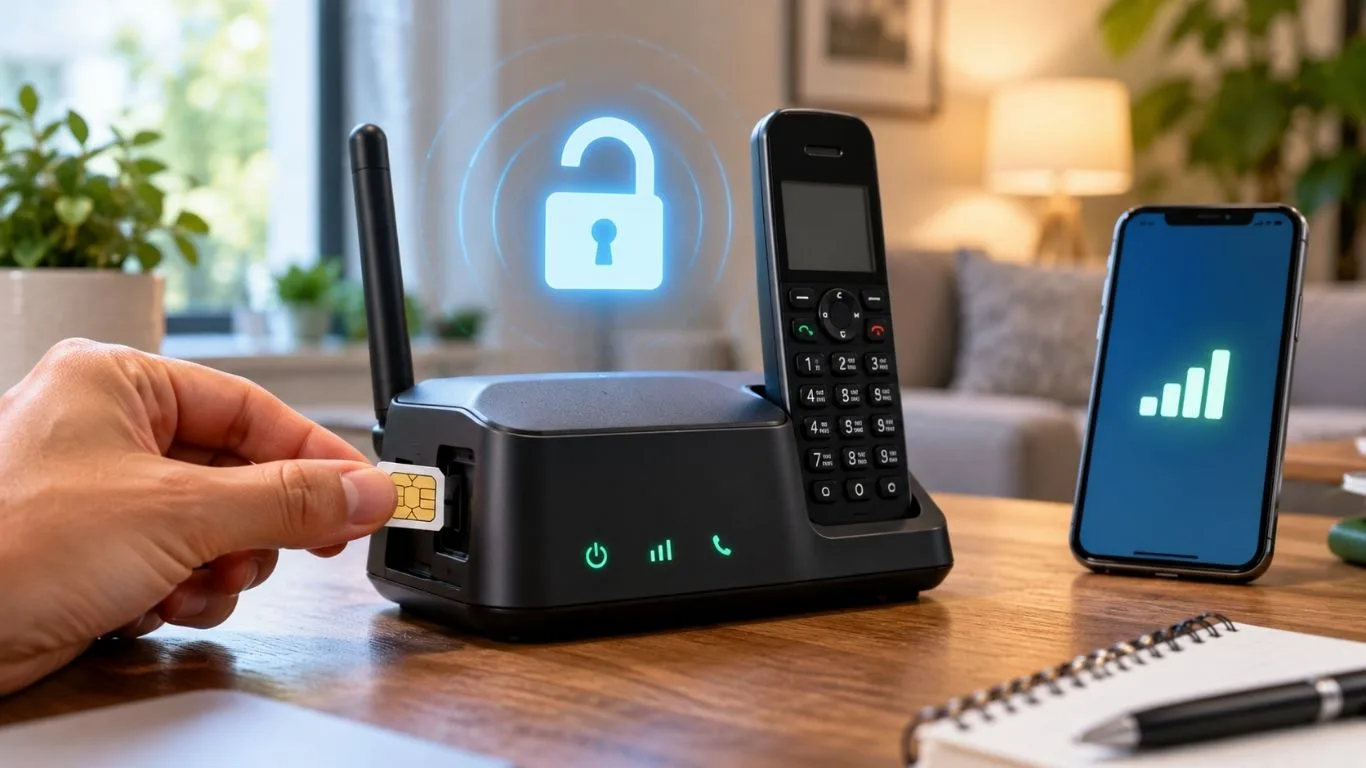
Owning a T-Mobile phone is great, but being stuck with one carrier? Not so much. If switching carriers or traveling internationally is on the agenda, unlocking the phone is a must.
The good news? T-Mobile allows eligible devices to be unlocked, giving the freedom to use any network.
This guide covers everything from eligibility requirements to step-by-step unlocking methods—without the confusing jargon.
Quick Answer
To unlock a T-Mobile phone, check if it meets T-Mobile’s eligibility requirements (paid off, active for required days, not reported lost or stolen). Then, request an unlock through T-Mobile customer support or the T-Mobile Device Unlock app (for supported Android phones). If eligible, T-Mobile will remotely unlock the device. For iPhones, insert a new SIM and restart after approval. If denied, consider a third-party unlock service.
Why Unlock a T-Mobile Phone?
A locked phone only works on T-Mobile’s network. If you try to insert a different SIM card, you’ll see an error like “SIM Not Supported” or “Network Locked”.
Unlocking removes this restriction, allowing the phone to work with any compatible carrier, whether in the U.S. or abroad. Here’s why it’s beneficial:
- Switch to a new carrier – Use AT&T, Verizon, or any GSM-based network.
- Better resale value – Unlocked phones sell for more money.
- Use international SIM cards – Avoid expensive roaming fees while traveling.
- Freedom to choose – No more carrier restrictions on apps or settings.
How to Check If a T-Mobile Phone Is Eligible for Unlocking
Not all T-Mobile phones can be unlocked immediately. The carrier has strict criteria that must be met before granting an unlock request.
T-Mobile’s Official Unlock Requirements
- The device must be paid off (no remaining balance on an installment plan).
- It must be used on T-Mobile’s network for at least 40 days.
- For prepaid devices, they must be active for 365 days or have had $100 in refills.
- The phone must not be reported as lost, stolen, or blocked due to fraud.
- T-Mobile must have sold the phone directly (some third-party purchases may not qualify).
👉 Check if your phone is eligible: Dial #06# to get the IMEI and enter it on T-Mobile’s Unlock Status Checker at T-Mobile’s website.
Method 1: Unlocking a T-Mobile Phone Through Customer Support
The most straightforward way to unlock a T-Mobile phone is by contacting customer support. If the device meets the eligibility criteria, the request is usually processed within a few days.
The first step is to contact T-Mobile by calling 611 from a T-Mobile phone or 1-877-746-0909 from any other device. When speaking with a representative, users should request a network unlock and provide the necessary details, including the phone’s IMEI number, account holder name, and PIN. In some cases, proof of purchase may be required.
After submitting the request, T-Mobile will review the information and determine whether the phone qualifies for unlocking. This process typically takes between 24 and 48 hours. If the request is approved, T-Mobile will either send an unlock code (for older phones) or remotely unlock the device (for newer models). Once unlocked, users can insert a new SIM card and begin using the phone on a different network.
Method 2: Unlocking a T-Mobile Phone Using the T-Mobile App
Many T-Mobile Android phones come with a built-in Device Unlock app.
Steps to Unlock via T-Mobile App
- Connect to Wi-Fi or T-Mobile’s network.
- Open the “T-Mobile Device Unlock” app.
- Tap “Permanent Unlock.”
- Wait for the confirmation message: “Device Unlock Successful.”
- Restart the phone, and it’s now unlocked.
👉 Note: This method only works on select Samsung and LG devices preloaded with the app.
Method 3: Unlocking a T-Mobile iPhone
Unlike Android, iPhones don’t require unlock codes. T-Mobile remotely unlocks iPhones when eligible.
Steps to Unlock a T-Mobile iPhone
- Make sure the iPhone is connected to Wi-Fi.
- Wait for T-Mobile’s email confirmation that your unlock request is approved.
- Insert a non-T-Mobile SIM card.
- Restart the iPhone and follow the on-screen activation process.
👉 If the iPhone is still locked after approval, reset it: Settings > General > Reset > Erase All Content and Settings.
Method 4: Using a Third-Party Unlock Service
If T-Mobile denies an unlock request, users may consider using a third-party unlocking service. These services specialize in unlocking phones that do not meet carrier requirements, including blacklisted or unpaid devices.
Before using a third-party service, it is important to choose a reputable provider with positive reviews and a money-back guarantee. Most third-party unlock services charge between $10 and $50, depending on the phone model and IMEI status. Users should be cautious of scams, especially services that ask for sensitive personal information.
Popular third-party unlocking providers include DoctorSIM, UnlockBase, and DirectUnlocks. While these services can be helpful in certain cases, they may use unofficial unlocking methods that could void warranties or cause other issues.
Don’t Miss It:
- How to Unlock Your Q Link Wireless SIM Card
- What Is a SIM Network Unlock PIN? The Key to Carrier Freedom
- How to Reset a Phone After Failed Unlock Attempts (The Right Way)
Troubleshooting Common Unlocking Issues
Sometimes, even after following the proper steps, a phone may still show an error message indicating that it is locked. There are a few common problems that users may encounter and possible solutions to fix them.
If a phone remains locked after T-Mobile has approved the request, restarting the device or resetting network settings may help. For iPhones, connecting the device to iTunes or Finder can force the unlock to take effect.
An “Unlock Failed” error may indicate that the phone was not unlocked using an official method. If a third-party service was used, contacting their support team may be necessary.
In some cases, an unlocked phone may not be able to access mobile data or make calls on a new network. This is often caused by incorrect APN settings, which can be updated to match the new carrier’s requirements.
Common Questions About Unlocking a T-Mobile Phone
Can I unlock my T-Mobile phone myself?
Yes, but only if your device meets T-Mobile’s eligibility requirements. If you have a T-Mobile SIM or eSIM set up on your phone, you can use the T-Mobile Device Unlock app (available for some Android devices). Open the app, choose “Check Eligibility”, then select “Permanent Unlock.” If the device qualifies, the unlock process will complete automatically. For iPhones, once approved, inserting a non-T-Mobile SIM and restarting the device will unlock it. If the phone is not eligible, you will need to request an unlock from T-Mobile’s customer support.
Can I unlock my phone myself for free?
Yes, if you meet your carrier’s unlocking policy, the process is completely free. Contact your carrier and request an unlock code or a remote unlock. Major wireless providers, including T-Mobile, usually email the unlock confirmation or provide instructions via their website. Some regional carriers may require a visit to a store. If your phone does not qualify for a free unlock, you may need to use a paid third-party unlocking service.
Can T-Mobile unlock my phone if I forgot the password?
No, unlocking a phone’s network is different from bypassing its lock screen password. If you forgot your password or PIN, you will need to reset the device using a backup PIN, Google account recovery, or factory reset. On Android, if you fail multiple unlock attempts, you may see a “Forgot Password” option, which allows you to reset it using your Google account. For iPhones, use iCloud or iTunes to reset the device. If the phone is network-locked, you still need to meet T-Mobile’s unlock criteria before they approve the request.
What is the T-Mobile network unlock code?
The T-Mobile network unlock code is a unique 8 to 12-digit code that allows users to remove the carrier lock from their phone. This code is usually required for older Android phones that are not eligible for remote unlocking. If your phone qualifies, T-Mobile will provide this unlock code upon request. For most newer devices, T-Mobile unlocks them remotely without requiring a code.
Where can I find my T-Mobile passcode?
Your T-Mobile passcode is the security PIN or password used to access your T-Mobile account. If you forgot your passcode, go to T-Mobile’s login page and select “Forgot Password.” You will receive a verification link via email to reset it. If you have previously set up security questions, you may need to answer them before setting a new passcode. If you still can’t access your account, contact T-Mobile customer support for further assistance.
What is a T-Mobile locked phone?
A T-Mobile locked phone is a device that is restricted to T-Mobile’s network. This means it cannot use SIM cards from other carriers until it is officially unlocked. A locked phone will still function normally for apps, Wi-Fi, and other features, but mobile data and calls will only work with T-Mobile. Once unlocked, the phone can be used with any compatible network, allowing greater flexibility for switching carriers or using international SIM cards while traveling.
Final Thoughts
Unlocking a T-Mobile phone gives you freedom, but the process must be done correctly to avoid errors. Always check eligibility first, and if you meet T-Mobile’s requirements, request an unlock directly from them for free.
If T-Mobile refuses, a third-party unlock service can help, but be cautious of scams. Once unlocked, enjoy using your phone on any carrier without restrictions.
🚀 Ready to unlock? Check your phone’s status and take the next step today!