Switching to Google Fi with your own phone (BYOD) should be simple: pop in a SIM or activate an eSIM, follow the app prompts, and start calling. The one catch that trips people up is unlocking. Google Fi Wireless (the service’s current name) runs on T-Mobile’s network in the U.S. and expects your phone to be carrier-unlocked before it will work. If you’re bringing your own device, understanding what “unlocked” means, how to check your status, and how to unlock with your current carrier will save you time and frustration.
This guide gives you the full picture—what Google Fi requires, how Fi treats phones it sells, how to verify your device, and step-by-step unlock paths from the major U.S. carriers. You’ll also get practical troubleshooting tips and a short checklist to make your move to Fi smooth.
TL;DR
BYOD to Fi must be unlocked. Google’s support pages are explicit: only unlocked devices work with Google Fi. If you buy from Fi or the Google Store, the device comes unlocked.
Phones sold by Google Fi are unlocked and usable on other carriers. Financing doesn’t change the SIM-lock state (but you still owe any remaining payments).
Check compatibility with Fi’s online checker and make sure your phone supports T-Mobile/Fi bands and eSIM if you plan to use it.
Carrier unlock basics:
- Verizon: auto-unlocks after 60 days.
- AT&T: postpaid accounts typically need 60 days of active service, prepaid 6 months.
- T-Mobile: postpaid needs time in service (commonly 40+ days) and paid-off device; prepaid 365 days (or $100 in refills).
Why “Unlocked” Matters on Google Fi
When you bring your own device, Google Fi doesn’t run a carrier “unlock” for you. Instead, Fi expects that your phone is already unlocked and compatible. Google states this directly: Only unlocked devices work with Google Fi. If you purchase your phone through Google Fi or the Google Store, your device is unlocked.
That means two things for BYOD:
- Your current carrier must remove the SIM lock before you switch.
- Your phone must support Fi’s underlying network (today, that’s primarily T-Mobile for 4G/5G, with domestic roaming and international features layered in). Google’s own coverage page and “How it works” page reinforce this network setup and modern eSIM flow.
If you’re buying a phone from Google Fi instead of bringing your own, Fi’s FAQ is clear: every phone sold by Fi comes unlocked and can be used elsewhere if you leave.
BYOD on Fi: The Essentials
📖 Also Read: Can You Unlock an Assurance Wireless Phone? Policy and Real-World Tips
1) Confirm Your Phone Is Unlocked
If your phone was bought from AT&T, Verizon, T-Mobile, Metro, or another carrier, it might be locked. Your options:
- Ask your carrier to unlock (see the step-by-step section below).
- If you paid in full and meet time-in-service rules, unlocking is usually free and routine. The FCC also outlines general industry commitments that carriers will unlock devices after certain conditions—especially for prepaid within one year.
2) Check Compatibility With Fi
Use Google Fi’s compatibility checker. It tells you whether your specific model works on Fi, including 5G support and eSIM eligibility.
- If you plan to rely on eSIM, verify that your model supports eSIM activation with Fi. Google details eSIM setup in support docs and notes that many newer phones can activate without a physical SIM.
3) Know the Network Reality
Fi provides 4G LTE and 5G via T-Mobile in the U.S. Your device needs the right bands and technology to get good coverage and speed. Google’s coverage page confirms the core network and nationwide footprint.
Does Google Fi Lock Phones It Sells?
No. Google Fi’s official FAQ states: “Any phone you get from Google Fi Wireless comes unlocked and can be used with other wireless providers if you choose to leave our service.”
Even if you finance a phone through Fi (for qualified accounts), that’s a billing relationship—not a SIM lock. You still need to pay what you owe, but the device itself isn’t locked to Fi service. Google’s device pages outline financing terms and eligibility; none of these terms change the unlocked status.
Bottom line: If you buy from Fi or the Google Store, the phone is unlocked. If you BYOD, it must be unlocked by the original carrier before activation on Fi.
How To Tell If Your Phone Is Locked (iPhone & Android)
On iPhone (iOS 14+):
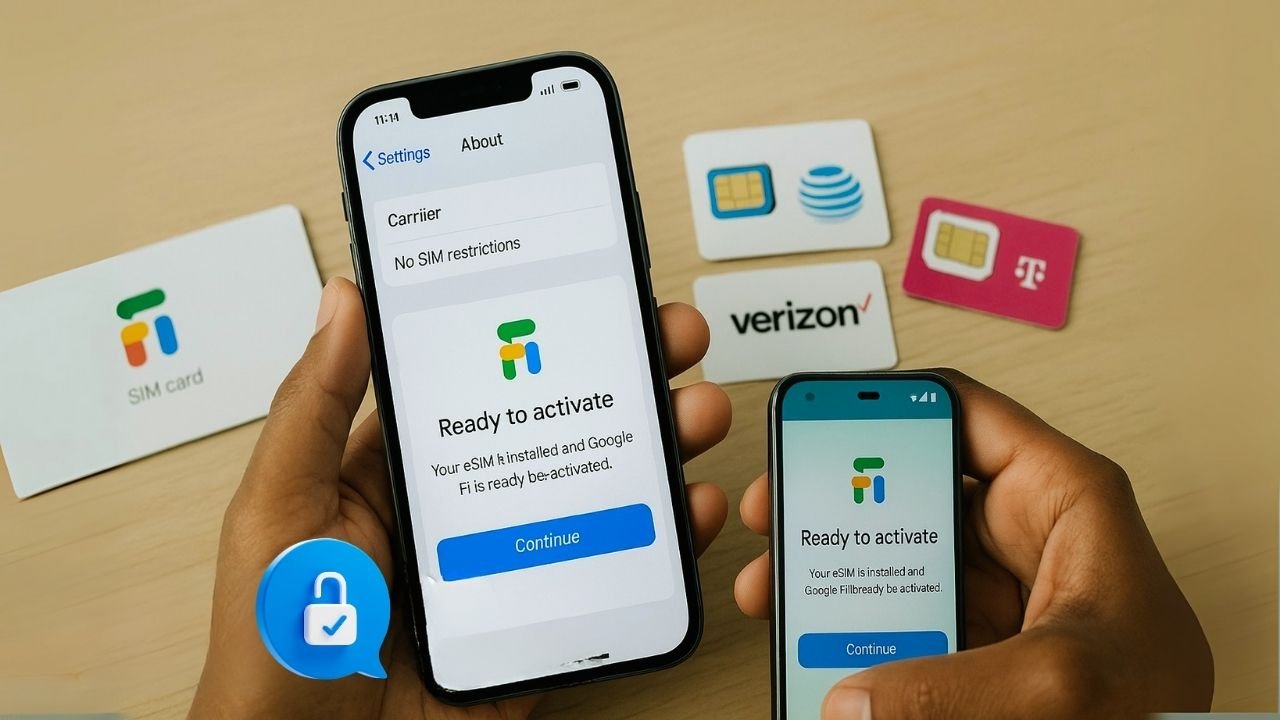
Go to Settings → General → About → Carrier Lock.
- If it says “No SIM restrictions,” the phone is unlocked.
- If it lists a carrier or notes restrictions, it’s still locked.
On Android (general):
There isn’t a universal setting label, but you can try either:
- Insert a SIM/eSIM from a different carrier and see if you get service.
- Check your Settings → Network & Internet → SIMs and look for error messages like “SIM not supported” or “Network unlock required.”
- Some OEMs show “Network unlocked” status, but behavior varies by brand.
If you’re uncertain, call your current carrier and ask directly—they can see lock status immediately and tell you the unlock path.
📖 Also Read: Carrier Unlock Eligibility Requirements
The Unlock Path From Major U.S. Carriers
Unlock rules are set by each carrier. If you’re bringing your phone to Google Fi, use the right path for your current provider.
Verizon → Google Fi
- Policy: Verizon locks new devices for 60 days after activation, then automatically unlocks them. Exceptions: fraud, theft, and certain special cases. You don’t typically need to call—unlocks happen on day 61.
What to do:
- If your phone is past day 60 and still locked, contact Verizon support for a manual review.
- Make sure your account is in good standing and the device isn’t flagged for fraud.
Note: Verizon has asked the FCC to change 60-day rules, but the standing consumer-facing policy today remains the 60-day auto unlock after activation.
AT&T → Google Fi
- Postpaid: Typically eligible to unlock after 60 days of active service in good standing and the device is paid off.
- Prepaid: Usually requires 6 months of active service. Use AT&T’s unlock portal to submit a request.
What to do:
- Pay off any installment plan, then submit your unlock request on AT&T’s official portal.
- Ensure the device isn’t reported lost/stolen and isn’t active on another account.
T-Mobile (and Metro) → Google Fi
- T-Mobile Postpaid: Device must be paid off and used for a minimum time (commonly 40+ days on the network). Remote unlock is automatic within two business days once eligible.
- T-Mobile Prepaid: 365 days since activation (or $100 in refills + other requirements).
- Metro by T-Mobile: 365 days since activation.
What to do:
- Open the Device Unlock section in Settings (on many Androids) or use T-Mobile’s Device Unlock app if present. If remote unlock is supported, T-Mobile pushes it once you qualify.
Step-By-Step: Bring Your Own Device to Google Fi
Step 1: Unlock your phone (if needed)
- Follow your carrier path above.
- Keep your line active until the unlock is confirmed and processed (this prevents errors).
Step 2: Check compatibility and coverage
Use Fi’s compatibility checker to confirm model-specific support and 5G bands.
Step 3: Decide SIM vs eSIM activation
- Many newer phones can activate eSIM instantly via the Google Fi app—no shipping wait. Google’s support page explains eSIM setup.
- If your device doesn’t support eSIM, choose a physical SIM during signup.
Step 4: Sign up and activate
Create or sign in to your Google account, pick a Fi plan, and follow the app prompt to Activate. Most devices are ready within about an hour when using eSIM.
Step 5: Port your number (optional)
During signup, submit your account number and port-out PIN from your old carrier. Keep service active there until Fi confirms your number is moved.
Special Notes for iPhone and eSIM-First Devices
- iPhone on Fi: iPhones work on Fi with core calling, texting, data, hotspot, and now broad international 5G support on the top plans. Check the Fi site for plan-specific international features and current device support notes.
- eSIM-only models: The industry is moving quickly to eSIM-only phones (Apple led; Google has followed with its latest Pixel line in the U.S.). That makes eSIM compatibility and carrier unlock even more important—there’s no physical SIM fallback.
📖 Also Read: What Is OEM Unlocking in Developer Mode?
BYOD Troubleshooting on Fi (Real-World Fixes)
“SIM not supported” / “Network unlock required.”
Your phone is still locked. Go back to your carrier and request an unlock. If your line meets the time-in-service and payoff rules, they’ll remove the lock. See the policy links above for your carrier.
Activation hangs during eSIM setup.
- Confirm Wi-Fi or temporary data works during the activation step.
- Reboot and retry the eSIM activation in the Fi app.
- If you used a VPN or private DNS, disable it and try again.
- If the phone supports dual eSIMs, remove old profiles you’re not using, then retry. Google’s eSIM guide lays out the basics.
No 5G, only LTE.
- Check if your specific model’s 5G bands match T-Mobile’s 5G (n41/n71/n258, etc.). Use Fi’s compatibility checker first. Some international variants miss key bands.
- Ensure 5G is enabled in cellular settings and you’re in a covered area.
Poor indoor coverage.
- Turn on Wi-Fi Calling and test calls.
- Try a manual carrier selection toggle (off/on) to refresh registration.
Stuck waiting for carrier unlock (Verizon/AT&T/T-Mobile).
- Verizon: ensure you’ve passed day 60. If not unlocked, ask support to check for a manual release.
- AT&T: confirm your installment is paid and submit the unlock portal request again; ensure the device isn’t tied to another account.
- T-Mobile: once eligible, T-Mobile pushes a remote unlock within 2 business days. If nothing happens, contact support to re-trigger it.
BYOD vs. Buying From Fi: Which Is Better?
BYOD Pros:
- Keep your current phone and data.
- No learning curve or migration headaches.
- Often cheaper upfront if your phone is already paid off.
BYOD Cons:
- You must handle unlocking with your old carrier.
- Some non-U.S. variants may have limited 5G band support on T-Mobile’s network. Use the compatibility checker to avoid surprises.
Buying From Fi Pros:
- Unlocked out of the box.
- Clean setup for eSIM and Fi features.
- Eligible customers can finance with transparent terms.
Buying From Fi Cons:
- You’ll want to make sure any promotional credits don’t require staying for a set period; Google publishes promo terms separately (these affect bill credits, not SIM-locks).
International Use & Travel Notes
One of Fi’s strongest selling points is travel-friendly coverage and simple pricing on the right plan. If you bring your own phone:
- Ensure your device supports international bands used where you’re going.
- On eligible plans, international 5G access has expanded to many countries, including iPhone support; always confirm the current list before you fly.
Frequently Asked Questions (FAQs)
What are the typical carrier unlock timelines if I’m bringing my phone?
Verizon auto-unlocks after ~60 days; AT&T generally 60 days postpaid/6 months prepaid; T-Mobile/Metro require time-in-service and payoff (often 40+ days postpaid; ~365 days prepaid). Always verify your carrier’s current policy.
Does Google Fi unlock my phone for me if I bring it from another carrier?
No. Fi expects your BYOD device to be already unlocked. You must work with your old carrier to remove the SIM lock. Google’s docs state only unlocked devices work with Fi.
Are phones bought from Google Fi locked?
No. Phones sold by Fi are unlocked and can be used on other carriers if you leave.
Can I finance a phone from Fi and still use it elsewhere later?
Yes—the phone is unlocked. Financing is a separate billing obligation; you must still repay what you owe.
I’m switching from Verizon. When can I unlock?
Verizon automatically unlocks phones after 60 days of activation, unless flagged for fraud.
I’m switching from AT&T. What are my unlock rules?
Postpaid generally needs 60 days active service and payoff; prepaid needs 6 months of service. Use AT&T’s unlock portal.
I’m switching from T-Mobile or Metro.
Postpaid devices unlock after meeting use-time and payoff requirements; prepaid requires 365 days (or the alternative refill path). Metro also uses 365 days.
Do I need a physical SIM for Fi?
Not necessarily. Many newer devices can activate with eSIM right in the Fi app.
BYOD → Google Fi Checklist
- Confirm unlock with your current carrier (Verizon 60 days, AT&T 60 days/6 months, T-Mobile rules as above).
- Run Fi compatibility check for your exact model (and 5G bands).
- Decide eSIM vs. physical SIM during signup.
- Gather port-out info (account number, PIN) if you’re moving your number.
- Activate in the Fi app; most eSIM activations complete rapidly.
- Test calls, texts, data, and Wi-Fi Calling. If something’s off, revisit compatibility and network settings.
The Bottom Line
If you’re bringing your own phone to Google Fi, there are two must-dos: unlock the phone and verify compatibility. Google Fi itself doesn’t lock devices it sells—those are ready to use anywhere—but BYOD phones come with their previous carrier’s rules. Handle the unlock with that carrier, confirm your model’s bands and eSIM support, and your switch to Fi should be straightforward.
Fi’s approach—unlocked hardware, simple eSIM activation, and T-Mobile’s nationwide coverage—makes it a friendly option for people who prefer flexibility. Do the quick homework up front, and you’ll avoid activation roadblocks later.