

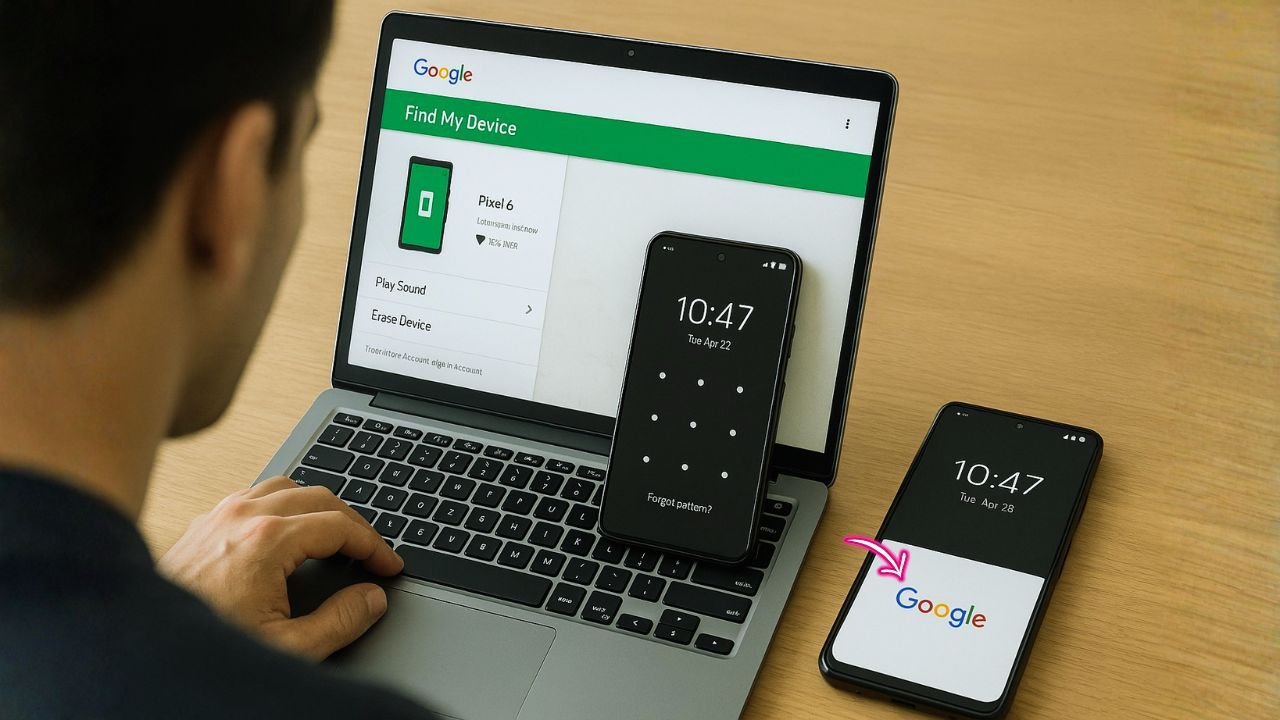
Getting locked out of your Android phone feels scary, but you usually have more than one way back in—especially if the device is linked to your Google account. This guide walks you through 10 simple, legal, and safe methods that use your Google account or Google tools to unlock your phone, recover access, or start fresh and sign back in. Each method is written in plain language, with easy steps and tips to avoid mistakes.
Important note: These methods are meant for devices you own or have clear permission to unlock. Some steps require internet access, your Google password, or a 2-step verification code. If you can’t pass Google’s sign-in (Factory Reset Protection/FRP), you’ll need the original Google account used on the device. Avoid shady “bypass” tools and paid hacks—they can break your phone, risk your data, or be illegal.
Quick Answer:
The fastest, official way is to use Google Find My Device on another phone or computer to Erase device, then set up the phone and sign in with the same Google Account to pass FRP and restore backups. On very old phones (Android 4.4 or earlier), you might see “Forgot pattern” on the lock screen and unlock by signing in with your Google Account. Samsung users with Find My Mobile enabled can choose Unlock (no data wipe). If you don’t remember the Google password, reset it at accounts.google.com/recovery first, then proceed.
Key Takeaways
- Methods vary by Android version and brand. On most modern phones, you’ll need a full factory reset—and you must sign in afterward with the same Google Account previously on the device (FRP).
- Best universal method: Google Find My Device. From another device, erase the phone to remove the lock, then set it up again. This wipes local data, requires the locked phone to be online, and you must know your Google email and password.
- “Forgot pattern” works only on Android 4.4 and older. After several failed attempts you can sign in with your Google Account on the device and set a new lock—no full reset needed.
- Samsung users can unlock without erasing if Find My Mobile was enabled. Log in at Samsung’s portal and use Unlock to remove the lock screen remotely.
- Don’t remember your Google password? Recover it first at accounts.google.com/recovery, then use one of the methods above to unlock or set up the phone.
📖 Also Read: Unlock Cricket iPhone (2025): Fast, Free, and Step-by-Step
How This Guide Is Organized
- Who this helps: Anyone locked out by a PIN, pattern, password, or after a reset that now asks for a Google account.
- What you’ll need: Your Google email, password, and (if enabled) your 2-Step Verification method (phone prompt, SMS code, backup codes, or security key).
- What to try first: Methods 1–4 are fastest if you remember your Google sign-in. Methods 5–8 help when you have 2-Step Verification or a Smart Lock shortcut. Methods 9–10 are special cases and last-resort options.
Quick Checklist Before You Start
- Battery: Make sure the phone has at least 30% charge.
- Internet: Wi-Fi is best. If you can’t reach Wi-Fi, try mobile data.
- Google account: Confirm your email address. If you’re unsure of the password, be ready to recover it.
- Another device: A second phone, tablet, or computer helps for Google recovery or Find My Device.
Method 1: Use “Forgot Pattern/PIN/Password” (If Your Lock Screen Shows It)
Older Android versions and some devices show a “Forgot pattern?” or “Forgot PIN?” link after several failed attempts. If you see it, you can sign in with your Google account and unlock.
Steps
- Enter the wrong pattern/PIN several times until you see Forgot pattern? or Forgot PIN?
- Tap the link and choose Sign in with Google.
- Enter your Google email and password.
- Complete any 2-Step Verification prompt (if you use it).
- Set a new screen lock you can remember.
Tip: If you don’t see this option, skip to Method 2 or Method 3.
📖 Also Read: TFW Unlock Policy: How to Unlock TracFone/Straight Talk/Total by Verizon Phones After 60 Paid Days
Method 2: Use Google Find My Device to Secure (Set) a New Lock
Find My Device (formerly Android Device Manager) lets you secure a lost phone. On many devices, the Secure Device action can set a new lock. If your phone already had a PIN/password, this may vary by brand and Android version—but it’s quick to try and sometimes it works perfectly.
Steps
- On a computer or another phone, go to Google Find My Device and sign in with the same Google account that’s on your locked phone.
- Select your locked phone from the device list.
- Choose Secure Device.
- If offered, set a new PIN or password. Save it.
- On the locked phone, enter the new PIN/password you just set.
If Secure Device won’t set a new lock: It may only lock a device that had no lock. In that case, consider Method 3 (Erase & Sign In) or try Method 7 (Smart Lock) if you had it on.
Method 3: Use Google Find My Device to Erase, Then Sign Back In (FRP)
If you can’t unlock the screen but you do know your Google sign-in, you can remotely erase the phone with Find My Device. After the reset, Android will ask for the same Google account previously on the phone (Factory Reset Protection). Signing in proves ownership and lets you fully set up again.
Steps
- On another device, open Find My Device and sign in to the same Google account.
- Select the locked phone.
- Click Erase Device. Confirm your choice.
- Wait for the wipe to finish. The phone returns to factory settings.
- Power on the phone and follow the setup wizard.
- When asked, sign in with the same Google account that was on the phone before the reset.
- Finish setup and create a new screen lock.
Heads-up: Erasing deletes local data (photos, files, apps) not backed up to Google. If you back up regularly, your content should restore during setup.
Method 4: Recover Your Google Account Password, Then Unlock
If you can’t remember your Google password, recover it first—then come back to the device and unlock using Methods 1–3.
Steps
- On a computer/another phone, go to Google’s Account Recovery page.
- Enter your Google email and follow the prompts to reset your password.
- Use the strongest verification you have (phone prompt, SMS, backup codes, or a security key).
- Once you set a new password, return to your locked phone.
- Use Method 1 (if available) or Method 2/3 to unlock or reset, then sign in with the new password.
Tip: After changing your password, you may need to wait a short while before it works everywhere. Keep the device online and try again if it doesn’t accept it immediately.
📖 Also Read: T-Mobile IMEI: to Check, Unlock, and Bring Your Phone
Method 5: Approve a Google Prompt on Another Signed-In Device (2-Step)
If your account uses 2-Step Verification, Google can send a prompt to your other signed-in device. Approving that prompt helps you complete sign-in on your locked phone during setup or when using Find My Device.
Steps
- Start the sign-in on your locked phone (during setup or a “Forgot PIN” flow).
- When asked for 2-Step Verification, choose to get a prompt on your other device.
- On that device, tap Yes, it’s me to approve.
- Finish sign-in and set a new screen lock.
Tip: If you don’t have your other phone/tablet, try backup codes (Method 6).
Method 6: Use Backup Codes, SMS Codes, or a Security Key (2-Step)
If you saved backup codes for your Google account, they can rescue you now. You can also receive SMS codes if your phone number is still active on another device, or use a hardware security key if you registered one.
Steps (choose one)
- Backup codes: During 2-Step Verification, pick Use backup code and enter one of your saved 8-digit codes.
- SMS code: Choose Text message and enter the code sent to your number.
- Security key: Choose Use your security key and follow the on-screen instructions.
After you pass 2-Step Verification, complete sign-in and set a new lock.
Tip: After using a backup code, mark it as used so you don’t rely on it again. Store remaining codes safely.
Method 7: Use Android Smart Lock to Get In Without the PIN (If Enabled)
If you turned on Smart Lock earlier, your phone can stay unlocked in trusted conditions—like when it’s near a trusted Bluetooth device, in a trusted place (home), or while it recognizes your face/voice (older options). This can let you get into the phone long enough to change your lock.
Steps
- Bring the phone into a trusted place (like your saved home location) or put it near a trusted Bluetooth device (watch, earbuds, car).
- Wake the phone. If Smart Lock is active, it may skip the PIN.
- Go to Settings > Security > Screen lock.
- Change the lock to a new PIN/pattern/password you’ll remember.
- Keep Smart Lock if it helps you, but don’t rely on it as your only safety net.
Note: Smart Lock options vary by phone and Android version. If nothing happens, Smart Lock may not be available or was never set up.
Method 8: Boot Into Safe Mode to Disable a Third-Party Lock App
If you installed a third-party lock screen app that’s now misbehaving, Safe Mode loads Android without third-party apps. If you can get in under Safe Mode, you can remove or reset the lock app and return to the default Android lock.
Steps
- On the lock screen, press and hold the Power button.
- Tap and hold Power off until you see Safe Mode.
- Tap OK to reboot into Safe Mode.
- If the phone opens without the third-party lock, go to Settings > Apps.
- Uninstall the lock app or clear its data.
- Restart the phone normally and set a standard Android lock.
Note: Safe Mode keystrokes vary by device. If your phone uses a different power menu, search your model’s method (but avoid “bypass” tools).
Method 9: Use Your Brand’s Official Portal (Samsung, Xiaomi, etc.)
Some manufacturers offer their own secure portals that can help unlock or reset a lock screen on that brand’s phones. You’ll still need to own the device and know the account tied to it (e.g., Samsung account). After a remote unlock or reset, Android may still ask for the Google account used before the reset—this is normal FRP behavior.
Examples
- Samsung Find My Mobile: Can remotely unlock certain Samsung phones when signed in with your Samsung account.
- Xiaomi/Mi Account (Mi Cloud): May help locate/reset Xiaomi devices.
- Huawei ID services: Offer device management for Huawei phones.
Steps (general flow)
- Visit your brand’s official device portal on a computer/another phone.
- Sign in with the same manufacturer account used on the locked phone.
- Choose a remote unlock or reset option if your model supports it.
- If you reset, on first boot complete Android setup and sign in with the same Google account that was on the device.
Tip: Always use the official manufacturer site—not a third-party “unlock” website.
Method 10: Ask Your Carrier or an Authorized Service Center (Proof Required)
When nothing works and you can prove ownership, your carrier or an authorized service center may help. They can’t remove Google’s FRP for you, but they can confirm the right steps, update software, or repair a faulty lock screen that’s blocking normal sign-in.
Steps
- Gather proof of purchase (receipt, invoice) and a valid ID.
- Contact your carrier support or visit an authorized service provider for your brand.
- Explain the issue clearly: “I’m locked out. I know the Google account, but I can’t pass the screen.”
- Follow their guidance. They may re-flash official software or help you complete a proper reset and sign-in.
If You Reset and It Still Asks for a Google Account (FRP Explained)
Factory Reset Protection (FRP) is a built-in Android security feature. After a reset, the device requires the Google account that was previously on the phone. This stops thieves from wiping a stolen phone and using it. If you see this prompt:
- Sign in with the exact same Google account previously on the device.
- If you forgot the password, do Method 4 (Account Recovery).
- If you bought the phone used and it’s asking for someone else’s account, ask the seller to remove the device from their Google account and provide proof they did.
Avoid any “FRP bypass” tricks. They often violate terms, may be illegal in your region, and can brick your device or expose your data.
Troubleshooting: What If Things Don’t Work?
Find My Device can’t see your phone: Ensure the phone is on, signed in to your Google account, has internet, and Location is on. If still missing, it might be powered off or not linked.
No Wi-Fi available: Move closer to a known network, ask to use a friend’s hotspot, or insert a SIM with data. Find My Device and Google sign-in both need internet.
Can’t pass 2-Step Verification: Try a backup code (Method 6), a security key, or the Google prompt on another signed-in device (Method 5).
Password recently changed: Sometimes Google needs time to sync the new password across services. Wait 15–30 minutes and try again.
Email unknown or typo: On Account Recovery, try “Forgot email?”. Use your phone number or recovery email to find the right account.
Keyboard not showing or screen unresponsive: Force-restart the device (power + volume combinations vary), then retry.
Data Safety and Privacy Tips
- Stick to official Google and manufacturer tools.
- Never share your Google password with “unlock” services.
- Set up 2-Step Verification and keep backup codes offline in a safe place.
- Turn on Find My Device and keep Location enabled.
- Regularly back up photos, contacts, and files to your Google account so you can restore after a reset.
Prevent Lockouts in the Future
- Use a memorable but strong screen lock.
- Enable Smart Lock (trusted devices/places) for safe, convenient unlocks at home or in your car—without weakening security.
- Keep your Google recovery phone and recovery email up to date.
- Save backup codes and store them securely offline.
- Back up your phone to your Google account weekly or monthly.
Frequently Asked Questions (FAQs)
1) Can we unlock an Android phone using a Google account?
Yes—but not to “skip” the lock. Using your Google account with Find My Device lets you erase the phone remotely. That factory reset removes the lock screen so you can set it up again and sign back in with the same Google account. It does wipe all data on the device. (Older “Forgot pattern” prompts are rare on modern Android.)
2) What is the secret code to unlock an Android phone password?
There isn’t one. “Secret codes” like *#*#...#*#* are for diagnostics or resets and do not bypass a secure screen lock. If you can’t remember the PIN/pattern/password, you’ll need to unlock normally, use the manufacturer’s official unlock (e.g., Samsung Find My Mobile if enabled), or perform a factory reset.
3) Can I unlock my Android phone if I forgot my password?
Usually not without data loss. Options are:
- Unlock normally if you remember it or if Smart Lock (trusted device/place) triggers.
- If you set up Samsung Find My Mobile, you can remotely unlock supported Samsung models.
- Otherwise, use Find My Device to erase and then set up the phone again with your Google account. This restores any cloud backups but deletes local data.
4) How do I remove a Google account from my Android phone after factory reset?
You can’t “remove” it during setup. After a reset, FRP (Factory Reset Protection) requires the previously used Google account. Sign in with that account to finish setup. If you don’t remember it, use Google’s Account Recovery to regain access. To avoid FRP next time, remove the Google account in Settings › Passwords & accounts before resetting.
5) How to remove screen lock PIN on Android phone?
If you know the current PIN: Settings › Security (or Security & privacy) › Screen lock and choose None/Swipe (or set a new method). You must authenticate first. If you don’t know the PIN, there’s no supported way to remove it without a reset—use Find My Device to erase, then set up again.
6) Is there a universal PIN for Androids to unlock?
No. For security, Android has no universal PIN, master key, or backdoor. Any tool or site claiming one is misleading and may be unsafe. Use your credentials, a manufacturer’s official remote-unlock (if enabled), or a factory reset as the legitimate paths.
Step-By-Step Summary (All Methods in One Place)
- Method 1: Use Forgot pattern/PIN on the lock screen → sign in with Google → set a new lock.
- Method 2: Use Find My Device > Secure Device to set a new PIN (if supported) → unlock with it.
- Method 3: Use Find My Device > Erase → set up the phone → sign in with the same Google account.
- Method 4: Recover your Google password → return and unlock using Methods 1–3.
- Method 5: Approve a Google prompt on another device during sign-in → finish setup.
- Method 6: Use backup codes, SMS codes, or a security key for 2-Step → finish sign-in.
- Method 7: Use Smart Lock (trusted devices/places) to get in → change the lock.
- Method 8: Boot Safe Mode to remove a broken third-party lock app → use the default lock.
- Method 9: Use your brand’s portal (Samsung, Xiaomi, etc.) → remote unlock/reset → sign in with Google.
- Method 10: Visit carrier/authorized service with proof → follow official guidance.
The Final Thoughts
You have options—even when you can’t remember your PIN or your lock screen won’t budge. Start with the least destructive methods (1–2), use Google Account Recovery if needed (4–6), and keep Find My Device ready as your safety net (3). If your brand’s portal helps (9), great. And when all else fails, your carrier or an authorized service can guide you the right way (10). Stay patient, stick to official tools, and protect your account with strong recovery info so the next unlock is painless.


