

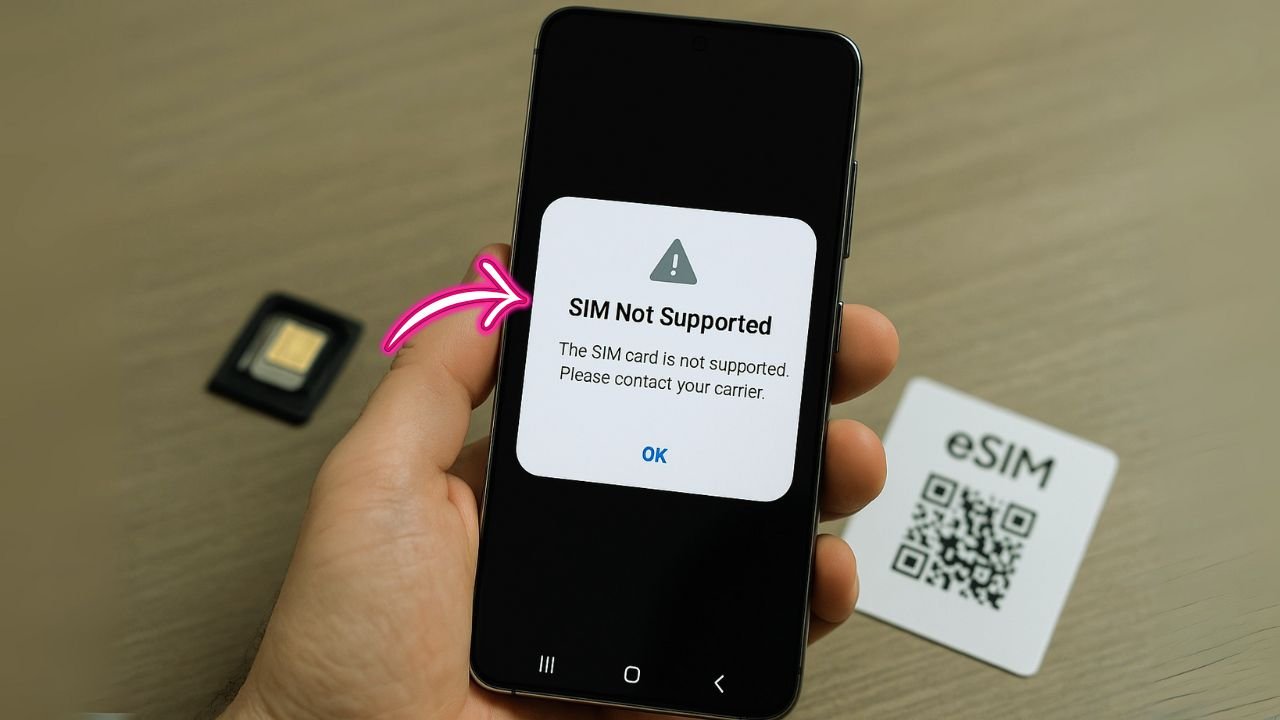
Switching carriers should feel simple: pop in a new SIM or add an eSIM, follow a few prompts, and you’re back online. But sometimes your Samsung Galaxy S24 throws a curveball: “SIM not supported,” “Invalid SIM,” or “No network” right after the switch. Don’t worry—this guide walks you through clear, practical fixes that actually work, starting from the fastest checks to deeper solutions. Whether you moved from AT&T to T-Mobile, Verizon to an MVNO, or you’re trying an international SIM while traveling, you’ll learn exactly how to get your S24 talking to the new network.
This guide focuses on the Galaxy S24, S24+, and S24 Ultra. Most steps also apply to the S23 and other recent Galaxy models on Android 14/15 and One UI 6.x.
TL;DR:
“SIM not supported” on a Samsung S24 after a carrier switch is usually due to a seating issue, inactive/incorrectly provisioned SIM, pending software/config updates, or (less often) hardware faults. Power off, reseat and clean the SIM, then restart. Update the phone, reset mobile network settings, and ensure Network Operator selection is set to “Automatic.” Test with another active SIM from the same carrier to isolate whether it’s the card or the phone. If the error persists, contact your carrier to confirm activation, compatibility, and proper IMEI provisioning. Still no luck? Reach Samsung Support—your device may need a hardware check.
Why Your Samsung S24 Says “SIM Not Supported” After a Carrier Switch
A “SIM not supported” message usually means your phone can see the card but refuses to use it. That’s different from “No SIM card inserted,” which points to hardware or placement issues. Here are the most common causes after a switch:
- Carrier lock still active. Your S24 may be locked to your old carrier. Until it’s unlocked, other SIMs won’t work.
- Activation or provisioning delay. Your new carrier hasn’t fully activated the line or pushed the right settings yet.
- eSIM profile or SIM info mismatch. Wrong EID/IMEI on the order, an incomplete QR activation, or a stale eSIM profile can block service.
- APN/IMS settings not applied. Without the right data and voice-over-LTE settings, you’ll see limited or no service.
- Network/band incompatibility. Uncommon with the S24, but some regional bands or MVNO settings can still cause issues.
- Software cache or outdated firmware. Old carrier files or a pending update can create conflicts during a switch.
The good news: you can fix most of these at home in minutes.
📖 Also Read: AT&T Unlock During Military Deployment
First, Confirm What You’re Working With (Physical SIM vs eSIM)
Your S24 supports both physical SIM and eSIM. If you switched carriers:
- For physical SIM: You should see a prompt to set up service shortly after inserting the new card. If you don’t, it may be locked or not provisioned.
- For eSIM: You’ll add or transfer a profile in Settings > Connections > SIM manager. Some carriers require a QR code; others support “Add eSIM” via activation codes or direct download.
If you see “SIM not supported,” move to the checks below.
Quick Checks That Solve the Majority of Cases
1) Make sure your line is active (yes, really)
Log in to your new carrier account and confirm the line status shows Active. If you ported your number, verify the port is Complete. Ports can take a few minutes to a few hours; sometimes they stall until you confirm an SMS or email. If the account isn’t fully active, the phone will keep complaining.
2) Check for a carrier lock
If your S24 is still locked to your old provider, any other SIM will be blocked.
- Open Settings > About phone > Status information > SIM card status and Service provider software version (or About phone > Software information).
- In SIM card status, look for signs of restrictions. On many Samsung models, you can also spot a Network lock entry under Settings > Connections (varies by carrier build).
- If you bought the phone from a carrier on financing, confirm you satisfied the unlock policy (e.g., paid off and active for a set period).
- If you see or suspect a lock, contact your old carrier and request an unlock. Once they unlock, restart and try the new SIM/eSIM again.
3) Update your S24 (and let it reboot)
Go to Settings > Software update > Download and install. Firmware updates often refresh carrier config files, APNs, and IMS policies that affect activation.
4) Reseat the SIM or re-add the eSIM
For a physical SIM, power off the phone, remove the tray, reseat the SIM, and power on. For an eSIM, remove the profile and add it fresh:
- Settings > Connections > SIM manager
- Tap the eSIM you added, Remove it, then Add eSIM using your carrier’s QR code or activation method.
- Make sure Wi-Fi is on during setup.
5) Toggle Airplane mode and network preferences
Turn Airplane mode on for 20 seconds, then off.
Go to Settings > Connections > Mobile networks and set Network mode to 5G/LTE/3G/2G (auto) or 5G/LTE (auto) if available. Avoid locking to LTE only unless your carrier specifically asks.
📖 Also Read: eSIM Transfer After Carrier Unlock on iPhone: Move Carriers Without Losing Service
If It Still Says “SIM Not Supported,” Work Through These Fixes
The steps below move from “likely” to “less likely,” so try them in order. Most people get service back by step 6 or earlier.
1) Confirm your IMEI/EID with the carrier
Carriers tie activations to your phone’s unique identifiers.
- Find your IMEI and EID: Settings > About phone.
- If you activated online, make sure the IMEI/EID you gave the carrier matches your device. A typo can block provisioning.
- Ask support to refresh or reprovision your line to your correct IMEI/EID and push carrier settings again.
2) Reset network settings (safe, doesn’t erase personal data)
This clears old APNs, Bluetooth pairs, and Wi-Fi networks that may conflict with the new carrier.
- Settings > General management > Reset > Reset mobile network settings (or Reset network settings depending on your One UI version).
- The phone will reboot. Afterward, re-add Wi-Fi and Bluetooth if needed.
- Reinsert the SIM or re-add the eSIM and test calls/data.
3) Manually add or refresh your APN
Most S24s auto-load APNs, but it doesn’t always work on MVNOs and international SIMs.
- Settings > Connections > Mobile networks > Access Point Names
- Tap Add and enter your carrier’s APN exactly (name, APN, MMSC, MCC/MNC, APN type).
- Save, select the new APN, then toggle Airplane mode off/on.
- Test data, MMS, and hotspot if you use it.
If your carrier can “push” the APN over the air, ask them to do it.
4) Check VoLTE/IMS and Wi-Fi Calling toggles
If your carrier uses VoLTE (most do), make sure it’s enabled.
- Settings > Connections > Mobile networks and Settings > Connections > Wi-Fi Calling
- Toggle VoLTE calls on (sometimes it’s under Call settings in the Phone app).
- Turn Wi-Fi Calling on if your plan supports it—this can help complete activation in low-signal areas.
5) Clear carrier/service caches (advanced but safe)
Old cache files can block new carrier profiles from applying cleanly.
- Go to Settings > Apps.
- Tap the filter (three lines) and enable Show system apps.
- Find Carrier Services (if present) and your SIM Toolkit app.
- Storage > Clear cache (and Clear data if cache doesn’t help; it will rebuild).
- Reboot, then reinsert SIM or re-add eSIM.
6) Force a new PRL/Carrier Config download (varies by region)
While there’s no universal “Update PRL” button on modern Samsung, a combination of Software update, Reset network settings, and re-adding eSIM usually pulls the latest carrier policies. If your carrier supports an activation app (some MVNOs do), open it and follow prompts.
7) Try a different SIM or a spare eSIM profile
Borrow a friend’s active SIM from the same carrier you’re switching to. If it works, your phone is fine and your line likely isn’t provisioned correctly. If no SIM works, revisit the lock/unlock step and consider a device support check.
8) Check band compatibility or 2G/3G sunset issues (rare on S24)
The S24 line supports wide 4G/5G bands, but niche MVNOs in certain regions may require a specific APN or IMS setting. If you’re abroad, confirm your plan includes roaming or local access.
📖 Also Read: Google Fi Unlock Policy for BYOD Phones
eSIM-Specific Fixes for Samsung S24
Many carrier switches now happen over eSIM. That’s great—until a stale or partial profile confuses the phone. If your eSIM won’t activate or shows “SIM not supported,” do this:
- Remove old profiles you no longer use
Settings > Connections > SIM manager > eSIMs. Delete unused profiles. Too many old ones can cause conflicts. - Add the new eSIM with strong Wi-Fi
Use your carrier’s QR code or activation code. Keep Wi-Fi on during setup so the phone can fetch IMS and policy files. - Verify EID with support
The EID is your eSIM’s identity. If your carrier activated the wrong EID, they must reassign it to your device’s EID (find it in Settings > About phone). - Turn on both lines only if you intend to use Dual SIM Dual Standby (DSDS)
If you keep your old line active while activating a new eSIM, choose which line handles Calls and Mobile data in SIM manager. Misrouted data can look like “no service.” - Fully delete and re-provision
If a profile won’t register, ask the carrier to revoke it and issue a fresh QR. Then remove the old eSIM, reset network settings, reboot, and add the new profile again.
What to Do If Your S24 Is Still Carrier-Locked
If your phone was purchased from a carrier and is still within an installment plan or minimum active period, it may be network-locked. That’s why you see “SIM not supported.” Here’s a clean way to resolve it:
- Check your unlock eligibility in your old carrier account (paid off, active long enough, no past-due balances, and not reported lost/stolen).
- Submit an unlock request with the carrier (online portal or app).
- Once approved, restart the phone with the new SIM inserted. Many S24s unlock over the air in minutes after approval.
- If the carrier provides a PIN or code, follow their instructions exactly (Samsung’s modern unlocks are usually automatic, but some prepaid phones still use codes).
If the carrier declines, reach out to their support to confirm the reason (contract term, fraud flag, or device not in their database). Resolve the issue, then apply again.
Fixing “SIM Not Supported” When Moving to an MVNO
Switching to an MVNO (a budget carrier that uses a big carrier’s network) is common—and sometimes where APN and provisioning snags show up.
- Confirm you’re on the right underlying network. For example, if your MVNO uses T-Mobile’s network, make sure your line was set up on their T-Mobile partner plan, not AT&T/Verizon.
- Ask for an APN push or enter the APN manually from your MVNO’s help page.
- Verify features like Wi-Fi Calling, VoLTE, and hotspot are included in your plan; if not, the S24 may drop calls or fail to register IMS.
- Use the MVNO’s activation portal/app to finish setup. Many require one final step after inserting the SIM or adding eSIM.
Traveling? Using a Local SIM or International eSIM?
The S24 supports international roaming and local SIMs/eSIMs in most regions. If you see “SIM not supported” abroad:
- Ensure your phone is unlocked before you leave your home country.
- Buy from a reputable local carrier with clear APN instructions.
- Turn off your home line temporarily in SIM manager to avoid confusion.
- Give the network time to register. Initial attachment can take a few minutes, especially indoors.
- If your plan includes data-only, you may need to enable Wi-Fi Calling for voice (if supported) or use calling apps.
When to Contact Support (and What to Say)
If you’ve tried everything above and still get “SIM not supported,” contact your new carrier and provide:
- Your IMEI (and IMEI2 if you’ve tried the second slot) and EID (for eSIM).
- A clear description: “Galaxy S24 shows ‘SIM not supported’ after switching from [Old Carrier] to [New Carrier]. Network lock should be off. Please re-provision the line to my IMEI/EID and push APN/IMS policies.”
- Ask them to refresh your line, reset your SIM/eSIM, or issue a new eSIM QR if needed.
- If they suspect a device lock, request the unlock or ask for the reason it’s blocked.
Advanced Tips That Often Save the Day
- Try SIM slot 2 (if using physical SIM). Some rare tray or pin-contact issues only show up under load.
- Disable Private DNS temporarily under Settings > Connections > More connection settings > Private DNS if activation screens won’t load. Turn it back on later.
- Turn off VPNs during activation.
- Set network mode to LTE/3G/2G temporarily if 5G confuses initial registration. Switch back to 5G once you have stable service.
- Use the carrier’s USSD activation code if they provide one.
- Factory reset as a last resort (after backing up). This wipes lingering carrier configs that sometimes fight new profiles.
Step-By-Step Recovery Flow (Follow This Order)
- Confirm account active + port complete.
- Check for carrier lock; unlock if needed.
- Update software, reboot.
- Reseat SIM or remove/re-add eSIM with Wi-Fi on.
- Reset network settings and try again.
- Add or correct APN; toggle VoLTE and Wi-Fi Calling.
- Clear Carrier Services/SIM Toolkit cache; reboot.
- Verify IMEI/EID with carrier; ask for a reprovision + policy push.
- Try a different SIM/eSIM from the same target network.
- Contact support with IMEI/EID and request fresh eSIM QR or line refresh.
- Factory reset (only if everything else fails).
Work slowly, test after each step, and you’ll know exactly which fix solved it.
FAQs: Samsung S24 “SIM Not Supported” After Switching Carriers
Why does my S24 say “SIM not supported” right after I inserted a new SIM?
Usually the phone is still locked to the old carrier, or the new line isn’t fully activated yet. Less often, it’s an APN/eSIM setup issue.
How do I know if my S24 is locked to a carrier?
Check Settings > About phone > Status information and your Service provider software version. If you bought it from a carrier, assume it’s locked until you confirm unlock status with them.
Will resetting network settings delete my data?
No. It clears Wi-Fi, Bluetooth, and mobile settings but keeps your photos, apps, and messages intact.
Do I need the old carrier’s help to unlock?
Yes. Only the original carrier can remove their network lock. Once approved, the S24 typically unlocks over the air.
My eSIM shows installed but no service—what now?
Remove the eSIM, reset network settings, reboot, and add a fresh QR. Ask the carrier to reprovision to your EID.
Can the S24 use MVNO and international eSIMs?
Yes. Just make sure the plan is active, the APN is correct, and your phone is unlocked.
Troubleshooting Without Breaking Your Phone (Safety Notes)
- Avoid downloading random “unlock tools” or dialer codes from untrusted sources.
- Don’t change hidden service menus you don’t understand.
- Always keep a backup before major changes like factory reset.
- If a step asks you to pay a third party for an unlock, verify your carrier can’t unlock it first—many unlocks are free once you meet eligibility.
The Bottom Line
A “SIM not supported” message on the Samsung S24 after switching carriers is frustrating, but it’s usually fixable in minutes. Start simple: confirm activation, unlock status, and software updates. Then reseat or re-add your SIM/eSIM, reset network settings, and apply the correct APN. If your line still won’t register, ask your carrier to reprovision the IMEI/EID and push fresh IMS policies. With a methodical approach, your S24 will join the new network and stay there—calls, data, texts, and Wi-Fi Calling included.


