

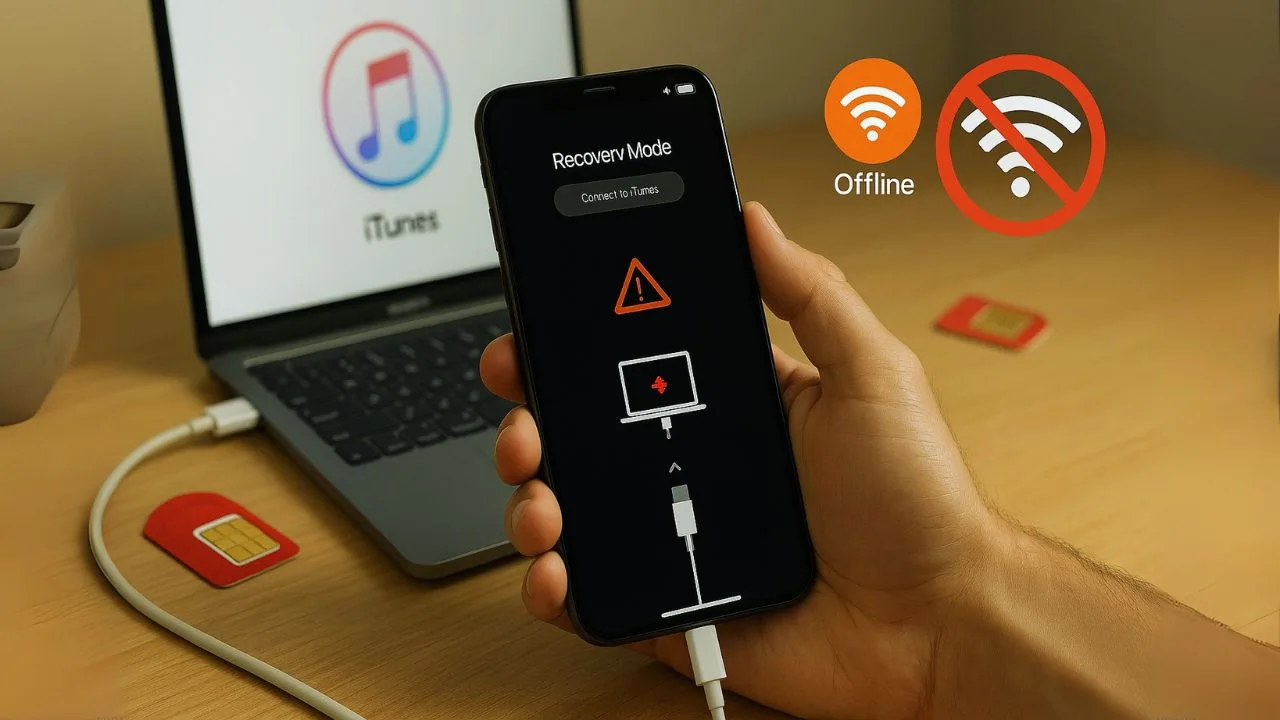
If you’re stuck with no internet and your phone says “SIM not supported” or “Network unlock PIN,” it can feel like a dead end. Good news: many legit, owner-safe unlock methods still work without Wi-Fi or mobile data. This guide walks you through practical paths that don’t rely on the phone being online—covering carrier network unlocks, offline activation tricks, what works for Android vs. iPhone, and what to avoid so you don’t get locked out for good.
Quick note on scope: this article focuses on carrier/network unlocking (making your phone work with other carriers) and safe device access for the rightful owner. It does not teach bypassing passwords, FRP, or Activation Lock. Those are security features. If you’re the owner and forgot your screen passcode, use official recovery options from Apple/Google/Samsung when you do have internet available.
Key Takeaways
- Forgetting your passcode is a security feature, not a flaw—there’s no safe “offline bypass.” Without Wi-Fi or mobile data, the reliable path back in is a full factory reset, which erases all data on the device.
- Android (no internet): Power off, enter Recovery Mode (usually Power + Volume Up on newer Samsung/Motorola/OnePlus/Pixel/TCL; Power + Volume Down on many older models), choose Wipe data/factory reset, then Reboot system now. Be ready to sign in with the original Google account after reset (FRP).
- iPhone (no internet on phone): Use a computer. Connect by USB, put the iPhone in Recovery Mode, then in iTunes/Finder choose Restore. This wipes the phone, installs the latest iOS, and lets you set it up again. You’ll need your Apple ID to pass Activation Lock.
- Carrier lock (SIM/network): A factory reset won’t remove a carrier lock. To use other carriers, request an official unlock from the original carrier (device paid off, not reported lost/stolen). Have the IMEI ready (dial *#06# offline to view it).
- Third-party lock app (Android): Boot into Safe Mode to temporarily disable third-party apps, then uninstall the offending lock app. If that fails (or you can’t access Safe Mode), a factory reset is the fallback.
Why “No Internet” Matters for Unlocking
A lot of modern unlocking is “server-side.” Carriers flip a switch on their systems, and your phone checks in over the internet (or network) to apply the change. But if you’re offline, that check can’t happen right away.
Here’s the key insight: many Android phones still accept a one-time network unlock code typed on the device—no data needed. iPhones don’t use codes; they rely on Apple’s activation servers (which means the phone or a computer needs internet at least once to finalize the change). We’ll show workarounds that keep the phone itself offline.
The Two Meanings of “Unlock” (and What You Can Do Offline)
- Carrier/Network Unlock (SIM unlock): lets the phone work on another carrier.
- Android: often accepts an 8–16 digit NUC/MCK code offline.
- iPhone: no code—unlock is tied to Apple’s servers; you’ll need a one-time online activation (the phone can stay offline if you use a computer with internet).
- Screen Unlock (password/PIN/biometrics): lets you into the phone’s home screen.
- If you remember your code/biometric, this is already offline.
- If you forgot it, don’t look for “offline bypass” tricks—those lead to permanent data loss or security violations. Use official recovery when you can be online again.
This guide covers legit, offline-friendly ways to complete a carrier unlock and keep your phone functional when you’re in a no-internet situation.
Essentials You Need Before You Start
- Your IMEI: Dial
*#06#(works offline) or check Settings > About phone. - Proof you’re eligible: Most carriers require the device to be paid off, not reported lost/stolen, and tied to an account in good standing.
- A SIM from the new carrier: Inserting another carrier’s SIM triggers the unlock prompt on Android and the activation screen on iPhone.
- Time window: Some carriers take hours or a couple of days to issue a code or push the server-side unlock. Plan for that.
Part 1: Android — Enter a Network Unlock Code Without Internet
Many Android models (Samsung, Motorola, Nokia, older LG, some OnePlus) can be unlocked by entering a Network Unlock Code (NUC) right on the device, fully offline.
Step-by-Step (Android Offline Code Entry)
- Get your NUC from your carrier (or original seller).
- You can request the code by phone, from a store, or via a friend’s/PC’s internet access. The actual code entry on the phone is offline.
- Power off your phone and insert a SIM from a different carrier.
- This triggers the “SIM network unlock PIN” or “Enter unlock code” prompt at boot—even with no data or Wi-Fi.
- Enter the NUC carefully.
- You usually get 5–10 attempts. Typos can permanently lock the SIM slot until an MCK/PUK-type master code is entered (only the original carrier can provide the MCK). Move slowly.
- Restart and test calls/texts.
- Voice/SMS will work if there’s coverage. Mobile data stays off if you want to remain offline.
Brand-Specific Tips (Android)
- Samsung: You’ll see “Network unlock” or “SIM network PIN blocked. Enter MCK.”
- If you burned attempts with wrong codes, ask the original carrier for the MCK to reset attempts, then re-enter the correct NUC.
- Samsung dual-SIM models may show separate unlock for each slot—use the slot you plan to keep.
- Motorola/Nokia/older LG: Similar prompt appears when a different carrier SIM is inserted. Enter the NUC and you’re done.
- Google Pixel (and many newer Androids sold by carriers): Often server-side unlock only—no code field. You must allow the phone to check in at least once over network/Wi-Fi or via a computer (see “Activation via Computer” below). Still, you can prepare everything offline and do a quick one-time check-in later.
📖 Also Read: What Is Your Network Unlock Code? for Android and iPhone
Part 2: iPhone — Finalize Unlock Without Wi-Fi on the Phone
iPhones don’t accept unlock codes. When a carrier unlocks your iPhone, Apple’s servers must confirm the status during activation. You can still keep the phone itself offline and use a computer with internet to finish.
Option A: Use iTunes/Finder on a Computer (Phone Stays Offline)
- Ask the carrier to unlock your iPhone (eligibility rules vary).
- Turn off the iPhone and insert the SIM from the new carrier.
- Connect the iPhone to a computer with iTunes (Windows/macOS) or Finder (macOS).
- Let the computer activate the iPhone (internet on the computer required; the phone’s own Wi-Fi/data stays off).
- You’re done. Calls/texts should work on the new SIM, even if you keep the phone offline.
Option B: Borrow a Hotspot for 60 Seconds
If a computer with internet isn’t available, you can momentarily borrow a hotspot or public Wi-Fi to complete activation. After that quick activation, you can disable Wi-Fi/mobile data again.
Tip: If activation still doesn’t show as unlocked, perform a Backup → Erase All Content and Settings → Restore via iTunes/Finder. This forces a fresh activation check through Apple’s servers (again, internet is on the computer, not the phone). Back up first to avoid data loss.
📖 Also Read: Unlock a Samsung Phone You Forgot the Password To—Without Losing Data
Part 3: Activate or Switch Without Internet (What Actually Works)
Physical SIM vs. eSIM
- Physical SIM: Best for offline scenarios. Insert it and handle code entry (Android) or one-time activation via computer (iPhone).
- eSIM: Usually needs the internet to download and provision. Most carriers won’t complete an eSIM activation fully offline. If you must stay offline, request a physical SIM first.
Porting Your Number
Porting requires the carriers’ systems to talk to each other. You can initiate and manage the port by phone with customer support or from a computer that has internet access. Your handset itself can remain offline the whole time. Once the port is complete, the SIM will start working for calls/SMS without mobile data enabled.
APN Setup (Optional, For Later)
If you plan to use mobile data later, you’ll need the new carrier’s APN. You can enter APN manually offline (Settings > Cellular/Mobile Network > Access Point Names on Android; limited APN control on iPhone, depending on carrier). The APN takes effect once you toggle mobile data back on.
📖 Also Read: AT&T Unlocked Phones Made Easy: IMEI Check, Wi-Fi Calling, 5G
Part 4: Staying Offline Safely After Unlock
- Turn off mobile data: Settings > Cellular/Mobile data > Off.
- Block background syncing: Disable auto-updates, backups, and cloud sync.
- Use SMS/calls only: Voice and texting don’t require mobile data (they need network signal though).
- Use offline maps and files: Pre-download on Wi-Fi when you can, or transfer via cable.
Part 5: What Not to Do (Avoid Permanent Locks & Wipes)
- Don’t guess codes. Most phones limit attempts. If you trigger “PUK/MCK required,” only the original carrier can help.
- Don’t factory reset to “unlock the network.” A reset doesn’t remove a carrier lock. On iPhone, it can lead to Activation Lock prompts; on Android, FRP can block setup until you sign in with the original account online.
- Don’t pay for shady “offline unlock” tools. They often fail, void warranties, or create blacklist problems. Stick to official carrier processes.
Troubleshooting Without Internet
Android says “SIM network unlock PIN” but the code fails.
- Double-check IMEI and model match the unlock request.
- Verify you’re using the correct SIM slot.
- If you hit the attempt limit, request the MCK from the original carrier to reset attempts, then re-enter the correct NUC.
Phone shows “No Service” after code accepted.
- Coverage issue or incompatible bands. Try a different location or a carrier known to support your model’s bands.
- Check that the SIM is active. You can confirm by putting the SIM in another phone.
iPhone still says “SIM Not Supported” after the carrier says unlocked.
- Complete a forced activation via iTunes/Finder on a computer with internet (phone remains offline).
- If needed, Back Up → Erase → Restore to force a new activation check. Ensure you have your Apple ID and backup ready.
eSIM requested but you’re offline.
Ask for a physical SIM or wait until you have any brief internet access to download the eSIM profile. Some carriers can issue QR codes you scan later, but activation still needs the internet once.
Frequently Asked Questions
Can I truly unlock an Android phone’s network lock 100% offline?
Yes—if your model uses a Network Unlock Code (NUC). You only need internet (or a phone call) to obtain the code. Entering it on the device is offline. Many Samsung, Motorola, Nokia, and older LG models work this way.
Can I truly unlock an iPhone 100% offline?
You can prepare everything offline, but the final activation check must reach Apple’s servers once. Keep the phone offline and use a computer with internet (iTunes/Finder) to finish. After that, you can use calls/SMS with mobile data off.
Will calls and texts work without turning on mobile data?
Yes. Voice and SMS don’t require mobile data. They only need carrier signal. MMS (picture messages) may require mobile data depending on the carrier.
What if I forgot my lock-screen password—can I unlock offline?
If you remember the passcode/biometric, it’s already offline. If you forgot it, don’t use bypass tricks. Official recovery flows require internet to verify your identity (Apple ID/Google account). Those protect your data and your device.
Do I need the original carrier to provide the code?
For code-based Android unlocks, yes—the code originates from the phone’s original carrier/seller. For iPhone, the original carrier must mark the device as unlocked on Apple’s servers.
Can I switch to eSIM without the internet?
Usually no. eSIM activation typically downloads a profile from the carrier. If you must stay offline, request a physical SIM.
Offline-First Checklists
Android (NUC path)
- Confirm eligibility with the original carrier (by phone or online from any device).
- Get your NUC (and MCK if needed).
- Insert the new carrier’s SIM (phone offline).
- Enter the NUC carefully; avoid burning attempts.
- Reboot and test calls/SMS.
iPhone (computer activation path)
- Confirm the carrier has unlocked the device on Apple’s servers.
- Insert the new carrier’s SIM (phone offline).
- Connect to a computer with iTunes/Finder and internet.
- Let the computer complete activation.
- Restore from backup if you chose to erase and re-activate.
Pro Tips for Special Situations
- Traveling with no data: Do the unlock steps before you leave. For iPhone, finish the iTunes/Finder activation at home. For Android, enter the NUC early so you can pop in a local SIM abroad and start calling immediately—no data required.
- Dual-SIM phones: Unlock may apply per slot on some Androids. Use the slot you intend to keep long-term. On iPhone, the unlock is device-wide once activated.
- Band compatibility: Unlocking removes the lock, not hardware limits. Make sure your phone supports the target carrier’s bands and VoLTE so calls and SMS work reliably.
- Keeping the phone offline long-term: Disable mobile data, restrict background sync, and use calls/SMS only. For navigation, transfer offline maps from a computer or download them during brief Wi-Fi access, then stay offline.
The Bottom Line
Unlocking without Wi-Fi or mobile data is absolutely possible—especially on Android with a code you enter offline. iPhones need a one-time activation check, but you can keep the phone itself offline by using a computer with internet. Avoid guesswork with codes, skip shady tools, and stick with official carrier paths. With a little prep, you can switch carriers, use local SIMs, and keep your data usage at zero.


