Unlocking your phone before traveling lets you use local SIM cards, avoid costly roaming fees, and stay connected with ease. Whether for maps, messaging, or calls, having an unlocked phone ensures hassle-free communication abroad. A few simple steps can save you money and keep you connected wherever you go.
Quick Answer: Once your phone is paid off, unlocking it is easy—just visit your carrier’s website, find the unlock request page, and enter your IMEI number. If approved, your phone will be free to use any SIM card worldwide.
That said, if you have a dual SIM or eSIM phone, you don’t necessarily need to unlock it. You can keep your primary SIM for essential calls while using an international SIM or eSIM for affordable data and local service while traveling.
What Does It Mean to Unlock a Phone?
Unlocking a phone simply means removing the restrictions that tie it to a specific carrier. When you buy a phone through a network provider—like AT&T, Verizon, or T-Mobile—it’s often “locked” to that carrier. This means it can only use SIM cards from that provider, preventing you from switching to another network.
Once a phone is unlocked, you can insert any SIM card from any carrier, anywhere in the world. This gives you the flexibility to choose the best local plans when traveling, avoid expensive roaming charges, and switch networks whenever needed. It’s a simple change that gives you total freedom over your phone’s connectivity.
How to Check If Your Phone Is Locked or Unlocked
Before traveling, it’s important to check if your phone is unlocked. Here are three quick ways to find out:
1. Insert a Different Carrier’s SIM Card
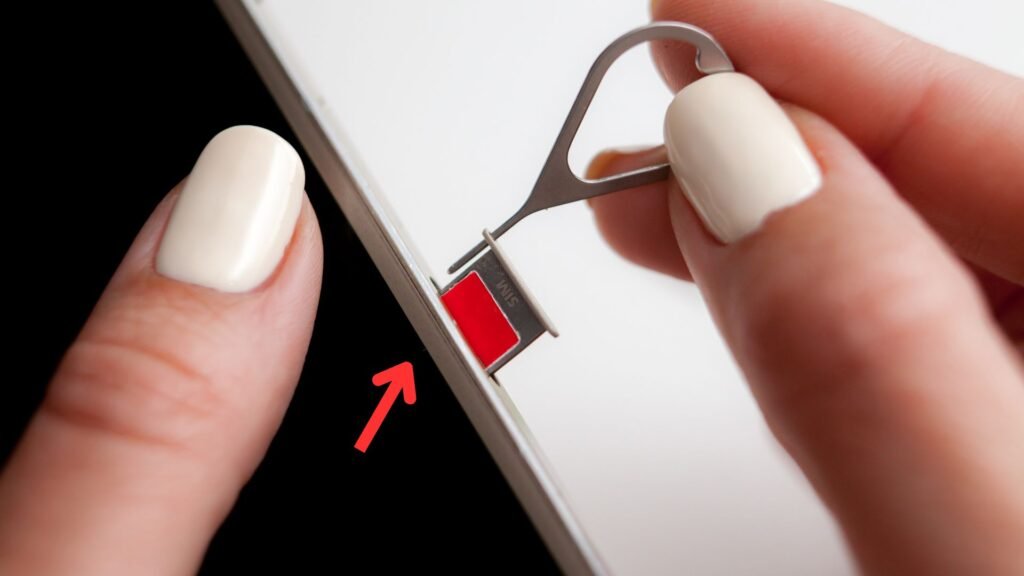
To check if your phone is unlocked, start by turning it off and removing your current SIM card. Insert a SIM card from a different carrier, then turn your phone back on. If it connects to the new network and allows you to make calls, your phone is unlocked. However, if you see an error message like “SIM Not Supported” or “Invalid SIM,” your phone is still locked to your original carrier.
2. Use Your IMEI Number to Check Online
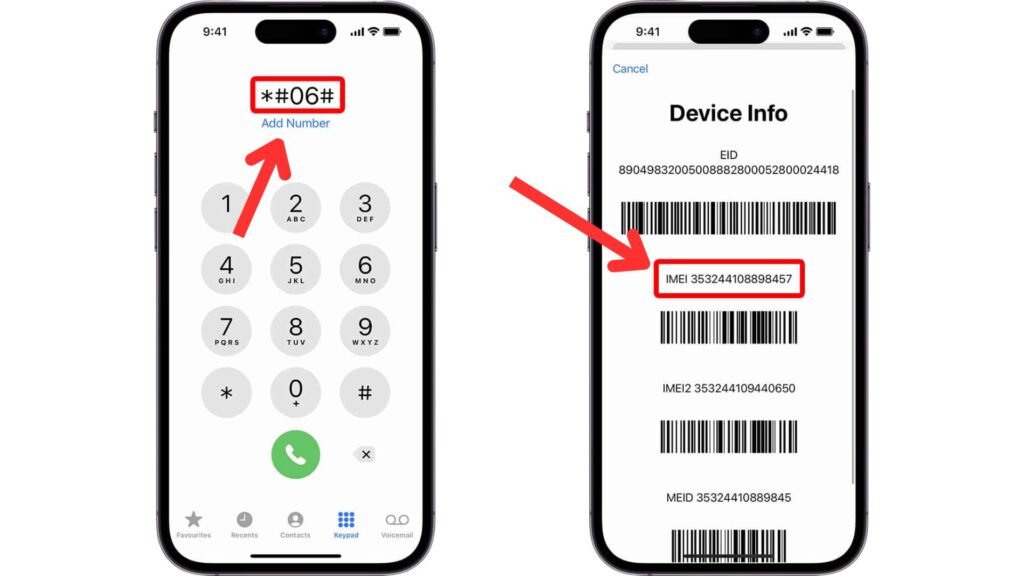
Another way to check if your phone is unlocked is by using its IMEI number. Dial *#06# on your phone to display the IMEI, then copy it down. Visit your carrier’s website or a trusted IMEI checker and enter the number. The results will indicate whether your phone is unlocked or still restricted to a specific network.
3. Contact Your Carrier for Confirmation

- Call or chat with your carrier’s customer support.
- Provide your phone’s IMEI number.
- Ask if your phone is eligible for unlocking. If it’s already unlocked, they’ll confirm it.
Checking in advance ensures you have time to unlock your phone before your trip, avoiding last-minute headaches.
How to Unlock Your Phone (Step-by-Step Guide)
Unlocking your phone gives you the freedom to use any SIM card worldwide, but the process depends on how your device is locked. Some phones can be unlocked easily through the carrier, while others may require third-party services or software. Here’s how you can do it the right way.
Method 1: Unlocking Through Your Carrier
AT&T
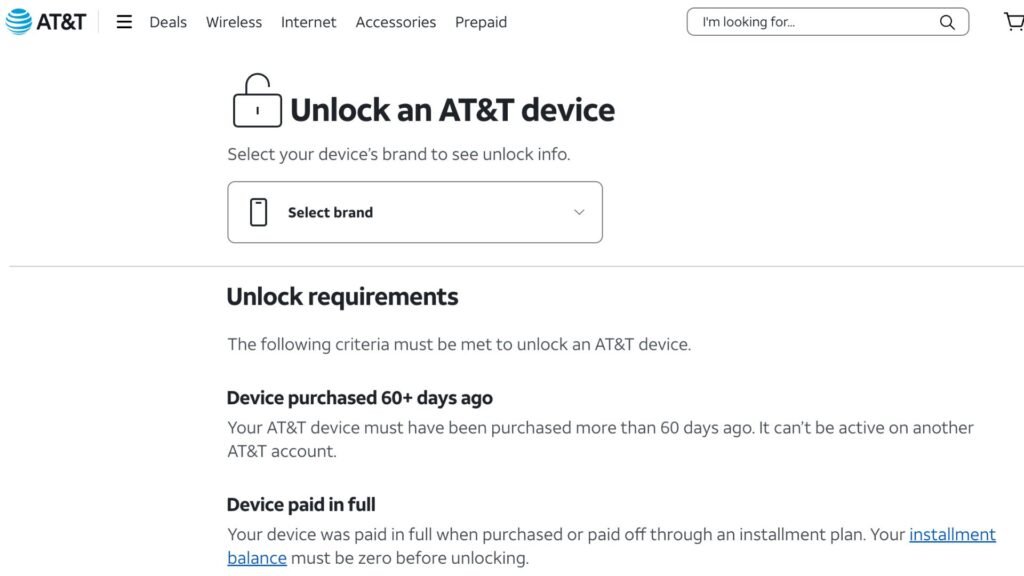
To unlock your phone with AT&T, start by visiting AT&T’s Device Unlock Portal on their website. Enter your IMEI number, which you can find by dialing *#06# on your phone. Fill out the required details and submit your unlock request. AT&T typically processes requests within 24–48 hours. Once approved, you’ll receive an email with further instructions to complete the unlocking process.
Verizon
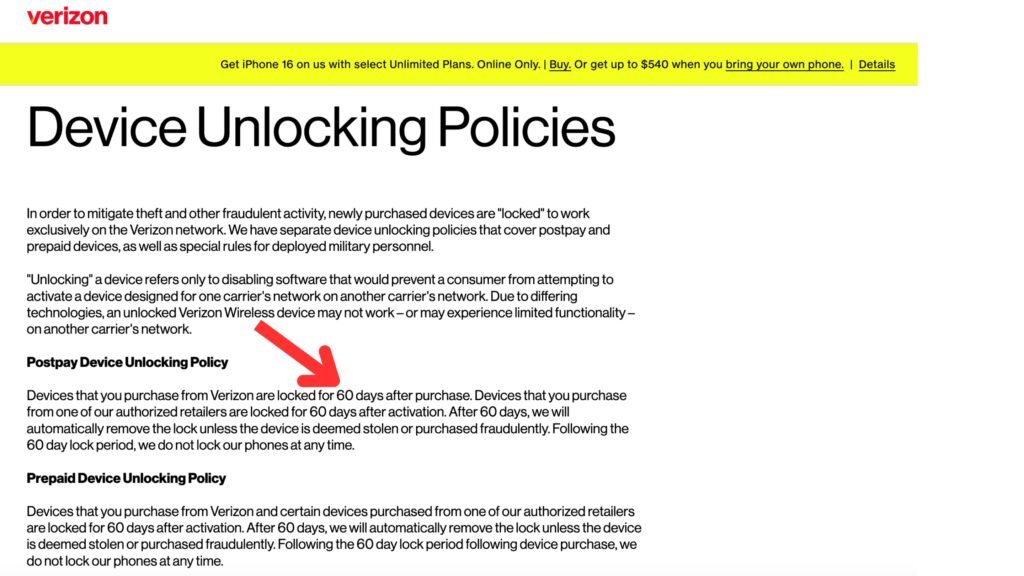
Verizon automatically unlocks most phones 60 days after purchase, but if your device is still locked, you can request an unlock manually. Call Verizon Support at 1-800-922-0204 and ask for an unlock. You may need to provide your account details to verify ownership. If your phone meets the eligibility requirements, Verizon will confirm the unlock instantly.
T-Mobile
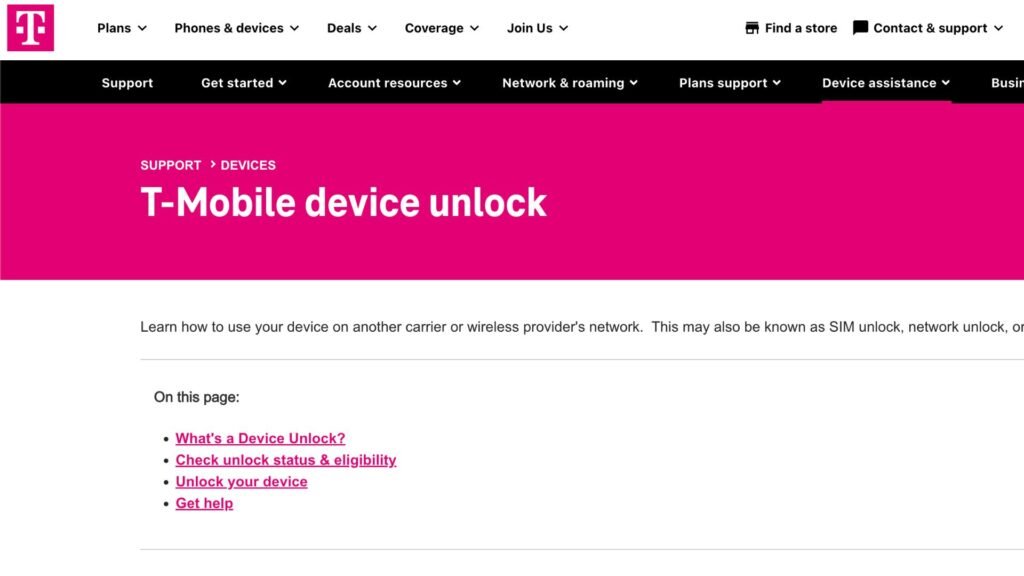
To unlock your phone with T-Mobile, open the T-Mobile App and navigate to the “Device Unlock” section. If your phone is eligible, select “Permanent Unlock” and submit the request. T-Mobile typically processes unlock requests within 48 hours. Once approved, restart your phone to complete the unlocking process.
Other Carriers
Most carriers have similar requirements. If you’re with a different provider, check their official website or contact customer support to request an unlock.
Method 2: Using a Third-Party Unlocking Service
Estimated Cost and Time Frame
- Cost: $10–$50, depending on your phone model and network.
- Processing Time: A few hours to a few days.
Some trusted third-party unlock services include DoctorSIM, UnlockBase, and CellUnlocker. Always read reviews before making a purchase.
1. Using a DoctorSIM
DoctorSIM is a trusted third-party service that provides carrier unlocking for various phone models. Here’s how you can unlock your phone using DoctorSIM:
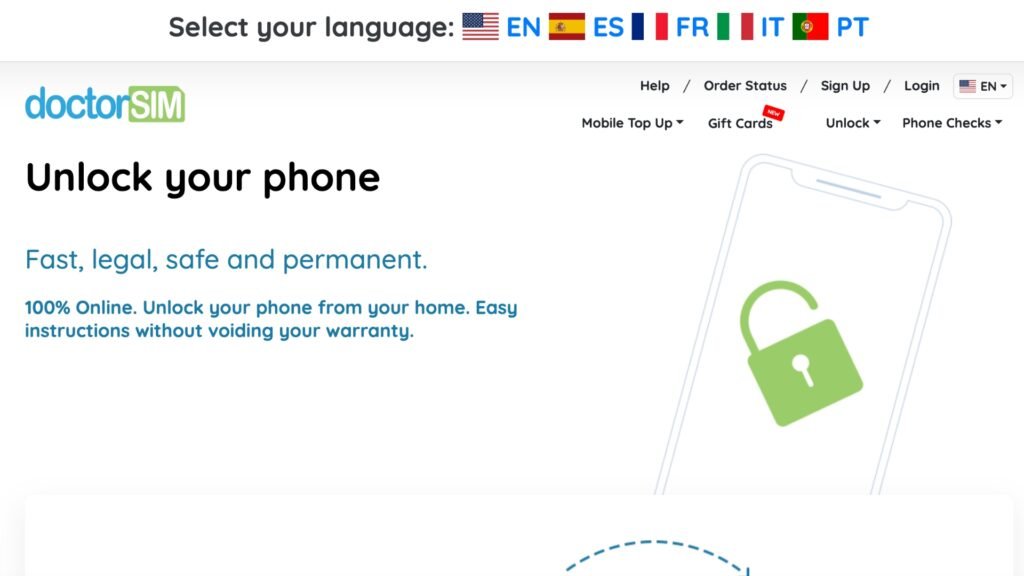
Step 1: Visit the DoctorSIM Website
Go to DoctorSIM’s official website and select the Unlock Your Phone option.
Step 2: Choose Your Phone’s Brand and Model
Select your phone’s manufacturer (e.g., Samsung, iPhone, Google, etc.) and choose the specific model.
Step 3: Enter Your IMEI Number
Dial *#06# on your phone to find your IMEI number, then enter it in the required field on the website.
Step 4: Select Your Carrier
Choose the original carrier your phone is locked to (e.g., AT&T, T-Mobile, Verizon, etc.).
Step 5: Choose an Unlocking Plan
DoctorSIM offers different unlocking options based on price and processing time. Select the plan that suits your needs.
Step 6: Complete Payment
Enter your details and make a secure payment. Prices vary depending on the carrier and phone model.
Step 7: Wait for Your Unlock Code or Confirmation
DoctorSIM will process your request and send the unlock code (for Android) or remote unlocking instructions (for iPhones). Processing times vary but usually range from a few hours to a couple of days.
Step 8: Enter the Unlock Code (For Android Devices)
If you receive an unlock code:
- Insert a new SIM card from a different carrier.
- Your phone will prompt you to enter the unlock code.
- Type in the code provided by DoctorSIM and confirm.
- Your phone is now unlocked and ready to use with any carrier.
Step 9: Complete the Unlocking Process for iPhones
For iPhones, DoctorSIM typically unlocks your device remotely. You may need to:
- Connect your iPhone to Wi-Fi and restart it.
- If necessary, insert a new SIM card and wait for activation.
- If the unlock does not apply instantly, connect your phone to iTunes or Finder, and it should activate within minutes.
Step 10: Enjoy Your Unlocked Phone
Once unlocked, you can use any SIM card worldwide, making international travel easier and more affordable.
Before traveling, test your phone with a different carrier’s SIM card to ensure the unlock was successful.
2. Using a UnlockBase
UnlockBase is a trusted third-party unlocking service that provides unlock codes for various phone models and carriers. Follow these steps to unlock your phone for international use.
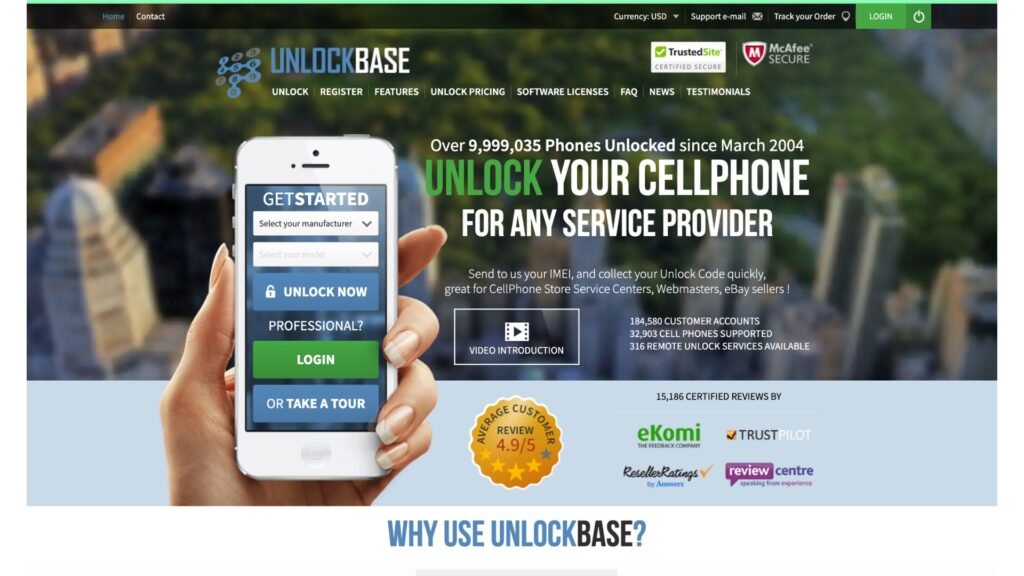
Step 1: Visit the UnlockBase Website
Go to UnlockBase and navigate to the phone unlocking section.
Step 2: Select Your Phone Model and Carrier
Enter your phone’s brand, model, and the original carrier it is locked to.
Step 3: Find Your IMEI Number
Dial *#06# on your phone to display your IMEI number and enter it on the UnlockBase website.
Step 4: Choose a Payment Option
Review the pricing and processing time for your device, then proceed with payment.
Step 5: Receive Your Unlock Code
Once processed, UnlockBase will email you an unlock code along with step-by-step instructions. Processing time may vary based on your phone model and carrier.
Step 6: Enter the Unlock Code
- Power off your phone.
- Insert a SIM card from a different carrier.
- Turn your phone back on and enter the unlock code when prompted.
- If entered correctly, your phone should now be unlocked and ready for international use.
Step 7: Test Your Unlocked Phone
Make a call or use mobile data with the new SIM card to confirm that the unlock was successful.
3. Using CellUnlocker
CellUnlocker is a trusted third-party unlocking service that provides unlock codes for most phone models and carriers. Here’s how to use it:
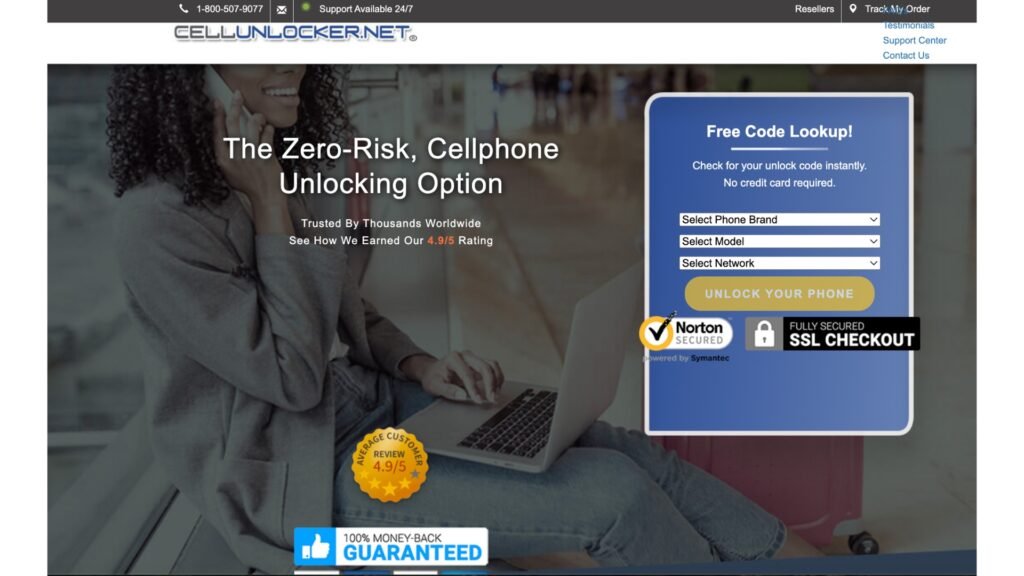
Step 1: Visit the CellUnlocker Website
Go to CellUnlocker and navigate to the phone unlocking section.
Step 2: Enter Your Phone Details
- Select your phone brand and model from the dropdown menu.
- Enter your IMEI number (dial *#06# to find it).
- Choose your current network carrier (the one your phone is locked to).
Step 3: Submit Your Unlock Request
After entering the details, click “Unlock Now” to check pricing and processing time. If available, proceed with the purchase.
Step 4: Receive Your Unlock Code
Once your request is processed, you’ll receive an unlock code via email (for most phones) or direct unlock instructions. The time frame varies but usually takes a few hours to a couple of days.
Step 5: Enter the Unlock Code
- Turn off your phone and insert a SIM card from a different carrier.
- Turn the phone back on. A prompt will appear asking for an unlock code.
- Enter the unlock code provided by CellUnlocker.
Step 6: Confirm Unlock Success
After entering the code, your phone should accept the new SIM and connect to the network. If you see a signal and can make calls, your phone is successfully unlocked and ready for international use.
💡 Final Tip: Before traveling, test your unlocked phone with a different SIM to ensure it works properly.
Method 3: Unlocking a Phone Using Software (For Tech-Savvy Users)
Unlocking a phone with software is an option for tech-savvy users, but it comes with risks. This method bypasses carrier restrictions using third-party tools, but it can void your warranty, expose your phone to security threats, or even render it unusable if not done correctly. Many newer phones have stronger security protections, making software unlocking more difficult than before.
Risks of Software Unlocking
- Voiding Warranty – Most manufacturers and carriers consider software unlocking unauthorized, meaning your phone’s warranty could be invalidated.
- Security Threats – Downloading software from unverified sources can introduce malware, spyware, or viruses to your device.
- Bricking Your Phone – If the unlocking process goes wrong, your phone could become completely unusable.
- No Carrier Support – Once a phone is unlocked through software, carriers won’t provide technical support for issues related to connectivity or network settings.
Recommended Safe Tools (If Applicable)
For older phones, certain tools have been used for software unlocking, but they are not guaranteed to work on all devices. If you choose to go this route, proceed with caution and ensure you’re using trusted sources.
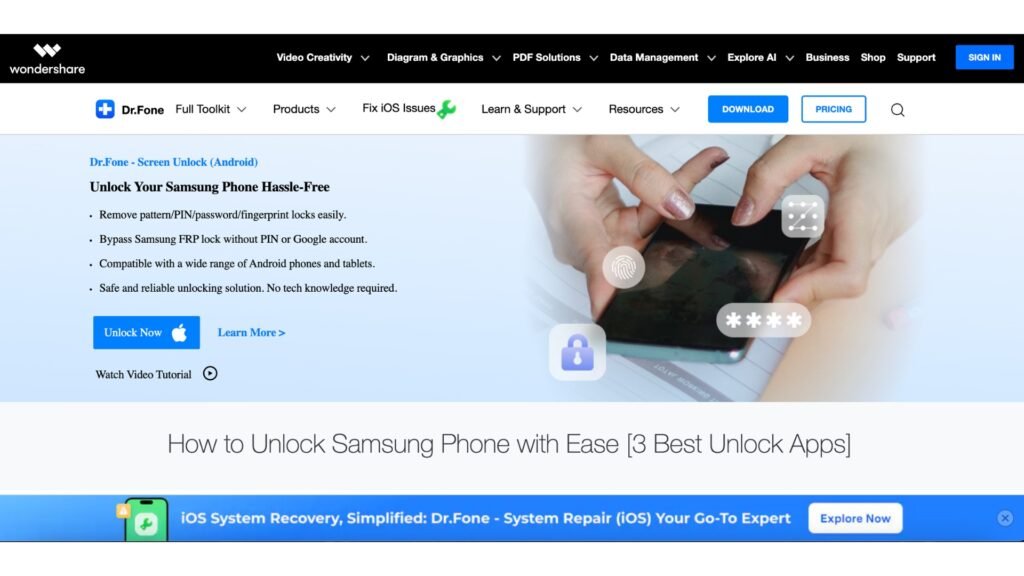
Dr.Fone (For Samsung Phones) – Allows remote unlocking of some Samsung models.
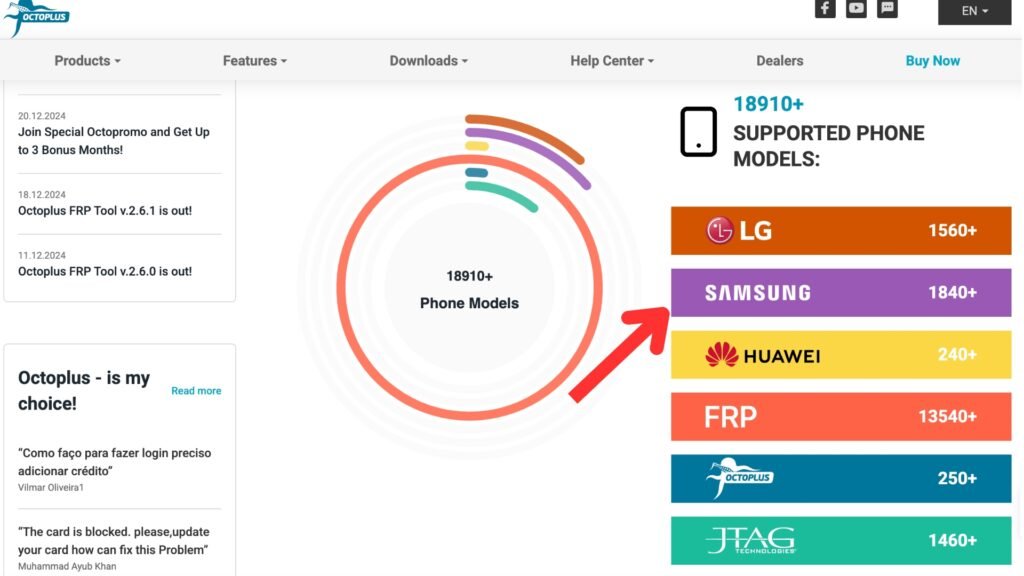
Octoplus Box (For Samsung and LG Phones) – Advanced tool used by technicians for unlocking and repairing phones.
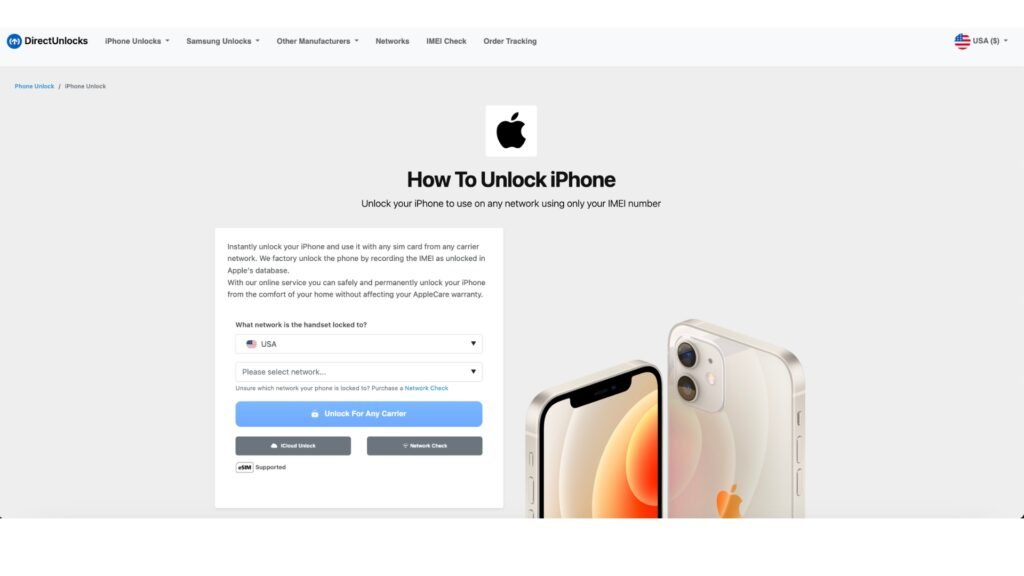
DirectUnlocks (For iPhones, All iOS Versions) – Used for jailbreaking, which can sometimes enable unlocking on older iPhone models.
Final Thoughts
Software unlocking is risky and not recommended unless you’re experienced with phone modifications. The safest and most reliable way to unlock a phone is through your carrier or a trusted third-party unlocking service. If you decide to use software, make sure you research thoroughly, back up your data, and understand the potential consequences before proceeding.
Don’t Miss It:
- How to Unlock a Phone with a PUK Code
- What Is a Network Unlock Code and How to Get It?
- Unlocking Android Phones: A Complete Guide
Alternative Travel Connectivity Options
1. eSIMs – The Future of Travel Connectivity
eSIMs allow instant activation without a physical SIM card, making them a hassle-free option for travelers. Providers like Airalo, Holafly, and GigSky offer affordable global and regional plans.
2. Portable Wi-Fi Hotspots – When Unlocking Isn’t an Option
A portable Wi-Fi hotspot (e.g., Skyroam, GlocalMe) provides internet access for multiple devices without requiring a SIM swap, making it ideal for locked phones or group travel.
3. International Roaming Plans – When to Use Them as a Backup
Carriers like T-Mobile, Verizon, and AT&T offer international roaming plans, but they can be expensive. These plans work best for short trips where convenience matters more than cost.
🔹 Popular international roaming plans:
- T-Mobile Magenta Max – Free data in over 200 countries.
- Verizon TravelPass – $10/day for access to your home plan abroad.
- AT&T International Day Pass – $10/day, unlimited data and calls.
- Google Fi – Affordable roaming in 200+ countries.
💡 Best for: Short trips where convenience matters more than cost.
Common Questions About Unlocking a Phone for International Travel
Do I Need to Unlock My Phone for International Travel?
Yes, unlocking your phone before traveling internationally is essential if you want to use local SIM cards. A locked phone can only work with your original carrier’s SIM, which means you’ll be stuck paying expensive roaming fees. With an unlocked phone, you can insert a local SIM card in the country you visit and enjoy affordable data, calls, and texts. This not only helps you stay connected but also saves you a lot of money compared to your home carrier’s international rates.
Is My Phone Unlocked for International SIM Cards?
To check if your phone is unlocked, follow these simple steps:
- Power off your phone and remove your current SIM card.
- Insert a SIM card from a different carrier.
- Turn your phone back on and try making a call.
- If the call goes through, your phone is unlocked. If you see an error message like “SIM Not Supported” or “Invalid SIM,” your phone is still locked to your original carrier.
Do Unlocked Phones Work Internationally?
Yes, unlocked phones work in most countries, as long as they are compatible with the network bands used there. The main advantage of an unlocked phone is that you can insert any carrier’s SIM card, allowing you to access local rates instead of expensive roaming fees. If your phone supports global network bands (GSM and LTE), it should work in most places. However, it’s always a good idea to check compatibility with the network in your destination country.
Can I Relock My Phone After Inserting a Different SIM?
No, once a phone is officially unlocked, it remains unlocked permanently. You can swap SIM cards as often as you like without worrying about your phone locking itself again. Be cautious, though—some carriers may apply software restrictions that temporarily lock a phone when using certain services, but this is rare.
Will Unlocking Affect My Phone’s Performance?
No, unlocking a phone does not change its performance in any way. It only removes the software restriction that ties it to a specific carrier. Your phone will function just as before, with the added flexibility of choosing any SIM card for your network service.
Does Unlocking Void My Warranty?
If you unlock your phone through your carrier, your warranty remains intact. However, if you use third-party services or software unlocking methods, it could void the manufacturer’s warranty, depending on the terms of your device’s warranty agreement. Always check with your carrier before proceeding, and use official unlocking methods whenever possible to avoid any warranty issues.